Build a Workflow
1 min
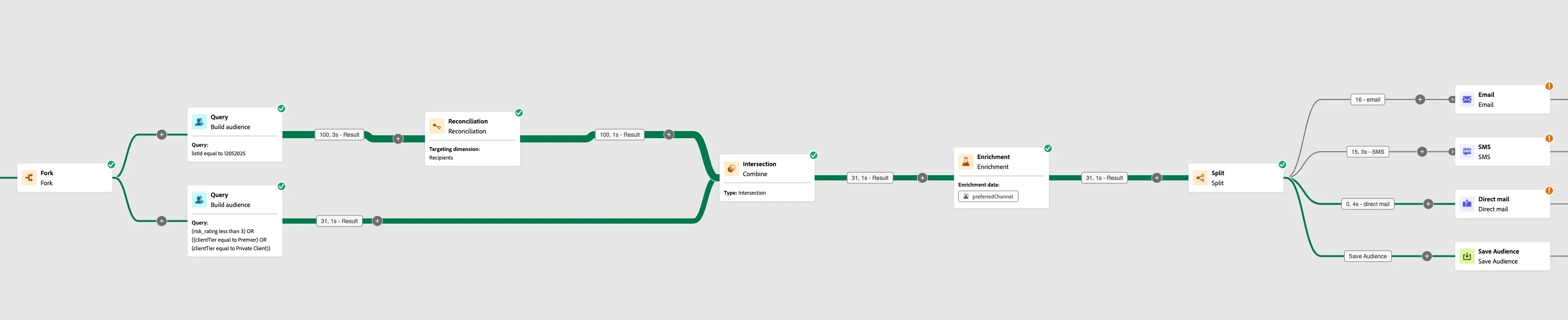
Add a Fork
- Click on the Plus Sign Icon in the canvas
- Select Fork under flow control
- Add a Build Audience node to both paths
- Top Build Audience Node Label: Adhoc List
- Bottom Build Audience Node Label: Risk and Top Customers
Build Audience Queries
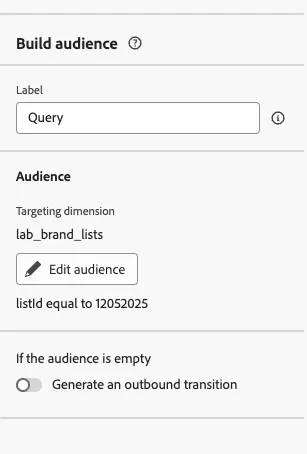
- Click back on Adhoc List Audience Node: Adhoc List
- Click the Folder Icon under Targeting Dimension
- Select your Ad-hoc List
- Click the button Edit Audience
- Click Add Condition
- The criteria should be listId equal to 12052025
- Click calculate.
- Confirm and exit to Canvas
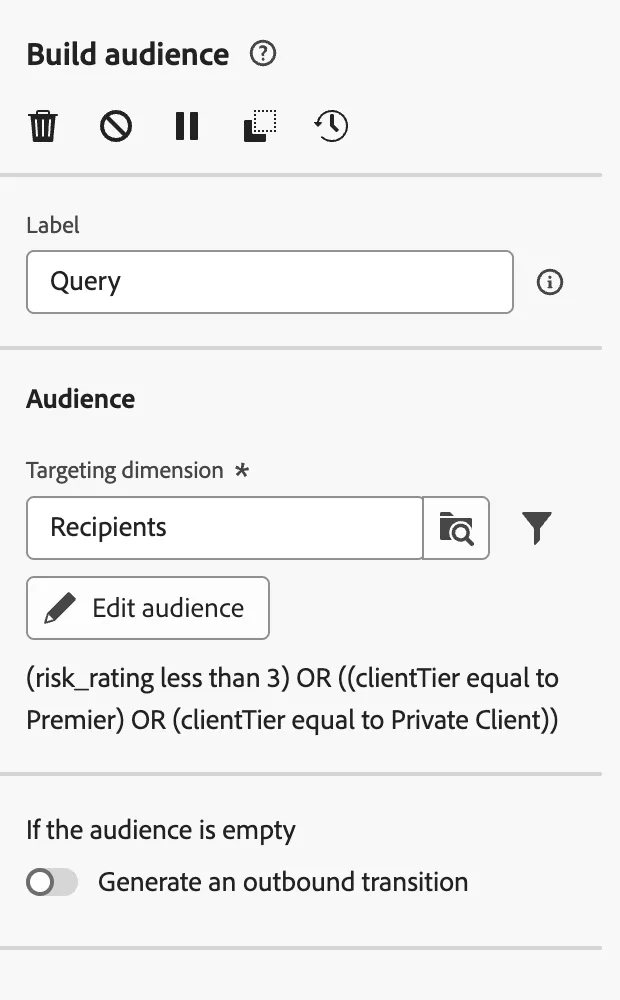
- Click back on Risk and Top Customers (Bottom Path Build Audience Node)
- Click on the Folder Icon Under Targeting Dimension
- Select Recipients
- Click the button Edit Audience
- Click Add Condition
- The criteria should be risk_rating less than 3 OR clientTier equal to Premier OR clientTier equal to Private Client
- Click Calculate
- Confirm and exit to Canvas
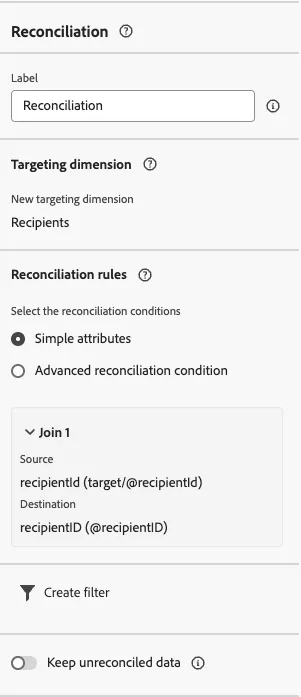
Add Reconciliation
- On the Top Path (Adhoc List query)
- Select a new targeting dimension: Recipient
- Select Simple Attributes
- Click on Add rule
- Source: Targeting Dimension --> recipientId
- Destination: recipientID
- Confirm
Add an Intersection
- On the Top Path, click the plus sign
- Add a Combine Node
- Select Intersection
- Click on the Check Box to select the bottom path Query
- Click Start on the Canvas
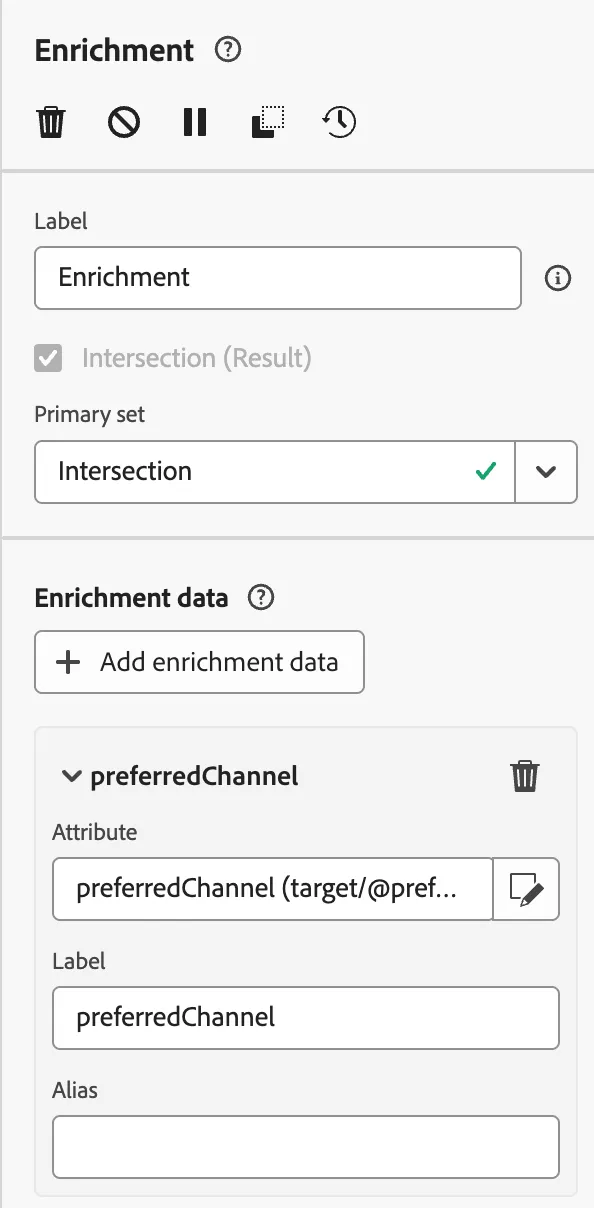
Add "Enrichment"
- Click the Plus Sign Icon next to our Intersection
- Select the Enrichment Node
- Click on Add enrichment data
- Click on Targeting Dimension
- Select preferredChannel
Add a Split
- Click on the plus sign, next to your Reconciliation node.
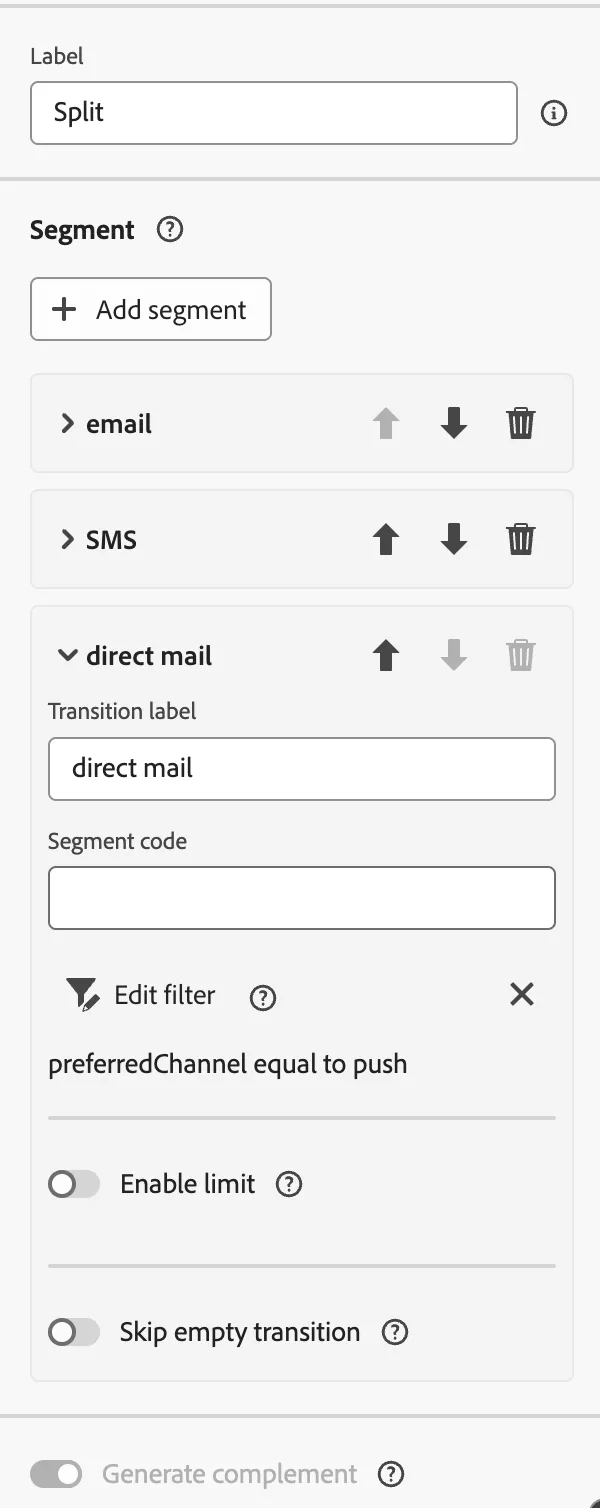
- Select the Split Node
- Add a total of 3 Segments (Labels: Email, SMS, Direct Mail)
- Email Segment:
- Click Create Filter
- Click Add Condition
- Select preferredChannel
- Condition: preferredChannel equal to email
- Repeat the steps above but for "sms" and "direct mail" (these are the values)
- Once done, select: Generate complement
- Click Start/Resume
Add Save Audience
- Click the plus sign next to the Complement path of your split
- Select Save Audience
- Audience Label: Social Media Activation - Initials
- Select the Profile Mapping Field: Recipients - recipientID
- Add an Audience Mapping and feel free to store any attribute you would like to expose as part of the audience
Add Channel Activity Nodes
- On All the other paths of our split, please click the sign plus next to them
- Add Email, SMS, and DirectMail respectively
Congratulations, you completed the Campaign Workflow! Now, we'll add content!