Binding Dimensions
Customer Journey Analytics offers several ways to persist dimension values beyond the hit that they are set on. One of the persistence methods that Adobe offers is known as Binding. In previous versions of Adobe Analytics, this concept was known as merchandising.
While you can use binding dimensions with top-level event data, this concept is best used when working with Arrays of objects. You can attribute a dimension to one part of an object array without applying the dimension to all attributes in a given event. For example, you can attribute a search term to one product in your shopping cart object array without binding that search term to the entire event.
In this Lab, we will look at offers presented to the customer and how this influences product views. We want to ensure the correct Offers presented to the customer are given credit for their influence on views for certain products.
Consider the journey:
- Customer is in the market for an insurance product, they are presented with a 3 offers.
- They view the products on the website as a result of being presented these offers.
We want to allocate the correct credit to all 3 of the offers presented to the customer.
Example: with the default last touch attribution, the customer was presented with 3 offers, but only the most recent offer presented will get credit for the product view.
We will use Binding Dimensions to properly allocate product views back to the 3 offers presented.
Create a Binding Dimension
- Go into Data views
- Search for proposition name in the list of schema fields.
- Drag the field 'name' with the schema path '_demopotemea.proposition.name' into the Dimensions
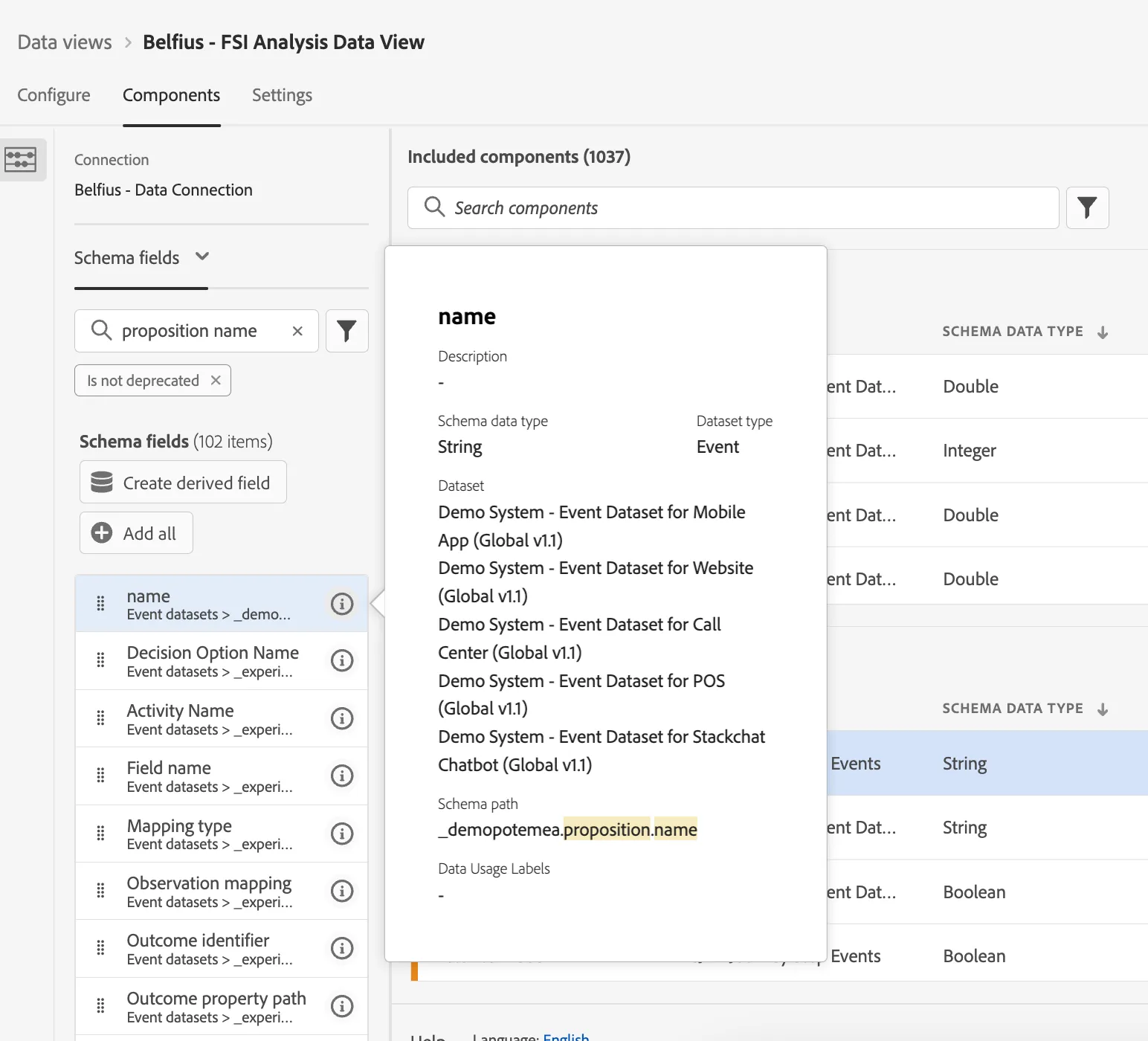
- Select this dimension and give it a friendly name: Proposition name (binding)
You can bind values to dimensions set on previous events. When you set a variable with a binding dimension, Customer Journey Analytics takes into account the persisted value. We want to bind the proposition name to the product views.
- In the Persistence settings, check the Set persistence box
- Set the values to:
- Allocation model: 'Most Recent'
- Expiration: 'Person Reporting Window'
- Binding dimension: 'Product Name'
- Binding metrics: 'Product Views'
- Save the changes to your Data view.
Using a Binding Dimension
In this lab, we will be building a table that allows us to analyse which offers proposed influence product views.
- Create a new panel;
- ensure your date range is set to the Last 2 Full Months;
- select the Freeform table visualisation as the starting point of the panel.
- click on Search Components in the left hand side panel;
- search for Proposition Name, and drag this dimension (orange component) onto the main part of the freeform table, this will display the values in the Proposition Name dimension with Events as the metric.
- pull in "Event: Offers Presented", "Event: Page Views", "Product Views" and "Product Price Total" metrics.
The resulting table should look like this:
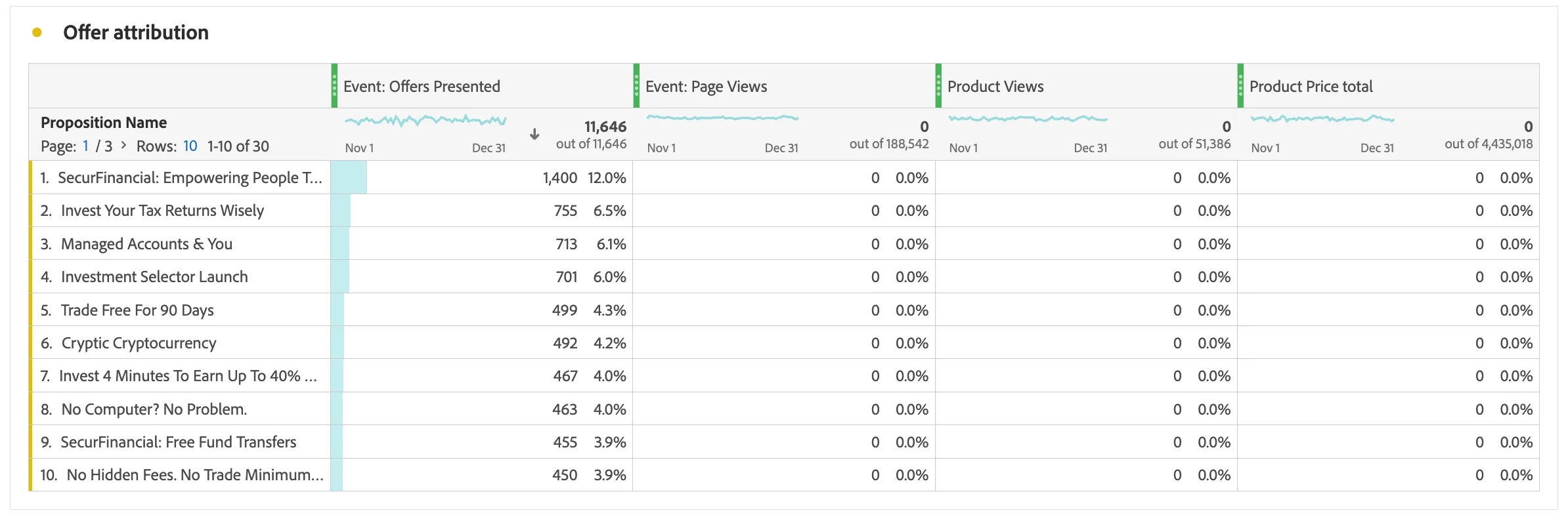
You'll see in the resulting data that there are Offers Presented events associated with each proposed offer, but we cannot see which offers led to product views. For this we need to use the binding dimension we created.
Let's analyse the same metrics, with the binding dimension:
- search for the Proposition Name (binding) dimension in the Components;
- replace the Proposition Name dimension with the binding dimension by dragging it over "Proposition Name" in the table.
The resulting table should look like this:
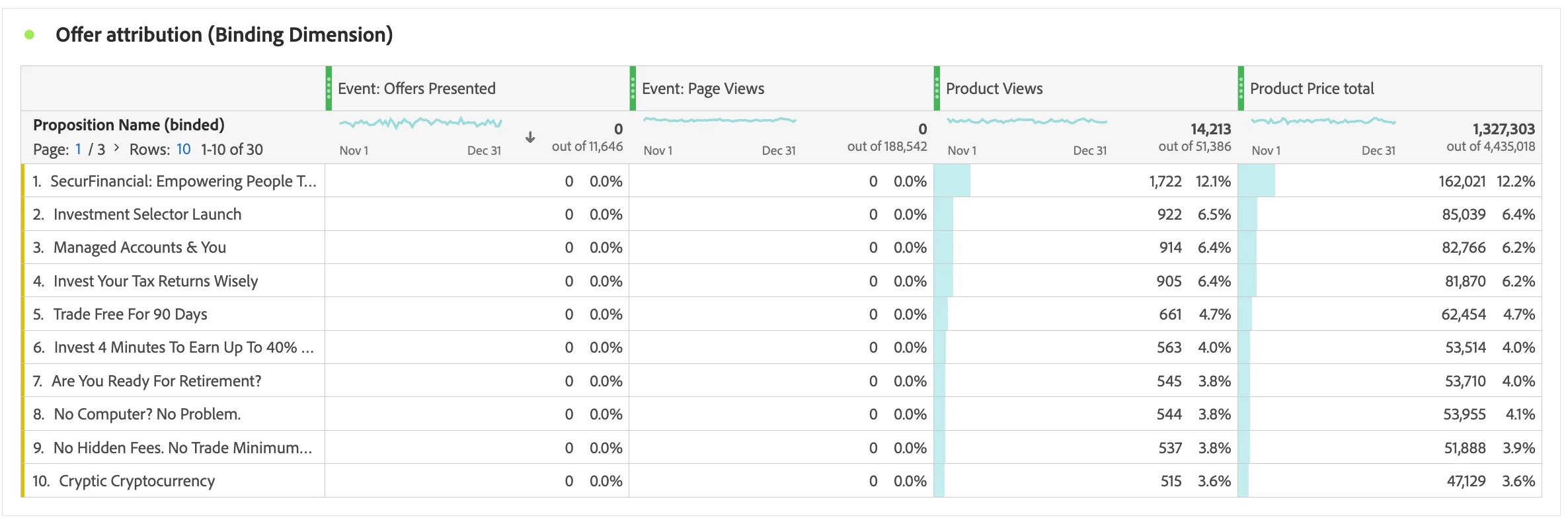
You'll see in the resulting data that we can now see a count of product views for each offer presented.