2.4 Trigger your journey
Customer journey flow
In exercise 1.2 Create an account on the website1.2 Create an account on the website you received a welcome email as part of the general journey triggered by the general registration event. Now that you have created your own login event and your own login journey, you have the opportunity to test these in action.
Return to the demo website: https://dsn.adobe.com/web/gillies-8WFS
NOTE: This web site is a demo site whose access is limited to the bootcamp attendees. When clicking on the link, you will need to log in with the Experience Cloud ID you were provided.
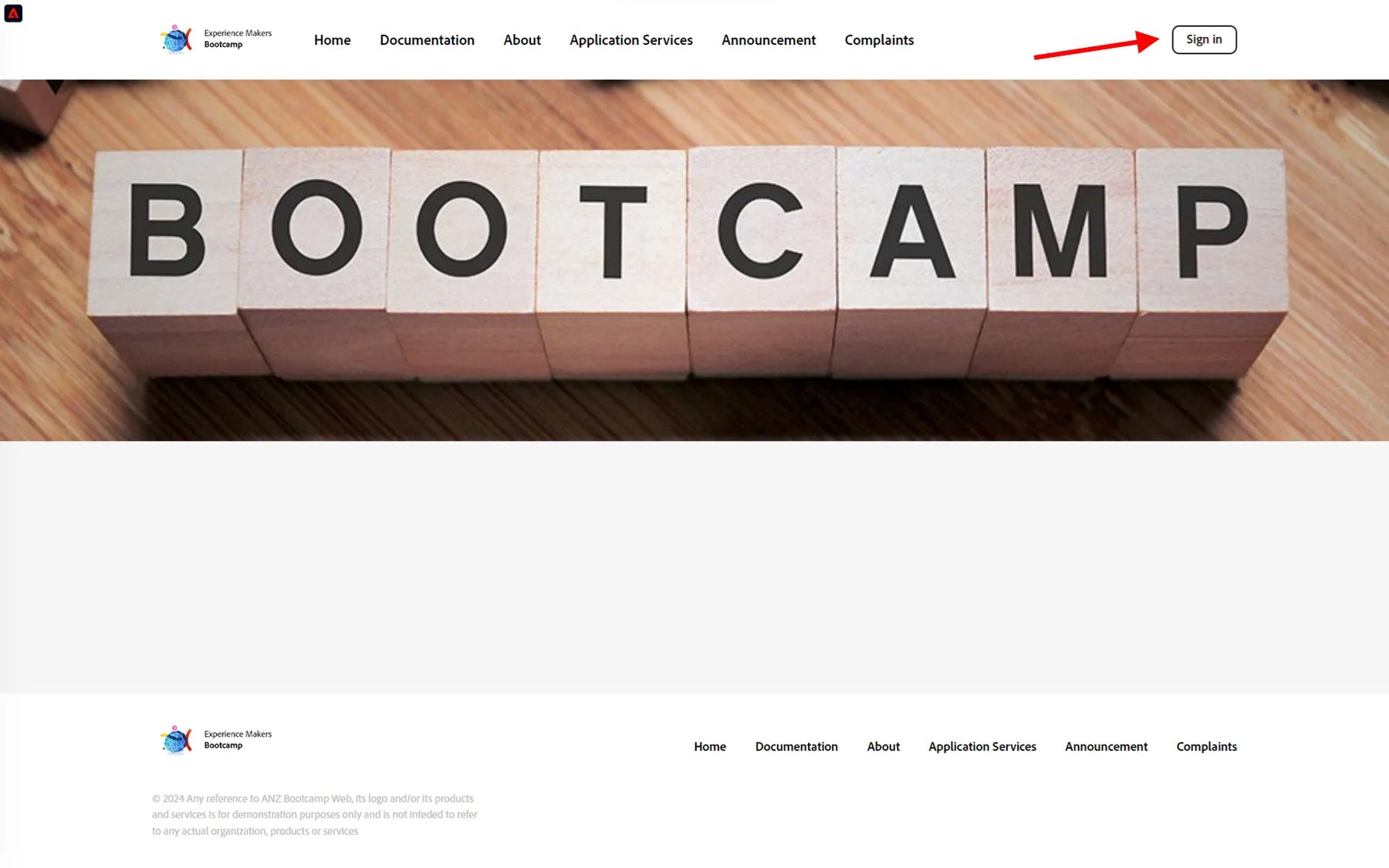
Click the Sign in button in the top right corner of your screen.
You now need to input the eventID of your custom event that you created in exercise 2.2 Create a login event. You may have saved it earlier or you can find it here:
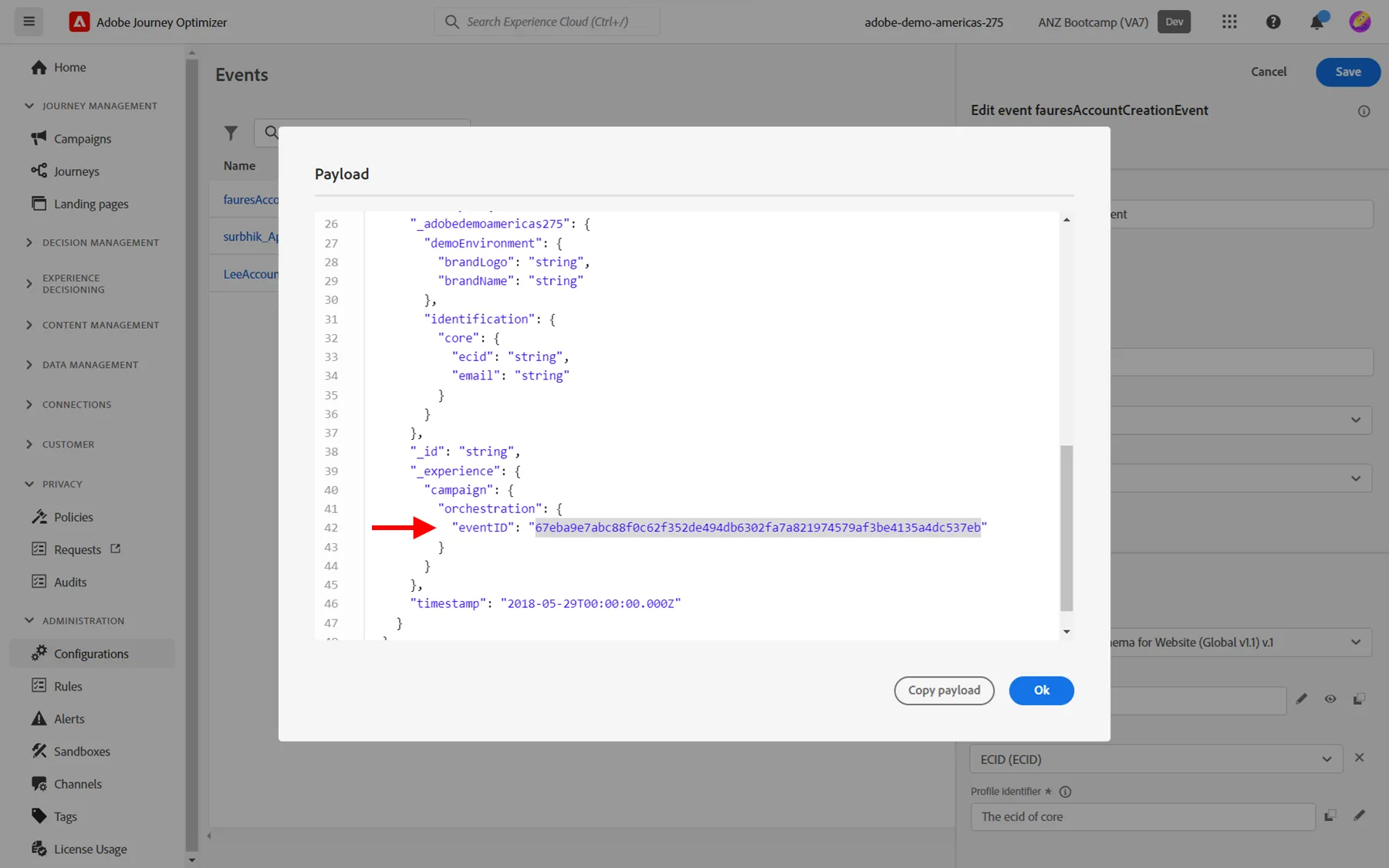
This event ID is what needs to be sent to Adobe Experience Platform in order to trigger the exact journey that you have built. The eventID in this example: "67eba9e7abc88f0c62f352de494db6302fa7a821974579af3be4135a4dc537eb" (example value)
Fill out the eventID in the field Journey Event Id, then sign in using the email address and password you registered with in exercise 1.2 Create an account on the website earlier today. Click Sign in.
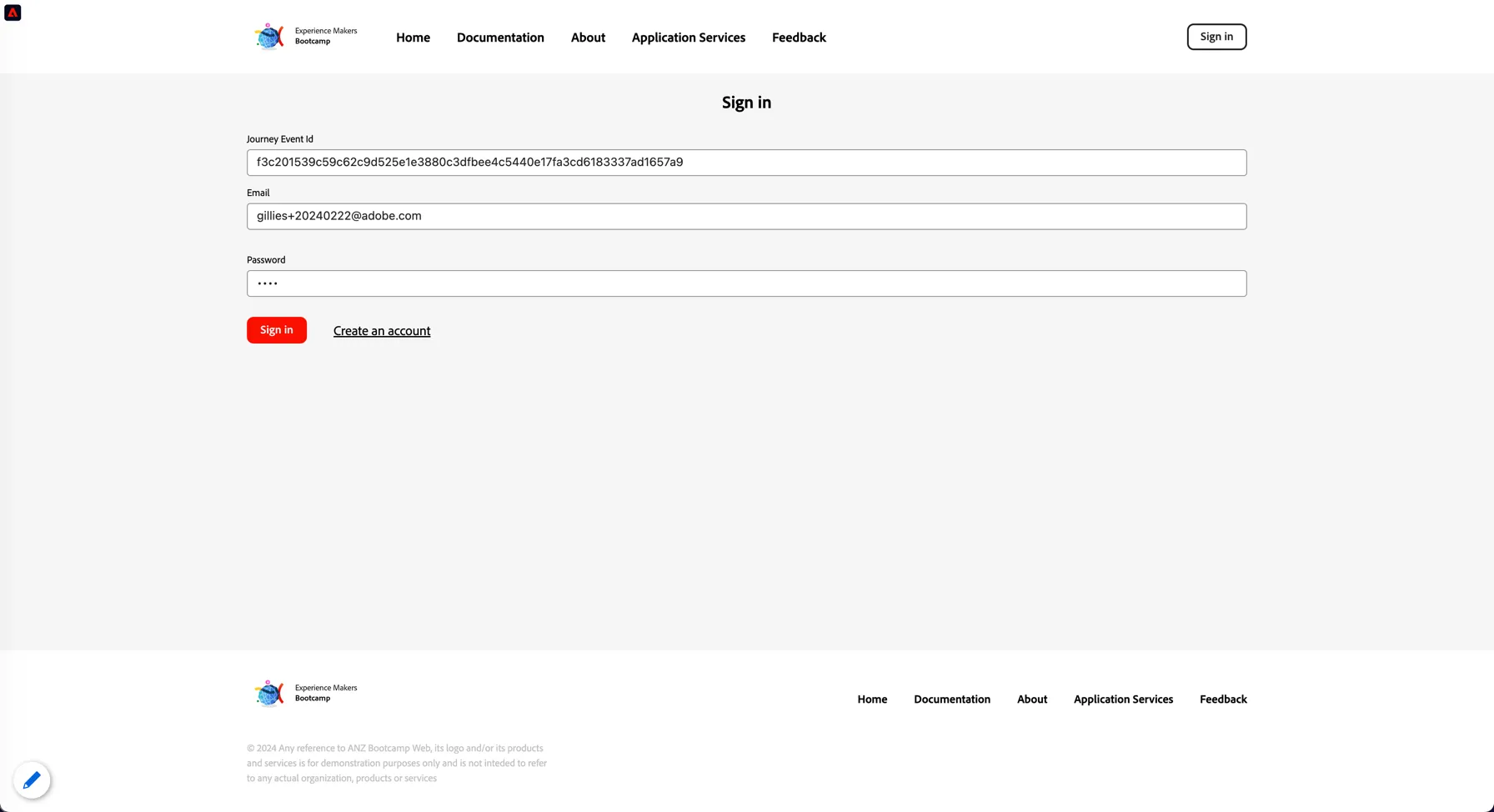
Naturally the necessity to enter a precise event ID through a form interface is only so that we can make sure every Bootcamp participant can send the login event to their exact journey. In real situation there would only be one login event sent from your website to Adobe Journey Optimizer and it would not need to be specified in the form interface.
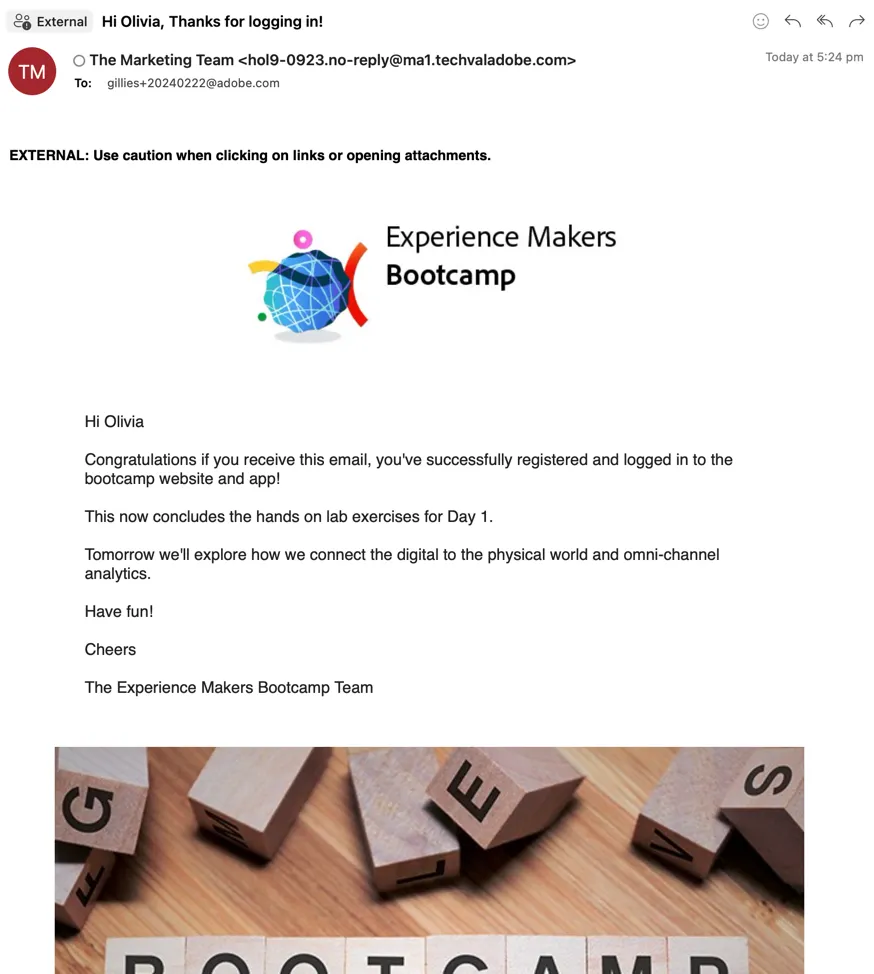
You should now receive the email you created yourself as part of exercise 2.3 Create a login journey
Exercise complete checklist
Able to login on the Bootcamp web site
Have received the login email
Congratulations! You have now completed all exercises from Day 1.