4.4 Put insights into action
Publishing audiences provides a clear way to activate and to take action on insights found within Customer Journey Analytics. These actions might include:
- Using the audience for a journey in Adobe Journey Optimizer.
- Exporting the audience to a 3rd-party through a CDP destination.
- Enriching the Real-time customer profile with useful attributes derived from event-based data in Customer Journey Analytics.
The audiences you create in Customer Journey Analytics do not have to be based on datasets enabled for profile. You can ingest historical data into Experience Platform without enabling associated datasets and schemas for profile. Then use these datasets to discover relevant audiences in Customer Journey Analytics and publish these audiences to Real-time Customer Profile in Experience Platform for activation purposes.
Exercise:
In this exercise, we'll use the application fall out audiences to be shared in AEP for activation via CDP or AJO.
4.4.1 Understand the drop off point for applications to open an account
The Fallout visualisation is great for understanding customer paths when there are specific points or events you want to account for. For example, measuring which customers are starting a journey such as an application to open a new account or credit card, and understand where they drop off.
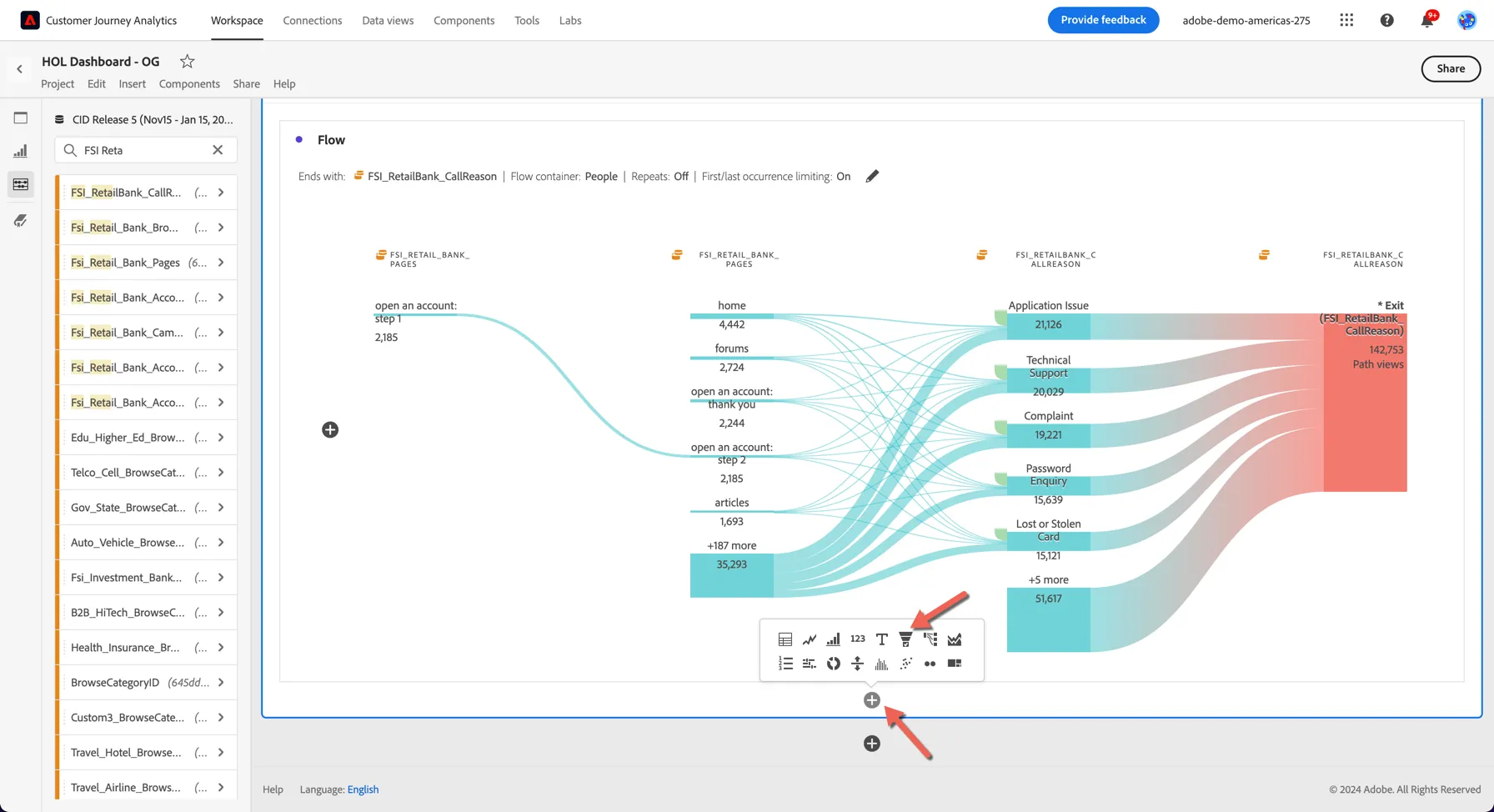
- Add a new visualisation to your dashboard by clicking the + icon inside the panel at the bottom. Select the icon that looks like a Funnel
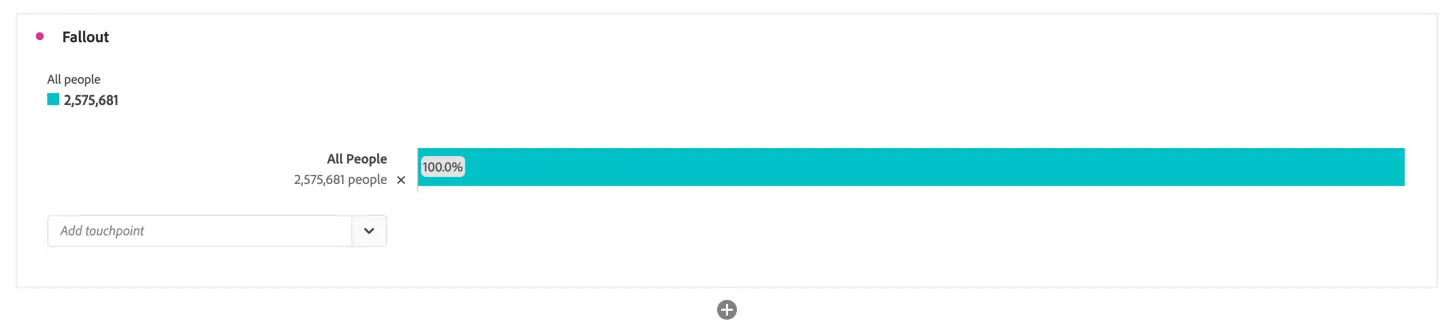
The fallout will start with all people. It then requires you to add the touch points in the process that you want to measure fall-through on as well as fall-out for.
2. From the Components menu, drill into the values for FSI_RetailBank_Pages and search for open.
- Drag open an account: step 1 into the Add Touchpoint drop zone, just under all people
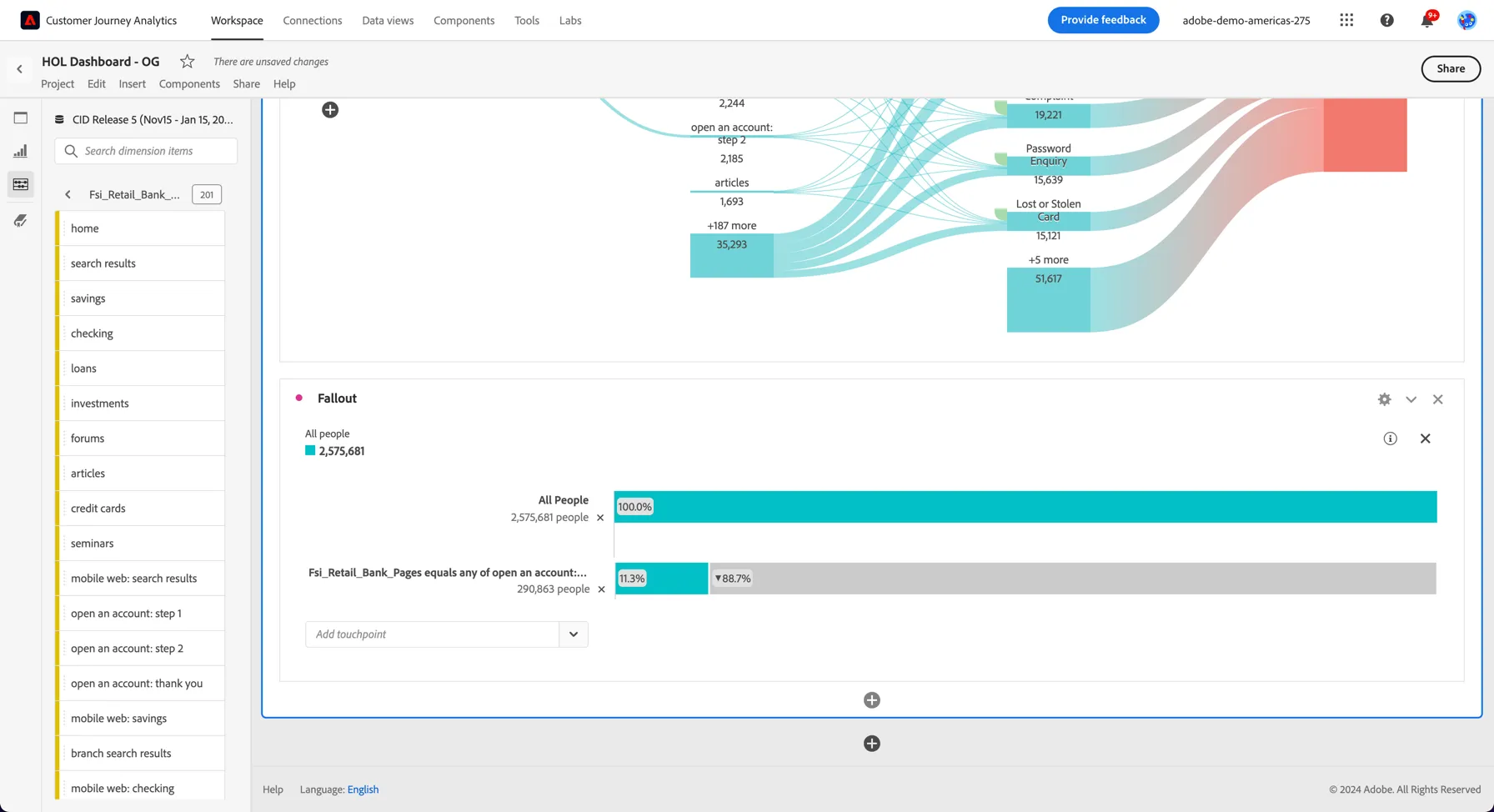
3. Repeat the process for open an account: step 2 and open an account: thank you
4. Rename your fallout to Application abandonment (click on Fallout & rename)
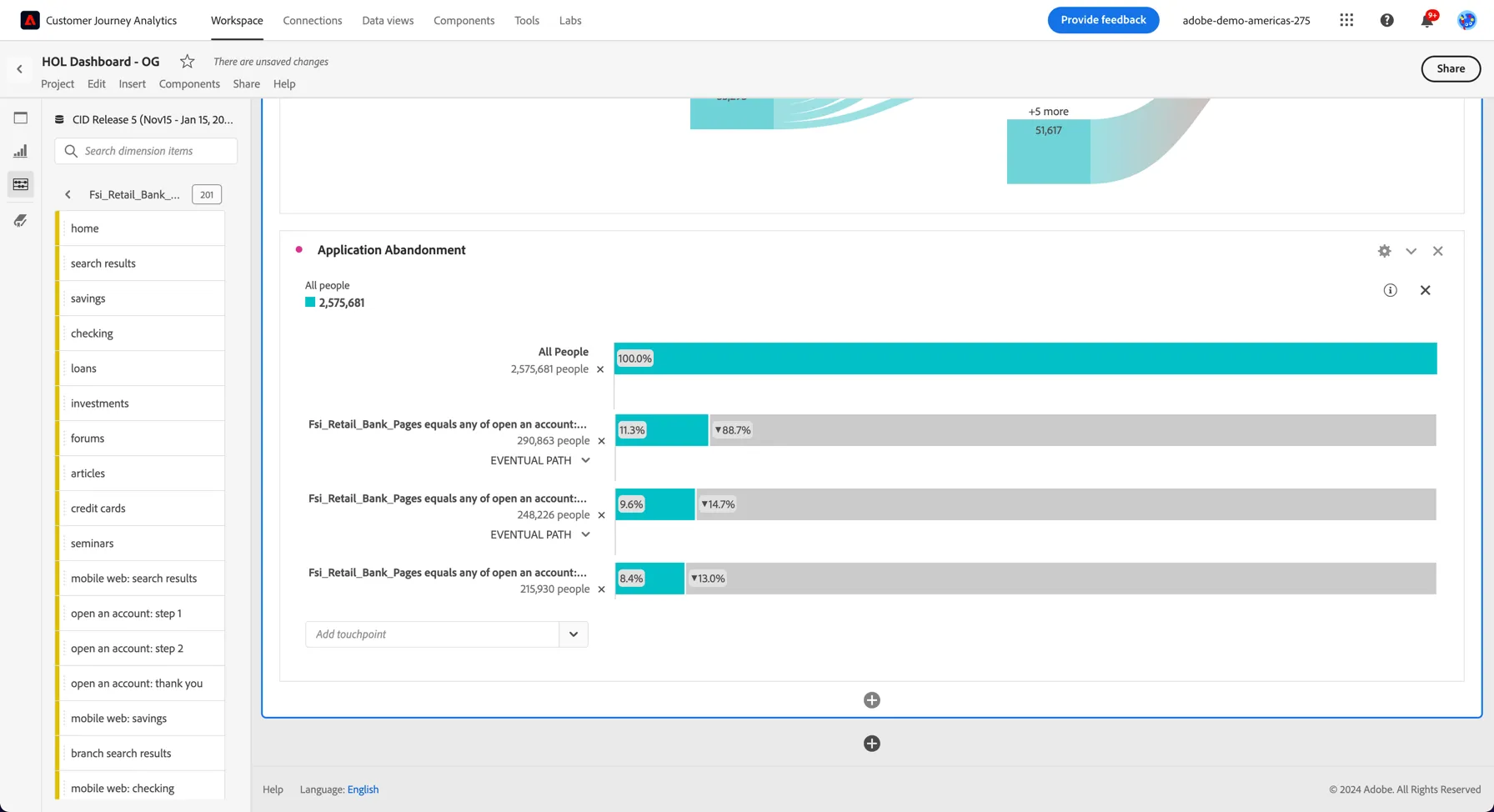
5. Finally hit Ctrl/Command S to Save your project.
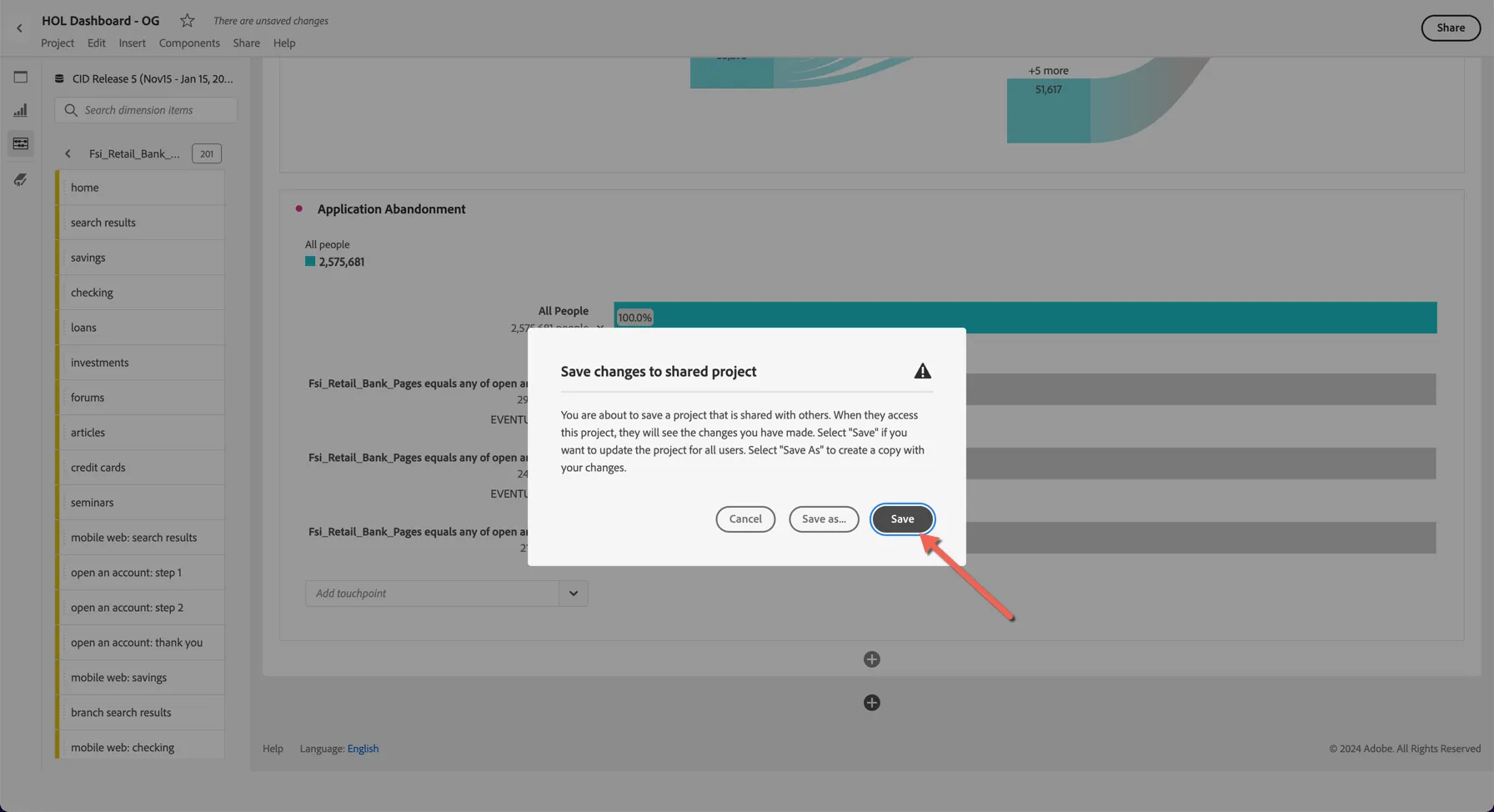
This is a great way to understand if your application process is too complex and need to be optimized.
4.4.2 Create an audience from the fall out
- Looking at the fallout report, we can see the number of people who fell off the journey at step 2.
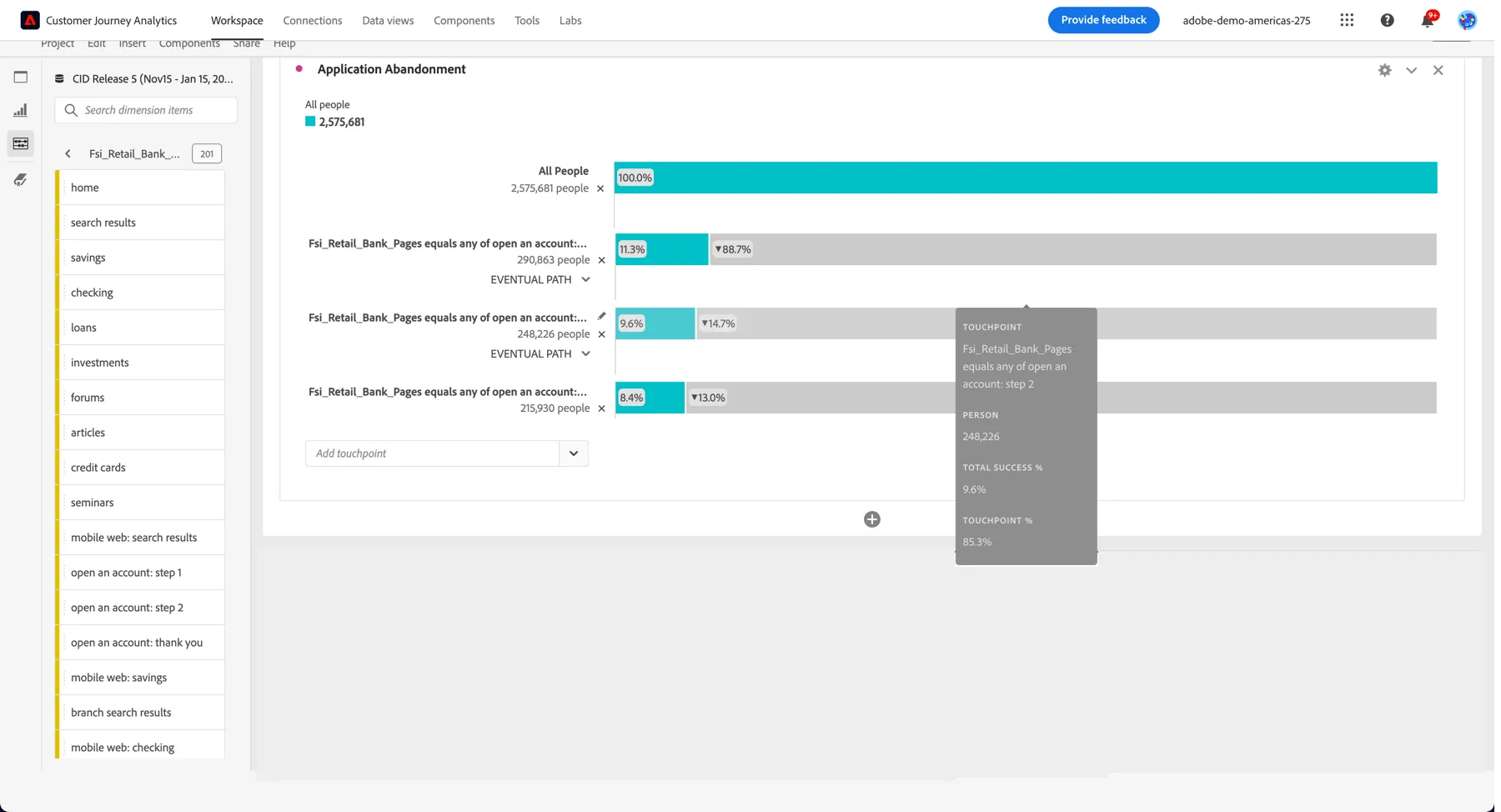
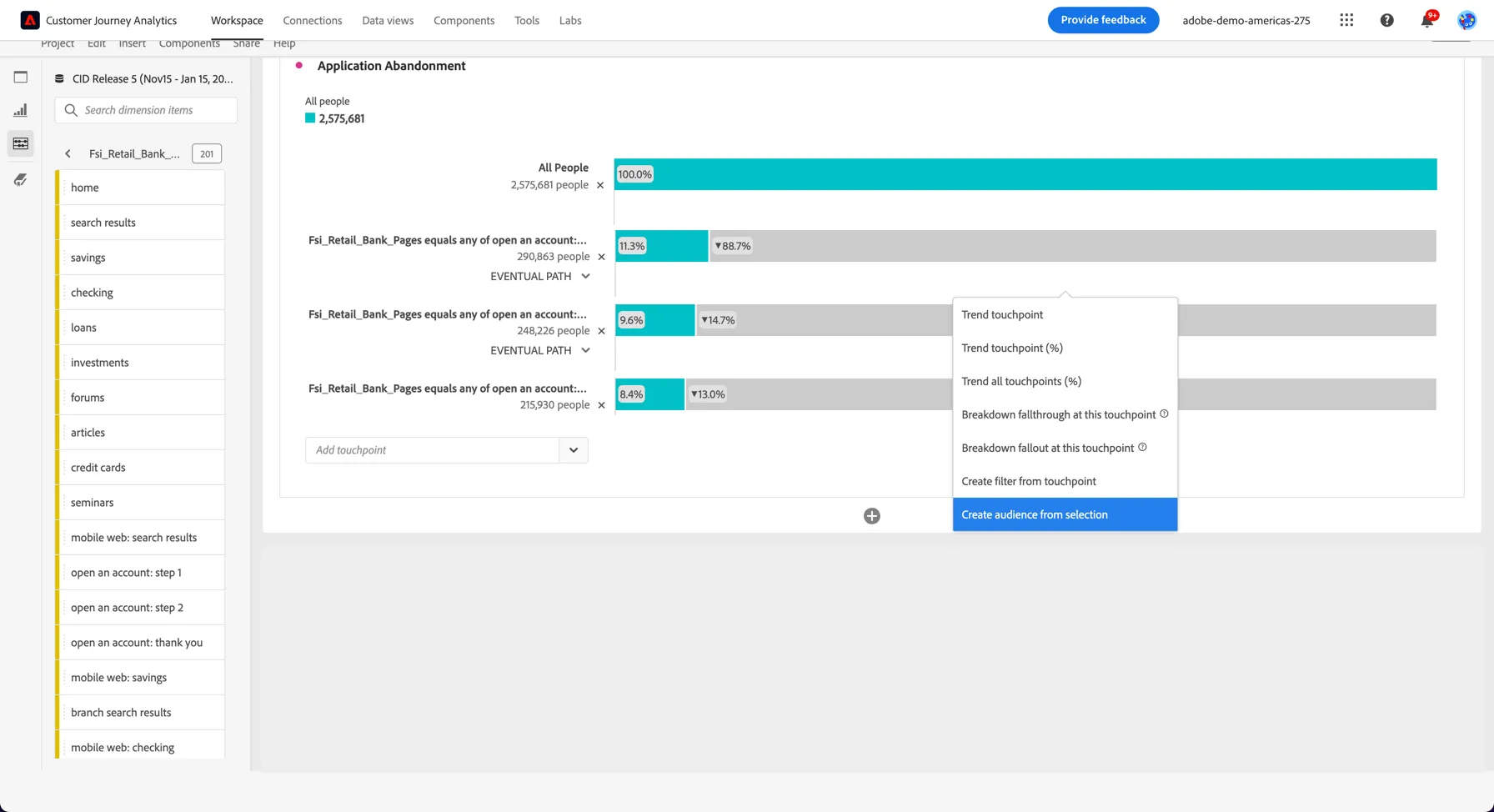
2. Right click on the fallout and select to Create an Audience from Selection
3. Give your audience a name <lastname>_ApplicationFallOut. You can see the estimated number of profiles on the right.
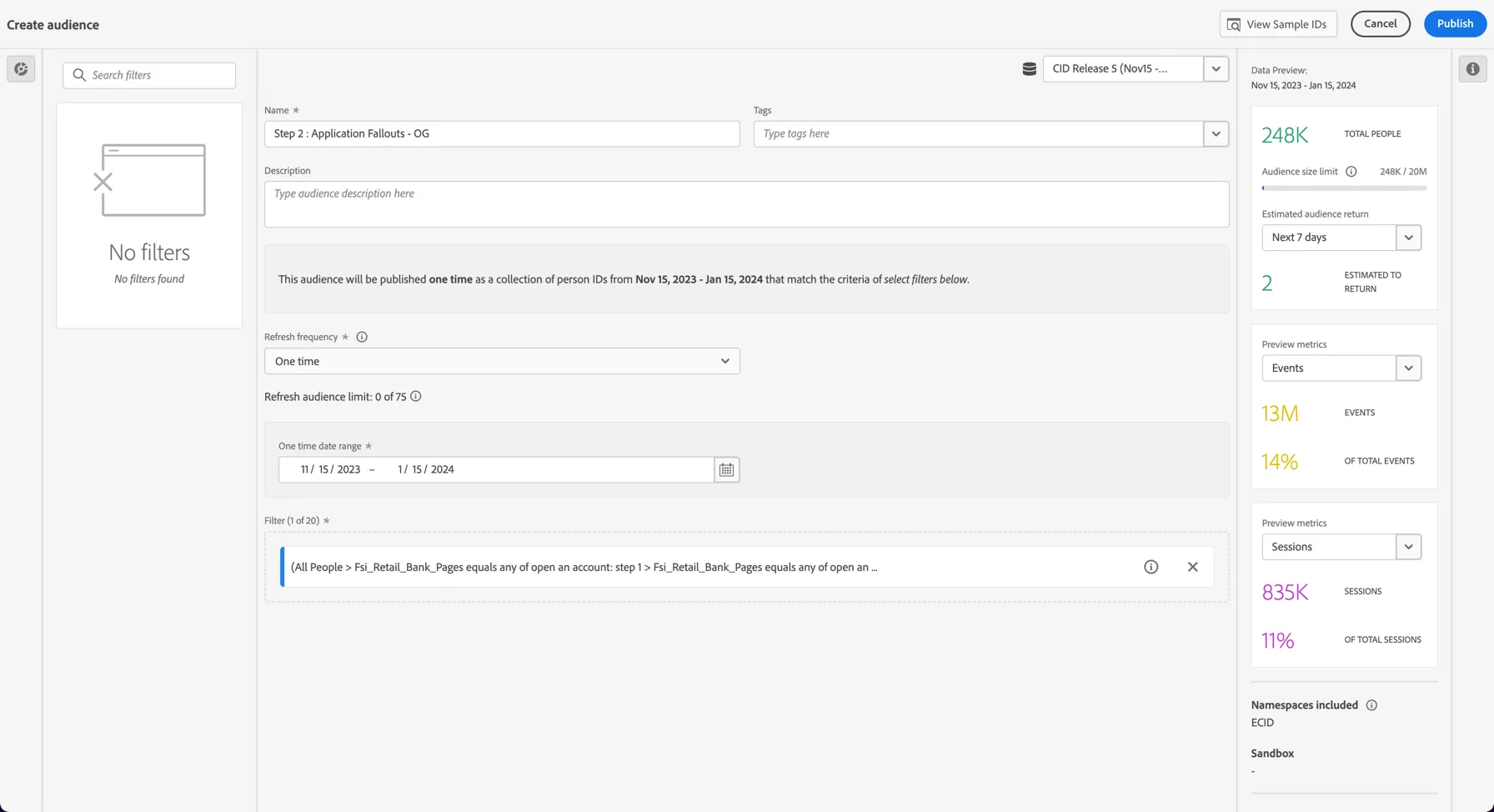
4. Finally, click Publish.
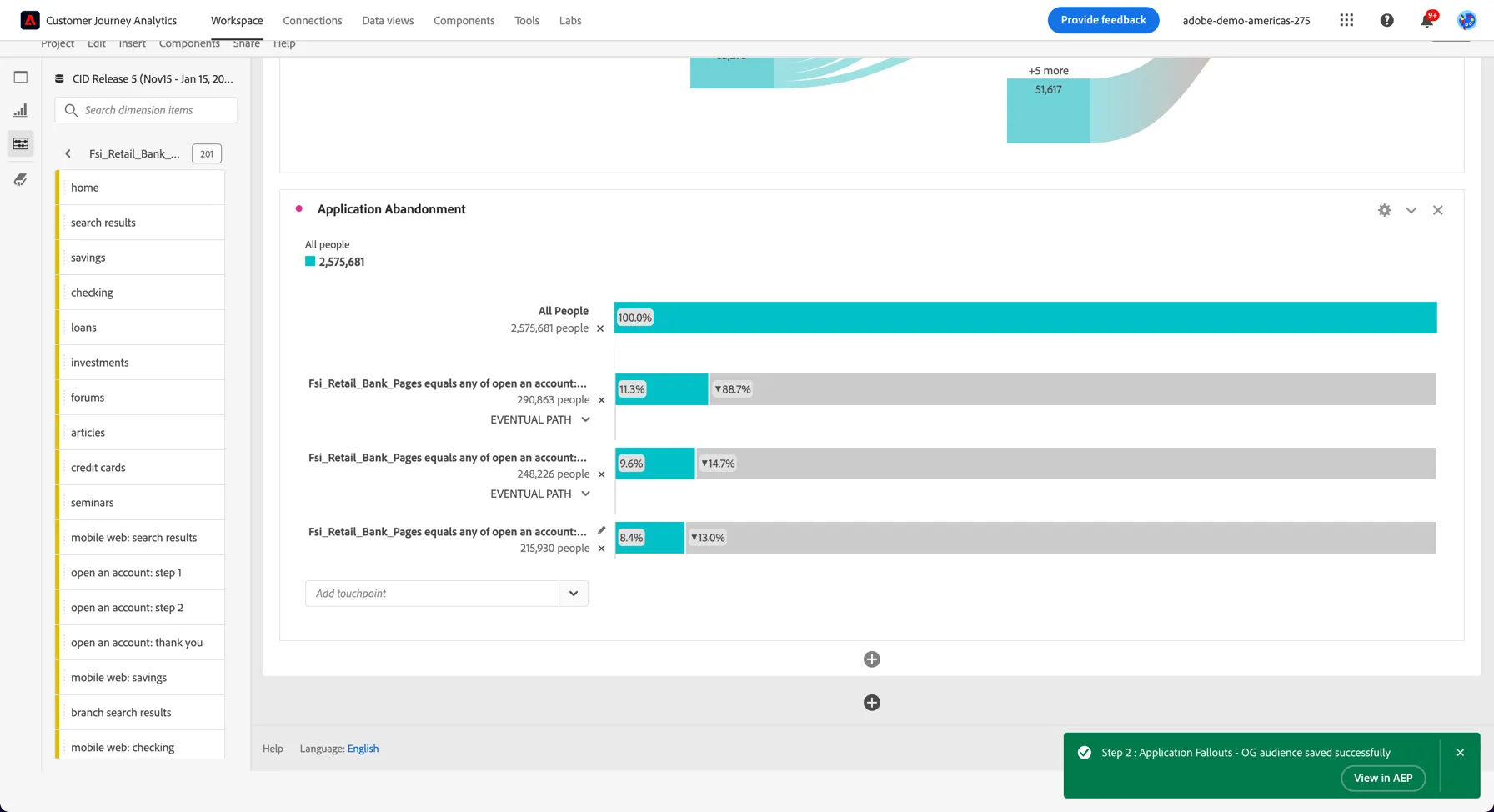
4.4.3 View your segment in Adobe Experience Platform
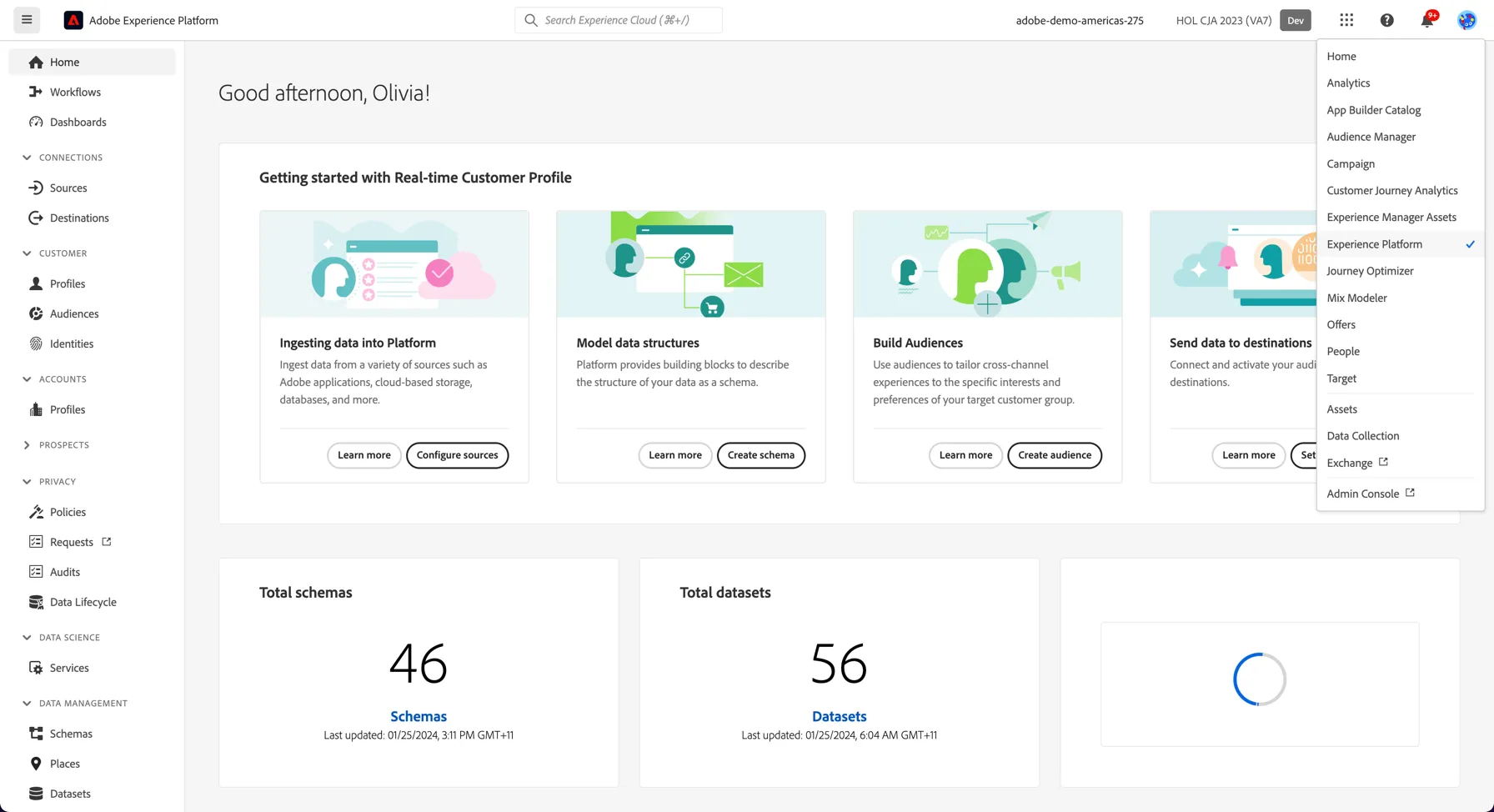
Click on the View in AEP - green box at the right hand side bottom screen (above screenshot). This will take you to Adobe Experience Platform. Change Sandboxe to HOL CJA 2023 (for the purpose of this bootcamp, this is the sandbox where the CJA data was loaded).
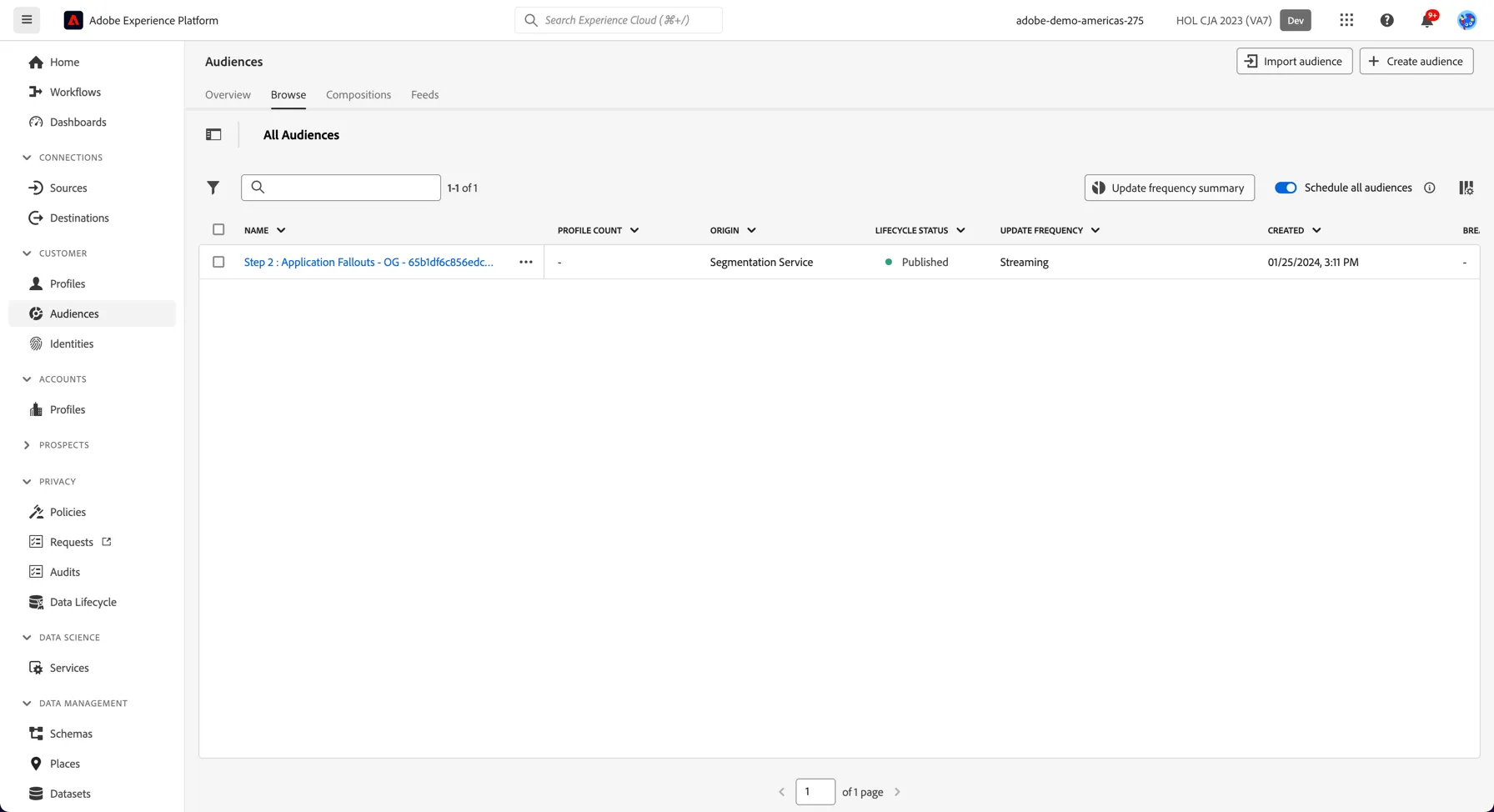
Search for your audience - your audience is now visible in the Audiences Screen and ready to activate via a CDP Destination or in a Journey or Campaign from Adobe Journey Optimizer.
Exercise Complete Checklist
Able to create & publish an audience from CJA fall out chart
Able to view the audience in AEP for further activation
You have now seen how insights determined from looking at historical behaviour in Customer Journey Analytics can also be used to activate across your marketing destinations and channels.