1.2 Configuring Parameters
Exercise 1.2: Selecting the Express Template and Configuring Parameters in GenStudio
Duration: 7 minutes
Understanding Template Selection and Brand Parameters
With the Express template built and shared, the performance marketer's workflow begins in GenStudio for Performance Marketing. The marketer navigates to Create, selects the ad channel (Meta, LinkedIn, or Display), and chooses "From Express templates" to pick the brand-owned template the creative team designed. This is the moment where the creative team's template investment meets the marketer's execution workflow.
After selecting the template, the marketer configures parameters in the prompt drawer: Brand (which injects brand voice, messaging guidelines, and visual standards), Product (which informs product-specific messaging), and Persona (which shapes tone, vocabulary, and motivational framing). The marketer also adds approved image assets from the Content library or a connected AEM Content Hub repository. These parameters, combined with a descriptive prompt, guide the generative AI to produce on-brand variants that inherit the template's locked structure.
Value for Your Organization:
- Brand identity is codified once in guidelines and enforced across every piece of generated content
- System managers control what the AI produces by updating guidelines, not by reviewing every output manually
- Multiple brands, products, and personas can coexist, enabling portfolio-wide content generation
- Approved assets from AEM Content Hub are surfaced directly in the creation workflow
- Guidelines evolve with the brand; updates are immediately reflected in future generations
- The Express template's locked structure carries through to every generated variant
Step-by-Step Instructions
Step 1: Navigate to GenStudio for Performance Marketing
- Open GenStudio for Performance Marketing from experience.adobe.com or via direct URL
- The Create home page displays channel sections: Owned media, Paid media, Content, and Recents
- Locate the Paid media section
Step 2: Select the ad channel
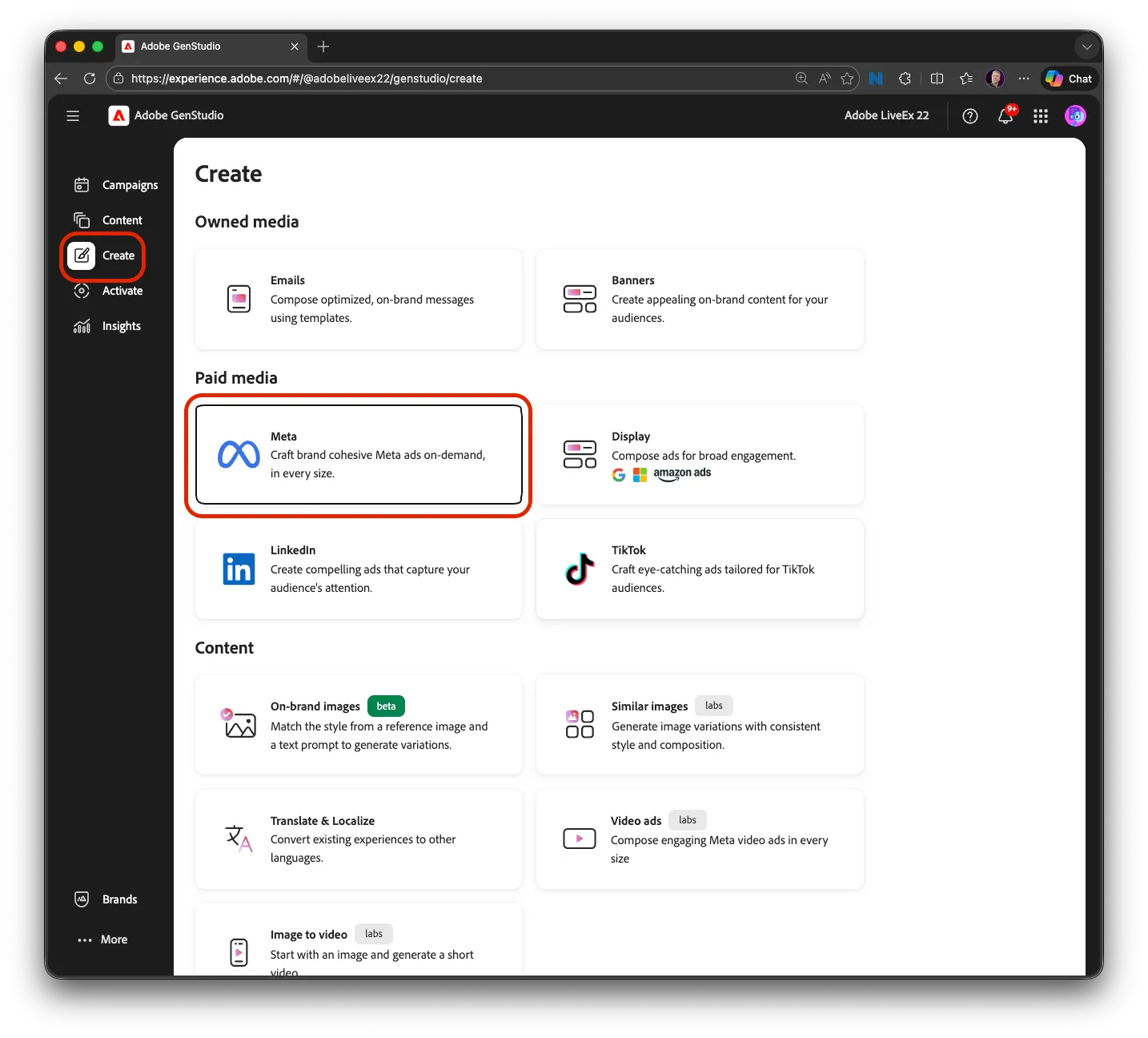
- Click "Meta ads" in the Paid media section
- The template picker opens, showing available templates organized by source
Step 3: Choose the Express template
- Select "Express templates" to browse templates shared by the creative team
- Locate the "Genera_B2B Peça pacientes 03" template
- Note the template preview showing the same locked layout you explored in Exercise 1.1 (or review locks in Create window)
- Click to select the template; the prompt drawer opens on the left side of the Canvas
Step 4: Configure the Brand parameter
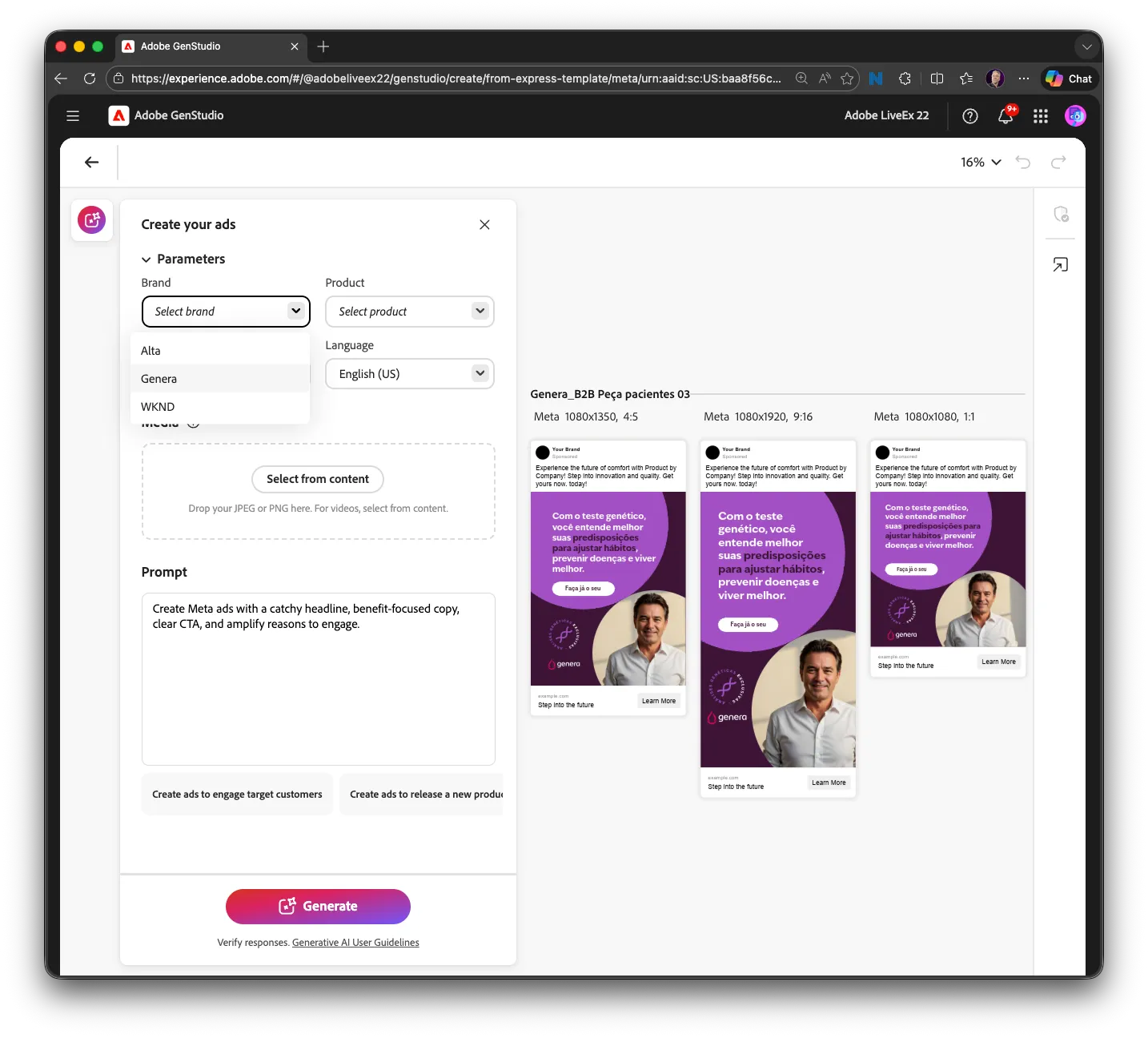
- In the Parameters section of the prompt drawer, click the Brand dropdown
- Select "Genera"
- The brand's voice, messaging guidelines, and visual standards will now inform all generated copy
Step 5: Add the Product parameter
- Click the Product dropdown
- Select "Genera: Premium" or other
Step 6: Add the Persona parameter
- Click the Persona dropdown
- Select "Genera: Descoberta Pessoal" or other
- The AI will now tailor vocabulary, tone, and motivational framing for this audience
Step 7: Add the Persona parameter
- Navigate to Portuguese (Brazil)
Step 8: Add approved imagery from approved Content
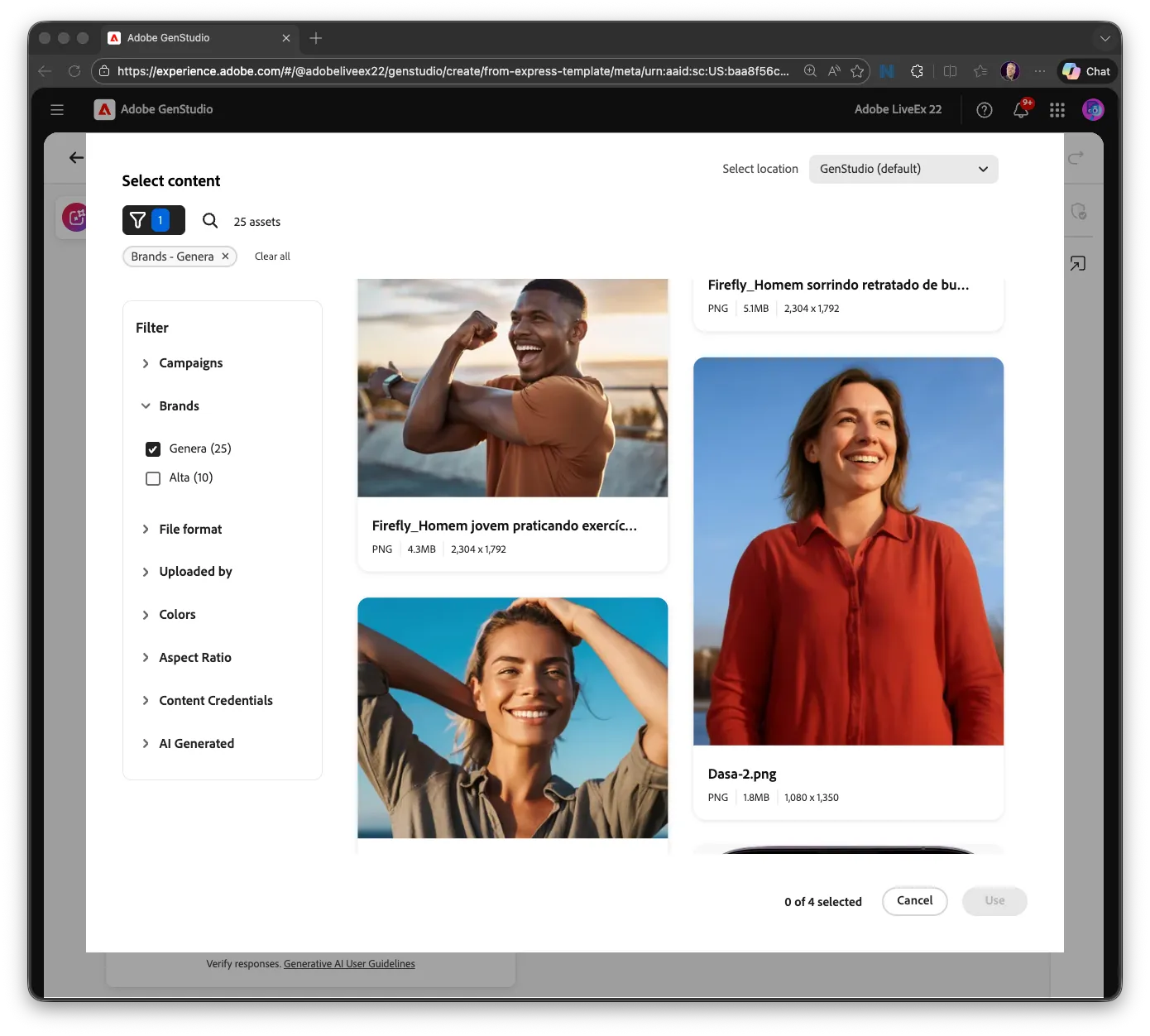
- In the Content section of the prompt drawer, click "Select from Content"
- Select the "Dasa-2.png" or similar approved image. Feel free to choose more than one image.
- The images will be used as the hero visual in generated variants
Checkpoint
✓ Can you see the Express template selected in GenStudio with the Brand, Product, Persona, and Content parameters all configured in the prompt drawer?
Tip: When your organization has multiple Express templates shared across the org, the GenStudio template picker becomes a self-service catalog of brand-approved starting points. Performance marketers pick the template that matches their campaign format and channel, configure the parameters, and generate, all without needing to know how the template was built or where to find it in Express.