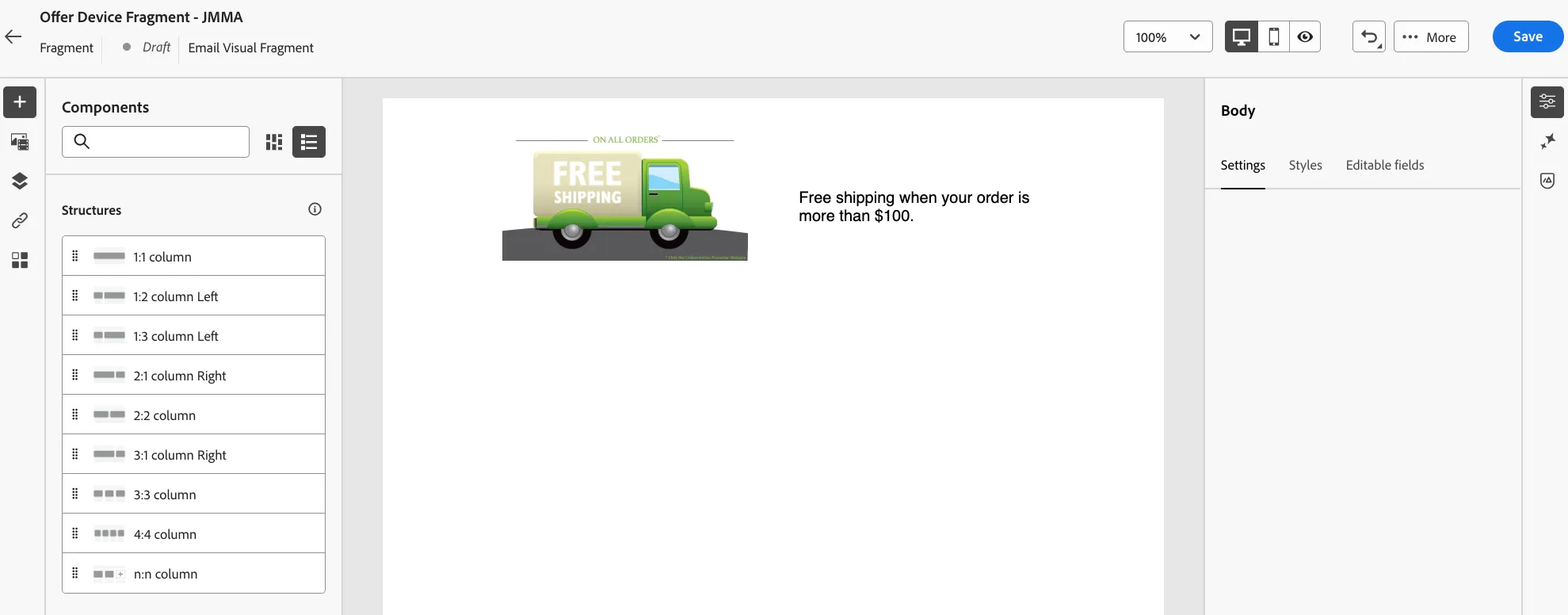
Add Offer to a Fragment
4 min
You can directly use this offer in any channel. However, for the purposes of the lab, we will be creating a fragment that will be later use in an email. Within this fragment we will place the offer decision we just created. This way, we protect. the style of our offer decision.
Create a Fragment
- From the Nav Bar, click on Fragments under the section Content Management
- Click Create Fragment
- Provide a name: Offer Device Fragment - Initials
- Leave the Visual Fragment option selected.
- Click Create
Using the Canvas and Offer Decision
- Adjust the setting of the "Body" by setting a width of 600px by clicking on Styles on the right pane.
- From the Structures section, click, drag, and drop the 1:1 column into the canvas.
- Now, click, drag, and drop a Grid under the Contents section.
- Click the Grid that you just dropped, and on settings, adjust the number of rows so there are only 1 row.
- Drag and Drop an Offer Decision Content block into each of the cells of our grid.
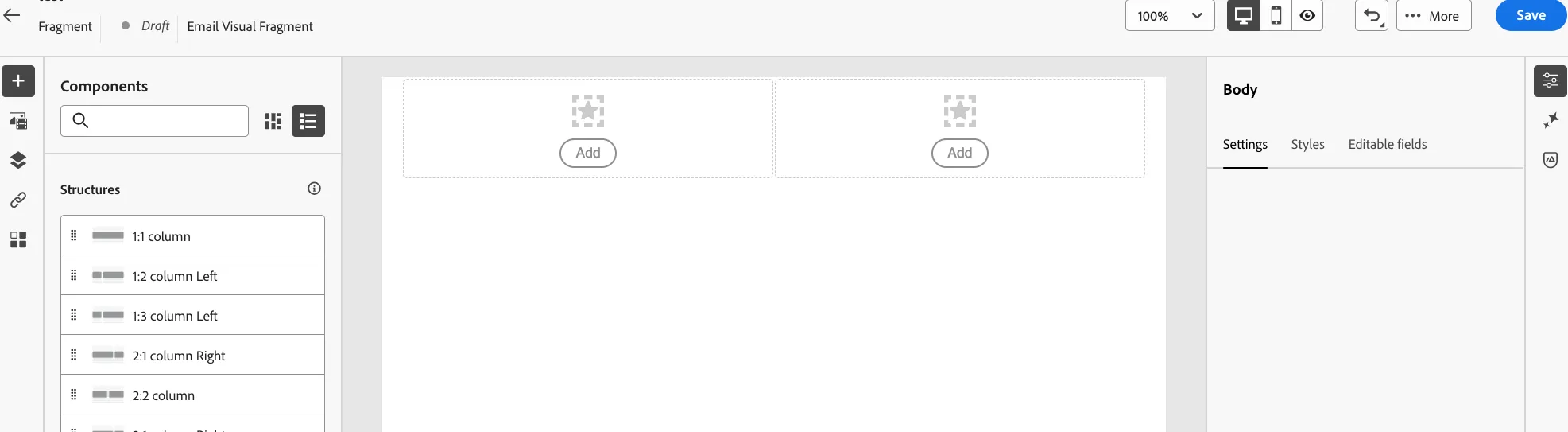
Adding an Offer Decision
- Click Add on the leftmost decision.
- Search for Image Placement
- Select your decision
- Click Add
- Now, Click on the Right side to add another decision item
- Search for the BriefMessage Placement
- Select your decision
- Click Add.
- Then Save.