Guided Analysis
Guided analysis enables users to self-serve high quality data and insights about the customer journey through guided workflows, built on the cross-channel data of Customer Journey Analytics. Cross-functional teams, from marketing to product, can connect in real time to use and understand these reports.
Similar to Analysis Workspace and Mobile scorecards, guided analysis uses data from a Data view, which references data in Adobe Experience Platform through a Connection. Many reports created in guided analysis can seamlessly transfer to Analysis Workspace for additional research.
The following guided analysis views are available:
Analysis type | View type | Description |
|---|---|---|
Feature matrix | Understand the breadth and depth of feature engagement. | |
Funnel | Friction | Compare conversion rates between steps. |
Funnel | Track changes in conversion rates over time. | |
Impact | Release | Compare performance across equal periods pre- and post-release. |
Impact | Measure the impact of first-time feature use on key indicators. | |
Retention | Measure your users’ ongoing return habits. | |
Trends | Usage | Measure user engagement over time. |
Trends | Measure engagement by frequency of use. | |
User growth | Active | Identify who is new, retained, returning, or dormant. |
User growth | Are you gaining or losing users? | |
User stream | Timeline | Explore patterns in session activity. |
Retention:
In this lab, we will do Retention Analysis that will allow us to see the time between a customer being exposed to an Offer and them making a purchase. This will allow us to optimise our future marketing activity to send offers at the right time, or to know when best to end our campaigns (diminishing returns).
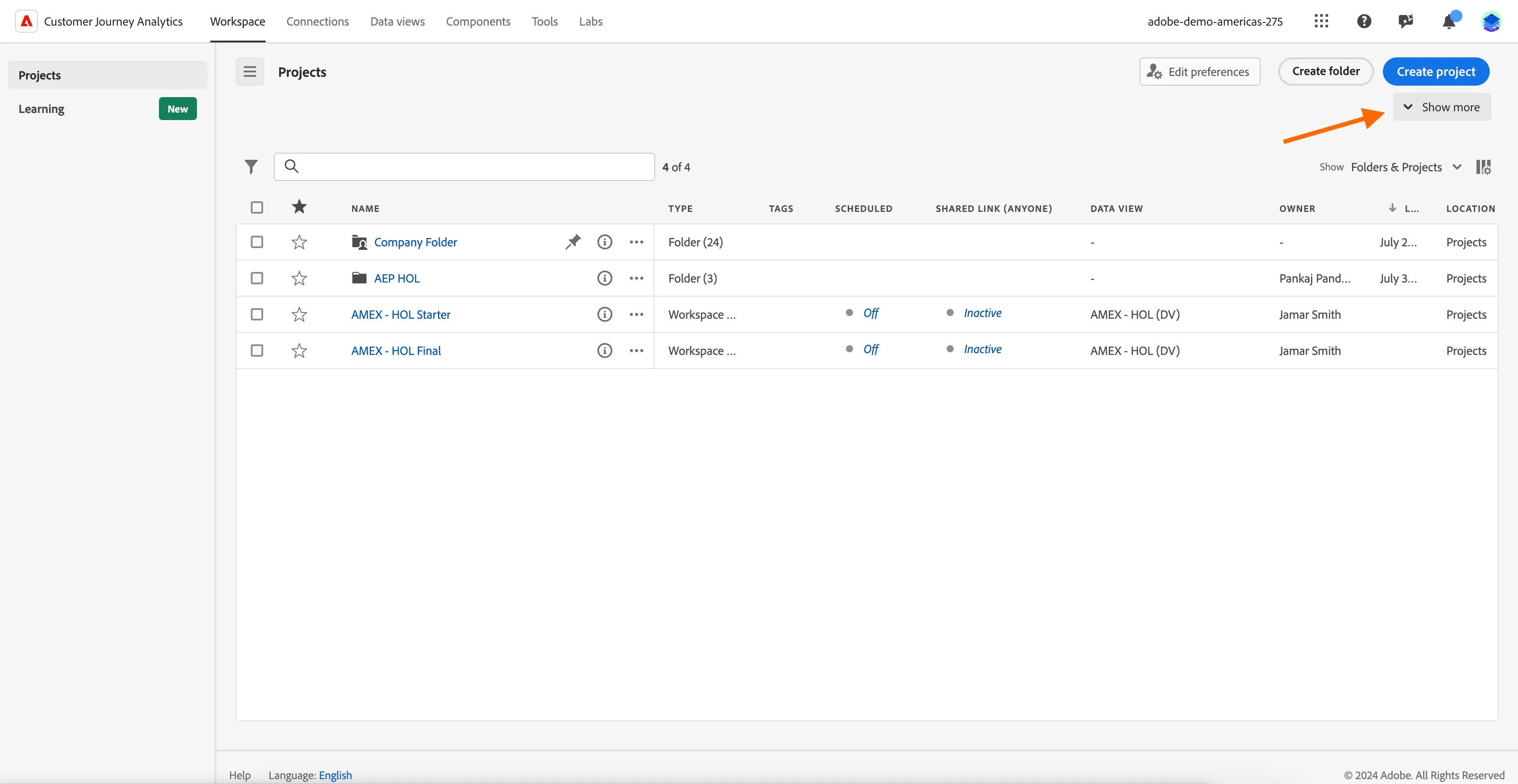
- On the Projects page, click on Show more .
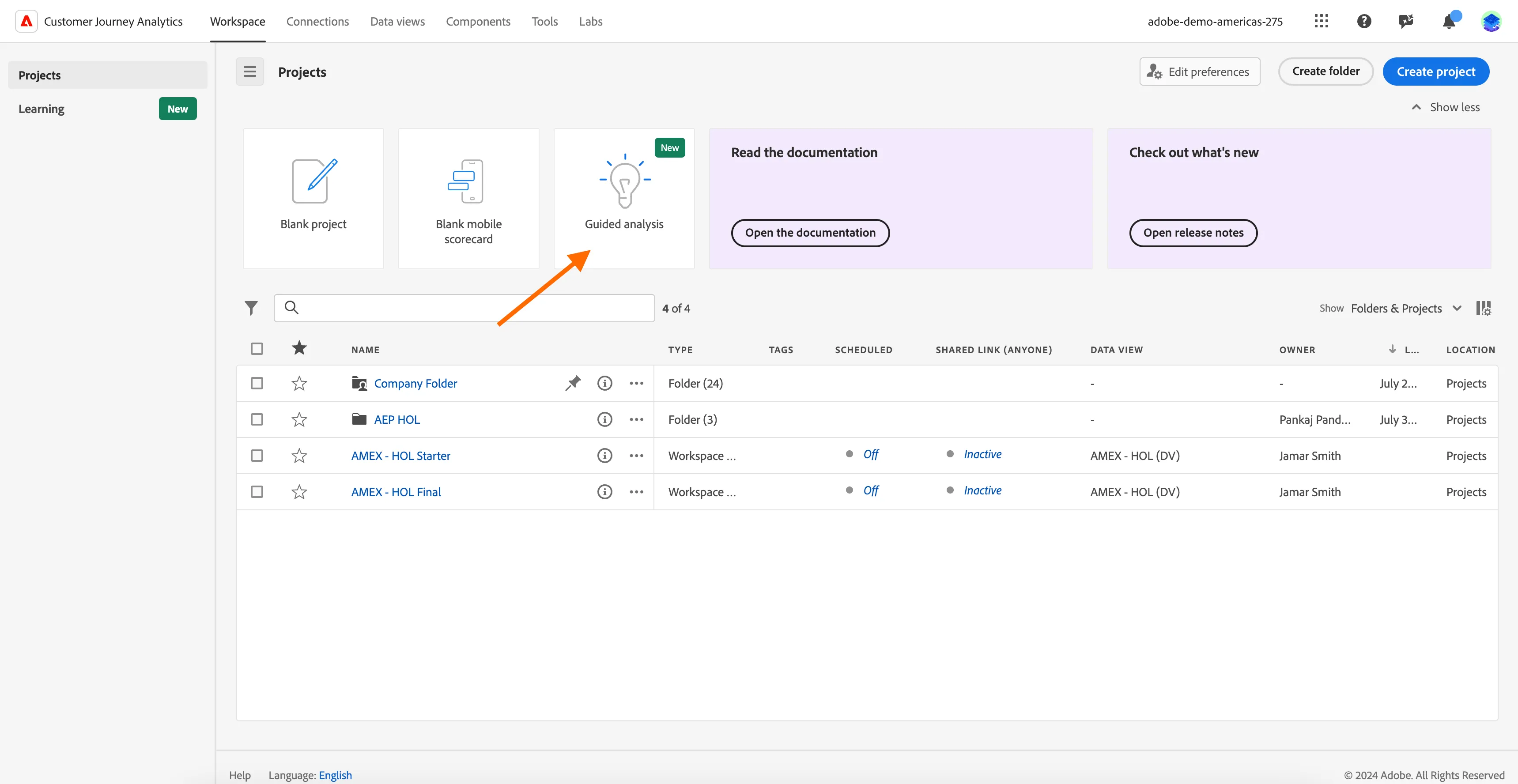
2. Click on Guided Analysis.
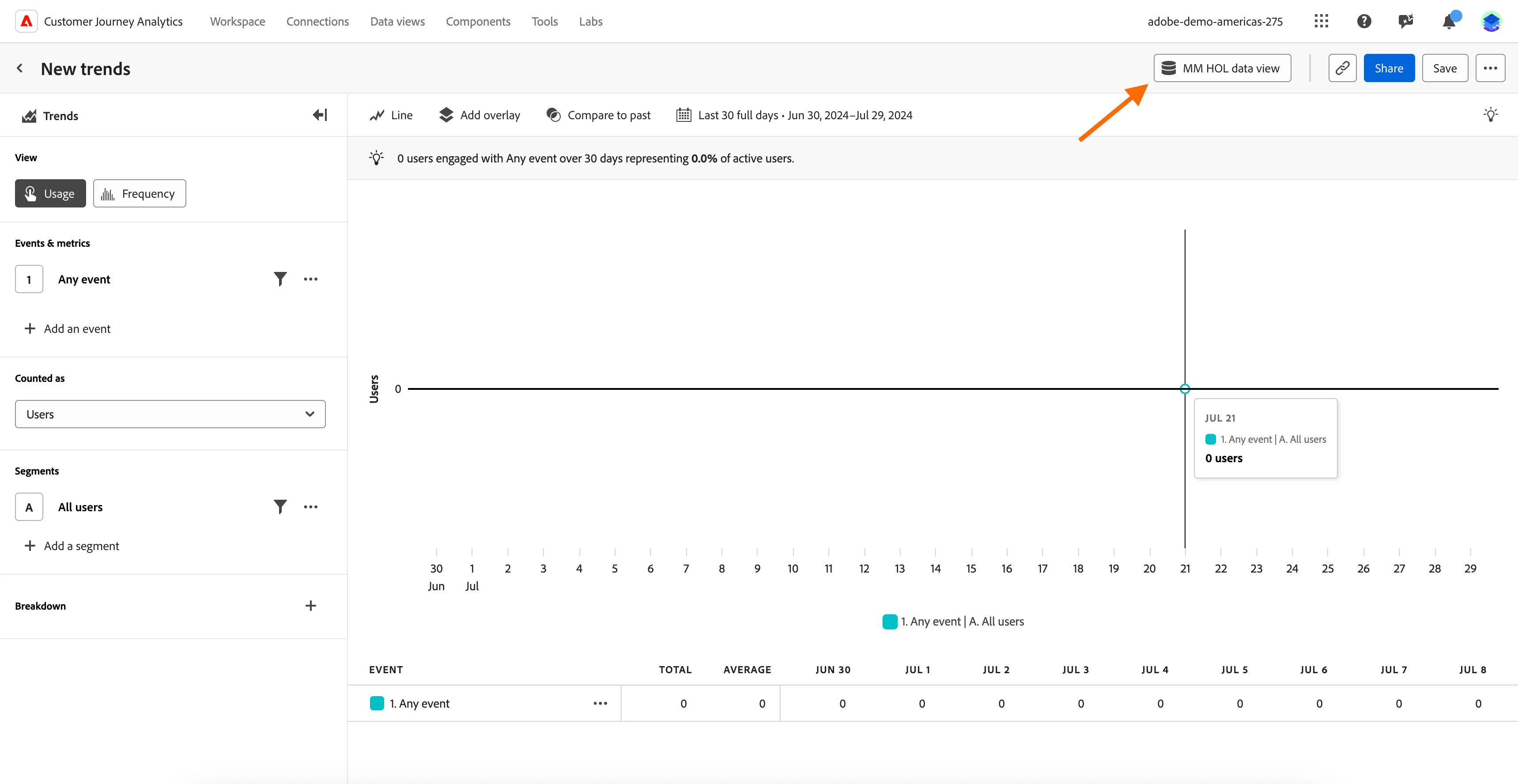
3. It will take you to the Trends View. Verify the dataview MM HOL data view is selected. If not, then change the dataview from dropdown to MM HOL data view.
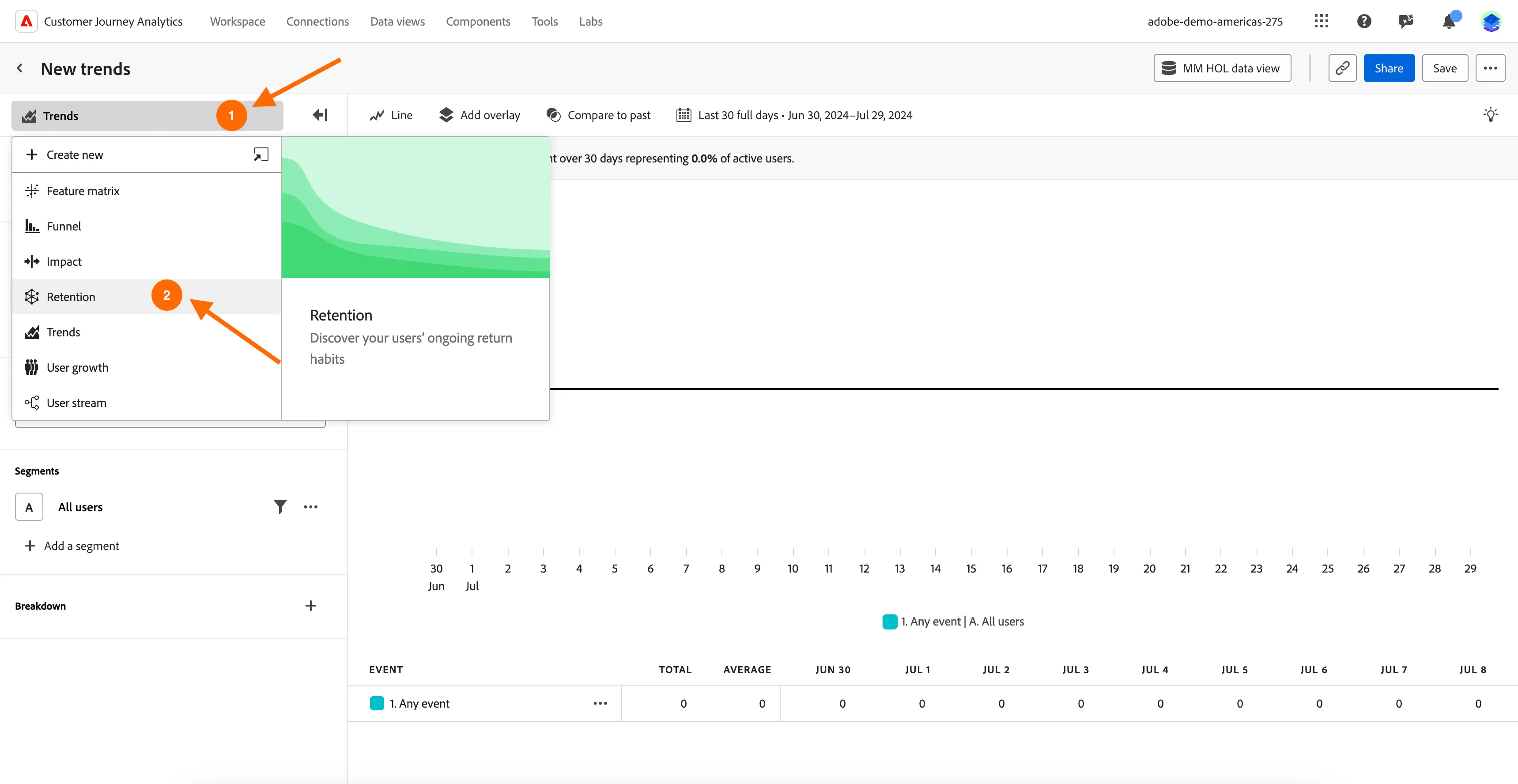
4. Click on Trends and then select Retention from the dropdown.
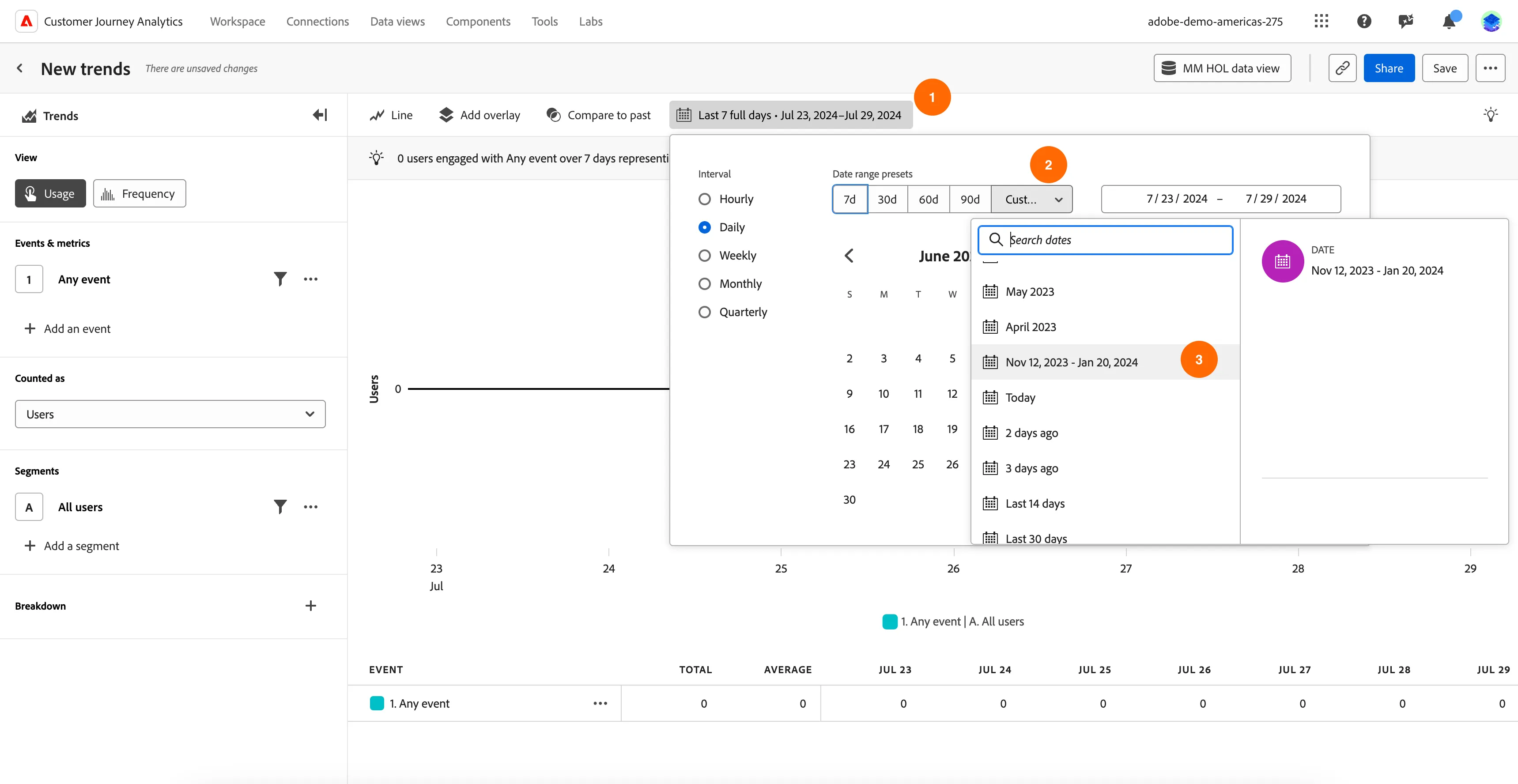
5. Click on the Calendar icon, then select Custom and scroll-down to select the date range Nov 12, 2023 - Jan 20, 2024.Click outside the calendar to close the calendar.
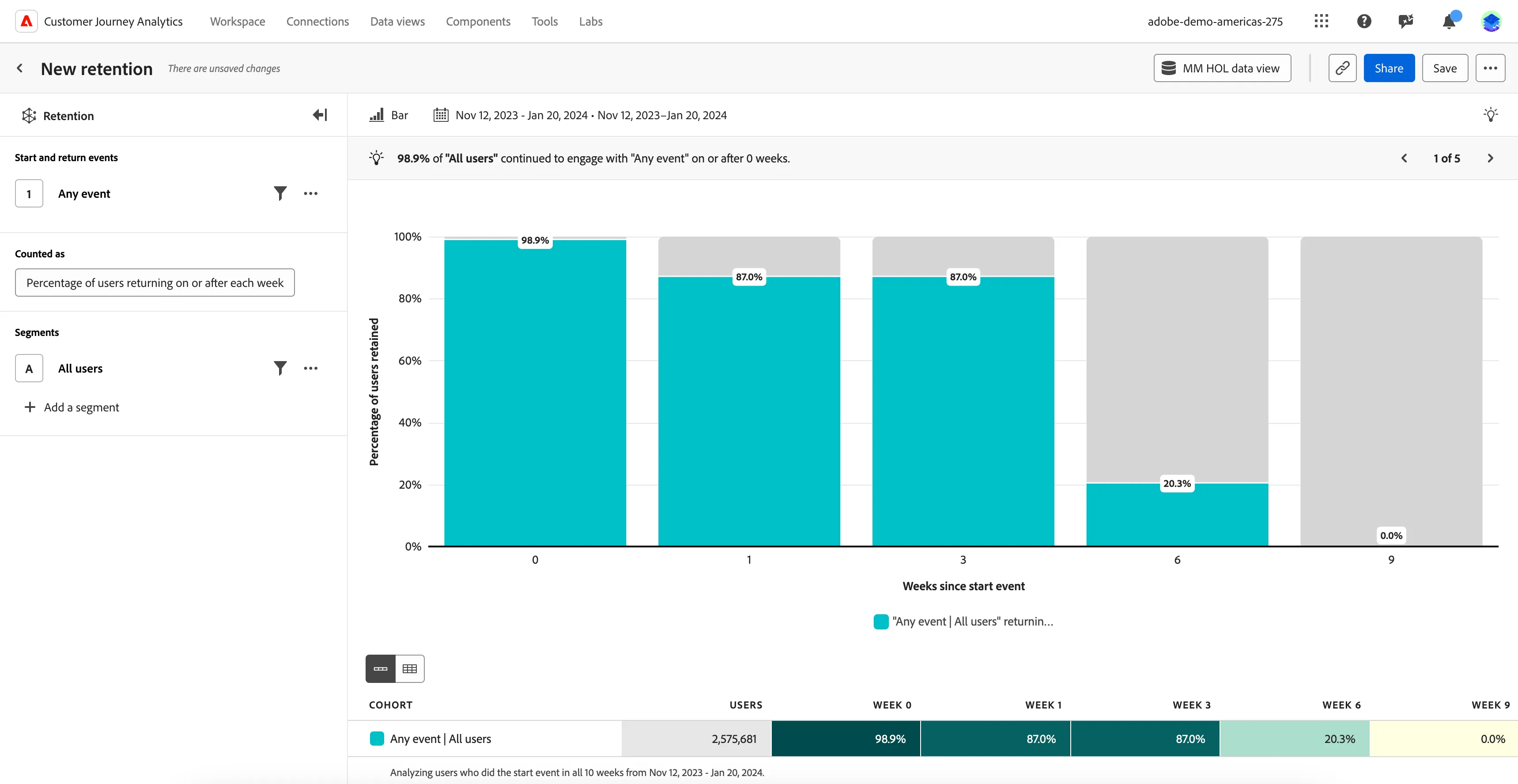
6. Report will refresh with the data for selected date range and Any event data.
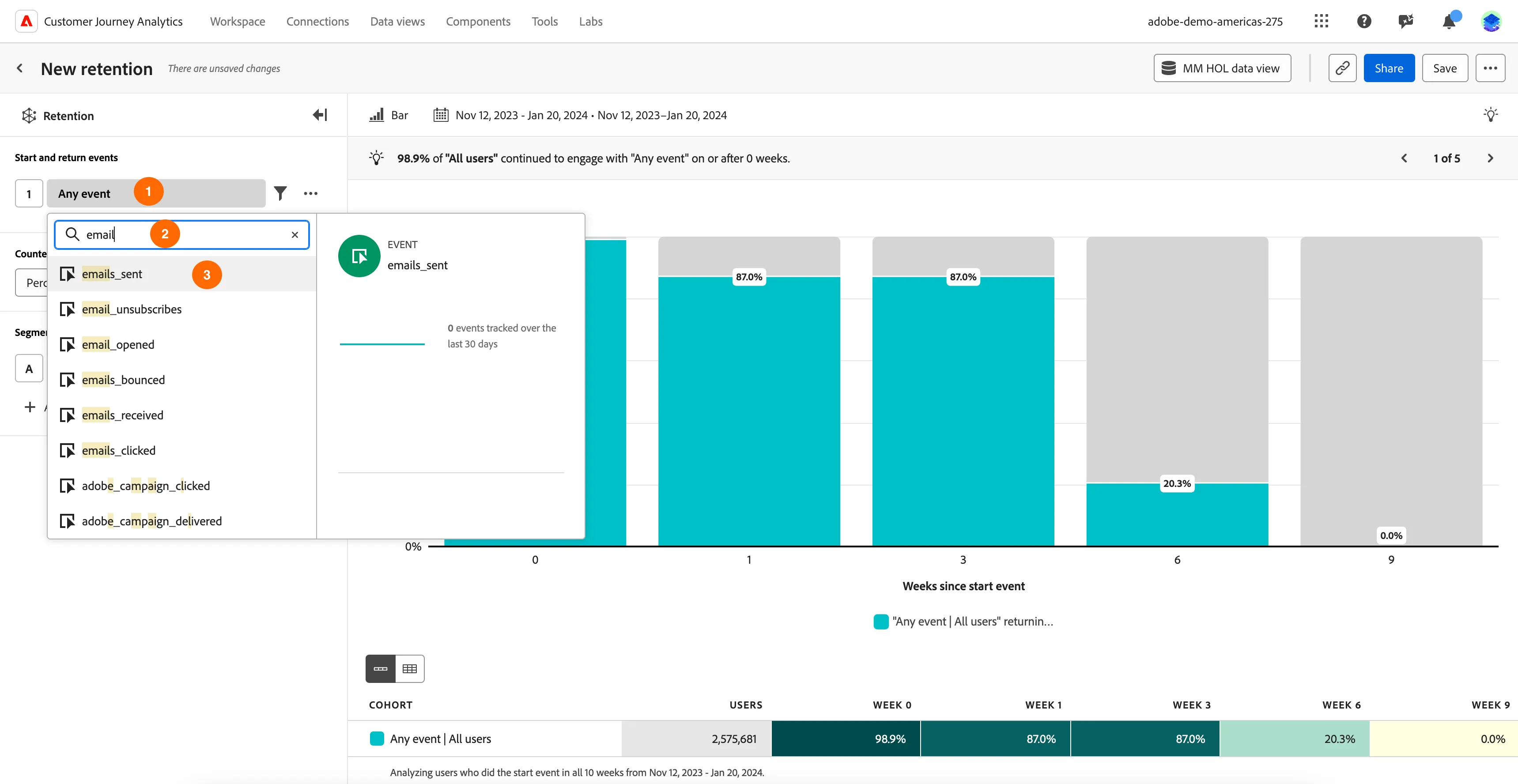
7. Click on Any Event in Query rail and search for email . Select emails_sent from the dropdown.
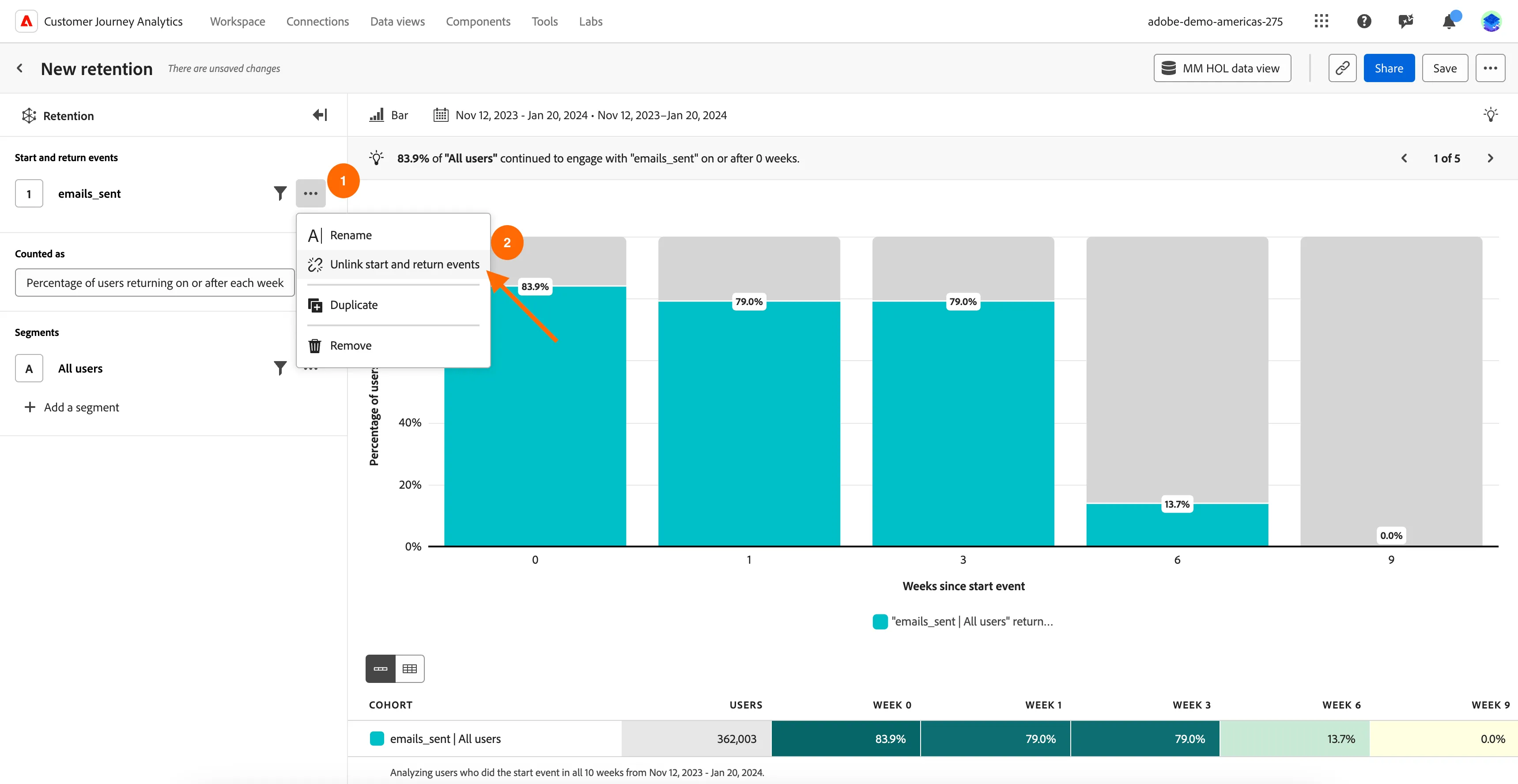
8. Click 3 dots icon next to emails_sent and select Unlink start and return events.
9. Click on Any event under Return events and search for email. Select emails_opened from the dropdown.
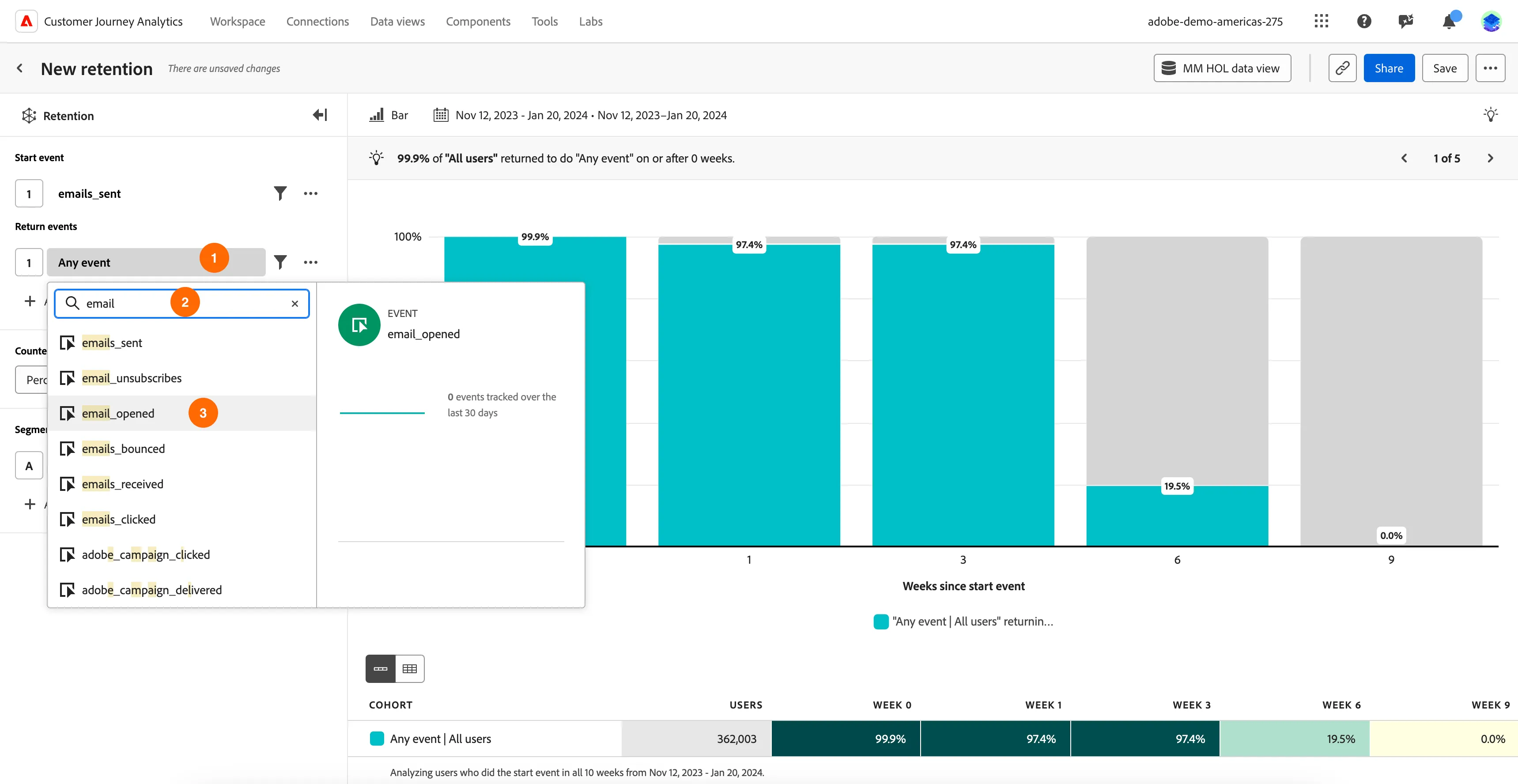
10. Click on Add an event and add below events from dropdown.
- pos_orders
- total_orders
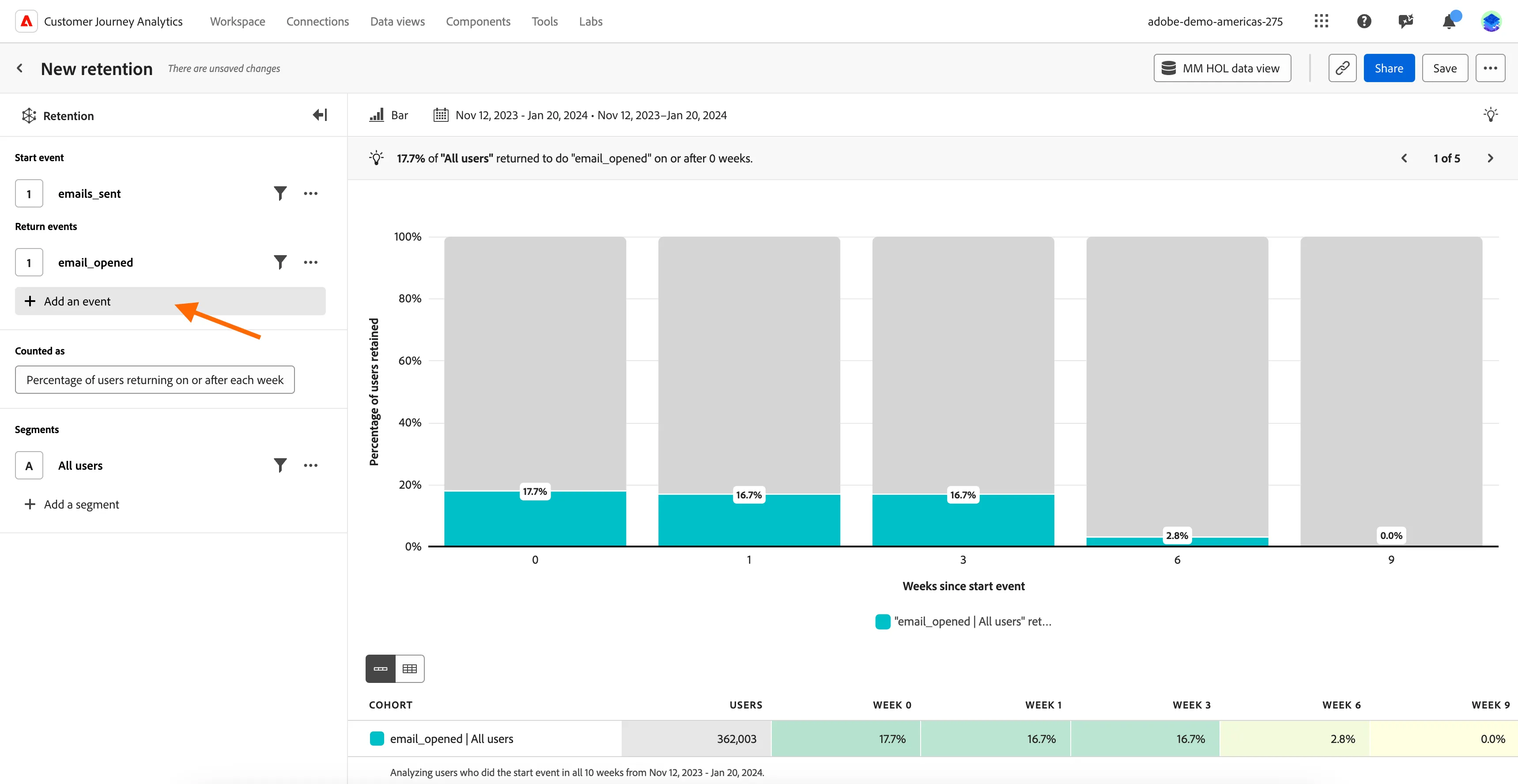
11. Report will display insights to the question with below information:
- Insights bar on the top bar.
- Retention Chart with retention for selected return events.
- Cohort table for return events. Toggle the button to change the view from aggregated data to individual cohort.
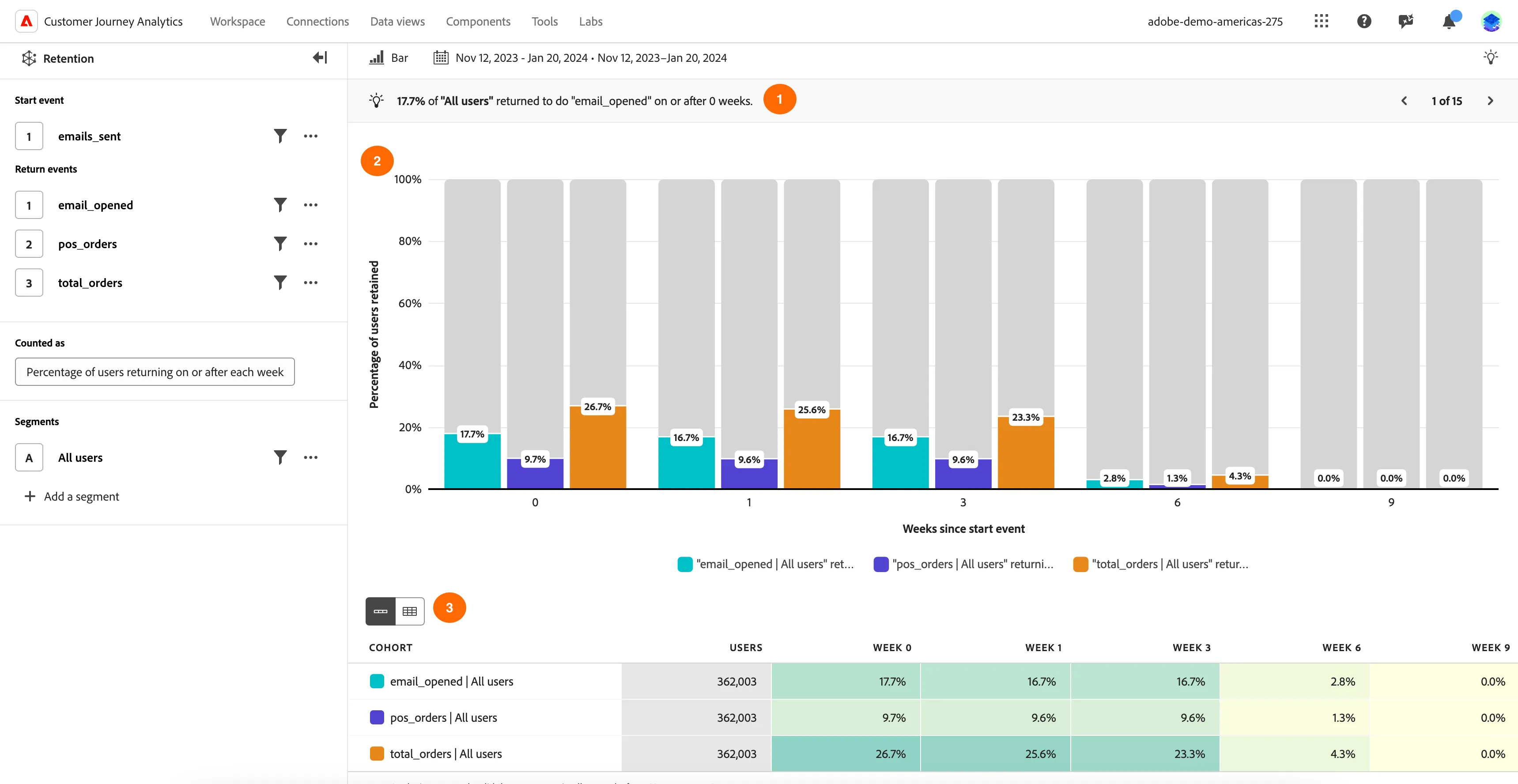
To dig deeper, you can also add Segments, modify Counted as and change Chart type from bar to line chart, to see if the behaviour varies depending on the campaign or offer content.
You have now seen how insights determined from looking at historical behaviour in Customer Journey Analytics we can learn how a cohort engages with a brand and how to to optimise our future marketing activity.