Create a Meta Ad Experience with CX Enterprise Coworker
Objective
You will use Adobe CX Enterprise Coworker (Coworker), Adobe's AI coworker for customer experience teams in this lab. You describe the business outcome in plain language. Coworker plans the work, checks it with you, and builds it in GenStudio for Performance Marketing on the same instance you have been working on till now.
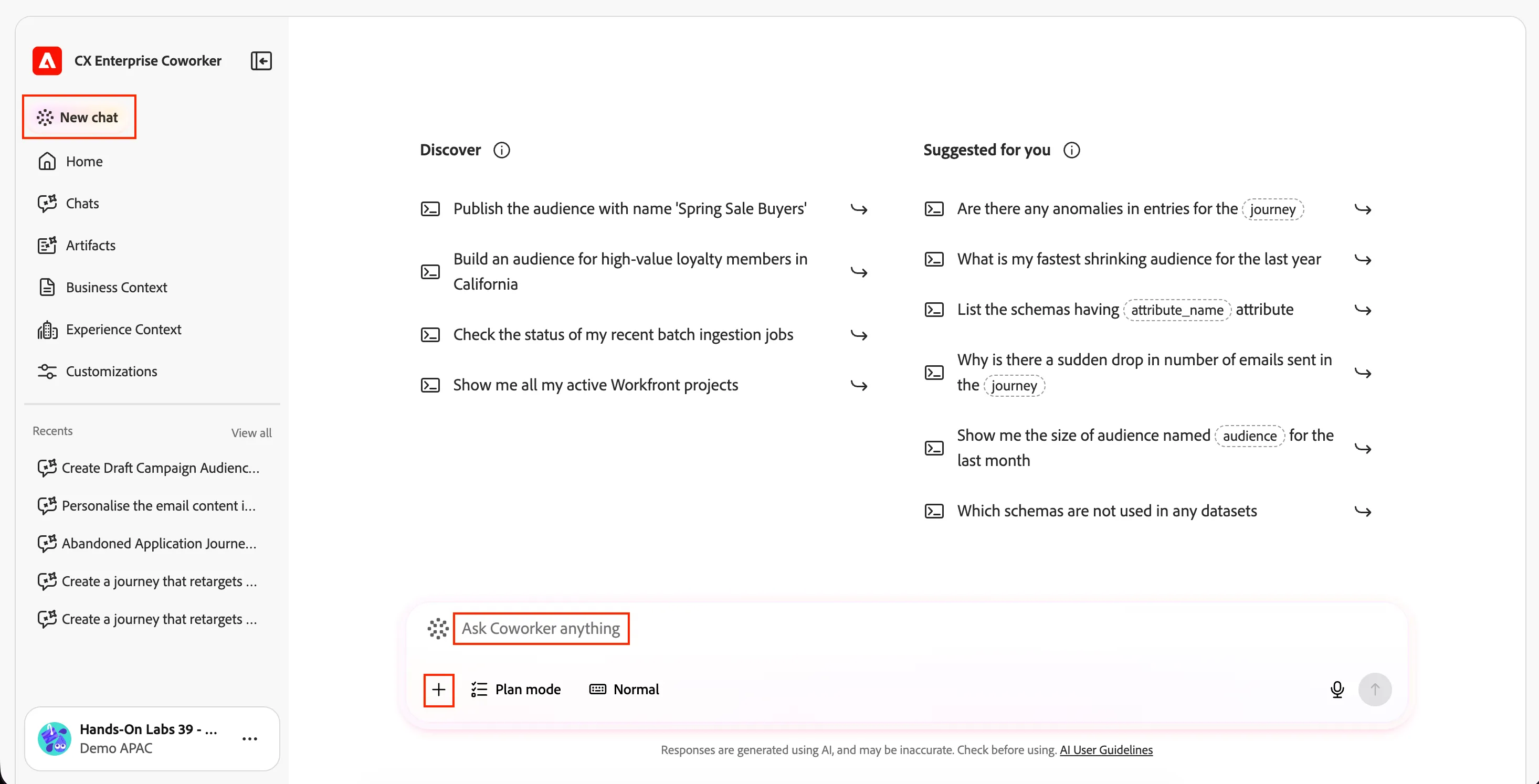
Open Coworker
- Click the 9-dot app switcher and click Coworker (or go to experience.adobe.com/#/coworker).
- Check the bottom of the left rail. It shows your user name and the organisation (Demo APAC).
- Type your prompts in the box labelled Ask Coworker anything in the middle of the screen, then press Enter.
- Tip: whenever you need to attach a file, click + below the prompt box and choose Attach file.
- Tip: to start a fresh conversation, click New chat in the left rail.
Each time Coworker asks for permission:
- Read the request. Click the arrow on the left to expand it and see the details (for example, the name and rules of what it will create).
- Review that it matches what you asked for.
- Approve it by clicking the tick icon (or Allow). Click the X to stop.
How to use the prompts:
- Copy each prompt into Coworker, and press Enter.
- Read every answer and respond to any question Coworker asks.
- If something goes wrong, type retry.
Step 1 – Describe the ad you want
- Enter this prompt in Coworker and press Enter
I would like to create a meta ad experience for WKND brand for product rios shirt and targeting persona Adventurer. The ad should use the Meta WKND Express template and targeted towards the young generation, enthusiasts, travelers and adventurers showcasing the versatile nature of these shirts which can be used for all occasions.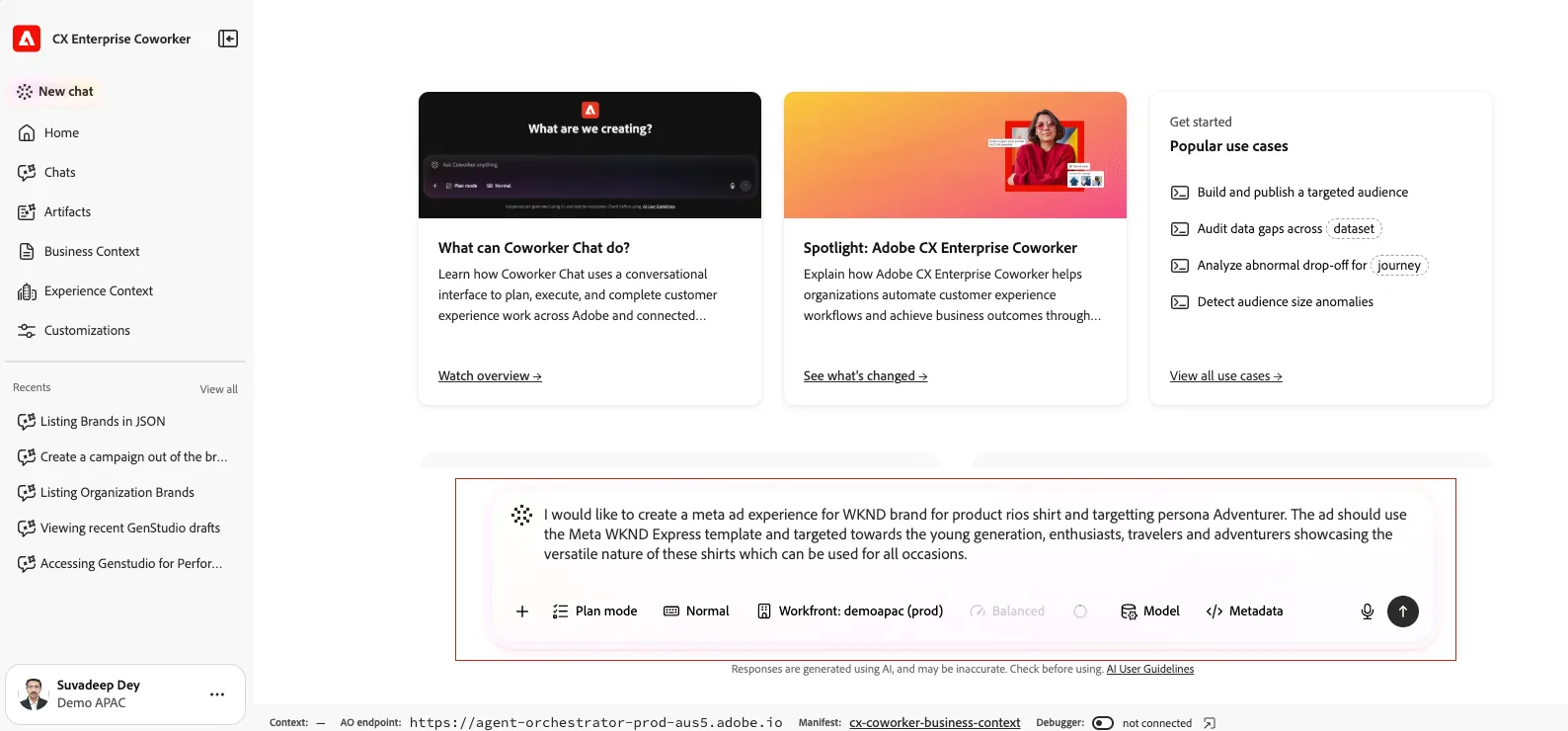
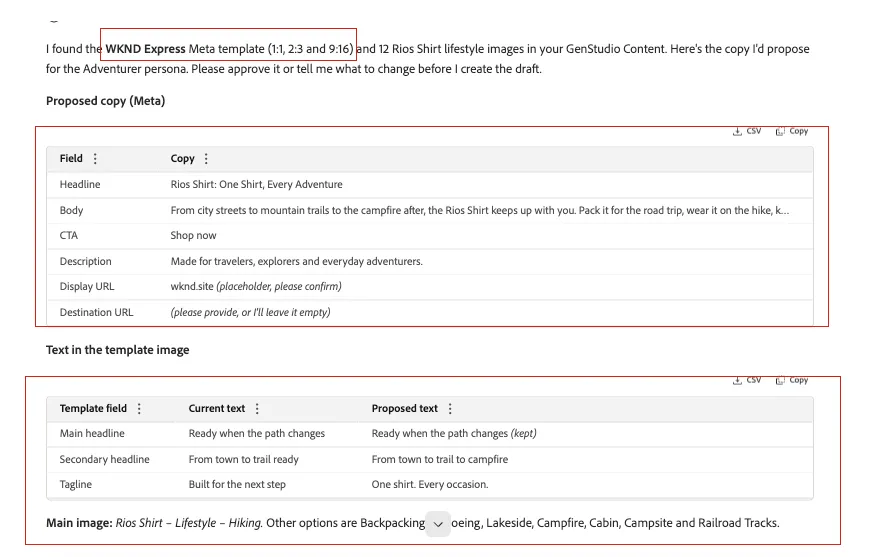
- What happens: Coworker finds the WKND Express Meta template and reads its editable fields: 3 text fields, a logo and a primary image. It also checks which CTA values Meta allows, looks for Rios Shirt images in GenStudio Content, and writes draft copy concepts for you to approve.
Step 2 – Ask for 4 concepts and set the URLs
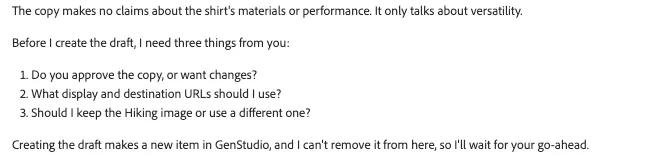
- Based on the above questions, let's ask for 4 concepts to be generated along with specifying the destination and display URLs by providing the below prompt.
provide 4 concepts, use wknd.site for both destination and display URLs.- What happens: Coworker returns 4 concepts. Each one has three lines of template text, a Meta headline, body copy, the Shop now CTA and wknd.site as the URL
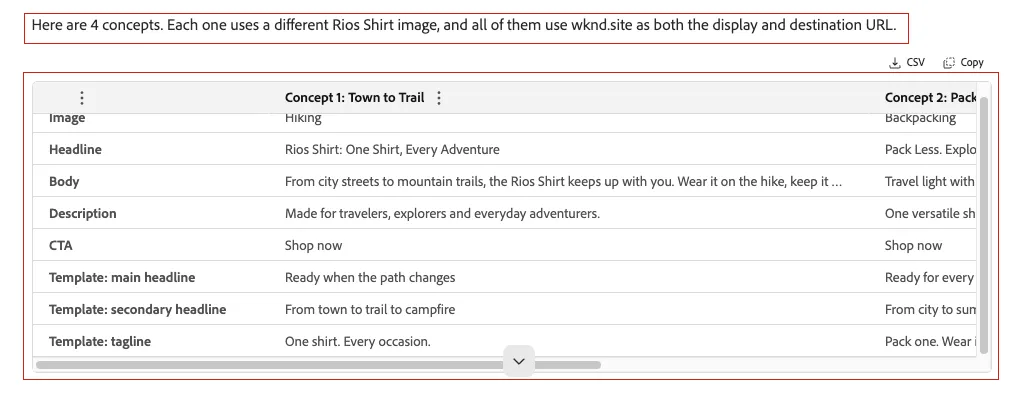
Step 3 – Browse the available images in a gallery
- Before proceeding further, let's also take a look at what are the other asset options that are present in the repository and could be potentially used.
- Enter the below prompt
also show me similar images in a gallery layout- What happens: Coworker shows a gallery of the Rios Shirt images in GenStudio Content: 11 lifestyle shots and 1 product shot. The images currently assigned to concepts are labeled.
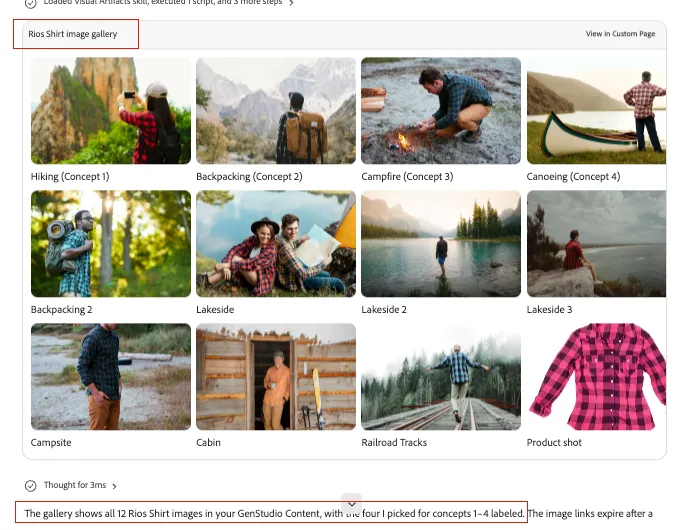
Step 4 – Choose the images
- We can choose 4 images for 4 concepts by providing the below prompt
Use the hiking, backpacking, Railroad Tracks and campfire shots for the assetsNote: You may have to tweak the above prompt based on the output for the images
- What happens: There are two Backpacking shots, so Coworker suggests one distinct image per concept:
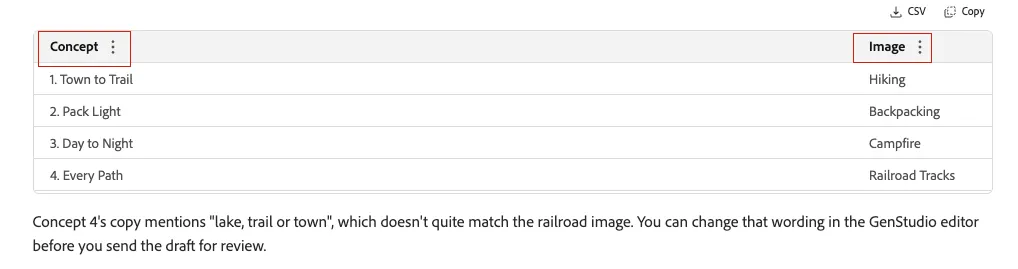
Note that in case the image does not match the copy, Coworker also lets you know that one could edit in GenStudio before sending the draft for review. A human is always in the loop.
Step 5 – Approve and create the draft
- Provide the Approved prompt to Coworker which will then ask for permission before creating the draft in GenStudio for Performance Marketing.
- The system will show the link to the draft and clicking on the same will take you to the GenStudio for Performance Marketing application.
What happens: Coworker creates one GenStudio draft named WKND Rios Shirt — Adventurer — Meta with all 4 concepts, and replies with a link to it.

Step 6 – Review the draft in GenStudio
- Click the draft link in Coworker's reply.
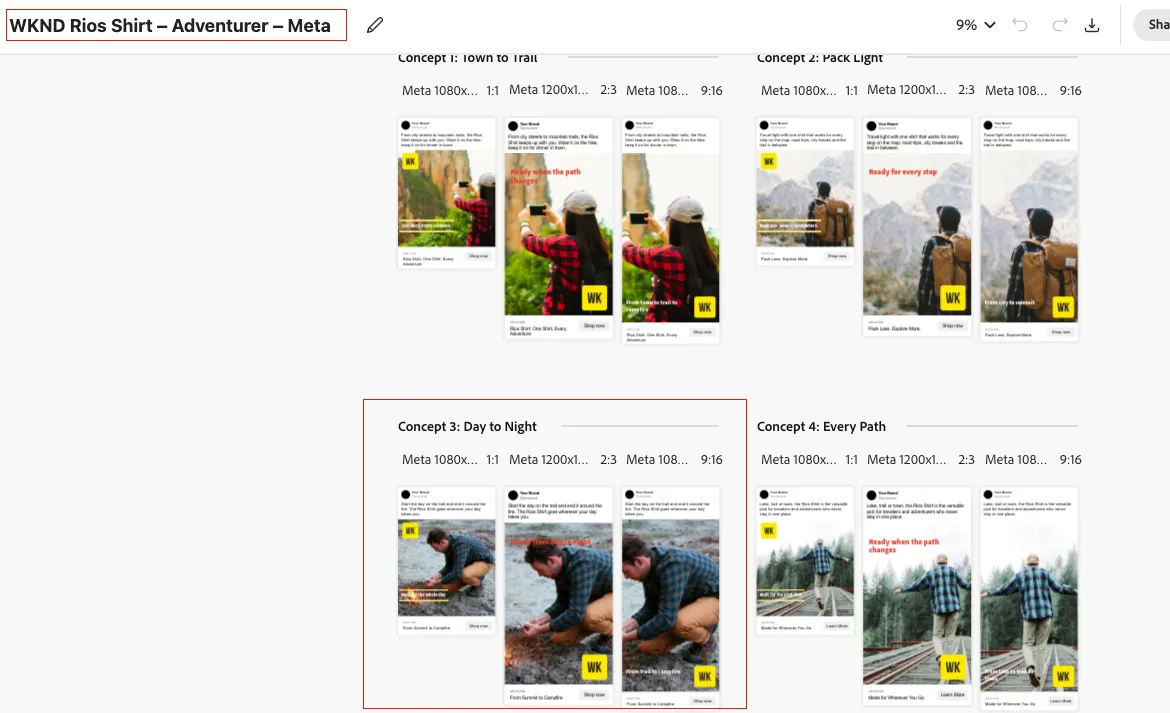
- Check all 4 concepts: copy, CTA and URLs.
- Check the image crops. The template's image slot is portrait (1785×2023) and the lifestyle photos are landscape, so adjust any crop that cuts off the shirt.
Step 7 – Send the draft for review
- You can send the draft for review from Coworker by entering the prompt
please send the draft for review- What happens: Coworker asks for the email address of the reviewer so that it can submit the draft for review
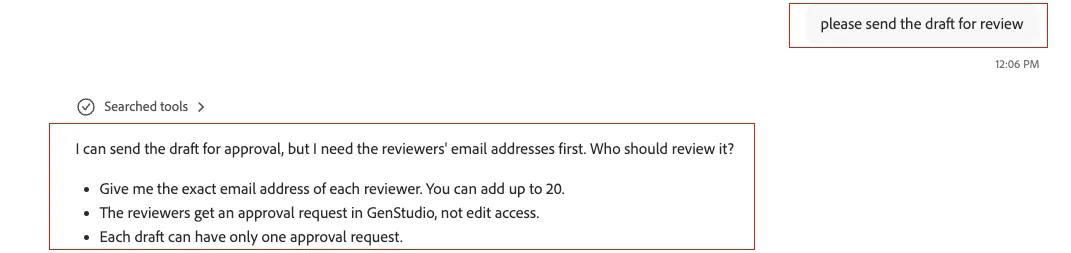
- Coworker will ask for permission before sending the draft for review
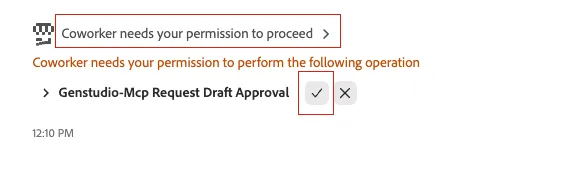
- Click on the tick button to grant the permission.
- Coworker will then respond that draft has been sent for review.

Summary
In this lab you:
- Briefed Coworker in plain language with a brand, product, persona, channel and template
- Generated and refined 4 ad concepts
- Browsed product imagery in a gallery and picked images
- Created a multi-concept Meta ad draft in GenStudio after approving it
- Reviewed the draft and sent it for review
Troubleshooting
Issue | Fix |
|---|---|
Prompt did not return expected response | Type "retry" and press Enter |
Template not found | Confirm the WKND Express template exists in Adobe Express and is tagged for Meta |
Gallery images don't load | Ask Coworker to refresh the gallery; the preview links expire |
Coworker asks for approval again | Reply Approve, or describe the changes you want |
Images cropped badly | Adjust the crops in the GenStudio draft editor |