---
title: Data Ingestion via API
slug: ikea-cja/data-ingestion-via-api
docTags:
createdAt: 2025-08-21T11:16:29.859Z
---
In this exercise we want to show how we can use the Batch Ingestion APIs to ingest a CSV file of Campaign Summary data into an AEP Dataset.
We want to ensure the CSV file is mapped correctly to XDM format during this ingestion process.
We will use Postman to send this file to the Batch ingestion endpoint.
:::hint{type="info"}
In this case we are using the [Batch Ingestion API](https://experienceleague.adobe.com/en/docs/experience-platform/catalog/datasets/create), since we are ingesting summary data, which doesn't need to be real-time. You can also stream in events using Adobe [Streaming Ingestion API](https://developer.adobe.com/experience-platform-apis/references/streaming-ingestion/) for real-time data ingestion use cases.
We are using a CSV file in this example for continuity purposes, but the Batch and Streaming Ingestion APIs also accept **JSON** and **Parquet** file formats.
:::
## Download Postman Collection & Environment
In Postman, there are 2 concepts: **Environments** and **Collections**.
- The *Environment* contains all of your environmental variables. In the *Environment*, you’ll find things like the IMSOrg of the Platform environment, alongside security credentials like your private key and others. The environment file is named `XXX.postman_environment.json`.
- The *Collection* contains a number of API requests that you can use. We have bundled these in a file named `XXX.postman_collection.json`.
We have combined both files in a ZIP file for you. To access:
1. Download the environment and collection below.
2. Extract the zip-file to a location on your computer.
::File{src="https://api.archbee.com/api/presign/Kr9jNQk3X89PNSZafWHK9-Xb2BBtK5GElCOrPA6pasu-20250827-125552.zip" label="IKEA Orientation APIs.zip"}
## Authenticate using Postman
:::hint{type="warning"}
To follow this part of the orientation, ensure you have:
- installed Postman;
- downloaded the ZIP file containing environment and collection;
- configured Postman environment.
:::
Before we can interact with Adobe Experience Platform APIs, we first need to authenticate. To do so:
1. Open the **IKEA Orientation** collection.
2. Ensure that the correct Environment `Credential in IKEA Temp Project` is selected from the top right environment drop down.
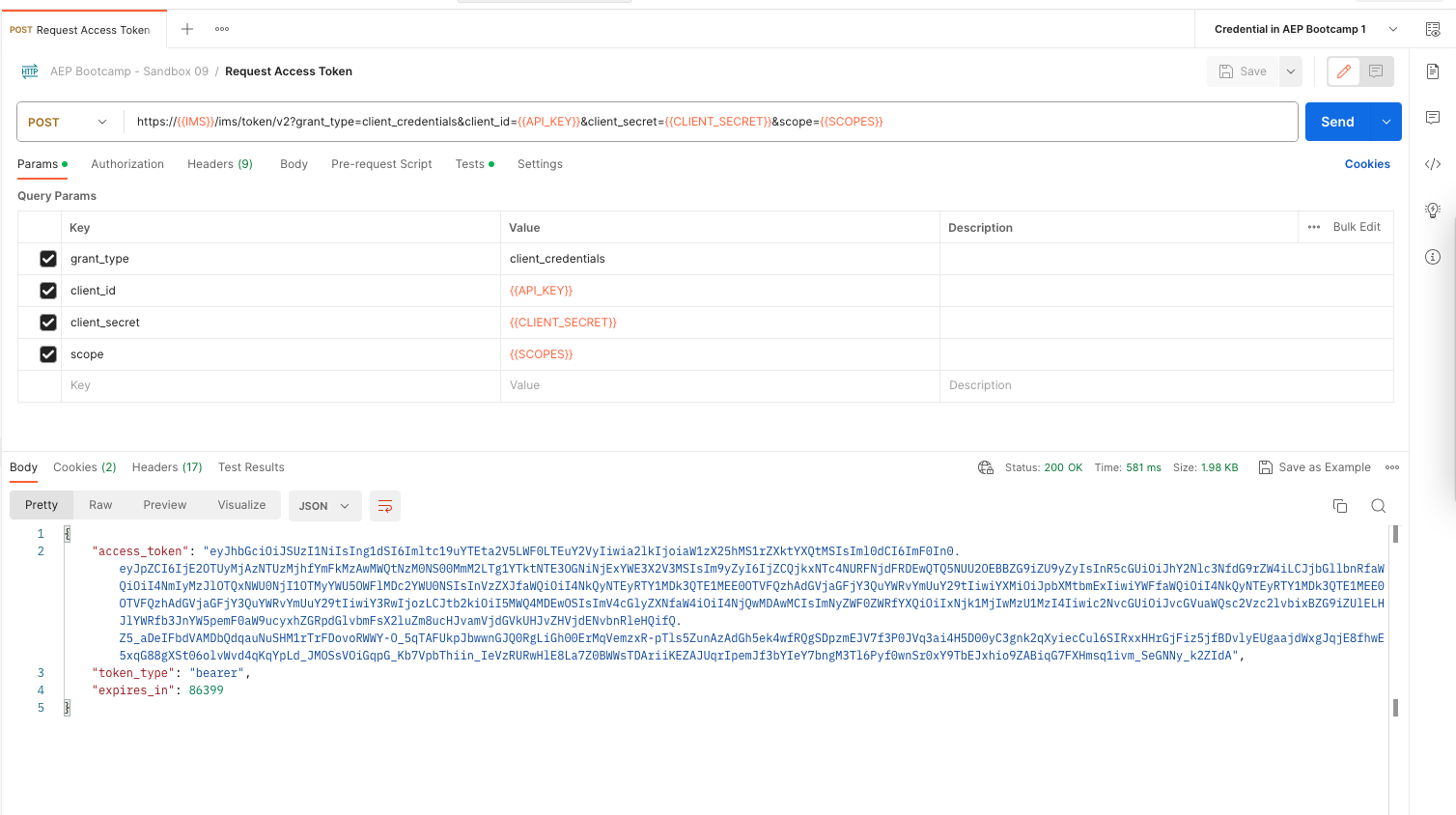
3. Select **POST**** Request access token**. It will now be displayed in the middle of your screen.
4. Click on **Send**.
You will see a response displayed in the **Body** section. You will see an access token with a specific value and expiration window (`expires_in`). The token is automatically saved in your environment to be reused in the next API calls.
The token that we've received is valid for 24 hours. This means that after 24 hours, you will have to generate a new token by running this request again.
## Create a Batch
:::hint{type="info"}
In our example, we have already created both the **Dataset** and the **Mapping Set** in the interest of time (*step 1 and 2 in the user flow at the bottom of this page*).
You will see these two API requests in the `For Info Only` Folder in the Postman collection if you are interested in seeing how this was done.
:::
Let's ingest our Campaign Summary data into our dataset `CampaignSummaryData_API`
1. Select **POST**** Create Batch**. It will now be displayed in the middle of your screen.
2. Click on **Body **to see the JSON payload we are sending.
You will see that in the **payload** we've included:
- The **Dataset ID **for where we want to send the data.
- The **Input Format** which specifies the expected file format of the proceeding ingestion.
- The **Mapping set ID** and **version **which references the mapping set that was created using the **POST**** Create Mapping Set **request - mapping the CSV headers to the XDM fields.
The full payload:
```json
{
"datasetId": "{{DATASET_ID}}",
"inputFormat": {
"format": "csv"
},
"tags": {
"aep_sip_mapper": ["mapping-set-id:{{MAPPING_SET_ID}}","mapping-set-version:0"]
}
}
```
1. Click **Send** to execute this request.
2. You will see a **response** with status `201 Created` if the event has been received successfully.

You have now created a new batch. From the JSON response, make a note of the `id` value.
- In this case it was: `01K3NRCVMRHXPSAZ1Y1RZJ0A74`- yours will be different.
## Upload a File
Let's now sent the file we want to ingest into our Dataset.
1. Select **PUT**** Upload Files**. It will now be displayed in the middle of your screen.
2. Click on **Body **to see the file we are sending.
3. Download the CSV file:
::File{src="https://api.archbee.com/api/presign/Kr9jNQk3X89PNSZafWHK9-BvEmyvmDzdTrJQefSFWkL-20250827-132748.csv" label="Offline_2025_data.csv"}
Replace the CSV in the **Body **with the file you have just downloaded.
1. Click "x" next to the file name to remove the file.
2. Click **Select File **and choose the file from adobe `Offline_2025_data.csv`
We also need to ensure we are sending this file to the correct **Batch**, in the correct Dataset.
1. Open your **Postman Environment** variables by clicking in the top-right corner of the screen to expand the **variables in request** panel.

1. Replace the **BATCH\_ID** Variable with the `Batch ID` you created and noted in the last step. E.g. `01K3NRCVMRHXPSAZ1Y1RZJ0A74`
2. Click **Send** to execute this request and send the data to the Experience Platform.
3. You will see a **response** with status `200 OK` if the event has been received successfully.

You have now uploaded the CSV file to your new batch.
### Signal Batch Complete
After you upload all of your data files to the batch, you can signal the batch for **completion**.
Signaling completion causes the service to create Catalog DataSetFile entries for the uploaded files and associate them with the batch generated previously. The Catalog batch is marked successful, which triggers any downstream flows that can then work on the now available data.
1. Select **POST**** Complete Batch**. It will now be displayed in the middle of your screen.
2. Click on **Params **to see the Query Parameters we are sending.
You will see that we've included:
- The **action **set to value `COMPLETE`
- Also the **id** of the batch you are marking as complete.
1. Click **Send** to execute this request and mark the batch as complete.
2. You will see a **response** with status `200 OK` if the event has been received successfully.

### Monitor Dataset Actvity
You can now check the **Dataset Activity** UI to see if your data has been ingested successfully.
1. Navigate to **Datasets **from the main left hand navigation.
2. Click the dataset `CampaignSummaryData_API`.
3. Look in the recent batches for successfully ingested records.
4. Select **Preview Dataset** to see what data has been ingested.


## In Summary - The User Flow
We have sent a CSV file with Campaign Summary data to the dataset: `CampaignSummaryData_API`. The complete steps to do this are:
1. Create a dataset (can be via API or the UI)
- Dataset needs to refer to schema that should point to target schema.
2. Define mappings using either mapper UI or mapping service API.
- Mapper provides a framework to transform the data according to mappings defined using mapper service (in our case CSV > XDM).
3. Create a batch using bulk ingestion API.
- Add mapper related tag to created batch created in step 2.
4. Upload the file against batch using bulk ingestion API and close the batch.
5. Once batch is closed, AEP automatically transforms the data and updates the batch status.
6. User can monitor batch status.
:::hint{type="success"}
With this, you’ve now successfully ingested Campaign Summary data to Adobe Experience Platform via the **Batch Ingestion API!**
:::