3.1 Get familiar with the CJA UI & Person centric Insights
9 min
Exercise:
In this module you will familarise yourself with the Customer Journey Analytics (CJA) UI and how you can start to analyse data at a person level.
Access CJA
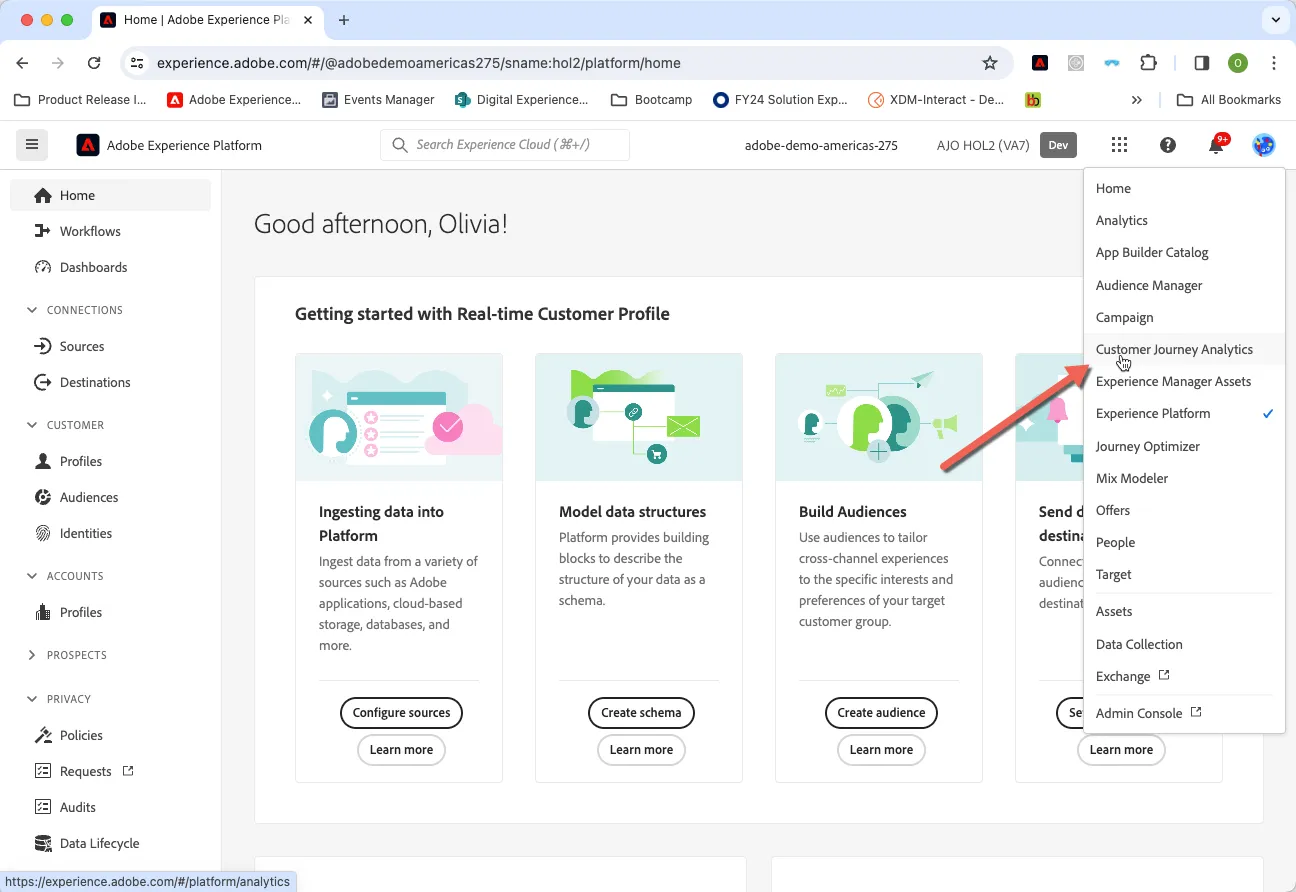
Click on the 9 dots on top right and select Customer Journey Analytics.
Introduction to the UI
4.1.1 Create a new workspace project
- Create a new workspace project
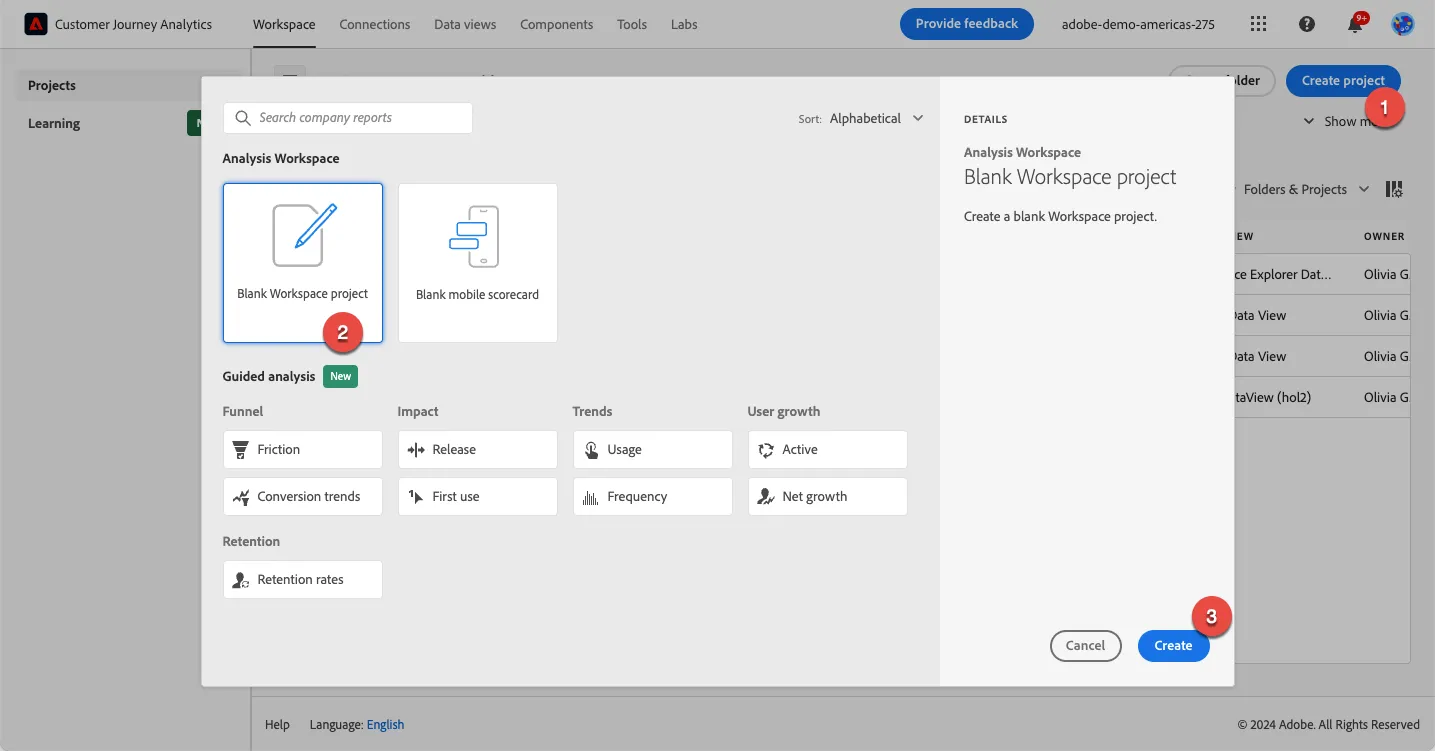
- The left side rail contains the Panel menu (where new panels can be dragged to the project), the Visualisation menu (where visualisations can be dragged to a panel), and the Components menu (where Dimensions, Metrics and Filters are found and can be dragged to the panel visualisations). Ensure that the CID Release 5 (Nov15 - Jan 15, 2024) is selected in the Data View selector
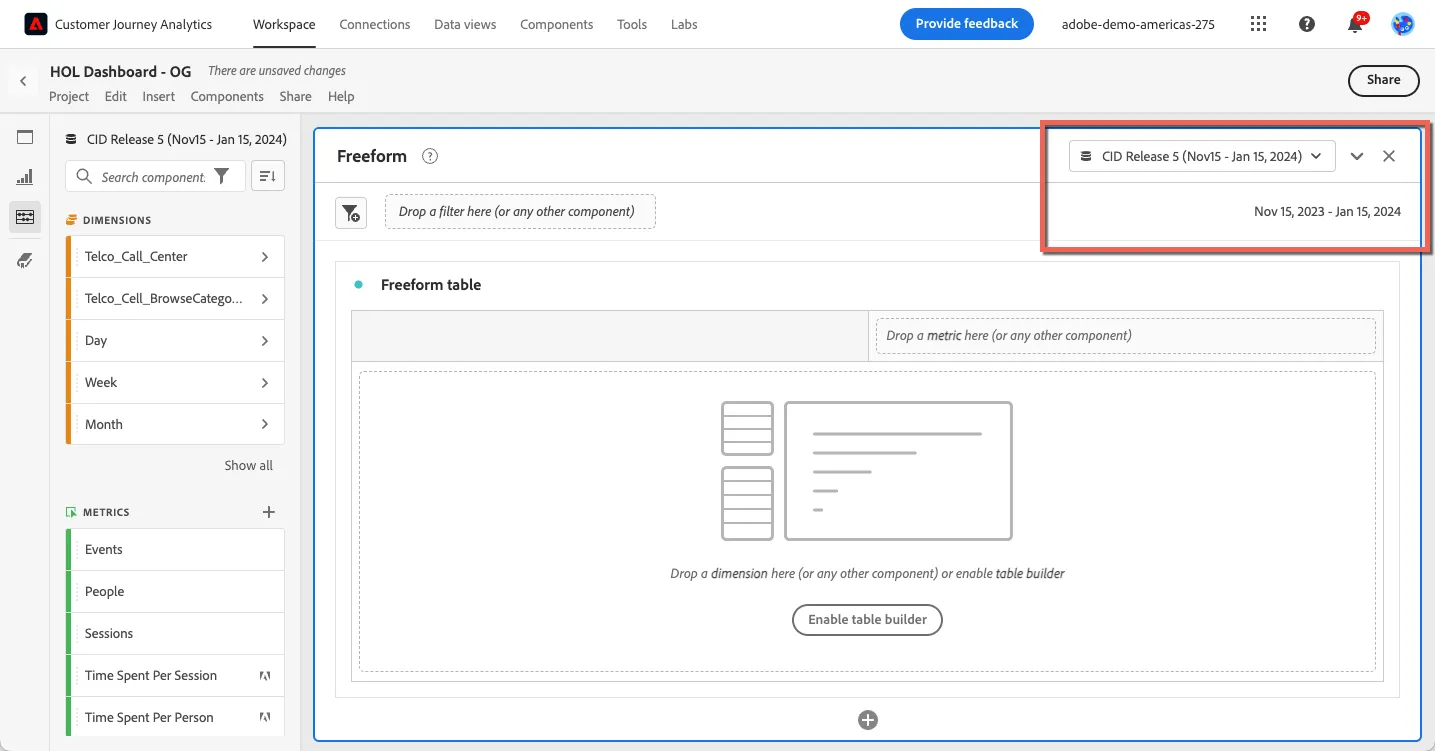
- Set Reporting Date Range to Nov 15 2023 - Jan 15, 2024 from table below and click Apply.
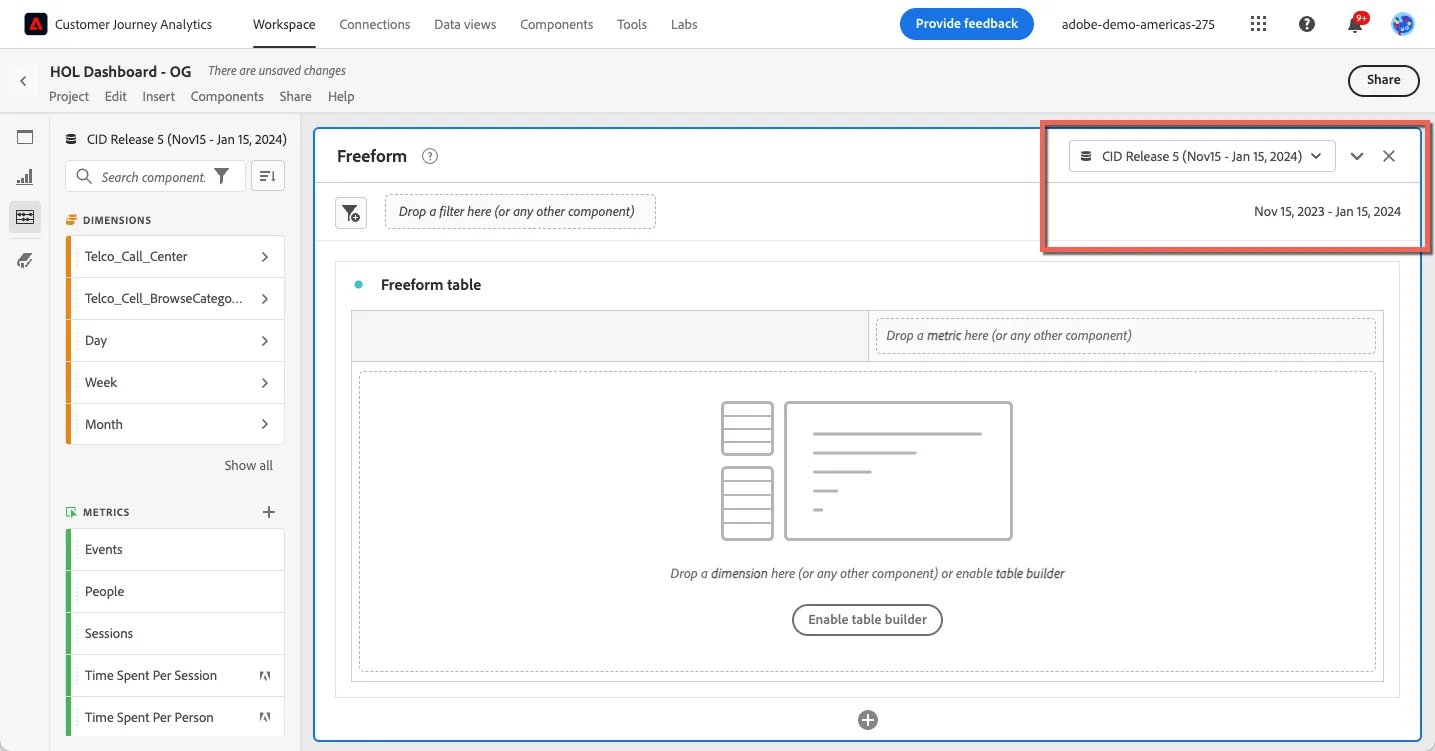
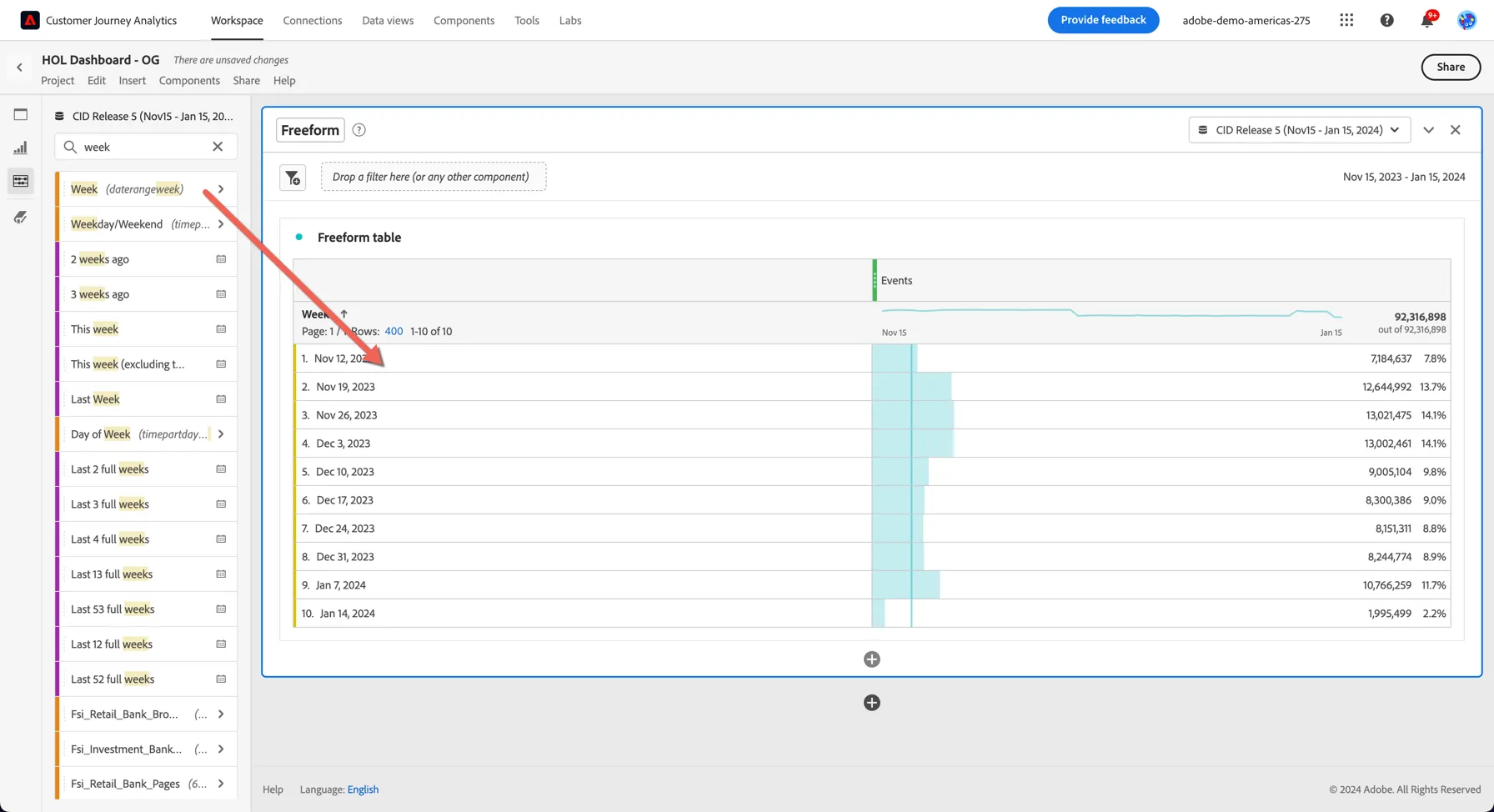
- Drag the Weekdimension from the Components menu and drop it into the Freeform Table visualization in the Panel.
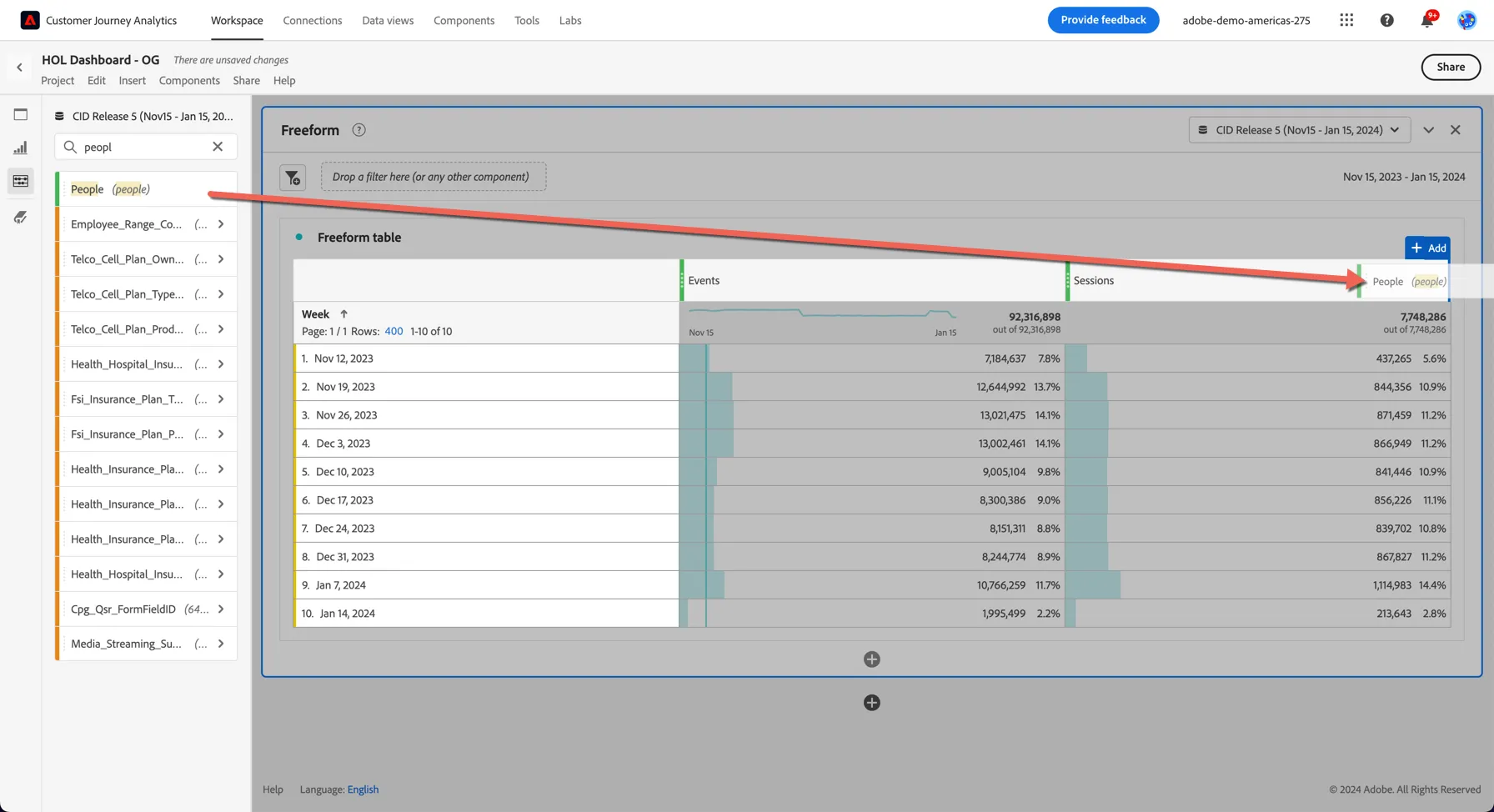
- Drag the Sessions and the Peoplemetric from the Components menu and add these to the table
4.1.2 Add a line visualisation
- Click on Visualisations in the left menu and drag the Line visualisation to the Dashboard panel above freeform table.
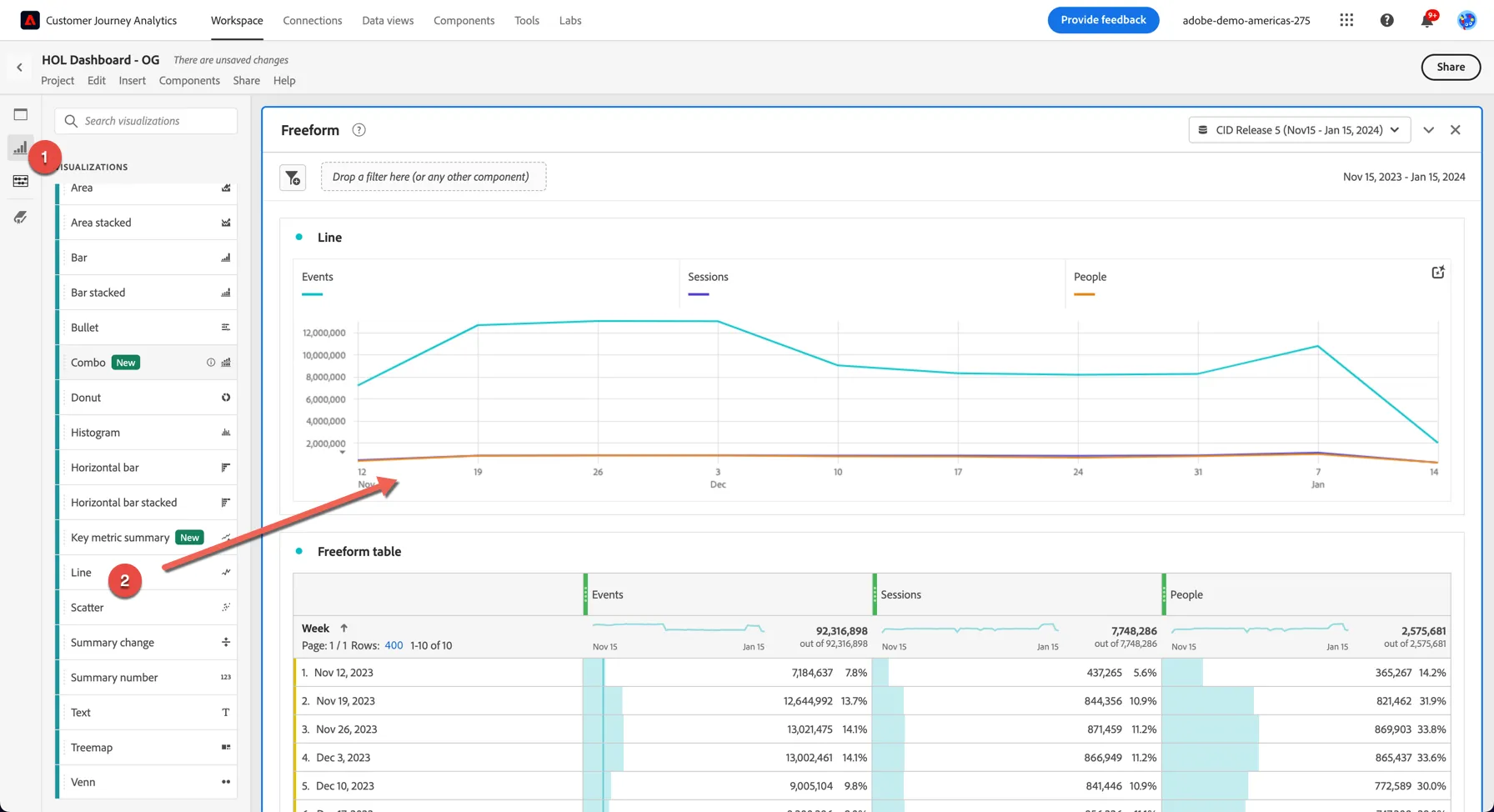
- The Line visualisation will automatically connect to the data table closest to it and will visualise the dimensions and metrics in that table. The dimension is the x-axis and the metrics are trended. You can click individual metrics to disable them in the visualisation.
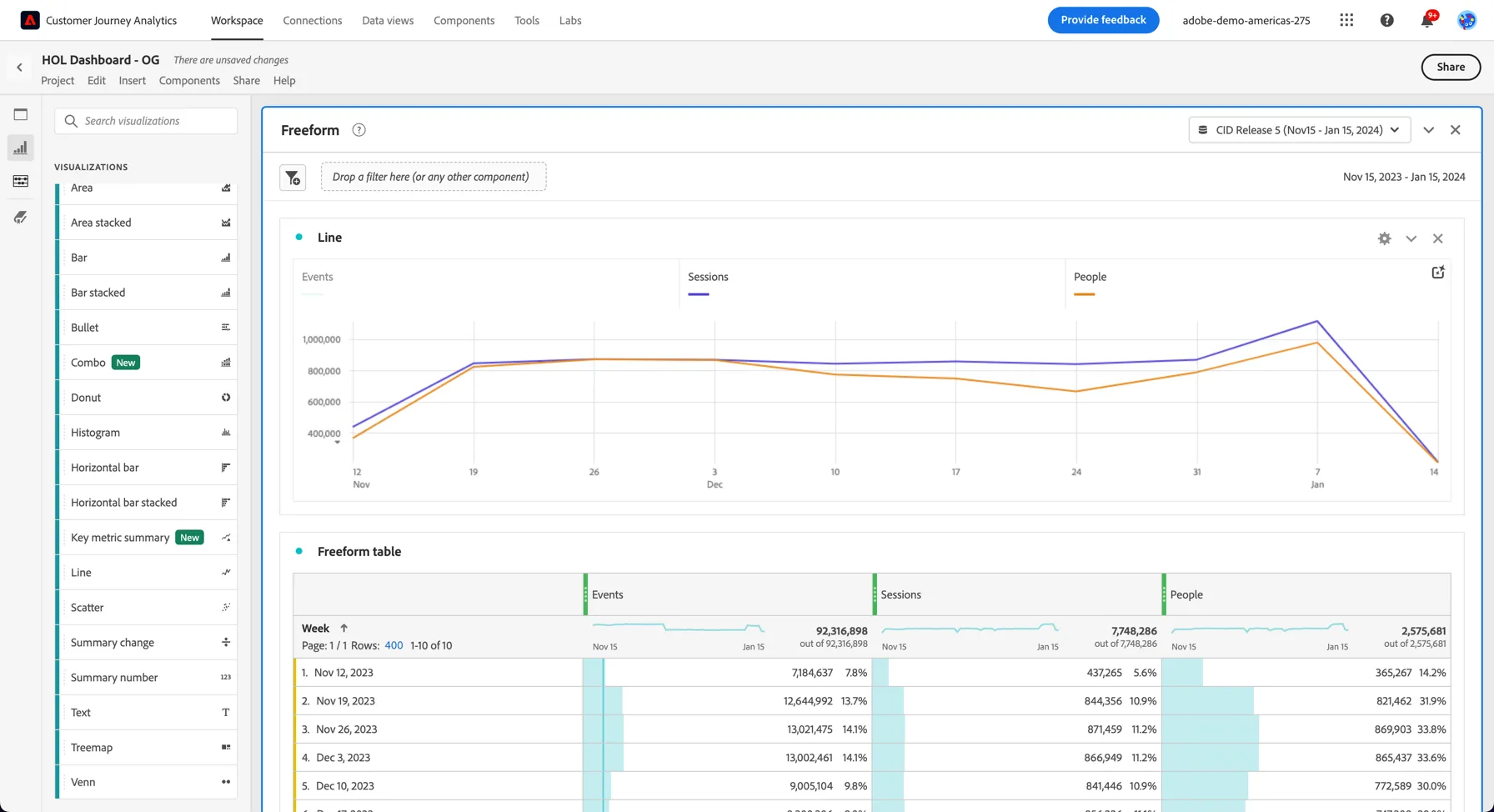
- You can adjust the settings of the visualisation by clicking on the cog icon at the top right.
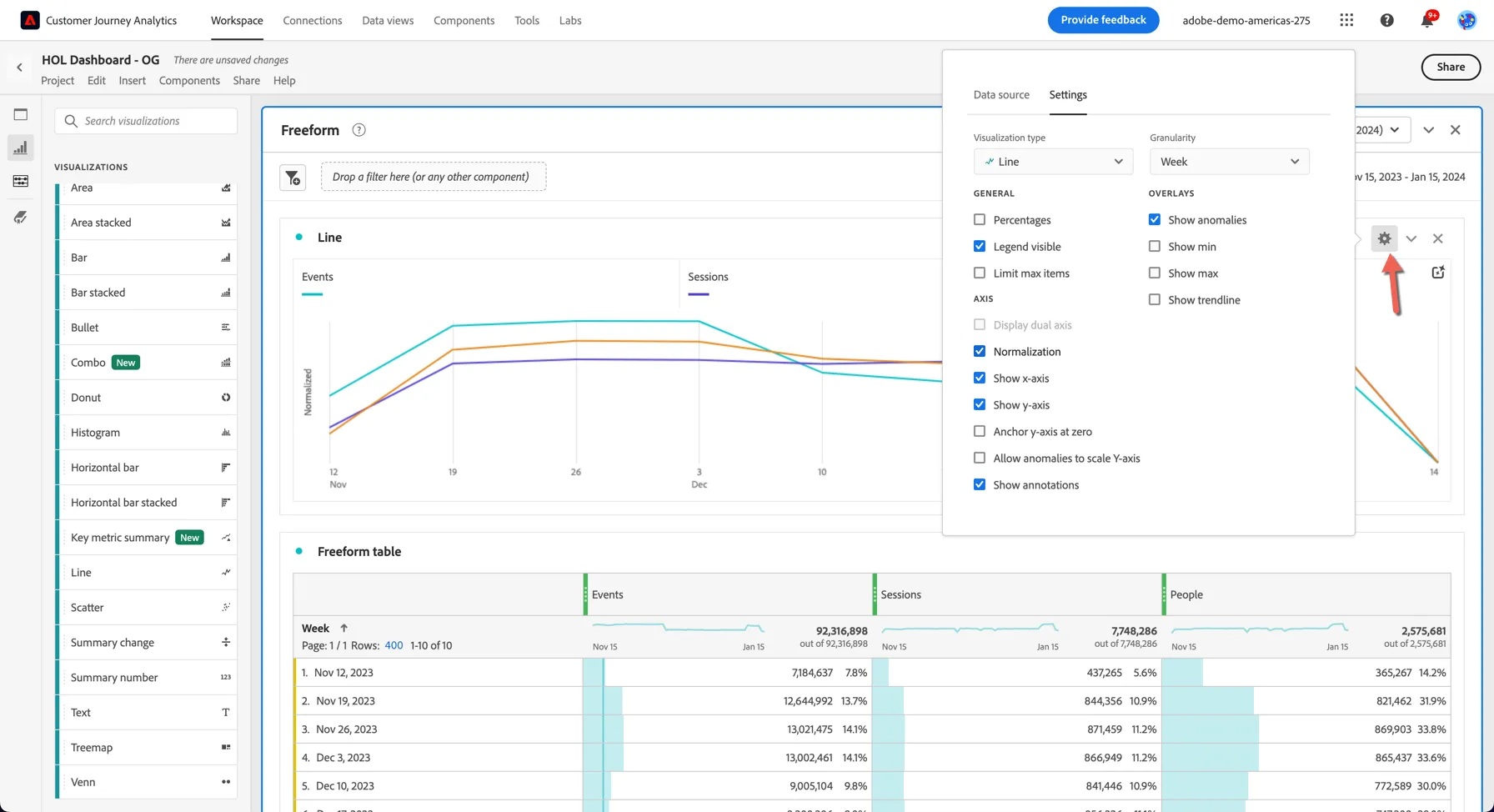
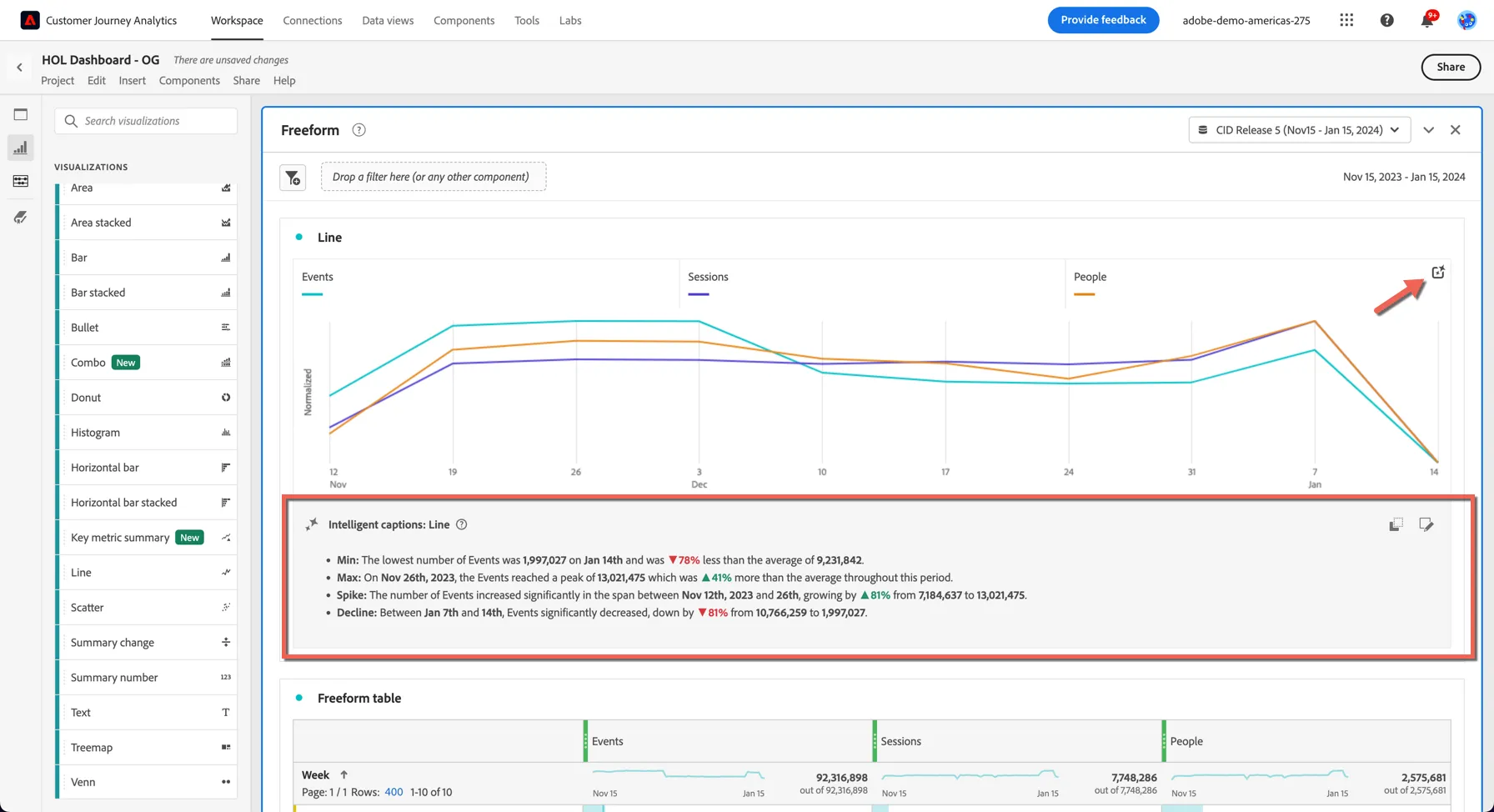
- You can use Adobe Sensei to generate intelligent captions describing the trends seen from your data by clicking the AI icon in the top right.
4.1.3 Add a filter
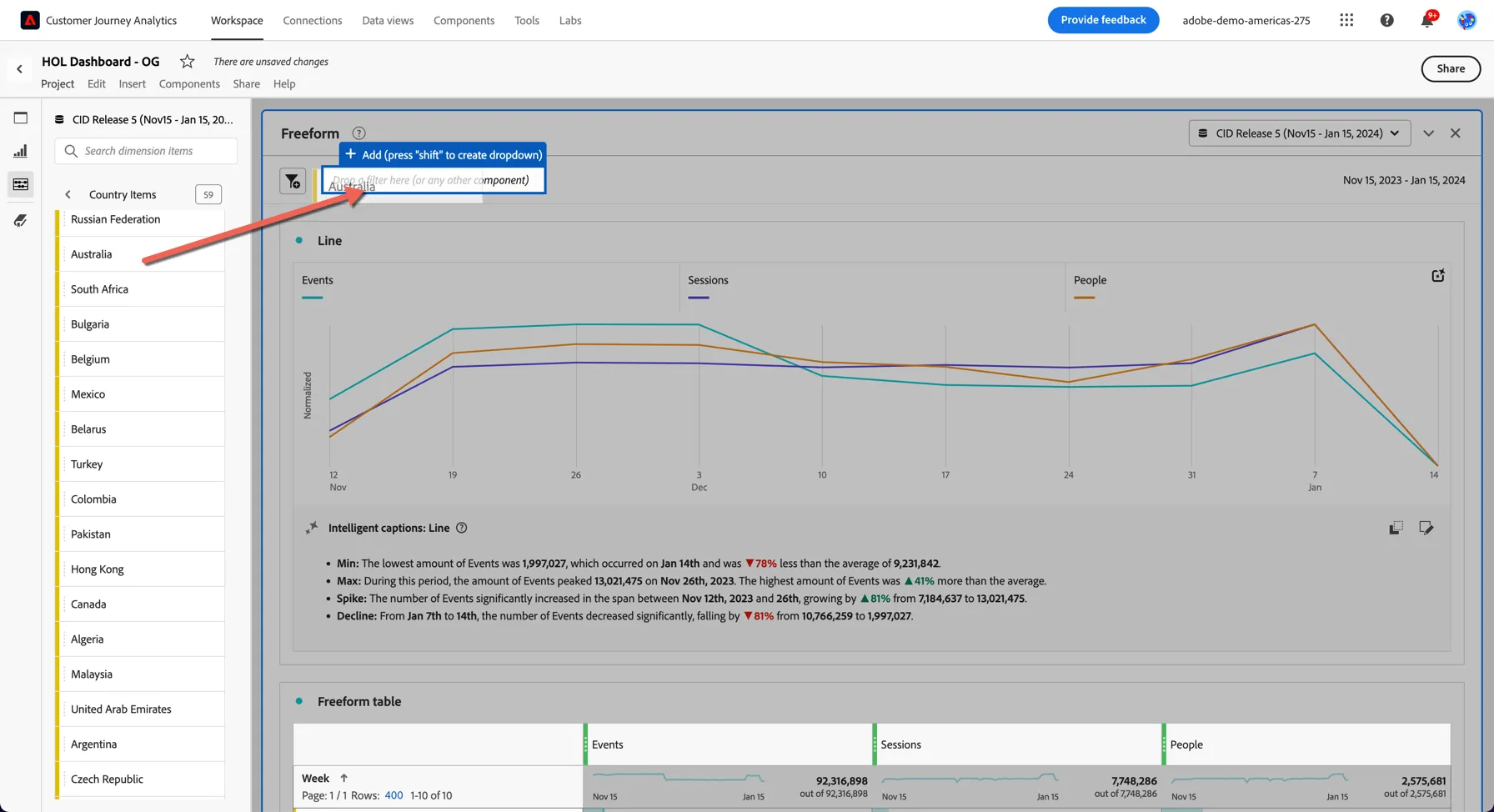
In CJA, your events will be linked to your profile (at least for offline event and logged in session), so you can use your CRM data to filter your data.
- Search for Country in the left panel.
- Press Shift & Click on the ">" icon just right of Country and drag it to the filter section . This will create a drop down of different countries that you can filter the metrics on.
4.1.4 Save your project
- Now would be a good time to save this Project so we don't lose any of our work.
- Click on Project and then Save, or Control/Command S to open the Save Project window.
- Name the project <your lastname>_ DataBootcamp and select Company Folder to store it in. Then click to Save the project.
- Click Save Project.
Exercise Checklist:
Able to drag & view Sessions & People by Week in Analysis workspace
Able to save your CJA project as<your lastname>_ DataBootcamp
Congratulations! You have created your first CJA project!