---
title: Creating the journey
slug: indigo/creating-the-journey
description: >-
docTags:
createdAt: 2024-01-30T23:03:21.354Z
---
In this exercise, you'll be creating and testing a journey using all the components you've created in the previous exercises.
## Journey overview
To get an overview of all journeys in Adobe Journey Optimizer:
1. In the menu on the left side, under **Journey Management**, click on **Journeys**. You will see a overview with all existing journeys.

## Creating a journey
We'll be creating a journey that will send an email confirmation to customers when they book a flight. If the customer is not a loyalty program member, we want to incentivise them to sign up.
Click on **Create Journey**. You'll be taken to the **Journey canvas** with the journey properties opened.
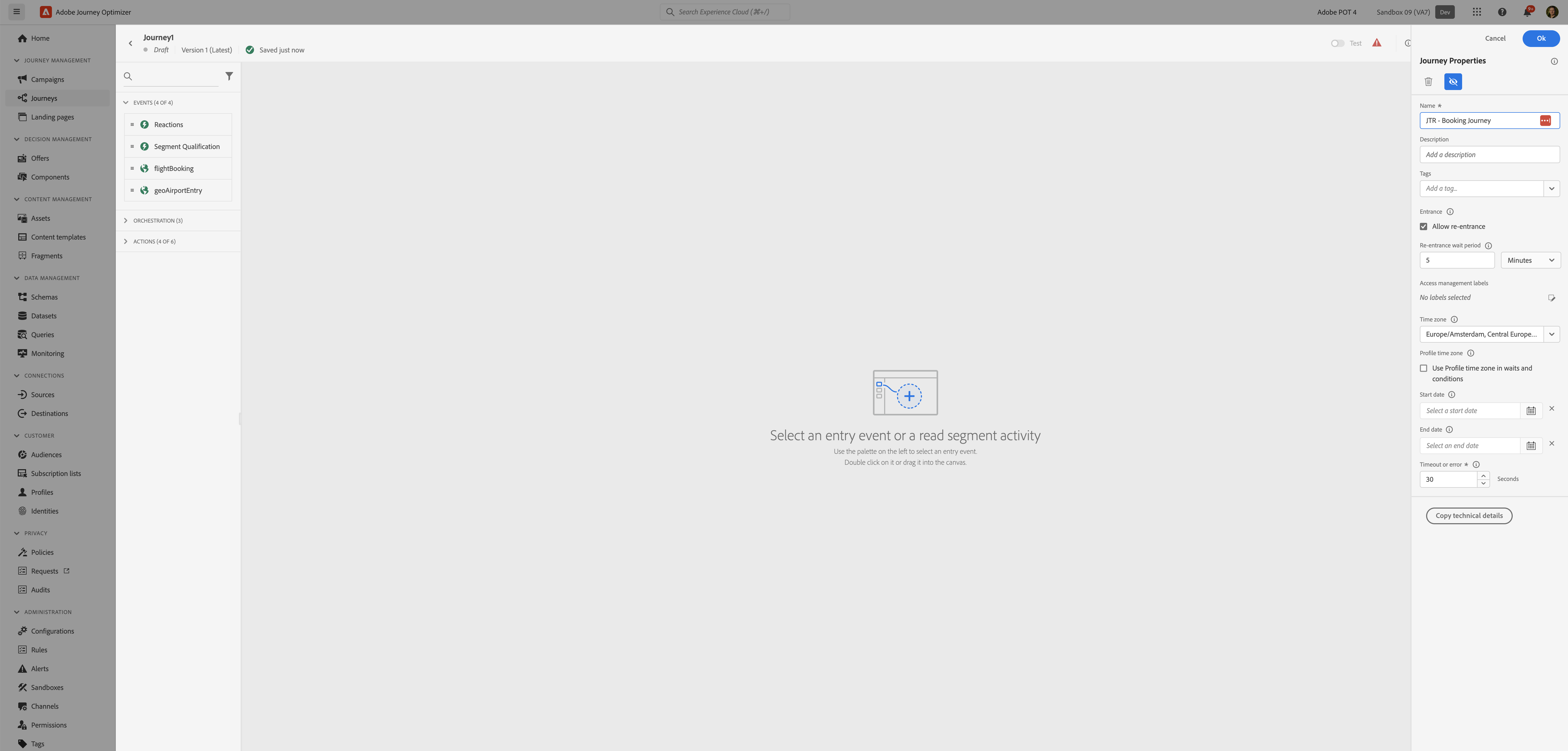
1. Set the **name** to `[your initials] - Booking Journey`.
2. For the other properties we'll keep the default values.
3. Your screen should look like the image below. Click **Ok** to save and close the properties.
You're now in the journey canvas. This is where you'll be creating your journey's logic. In the left menu you have **activities**. There's three types of activities:
**Events** are the triggers that can start or continue your journey.
**Orchestration** is the logic of your journey. It looks at conditions, audiences, but can also be used to make your workflow wait or end.
**Actions** are the responses of your journey. This can be messages, profiles updates or API calls.
### Event trigger
1. We're starting our workflow of with an event trigger. From the events tab, choose **your created event (\[initals] - FlightBooking)** and drag it onto the canvas. *If you did not create an event, use the **flightBooking** event.*
2. There's nothing we need to configure for this as we have already done this when we [Configuring an event](docId\:Hpg-fK9NbGQm7H5vtzXvD). Click **Save** to close the menu.

### Condition - Is a loyalty member?
When the customer enters the Point of Interest (POI), the first thing we want to check is if the customer has an unused coupon.
1. From the orchestration tab, drag **Condition** onto the journey and place on the plus(+) sign icon. **Orchestration: Condition **pane opes on the right.
2. On **Orchestration: Condition **pane, perform the following actions:
1. Set the **label** to `Is a loyalty member?`.
2. Click on **Path1** and change the label to `Yes`.
3. Click on **Add an expression** to open a window.
1. On the left side, open **Audiences**. Scroll down till you find the audience you created called **\[your initials] - WKND Fly Club Program Members** and drag it to the right side.*If you didn't create the audience, use **WKND Fly - WKND Fly Club Program Members**.*
2. By default the statement should be on `true`, if not click the toggle. Checks if the title reads `[your initials] - WKND Fly Club Program Members audience membership is true` and click **Ok **at the top to add expression.
3. Click **Ok** to save the conditions.
4. Check **Show path for other cases than one(s) above** and set the label to `No`.
5. Your screen should look like the image below. Click **Save**.

In our journey we want to focus on the customer that are not loyalty program members. Rearrange the paths so that the No-path is on top.

### Email #1 - Booking confirmation (non-loyalty)
In the next steps you will be building the email for your journey. You'll start from a basic template and adding a few customizations. The exercise will familiarise you with how to build an email using components, using personalisation (based on data from the profile) and contextual data (data from the flight booking event).
::::Tabs
:::Tab{title="Build email (basic)"}
1. From the actions tab, drag **Email** onto the journey and place on the plus(+) sign iconplus circle on the **No **path. **Actions: Email** pane open on the right.
2. On the **Actions: Email **pane, perform the following actions: .
1. Set the **label** to `Booking confirmation (non-loyalty)`.
2. Set the **category** to `Transactional`.
3. Set the **email surface** to `transactionalMessages`.
4. Click on **Edit content** to start designing your email.
1. Click on to create a subject line. Set it to `FIRSTNAME, your flight booking is confirmed!`
2. Click on **Open Personalization Dialog** icon.
3. Remove the text `FIRSTNAME` and search for `first name` in the profile attributes.
4. Find the field First name (... attributes > person > Full name) and click on the :FontAwesome[]{icon="fa-solid fa-plus"} **icon** to add it to your subject line. It should now be
`{{profile.person.name.firstName}}, Your flight booking is confirmed!`
5. Click **Save**.
5. Click on **Edit email body**. Under **Saved templates**, choose `WKND Fly - Default Template`. It will show you a preview of the template. Click on **Use this template**.
3. The email designer will now open. It should look like this:
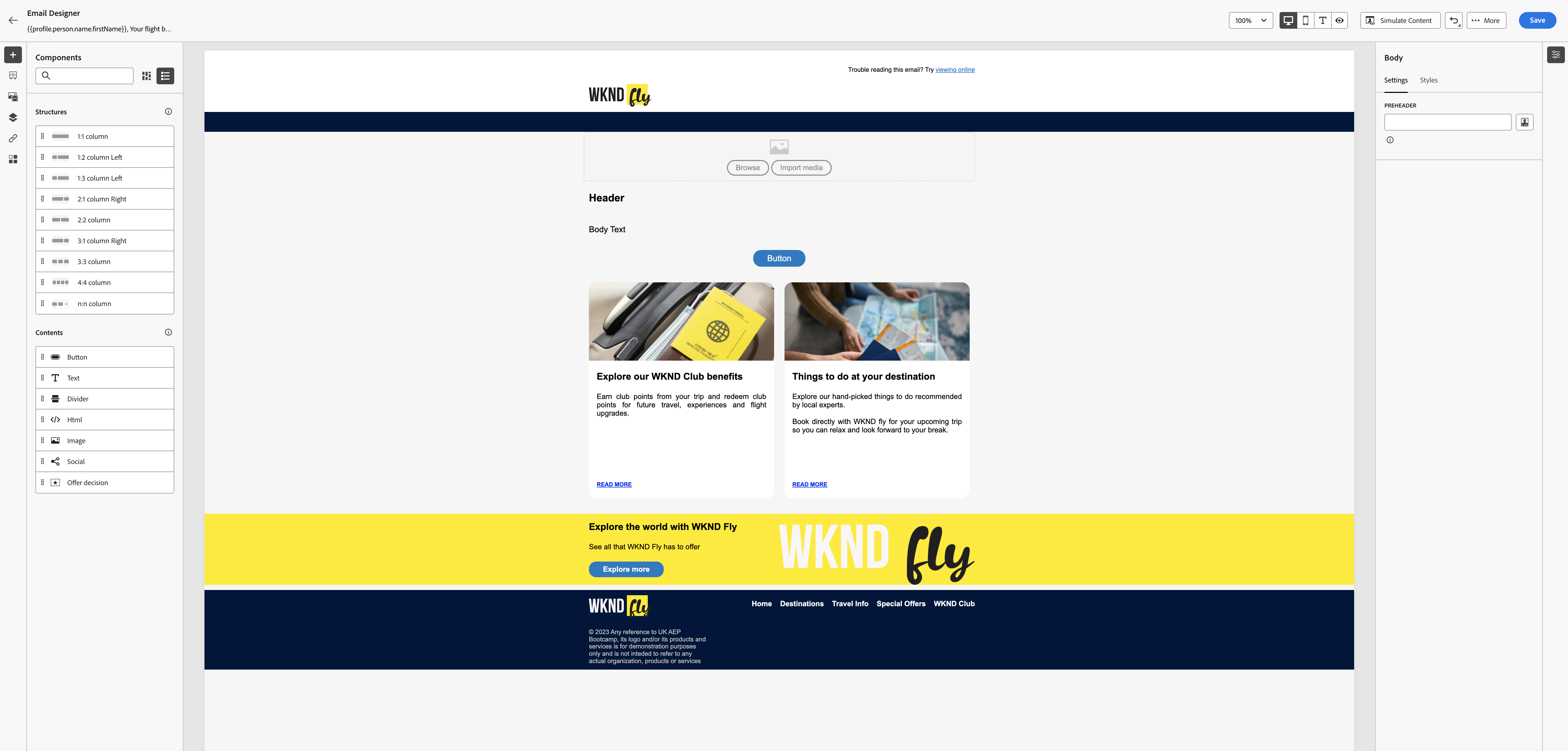
In the left menu you have **components**.
**Structure components** are the building blocks of your email, they will determine the layout of your email.
**Content components** are the different forms of content that you can place inside your structure components, like text, buttons and images.
1. Let's put in a header image first. Click on **Browse** in the header component of the email template. This will open the **Assets Essentials** interface. Navigate to** Travel > WKND Fly** and select the image `header-airplane.png` and click **Select** in the top right.
2. Click the **Header component** and change the text to:
`Your booking is confirmed, thank you for flying with us!`
3. Use the pop-up menu to change the alignment to `Center alignment`.
4. Click on the left or right side of the **Header component** so the entire row is highlighted by a blue border. Using the :FontAwesome[]{icon="fa-solid fa-arrows-up-down-left-right"} **icon** on the left drag the row so it's above the header image.
5. Click the **Body component** and change the text to:
`Have an amazing trip to CITY!`
6. Use the pop-up menu to make the text **bold**.
7. Remove the text `CITY` and click on the :FontAwesome[]{icon="fa-solid fa-user"}** icon** to add personalization to your email.
8. Click on **Contextual attributes** and Search for `city`. Add `Arrival City` to your expression by clicking on the :FontAwesome[]{icon="fa-solid fa-plus"} **icon**. It should read`{{context.journey.events.1557988536.reservations.flightReservations._adobedemoamericas275.arrivalCity}}`
*If you used your own event, the event ID (1557988536) will be different for you.***
**
Click **Save**. Your component should look like this:

9. From the **structural components** drag a `1:1 column` onto the email, between the component we just created and the button.
10. From the **content components** drag a `Text` onto the email, into the newly added structural component.
11. Change the text to:
`We look forward to welcoming you on board! Did you know you can earn points for this flight? Join WKND Club now!`
12. Set the **top/bottom padding** for the text component to `20`.
13. Set the **left/right padding** for the text component to `10`.
14. Select the **Button component** and change the button label to: `Earn points for your flight`
15. In the double block below the button, select the image of the left block.
16. In the right menu, go to **Settings** and click **Select an asset** to change the image. This will open the **Assets Essentials** interface. Navigate to **Travel > WKND Fly** and select the image `wknd-club.png` and click **Select** in the top right.
17. Change the block's header to: `Join WKND Club to earn points`
18. Change the block's content to:
`Earn Club points from your flights and redeem them on future flights, upgrades, rewards and more!`
The blocks should now look like this:

19. In the yellow highlight bar, change the header to: `Add Extras`
20. In the yellow highlight bar, change the content to: `Upgrade to business class, add a hotel to your booking and much more...`
21. In the yellow highlight bar, change the button label to: `Explore extras`
The highlight bar should now look like this:

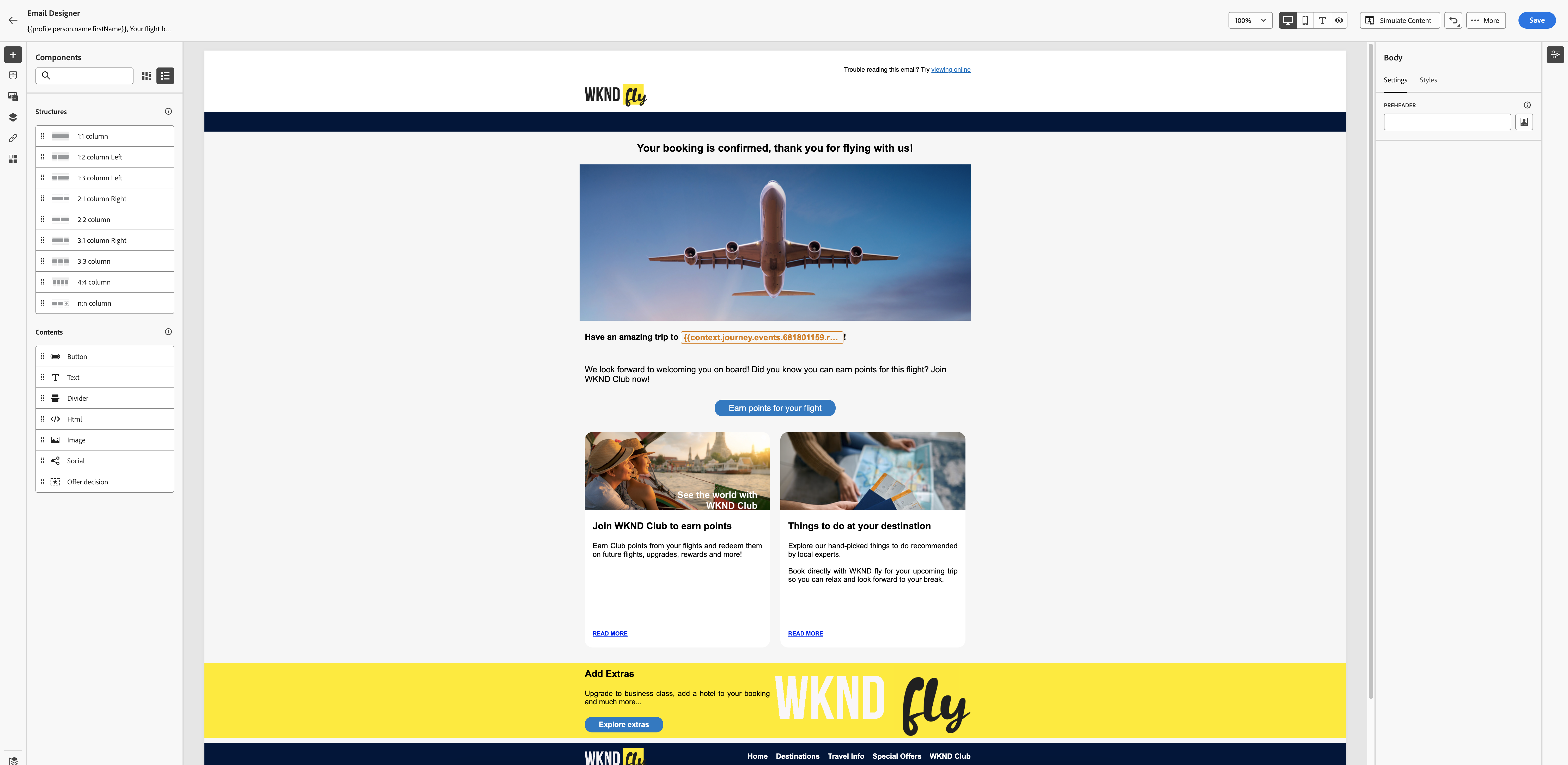
22. Your screen should look like the image below. Click **Save** in the top right. Navigate out of the Email designer by clicking the arrow on the top left of your screen. Then navigate out of the email overview by clicking on the arrow on the top left.
:::
::::
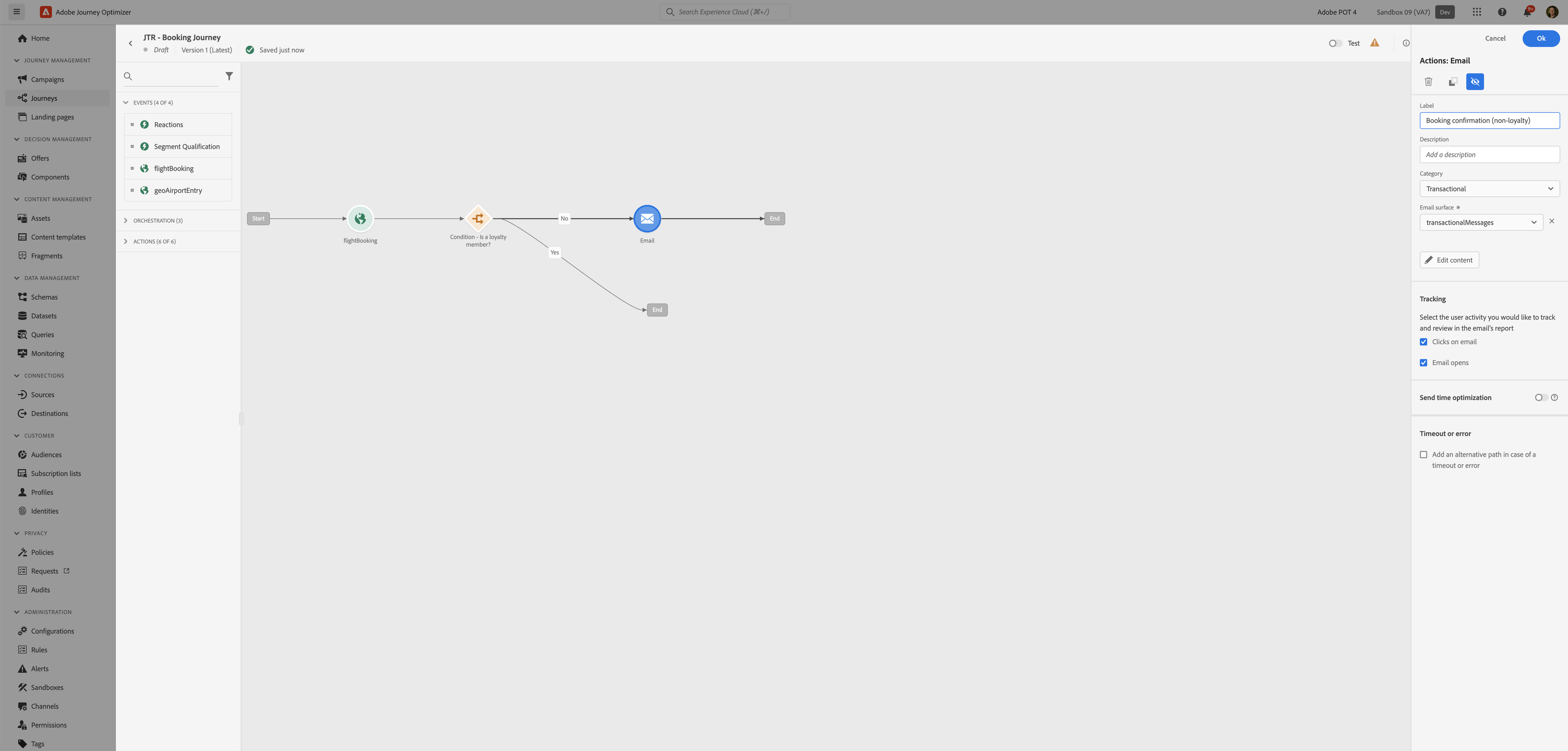
You will be taken back to the journey canvas.
### Email #2 - Booking confirmation (loyalty)
1. Select the activity **Email - Booking confirmation (non-loyalty)**. Copy it by clicking the :FontAwesome[]{icon="fa-solid fa-copy"} **icon** in the details panel or by using CTRL+C (or CMD+C on mac devices. Then press CTRL+V (or CMD+V on Mac devices) to paste it on the canvas.
2. Drag the newly created object at the **Yes **path and drop this on top of the plus(+) circle to connect it.
3. Click on the **Email**-activity to open the detailed view.
1. Set the **label** to `Booking confirmation (loyalty)`.
2. Click on **Edit content** to start make some adjustments to the email content.
4. Click on **Edit email body**. This will open the email designer.
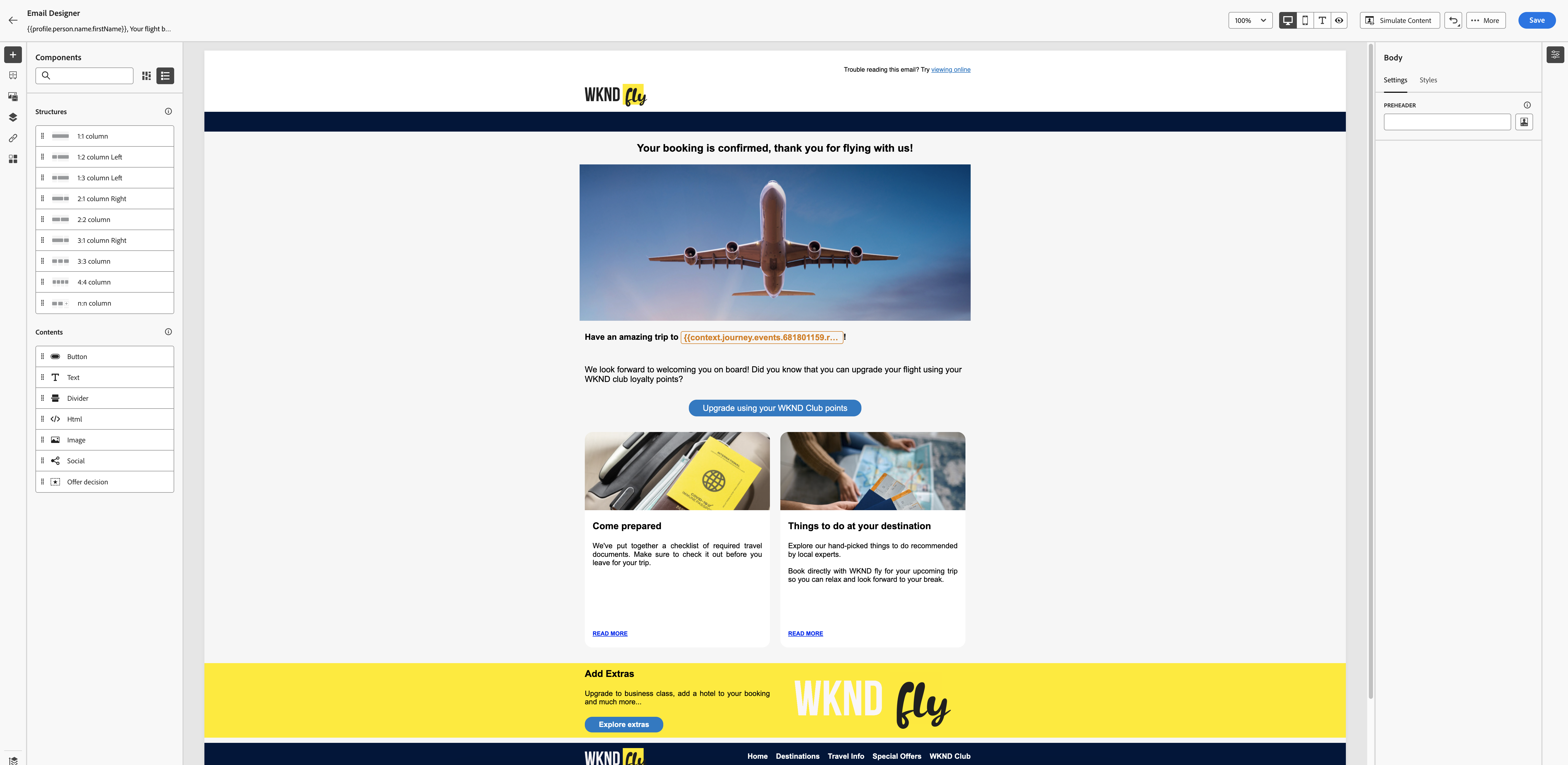
5. Change the **Text component** above the button to:
`We look forward to welcoming you on board! Did you know that you can upgrade your flight using your WKND club loyalty points?`
6. Change the button label to `Upgrade using your WKND Club points`.
7. In the double block below the button, select the image of the left block.
8. In the right menu, go to **Settings** and click **Select an asset** to change the image. This will open the **Assets Essentials** interface. Navigate to **Travel > WKND Fly** and select the image `travel-requirements.jpeg` and click **Select** in the top right.
9. Change the block's header to: `Come prepared`
10. Change the block's content to: `We've put together a checklist of required travel documents. Make sure to check it out before you leave for your trip.`
11. Your screen should look like the image below. Click **Save** in the top right. Navigate out of the Email designer by clicking the arrow on the top left of your screen. Then navigate out of the email overview by clicking on the arrow on the top left. You will be taken back to the journey canvas.
Depending on what you picked when creating the previous email
::::Tabs
:::Tab{title="Email (basic)"}
:::
::::

### Audience Qualification
Next, we want to check if the customer signed up for our WKND Club loyalty program. If not, we want to send them another email offering them bonus points if they sign up.
1. We're going to check if the customer enters our **WKND Fly Club Program Members** audience, because this would indicate they signed up. From the events tab, choose **Audience Qualification** and drag it onto the canvas behind the **Email -Booking confirmation (non-loyalty)**.
2. Click on the activity to open the detailed view.
1. Set the **label** to `WKND Club member`.
2. Click on **Audience** to open a window, select your audience **\[your name] - WKND Fly Club Program Members** from the list and click **Save**.
*If you didn't create the audience, use **WKND Fly - WKND Fly Club Program Members***
3. Set the **behavior** to `Enter`. This means it will only trigger as soon as the customer qualifies for the audience.
4. Check **Define the event timeout** and set it to wait for `3 Days`.
5. Check **Set a timeout path**.
6. Your screen should look like the image below. Click **Save**.

In our journey we want to focus on the customer that are still not loyalty program members. Rearrange the paths so that the timeout-path is on top.

1. From the actions tab, choose **Email** and drag it onto the plus(+) circle at the **Timeout-path**.
2. Click on the activity to open the detailed view.
1. Set the **label** to `Loyalty Program Offer`.
2. Set the **category** to `Marketing`.
3. Set the **email surface** to `ma1-hol2-marketing`.
4. Click on **Edit content** to start designing your email.
1. Click on to create a subject line. Set it to `FIRSTNAME, Join WKND Club today!`
2. Click on **Open Personalization Dialog** icon.
3. Remove the text `FIRSTNAME` and search for `first name` in the profile attributes
4. Find the field First name (... attributes > person > Full name) and click on the :FontAwesome[]{icon="fa-solid fa-plus"} **icon** to add it to your subject line. It should now be
`{{profile.person.name.firstName}}, Join WKND Club today!`
5. Click **Save**.
5. Click on **Edit email body**. Under **Saved templates**, choose `WKND Fly - Default Template`. It will show you a preview of the template. Click on **Use this template**.
3. The email designer will now open. It should look like this:
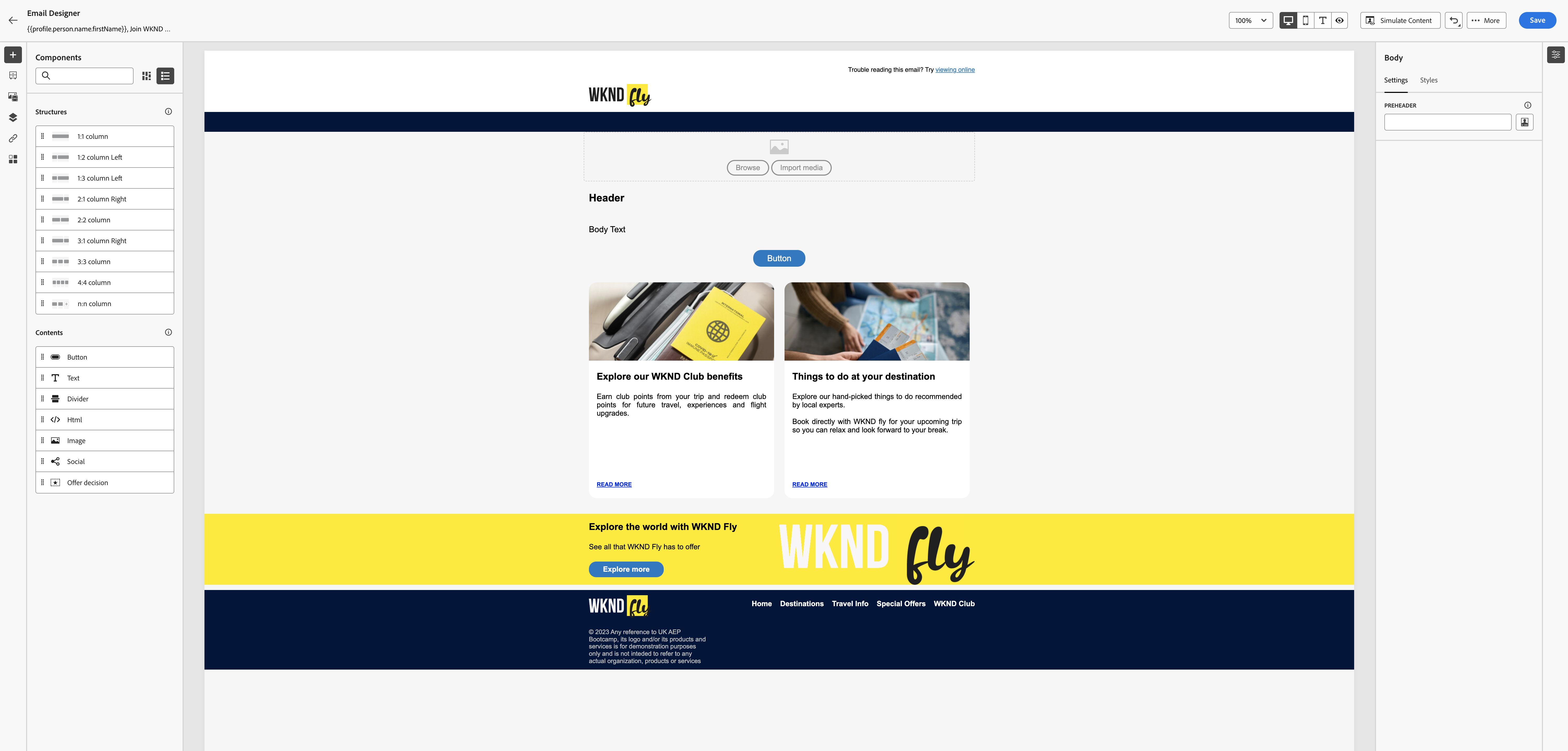
:::hint{type="info"}
Don't feel like building the email? You can choose the `WKND Fly - Loyalty offer email` to get the completed email.
:::
In the left menu you have **components**.
**Structure components** are the building blocks of your email, they will determine the layout of your email.
**Content components** are the different forms of content that you can place inside your structure components, like text, buttons and images.
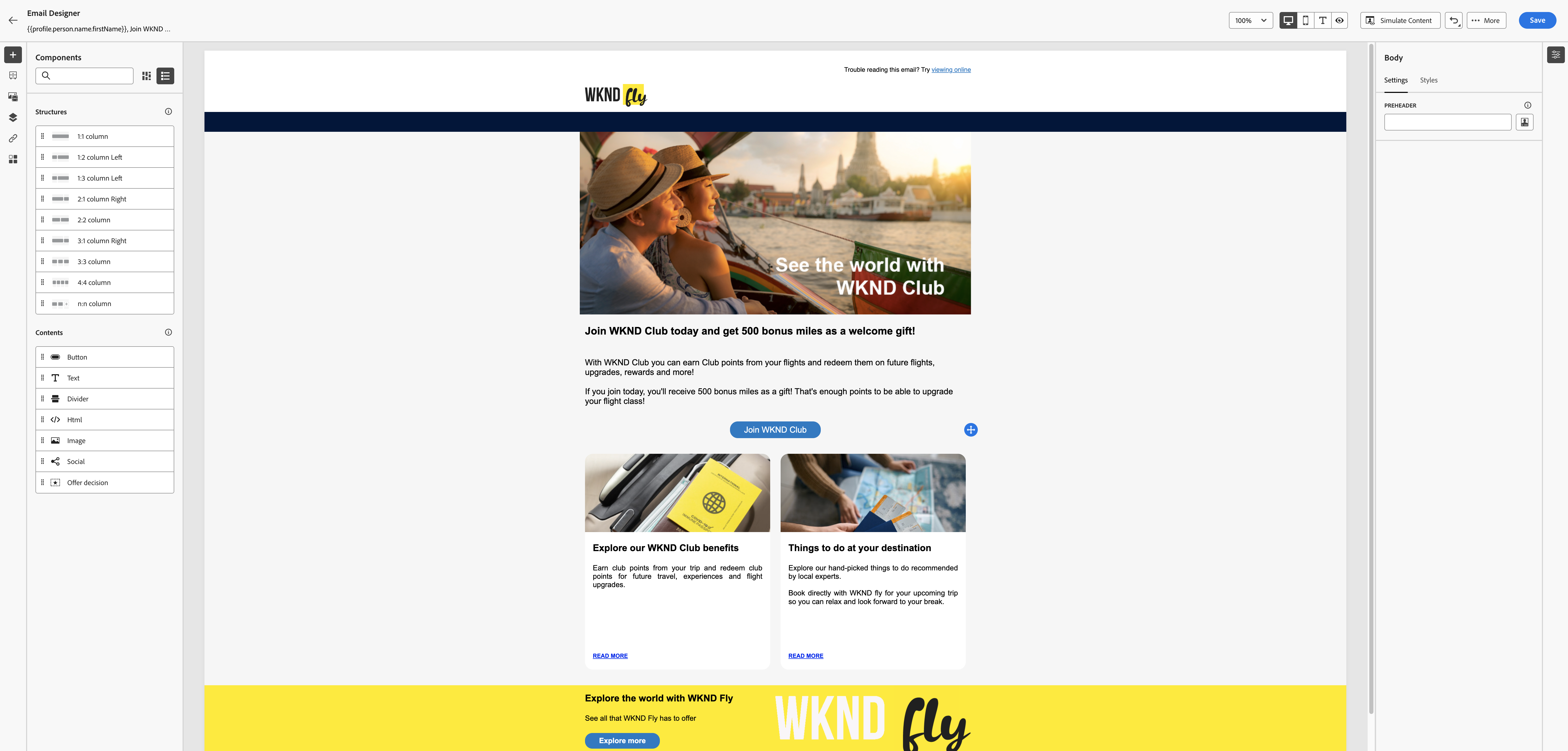
1. Let's put in a header image first. Click on **Browse** in the header component of the email template. This will open the **Assets Essentials** interface. Navigate to ** Travel > WKND Fly** and select the image `wknd-clud.png` and click **Select** in the top right.
2. Click the **Header component** and change the text to: *Join WKND Club today and get 500 bonus miles as a welcome gift!*
3. Click the **Body component** and change the text to:
With WKND Club you can earn Club points from your flights and redeem them on future flights, upgrades, rewards and more!
If you join today, you'll receive 500 bonus miles as a gift! That's enough points to be able to upgrade your flight class!**
4. Select the **Button component** and change the button label to: `Join WKND Club`.
5. Your screen should look like the image below. Click **Save** in the top right. Navigate out of the Email designer by clicking the arrow on the top left of your screen. Then navigate out of the email overview by clicking on the arrow on the top left. You will be taken back to the journey canvas.

:::hint{type="success"}
You have now successfully created the booking journey using the Adobe Journey Optimizer. Next, we are going to test our journey using Test Mode.
:::