Introduction
Customer Journey Analytics (CJA) can analyse the omni-channel data that you've collected into Adobe Experience Platform.
- Click into the Company Folder, this is where you will find pre-built dashboards that are accessible to everyone. If you want to create a private dashboard you can store it outside of this folder.
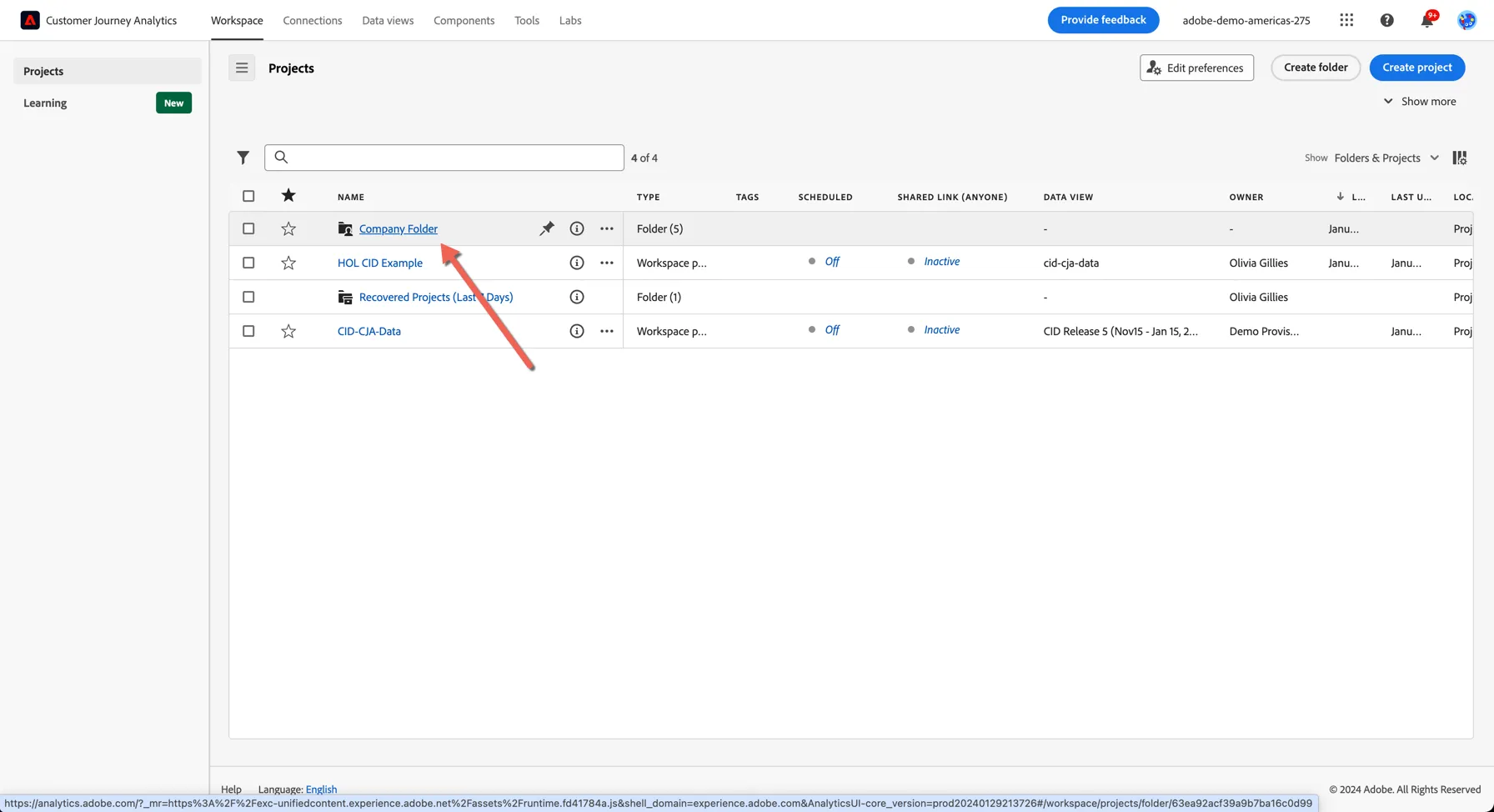
2. Open the dashboard called HOL Dashboard
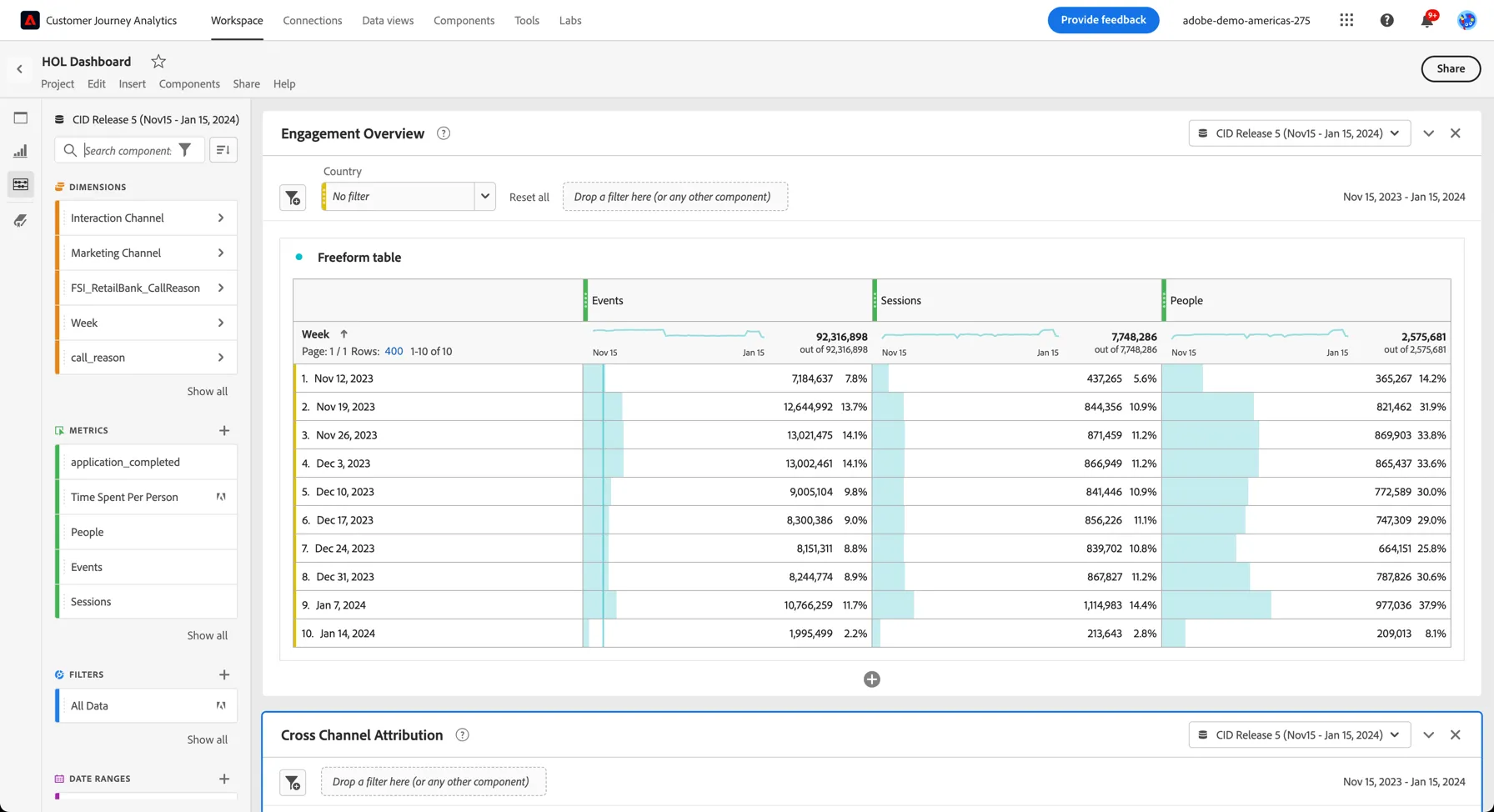
Here you can see an overview of the events that have been ingested into Adobe Experience Platform, along with how many people initiated those events and across how many separate sessions.
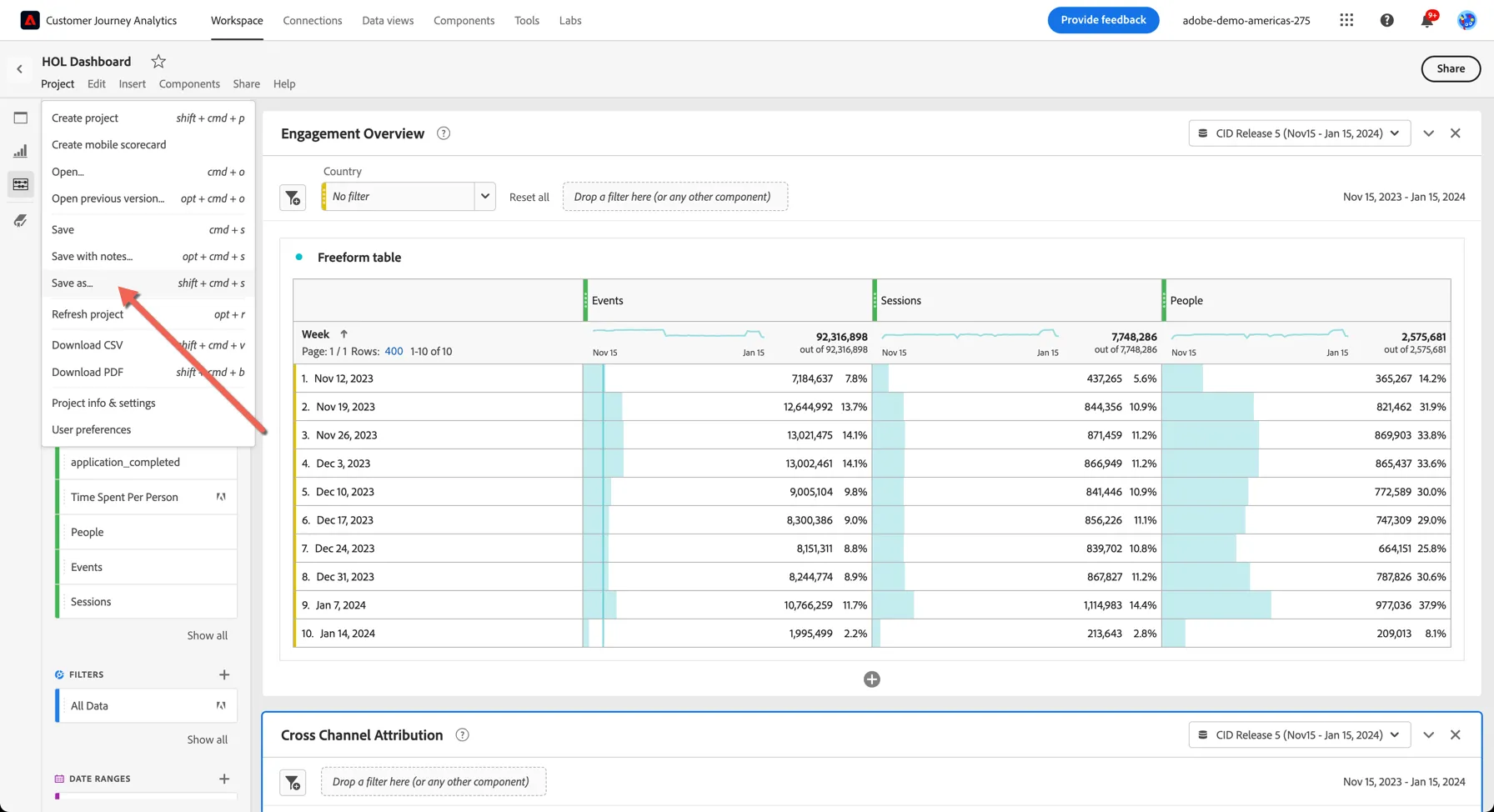
3. Before we start modifying the dashboard let's save it as a new copy, click on Project menu and select Save as
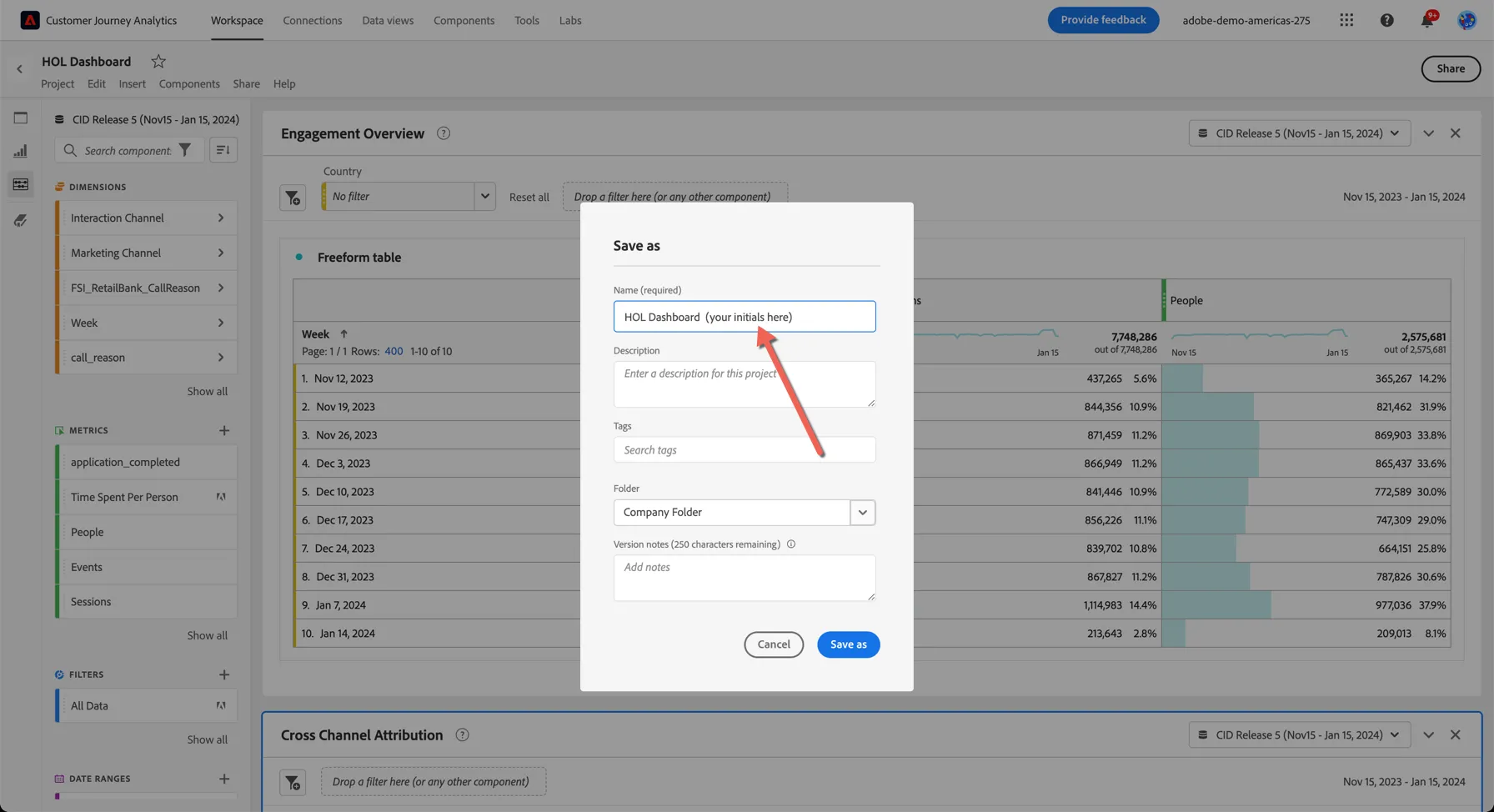
4. Prefix your initials to the project name so you can recognise it as yours and click Save As.
5. Now let's add a line visualisation to the dashboard. Click on Visualisations in the left menu and drag the Line visualisation to the Dashboard panel above the Base KPIs Trended table.
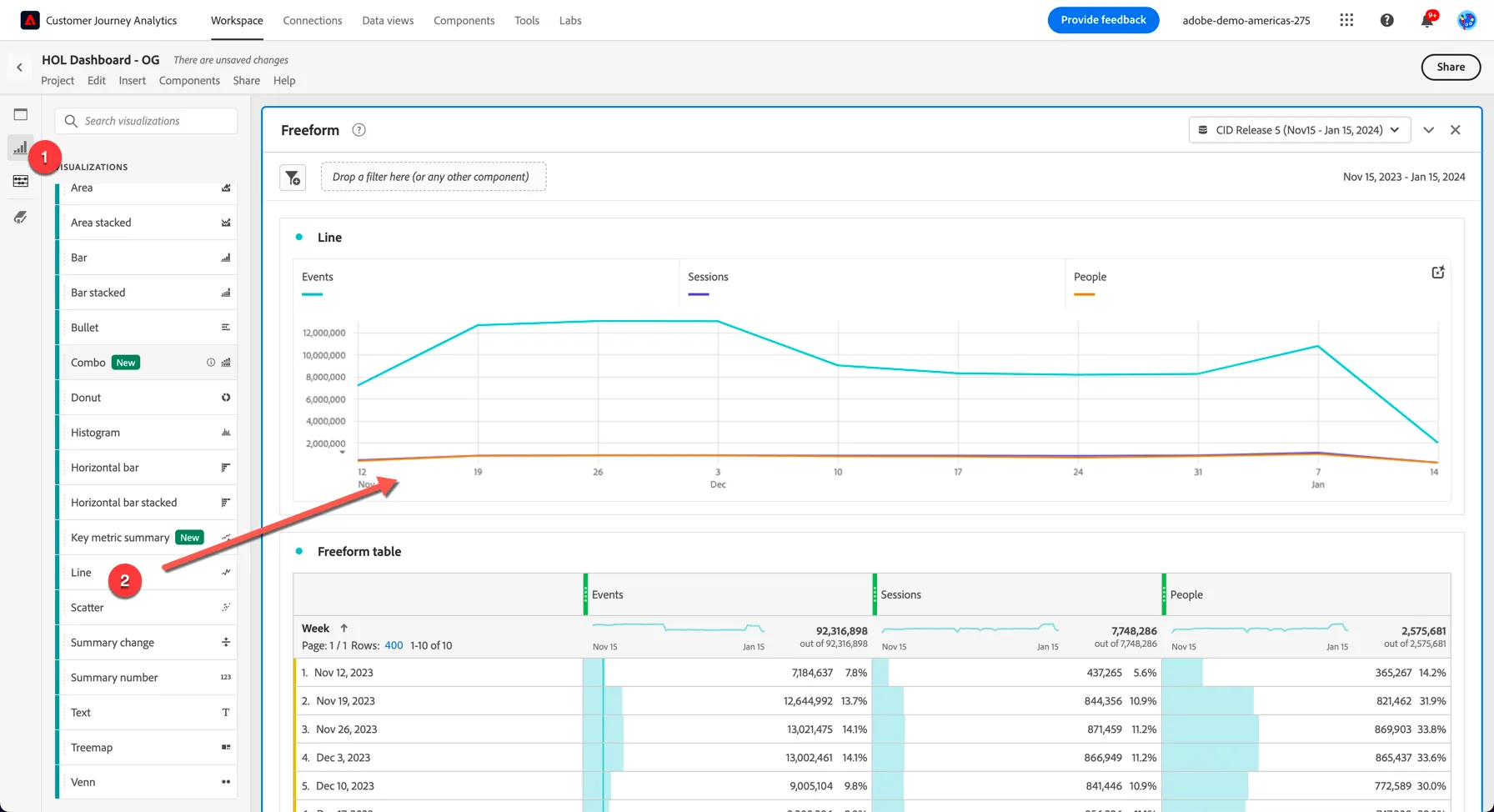
The Line visualisation will automatically connect to the data table closest to it and will visualise the dimensions and metrics in that table. The dimension is the x-axis and the metrics are trended. You can click individual metrics to disable them in the visualisation.
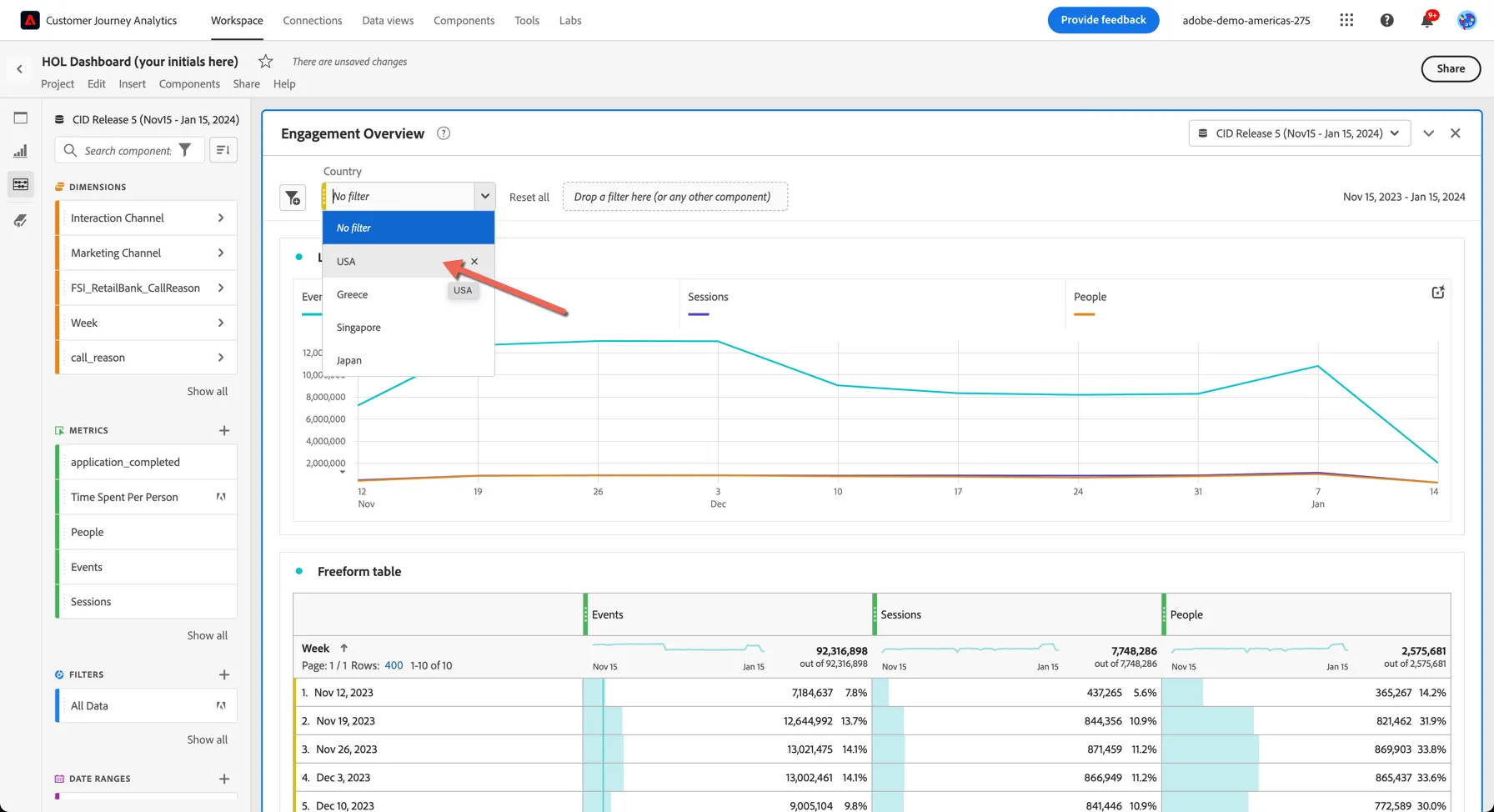
In CJA, your events will be linked to your profile (at least for offline event and logged in session), so you can use your CRM data to filter your data.
6. Select a Country from the filter at the top of the panel to filter the data shown in the report.
Click Crtl/Command S to save your project again.