Send your Audience to Adobe Campaign for Email Marketing
To log into the Adobe Experience Platform, check the Introduction section.
- In the left rail, click on Connections and choose Destinations, then go to Catalog. You’ll then see the Destinations Catalog.
- Under Categories, select Email Marketing, click the Activate Audiences on the Adobe Campaign Managed Cloud card.
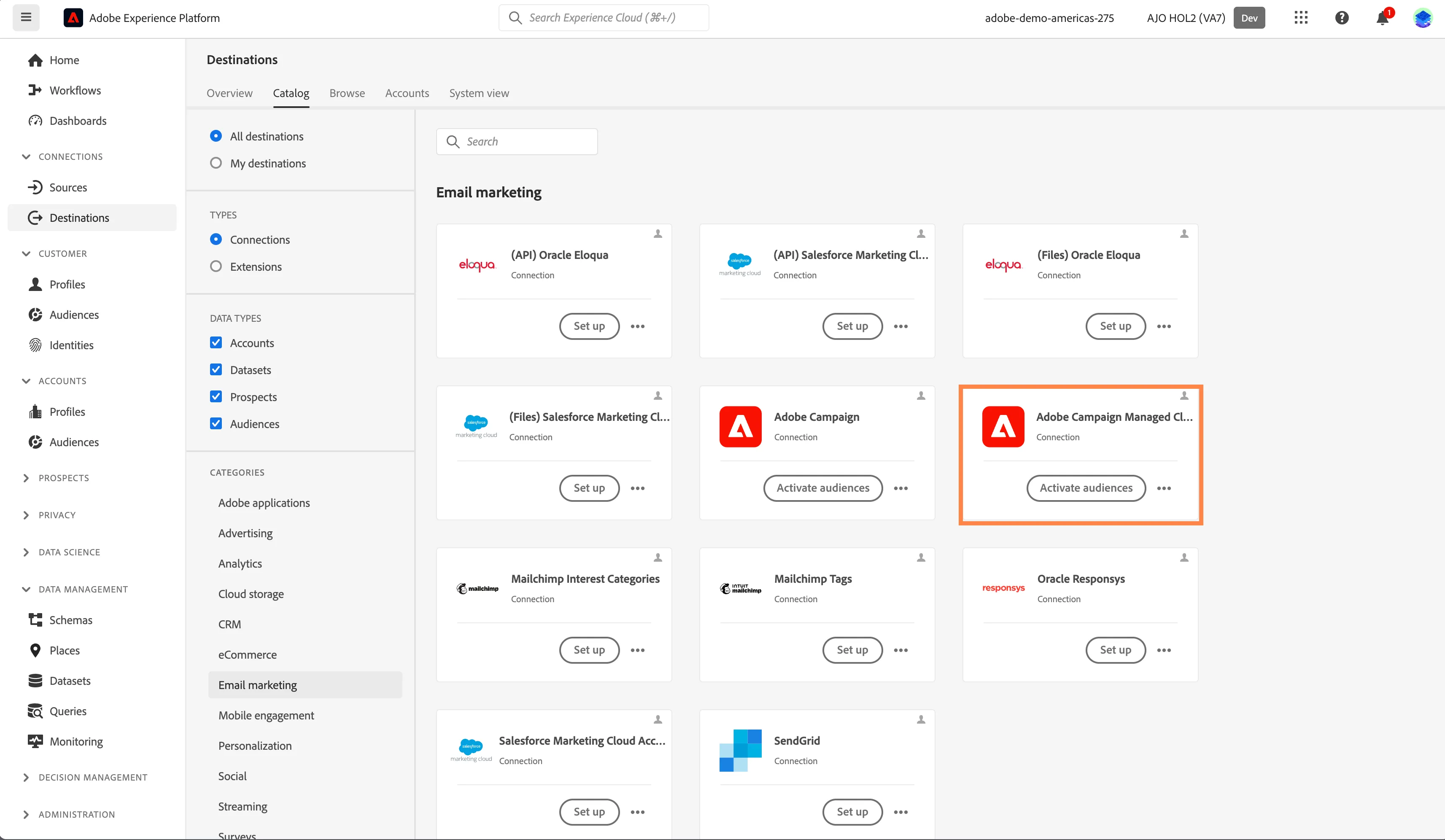
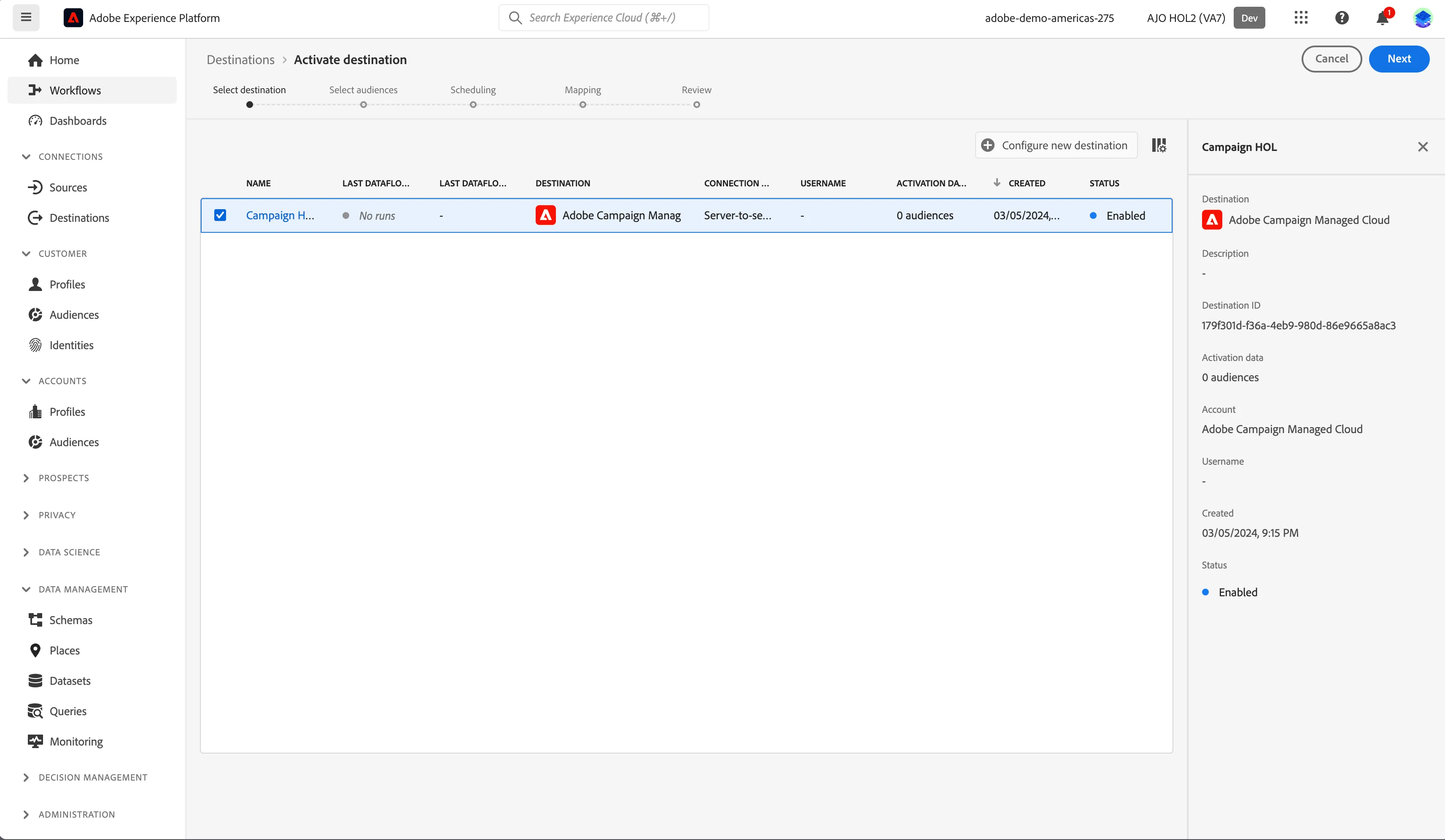
- Select your Destination and click Next.
For this Lab we have already configured the Adobe Campaign Destination for our demo account. You can reuse this Destination to map your audiences in the Lab: Campaign HOL.
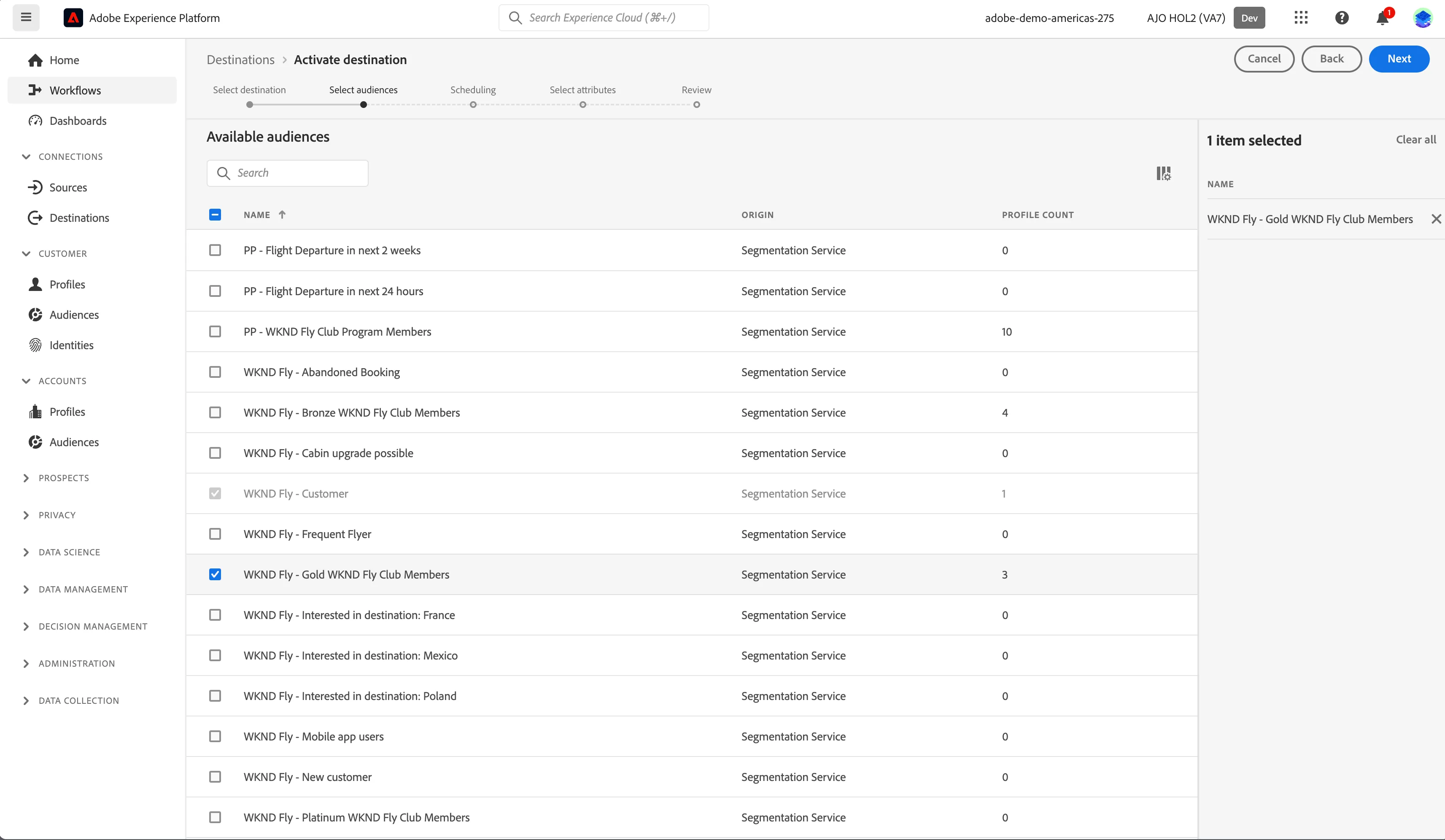
In the list of available audiences
- Select one of the Audiences you created in the previous exercise. Click Next.
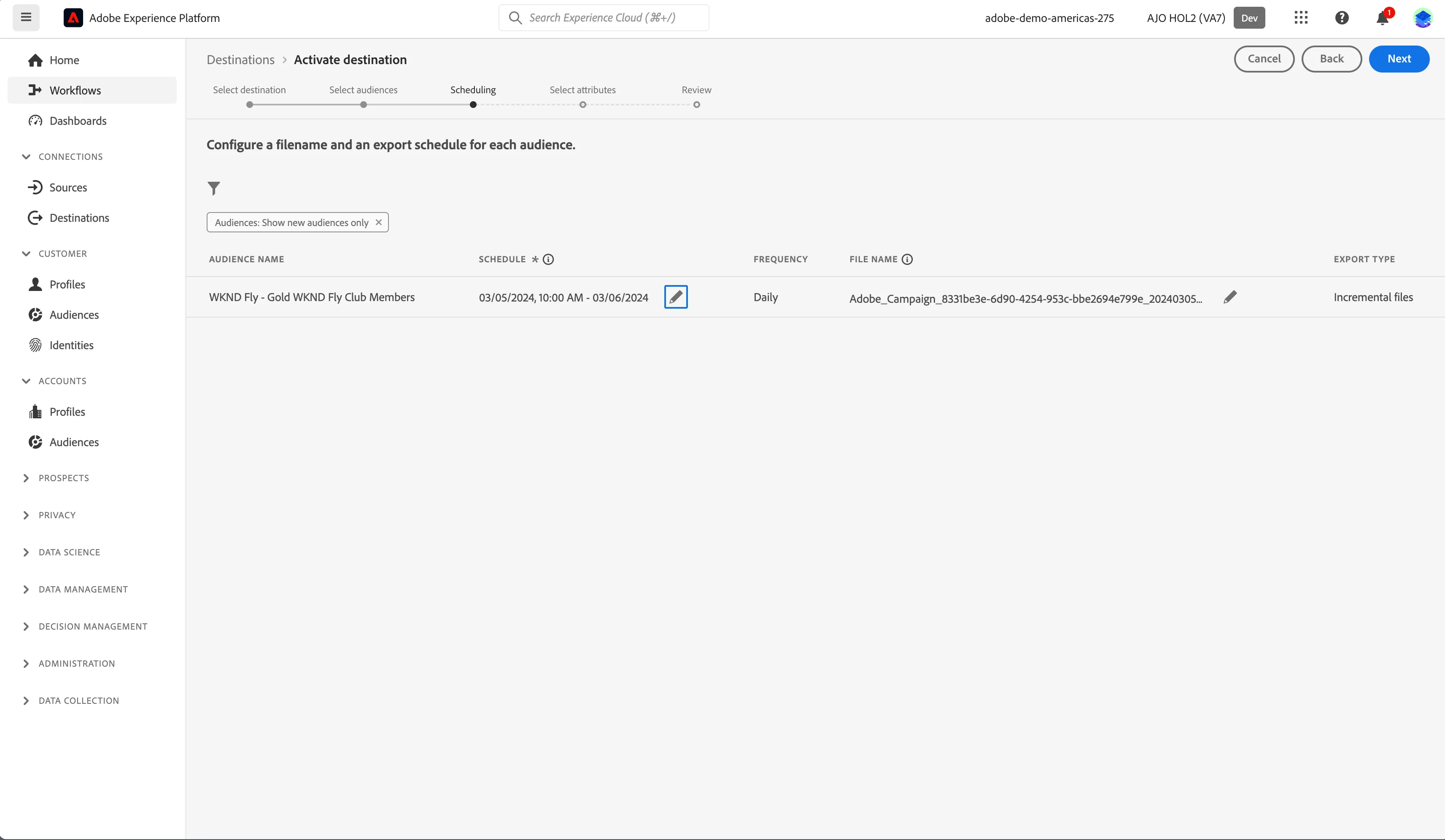
- Scheduling tab is displayed. Click Create Schedule.
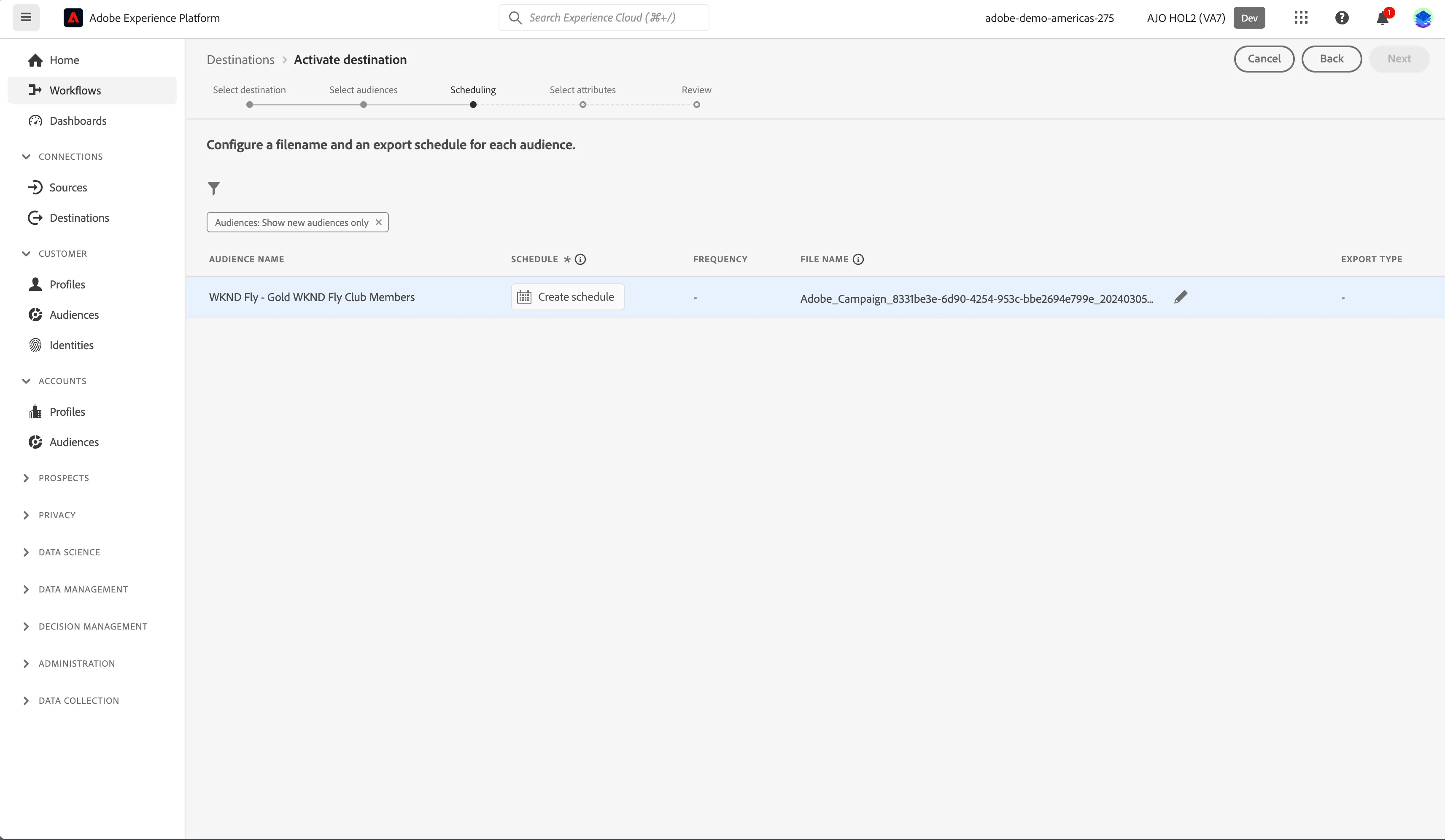
- Review the schedule options. Keep the default selection and click Create. Click Next.
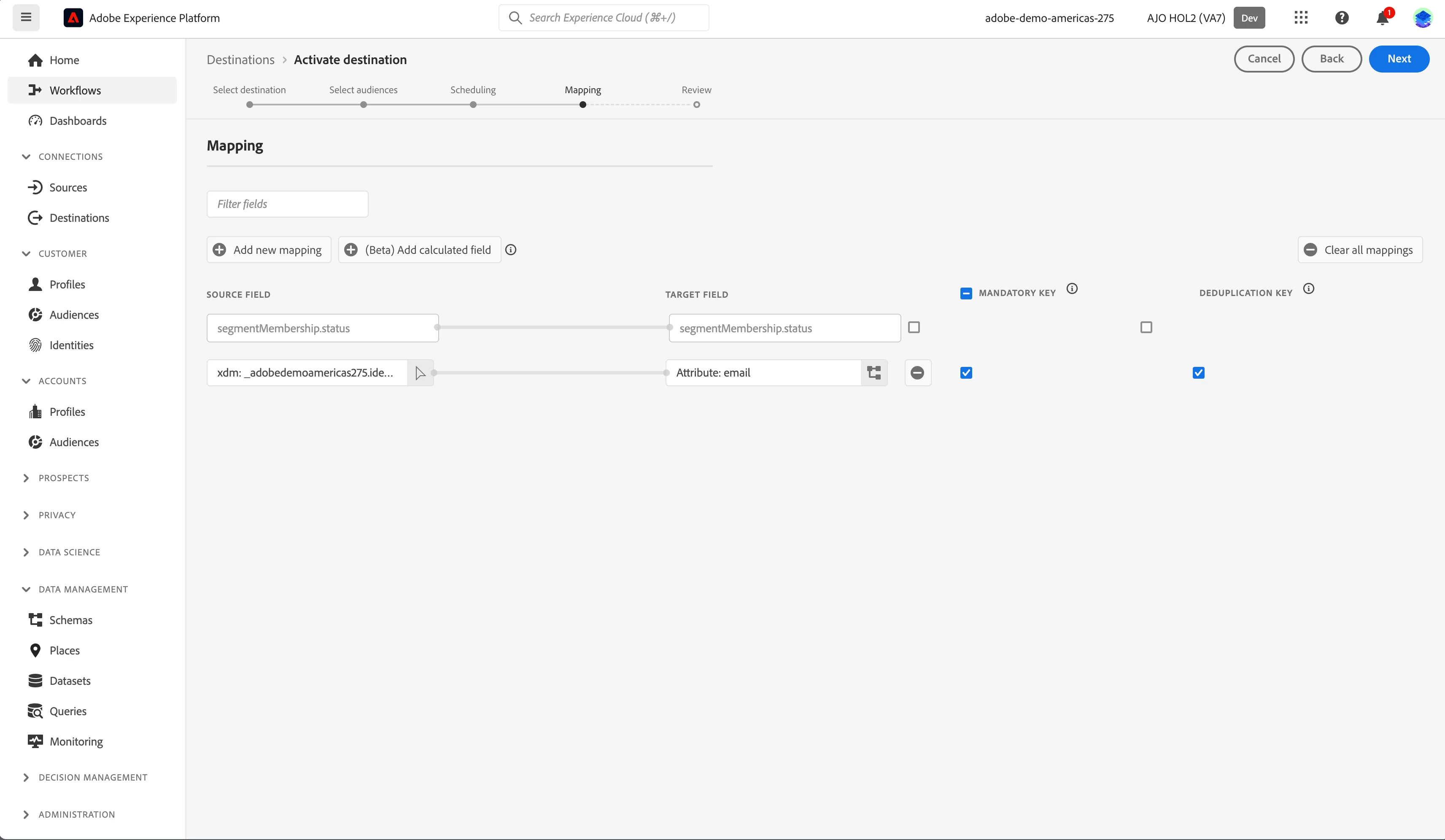
- Mapping section is displayed. Fields have already been mapped for you, retain the mapping and Click Next.
- Review the details and click Finish.
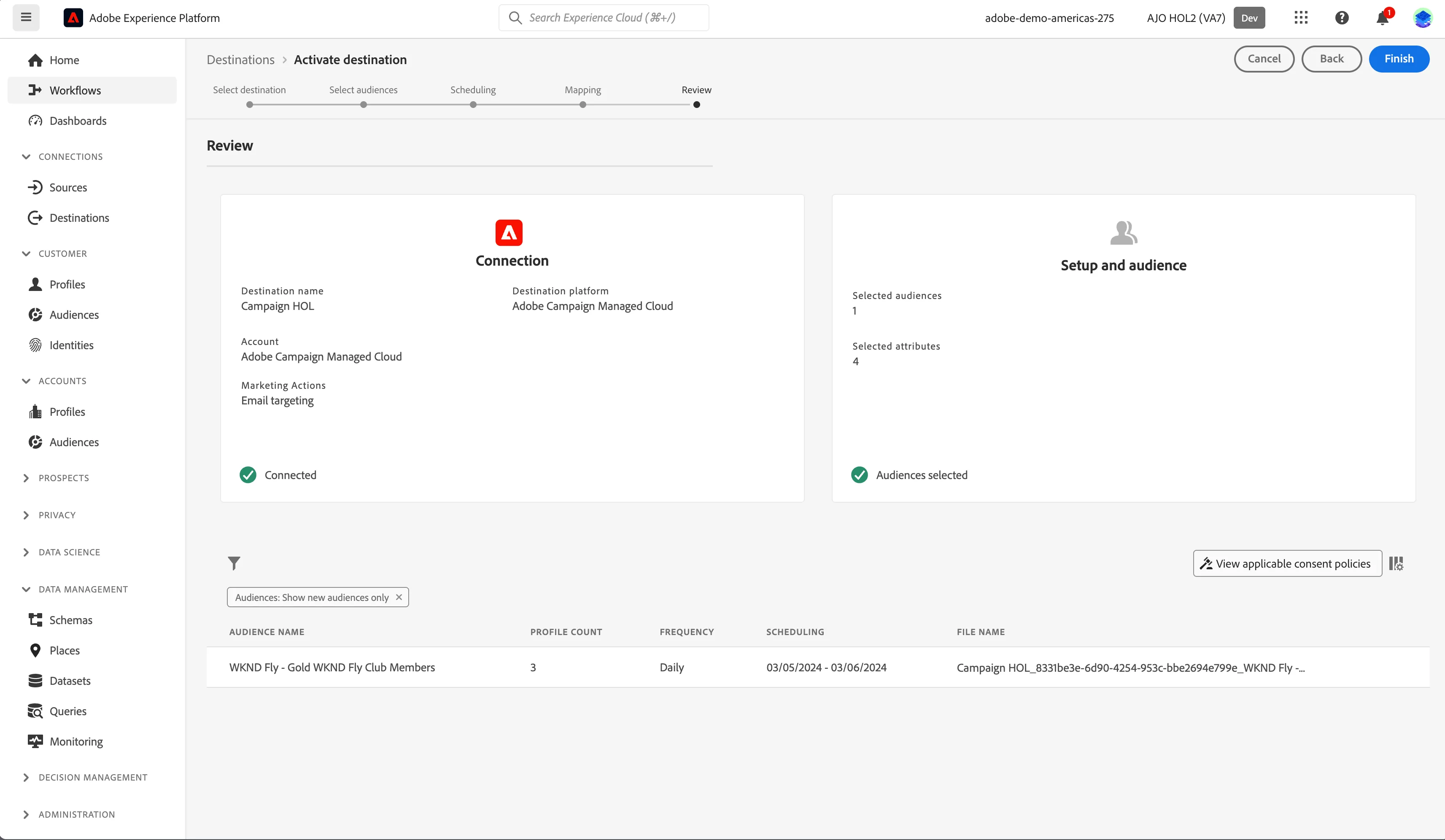
Your audience is now scheduled for activation to Adobe Campaign. If there are any policy violations, a dialog will show the violation reason and the ways to resolve it.