---
title: Cross Channel Data
slug: lab-retail-agentic/cross-channel-data
docTags:
createdAt: 2024-01-30T23:36:00.578Z
---
:::hint{type="warning"}
**IMPORTANT**: numbers shown in this guide, including screenshots, may differ from your reports due to different underlying datasets.
:::
# Goals
- Become familiar with the types of omni-channel data available in CJA
- Identify cross-channel sessions
- Understand how customers interact and move across multiple devices
# Expanded Metrics and Dimensions
**Scenario: **Before starting ask questions, you need to understand what types of data exist within this data view. With access to customer experience data from all channels via AEP, Customer Journey Analytics enables you to expand your use cases to understand cross channel behaviours.
**Task**: Explore the metrics and dimensions available.
- Add a new **Freeform Table** to your panel: click the :inlineImage[]{src="https://api.archbee.com/api/optimize/1Jp0iolWv35Z_mkI7oUiT/mDAf5xsmf_hvs7IiQXrja_cja-plus-icon.jpg" alt caption width="80" height="80"} icon at the bottom of the panel, the select the table icon.
- Click on the title and rename it as `Expanded Metrics and Dimension`.

- From the left menu, select and add to the table the following components:
- **Dimensions****:** Interaction Channel
- **Metrics****:** Events, Page View, Calls, Total Orders

:::hint{type="info"}
Notice that orders are available across multiple channels while calls are only coming from the call centre channel.
:::
- Replace the **Interaction Channel** dimension with the **Call Reason **dimension by dragging it over `Interaction Channel` in the table until the popup prompts to `Replace`.

:::hint{type="info"}
This is the reason for a call that a call center agent entered when they spoke with a customer on the phone, events and calls are associated with them but no page views.
:::
- Replace **Call Reason **with **Page Name.**

:::hint{type="warning"}
To keep your changes, save your project by going to **Project > Save **(or press Ctrl+S on Windows, or Command + S on Mac).
:::
:::hint{type="info"}
Page Views associated with each page (which equals the "Events" metric), but there are no Calls associated with each Page. This is because there are no rows that are both Web and Call rows, they originate from entirely separate datasources and are ingested into separate datasets in Adobe Experience Platform.
:::
# Cross Channel Sessions
**Scenario:** Now that you understand a bit more about the data available, analyse what proportion of customers are interacting across multiple channels within a single session.
**Task: ** Identify cross channel sessions and visualise overlaps.
## Build a segment
Segments in CJA are similar to Segments in Adobe Analytics. And once these segments are built in CJA, they can be shared to Experience Platform, so you can use them in Real-time CDP, for example.
Using segments is one way that you can gain more insight into the cross channel data. You can create segments to understand which sessions were "web" only sessions, which were "call center" only and which were in fact "cross channel".
:::hint{type="info"}
Keep in mind for CJA, there is no concept of "browser" session, the session calculation is controlled by the event timeout set in your data view. As long as the customers interacts on both channels within the timeout window their events will be considered part of the same session in CJA.
:::
Create the `Cross-Channel Sessions` segment.
- On the main menu, click on **Components > Create segment...**

- Drag the **Event: Page Views** metric, and drop it in the `Definition` section, over the text *Drag & drop Metric(s), Segment(s), and/or Dimensions here.*.

- Change the operator from **Equals** to **Exists.**
- Drag the **Event: Calls** metric, and drop it below the **Page Views** metric.
- Change the operator for the Calls metric from **Equals** to **Exists.**
- From the drop down list beside `Include`, select **Session**.
- Name your segment, `[{{LASTNAME}}]`` - Cross-channel sessions`
- Click **Save.**
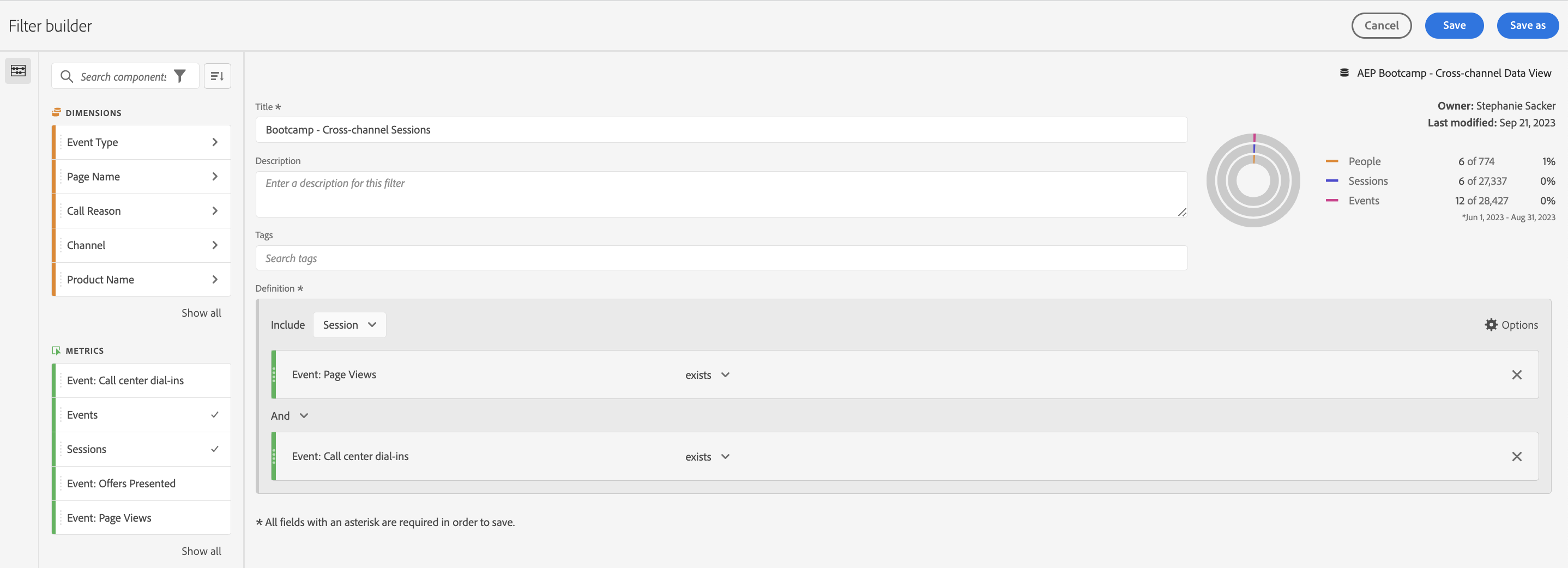
This segment will find sessions where a customer had at least one Page View and at least one Call in a session.
:::hint{type="info"}
You can repeat the same steps to create segments with only Web interactions or only Calls. To save time we have created these segments for you:
- Sessions including online channels
- Sessions including a call
- Sessions including a store visit
:::
## Analyse Overlaps
Use a Venn diagram in combination with session based segments to visualise the overlap of customers interacting online, in store and the call centre.
- Add a **Venn** diagram into your panel by clicking the :inlineImage[]{src="https://api.archbee.com/api/optimize/1Jp0iolWv35Z_mkI7oUiT/mDAf5xsmf_hvs7IiQXrja_cja-plus-icon.jpg" alt caption width="80" height="80"} icon at the bottom of the panel, then :inlineImage[]{src="https://api.archbee.com/api/optimize/1Jp0iolWv35Z_mkI7oUiT/-8Q4LaDRSenf-gB6s7MnS_cja-venn-diagram-icon.jpg" alt caption width="50" height="50"}.

- Label the diagram **Cross Channel Sessions **.
- Add the following 3 **Segments**:
- Sessions including online channels
- Sessions including a call
- Sessions including a store visit
- Set the metric to **Sessions.**

Click to **Build**.

Explore the overlaps by hovering over the intersecting circles.

:::hint{type="warning"}
To keep your changes, save your project by going to **Project > Save **(or press Ctrl+S on Windows, or Command + S on Mac).
:::
# Channel Pathing
**Scenario:** The Mobile App product owner wants to understand whether customers are mostly starting on the web then moving to the app, completing their journey in app only or vice versa.
**Task**: Visualise the path customers are taking after starting in the mobile app.
- Add a **Flow** diagram into your panel by clicking the :inlineImage[]{src="https://api.archbee.com/api/optimize/1Jp0iolWv35Z_mkI7oUiT/mDAf5xsmf_hvs7IiQXrja_cja-plus-icon.jpg" alt caption width="80" height="80"} icon at the bottom of the panel, and then :inlineImage[]{src="https://api.archbee.com/api/optimize/1Jp0iolWv35Z_mkI7oUiT/UOF8H7TW8OD1cdLeqYwIw_cja-flow-icon.jpg" alt caption width="60" height="60"} icon.
- Label it **Channel Pathing**.
- Into the **Starts with **drop down, search for **Interaction Channel **dimension, click the arrow and select the **Mobile**.

:::hint{type="info"}
**Notes on Dimension configuration:**
- Dropping a dimension as the **Entry** point will show the top first value seen in that dimension either at a Session or Person level.
- Dropping a dimension as the **Exit** point will show the top last value seen for a dimension at a Session or Person level.
- Dropping a dimension or a dimensional element in the **middle** will show you how often that element is the entry or exit, as well as the top elements a person saw prior or after from a pathing perspective. This can also be configured at the Session or Person level.
:::
Click to **Build**.

:::hint{type="info"}
You can notice that there's a lot of people moving to the website after starting on the mobile app. Selecting **Create segment for this path** will create a segment based on customers that follow that specific path. This becomes an interesting way to do further analysis around the types of customers that follow a specific path.
:::
:::hint{type="warning"}
To keep your changes, save your project by going to **Project > Save **(or press Ctrl+S on Windows, or Command + S on Mac).
:::
:::hint{type="success"}
Congratulations, this completes the Cross Channel Data Analysis exercise!
:::