Adobe Customer Journey Analytics AI Assistant
Adobe Customer Journey Analytics AI Assistant
Adobe Customer Journey Analytics AI Assistant is a conversational experience that allows practitioners to perform tasks at a fast pace. Whether the task is to understand concepts, troubleshoot problems, or search through information. AI Assistant also allows non-experts to perform expert tasks and increases the overall quality of work.
The AI Assistant in Adobe Customer Journey Analytics is trained on its Adobe Experience League documentation. When asked a question, AI Assistant responds with a helpful answer that enables quick learning.
As a novice user, you can use AI Assistant to learn Adobe Customer Journey Analytics concepts and onboard yourself to products and features that you are unfamiliar with. As an experienced user, you can use AI Assistant to present more advanced use cases or tips and tricks.
Navigate to Customer Journey Analytics
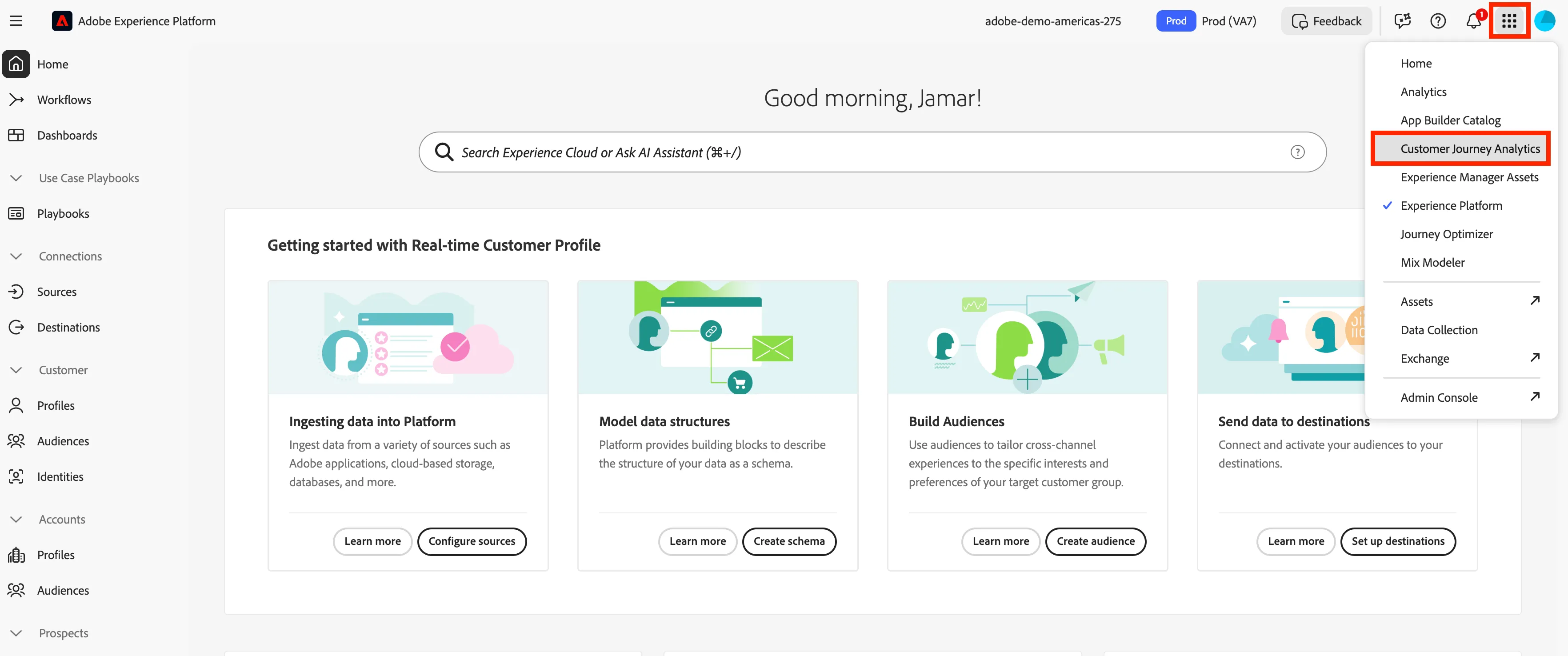
- Click on the 9-dot picker and select Customer Journey Analytics.
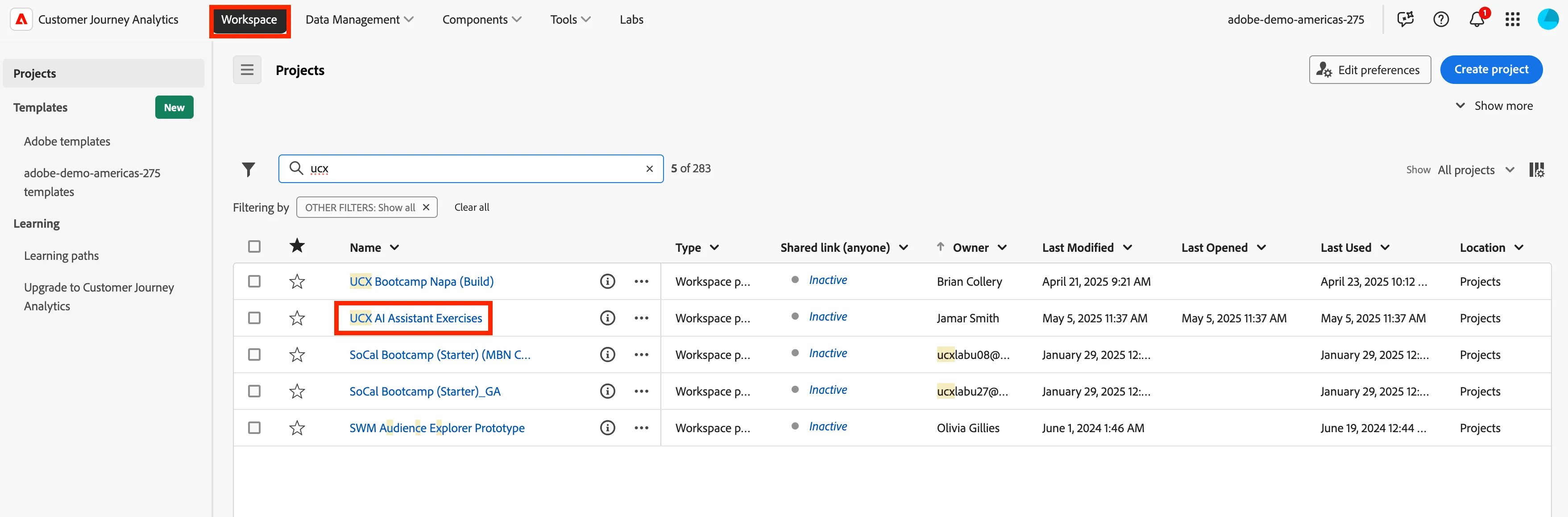
- Make sure that you have Workspace selected on the top menu then select UCX AI Assistant Exercises Project.
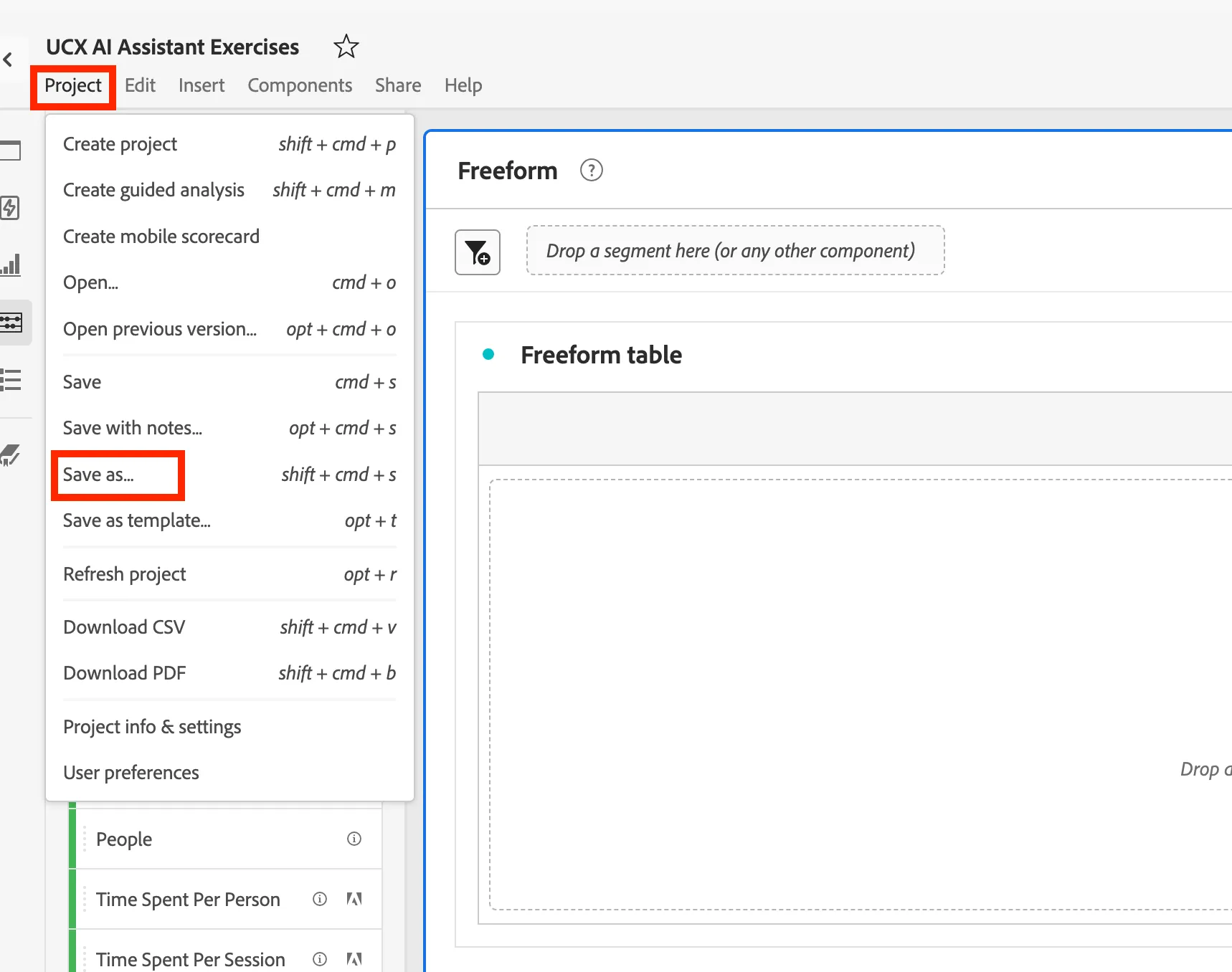
- As soon as you have the project open, click on Project on the top menu and then click on Save as.
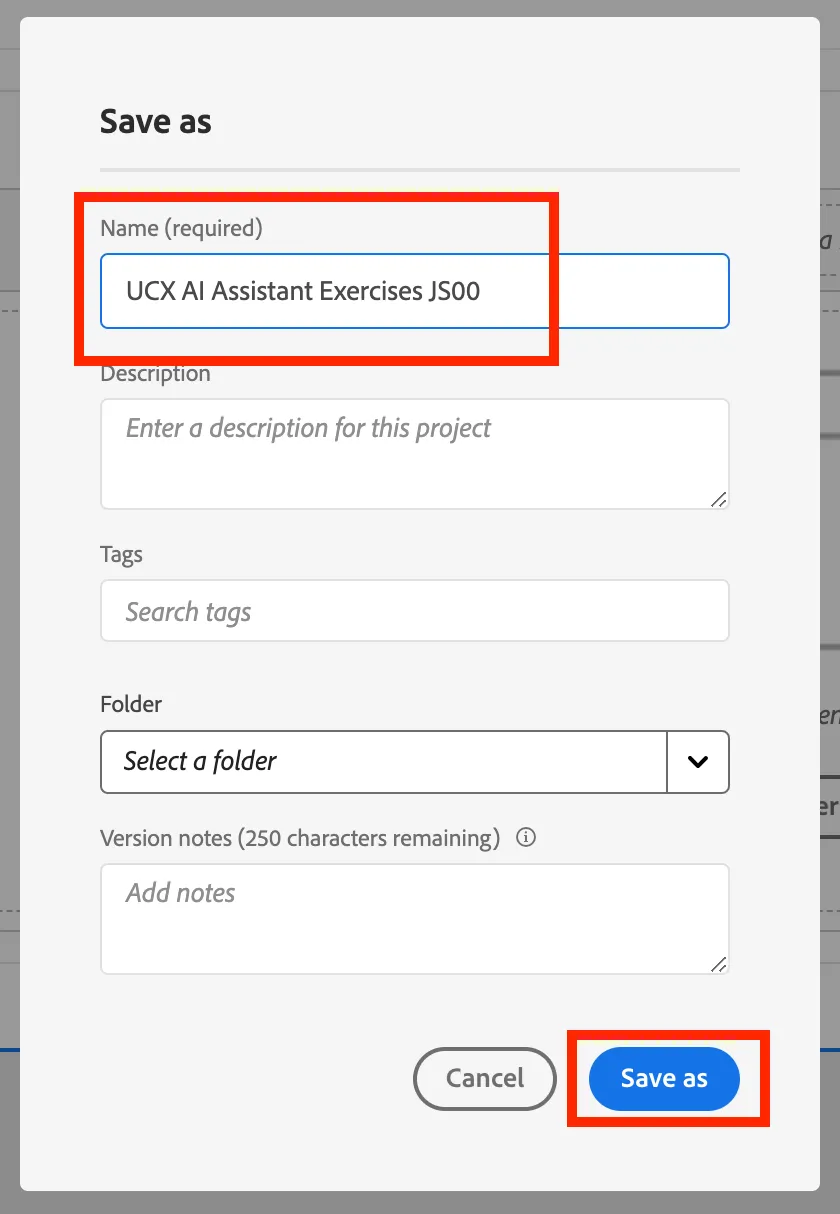
- Add your initials and lab number at the end of the project name to make sure that you have a unique project name. Then click Save as.
AI Assistant for Product Features
This feature allows you to ask questions about features in Customer Journey Analytics learn what they are and how they work. This is great if you are new to CJA or if you a power user in Adobe Analytics and want to know how things work in CJA.
- To get started with AI Assistant you need to click on the chat box with a star icon in the top righ corner. This will launch AI Assistant in CJA for you.
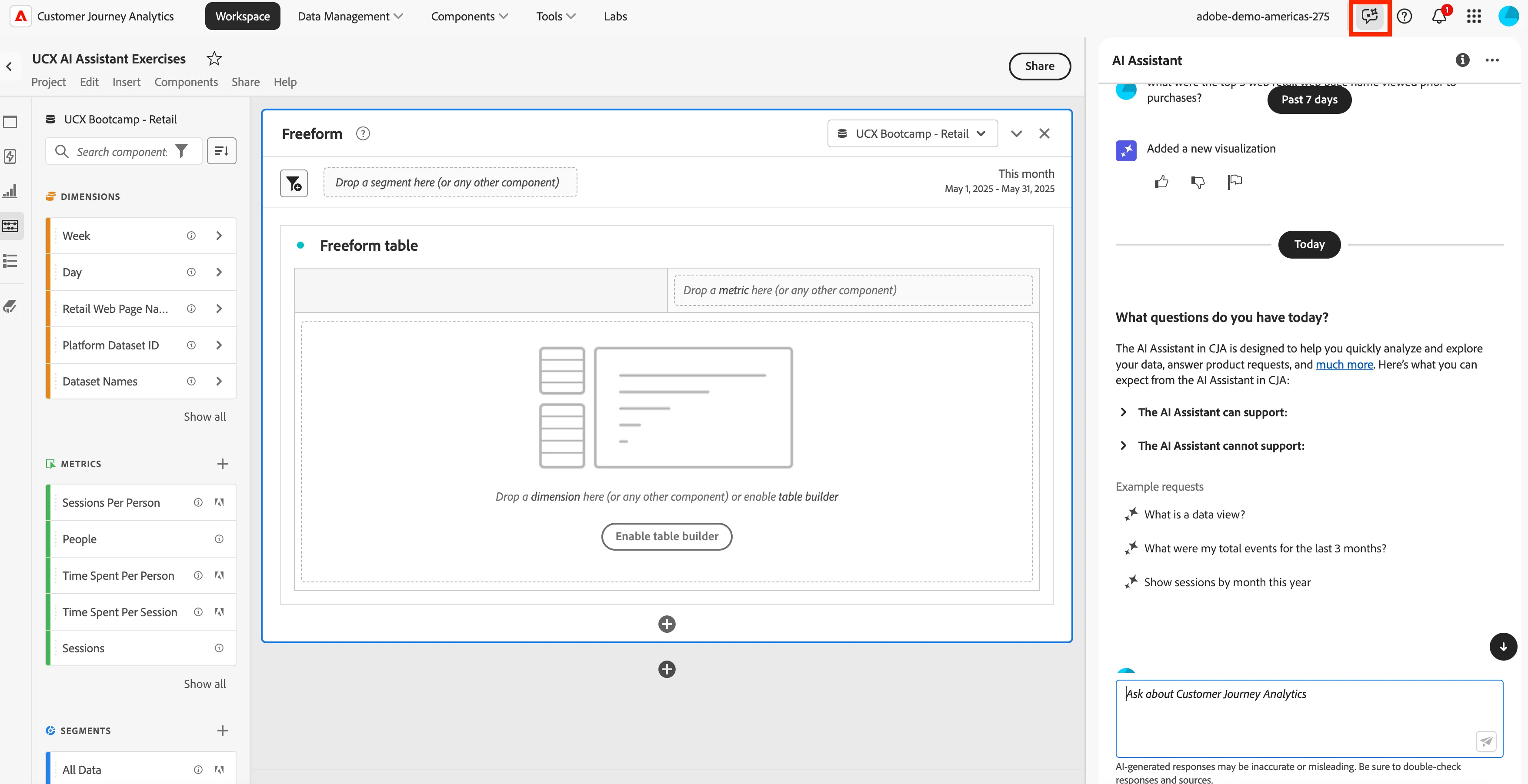
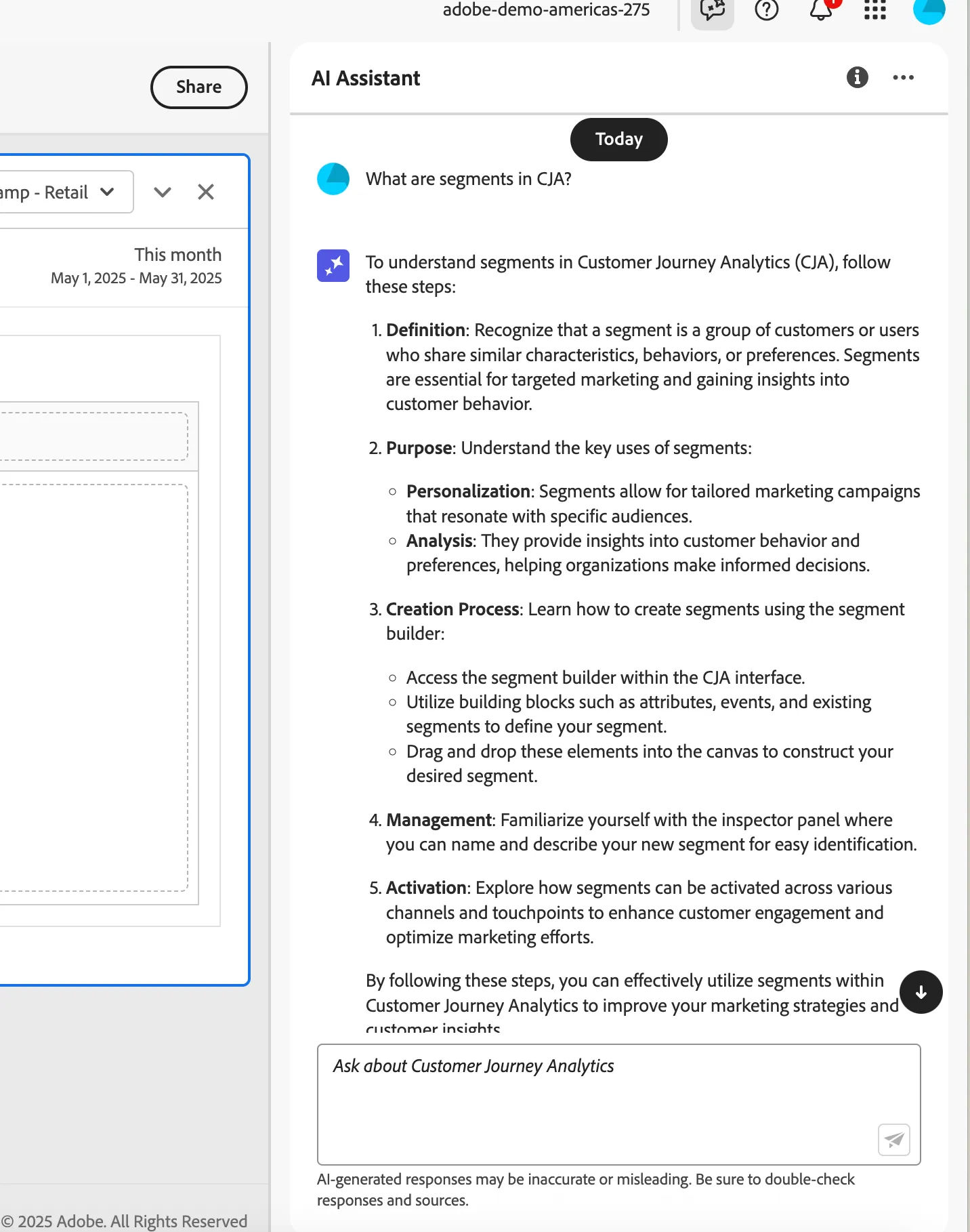
- Let's start with some questions about product features in CJA. The first question we will ask is: What are segments in CJA? This will provide use with details about segments in CJA.
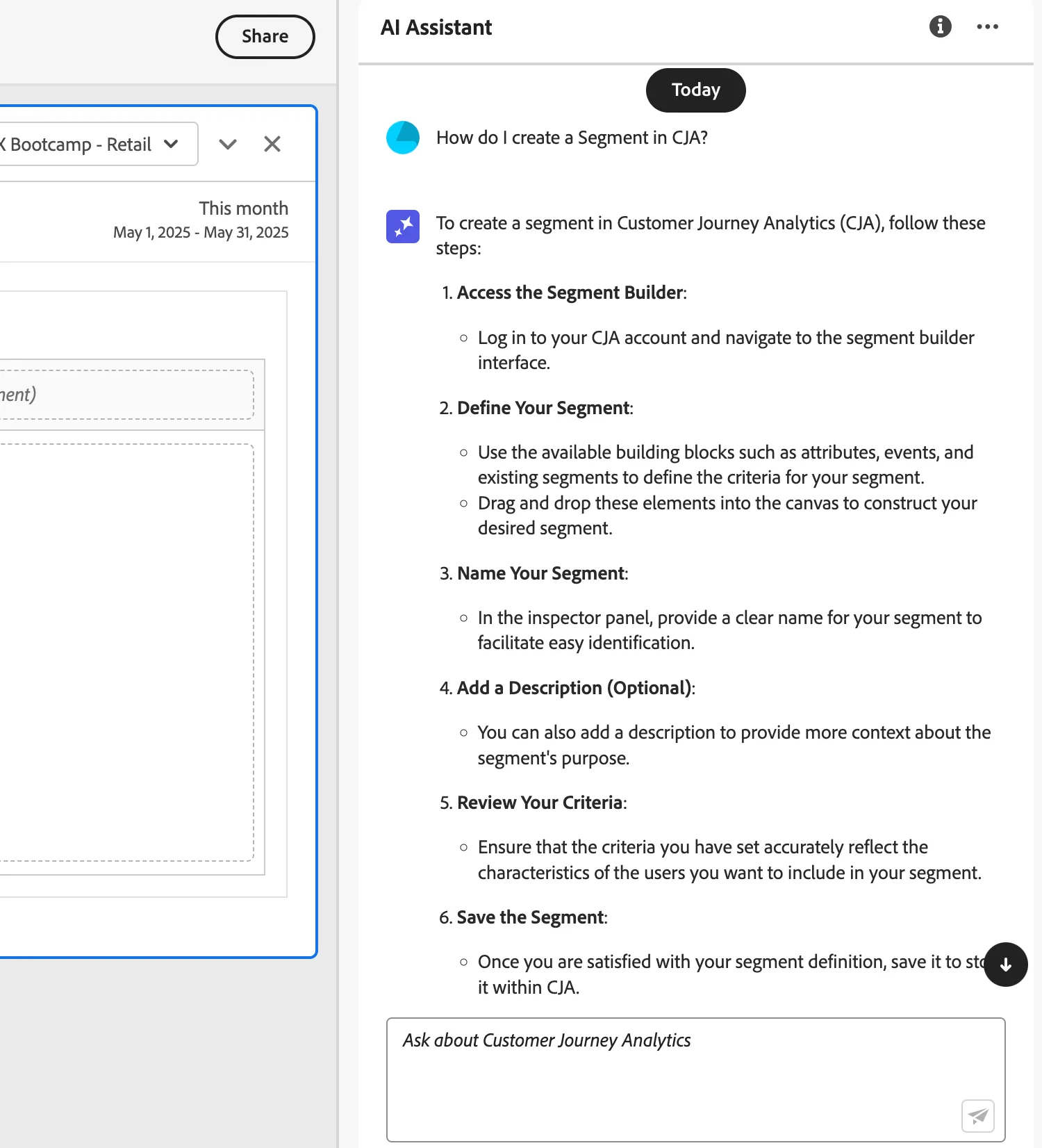
- We can now expand on this and ask: How do I create a Segment in CJA? This will provide step by step process that need to be completed to create a segment in CJA.
AI Assistant for Report Building
This feature allows you to ask questions about the data that is in your Data View then build our visualizaitons in your project. This is great for analytist that want to start with data exploration or get to know what data is available for reporting. This can also be a tool to create ad-hoc reports or to develop reports quicker in CJA.
The goal for this exercise is to build an ad-hoc report.
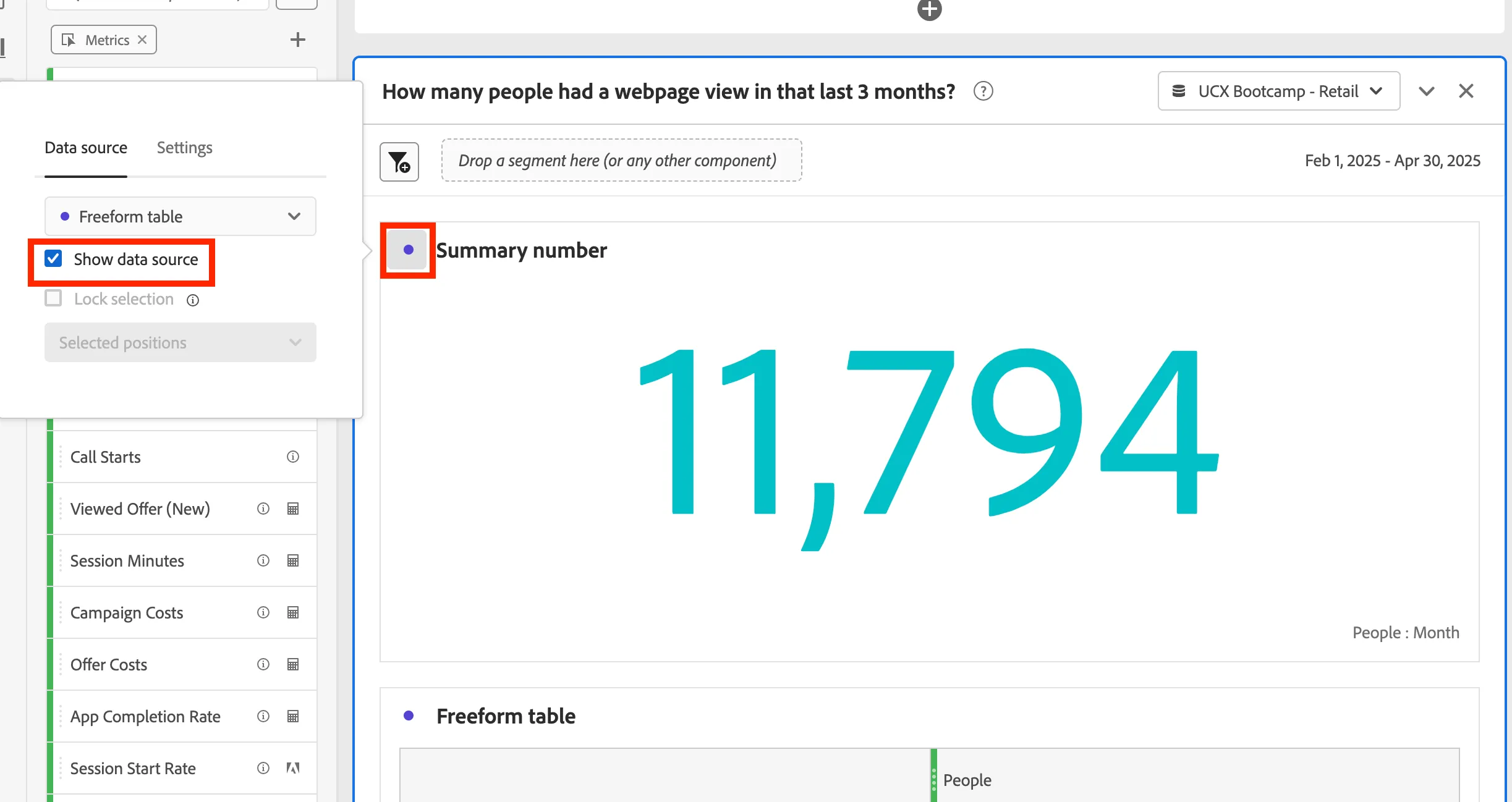
- Let's start off by asking: How many people had a webpage view in that last 3 months?
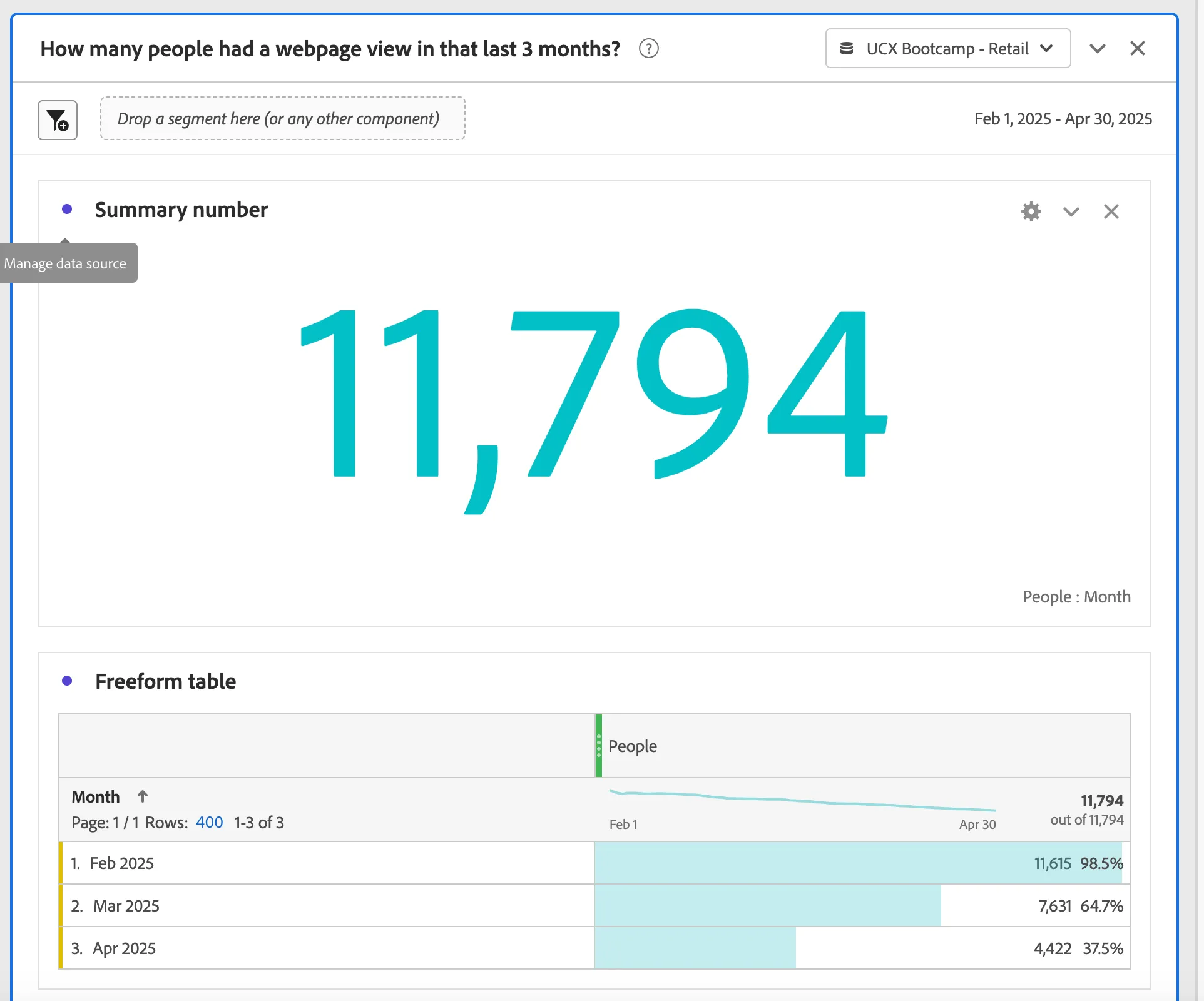
- Next ask: How many product views in the last 3 months?
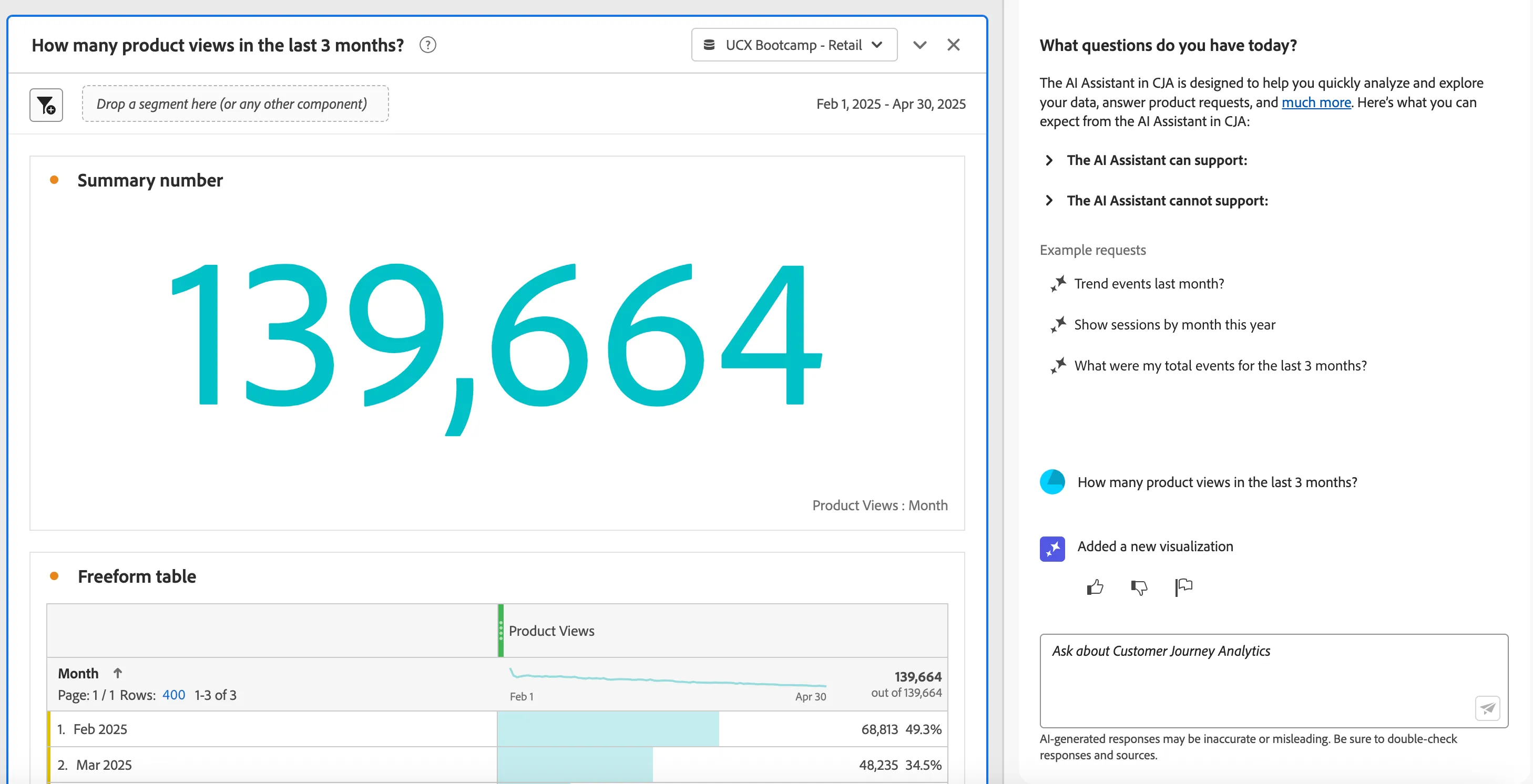
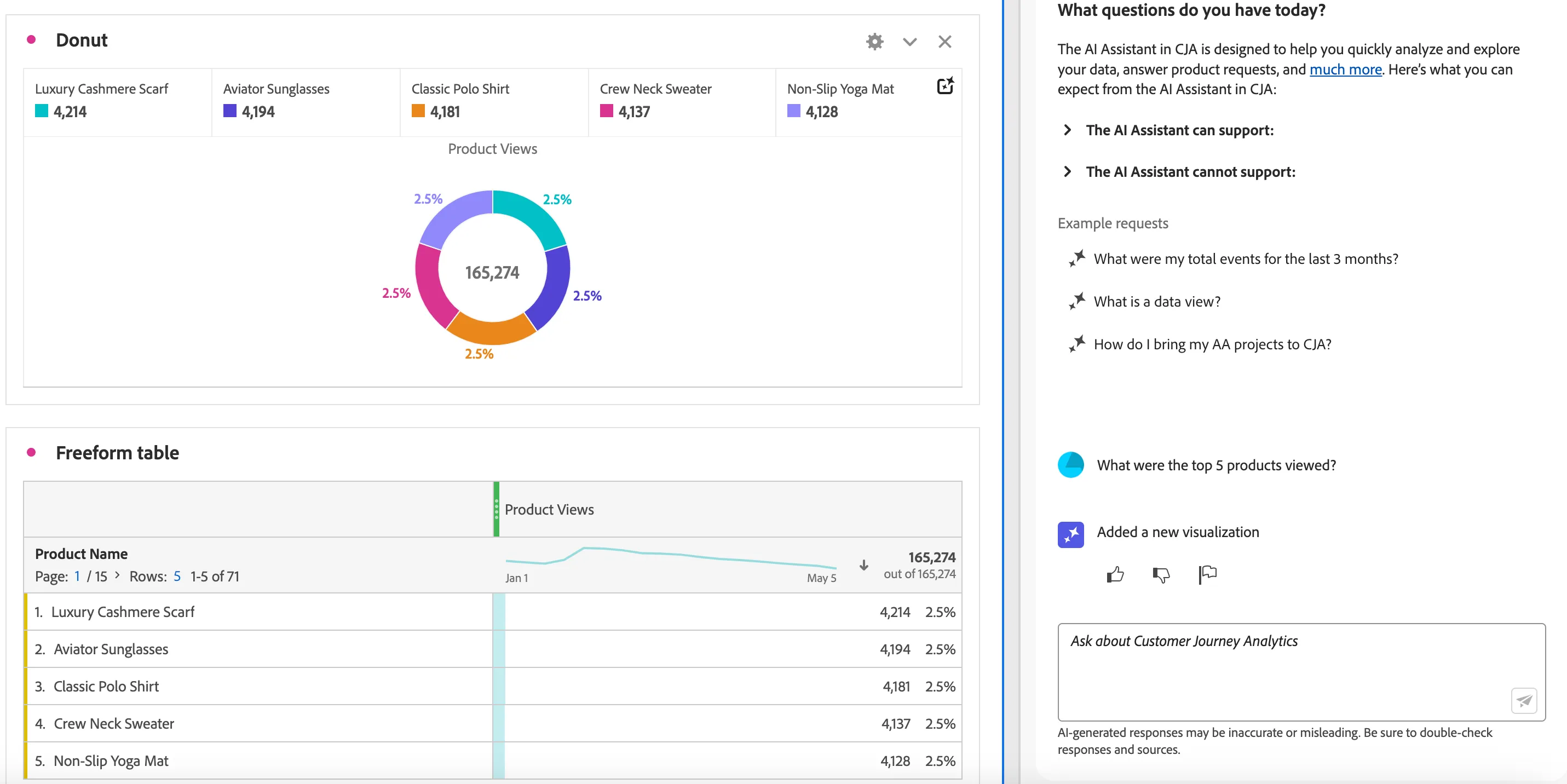
- We can now build on this by asking: What were the top 5 products viewed?
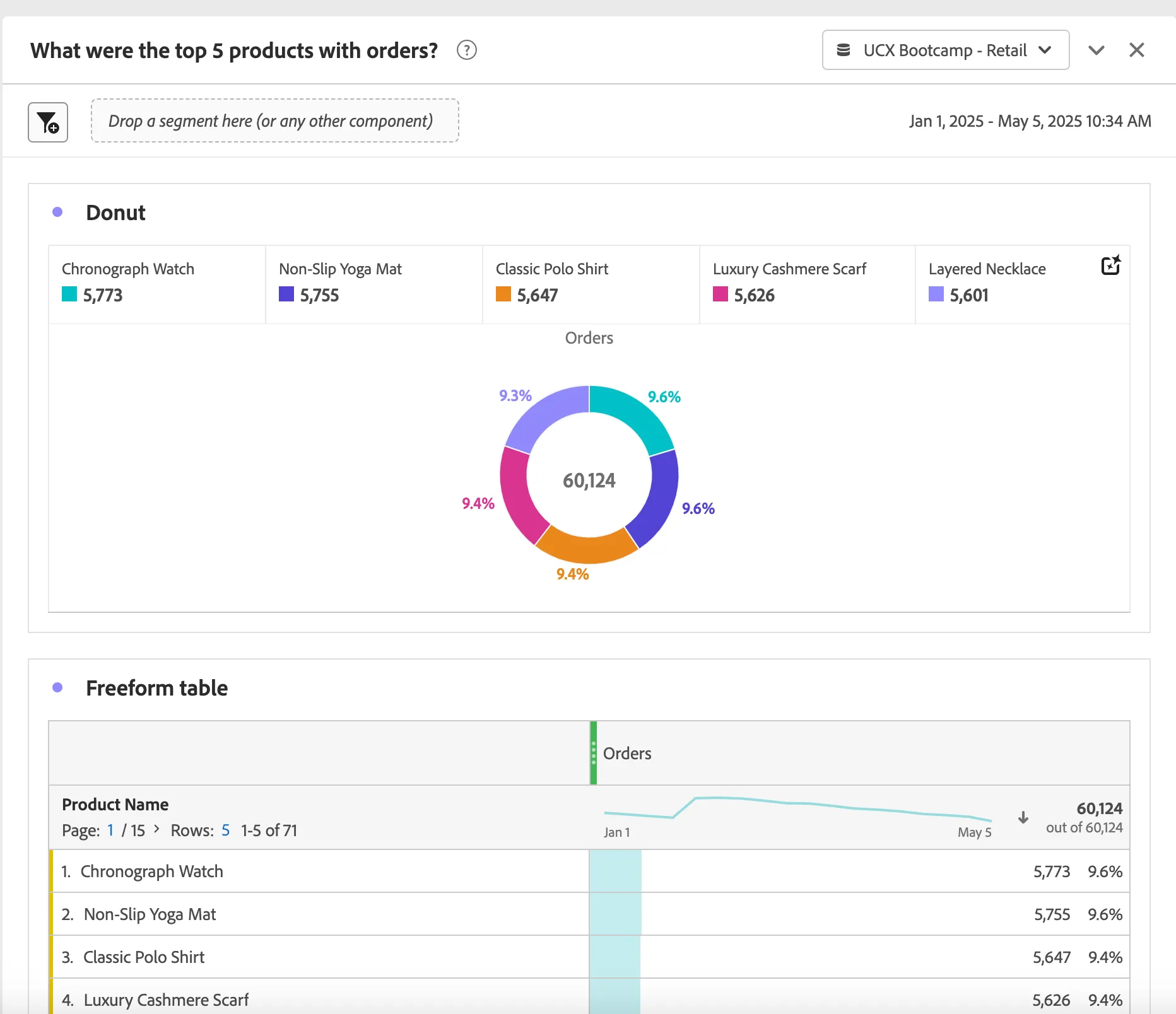
- Let's now ask: What were the top 5 products with orders?
- Let's do a little cleaning up before we move on. Next to each visualization that was created, there is a dot. Click on that dot and uncheck Show data source.
- Now let's look how we can use AI Assistant to create an audience. Start by asking: Show me people that had and order in the last month. We see a daily trend here, but we did notice in the top 5 product views and orders a lot were clothing.
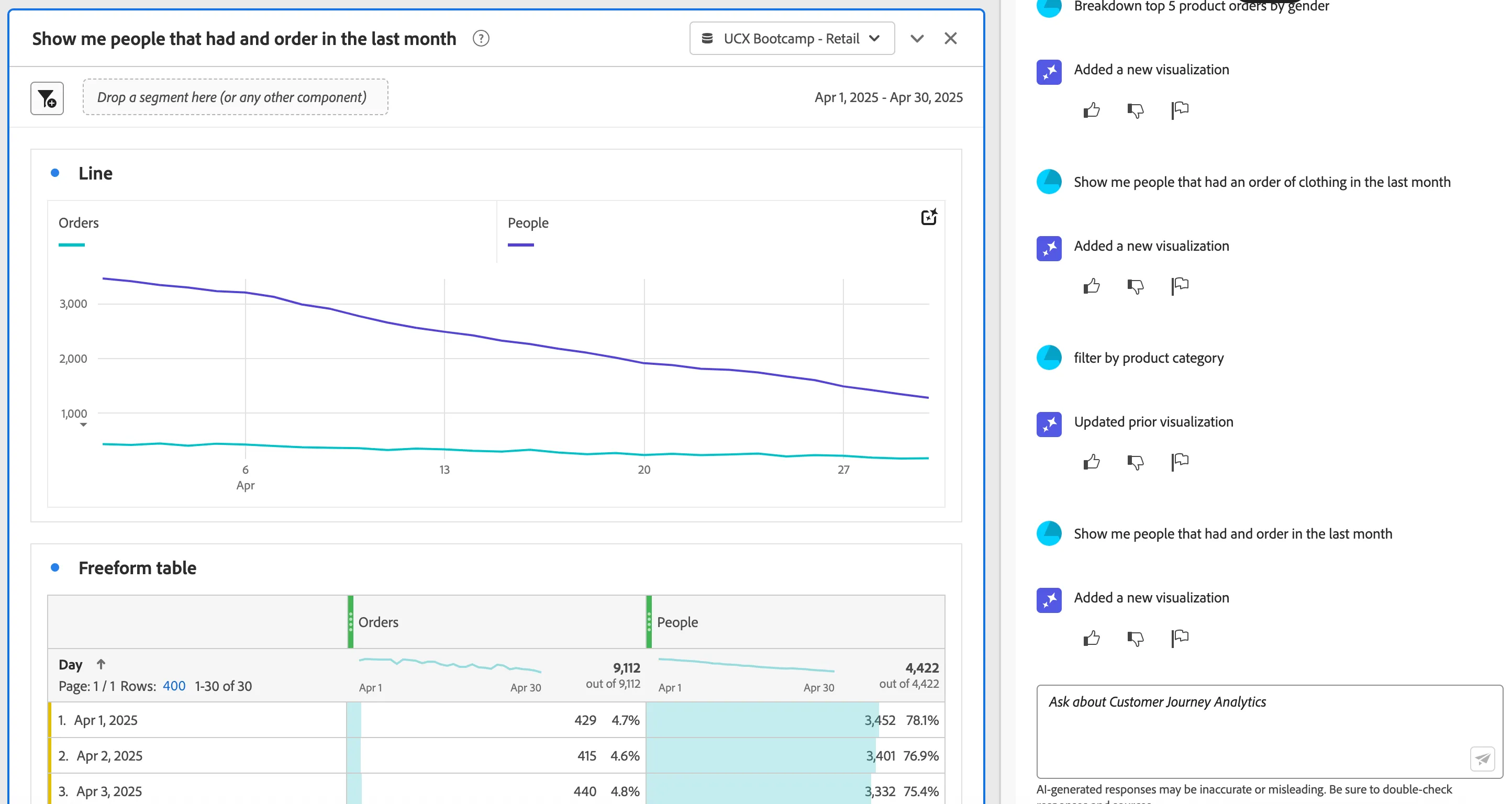
- Let's refine what we have to create an audience that we can upsell. Let's do this by asking: Filter by product category.
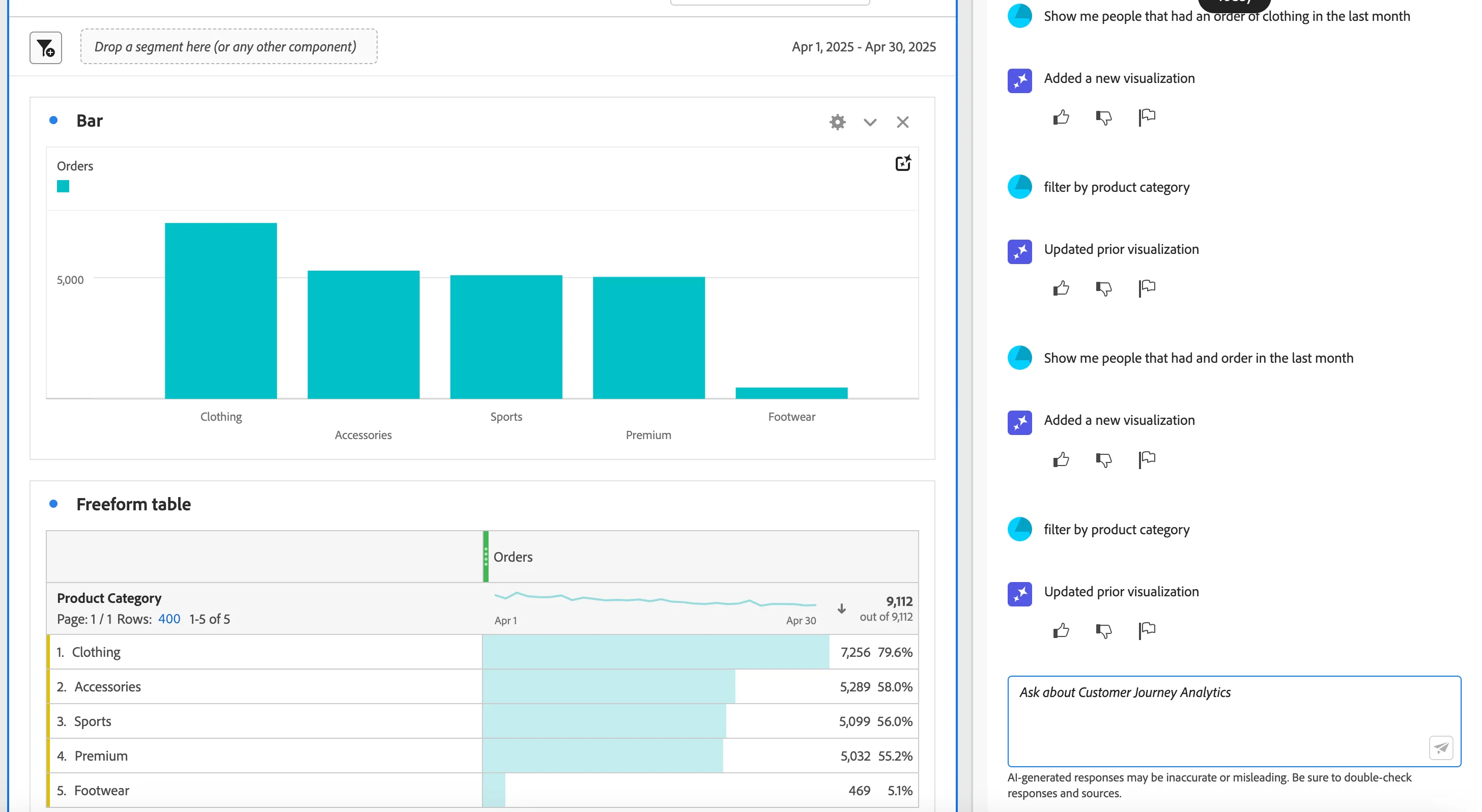
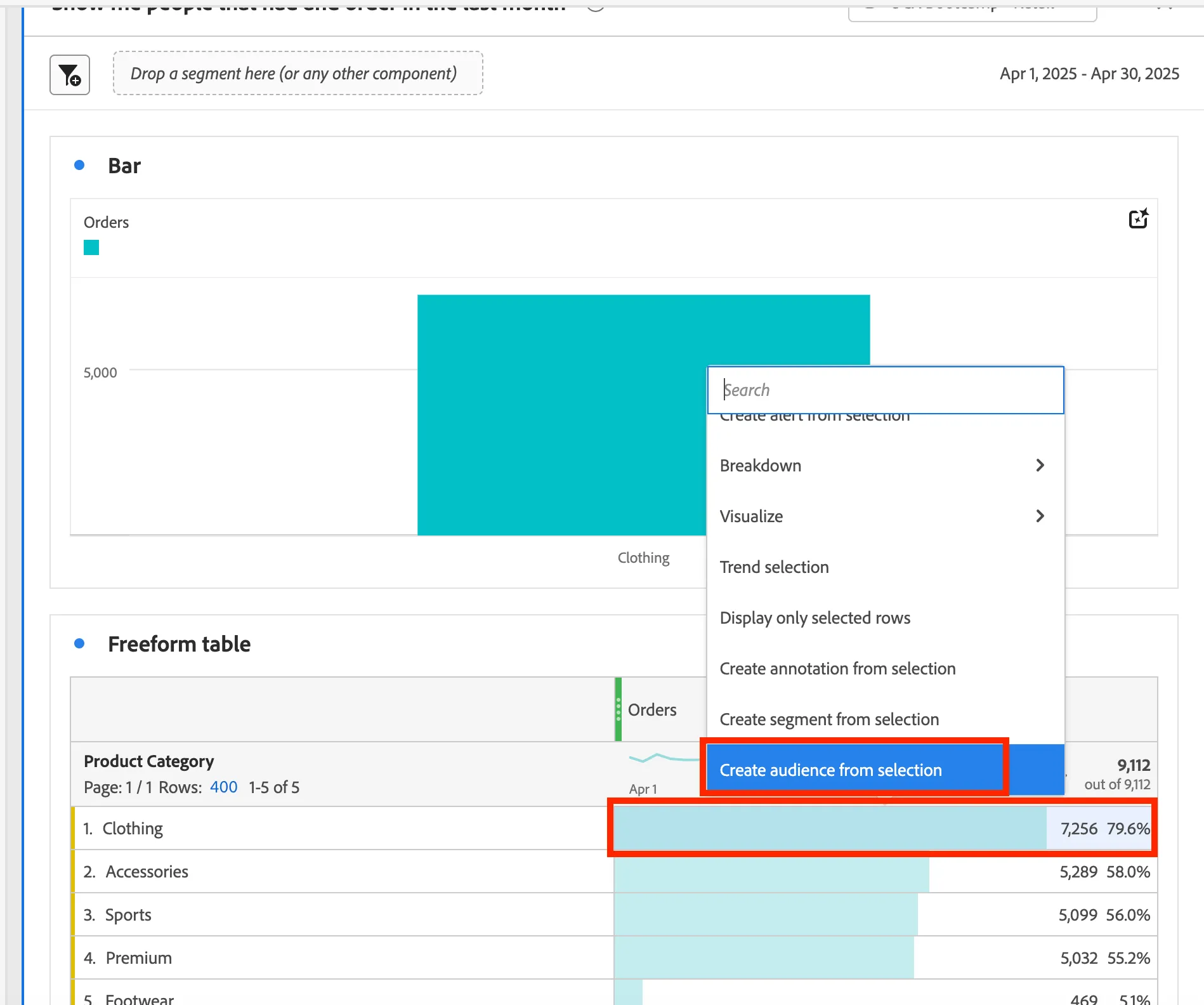
- Now right click on Clothing under Orders and selecting Create audience from selection.
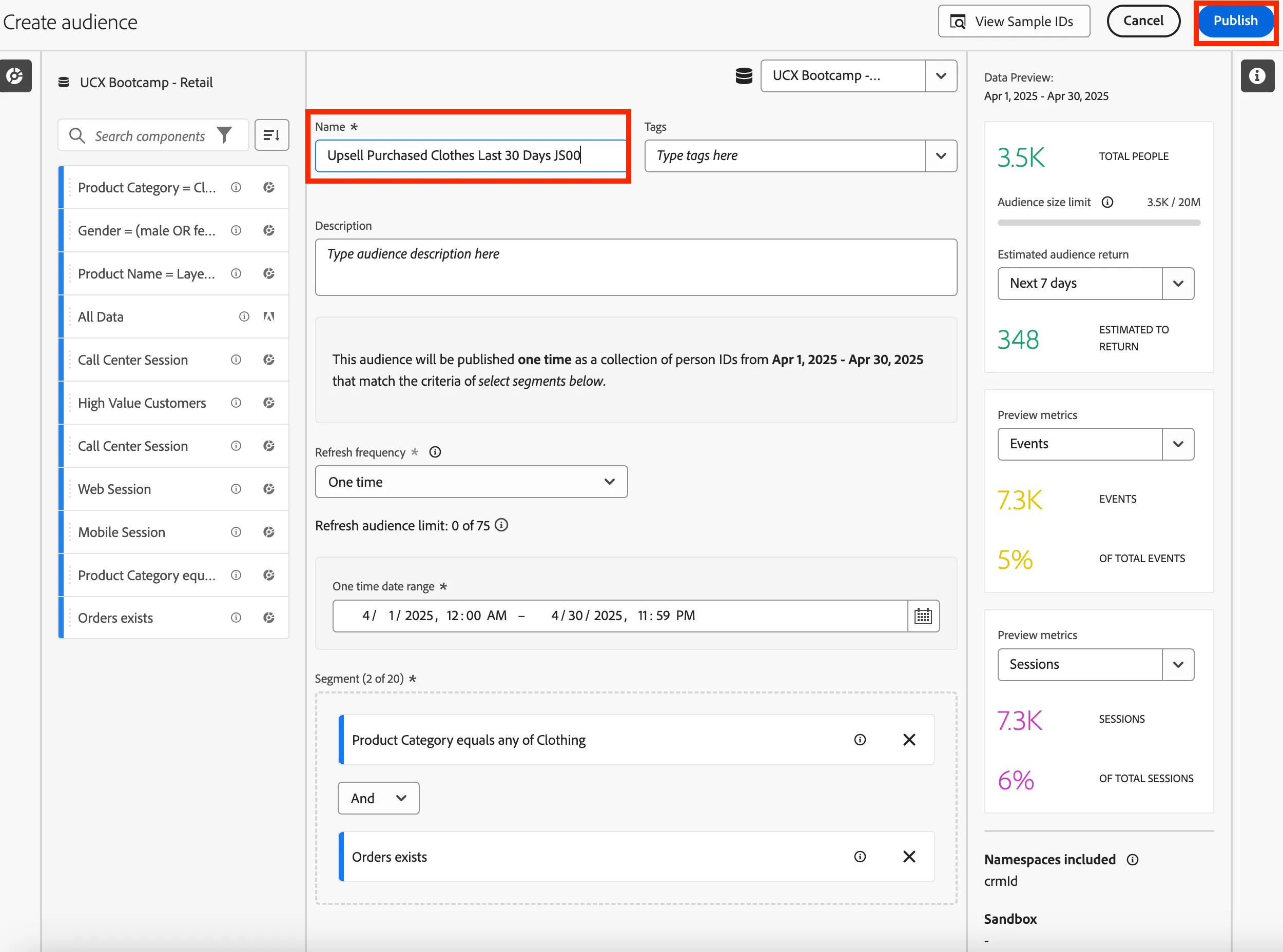
- In the next screen title your audience Upsell Purchased Clothes Last 30 Days + Initials + User Number. Then click Publish. You will not see the audience in the sandbox.
Congratulations on using AI Assistant for product knowledge, ad-hoc reporting, and creating an audience.