---
title: [Bonus] Exploring the Segmentation Service API
slug: qatar-airways-bootcamp/bonus-exploring-the-segmentation-service-api
description: >-
docTags:
createdAt: 2024-01-30T22:33:31.221Z
---
In this exercise, you’ll use Postman and Adobe I/O to create an audience, by making use of Adobe Experience Platform’s APIs.
:::hint{type="warning"}
At the moment, in the scope of Real Time Customer Profile, the terms `segment` and `audience` are interchangeable. Audience is the new name of what Adobe used call segment. The Product Management is working to update all the materials with the new term, but some elements in docs and APIs still have use "segment".
:::
## Create an audience
Creating an audience using the AEP API's require a number of steps in Postman. But first...
1. Locate the **AEP Bootcamp** collection.
2. Open the **Segmentation Service API** folder.
### Step 1 - Create a segment definition
We will first create a segment definition.
- Select **POST** **Create a new segment definition**.
- Click on the **Body** tab to see the body of the request.
You see the segment expression defined in the Profile Query Language, PQL. You can find more [information and documentation](https://experienceleague.adobe.com/docs/experience-platform/segmentation/pql/overview.html?lang=en) about PQL.
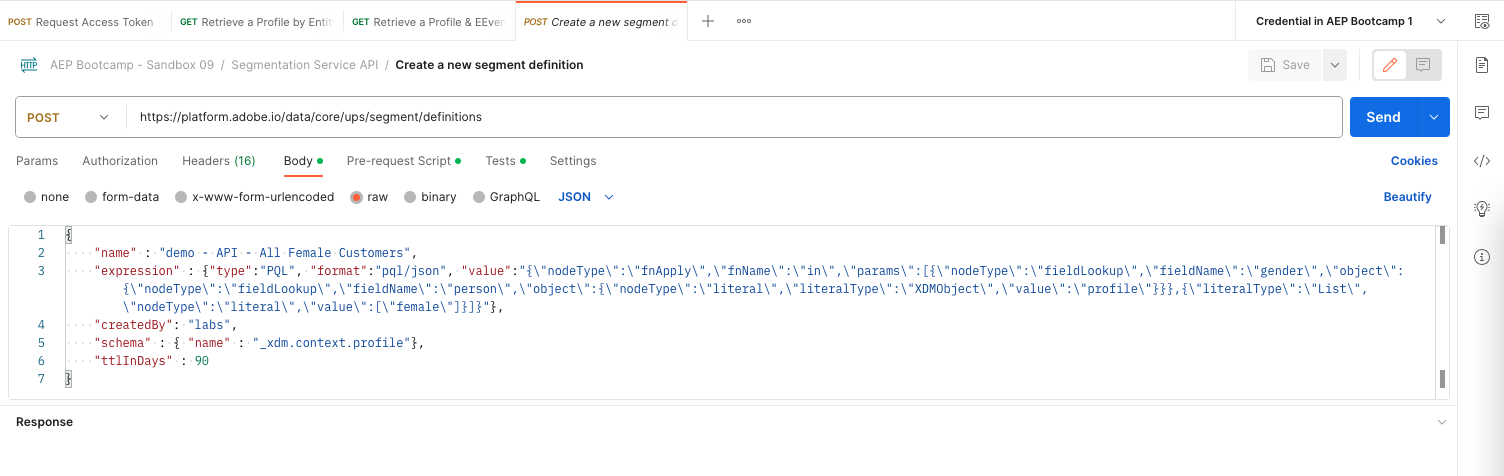
- Update the `name` value within the **Body** request. E.g. replace `demo` with your user identification.
- The body should look like:
```json
{
"name" : "sacker - API - All Female Customers",
"expression" : {"type":"PQL", "format":"pql/json", "value":"{\"nodeType\":\"fnApply\",\"fnName\":\"in\",\"params\":[{\"nodeType\":\"fieldLookup\",\"fieldName\":\"gender\",\"object\":{\"nodeType\":\"fieldLookup\",\"fieldName\":\"person\",\"object\":{\"nodeType\":\"literal\",\"literalType\":\"XDMObject\",\"value\":\"profile\"}}},{\"literalType\":\"List\",\"nodeType\":\"literal\",\"value\":[\"female\"]}]}"},
"createdBy": "labs",
"schema" : { "name" : "_xdm.context.profile"},
"ttlInDays" : 90
}
```
You should also verify the Headers of your request.
- Select **Headers** tab.
- You will see same set of header key/value pairs as in the earlier Postman example requests.
- No action required.
To create the segment:
1. Click on **Send**.
2. View the results in the **Body** section at the bottom.
You can now also view your segment definition in the UI.
1. Login to Adobe Experience Platform.
2. Go to **Audiences**.
3. Select **Browse** tab.
You should see your created segment in the list of Audiences.
### Step 2 - Create a Segment Job Request
In the previous exercise, you created a *streaming* segment. A streaming segment continuously evaluates qualifications in real-time. What we will do now is creating a *job request*. Job request will evaluate all the current profiles available in AEP against the segment logic, and qualify the profiles that match the logic.
Let’s now POST a Segment Job:
1. Go to Postman.
2. Open the **Segmentation Service API** folder (if not already open).
3. Select the **POST** **Create a segment job request**.
4. Click on **Send**.
The segment job is now running, and this may take some time.
### Step 3 - GET Segment Job Status
To get an update on the status of the segment job:
1. Go to Postman.
2. Select the **GET** **Retrieve a segment job request**.
3. Click on **Send**.
You will most likely see in the **Body** response that the request is `QUEUED`. You can repeat this request multiple times and after a while status should be set to `SUCCEEDED`.
Once the status is `SUCCEEDED`, your segment job has run and customers are now qualifying for the segment.
:::hint{type="success"}
You have now successfully created a streaming and a batch segment using the Adobe Experience Platform APIs.
:::