Ex5: Content Production Agent
Introduction
In this exercise, you'll use the Content Production Agent to update the hero image on your article with a new image and copy, then review and publish the changes through AEM.
Agent name: Content Production Agent
Agent capabilities: From updating a page or form to migrating entire sites, this agent dramatically reduces time-to-market and frees teams to focus on creativity, not coordination.
Documentation: Content Production Agent
Step 1 — Update the Article header
- Go to your created Article Page: here.

- We want to update the article Title, author, and illustration.
- Copy the link of your article:

- And paste it into Coworker:

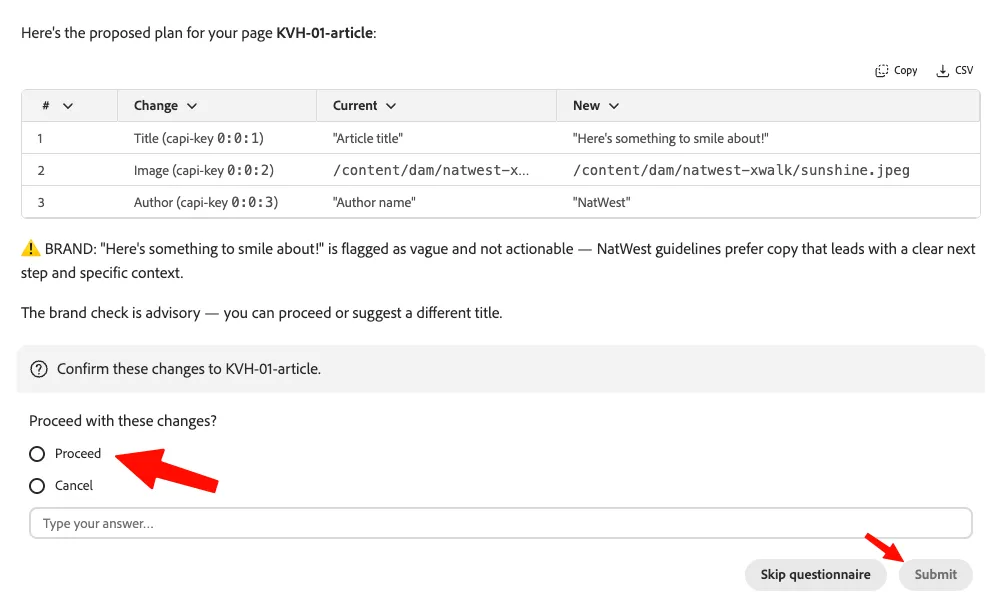
- Add this to the prompt: On this AEM author page, make the title more fun, change the image to the one called sunshine-banner, and the author to NatWest.

- Submit the prompt.
This will take some time, the agent will work in the background:
- Find the author page
- Create a new title
- Find the asset called "sunshine"
- Proceed with the agent-proposed change:
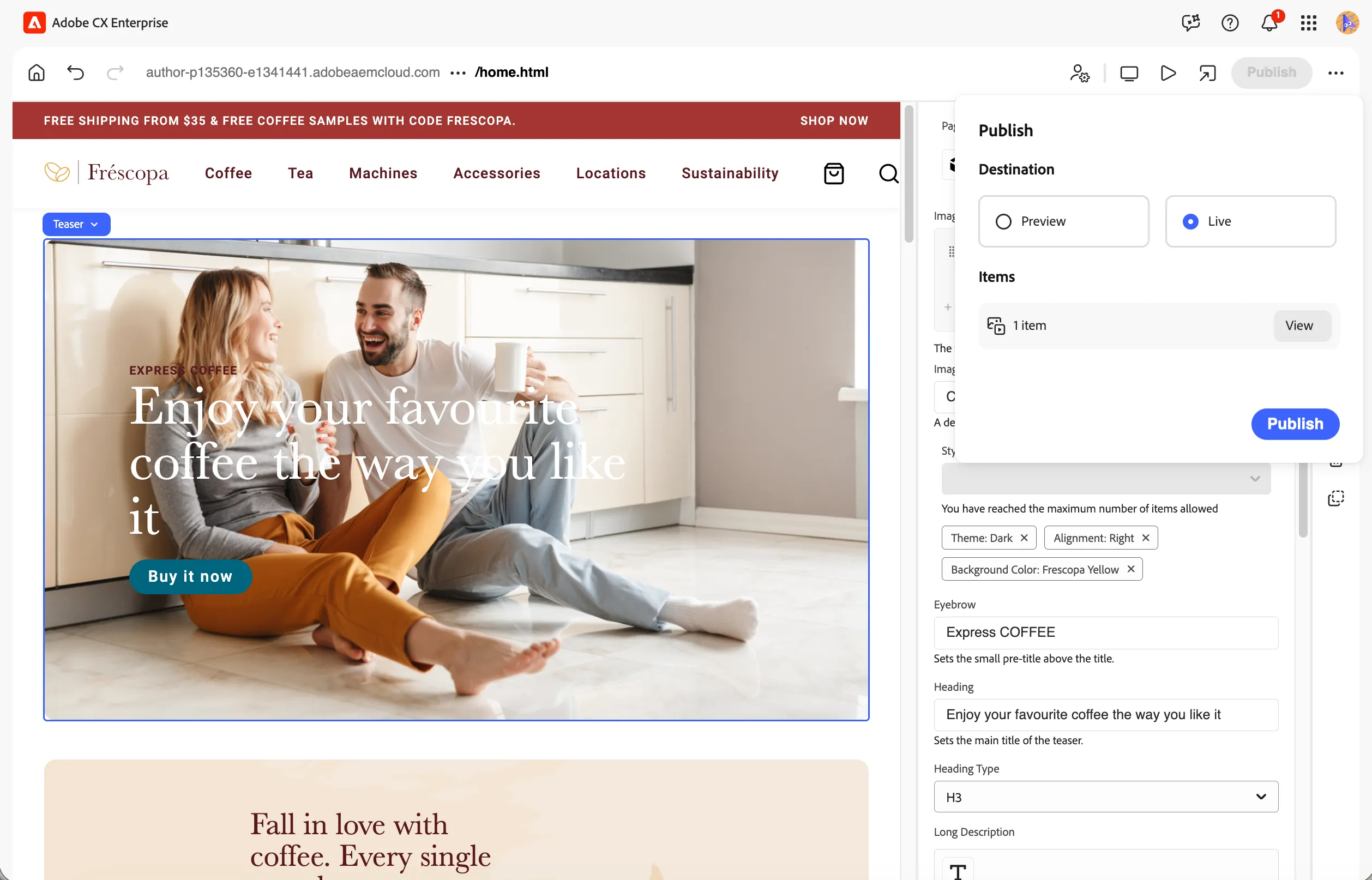
- When the agent is done, you can preview the changes:

Step 2 — Create a new article page
Let's try to have our Agent create a new article page on a specific subject.
- Copy this prompt: Use the article template in https://author-p189773-e1977501.adobeaemcloud.com/content/natwest-xwalk/index/articles, and create a new article page about:
- And add your subject (I chose Real estate investment, for example) :

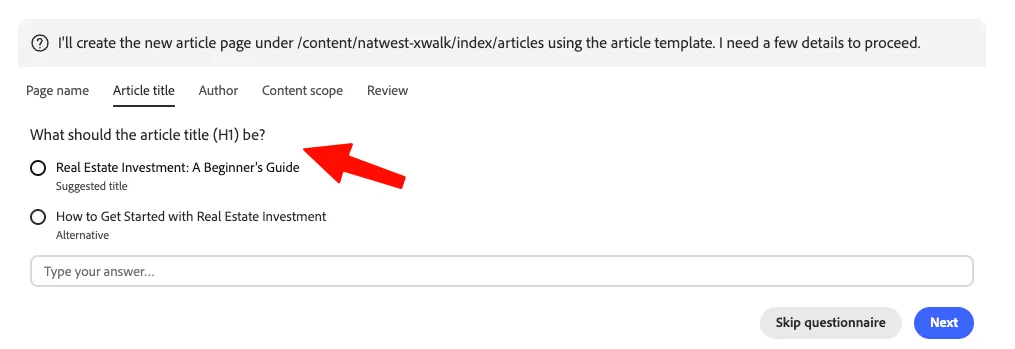
- The agent may ask some questions; fill in the agent forms:
- Submit the forms:
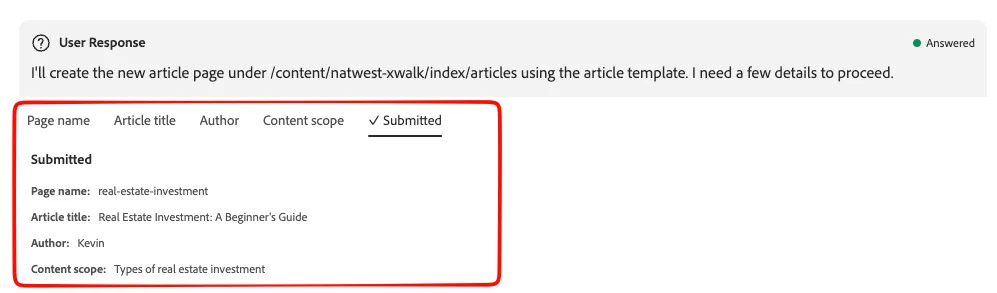
The agent will then start the work; it may take some time.
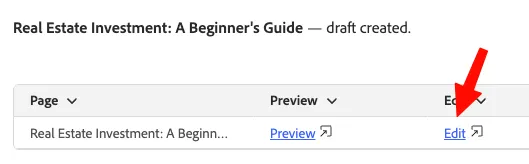
- When the agent is done, click on Edit to see what the agent built, and start editing to handcraft your article:
Congrats! You have successfully used the Content Production Agent to update the hero banner on your homepage. The agent applied your changes via a launch, you reviewed and accepted them, and published the final result to the live website.