New Content - Meta
Description
In this example, you will be guided to generate a branded Meta Ad experience using Create within GenStudio for Performance Marketing. To create an effective Meta experience, the Adobe team has played the role of Brand Manager and added the recommended brand guidelines for Frescopa, and will provide guidance on the basics of crafting a prompt.
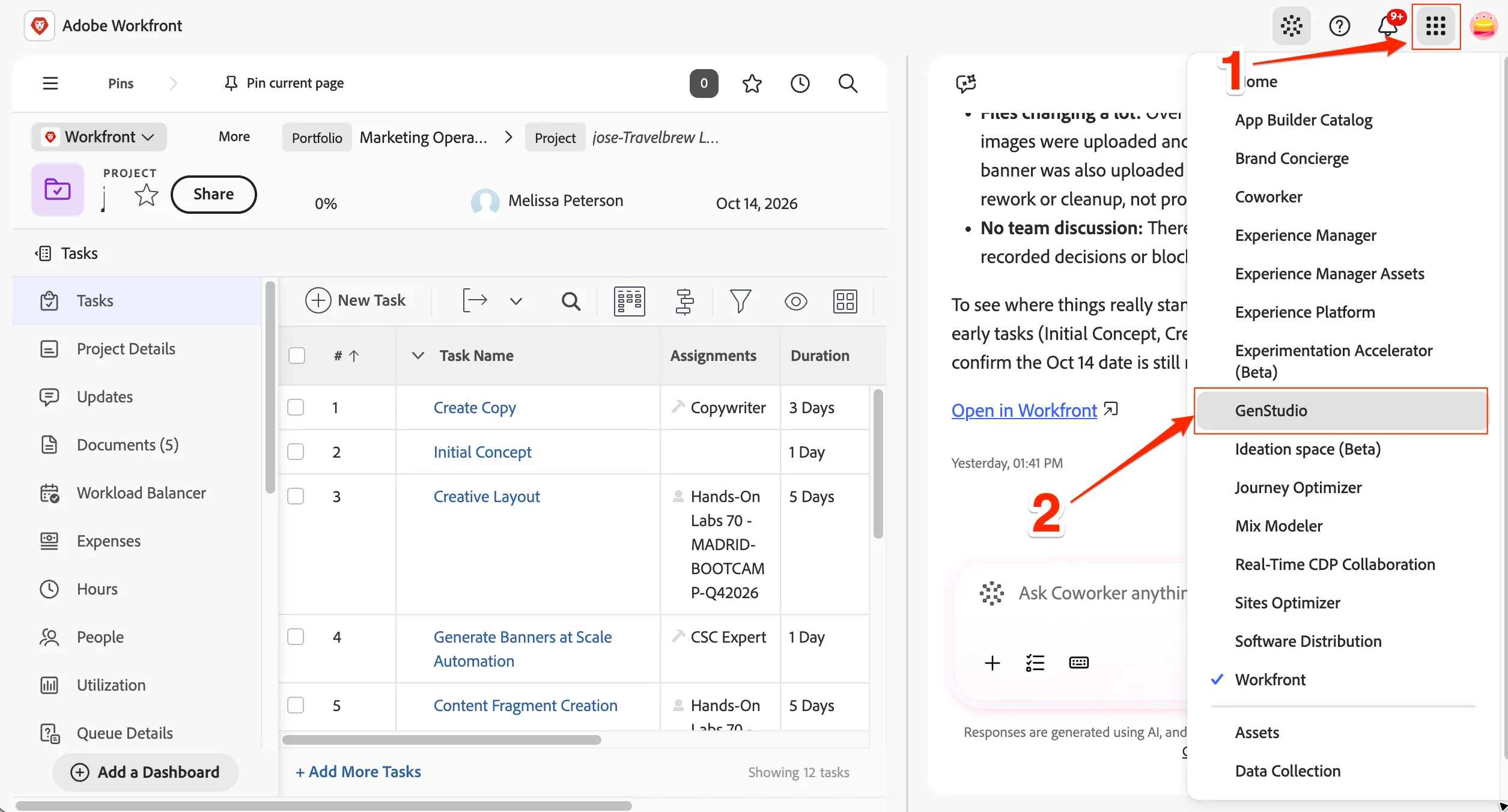
Login to Genstudio
- Click on the 9 dots main menu and select GenStudio
Choose a template
To create a new Meta Ad experience, you will use a template to provide the framework for assembling your content. After you select which channel you want to produce, you can access brand-approved templates for use in content generation. Use templates to jump-start the content creation process and stay aligned with a defined brand identity.
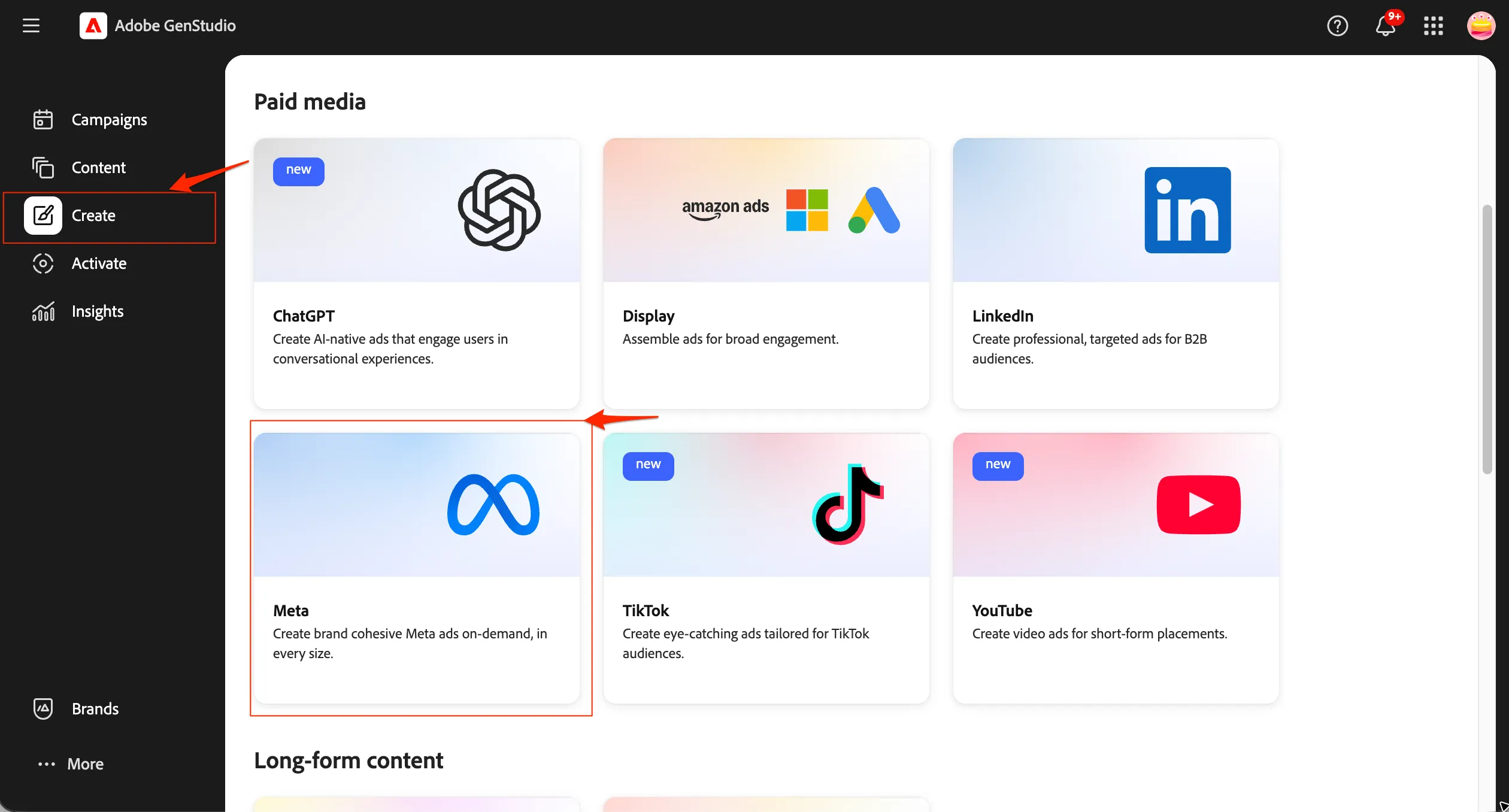
To choose an Meta Ad template:
- Click on Create in the left sidebar, and then click the Meta tile.
- Click to select the Social Media template under the Adobe Express templates and then click the Use button.
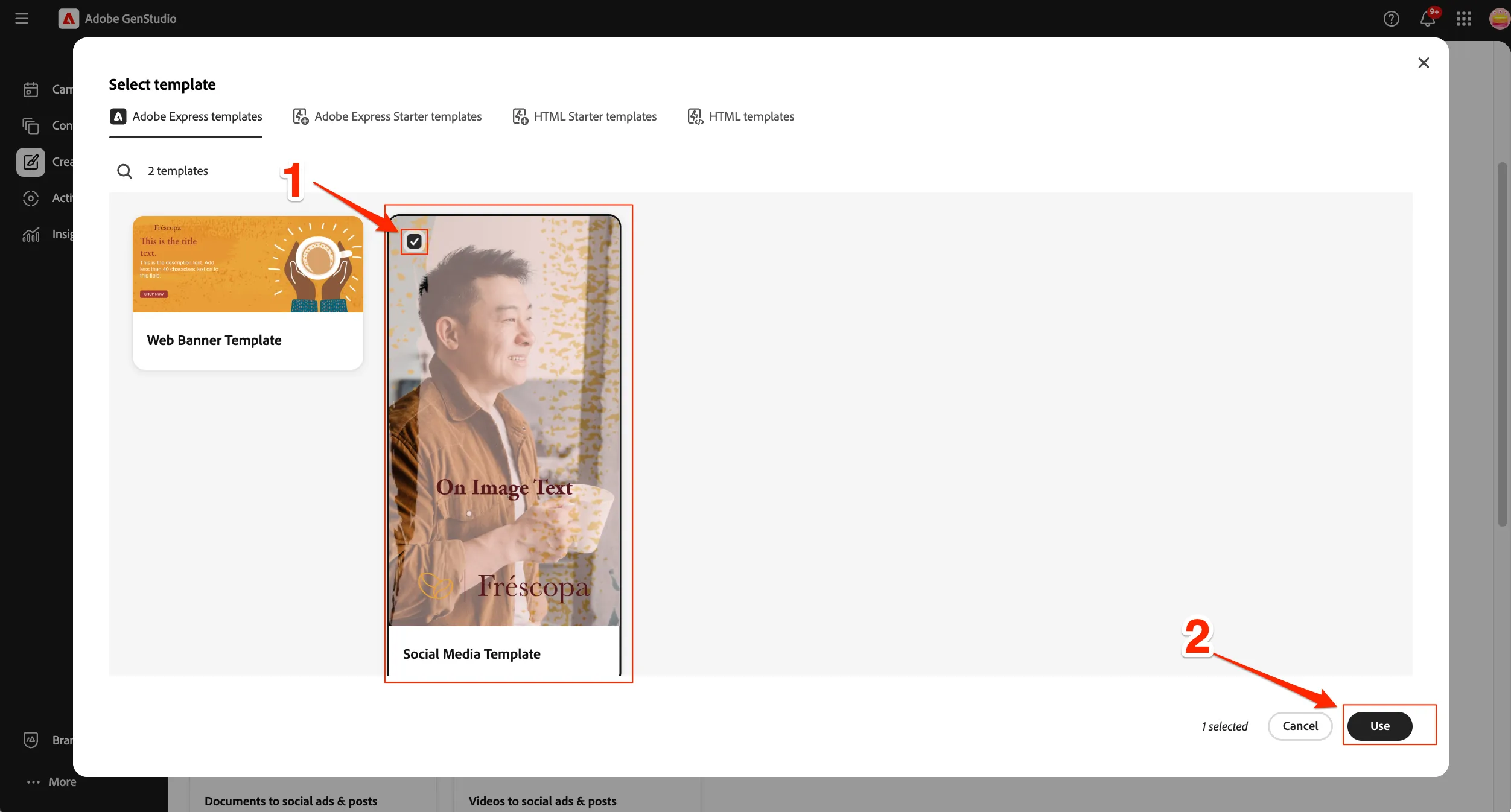
We are using a template that is build by Adobe express. You can see it Frescopa project folder in Adobe Express from this link. We can manage templates from various origins. Read more here.
Add parameters
You have now created a new draft experience, and are presented with options for entering prompt information for generating the experience.
To create your ad, fill the parameters as below
- Brand - Frescopa
- Product - TravelBrew
- Persona - Adventurer
- Rest all configurations, keep as default.
- Prompt is Create Meta ads for the new coffee gear launch, featuring a catchy headline, benefit-focused copy, a clear CTA, and compelling reasons to engage.
- Click Generate
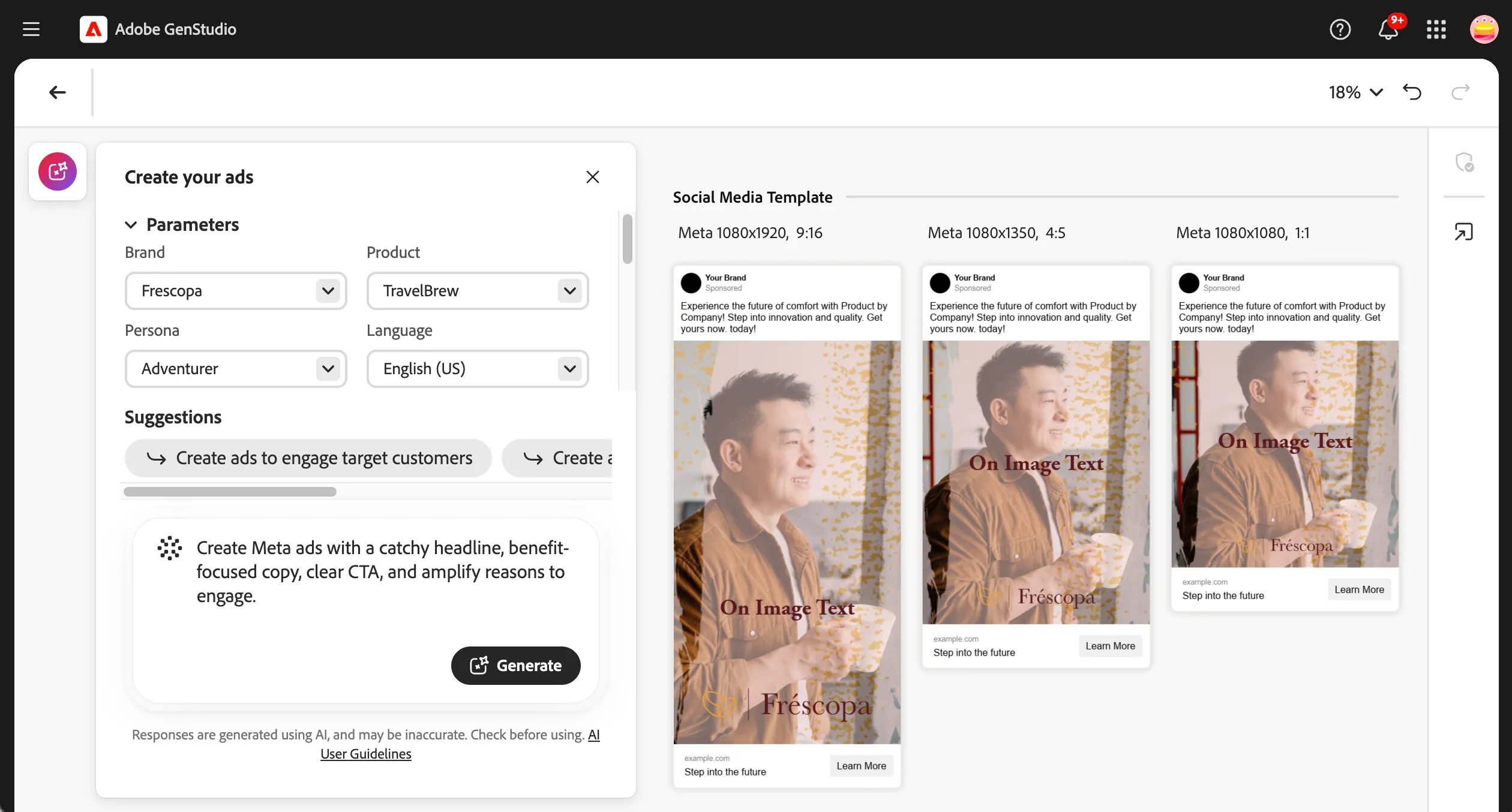
Parameters inject guidelines and assets into the generation process, ensuring that the content is customized to align with a brand’s comprehensive identity. It is recommended to add guidelines to GenStudio for Performance Marketing first and then use them during the content generation process as an integral preparatory step for generating an email experience.
By default, four concepts —all fueled by the prompt, guideline parameters and language and content you added— are generated and shown in the Canvas. Each concept has 3 different size versions created.
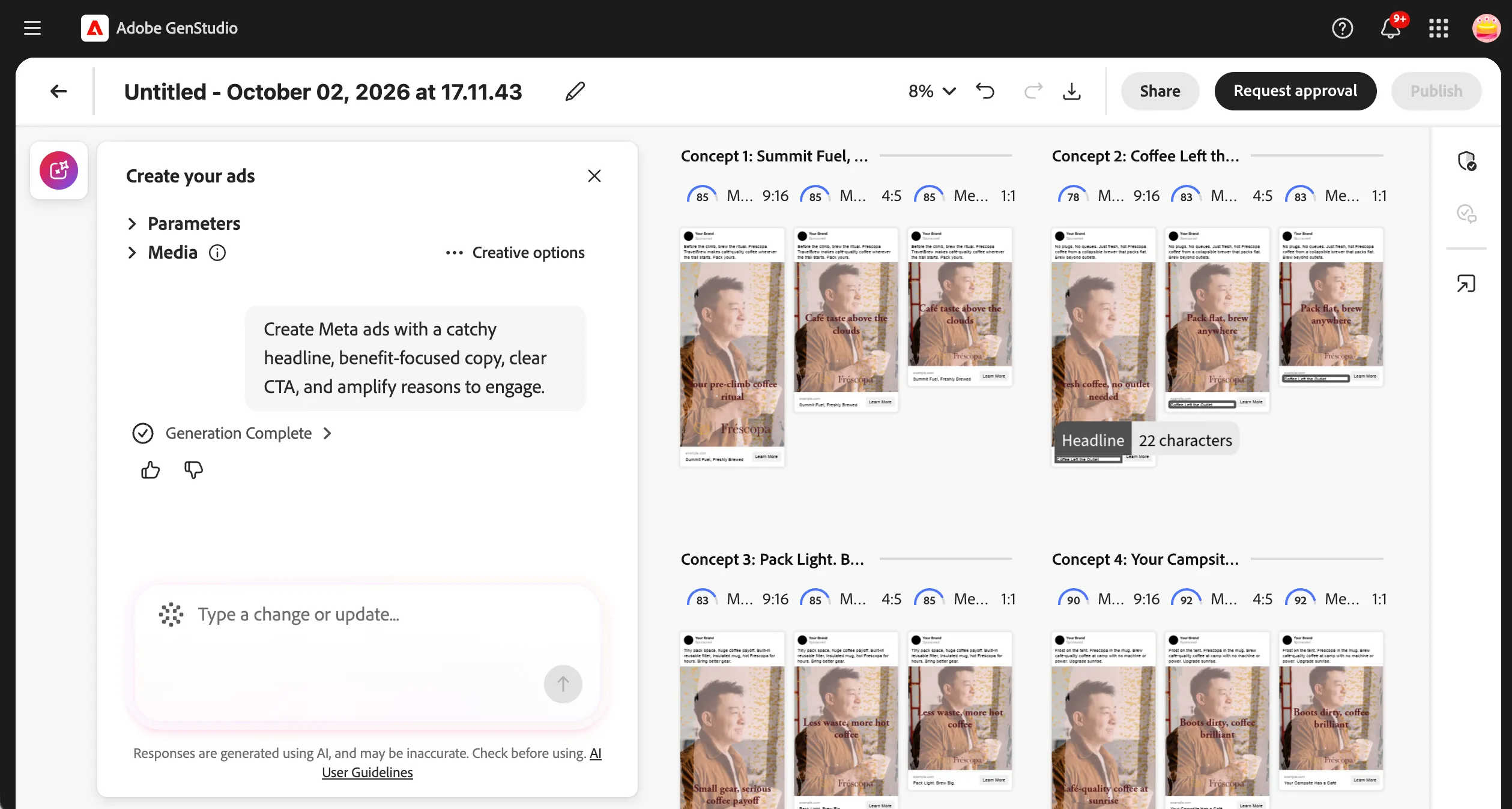
Brand validation
Generated content loads progressively—as each section of the Ad experiences are generated they appear in the Canvas. Lets go deeper into one concept.
- Click on Generate icon to minimize the generate dialog
- Zoom in on the concept you like to start exploring further.
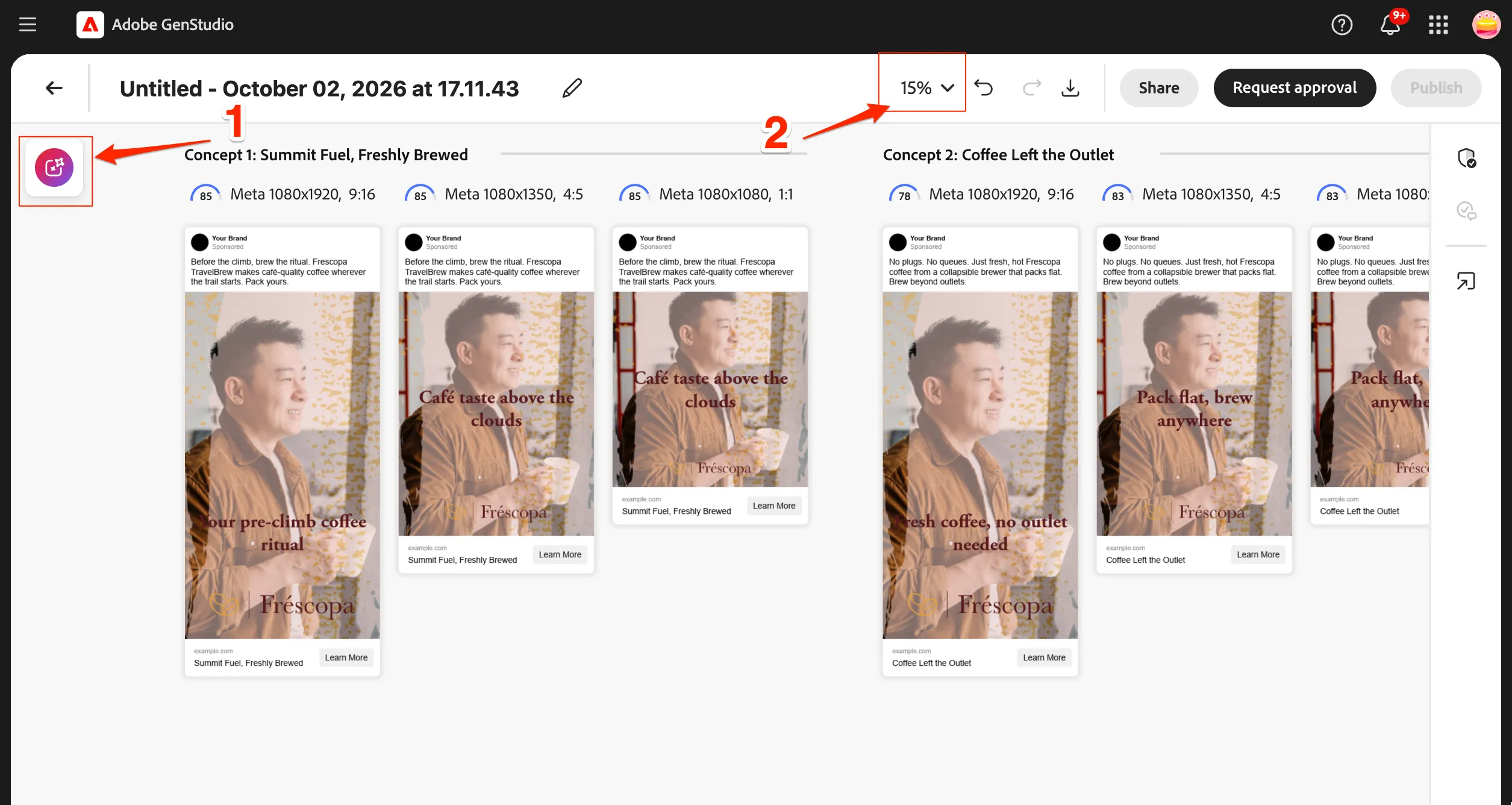
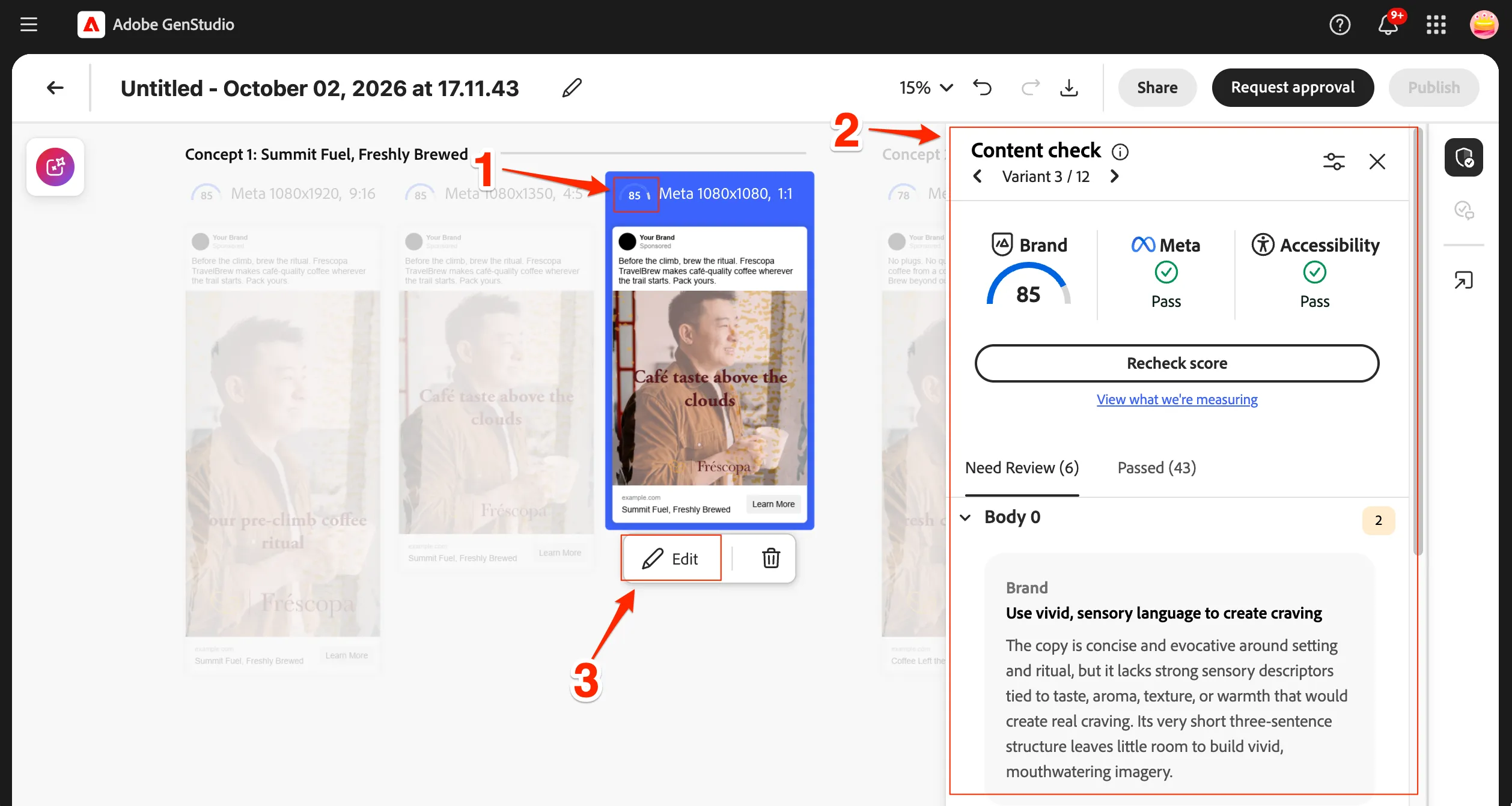
You can see a brand score on top of each version in all the concepts. This is the brand score validated against the brand guidelines.
- Click on brand score of any of the version.
- This opens the brand validation dialog and shows the various checks done by Genstudio on the generated content.
- Once cross verified, you can click to edit the concept version.
Edit the Ad with AI
You can edit all the items you generated to optimise your Ad.
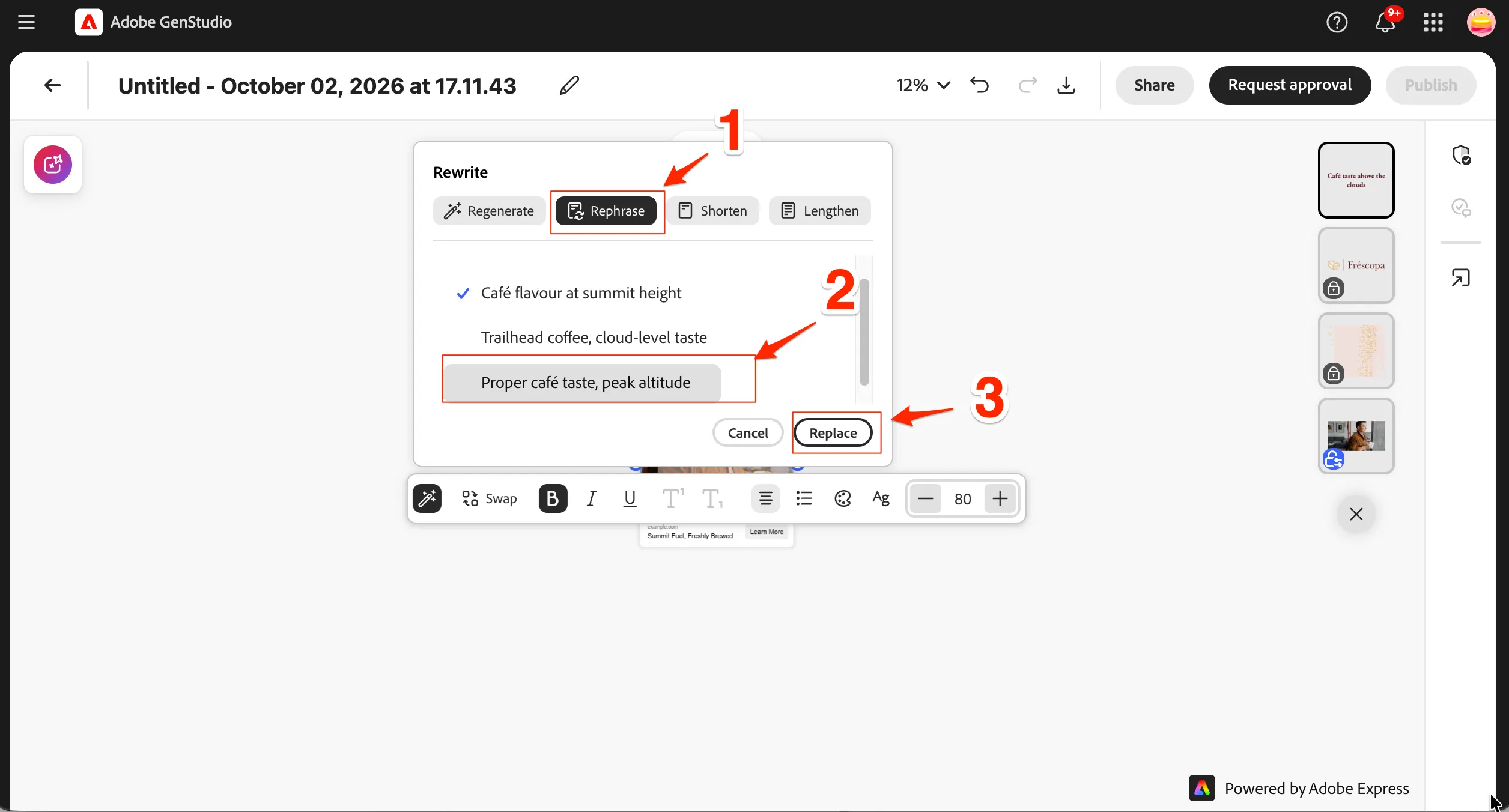
- Click to select any layer you want to edit.
- Click on the AI icon in the menu.
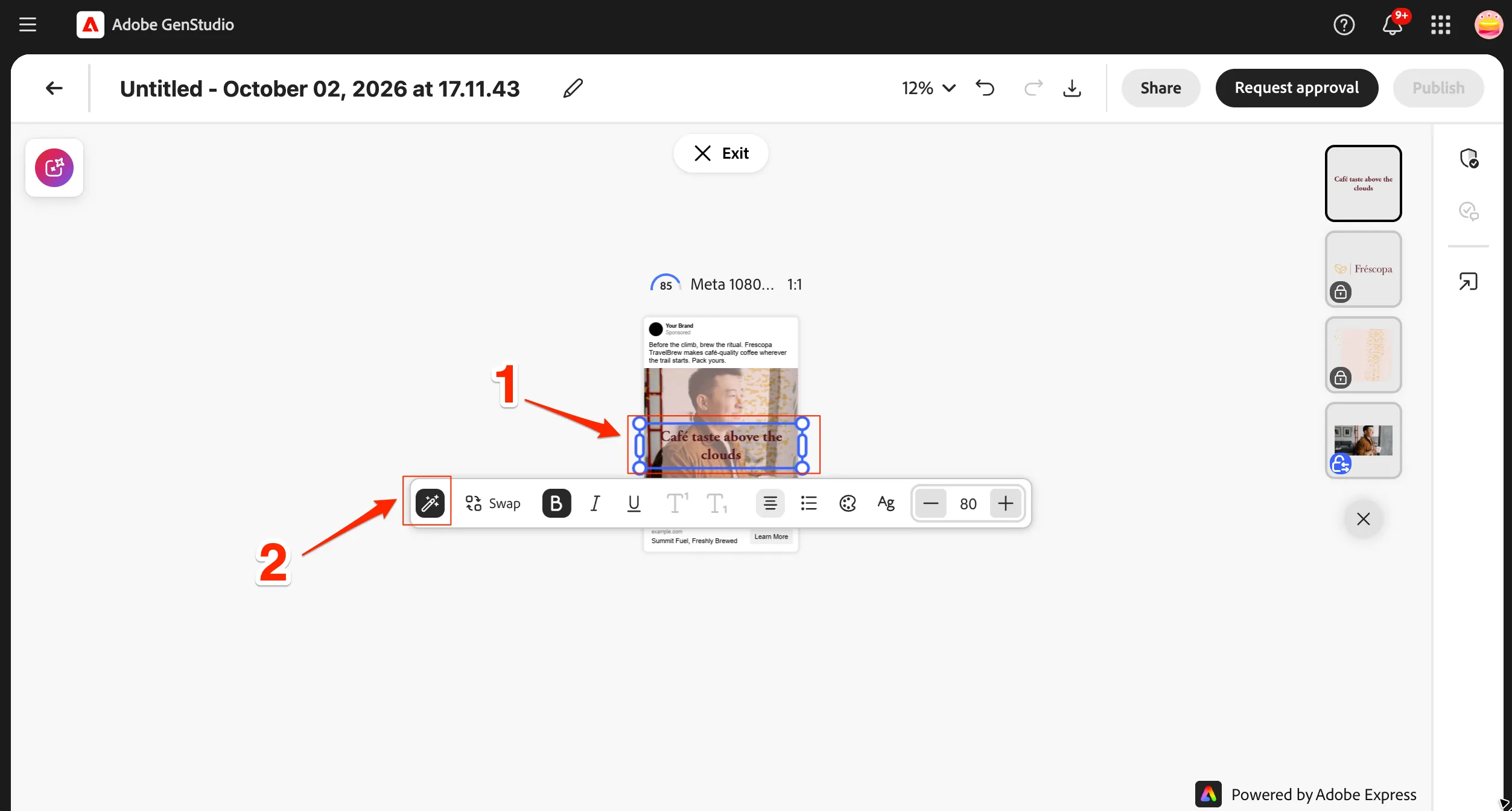
- Select Rephrase to get AI suggestions rephrasing the current image text.
- Select any choice you like
- Click Replace.
You have successfully generated and configured a social media Ad concept for your product launch. This will be now be sent to Approval via workfront and get it reviewed and published.