Lab Users
Every hands-on lab or bootcamp needs participant accounts. Each participant needs a sign-in that works on the day, is easy to hand out, and stops working when the event is over. Creating these accounts one by one in the identity directory is slow, easy to get wrong, and often leaves unused accounts behind. For a lab with 25 or 50 participants, that is hours of work that has nothing to do with the lab content.
The solution
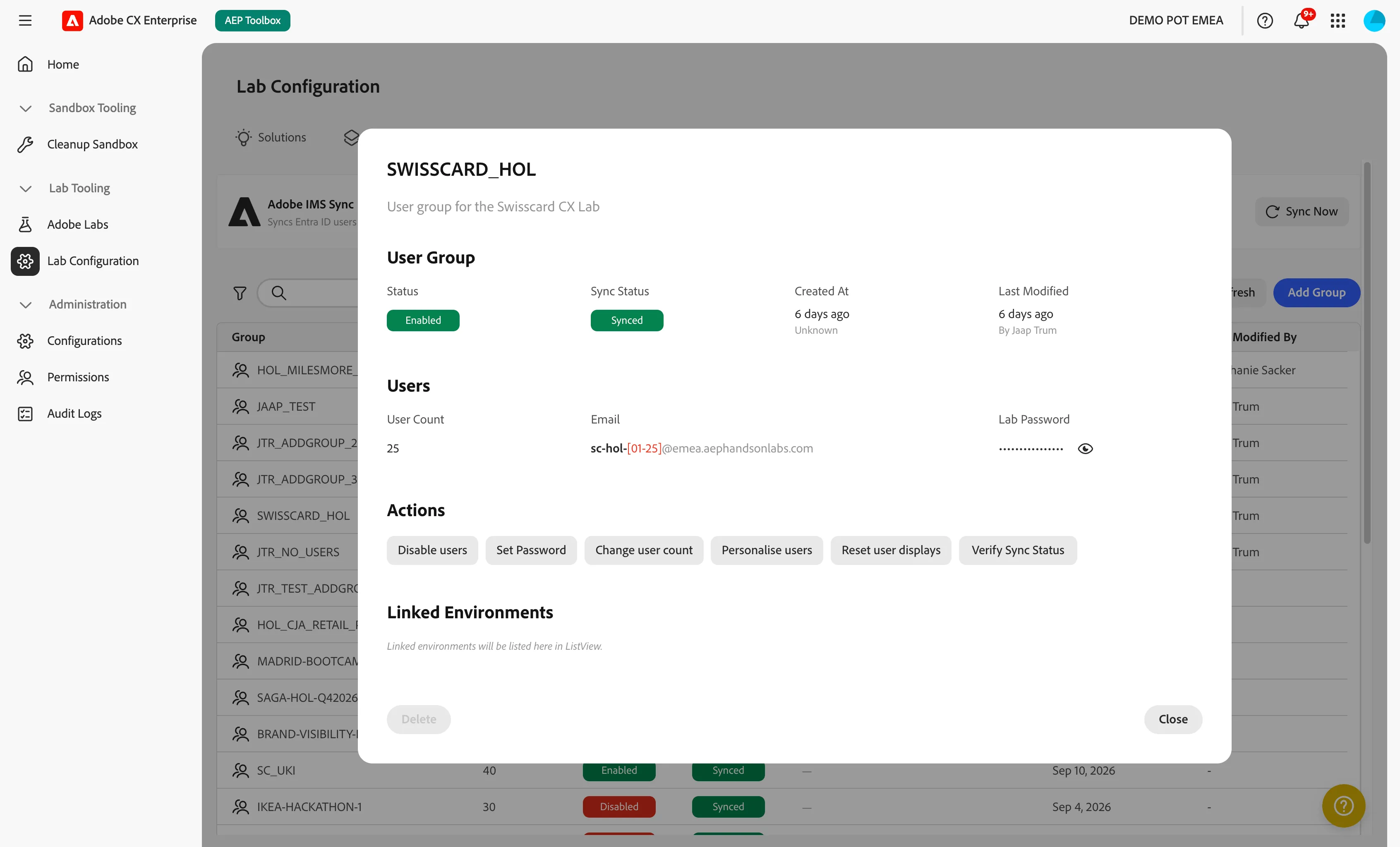
Lab Users lets a lab team create, prepare, and switch off a complete set of participant accounts in a few clicks. The accounts are created as a lab user group: one set of numbered, generic accounts that share a password. The group is created in Microsoft Entra ID and then synchronised to Adobe, so participants can sign in to the Adobe applications used in the lab.
Benefits

Faster preparation
A complete set of participant accounts, up to 99 per group, is created in a single action. Teams spend their time on the lab content, not on account administration.
Consistent experience
Names, email addresses, and passwords follow the same pattern for every lab. Participants and presenters always know what to expect, and support is easier because every account is built the same way.
Control over access
A whole group can be switched on or off at once. Accounts can be created in advance in a disabled state and enabled when the lab starts. Disabling a group resets the password and removes the users from Adobe, so access ends when the event ends.

Easy reuse
Groups can be reused across events. Change the number of users, set a new password, or reset the display names, and the group is ready for the next audience.
Personal touch when needed
Participants can be given real names, for example to match a registration list. Personalising is optional and can be reset at any time.
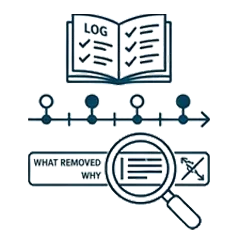
Transparency and accountability
The Audit logs show who created or changed each group and when, every action is recorded. A sync status shows whether Adobe has caught up with the latest change.
How it works
Lab Users are managed in two systems that work together.
- A team member makes a change in the app, such as creating a group, enabling it, or changing the password. The change is made in Microsoft Entra ID immediately.
- Entra ID passes the change on to Adobe on a schedule. The app shows the schedule, the time of the last sync, and an estimate for the next one.
- Participants sign in with the generated email address and the group password once the change has reached Adobe.
If a change cannot wait for the schedule, a user with edit access can request a sync right away. This normally takes a couple of minutes.

A typical lab lifecycle
Phase | What you do | Result |
|---|---|---|
Prepare | Create a group with the number of users you expect. Create it as Disabled if the lab is not open yet. | Accounts exist, but nobody can sign in. |
Personalise (optional) | Upload a list of first and last names. | Accounts show real names instead of numbers. |
Open the lab | Enable the group and set the lab password. Check that the Sync Status shows Synced. | Participants can sign in. |
During the lab | Add users if more people join. Set a new password if it was shared too widely. | The group follows the real attendance. |
Close the lab | Disable the group. | Passwords are reset, users are removed from Adobe, and logged-in users are signed out. |
Clean up | Delete the group when it is no longer needed. | All accounts in the group are removed. |
Personalising users
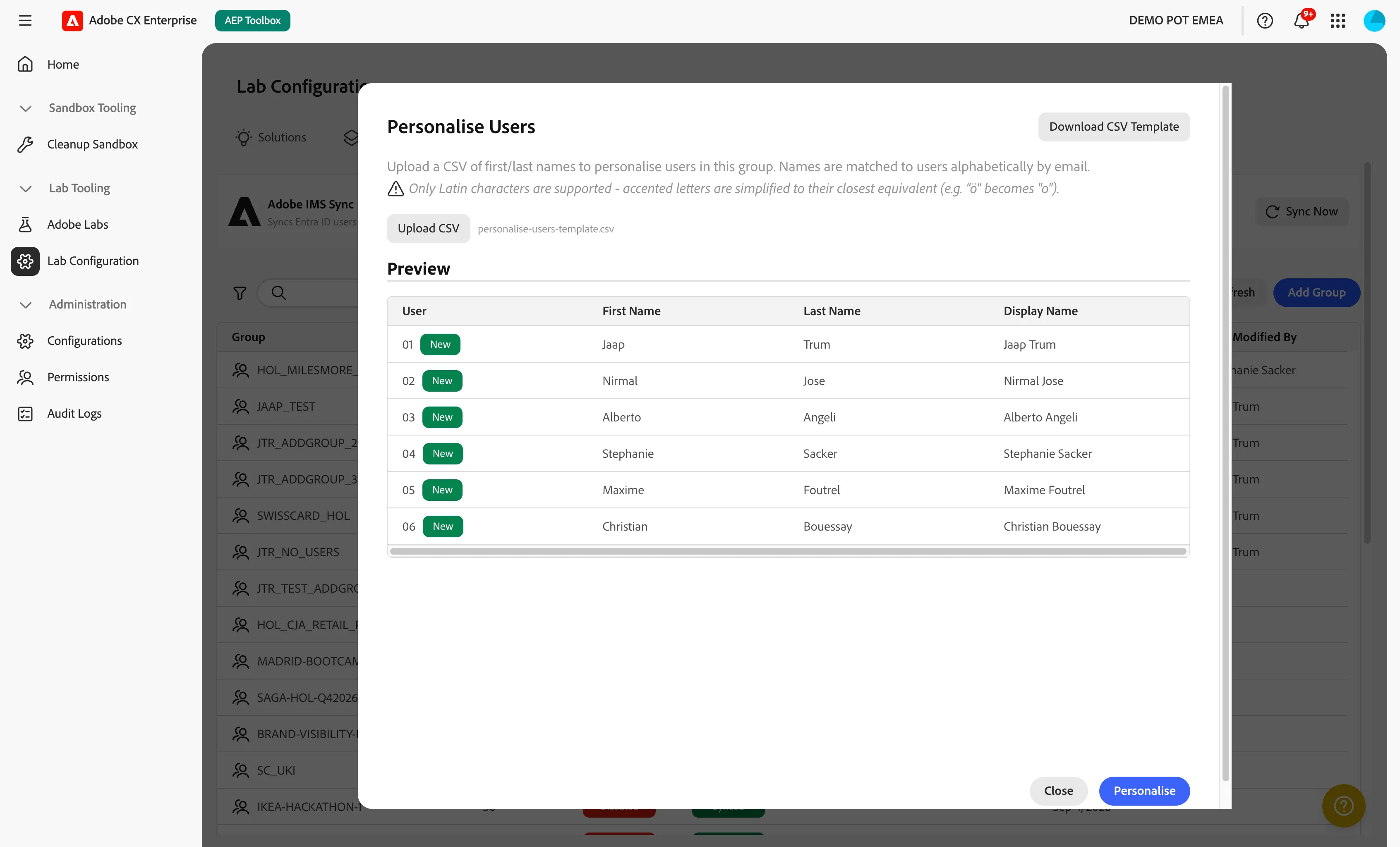
By default, accounts are anonymous: Lab user 01, Lab user 02, and so on. When a lab needs real names, upload a simple CSV file with a first name and last name per row. Users receive the names in alphabetical order of their email address. You can personalise only part of a group, add more names later, or overwrite all names.
The names can be reset at any time. Reset also lets you change the Group User Label, the text that follows the user number in every display name.
Only Latin characters are supported. Accented letters are simplified, for example "ö" becomes "o".
Rules to be aware of
- A group holds 0 to 99 users.
- A group name can only contain uppercase letters, numbers and underscores, and cannot be changed after the group is created.
- The email prefix must be unique. No two groups can generate the same email addresses.
- Passwords must meet the password policy that your admin has configured.
- When you remove users, the highest-numbered users are removed first, and this cannot be undone.
- A group can only be deleted when it is disabled or has no users.
- The same password is used for every user in a group. Anyone who can view the group can also reveal its password, so give view access only to people who need it.
Housekeeping of old accounts
When a group is disabled or its users are removed, those users disappear from Adobe on the next sync. Admins can also turn on an automatic IMS directory cleanup. It removes leftover disabled users from the Adobe directory on a set interval, so the directory does not fill up over time. It runs when someone opens the Lab Users tab and a cleanup is due. Admins can also start it manually.
Prerequisites
Lab Users depends on a few admin settings. If any of them is missing, the app shows a "User Group settings not configured" message and blocks the related actions.
- A working Microsoft Entra ID connection.
- A saved password policy and default disabled password.
- A default user display name (the standard is "Lab user").
For setup, see the Configurations guides under Getting started.
Permissions
The permissions belong to the Lab Tooling permission resource.
- View Lab Users shows the tab, the groups and their details.
- Configure Lab Users creates and changes groups, starts a sync, and deletes groups.
- View Admin Configurations and Manage Admin Configurations show and change the Lab Tooling settings, such as the Entra ID connection, the password policy, and the directory cleanup.
Users with only the view permission can see everything but cannot make changes.