Set up integration (admin)
Lab Users are created in Microsoft Entra ID, so we need to establish a connection to your Entra ID tenant. This guide shows how to create the API user (an app registration) in Entra ID and how to add it to the Toolbox.
This guide is for admins. You need the Manage Admin Configurations permission, and an Entra ID role that can create app registrations and grant admin consent.
Before you start
- Access to the Microsoft Entra admin center for the tenant where the lab users are created.
- A role that allows you to register applications and grant admin consent for API permissions.
- A safe place to store the client secret, because it is shown only once.
Step 1: Create the API user in Entra ID
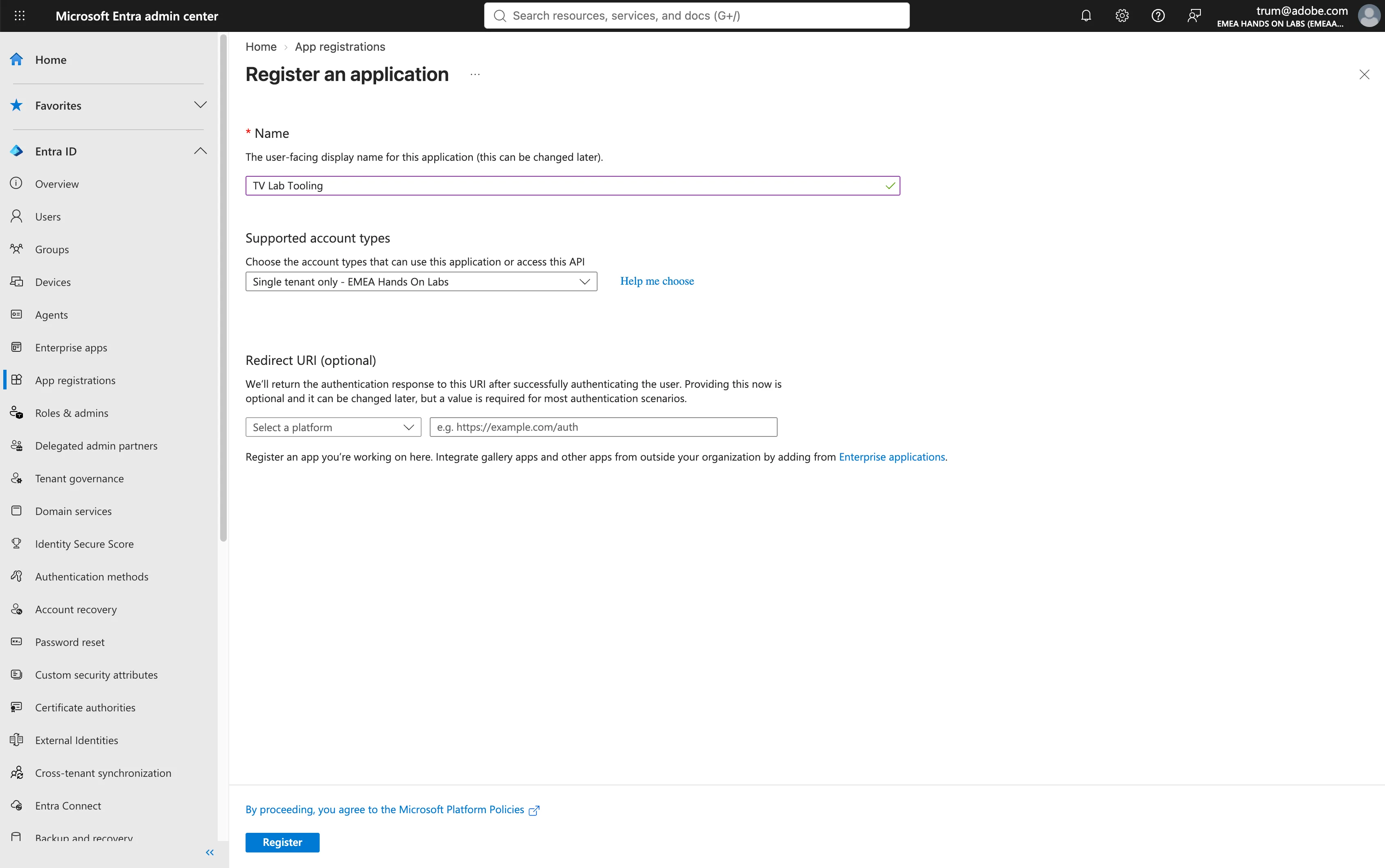
- Sign in to the Microsoft Entra admin center.
- Navigate to Entra ID > App registrations.
- Select New registration.
- Set the Name to TV Lab Tooling.
- Under Supported account types, select Single tenant only - [tenant name].
- Leave the redirect URI empty and select Register.
Step 2: Add the API permissions
- Open the new app registration and go to API permissions.
- Select Add a permission > Microsoft Graph > Application permissions.
- Add the permissions listed below.
- Application.Read.All To find Adobe app, read its roles and secret expiry
- AppRoleAssignment.ReadWrite.All To assign groups to the Adobe app
- AuditLog.Read.All To read provisioning logs
- Group.ReadWrite.All To create, edit, delete groups
- GroupMember.ReadWrite.All To add and remove group members
- Organization.Read.All To read tenant info (verified domains)
- Synchronization.Read.All To read sync job status
- Synchronization.ReadWrite.All To start, restart and manage sync jobs
- User-PasswordProfile.ReadWrite.All To reset user passwords
- User.ReadWrite.All To create, edit, enable, disable, delete users
- After you added all permissions you'll notice the overview Status-column will say these permissions require admin consent. Click Grant admin consent for [tenant name] and confirm.
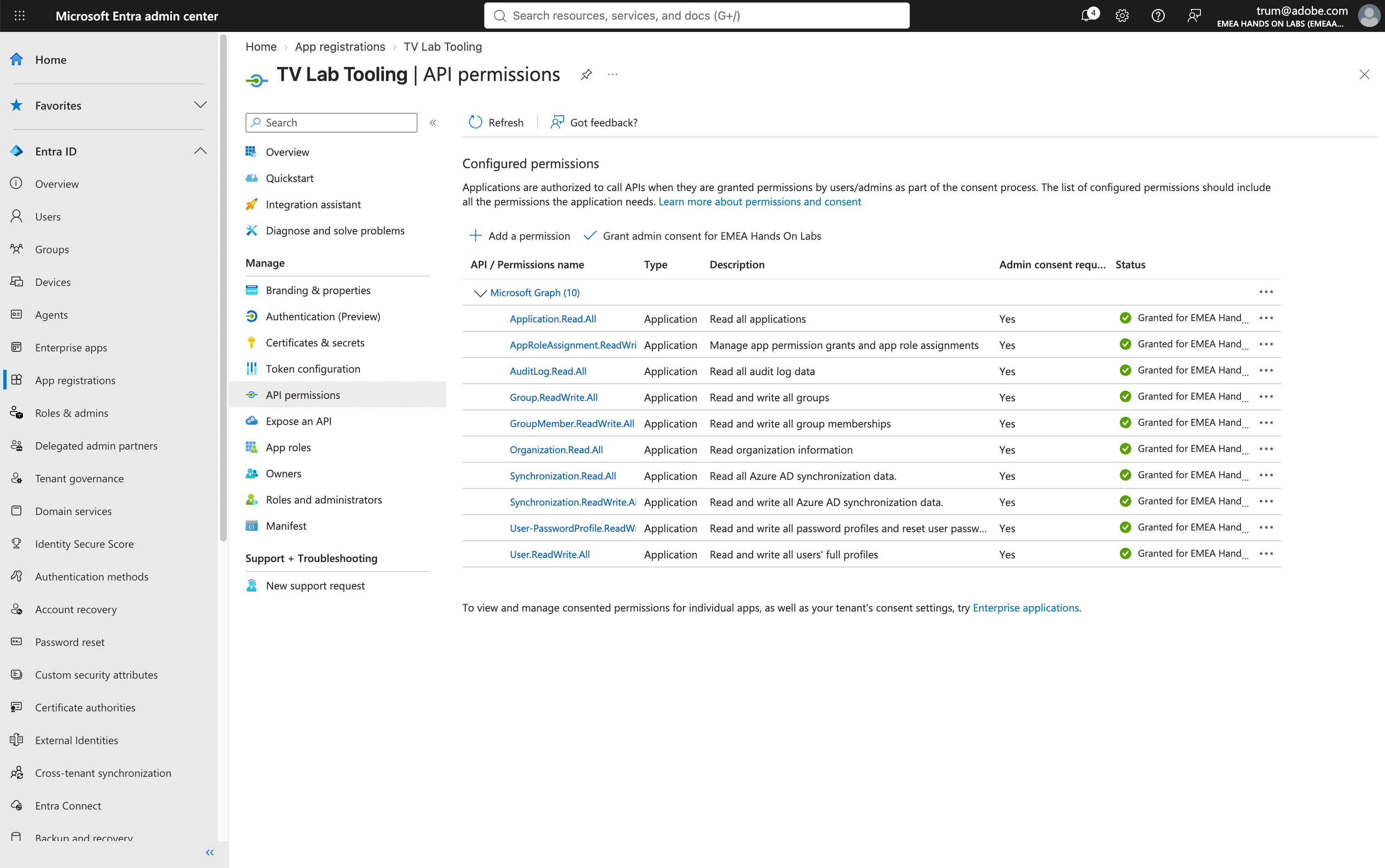
Application permissions without admin consent do not work. Check that every permission shows a green "Granted" status.
Step 3: Create a client secret
- In the app registration, go to Certificates & secrets.
- Select New client secret.
- Set the Description to TV Lab Tooling API Integration.
- Set Expires to 730 days (24 months).
- Select Add.
- Copy the Value and Secret ID to a notepad.
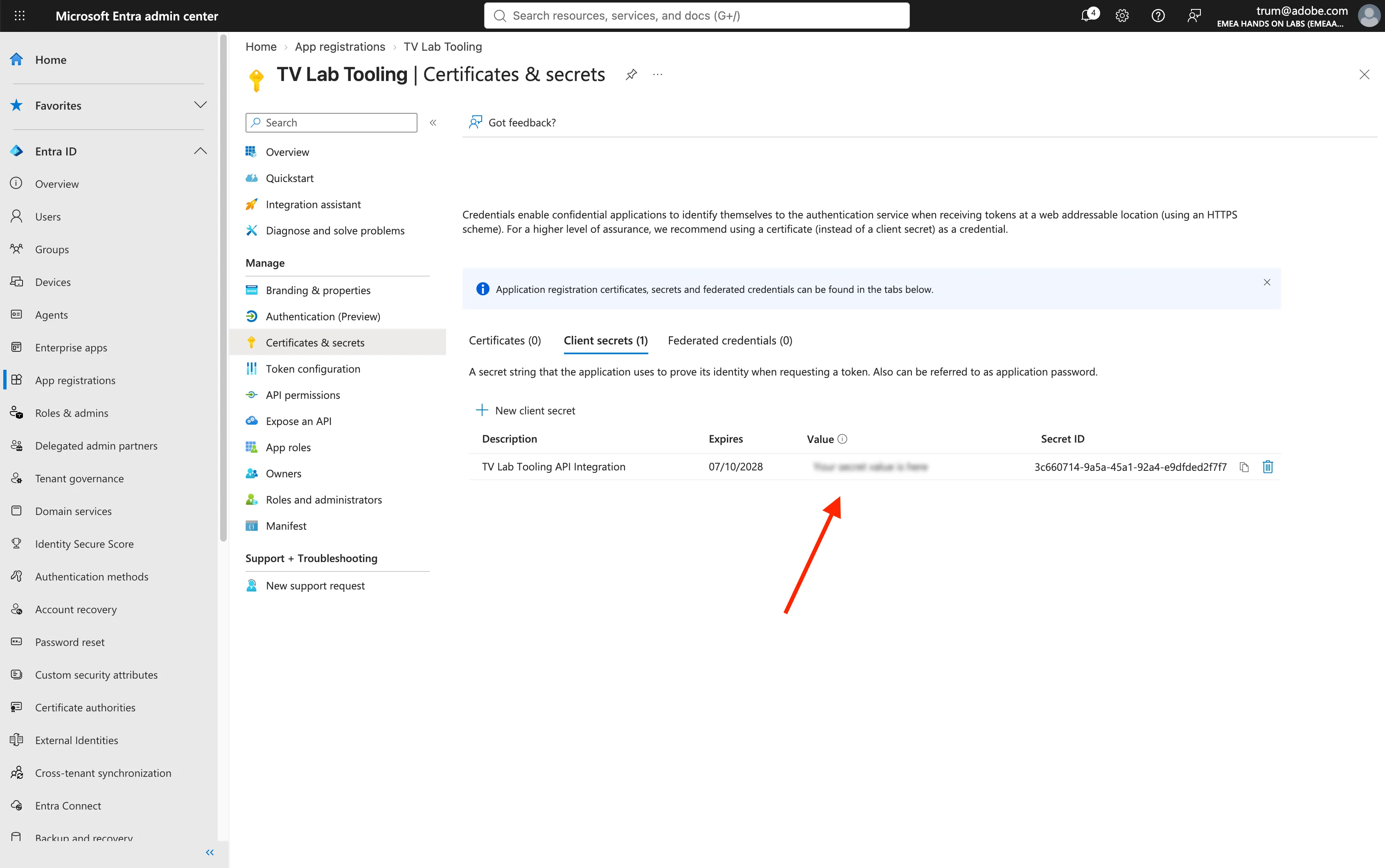
Make sure to copy both the Value and the Secret ID. The value will become hidden after you leave the page. If you lose it, you'll have to create a new secret.
Step 4: Find the required inputs
- Let's add more values to the notepad.
Value | Where to find it |
|---|---|
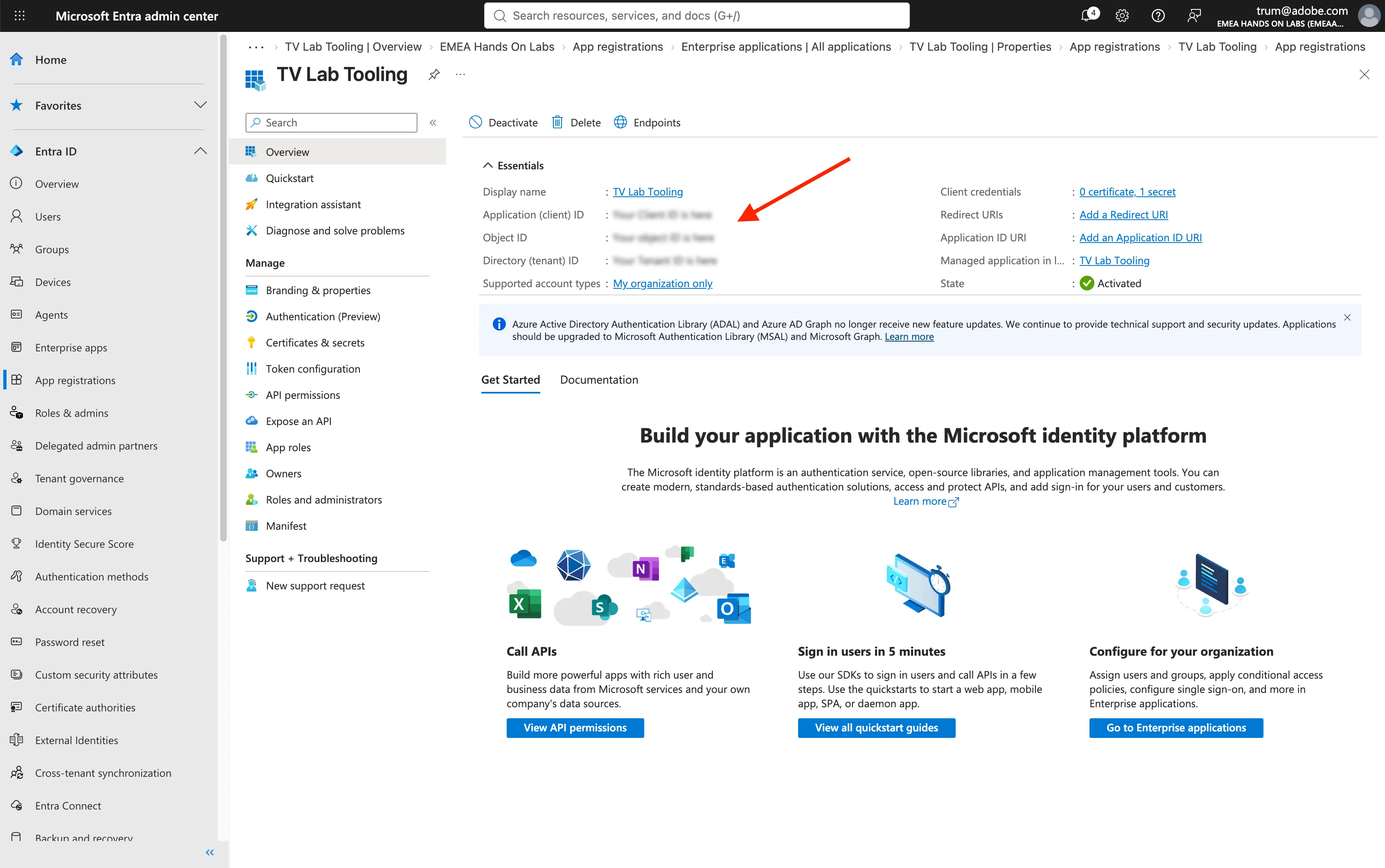
Tenant ID | Entra ID > App registrations > TV Lab Tooling > Directory (tenant ID |
Client ID | Entra ID > App registrations > TV Lab Tooling > Application (client) ID |
Secret ID | Added in step 3 |
Client secret | Added in step 3 |
Step 5: Add the integration
- In the App, navigate to Administration > Configurations > Lab Tooling.
- Find the Microsoft Entra ID section.
- Fill out the fields Tenant ID, Client ID, Secret ID and Client Secret you looked up beforehand.
- Set Graph Base URL to https://graph.microsoft.com/v1.0.
- You can't save these setting unless the connection works. Click Test Connection.
- After a brief load, assuming the input was correct, the Derived Values will show up.
- Click Save.
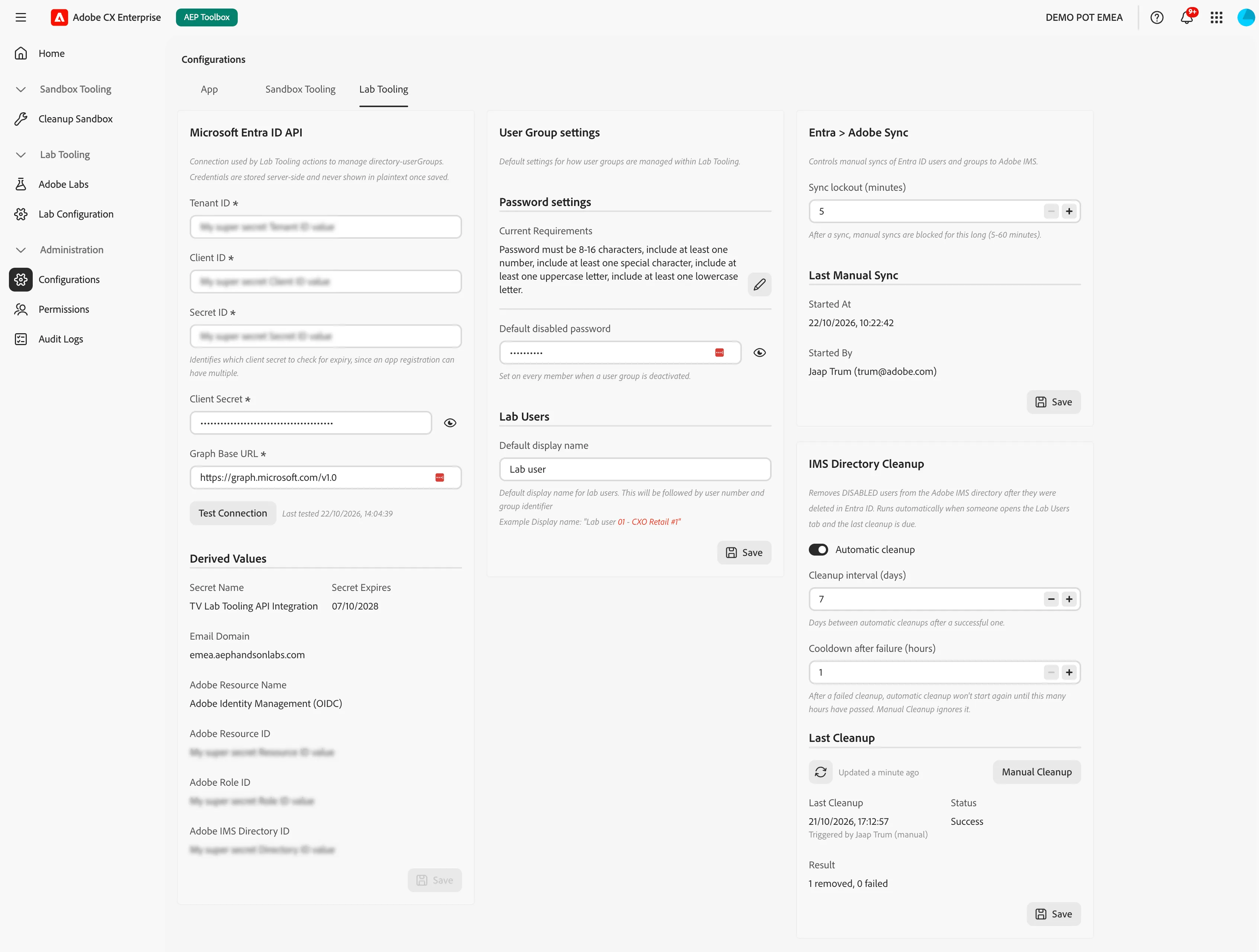
Test Connection uses the given credentials to sign in to Entra ID and runs a simple check with the permissions you granted. It does not create or change any users. It's a simple safety precaution to prevent you from saving invalid credentials.
Next steps
After the connection works, finish the remaining Lab Tooling settings on the same page: the password policy, the default disabled password, and the default user display name. Lab Users needs all of them.