Build a Workflow
1 min
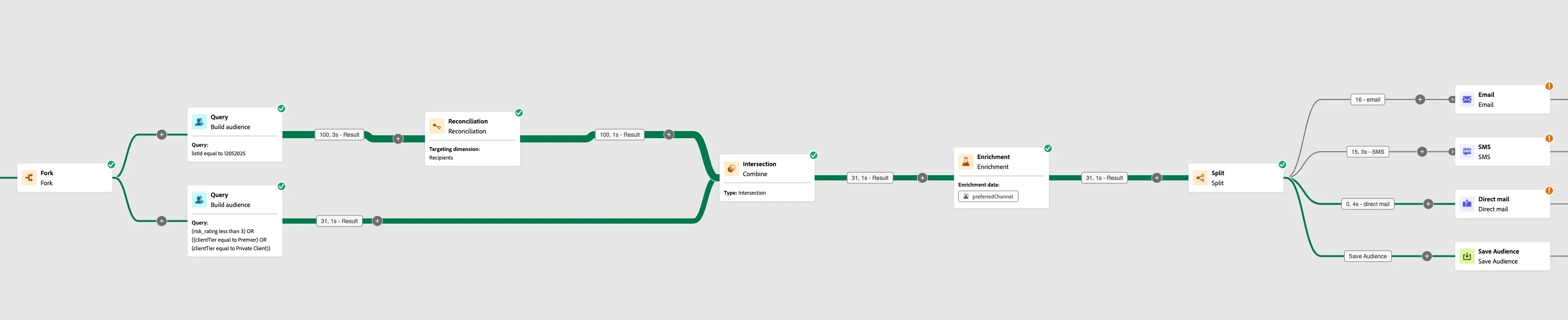
Add a Fork
- Click on the Plus Sign Icon in the canvas
- Select Fork under flow control (Label: Checking Campaign)
- Add a Build Audience node to both paths
- Top Build Audience Node Label: Account and Customer
- Bottom Build Audience Node Label: Suppression Audience
Build Audience Queries
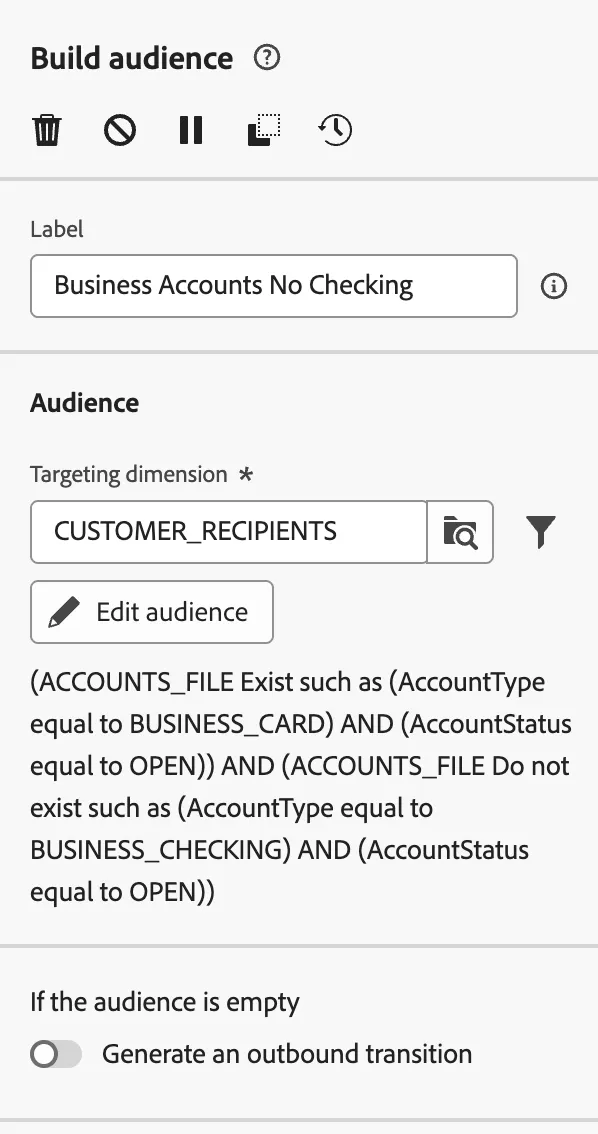
- Click back on Build Audience Node and Label it: Business Account No Checking
- Click the Folder Icon under Targeting Dimension
- Select your CUSTOMER_RECIPIENTS
- Click the button Edit Audience
- Click Add Select or save filter
- Click Select predefined filter
- Select BUSINESS_CARD_NO_CHECKING, click confirm
- Confirm and exit to Canvas
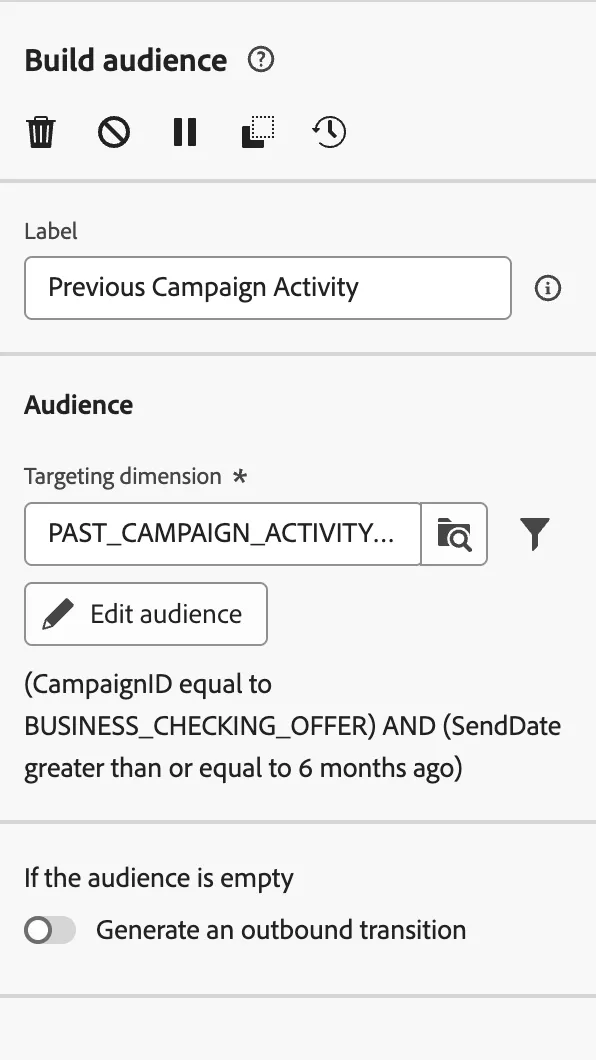
- Click back on Suppression Audience (Label It: Previous Campaign Activity)
- Click on the Folder Icon Under Targeting Dimension
- Select your CAMPAIGN_MEMBERSHIP_INITIALS Dimension
- Click the button Edit Audience
- Click Add Condition
- The criteria should be (CampaignID equal to BUSINESS_CHECKING_OFFER) AND (SendDate greater than or equal to 6 months ago)
- Click Calculate
- Confirm and exit to Canvas
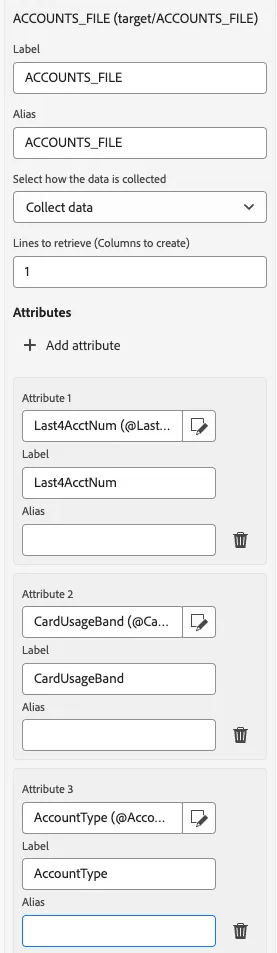
Add Enrichment
- On the Top Path
- Select a Enrichment node and Label: Customer Accounts
- Select primary set Business Account No Checking
- Click on Add Enrichment data
- Click on Targeting dimension
- Click on ACCOUNTS_FILE
- Select Last4AcctNum
- click confirm
- Lines to retrieve must be 1
- Click on Add Attribute
- Select CardUsageBand
- Confirm
- Click on Add Attribute
- Select AccountType
- confirm
Add a Combine Node
- On the Top Path, click the plus sign
- Add a Combine Node
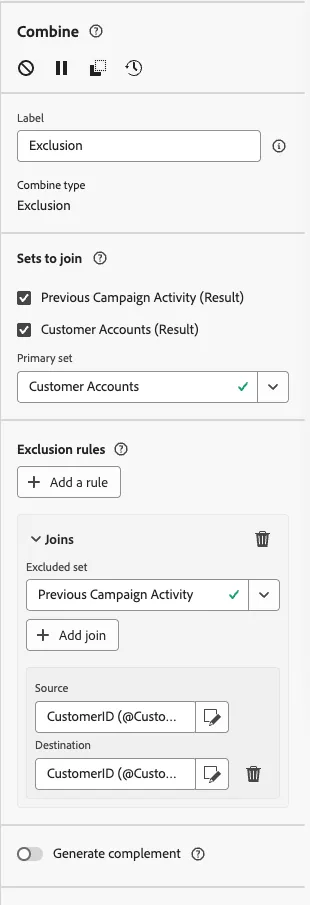
- Select Exclusion
- Make sure both Sets to join are checked (Previous Campaign Activity and Customer Accounts)
- Primary Set: Customer Accounts
- Click Add a rule
- Select Join
- Excluded Set (Previous Campaign Activity)
- Click Source and select CustomerID
- Click Destination and select CustomerID
Add a Split
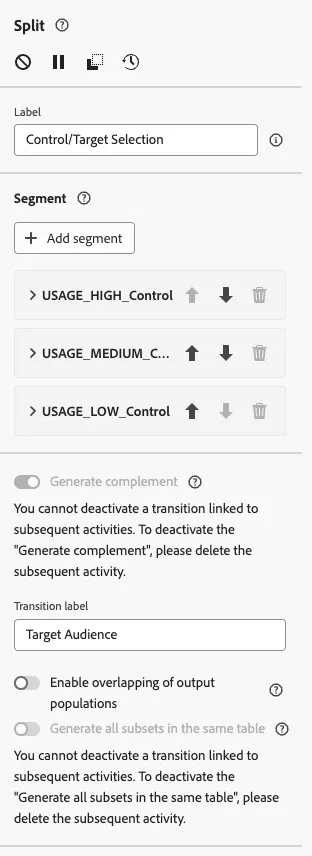
- Click on the plus sign, next to your Exclusion node.
- Select the Split Node and Label: Control/Target Selection
- Add a total of 3 Segments (Labels: USAGE_HI_CONTROL, USAGE_MED_CONTROL, USAGE_HI_CONTROL)
- USAGE_HI_CONTROL:
- Click Create Filter
- Click Add Condition
- Select cardUsageBand equal to HIGH
- Enable Limit
- Limit Size: 10 Percent
- Repeat the steps above but for USAGE_MED_CONTROL and USAGE_LO_CONTROL but cardUsageBand equals MEDIUM and LOW respectively.
- Once done, select: Generate complement and Label Target Audience
- Click Start/Resume
Add a Fork
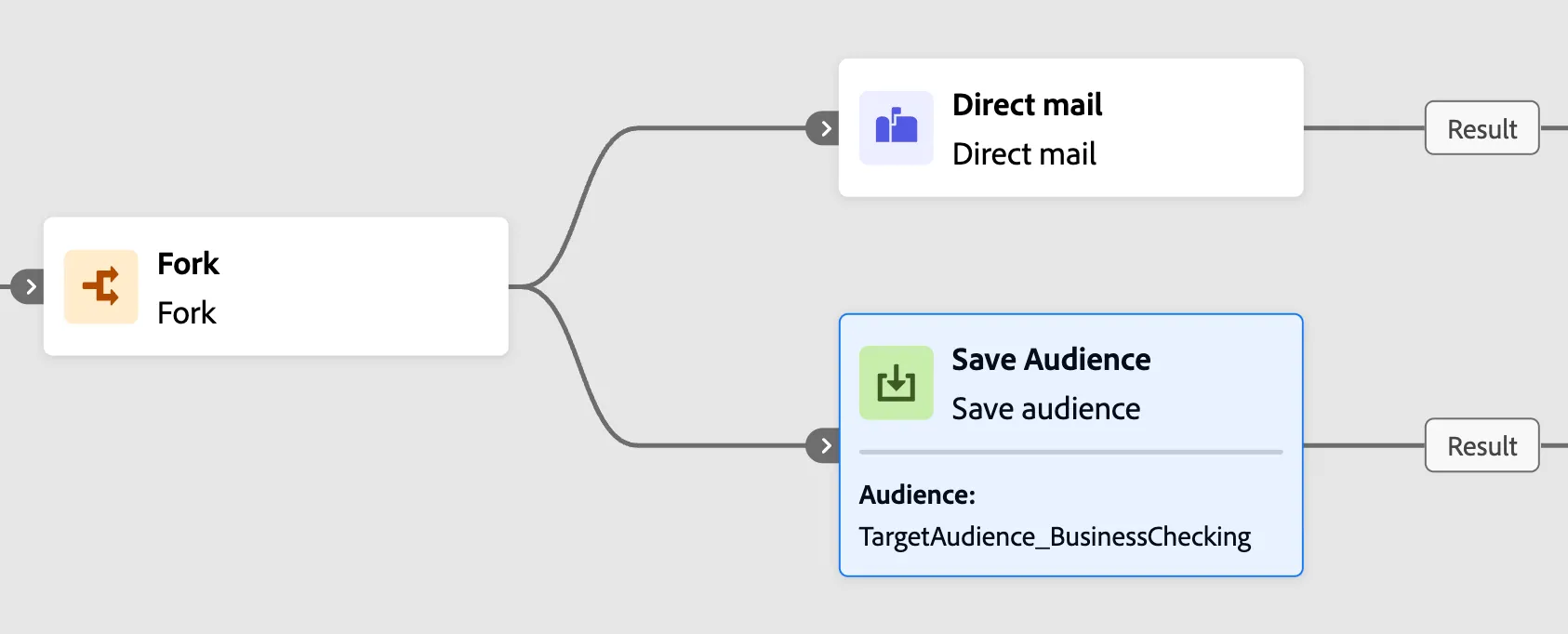
Add a Fork node on the Target Audience path.
Add Direct Mail
- Click the plus sign on the first path
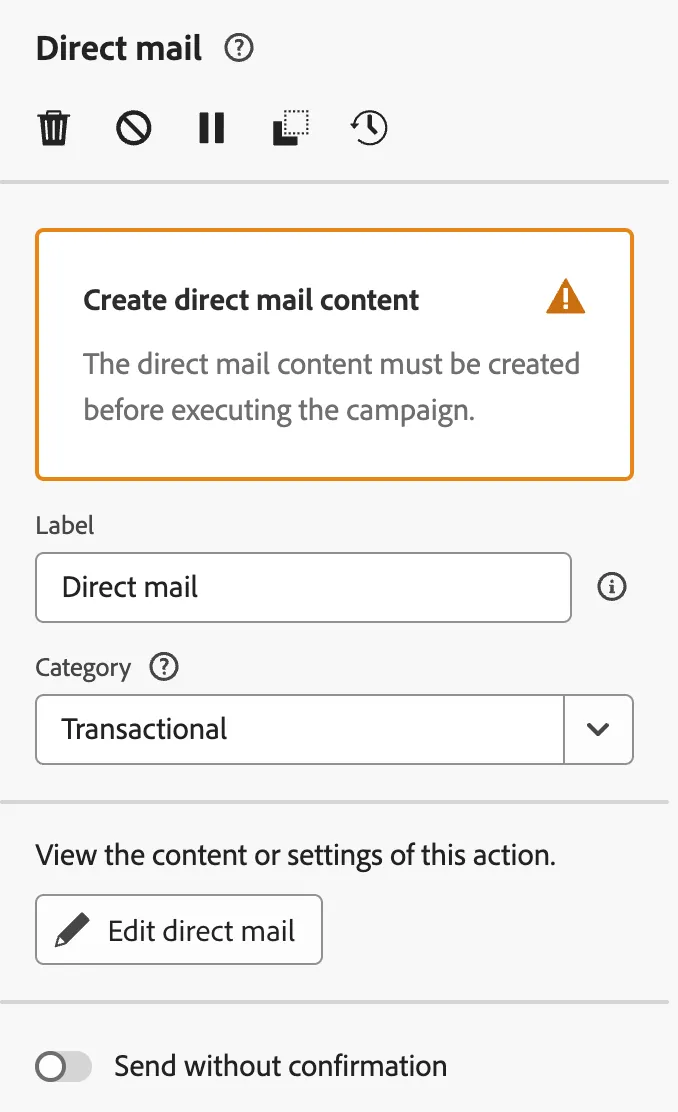
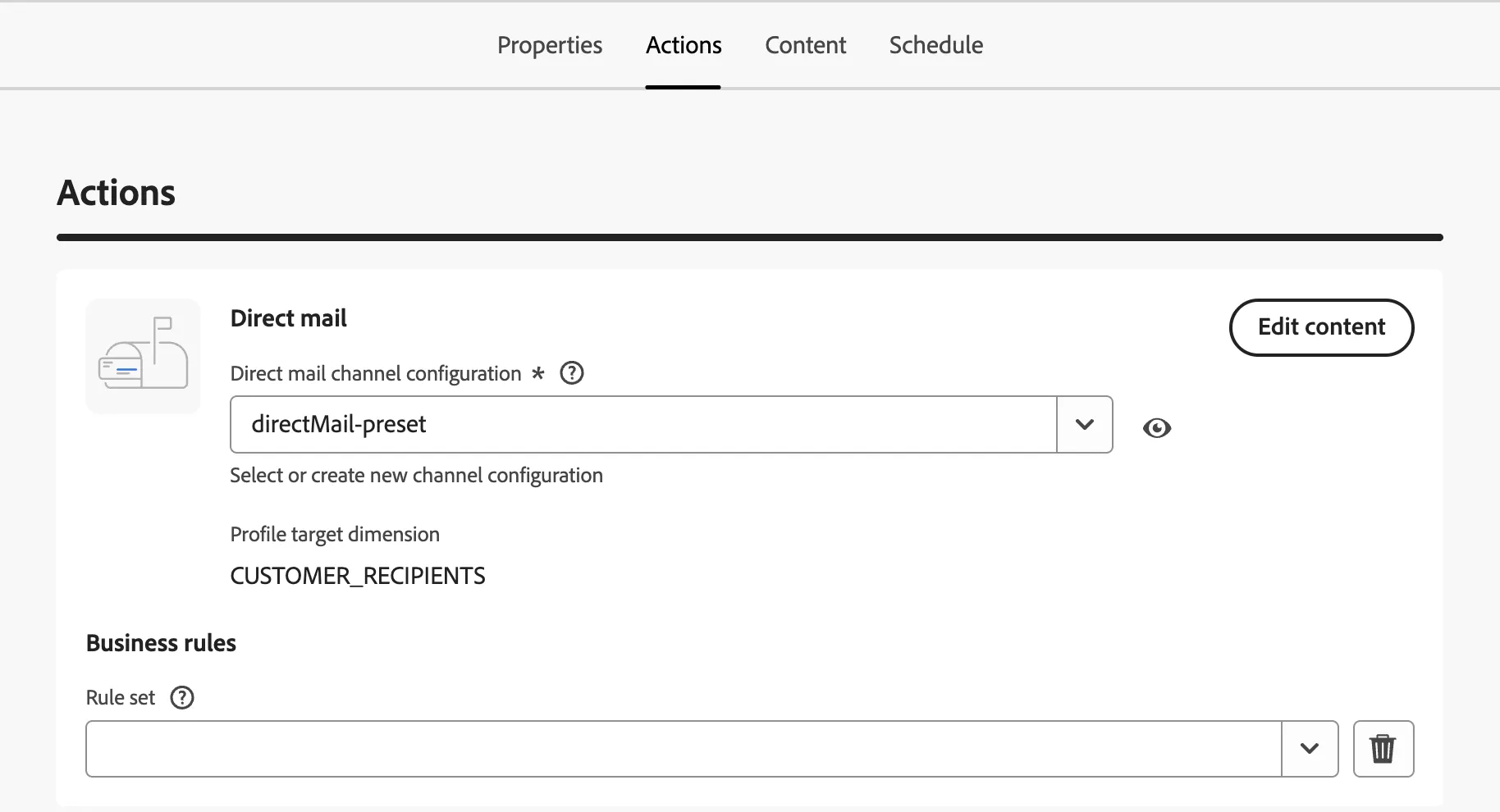
- Select Direct Mail
- Category: Transactional
- Click Edit Direct Mail
- Select the 'Direct Mail' preset under Actions
- Click 'Edit Content'
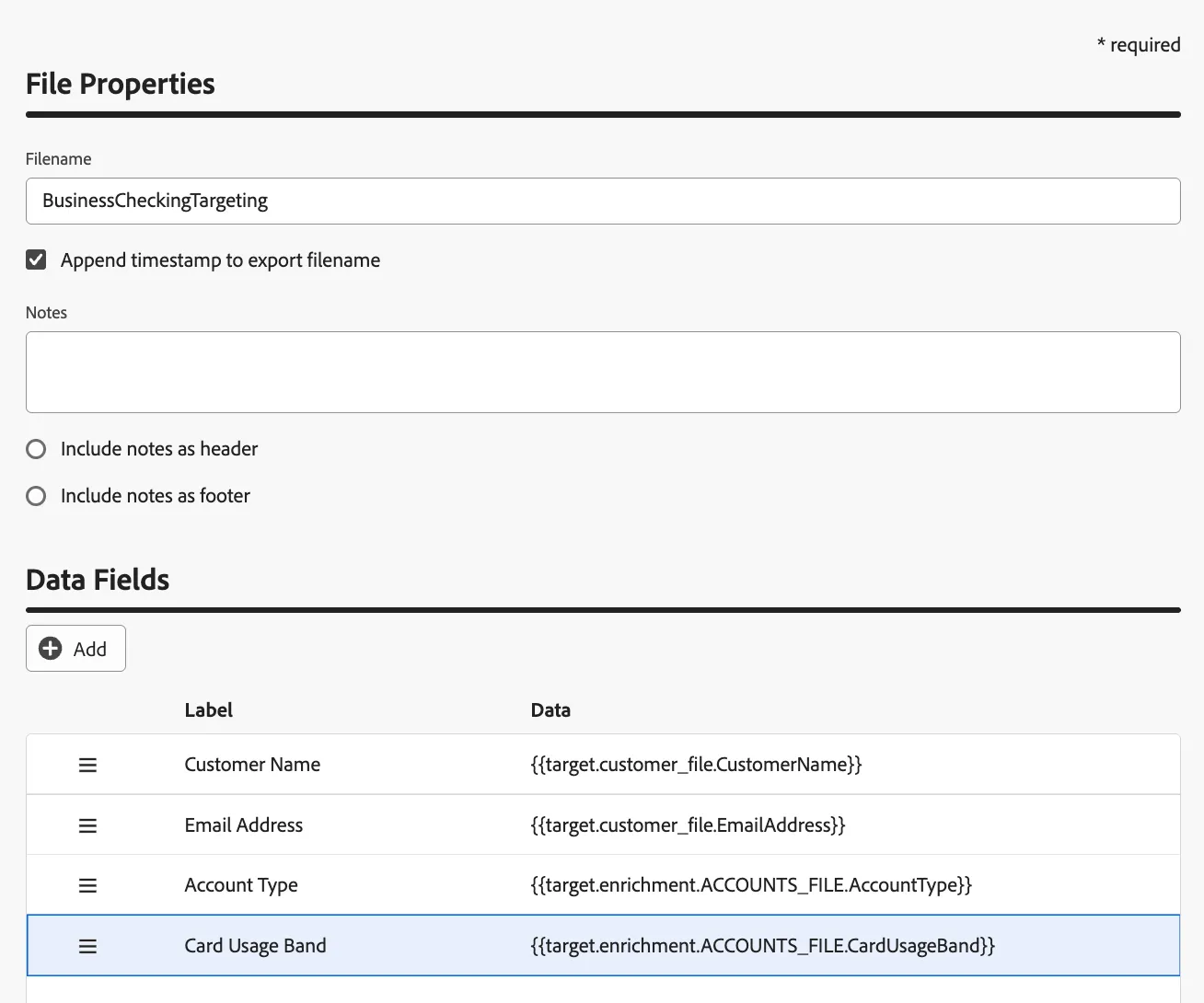
- Provide a file name
- Add Data Fields :
- CustomerName
- EmailAddress
- AccountType
- CardUsageBand
Add Save Audience
- Click the plus sign on the second path
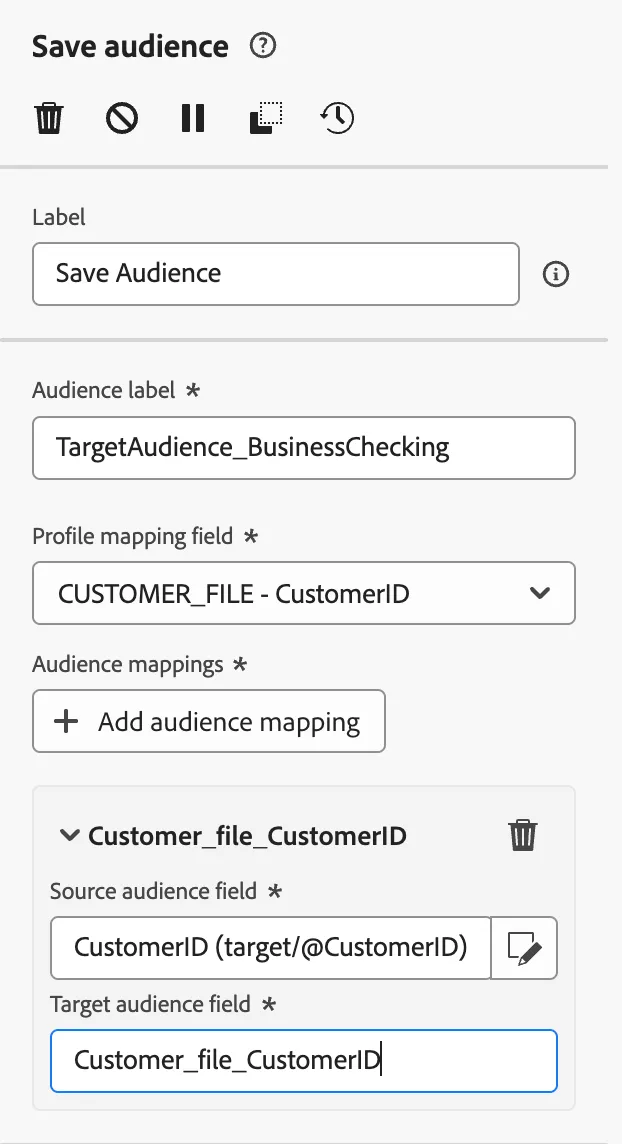
- Select Save Audience
- Audience Label: CHECKING_CAMPAIGN - Initials
- Select the Profile Mapping Field: CUSTOMER_FILE - CustomerID
- Add an Audience Mapping:
- CustomerID
- AccountType
- CardUsageBand
- Last4accNum
- CustomerName
Add End Activity Nodes
- On All the other paths of our split, please click the sign plus next to them
- Add an End to each.
Congratulations, you completed the Campaign Workflow! Now, we'll add content!