Governance
8 min
In this Lab, we will
- Apply the out-of-the-box Identity label to the Email field in our HOL Profile Schema {initials} schema
- Create an data uage policy to restrict exporting plain text emails
Instructions:
- In the left-hand menu, navigate to "Schemas". Verify you're on the "Browse" tab. Search for the schema you created by entering your initials.
- Click on the Schema Name
Note: Please use your own schema created in the data ingestion exercise to avoid conflicts
- Click "Labels" tab, review the Label usage message and choose I understand.
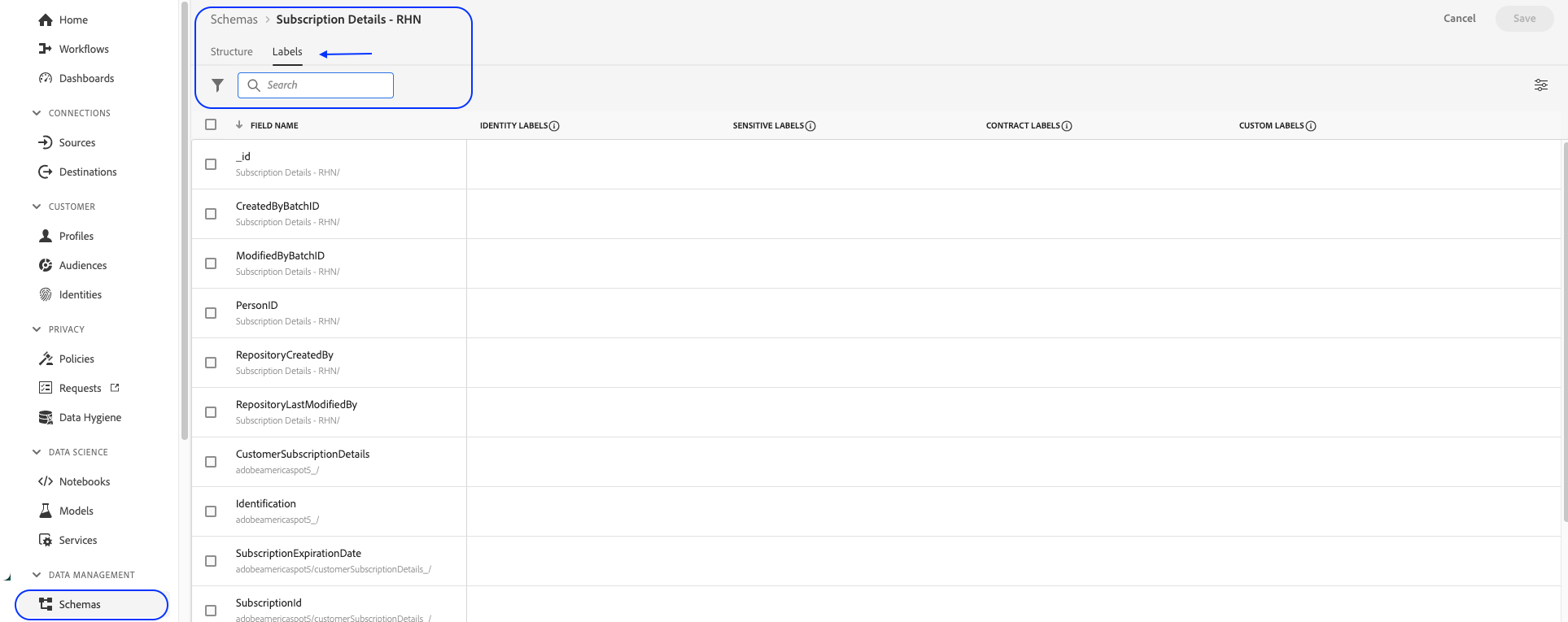
- Search for 'Email'. Check the box to the left of the field.
- Click on Apply access and data governance label

- Check the box I1
- Click Save
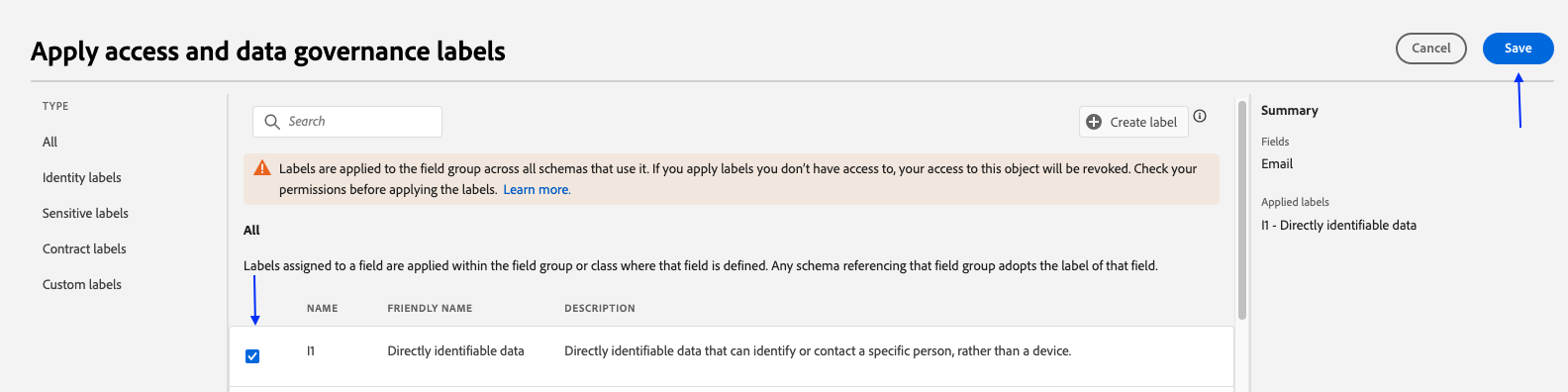
Now, let's create a policy that uses this Label.
Creating a Governance Policy
Instructions:
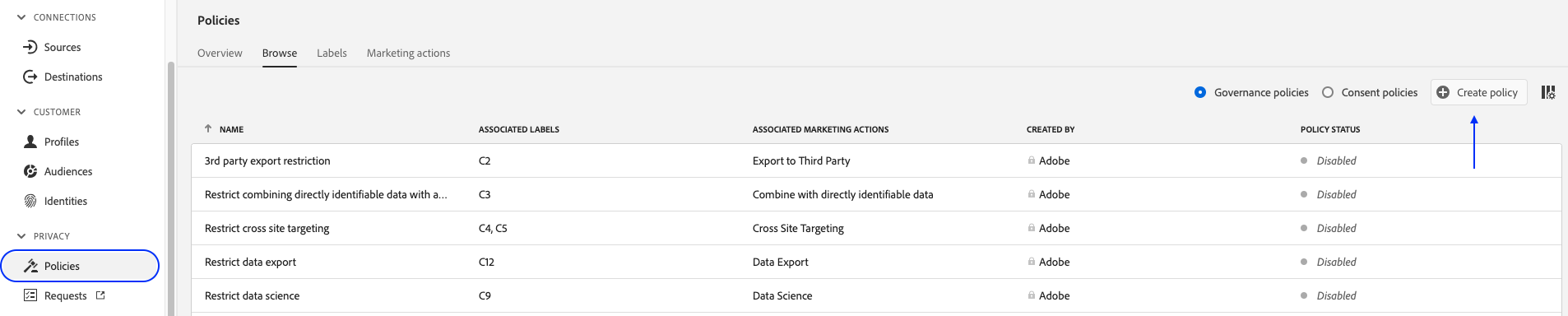
- In the left-hand menu, navigate to Policies under the Privacy heading.
- Verify you're on the "Browse" tab. Click "+ Create policy" in top right corner.
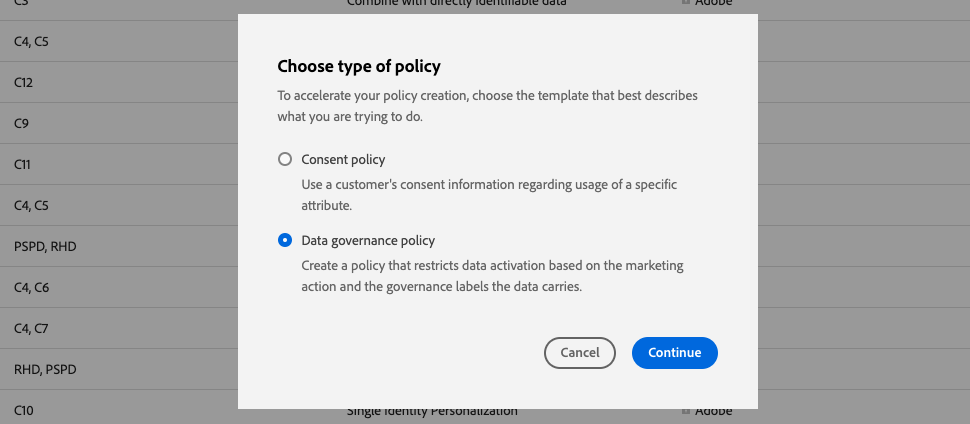
- Select "Data Governance Policy" and Click Continue.
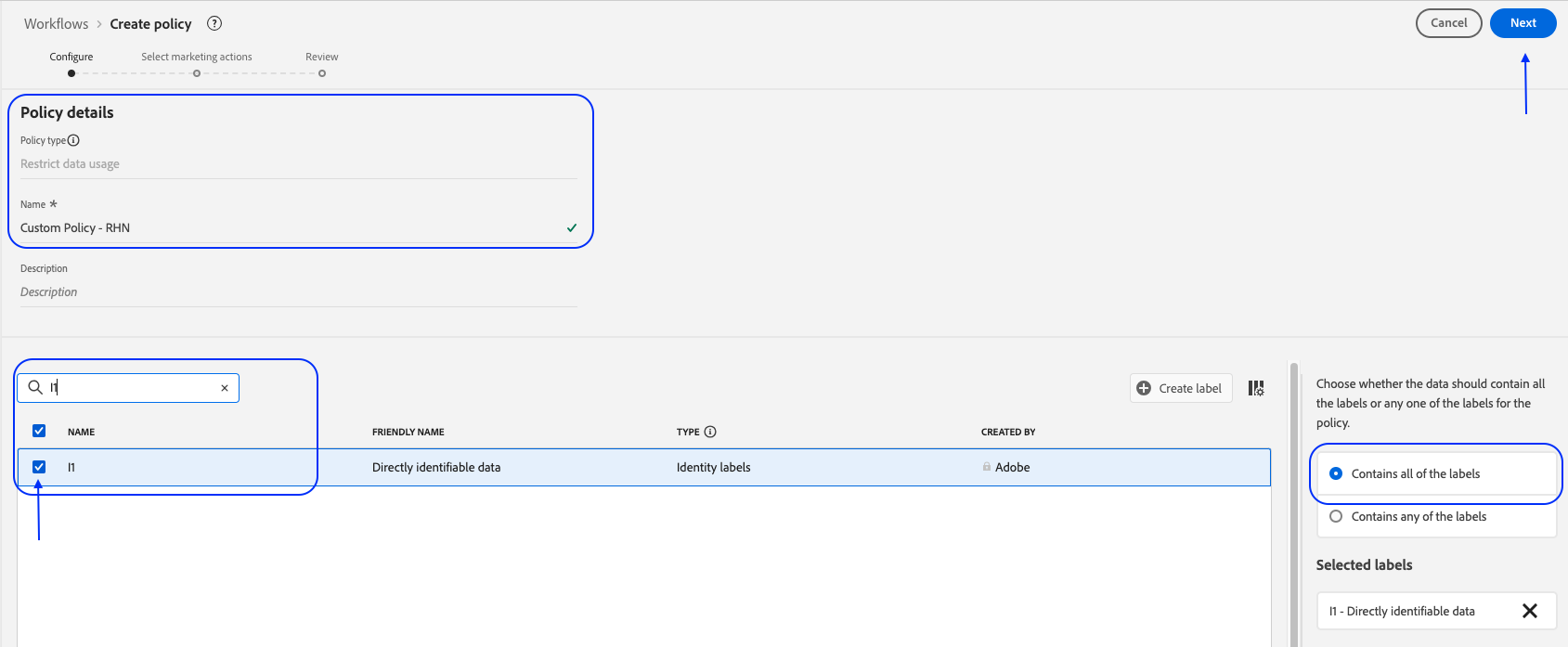
- Under the Policy details, enter name HOL Data Usage Policy {your initials}
- Under Select governance labels, select "I1". On the right-hand side
- Click "Next".
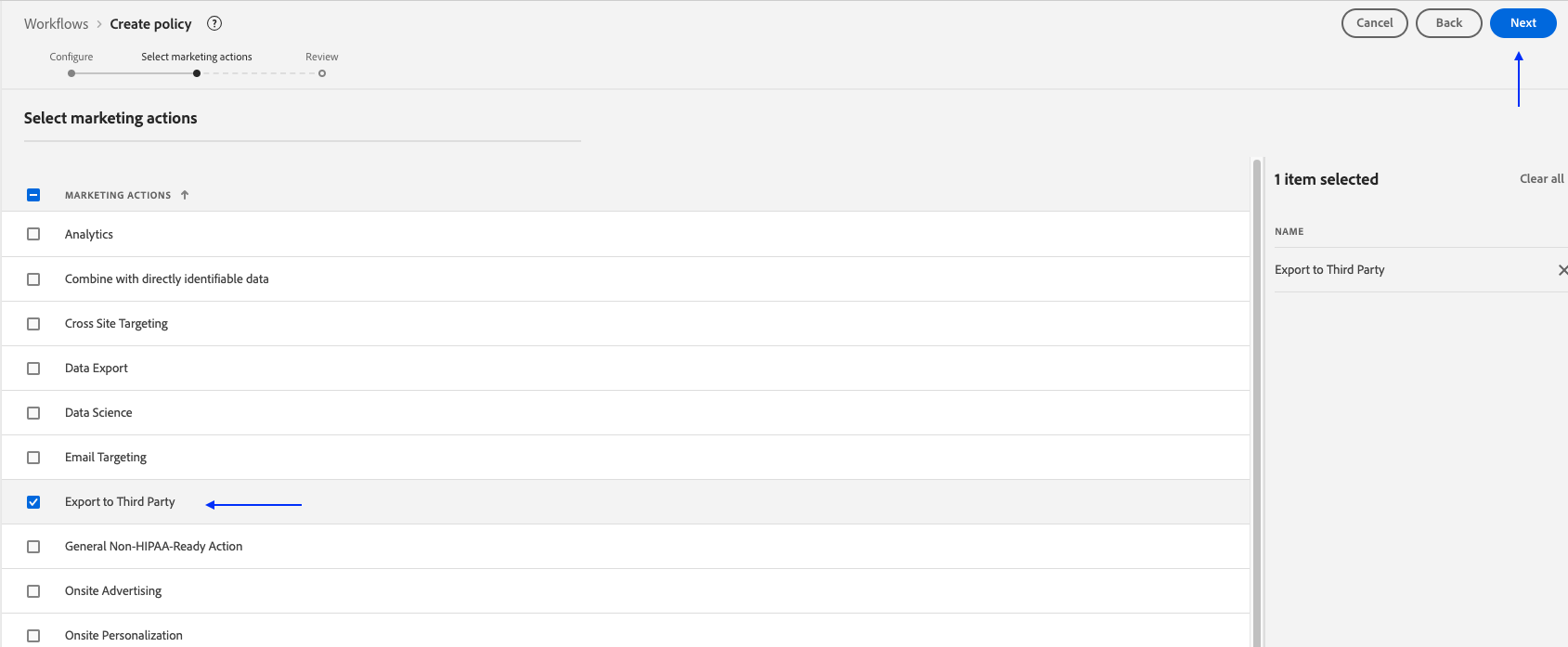
- Select the marketing action "Export to Third Party".
- Click "Next".
Review the policy and click "Finish"
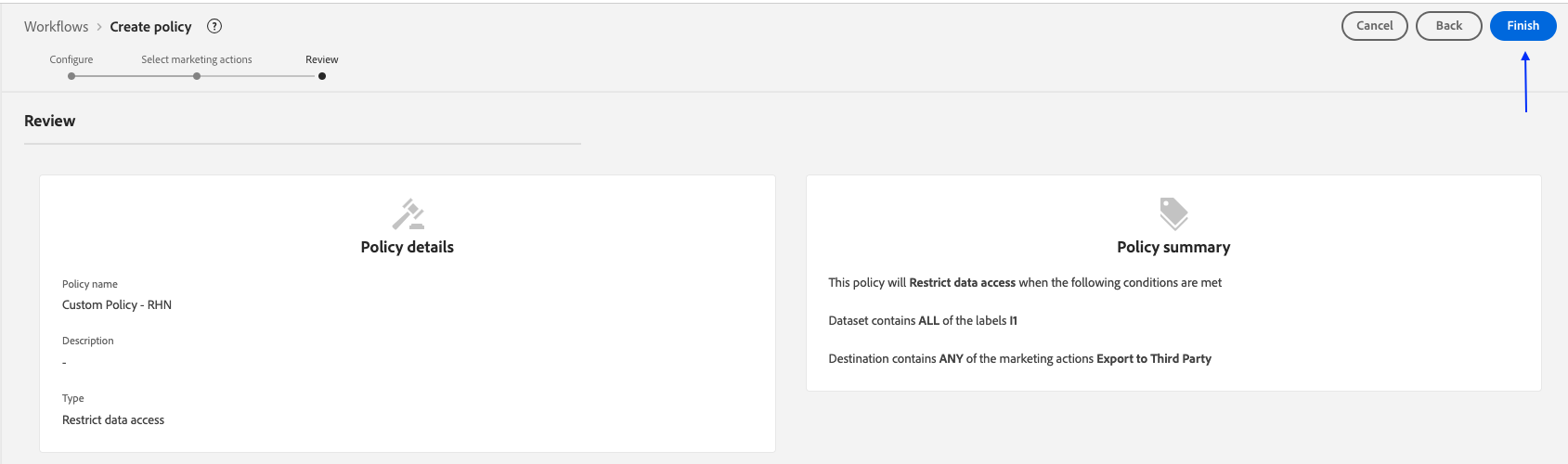
Congratulations, you just created a custom data usage policy.
A violation of the policy will produce the following:
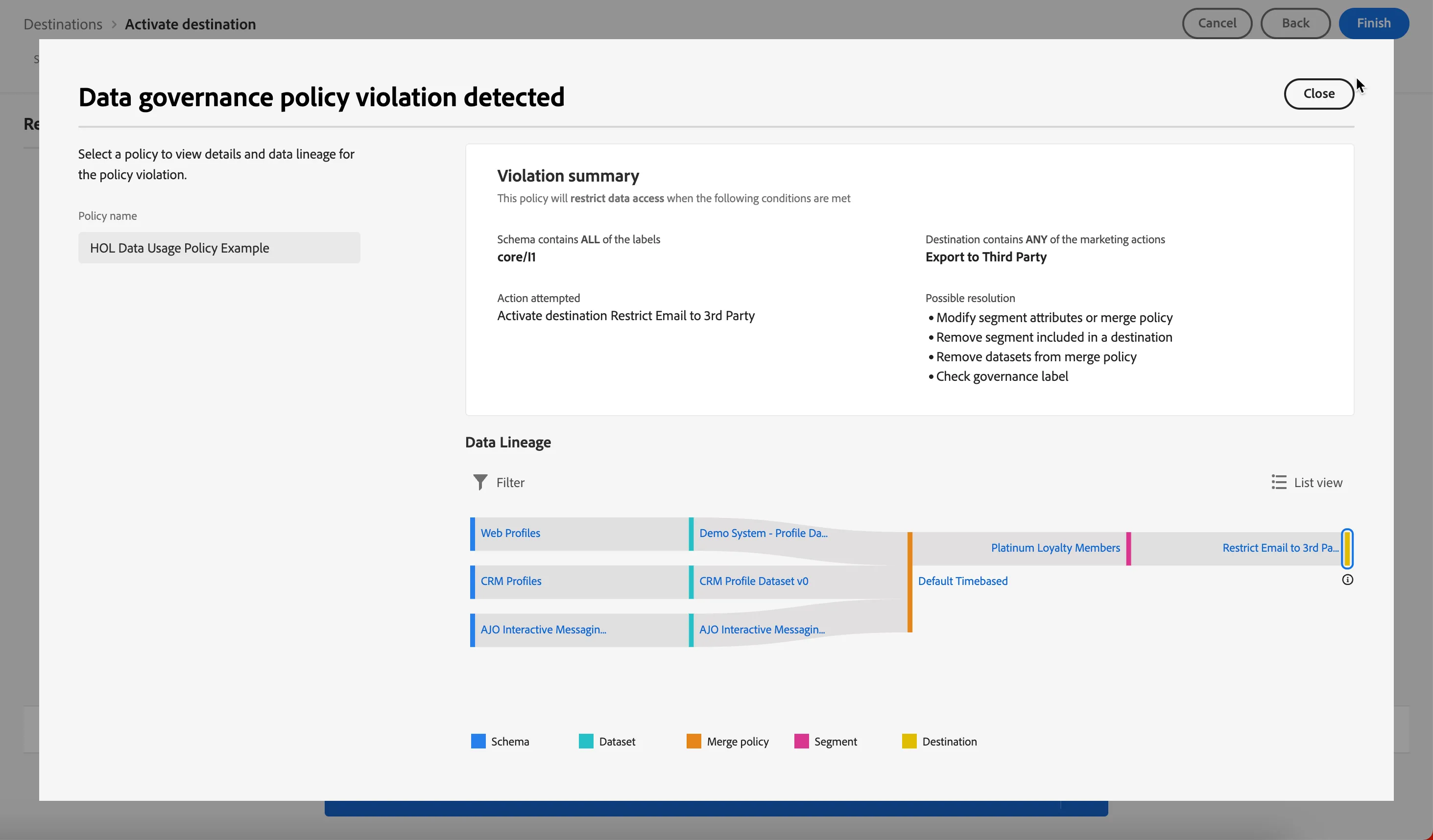
Follow along as the instructor demontrates now to test this policy.