Schemas
Schemas
Schemas define the structure of the data to be ingested. This lab will walk through the steps to create an Summary Metrics based schema for Adobe Mix Modeler.
Our goal is to create a schema that is required to onboard the following channel touchpoint summary data:
- AMM Touchpoints
- Data Batch Information
Create an Individual Profile Based Schema
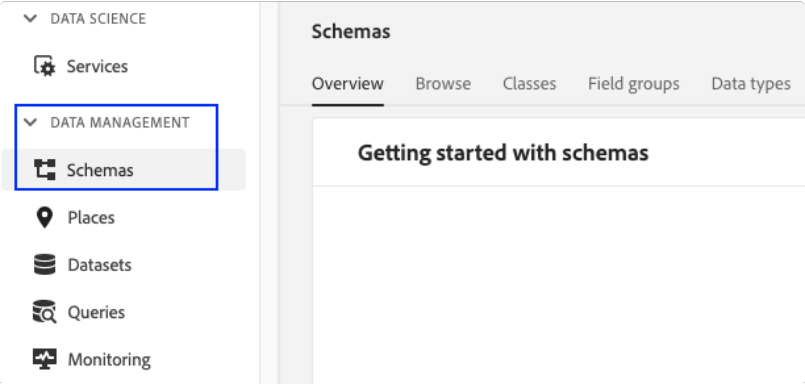
- Navigate to Schemas under Data Management in Adobe Experience Platform UI.
- Click on Create Schema on the top-right of your screen. Note that this will take you into the workflow to build a schema.
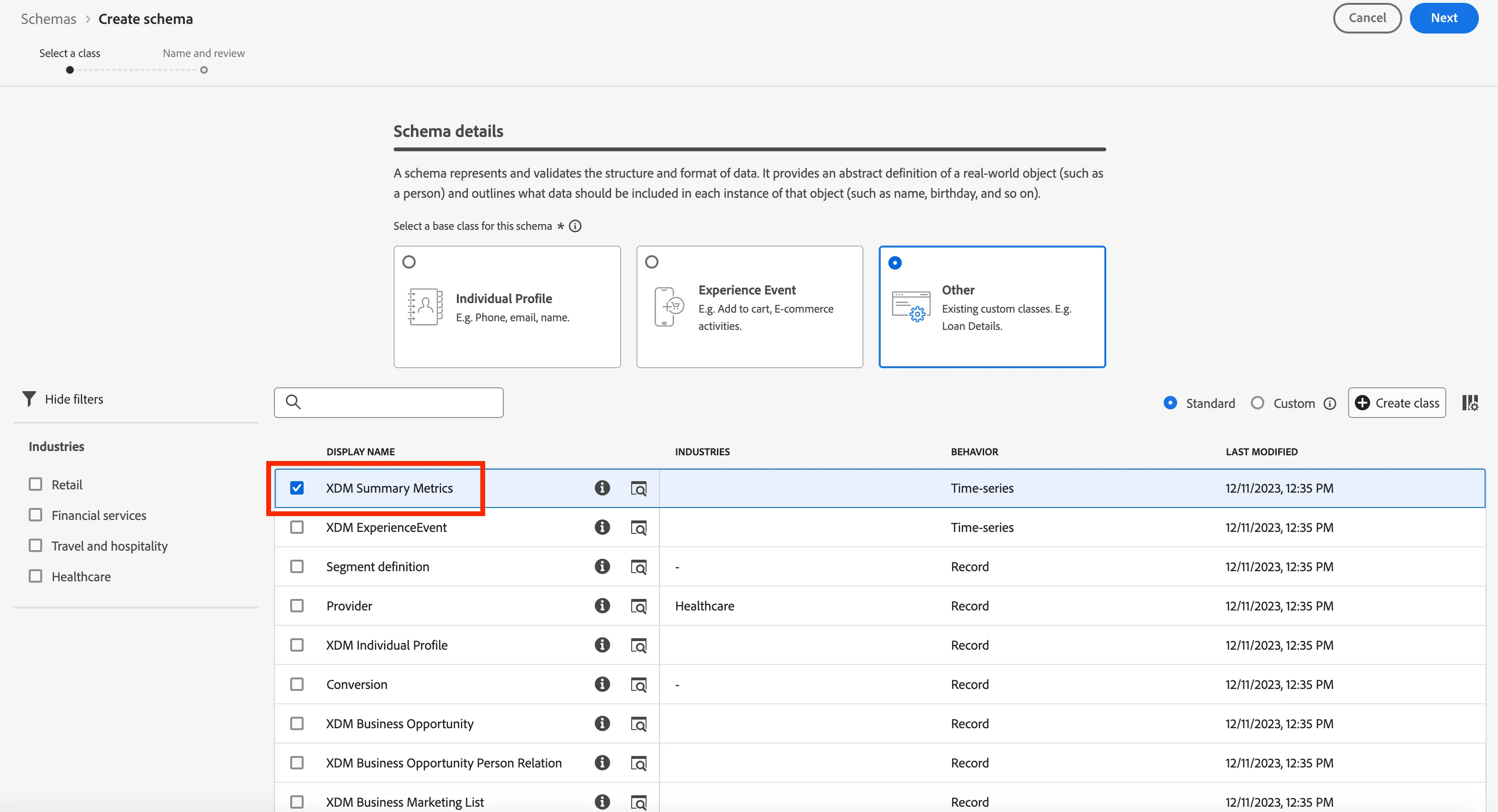
- Click on Other under the Schema Details section. Next you will select XDM Summary Metrics class for the schema then click Next.
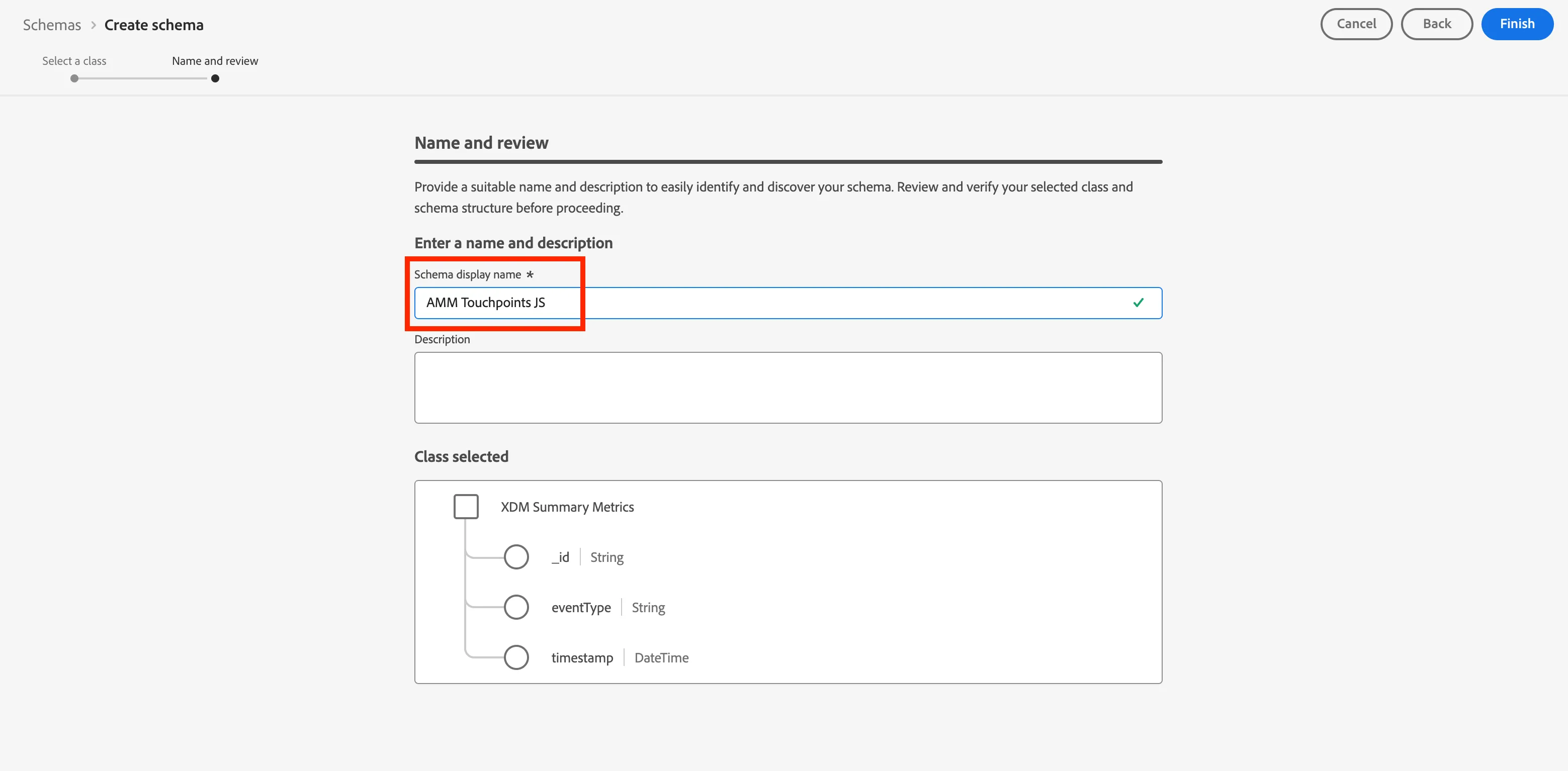
- Name your schema AMM Touchpoints+{{Participant Initials}} . Please make sure to add your initials to follow the schema name to avoid any naming conflicts with other lab participants.
Adding existing field groups
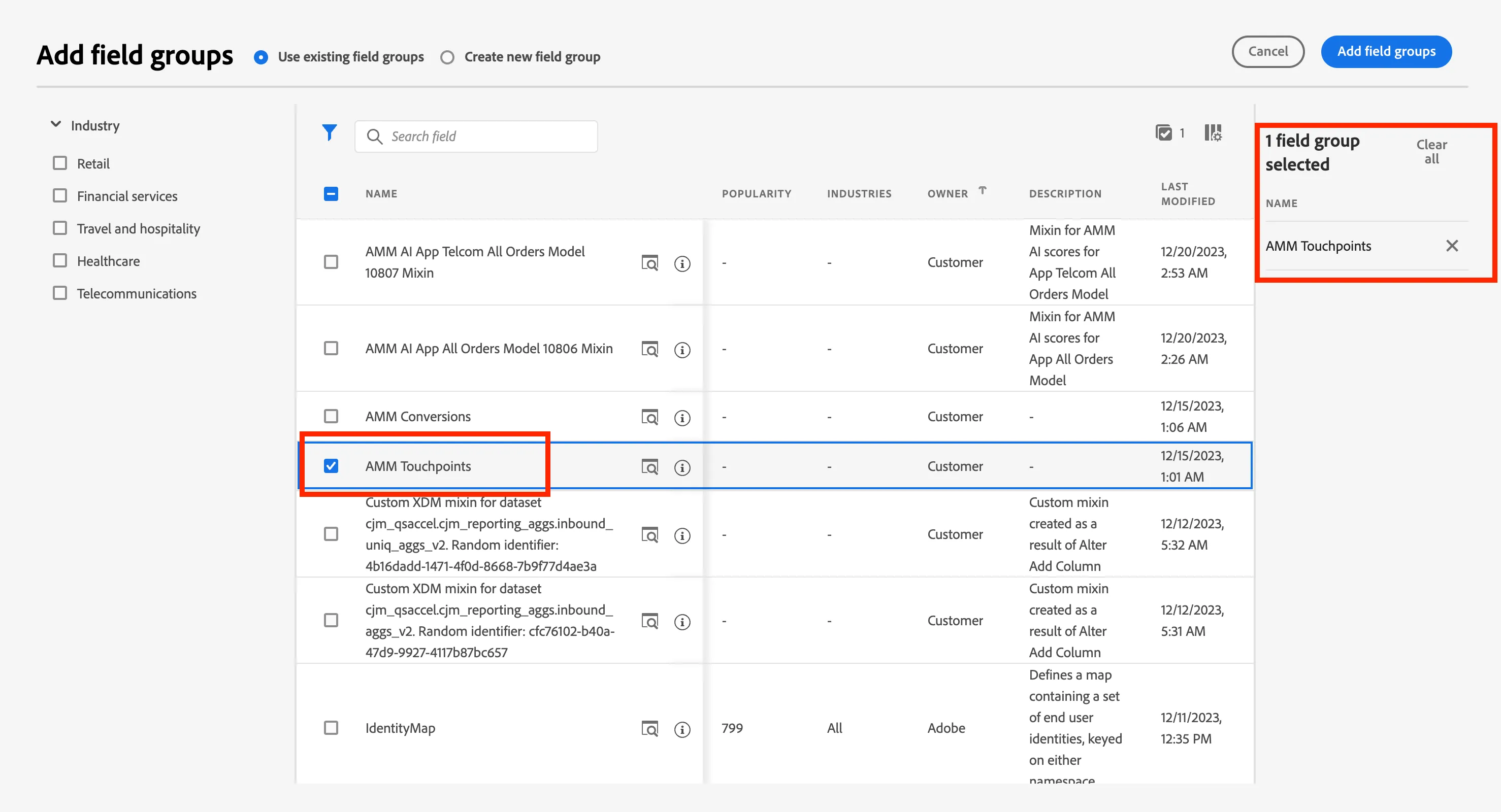
- Click on the Add icon within the Field groups section under Composition.
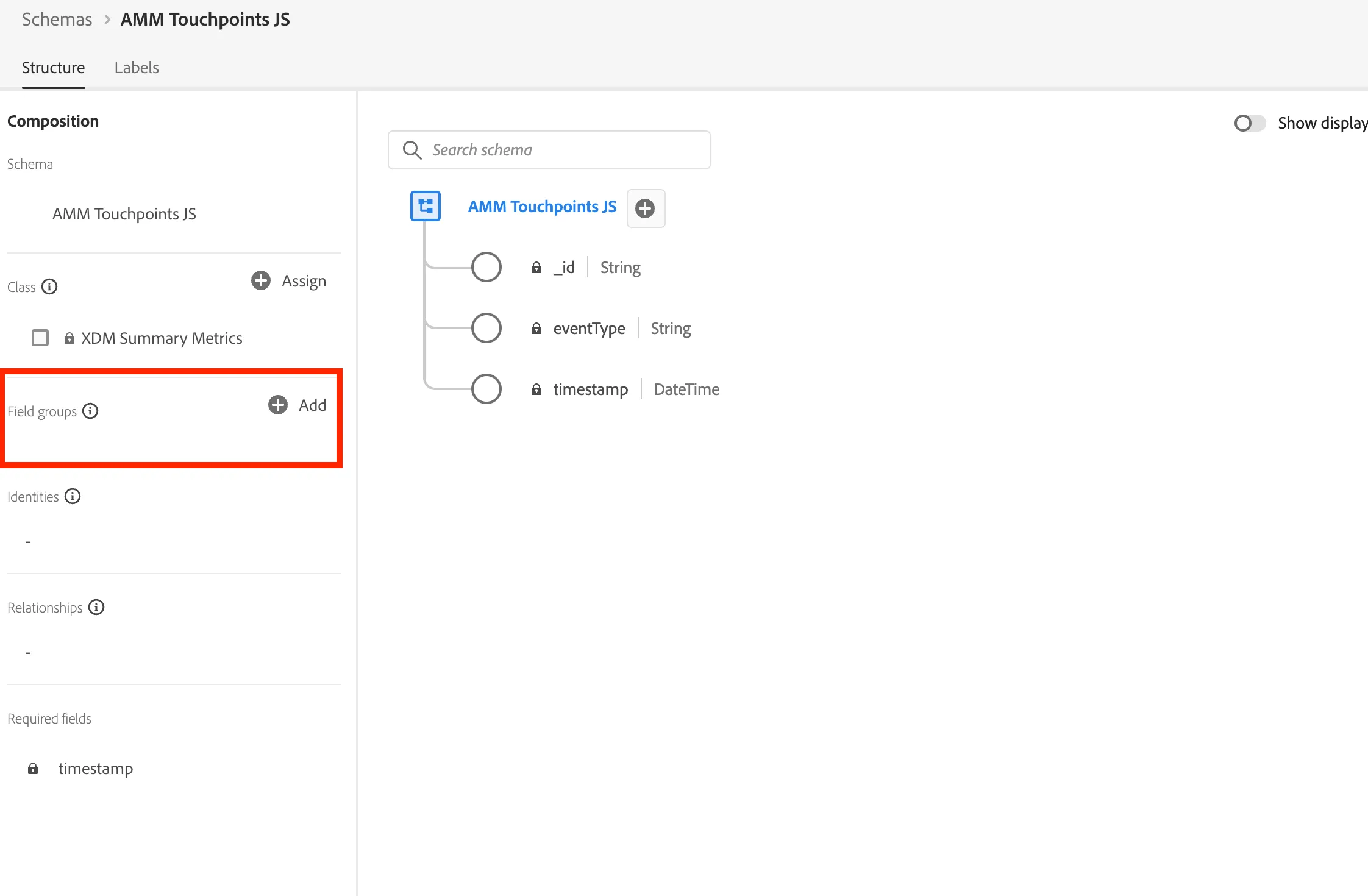
- Add the following existing field group:
- AMM Touchpoints
Creating a new field group
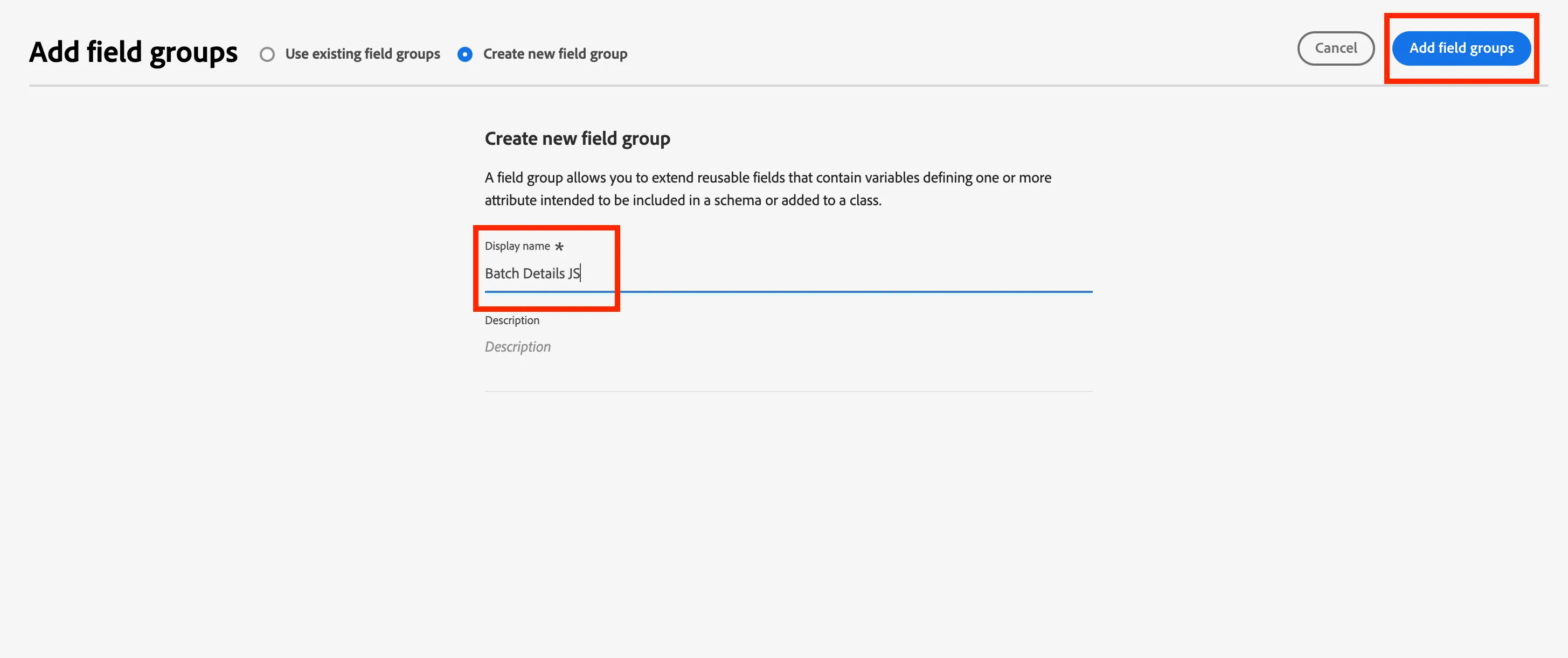
- Click on the Add icon within the Field groups section under Composition.
- Select Create new field group
- Name the field group -
Batch Details+{{participant initials}}
- Click on Add Field Groups
Adding an object to your field group
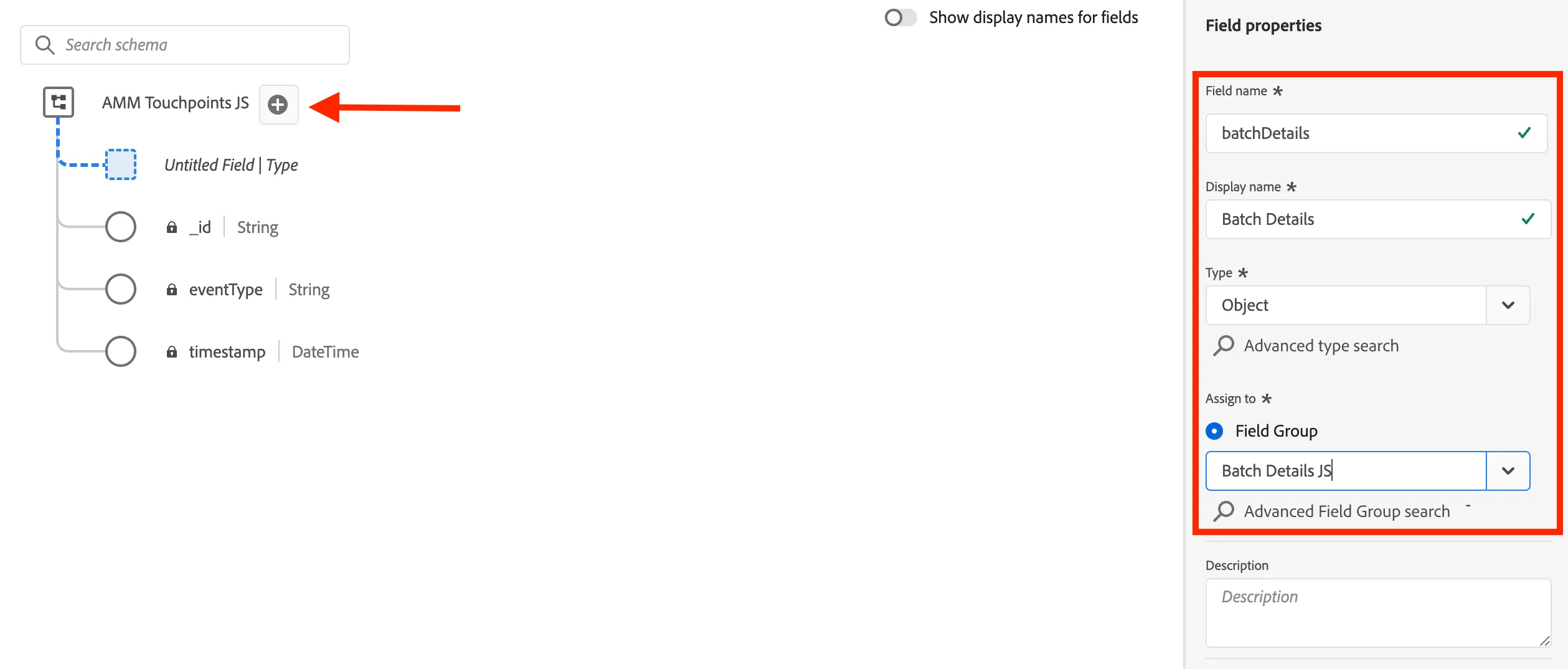
- Click on the Add icon next to the tenant. Name your object. Batch Details
- Set the below within Field Properties on the right panel
Field name = batchDetails
Display name = Batch Details
Type = Object
Field Group = Batch Details+{{participant initials}}
- Click on Apply at the bottom.
- Click Save.
Nesting additional fields within your object
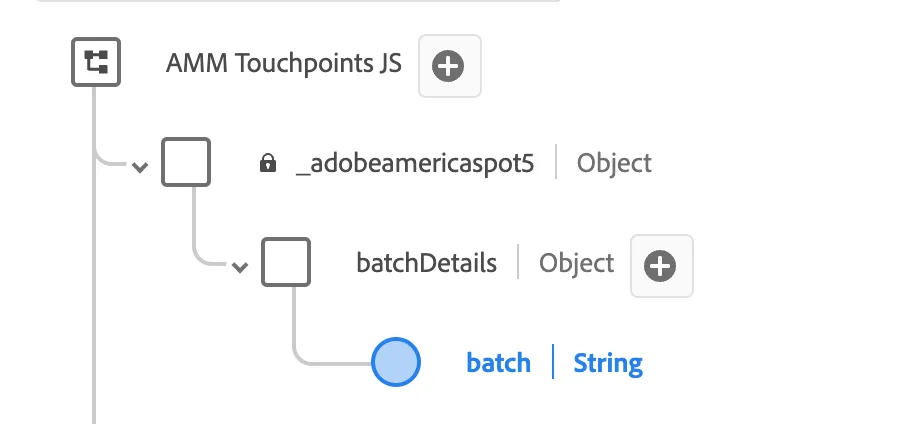
Click on the Add icon next to the newly created object batchDetails. This should create an Untitled Field nested under that object.
Note: be sure to click Apply at the bottom of the Field Properties panel after adding a single field.
Batch
Field name = batch
Display name = Batch
Type = String
Field Group = Batch Details+{{participant initials}}
Click Save.
Congratulations! You have completed the Schemas exercise.