Creating the journey
In this exercise, you'll be creating and testing a journey using all the components you've created in the previous exercises.
Journey overview
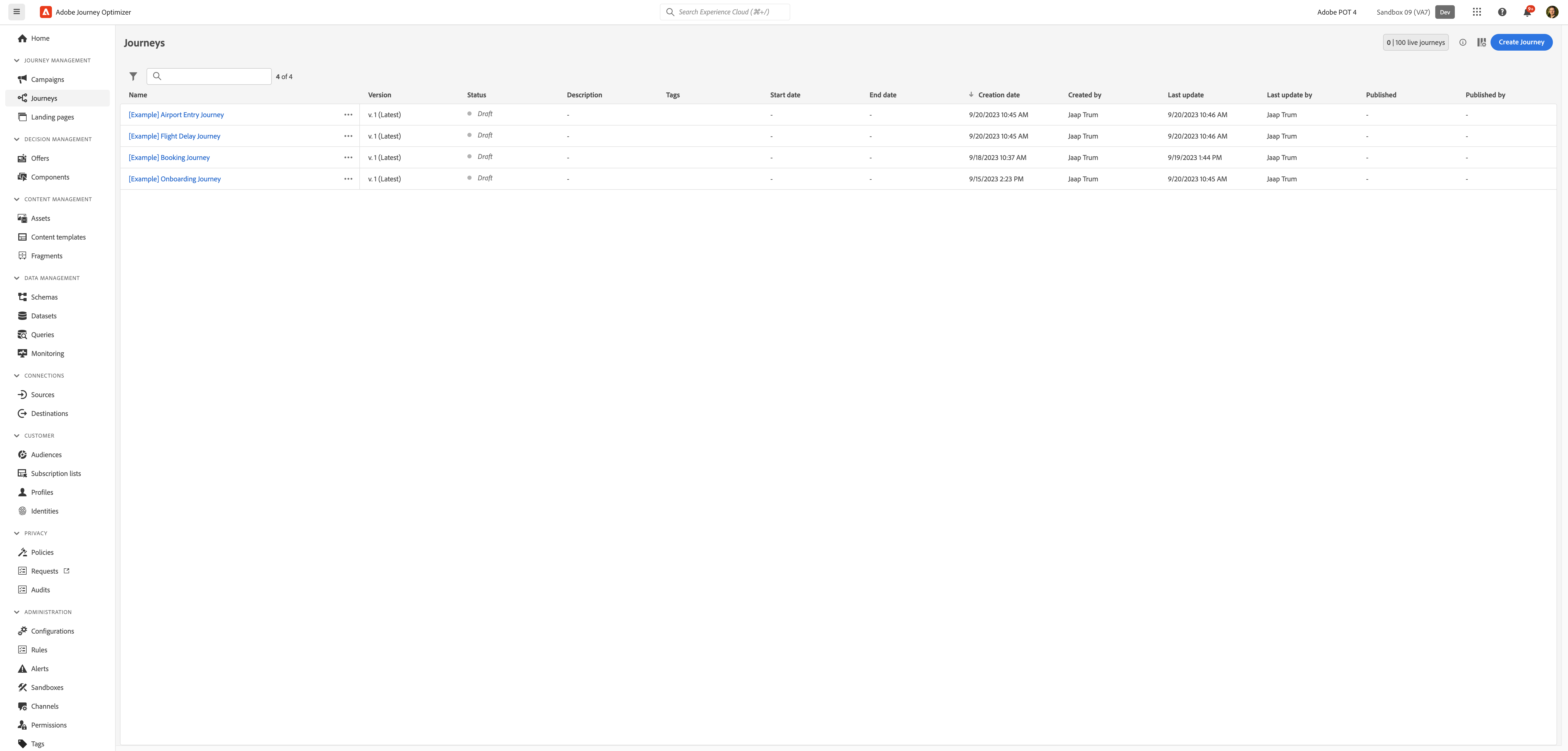
To get an overview of all journeys in Adobe Experience Platform:
- In the menu on the left side, under Journey Management, click on Journeys. You will see a overview with all existing journeys.
Creating a journey
We'll be creating a journey that will send an email message to customers that have a flight booked in the next 2 weeks to give them an offer for a flight ancillary, like a cabin upgrade. When the flight check in opens, we want to send the customer a push notification or email to inform them they can now check into their flight.
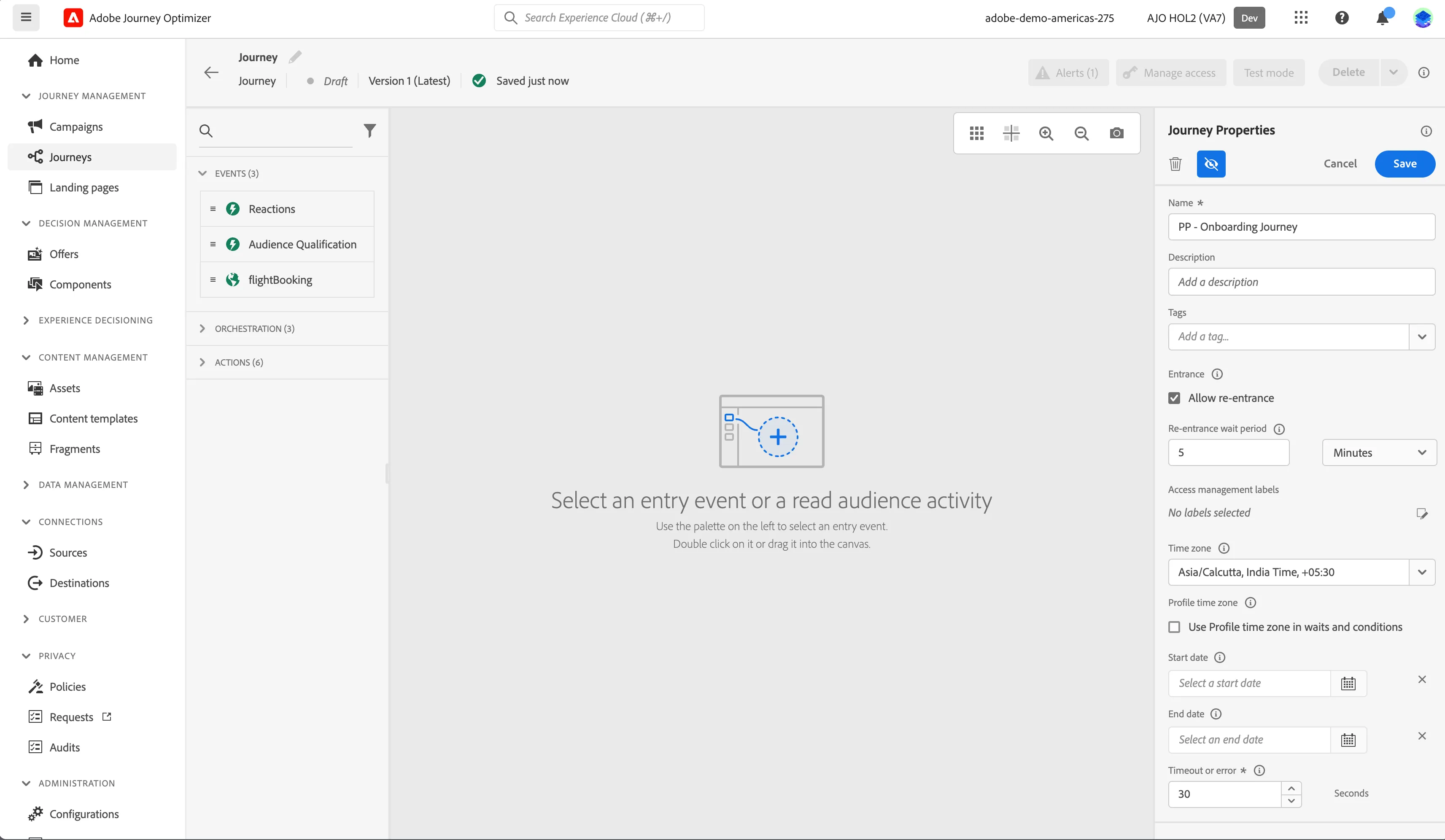
Click on Create Journey. You'll be taken to the Journey canvas with the journey properties opened.
- Set the name to [your initials] - Onboarding Journey.
- For the other properties we'll keep the default values.
- Your screen should look like the image below. Click Save to save and close the properties.
You're now in the journey canvas. This is where you'll be creating your journey's logic. In the left menu you have activities. There's three types of activities:
Events are the triggers that can start or continue your journey.
Orchestration is the logic of your journey. It looks at conditions, audiences, but can also be used to make your workflow wait or end.
Actions are the responses of your journey. This can be messages, profiles updates or API calls.
Audience Qualification
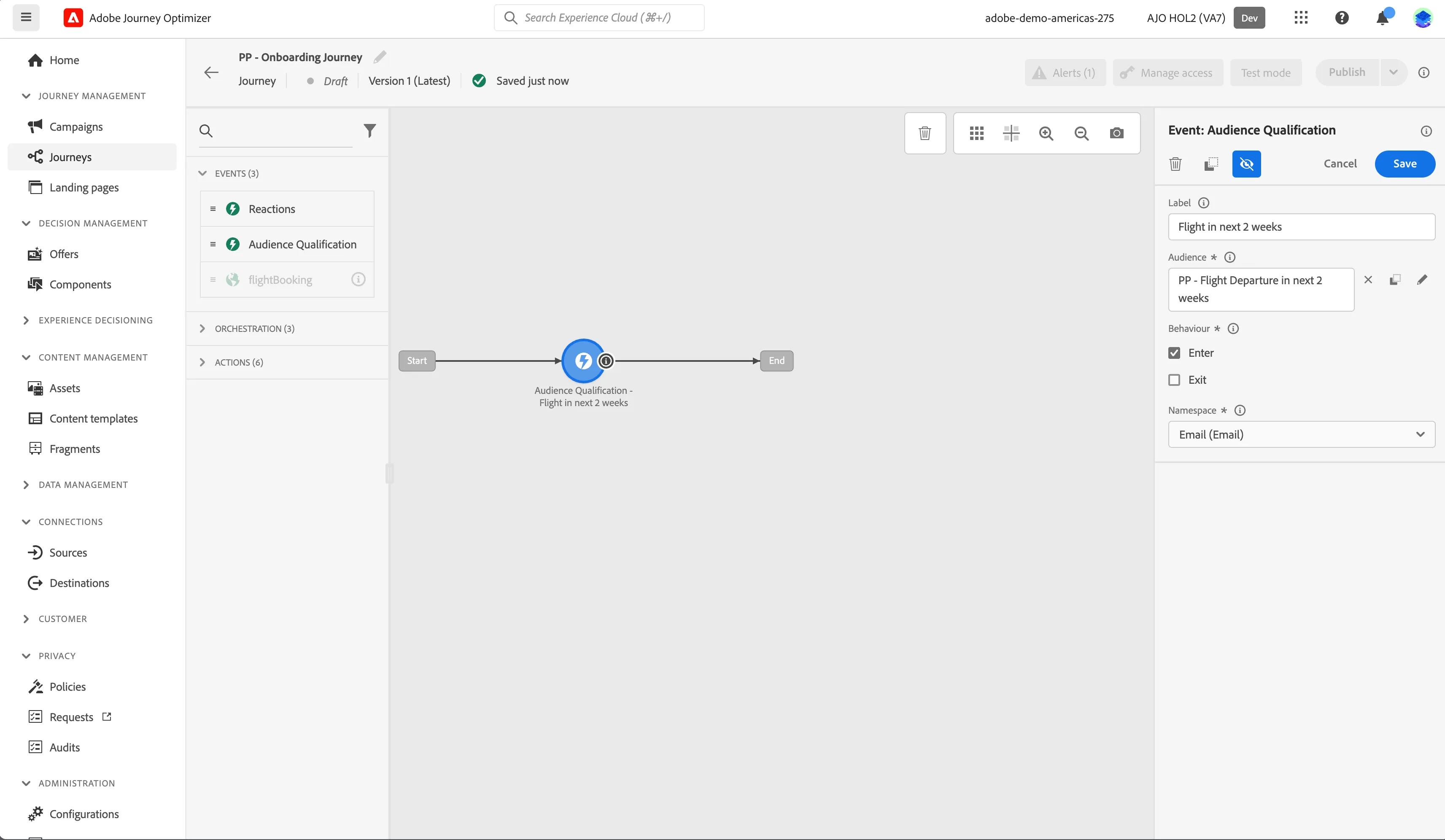
- We're starting our workflow of with an audience entry trigger. From the events tab, choose Audience Qualification and drag it onto the canvas.
- Click on the activity to open the detailed view.
- Set the label to Flight in next 2 weeks.
- Click on Audience to open a window, select your audience [your initials] - Flight Departure in next 2 weeks from the list and click Save. If you didn't create the audience, you can use WKND Fly - Flight Departure in next 2 weeks.
- Set the behavior to Enter. This means the journey will start as soon as the customer qualifies for the audience.
- Set the namespace to Email (Email).
- Your screen should look like the image below. Click Save.
Condition - Departure date
Since it's possible for someone to book last-minute, we want to make sure we do not send them two messages in rapid succession. Instead we will put them on a separate path.
- From the orchestration tab, choose Condition and drag it onto the empty circle on the canvas.
- Click on the activity to open the detailed view.
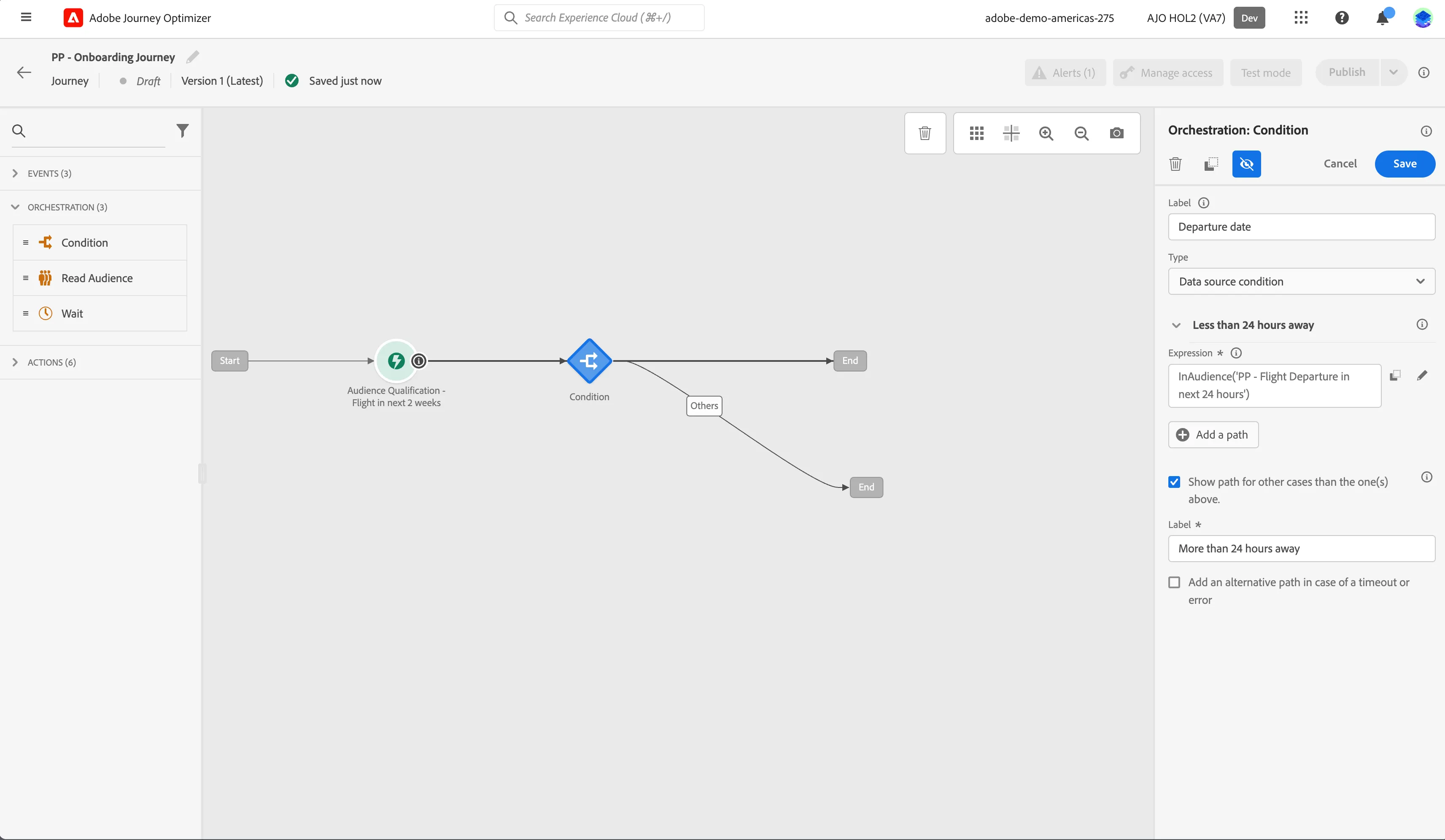
- Set the label to Departure date.
- Click on Path1 and change the label to Less than 24 hours away.
- Click on Add an expression to open a window.
- On the left side, open Audiences. Scroll down till you find the audience you created called [your initials] - Flight Departure in next 24 hours and drag it to the right side. If you didn't create the audience, you can use WKND Fly - Flight Departure in next 24 hours.
- By default the statement should be on true, if not click the toggle. Checks if the title reads [your initials] - Flight Departure in next 24 hours audience membership is true . Scroll to the top and click Ok to add expression.
- Click Ok to save the conditions.
- Check Show path for other cases than one(s) above and set the label to More than 24 hours away.
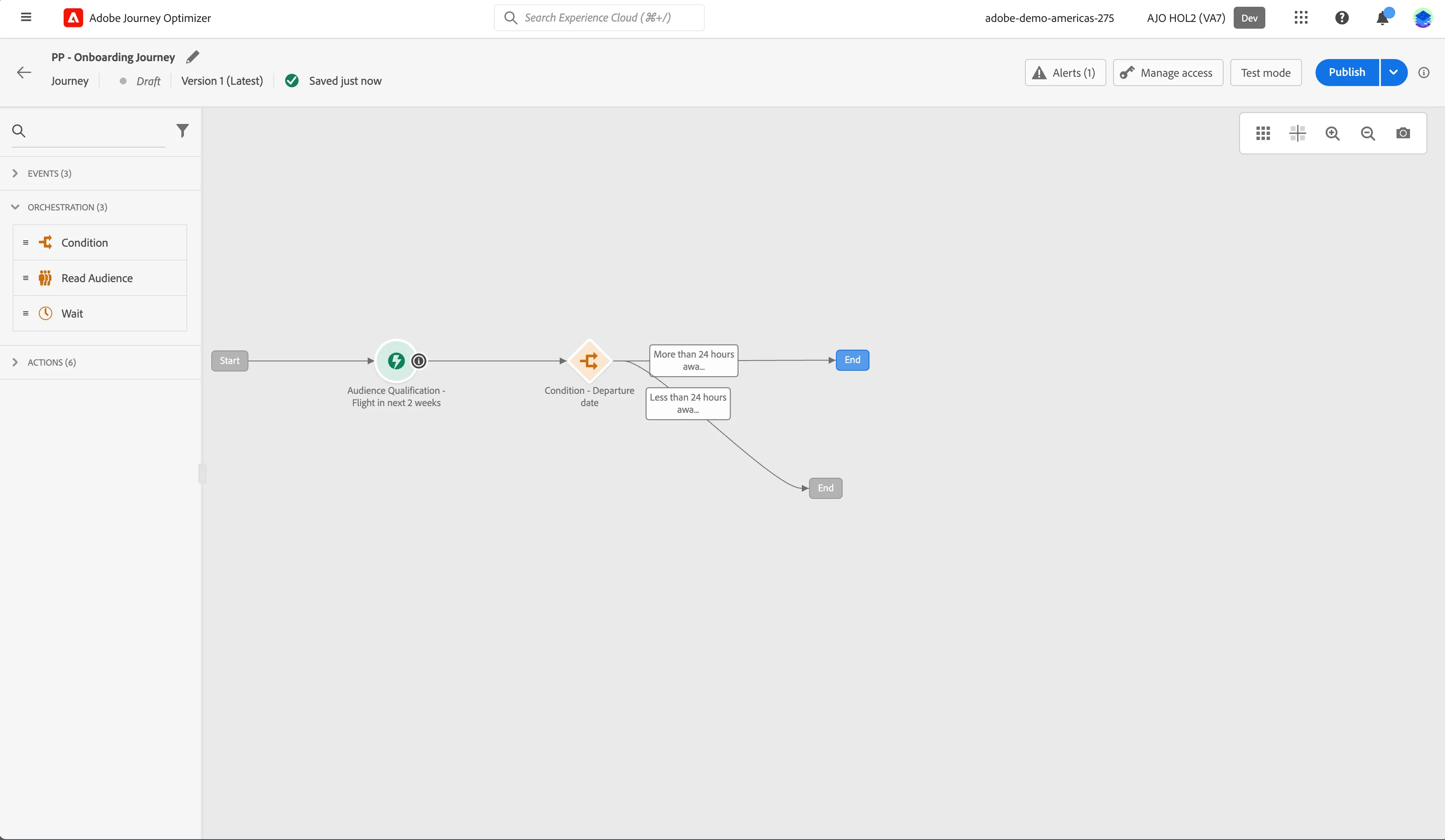
- Your screen should look like the image below. Click Save.
In our journey we want to add additional steps for customers with departure dates more than 24 hours away. Rearrange the paths so that the More than 24 hours away- path is on top.
Email #1 - Ancillary offer
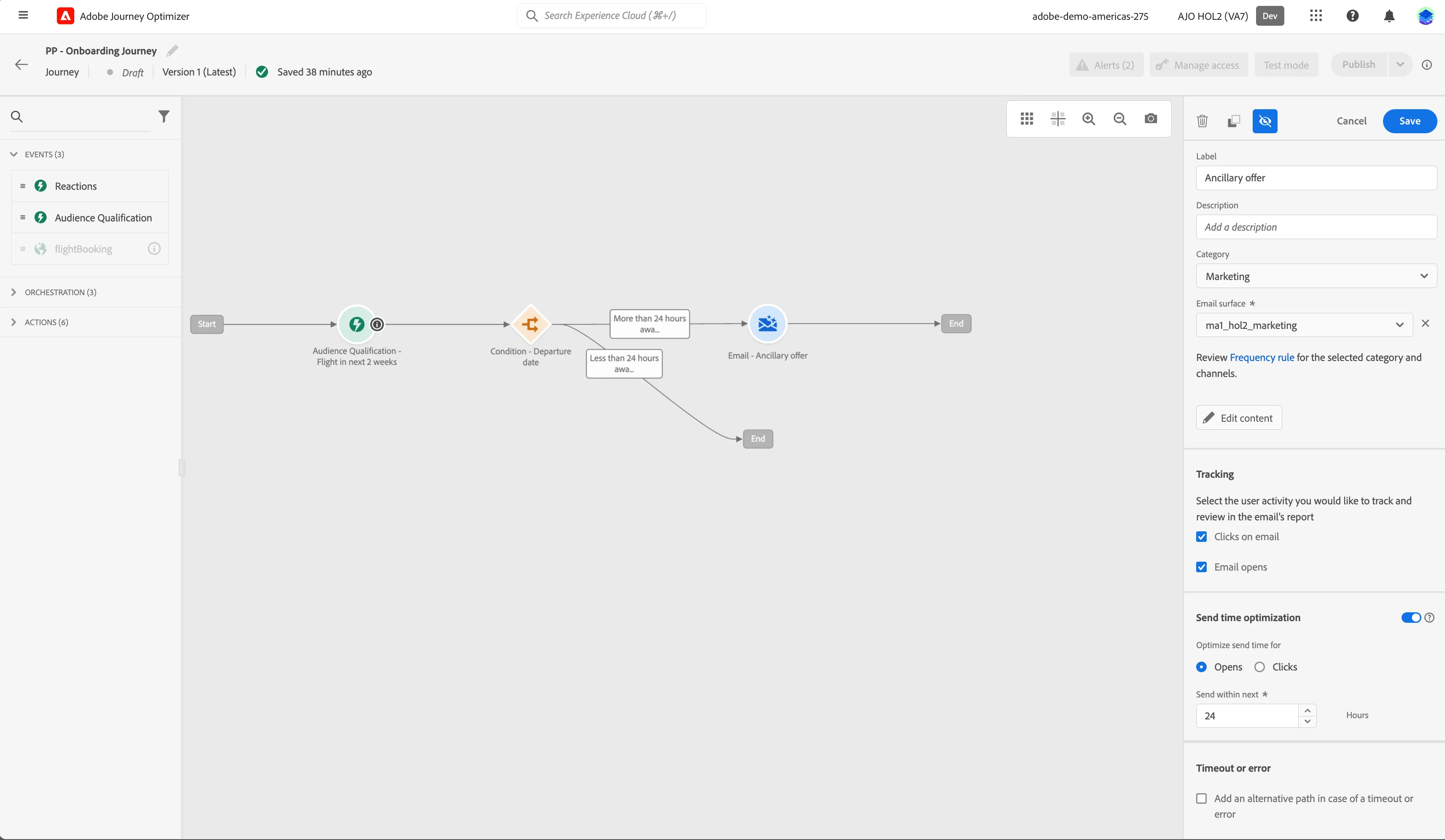
- From the actions tab, choose Email and drag it onto the plus(+) circle after the More than 24 hours away -path.
- Click on the activity to open the detailed view.
- Set the label to Ancillary offer.
- Set the category to Marketing.
- Set the email configuration to email-marketing.
- Enable Send time optimization, choose to Optimize send time for Opens and set it to send within next 24 hours.
- Click on Edit content to start designing your email.
- Set Subject to Get ready for your upcoming flight!.
- Click on Edit email body. Under Saved templates, choose WKND Fly - Generic Email. It will show you a preview of the template. Click on Use this template.
- The email designer will now open.
In the left menu you have components.
- Click the Text component
- Change the text to: Get ready for your flight (FLIGHT_DETAIL)!
- Select the text FLIGHT_DETAIL and click on the icon to add personalization.
- Delete FLIGHT_DETAIL text.
- In Profile attributes, search for latest. Open the folder Latest Action and click on the icon to add actionProduct to your expression. It should read:{{profile._demoapac.latestAction.actionProduct}}
- Click Save.
- Click the Body text component
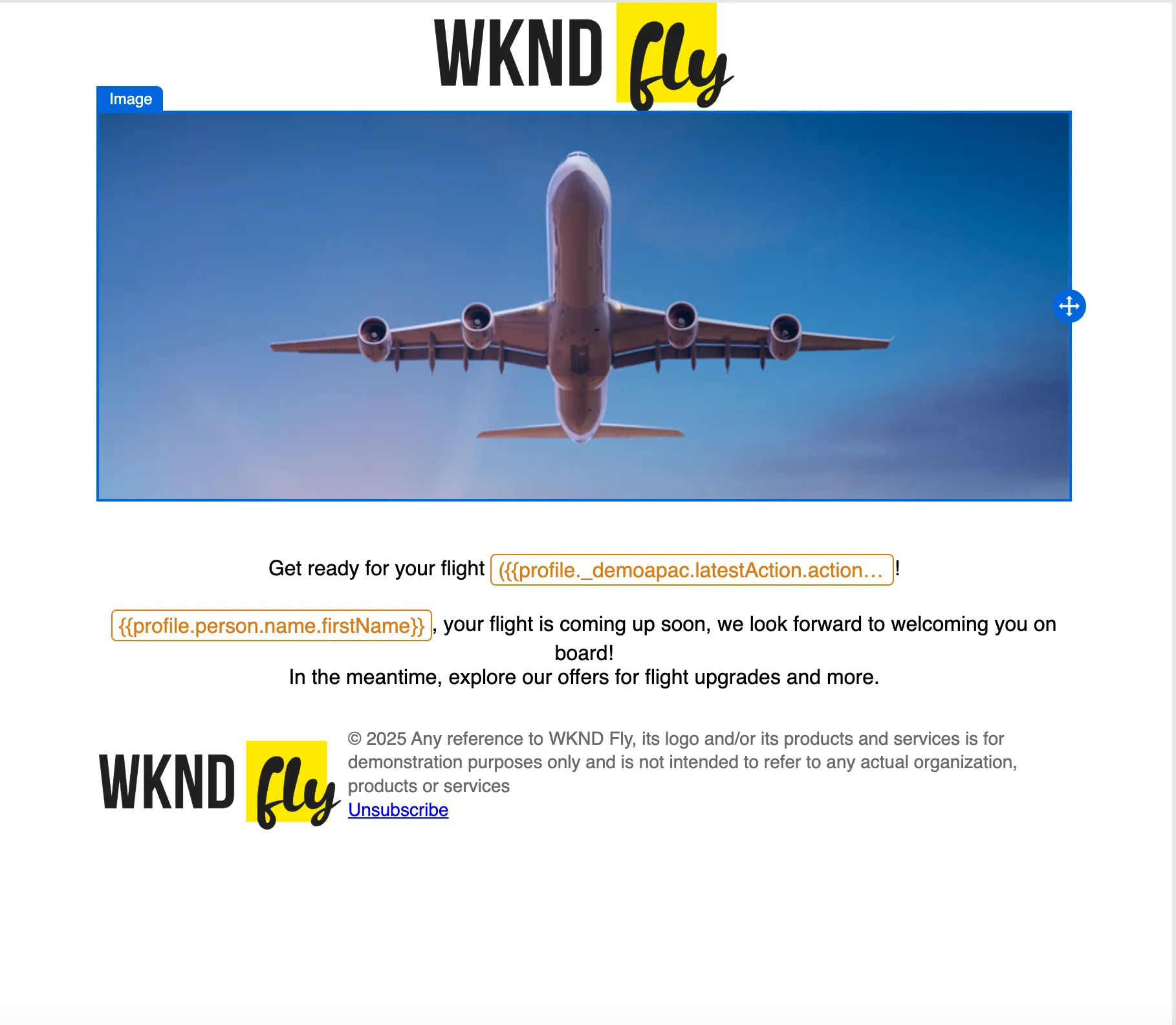
- Change the text to: FIRSTNAME, your flight is coming up soon, we look forward to welcoming you on board!In the meantime, explore our offers for flight upgrades and more.
- Select the text FIRSTNAME, delete it and click on the icon to add personalization.
- In Profile attributes, search for first and click the icon to add First Name to your expression. It should read:{{profile.person.name.firstName}} There are multiple firstName fields in the data model, pick the one that is stored under attributes > Person > Full name.
- Click Save.
- The top of your email should now look like this:
- Now let's add a personalized offer to the email. From the structural components drag a 1:1 column onto the email, underneath the Body text component.
- From the content components drag an Offer decision onto the 1:1 column you just added to the email. Then click on Add, a pop-up window will open.
- In the top left, select Email - Image (full width).
- Check the [your initials] - Flight ancillaries offer decision and click on Add in the top right of the window. If you didn't create the decision, you can use WKND Fly - Flight ancillaries.
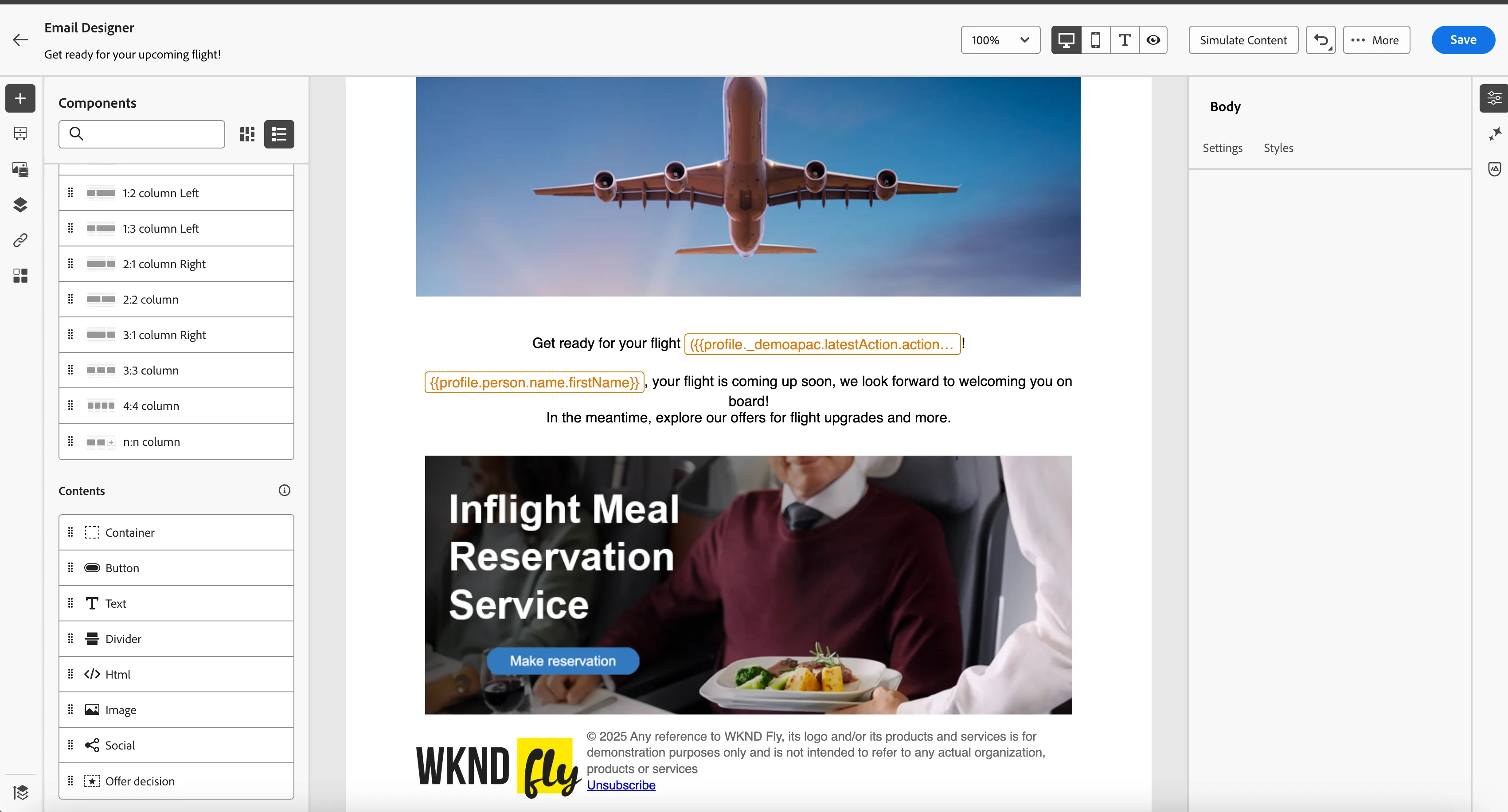
- Under Offer preview, you can see the potential offers customers could receive.
- Your screen should look like the image below.
9. Click Save in the top right. Navigate out of the Email designer by clicking on the left arrow on the top left. Then navigate out of the email overview by clicking on the back arrow on the top left. You will be taken back to the journey canvas.
Audience Qualification
Next, we want to wait for the customer's flight check in to open. You can use a wait activity for this, but since we have an audience for this we'll use this instead.
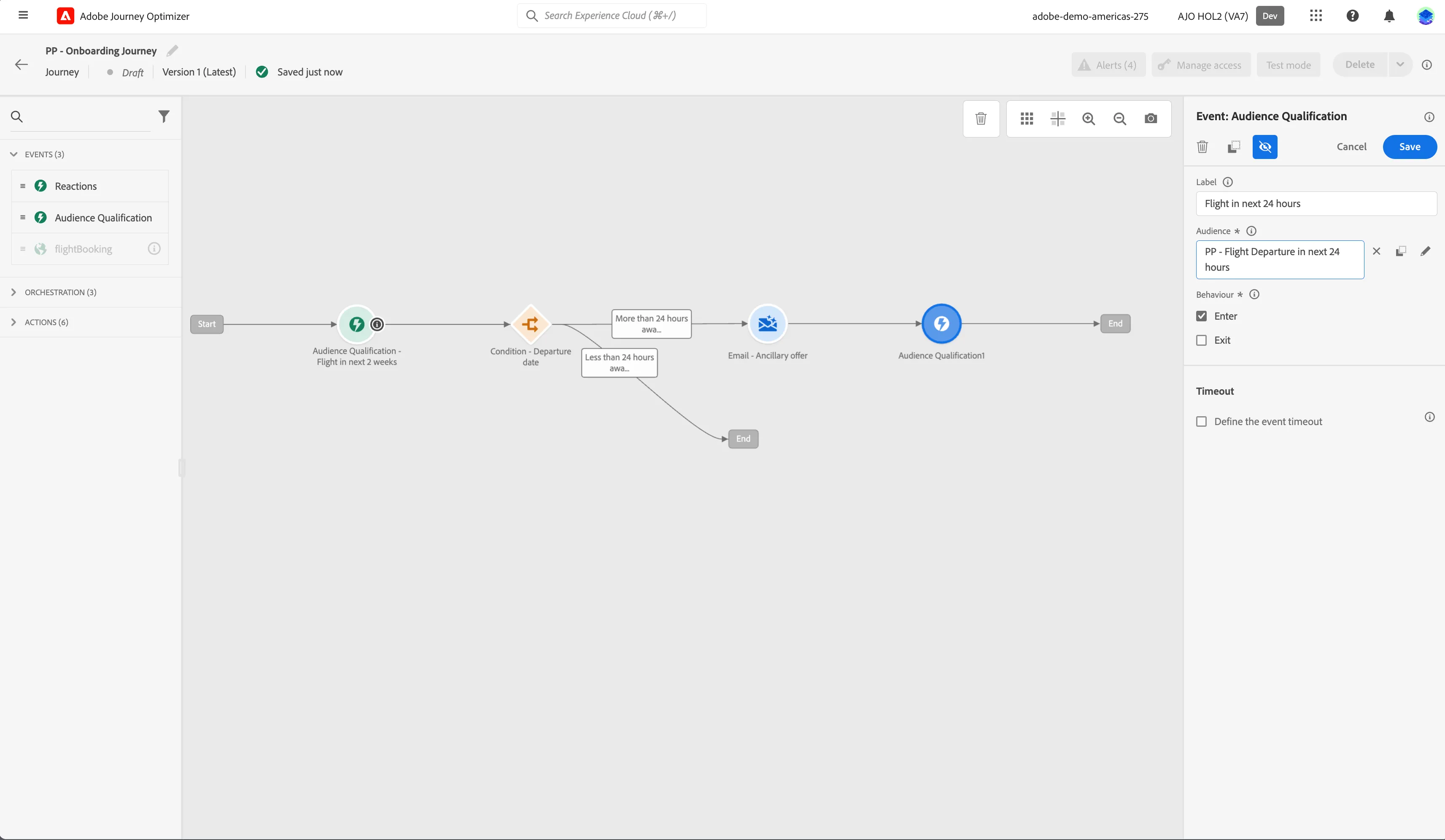
- We're going to check if the customer enters our WKND Fly - Flight Departure in next 24 hours audience, because this would indicate the check in for their flight has opened. From the events tab, choose Audience Qualification and drag it onto the canvas behind the Email - Ancillary offer.
- Click on the activity to open the detailed view.
- Set the label to Flight in next 24 hours.
- Click on Audience to open a window, select your audience [your initials] - Flight Departure in next 24 hours from the list and click Save. If you didn't create the audience, you can use WKND Fly - Flight Departure in next 24 hours
- Set the behavior to Enter. This means it will only trigger as soon as the customer qualifies for the audience.
- Your screen should look like the image below. Click Save.
Condition - Push or email?
Since it's possible for someone to book last-minute, we want to make sure we do not send them two messages in rapid succession. Instead we will put them on a separate path.
- From the orchestration tab, choose Condition and drag it onto the plus(+) circle after the Audience Qualification.
- Click on the activity to open the detailed view.
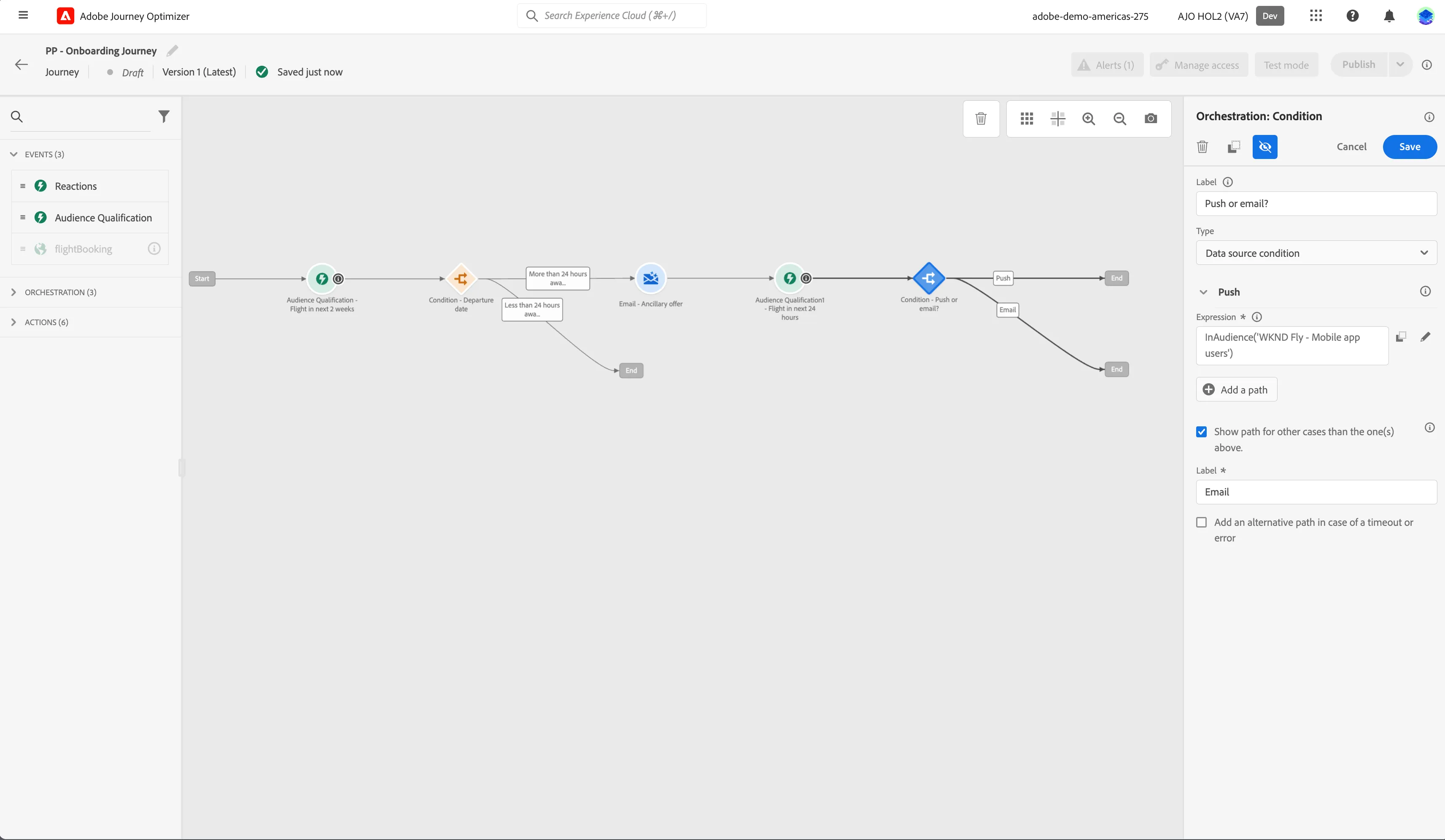
- Set the label to Push or email?.
- Click on Path1 and change the label to Push.
- Click on Add an expression to open a window.
- On the left side, open Audiences. Scroll down till you find the audience called WKND Fly - Mobile app users and drag it to the right side.
- By default the statement should be on true, if not click the toggle. Checks if the title reads The WKND Fly - Mobile app users audience membership is true and click Ok.
- Click Ok to save the conditions.
- Check Show path for other cases than one(s) above and set the label to Email.
- Your screen should look like the image below. Click Ok.
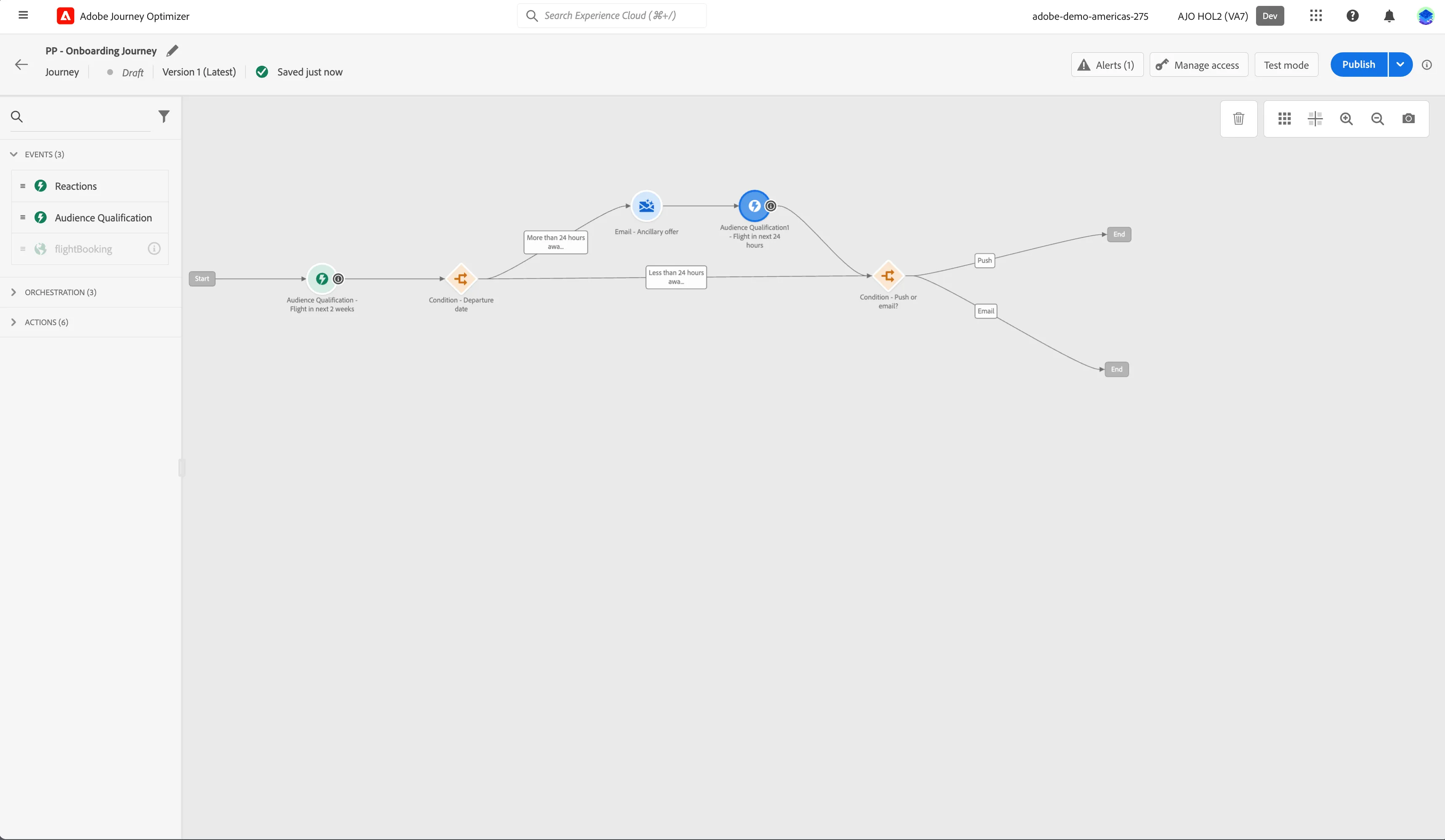
At this point we want the customers with last-minute flights to merge in with the population. We need to rearrange the canvas a little bit.
- Drag the Condition - Push or email?-activity on top of the end behind the Condition - Departure date-activity. This will connect them and merge the customers into this path.
- Now move the Condition - Push or email?-activity to the right so the journey becomes more readable. Additionally you can align both ends to look nicer.
- Your canvas should now look like this.
Push #1 - Check in
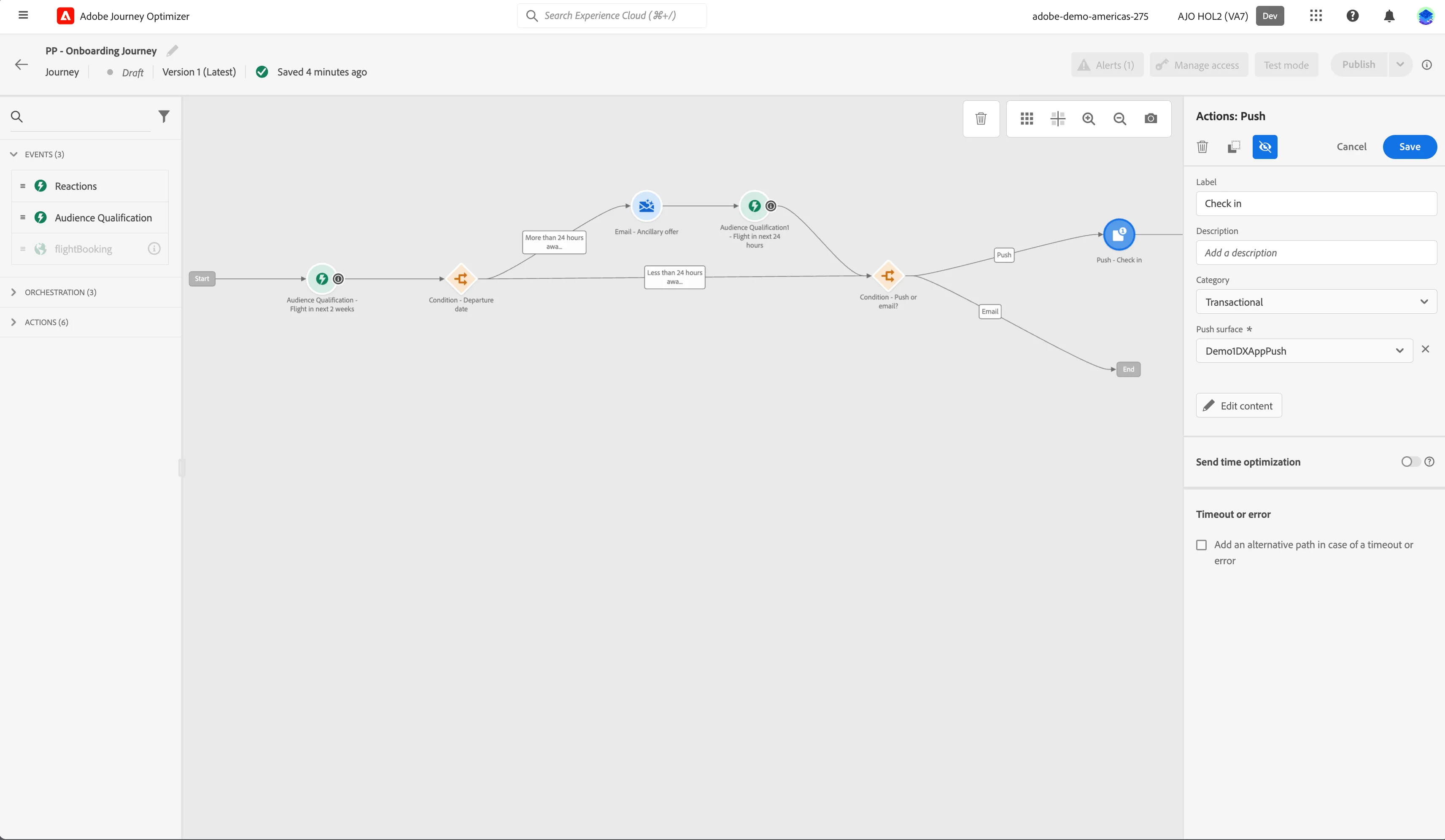
- From the actions tab, choose Push and drag it onto the empty circle on the canvas at the Open-path.
- Click on the activity to open the detailed view.
- Set the label to Check in.
- Set the category to Transactional.
- Set the push surface to push-dxdemoApp.
- Click on Edit content to start designing your email.
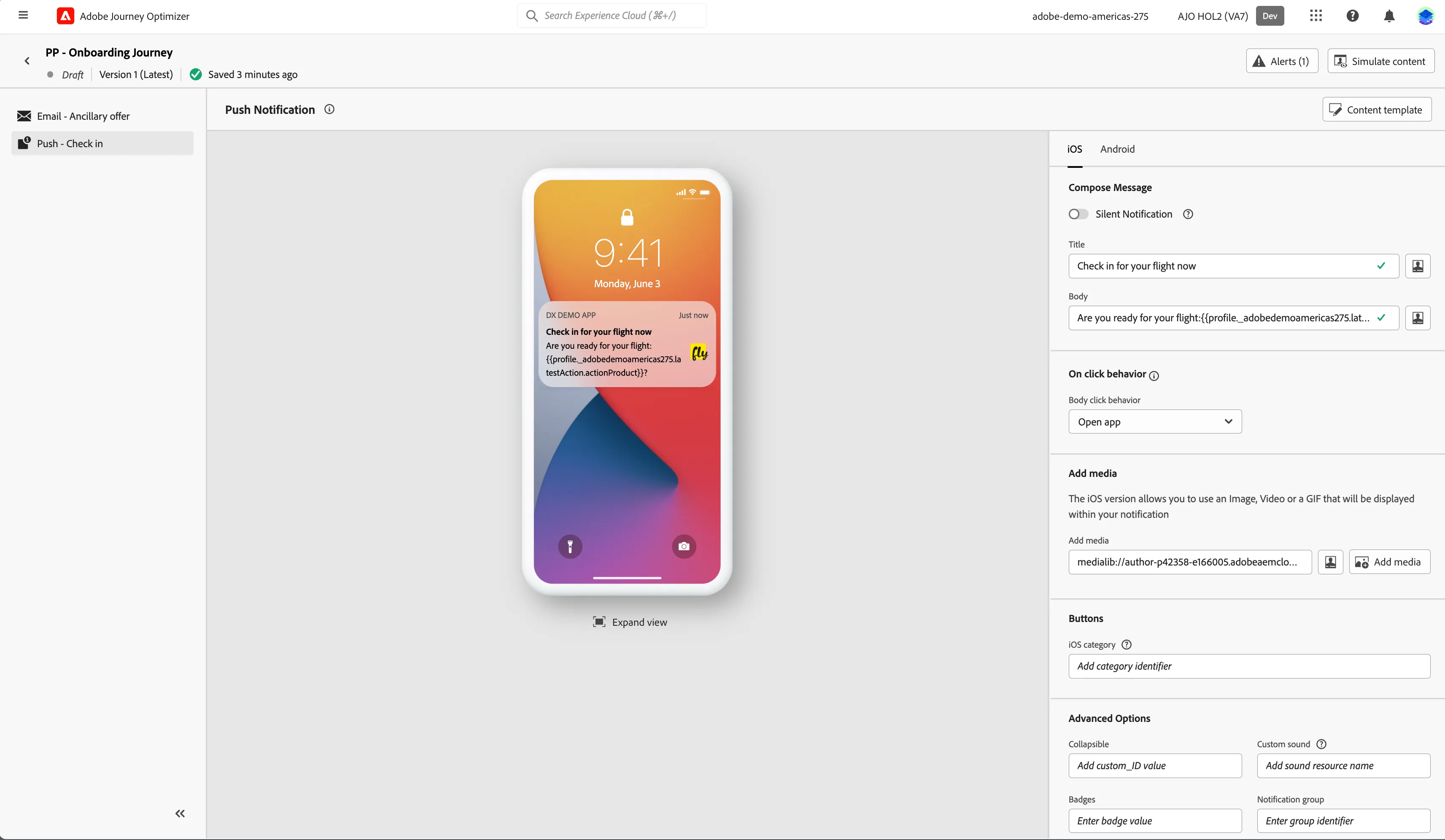
- Set the title to Check in for your flight now.
- Select and remove the text FLIGHT_NAME.
- In Profile attributes, search for latest. Open the folder Latest Action and click on the icon to add actionProduct to your expression. It should read: Are you ready for your flight: {{profile._demoapac.latestAction.actionProduct}}
- Click Save.
- To add an image, click on Add media. Assets Essentials will open. Navigate to Travel > WKND Fly and select the image wknd-fly-logo-square.png and click Select in the top right.
Your screen should look like the image below. Navigate out of the designer by clicking the arrow on the top left of your screen.
- Your screen should look like the image below. Click Ok.
- From the actions tab, choose Email and drag it onto the empty circle.
- Click on the activity to open the detailed view.
- Set the label to Check in.
- Set the category to Transactional.
- Set the email surface toemail-transactional
- Click on Edit content to start designing your email.
- Set Subject line to Check in for your upcoming flight!.
- Click on Edit email body. Under Saved templates, choose WKND Fly - Generic Email. It will show you a preview of the template. Click on Use this template.
- The email designer will now open. In the left menu you have components.
Structure components are the building blocks of your email, they will determine the layout of your email.
Content components are the different forms of content that you can place inside your structure components, like text, buttons and images.
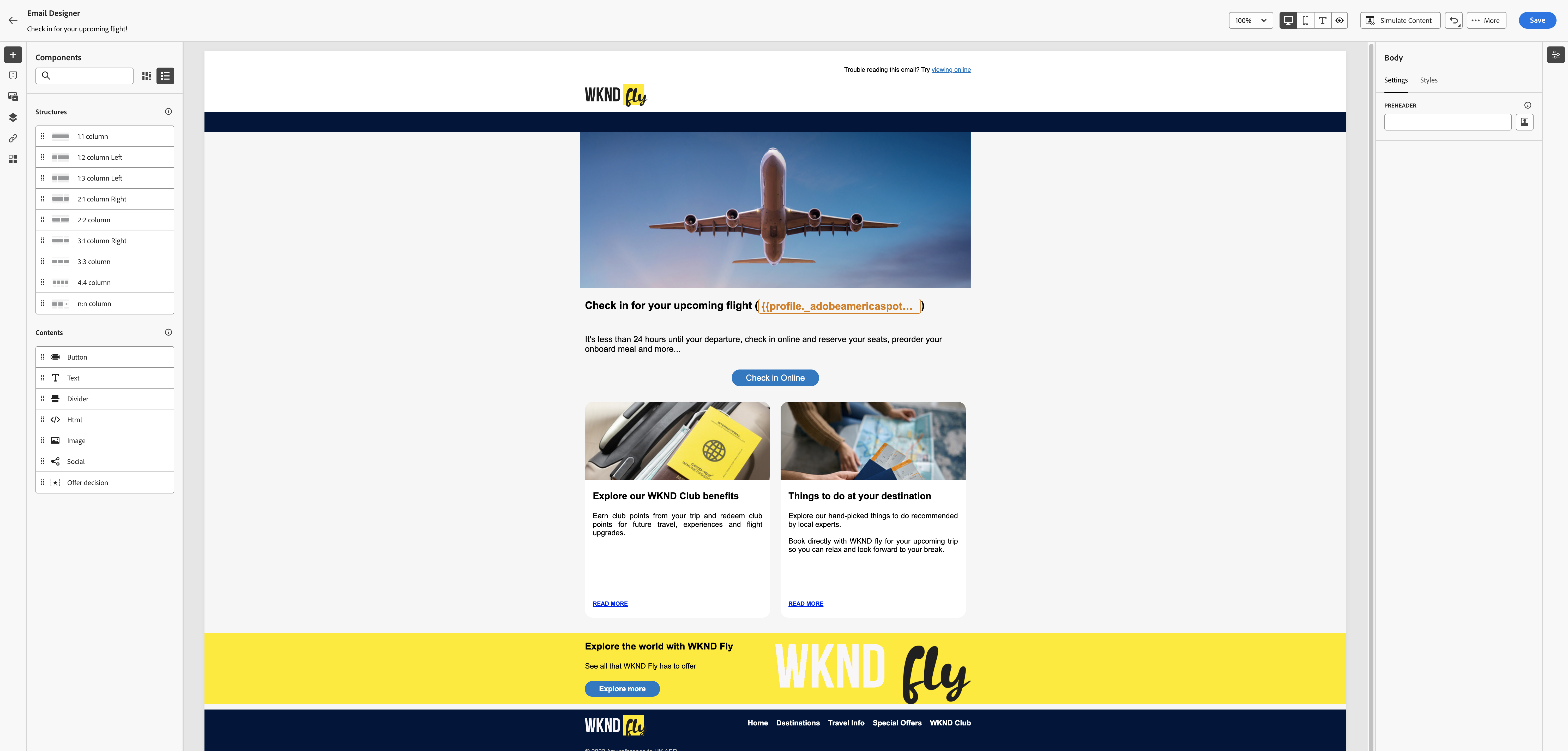
- Click the text component
- Change the text to: Check in for your upcoming flight (FLIGHT_DETAIL)!
- Select the text FLIGHT_DETAIL, delete it and click on the icon to add personalization.
- In Profile attributes, search for latest. Open the folder Latest Action and click on the icon to add actionProduct to your expression. It should read:{{{{profile._demoapac.latestAction.actionProduct}}}}
- Click Save.
- Click the Body text component and change the text to: It's less than 24 hours until your departure, check in online and reserve your seats, preorder your onboard meal and more...
- Add the Button component and change the button label to Check in Online.
- Your screen should look like the image below. Click Save in the top right. Navigate out of the Email designer by clicking the arrow on the top left of your screen. Then navigate out of the email overview by clicking on the arrow on the top left. You will be taken back to the journey canvas.
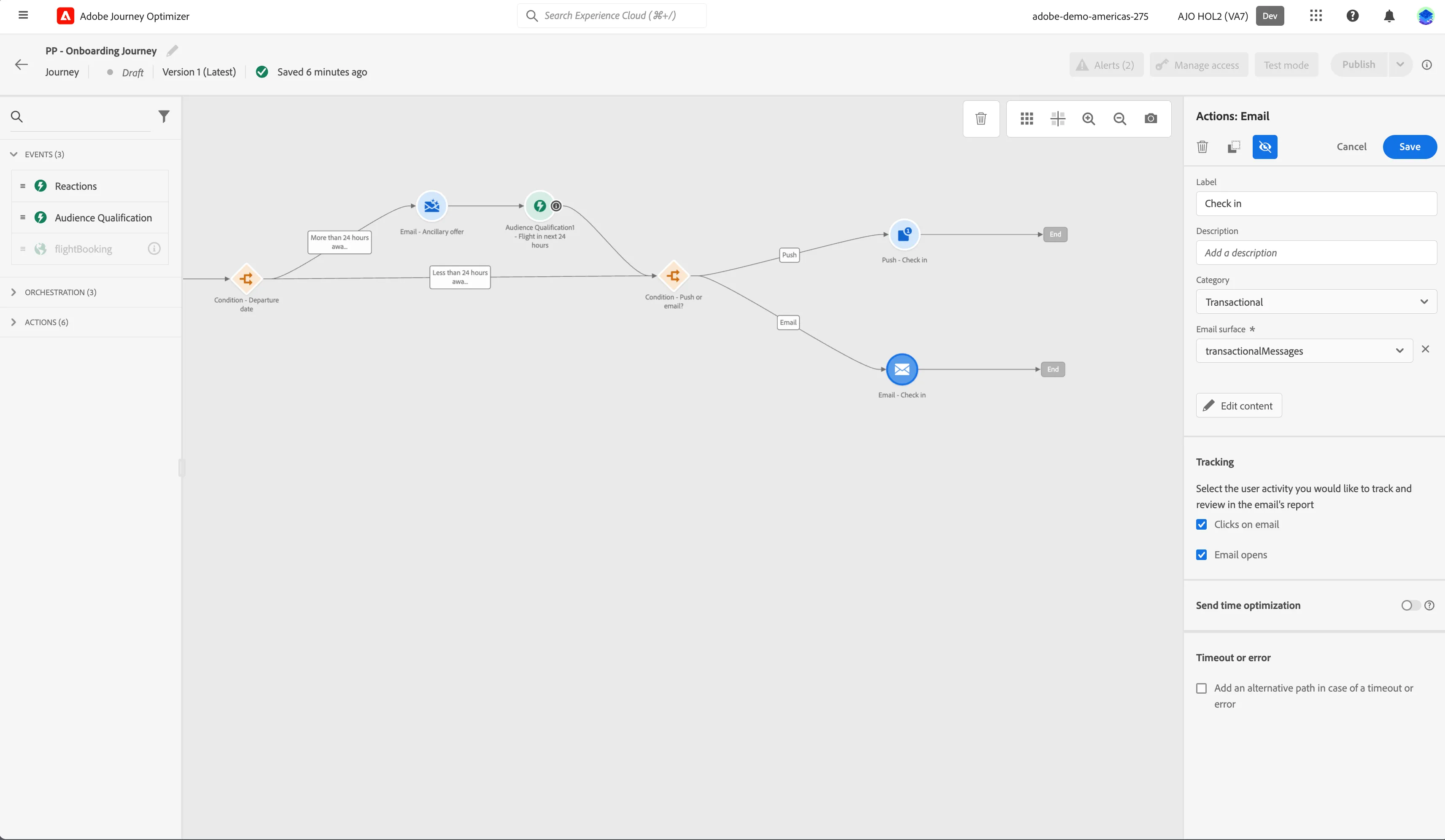
You have now successfully created the onboarding journey using the Adobe Journey Optimizer. Next, we are going to test our journey using Test Mode.