Build a Workflow
1 min
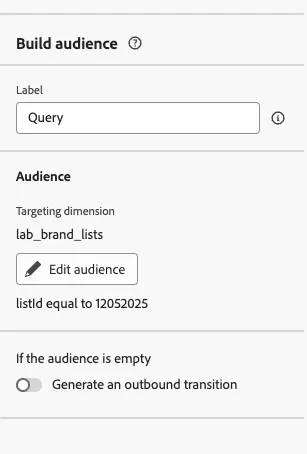
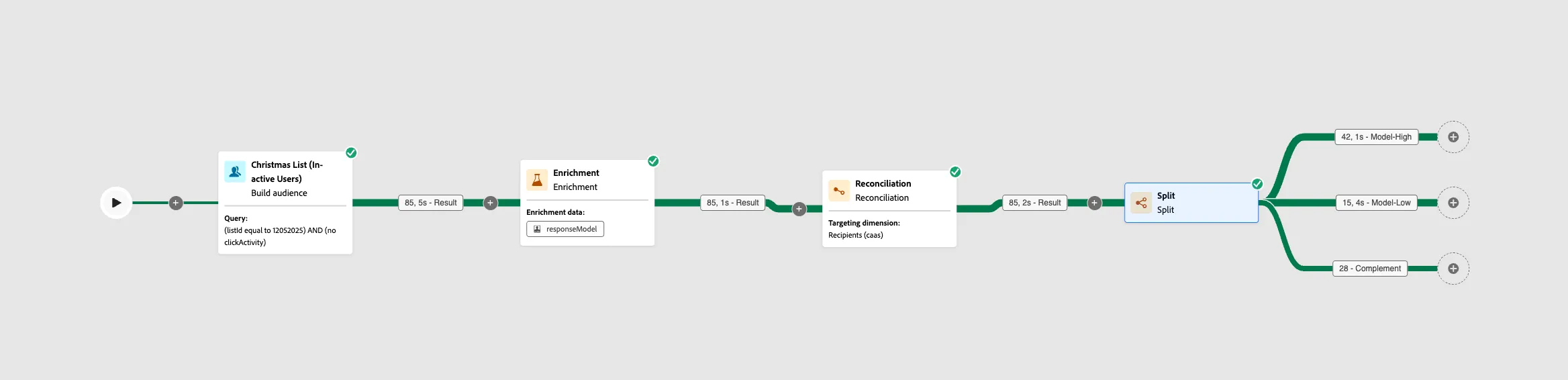
Add "Build Audience"
- Click the Plus Sign Icon in the canvas.
- Select Build Audience
- Select our Lab Brand List Table as the Targeting Dimension
- Click Create Audience and add a condition
- The criteria should be listId equal to 12052025
- Click calculate.
- Confirm, hit Start
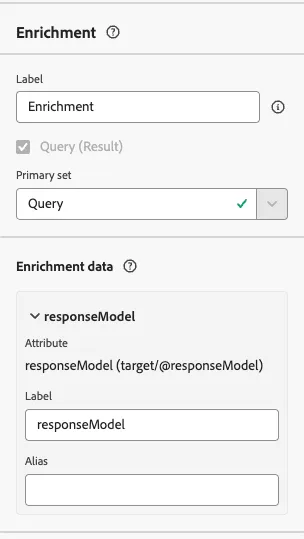
Add "Enrichment"
- Click the Plus Sign Icon
- Select the Enrich Node
- Add 3 Enrichment data attributes: ResponseModel, EnrollDate, DivisionalPreference by following these steps:
- Click Add Enrichment Data
- Select Attribute from the Targeting Dimension
- Do these steps for at least 1 of the above fields. ResponseModel is the only one required to complete this lab.
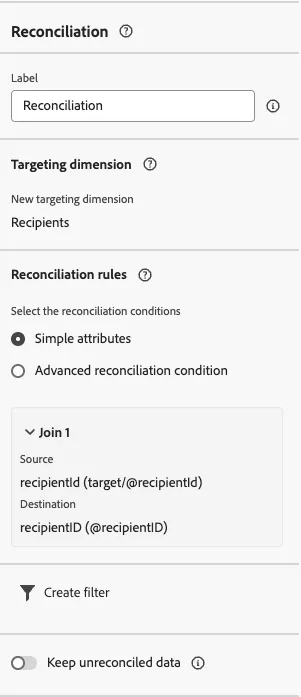
Add "Reconciliation"
- Select a new targeting dimension: Recipient
- Select Simple Attributes
- Click on Add rule
- Source: Targeting Dimension --> recipientId
- Destination: recipientID
- Click on Create Filter
- Confirm
- Hit Re-Start
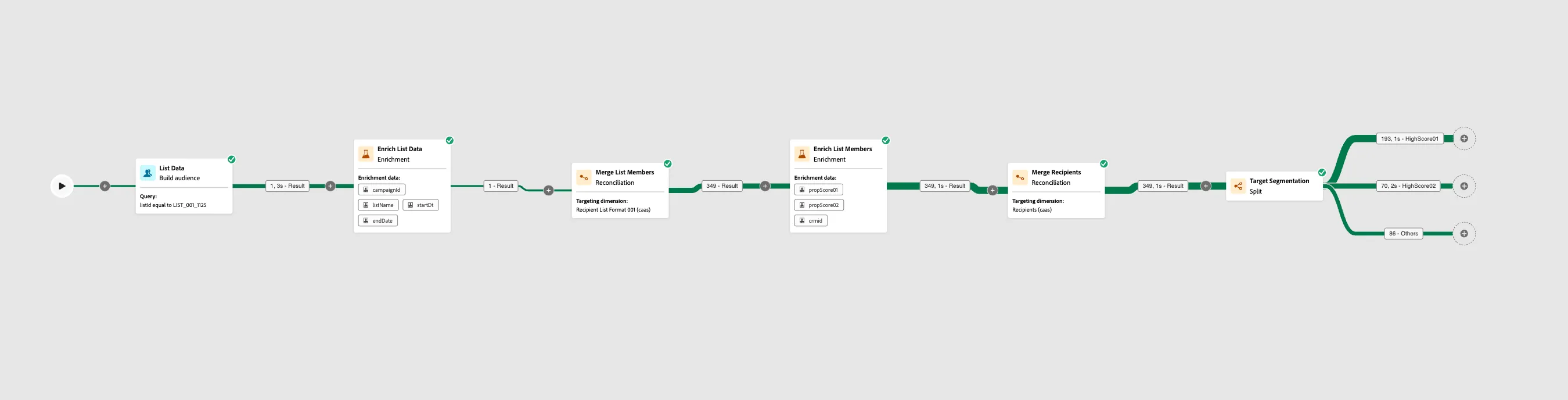
Add a "Split"
- Click on the plus sign, next to your Reconciliation node.
- Select the Split Node
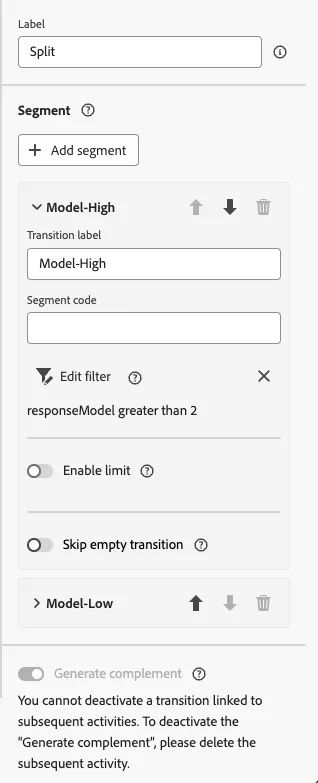
- On Subset, change the name to Model-High
- Transition Label: Model-High
- Segment Code: MH
- Click Create Filter, and Add a condition
- Condition: responseModel greater than 2
- Confirm
- Click Add Segment
- Repeat the previous steps on the Result Segment and use:
- Transtion Label: Model-Low
- Segment Code: ML
- Condition: responseModel less than 2
- Once done, select: Generate complement
- Click Start/Resume
Add "Save Audience"
- Click the plus sign next to the Complement (Model-Medium; which will include only records equal 2) path of your split
- Select Save Audience
- Audience Label: Medium Propensity - Initials
- Select the Profile Mapping Field: Recipients - recipientID
- Add an Audience Mapping: responseModel
On the other 2 paths, click the plus sign and select email. Congratulations, you completed Campaign Workflow orientation!