Email Designer
6 min
This lab will walk through the steps to create an Email in Adobe Journey Optimizer.
NOTE: Some exercises may vary during the actual Hands on Lab versus what is listed in the Archbee Page, due to industry setup and / or Presenter preferences.
Create a New Message Template
- Navigate to Content Templates
- Click "Create" to create a new Email template
Define a Subject Line
- Enter a Subject Line.
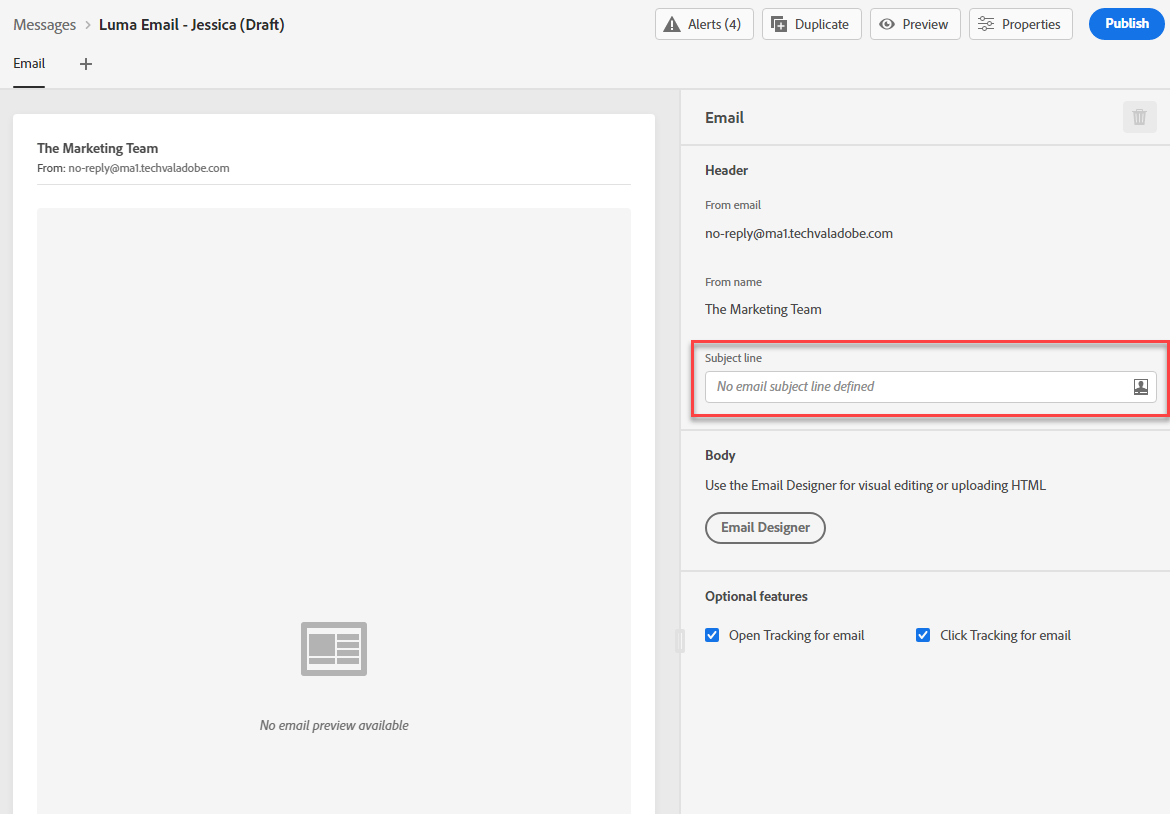
- Click on the Personalization icon to add personalized data available for customer record.

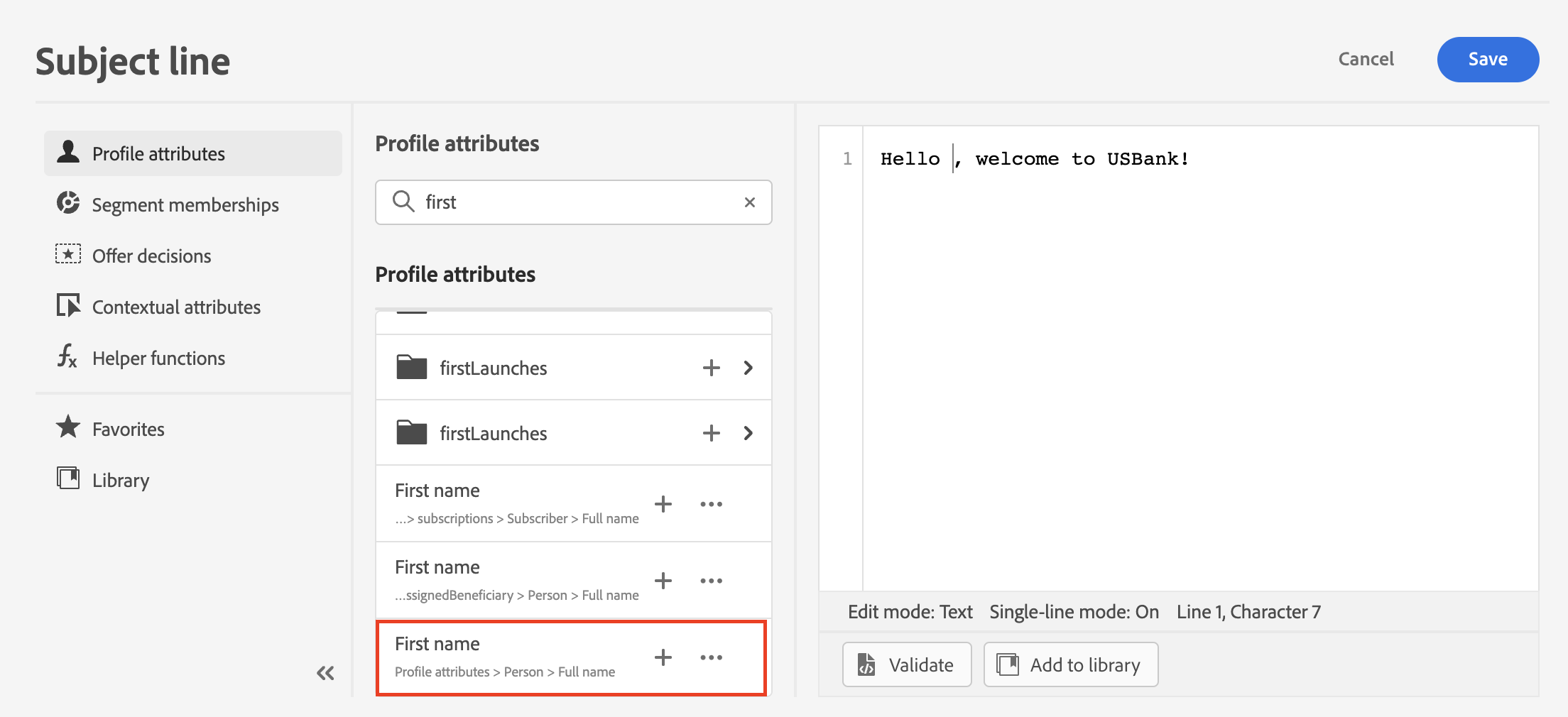
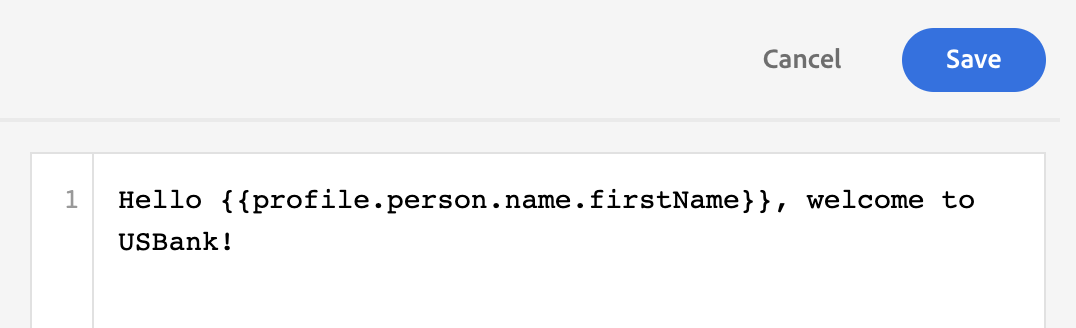
- To add personalization, place your cursor where you want the personation added. Search for first name by searching for "first" and clicking the plus sign. Click Save.
Design Email
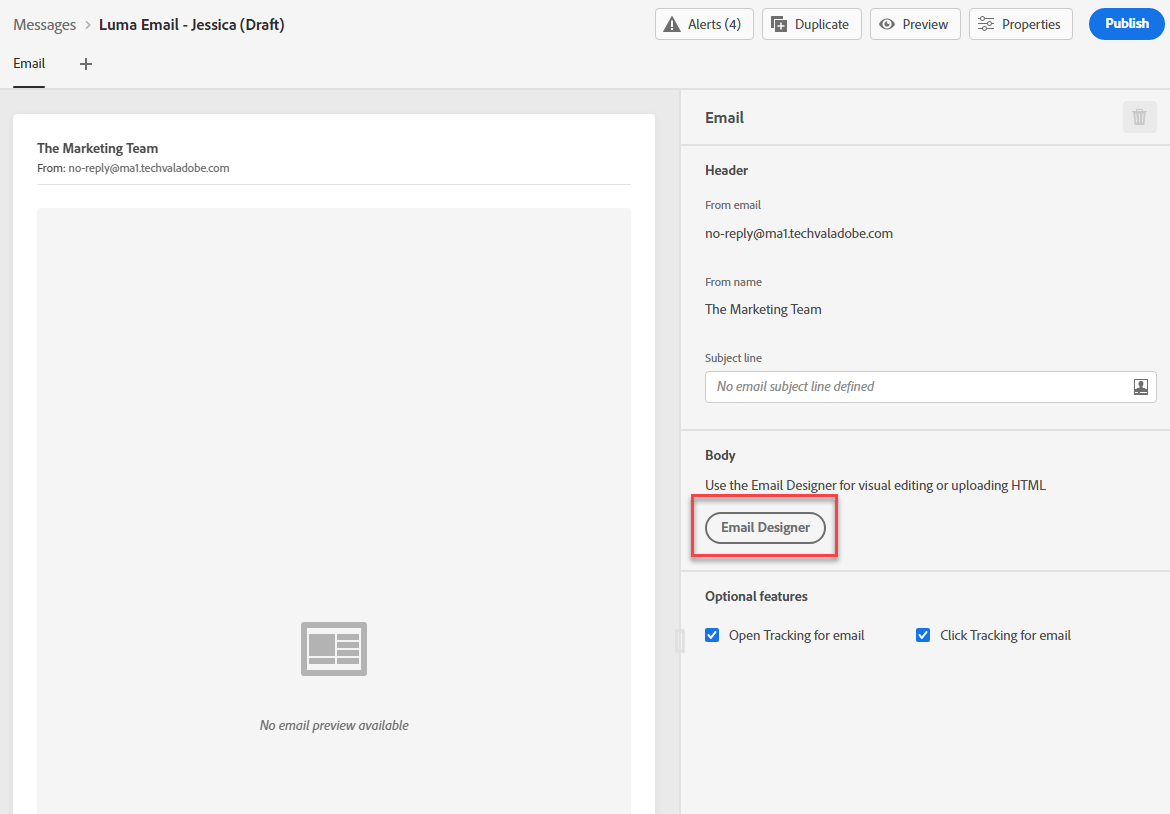
- Click Email Designer
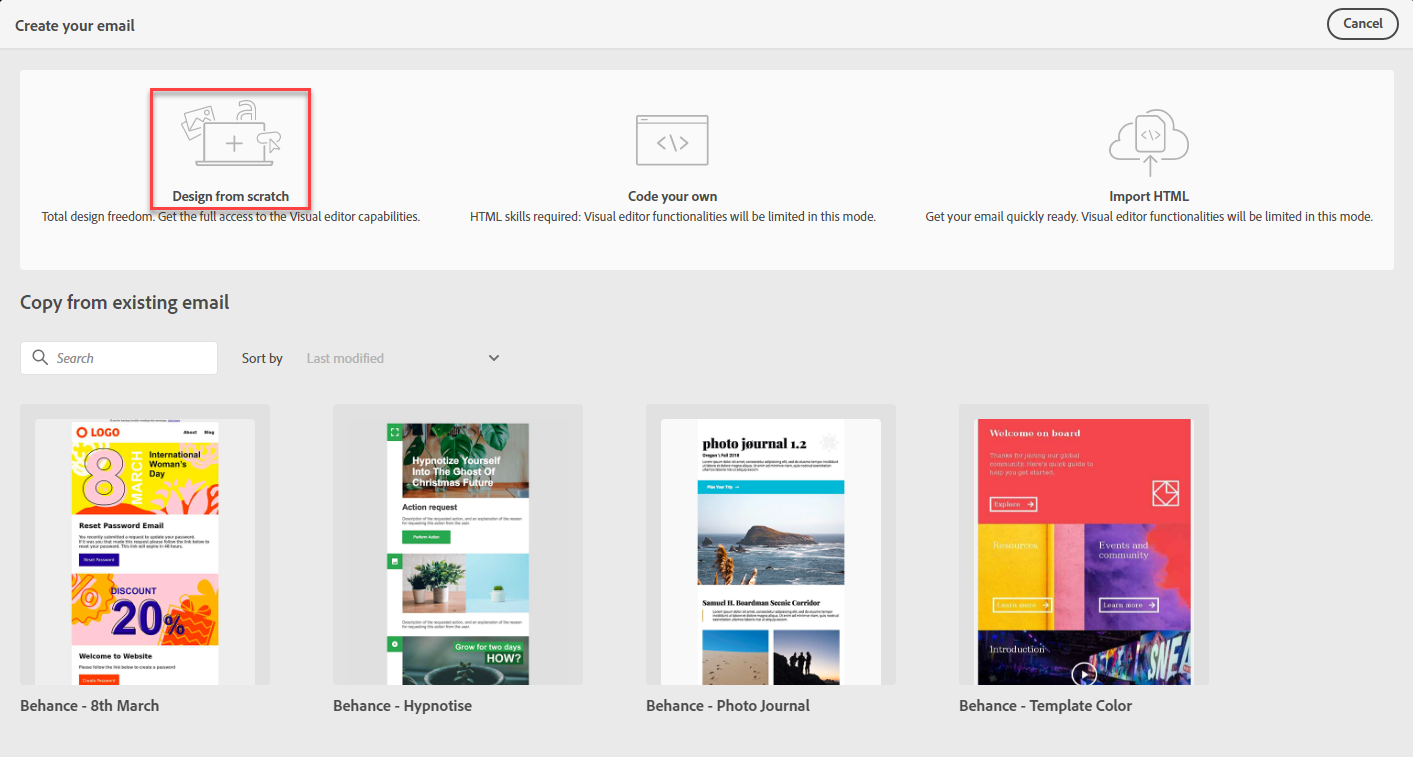
- Select “Design from Scratch”
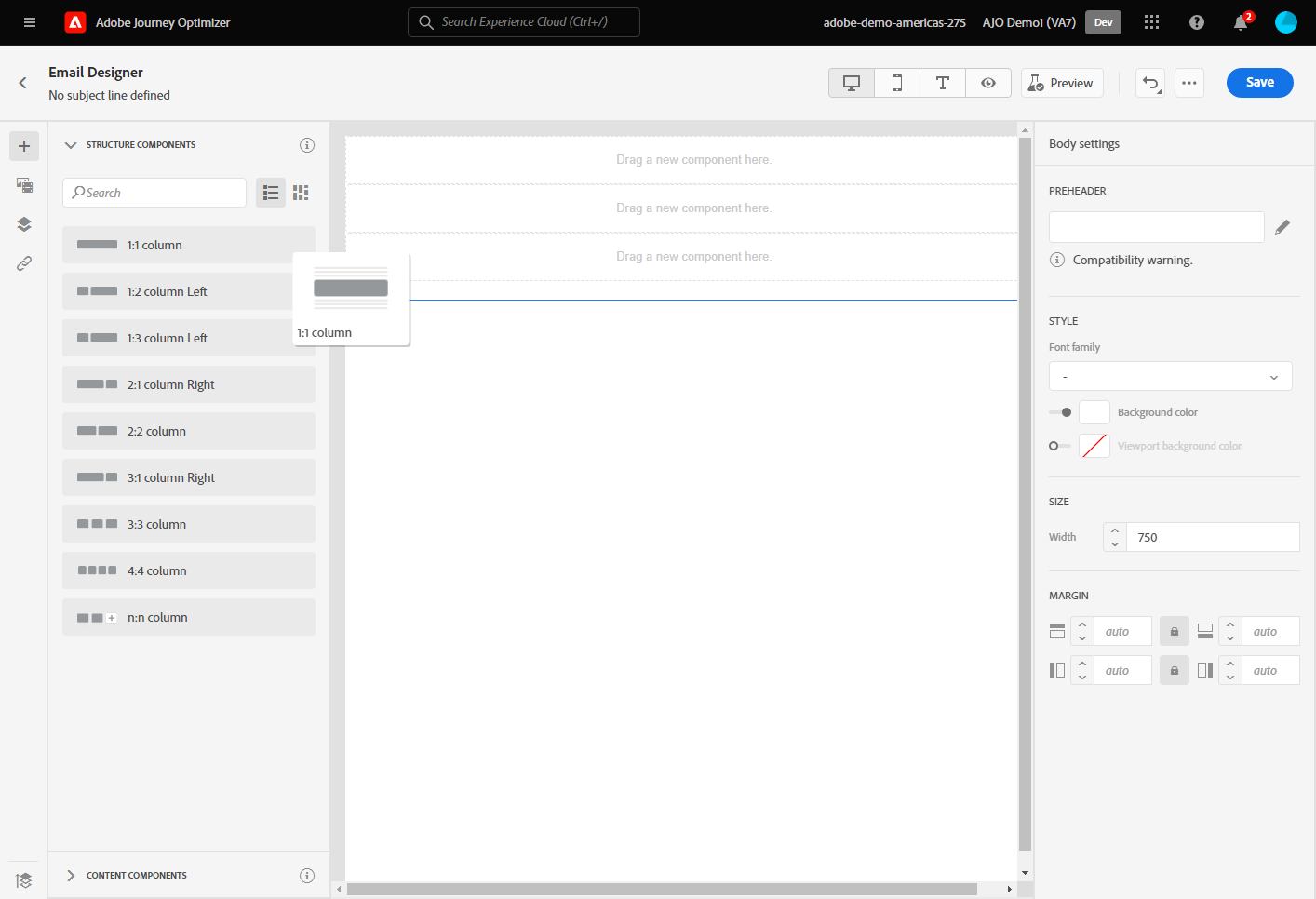
- Click on the 1:1 Column. Drag it 5 times onto the Canvas. Click Save
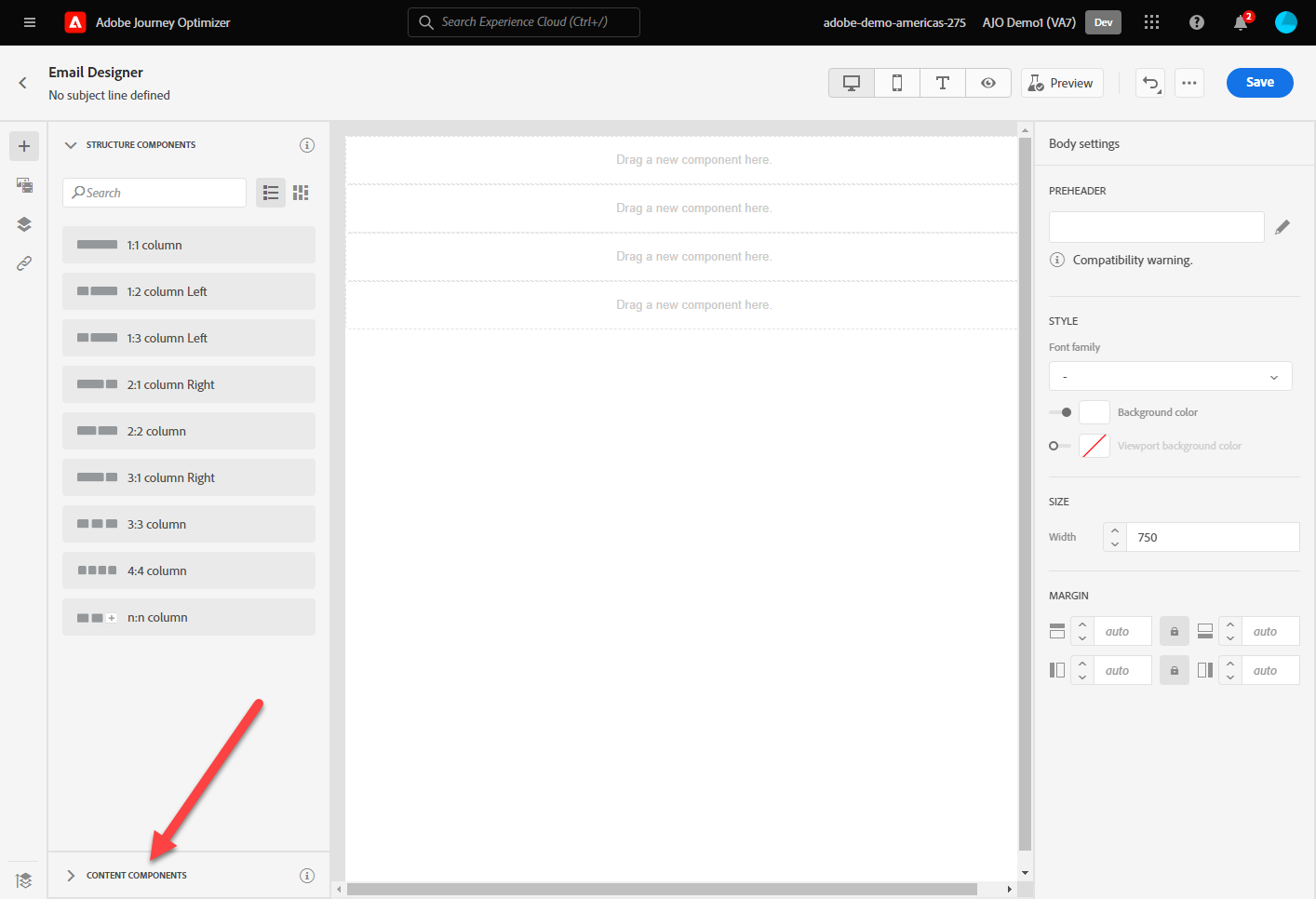
- Select Content Components
- Add an Image Component in the first Component
- Add a Divider in the Second Component
- Add an Image in the Third Component
- Add an Offer Decision in the Fourth Component
- Add Social in the Fifth Component
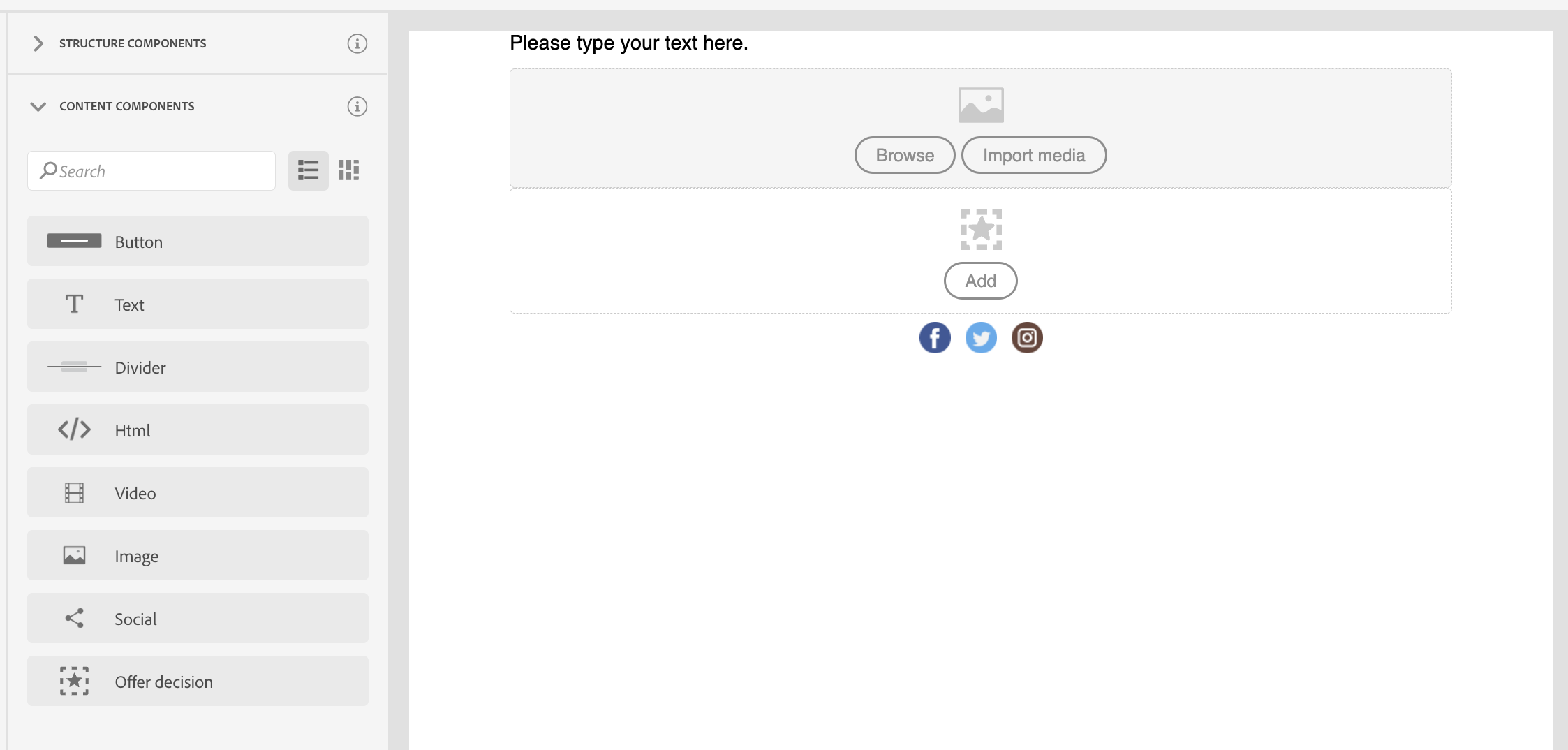
- Select Browse to select an image. Choose US Bank logo available in the HOL7 folder in Asset Essentials
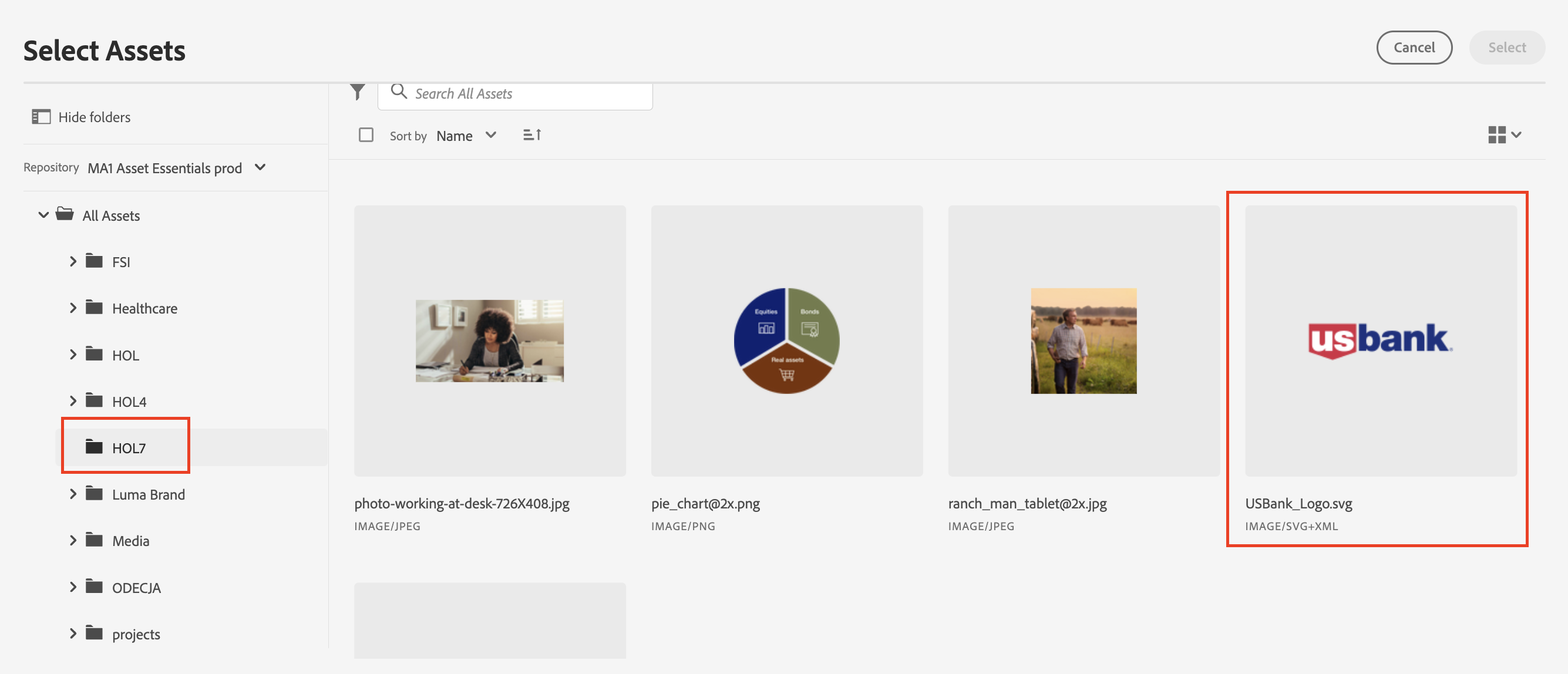
- Add a hero image to the email message.
- Click on the Offer Decision component. Then choose Email-Image as Placement type
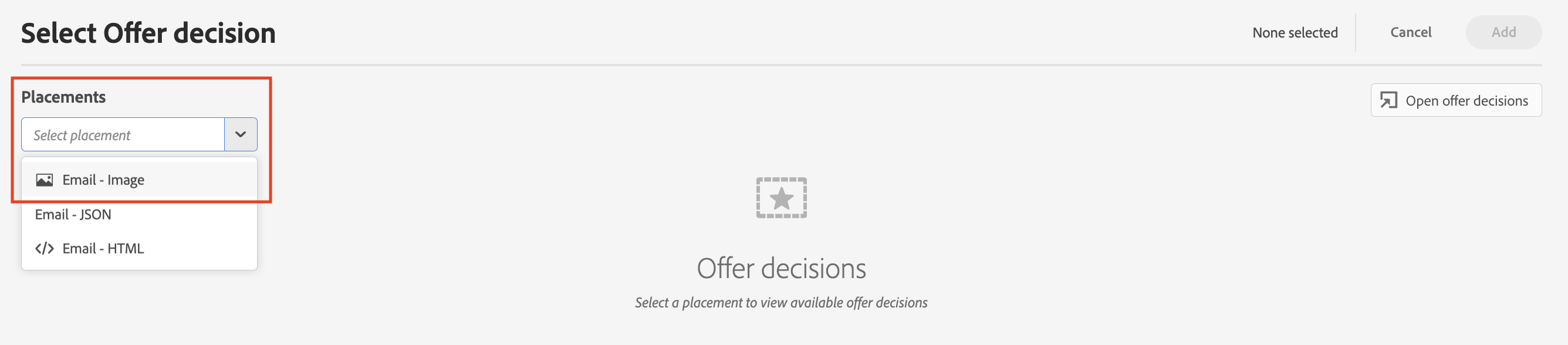
- Choose the desired offer from the Offers Library. Click Add.

- Click Save to save the message and then exit out of the Designer.