2.1 Review & Approval
Exercise 2.1: Submitting Content for Review and Approval
Duration: 5 minutes
Understanding the Review and Approval Workflow
GenStudio for Performance Marketing includes built-in review and approval capabilities that integrate with Adobe Workfront Proof. When a marketer submits generated content for approval, designated reviewers receive notifications, review the content directly within GenStudio or in the Workfront Proof viewer, add comments and markup, and render a decision: Approved or Needs Work. All designated approvers must approve before content can be published to Content.
Value for Your Organization:
- Built-in approval workflow eliminates tool-switching between creation and governance
- Workfront Proof integration provides robust markup, annotation, and decision-tracking capabilities
- Full audit trail of comments, decisions, and revisions supports compliance and accountability
- Draft status tracking (Notified, Needs Work, Approved) keeps all stakeholders aligned
Step-by-Step Instructions
Step 1: Select variants and request approval
- On the Canvas, identify the variants with strong brand compliance scores from Segment 1
- Click the "Request approval" button in the top toolbar
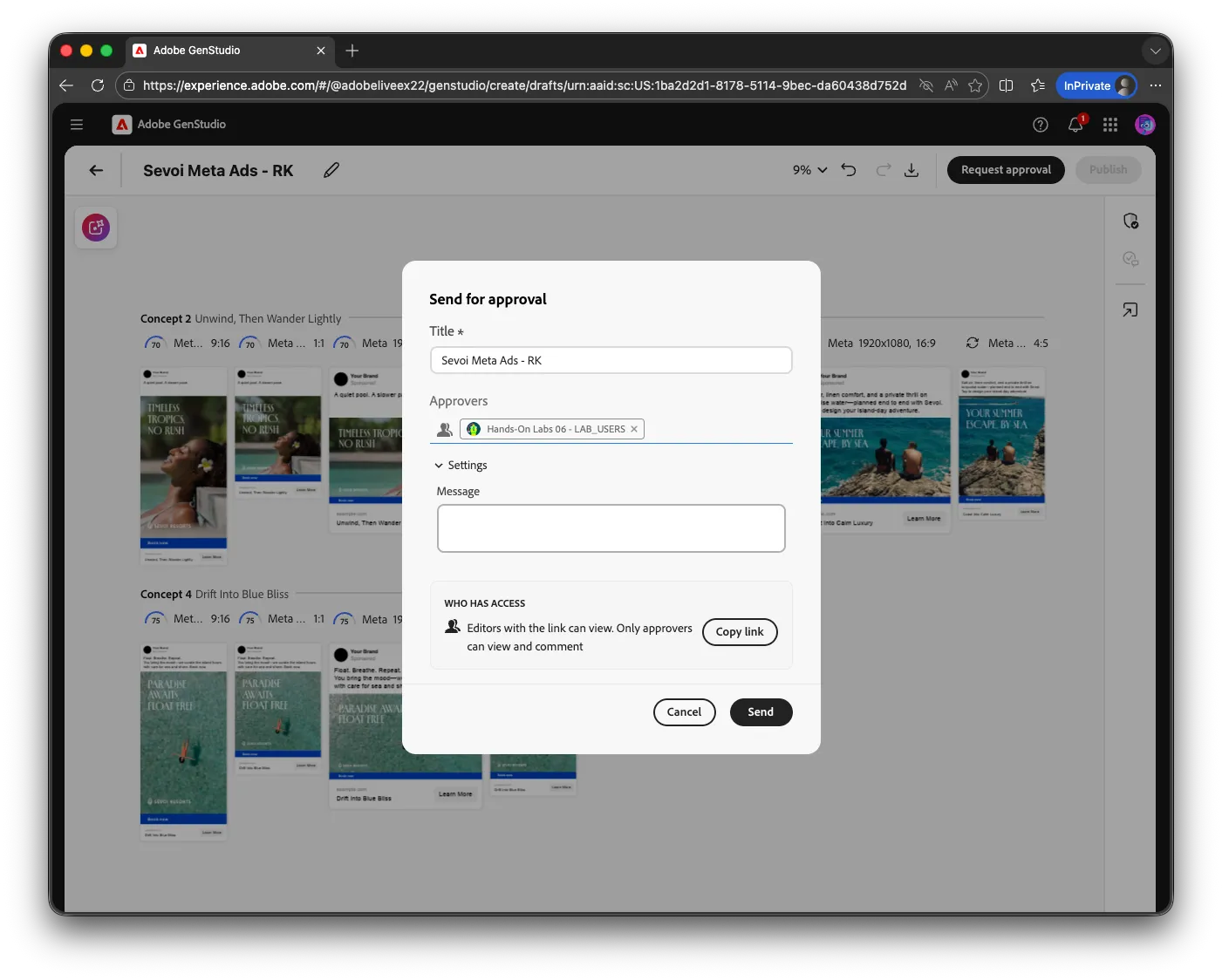
- In the approval dialog, to simulate adding designated reviewers (e.g., Brand Manager, Creative Director), please add your user name
- Optionally add context for the reviewers in the Message panel, then click Send
Step 2: Observe the draft status change
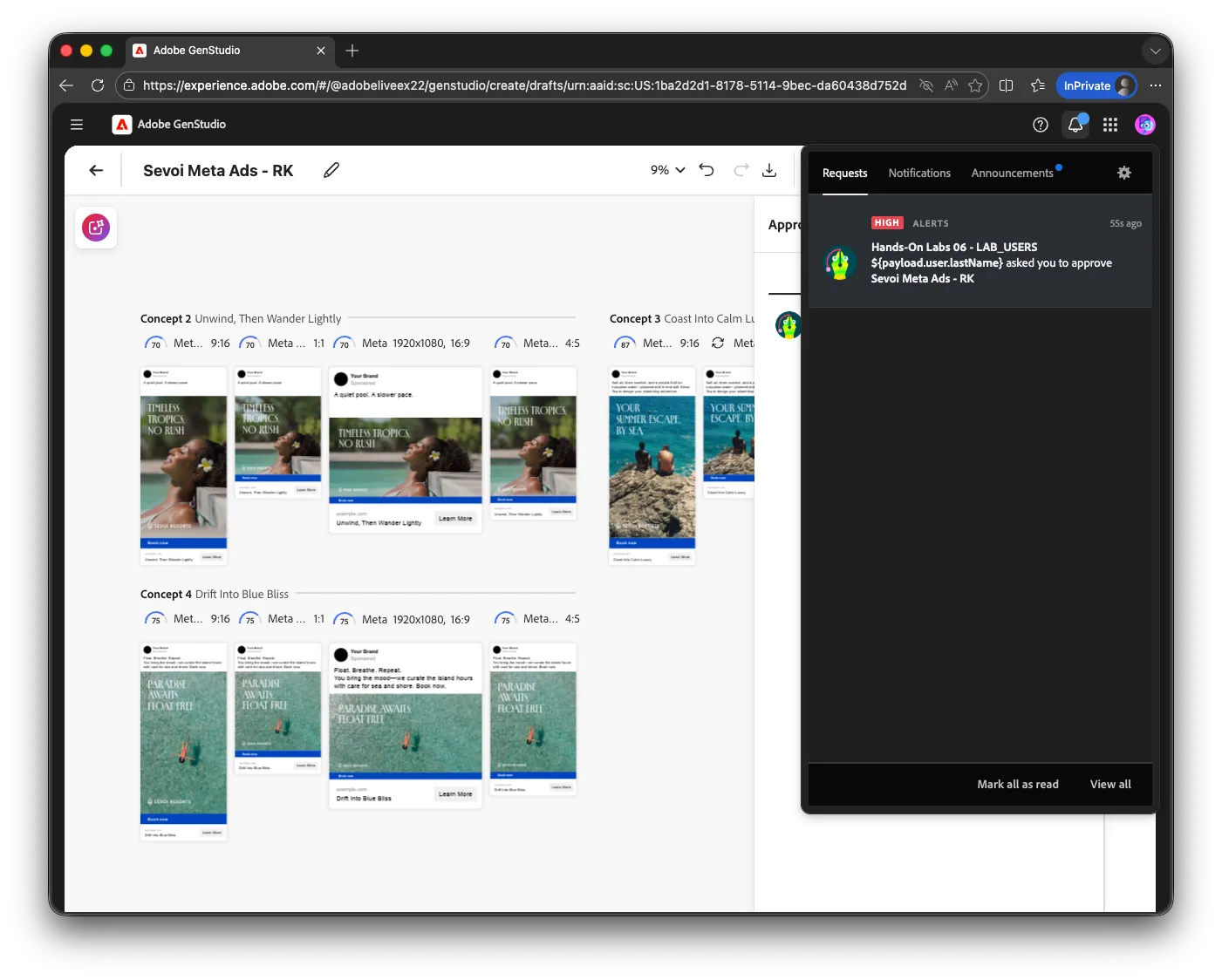
- The draft status changes to "Notified"
- Approvers receive email and in-app notifications with a link to review the content. Click on the Notification.
Step 3: Review the approver experience
- The approver opens the review link in GenStudio
- Reviewers see the submitted variants alongside brand compliance data and content check results
- They add comments, draw markup annotations, and render a decision: Approved or Needs Work
Step 4: Confirm approval and publish
- Once all designated approvers have approved, the draft status changes to "Approved"
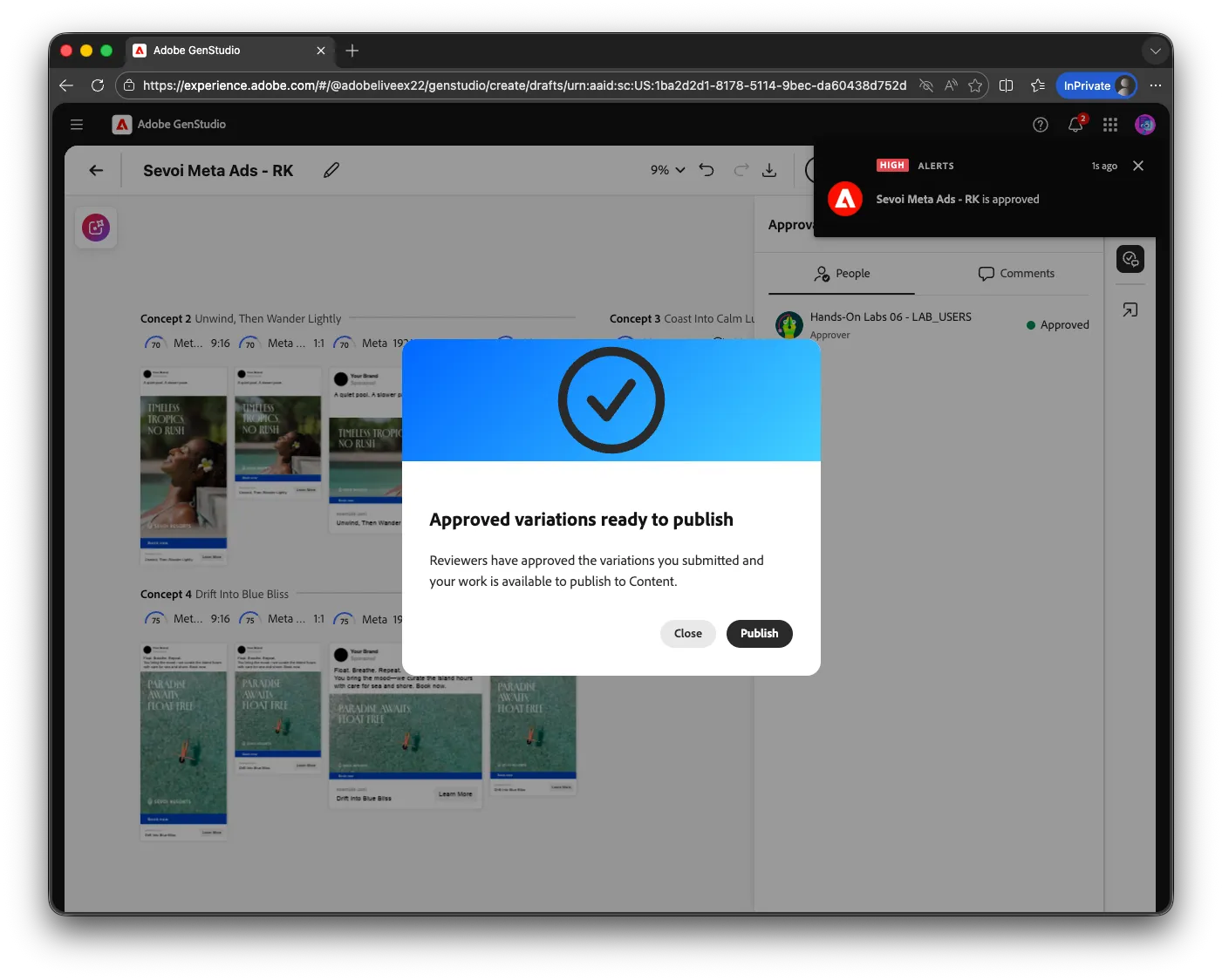
- Click "Publish" in the toolbar to save the approved experience to the Content library
- The experience is now available for activation and for other team members to discover and reuse
Checkpoint
✓ Can you see the approval status of your submitted variants, and do you understand how the draft moves from Notified through Needs Work to Approved?
Tip: Organizations with established Workfront Proof workflows can leverage approval templates to pre-configure reviewer lists, routing rules, and decision options. The performance marketer never needs to manually select reviewers; the governance routing is built into the workflow.