1.5 Advanced Segmentation
The way that you created a segment in Module 1.3 is only one of the ways to create audiences. Now you will be walked through an example audience that was created using Audience Composition, a feature that provides a workspace to build and edit audiences.
First, click Audiences on the left hand side, and navigate to the Compositions tab.
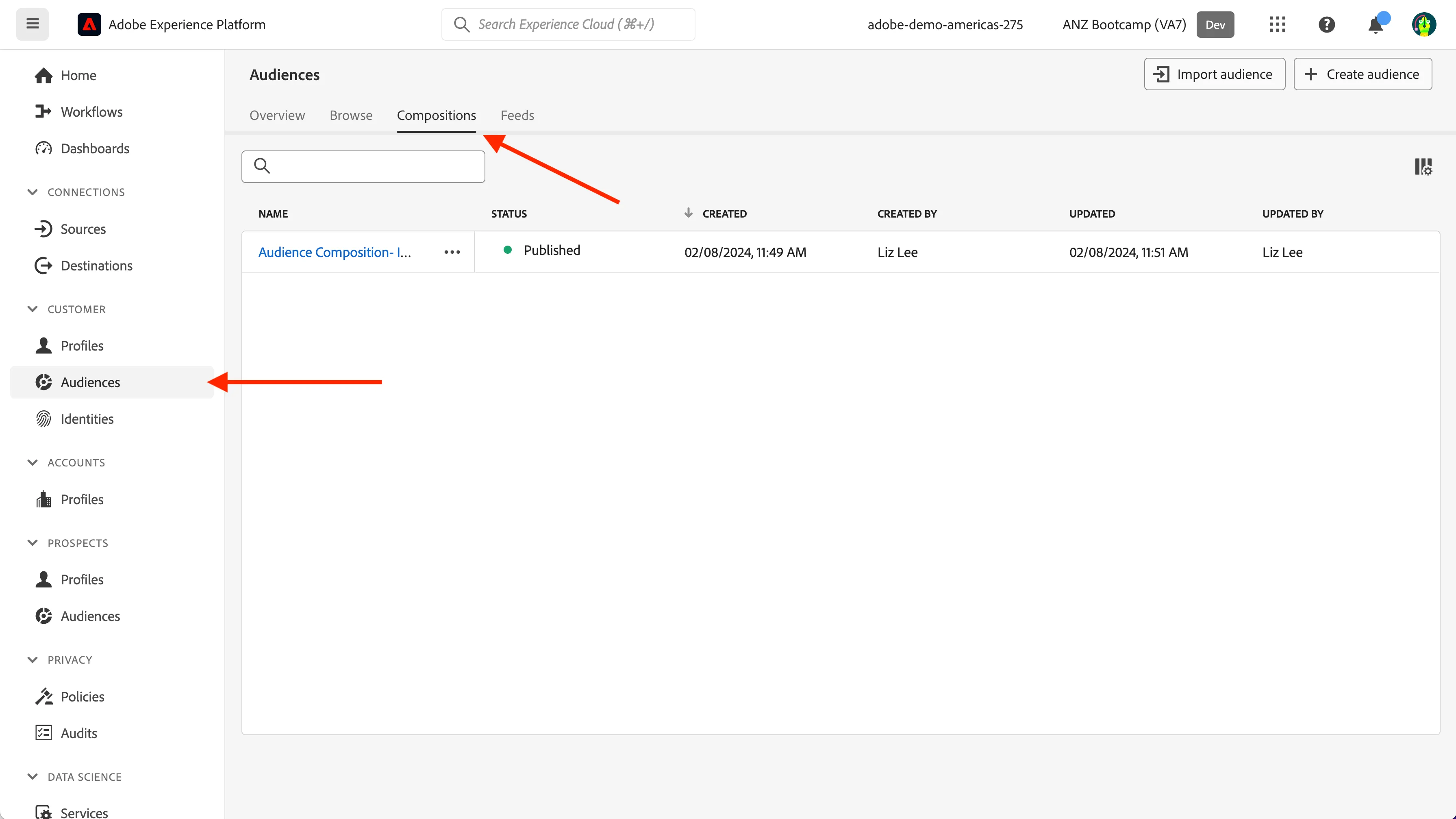
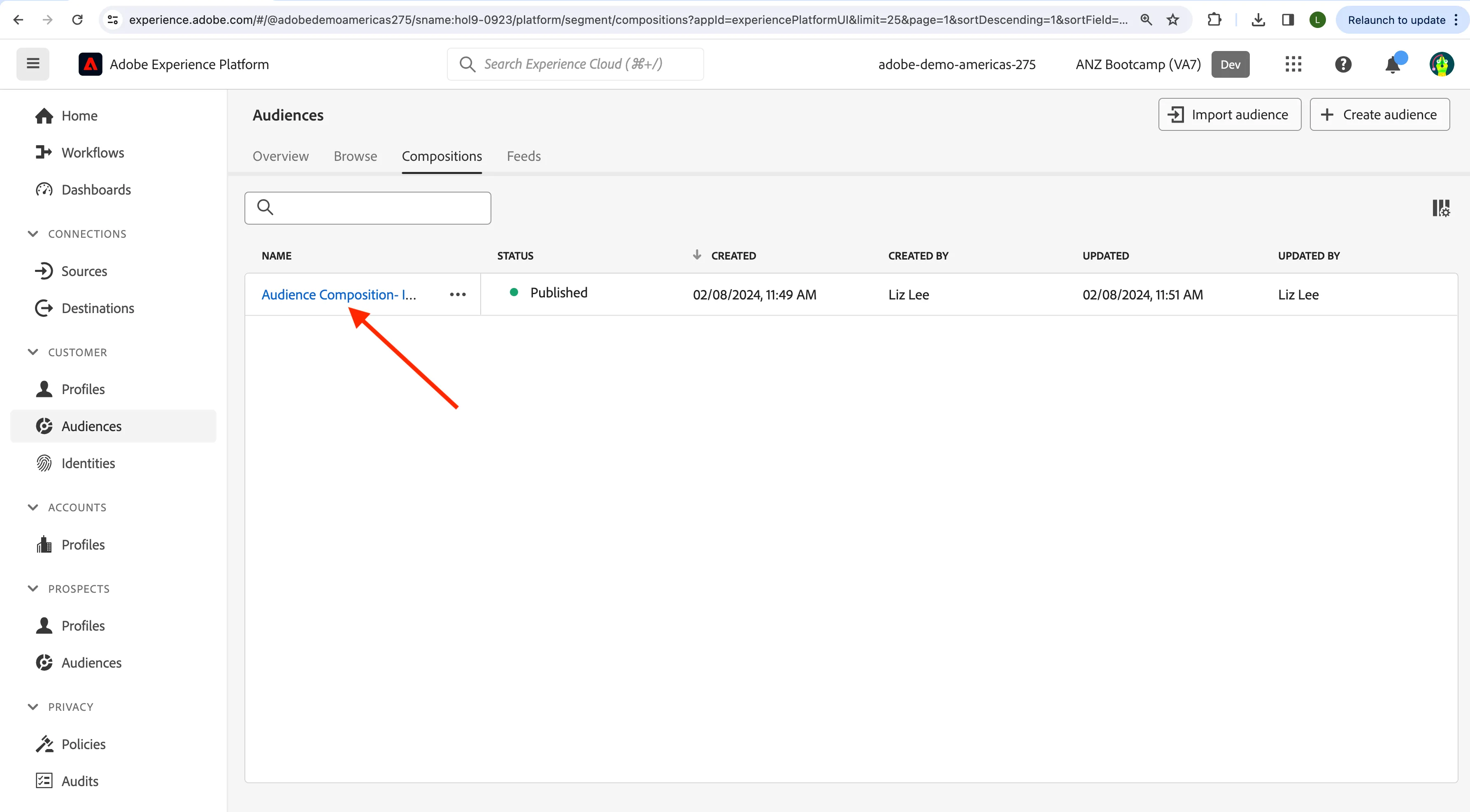
You will see that there is already an audience there for you to inspect, called "Audience Composition- Interest in Real-Time CDP". Click on this audience.
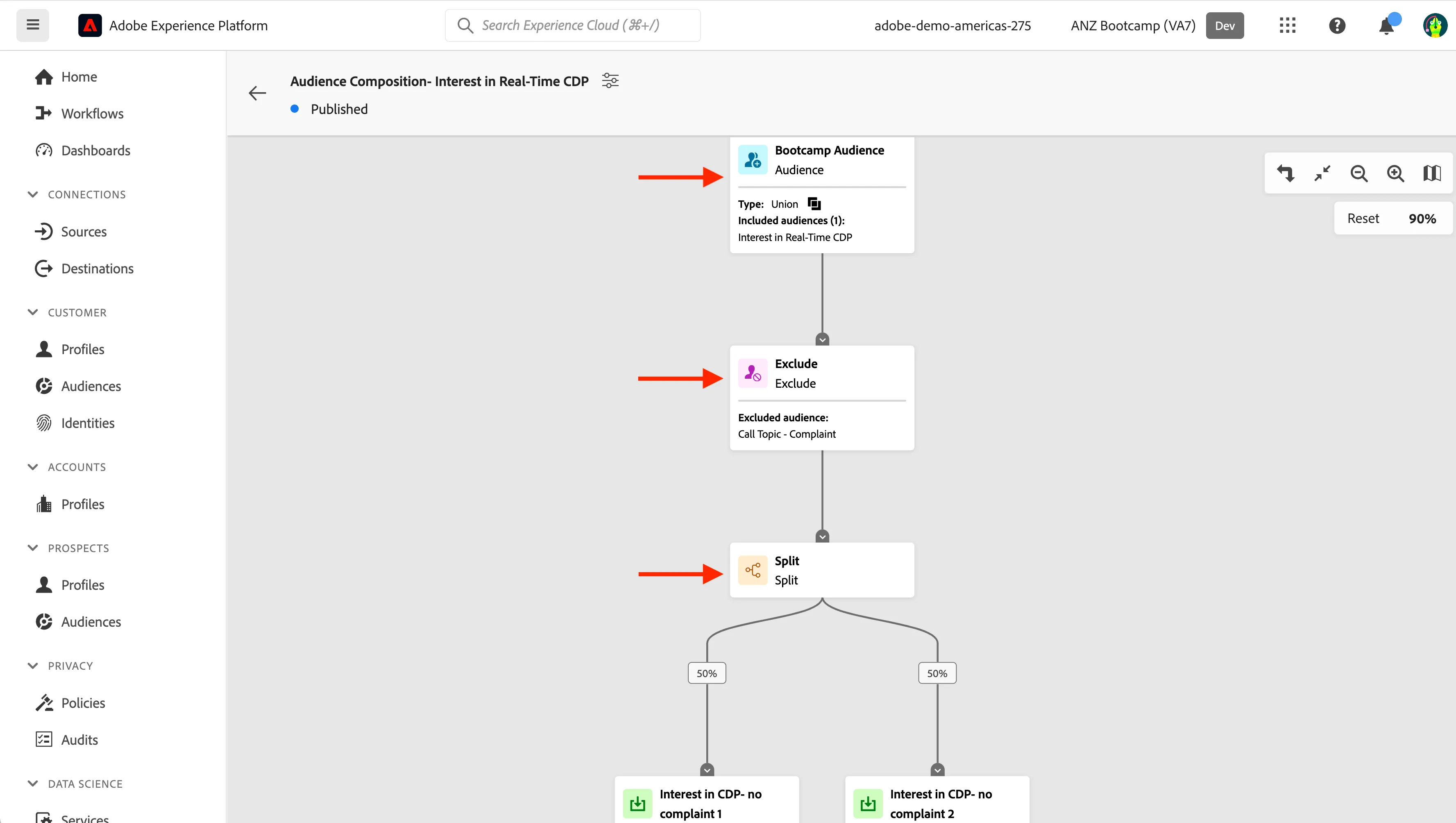
You can now see there are a number of actions that have been taken within this workspace, for illustrative purposes.
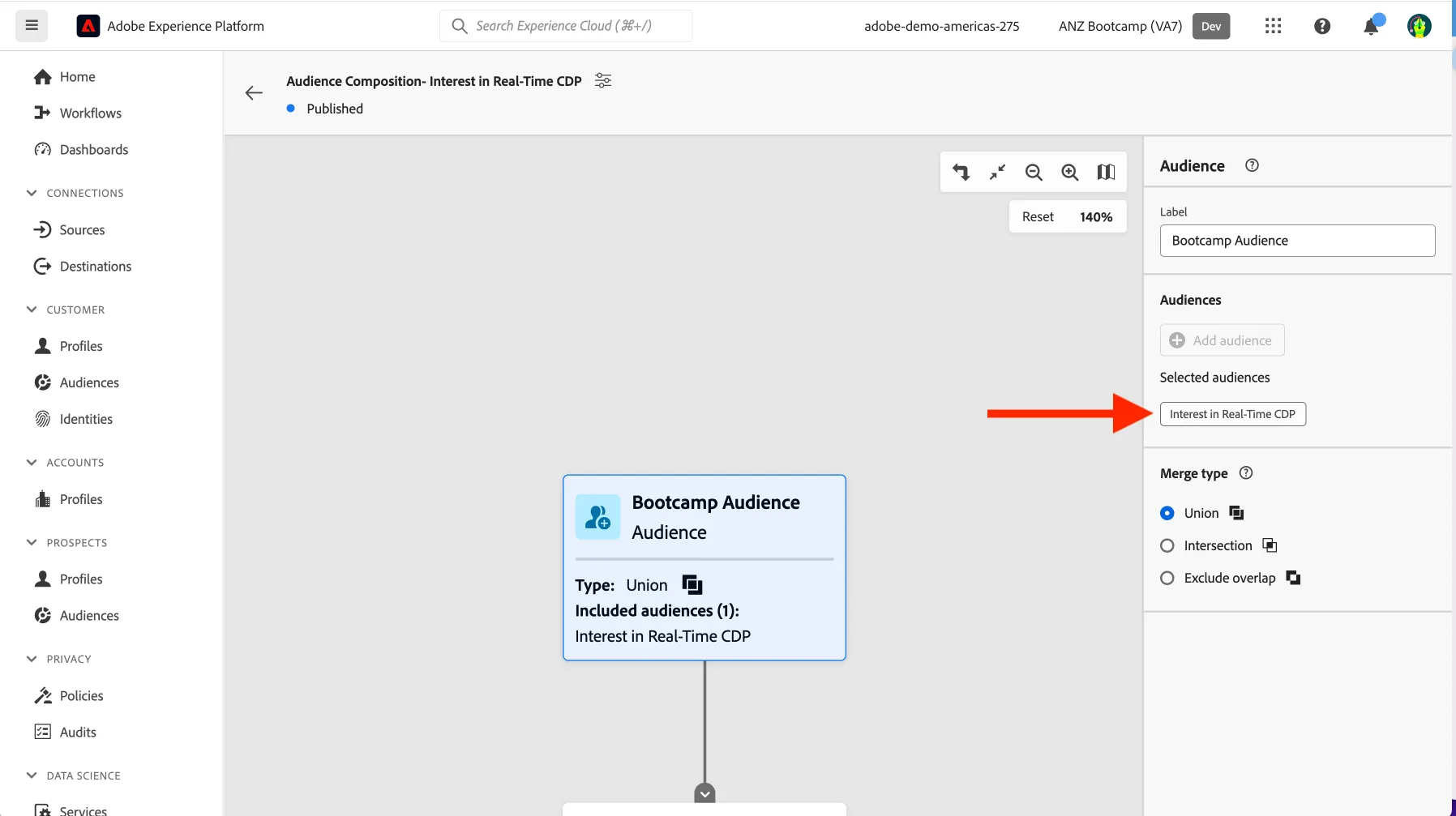
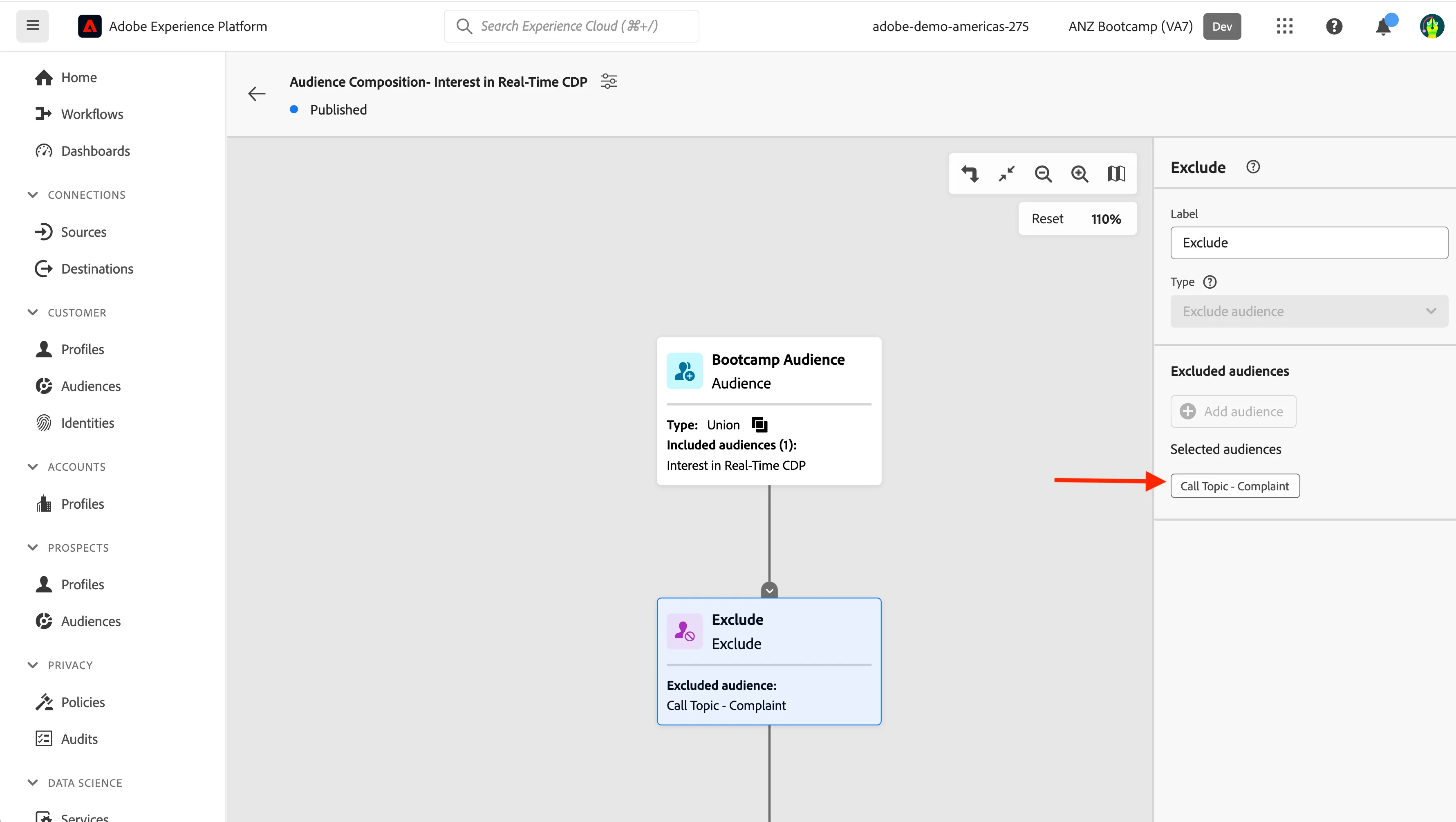
First, We started with our "Interest in Real-Time CDP" audience. Click on the box- "Bootcamp Audience" to see the details.
We then selected the Exclude block, which allows you to exclude specified sub-audiences or attributes from your new larger audience. We chose to exclude an audience of those people who had called the call centre to complain ("Call Topic- Complaint"), with the rationale that we don't want to be communicating with these people right now.
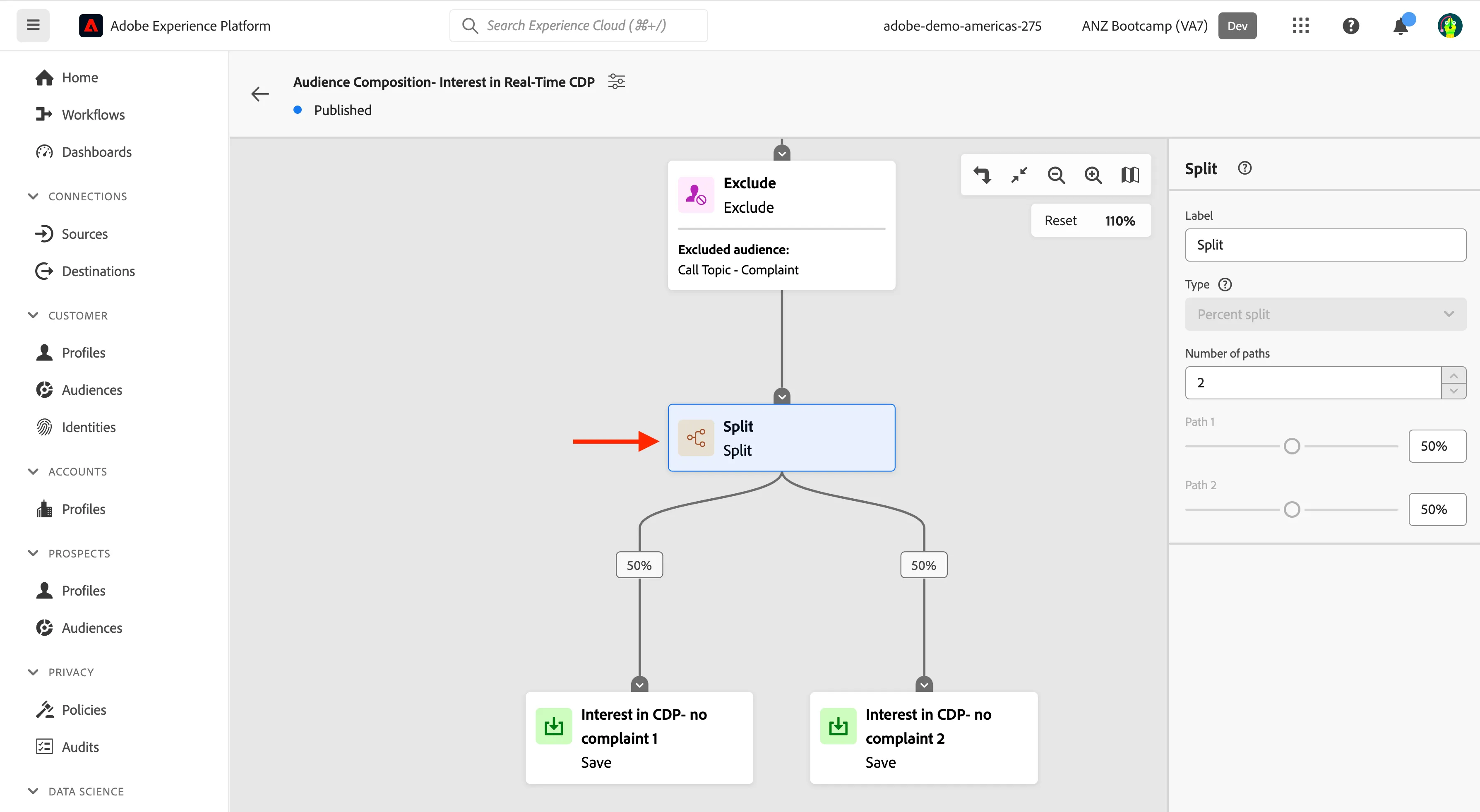
Next, we used the Split block type which allows you to split your new audience into various sub-audiences. You can either split this audience based on percentage or by an attribute. Our audience was split in half, in order to create two sub audiences to send them and test different communications or creatives when activated.
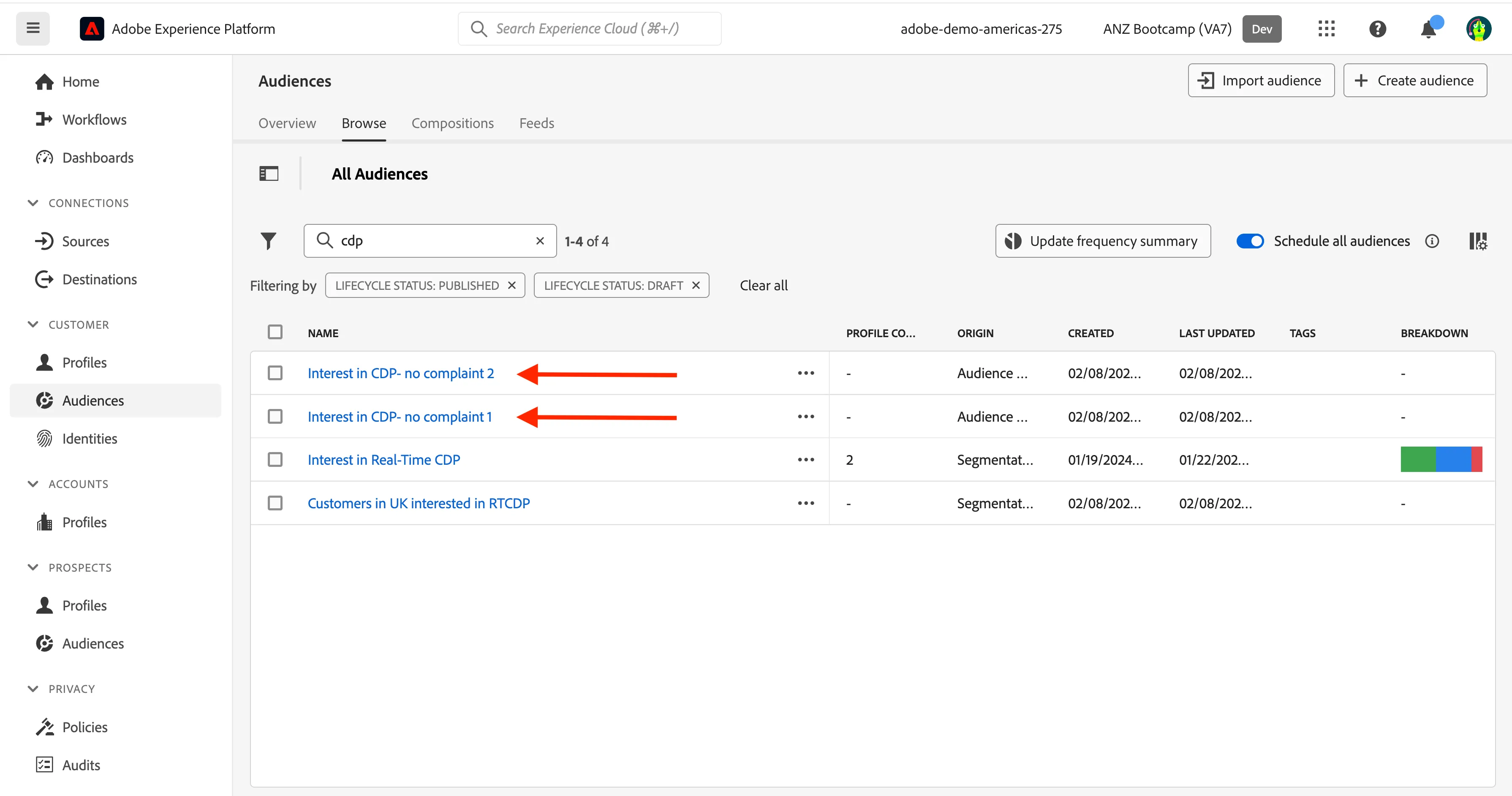
These two final audiences were created and saved, and can therefore be seen in the list of audiences available to you.
You have now finished Module One.