2.0 Visualise your customer profile in AEP
In the 1. Acquisition flow you visited the Bootcamp website, browsed different product categories, may have been presented personalised content based on your segment qualification and then authenticated on the website by creating an account.
In this exercise, you'll take a closer look at your profile in the Adobe Experience Platform UI.
In the customer profile, all profile data is shown alongside event data, as well as existing segment memberships. The data shown can come from anywhere, from Adobe applications and external solutions. This is the most powerful view in Adobe Experience Platform, the true experience system of record.
In exercise 1.1 Visit the website1.1 Visit the website you copied and saved the Experience Cloud ID (ECID) from the Profile Viewer panel of the website. Now it is time to use this value to look up your profile in AEP.
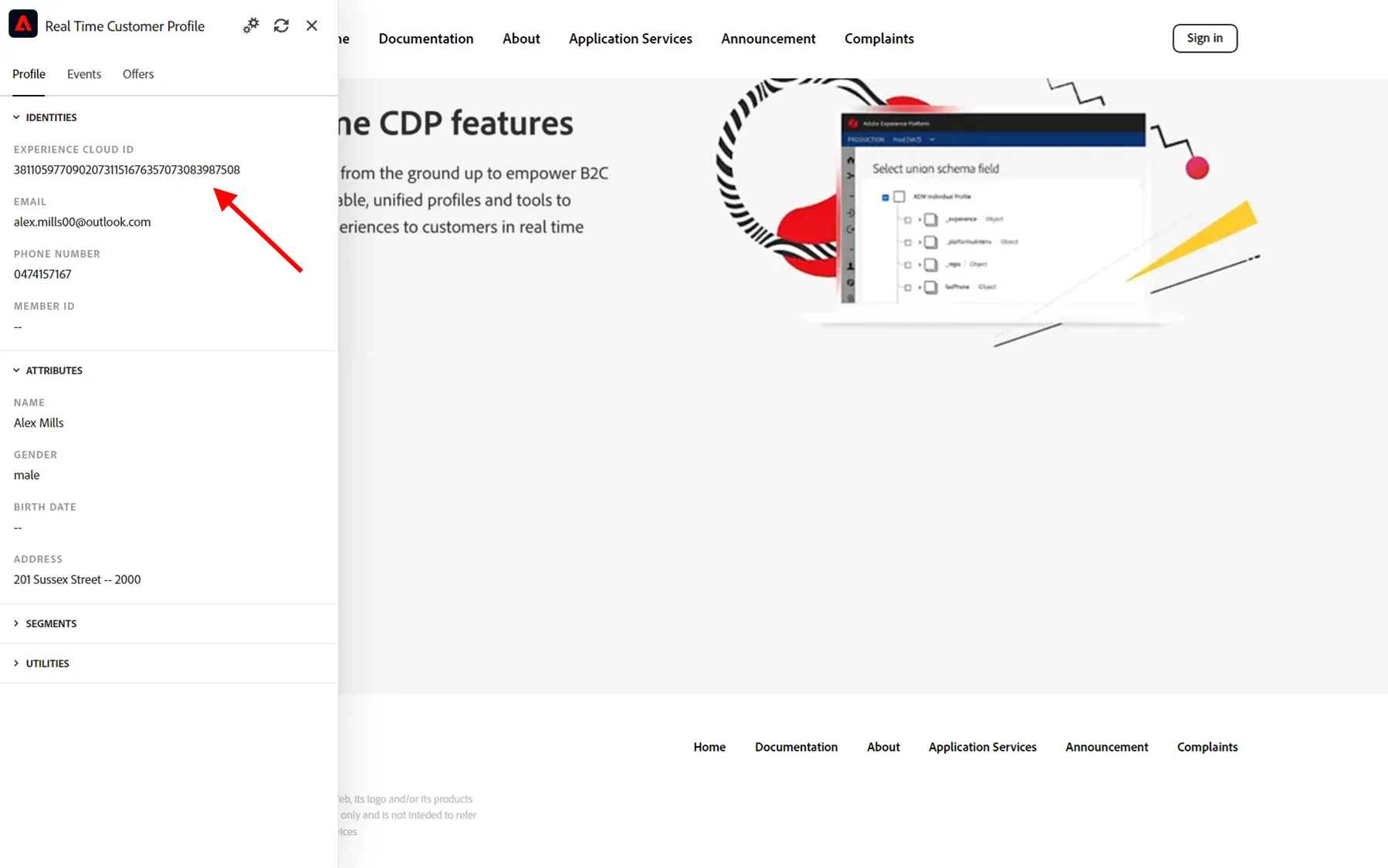
With Adobe Experience Platform, all IDs are equally important, and every ID can be considered a primary identifier.
Typically, the primary identifier depends on the context. If you ask your Call Center, what is the most important ID? They will probably answer, the phone number! But if you ask your CRM team, they will answer, the email address! Adobe Experience Platform understands this complexity and manages it for you. Every application, whether an Adobe application or non-Adobe application, will speak with Adobe Experience Platform by referring to the ID they consider primary.
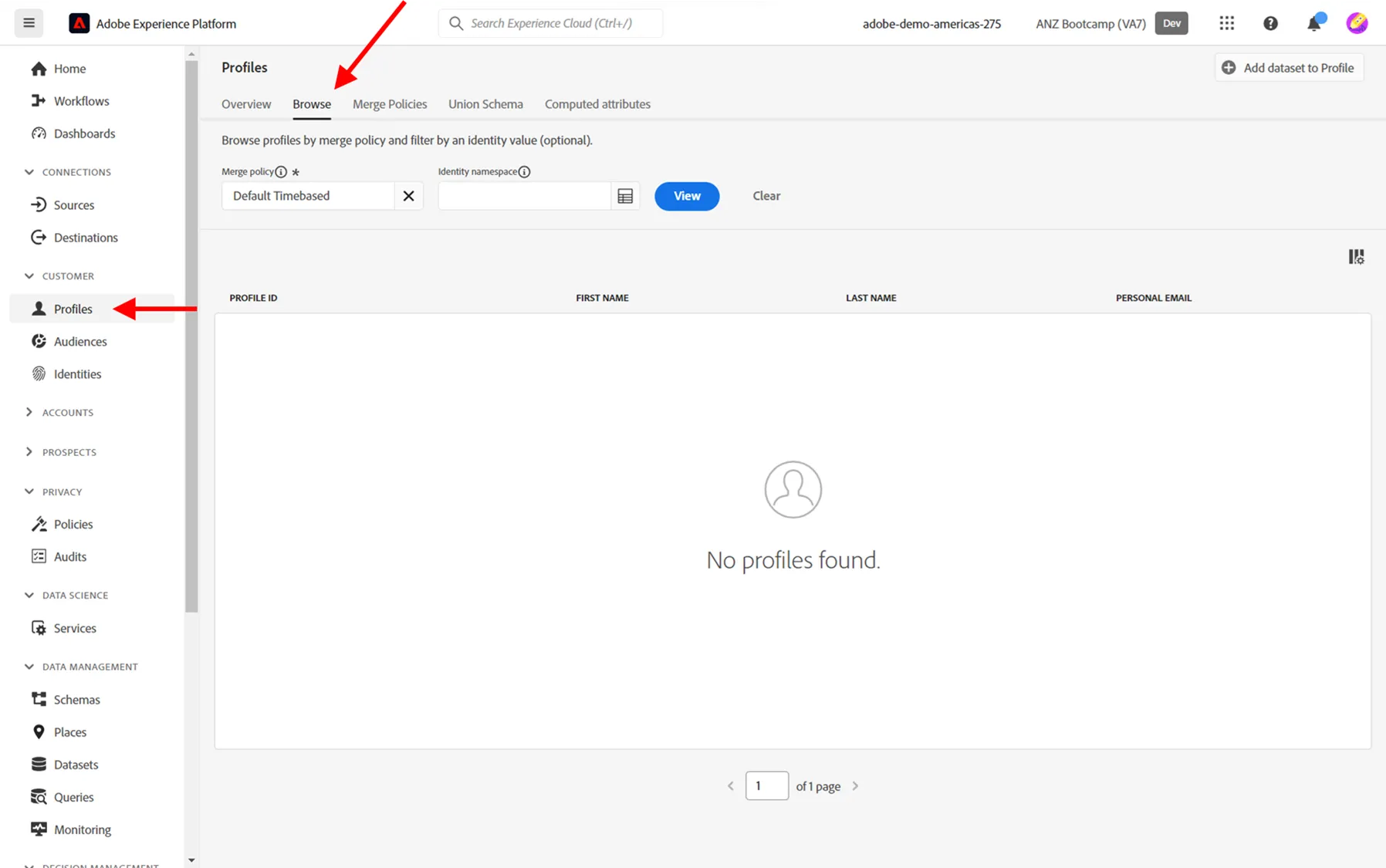
In the left menu of Adobe Experience Platform, go to Profiles in the Customer section and then select the Browse tab. NOTE: There are also Profiles under Accounts section which relate to B2B use cases, but you will be looking at your profile in the Customer section.
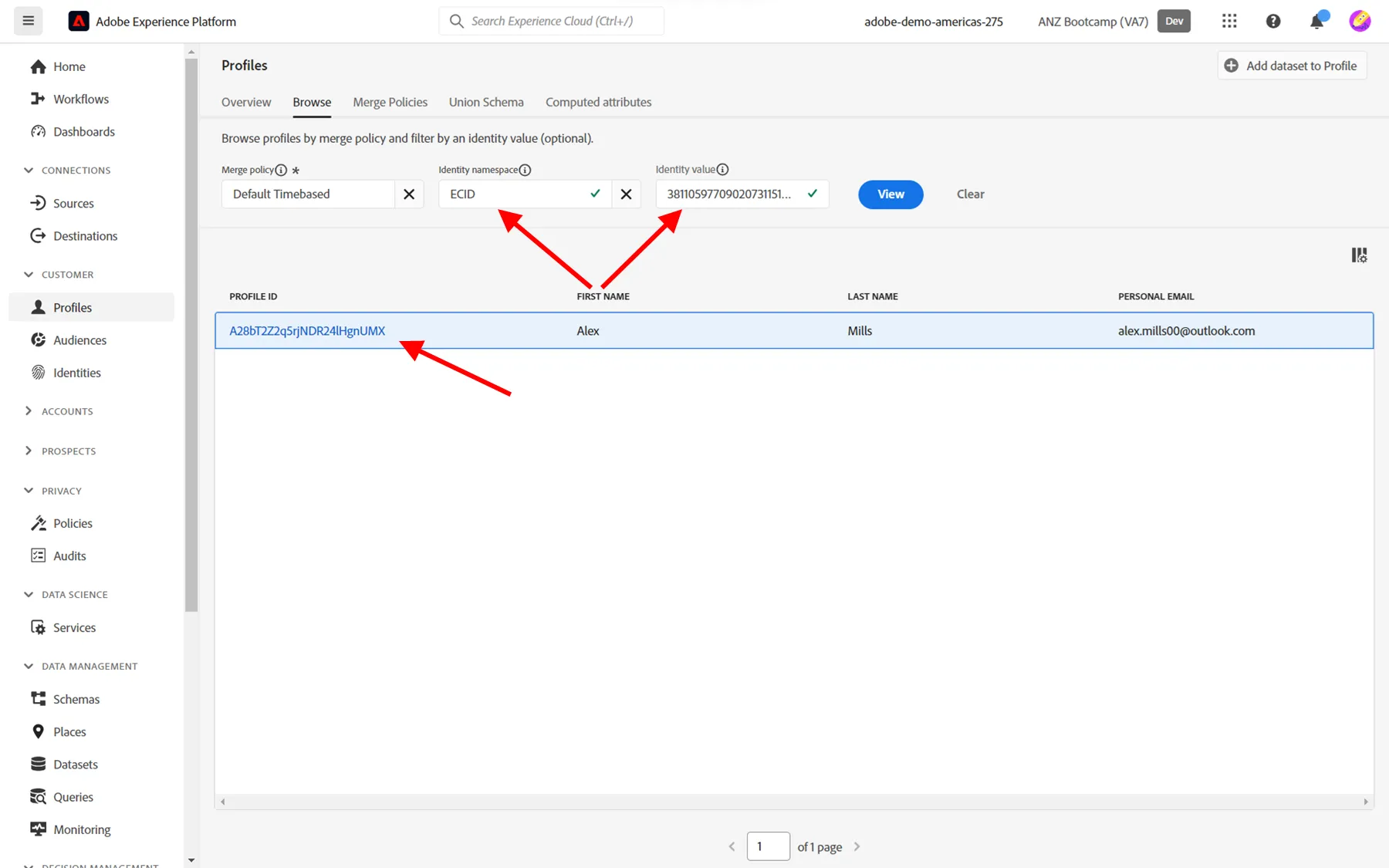
For the field Identity namespace, select ECID and for the field Identity Value enter the ECID you copied from the Profile Viewer panel on the bootcamp website. Click View. You'll then see your profile in the list. Click the Profile ID to open your profile.
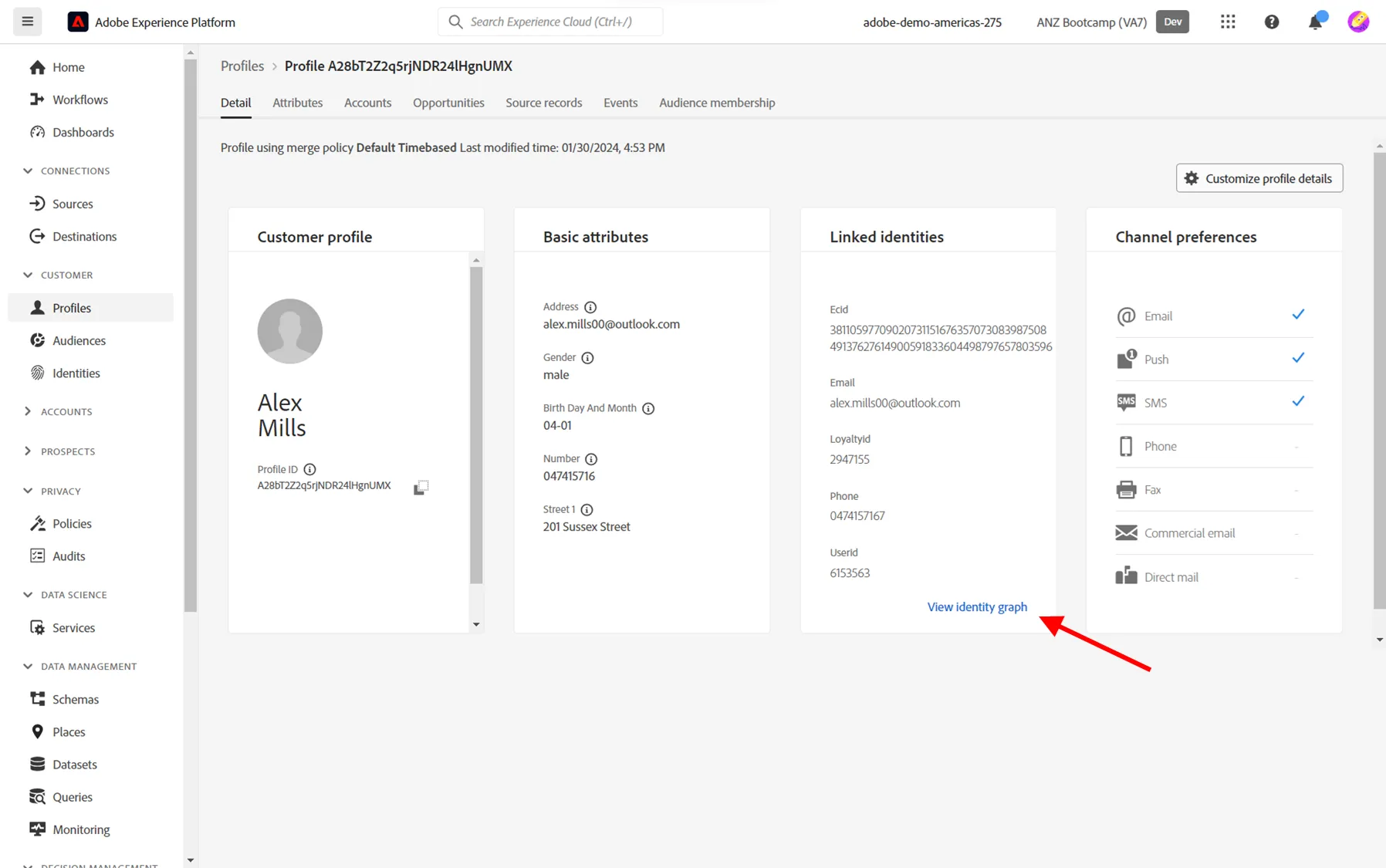
You now see an overview of the profile attributes and linked identities for your customer profile, such as the ECID, the identity email as well as loyalty Id and CRM Id that were assigned to your account upon registration. Please copy and save all these identities for use in tomorrow's hands on exercises.
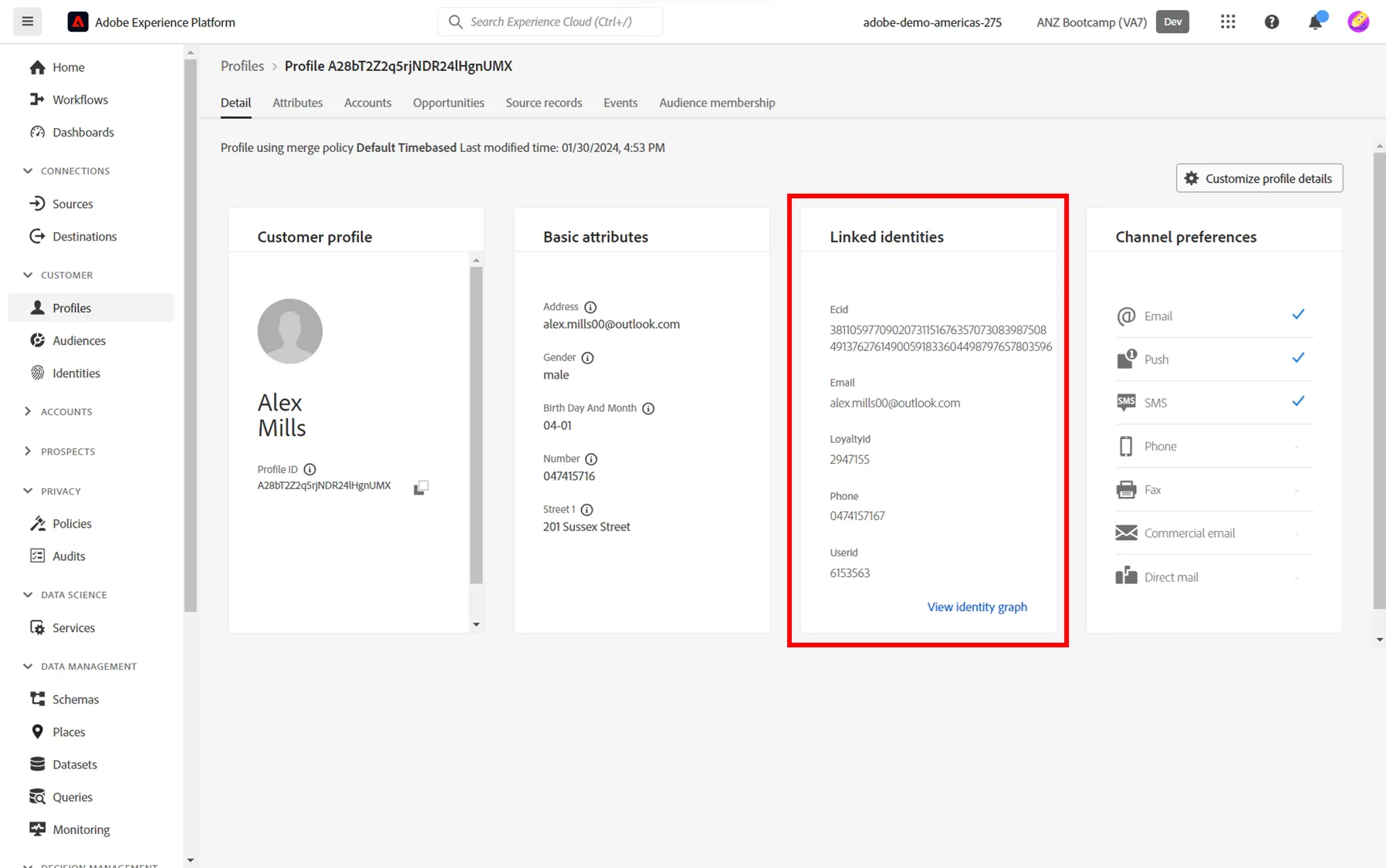
Now that you have saved all the identities for tomorrow's exercises, you can take a closer look at other information associated with the profile.
Click on the View identity graph link at the bottom of Linked identities panel, a new tab will open.
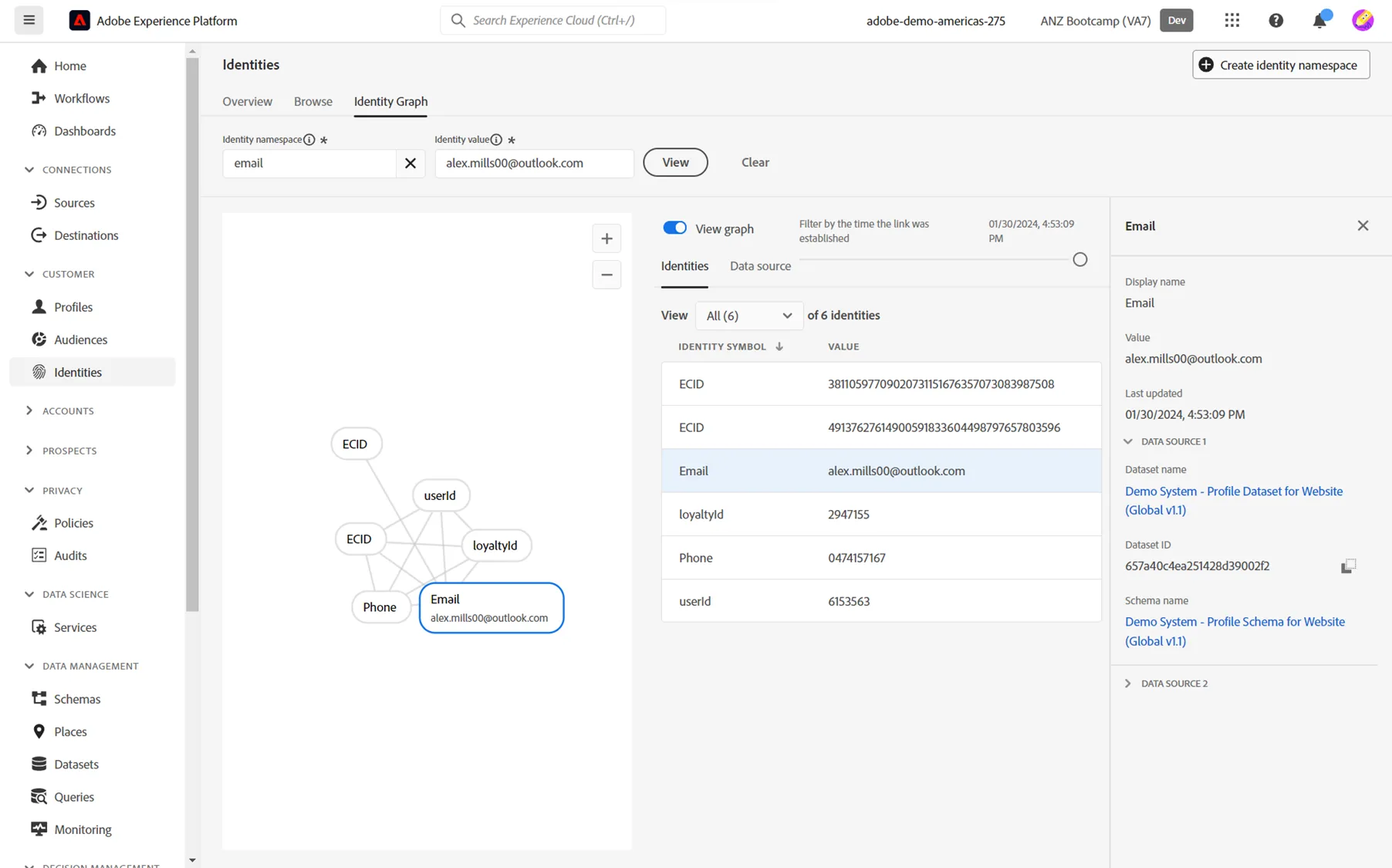
This tab will be displaying your identity graph and how all the identities associated with your profile have been linked together. You can select the individual identities to view more detail about them in the right rail.
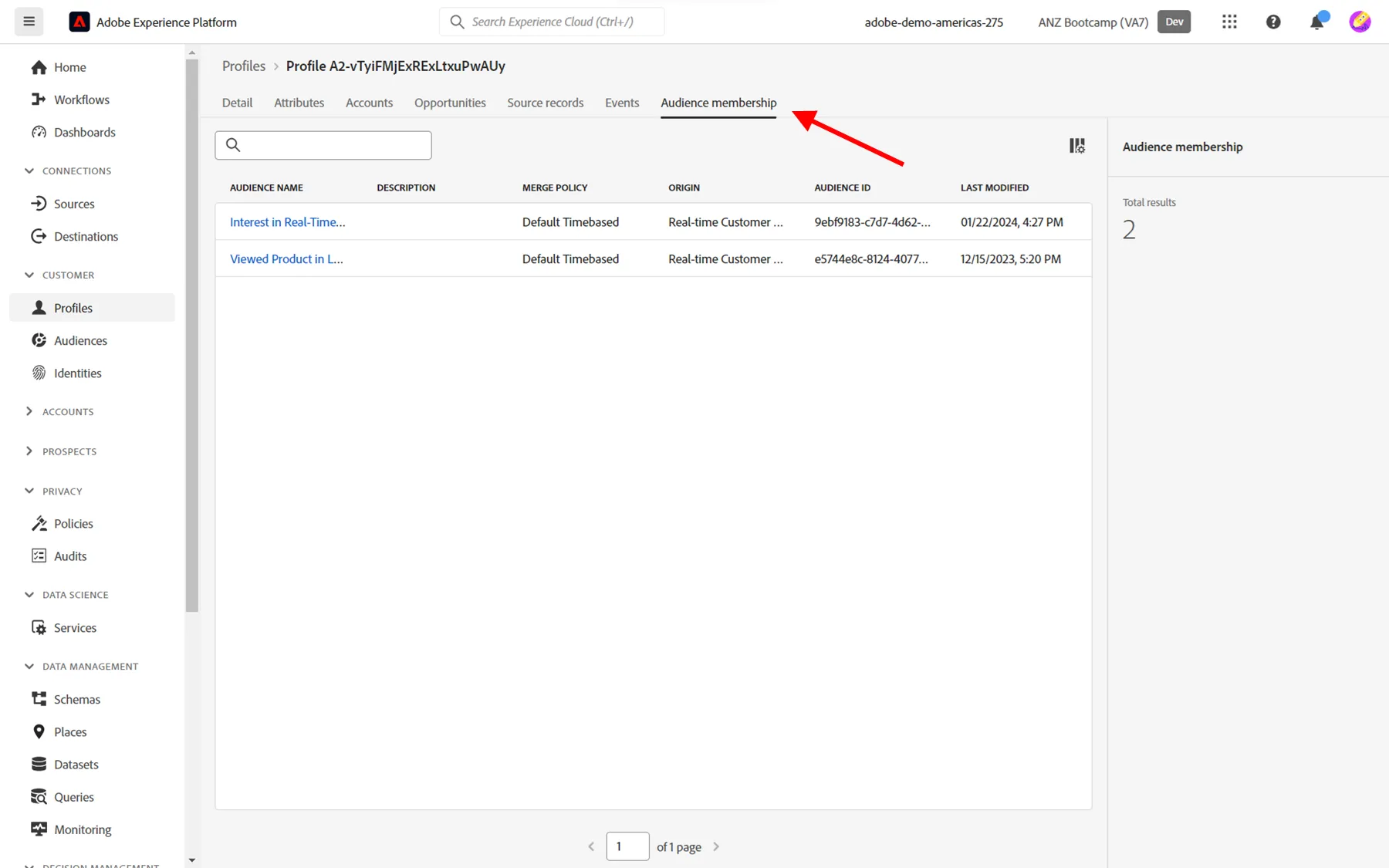
Returning to the previous browser tab, go to the menu option Audience membership. You'll see all audiences that this profile qualifies for, including "Interest in Real-Time CDP" that you were working with before.
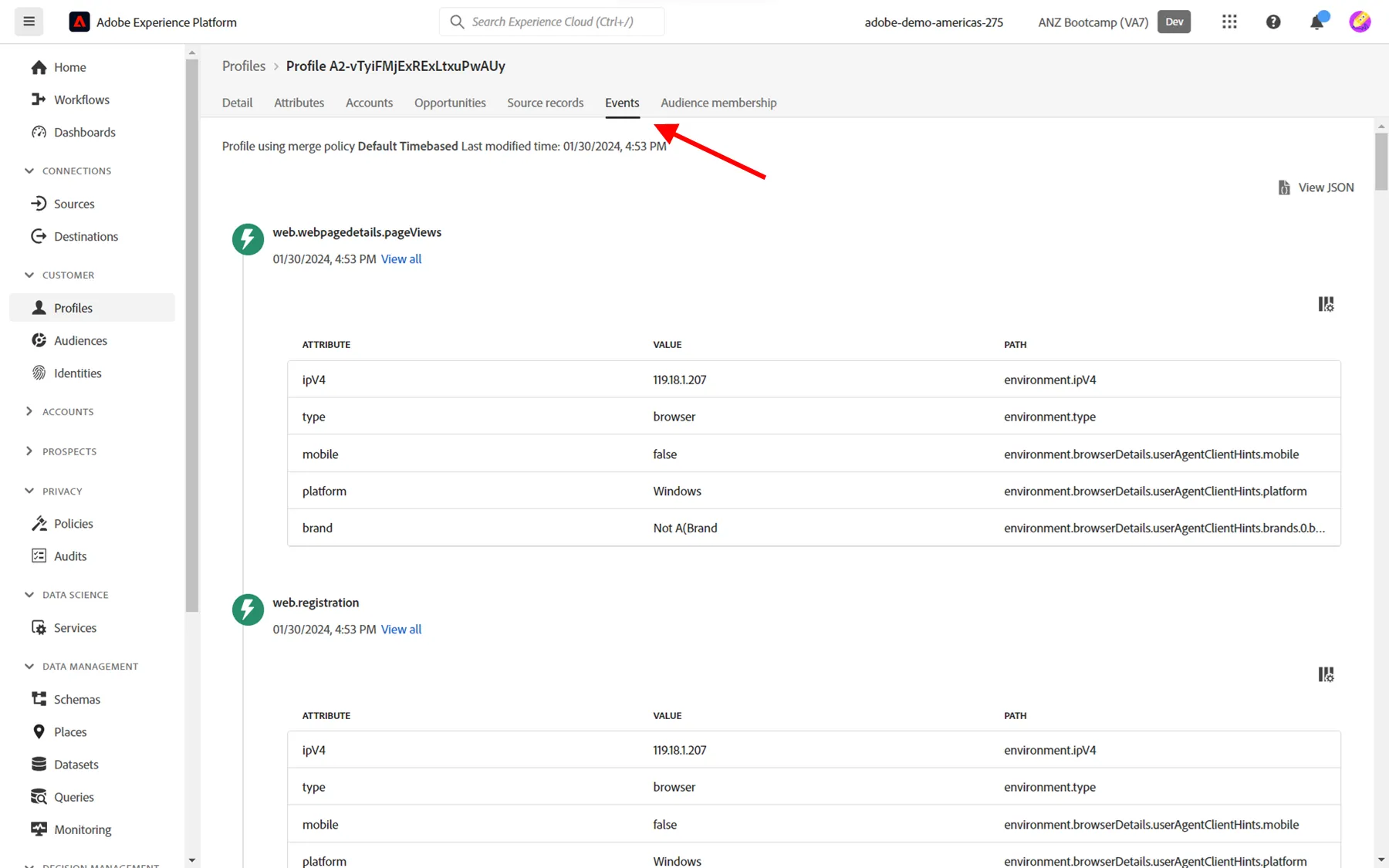
Finally, go to Events, where you can see entries for every experience event that has been linked to your Profile so far, both across anonymous stage as well as since registration. These events will include a registration event that was used by Adobe Journey Optimizer to trigger the journey that sent you the welcome email.
Exercise complete checklist
Able to search a profile and view the profile details
Able to view the identity graph
Able to view the profile events and audience membership
Let's now build a journey in Adobe Journey Optimizer to support the registration process.