3.2 Offer Decisioning Fundamentals
Use Adobe Journey Optimizer (AJO) to deliver the best offer and experience to your customers across ANY touch points at the right time. This can be across email, web or any other non-digital channels including in store or call center systems as seen in the previous exercise.
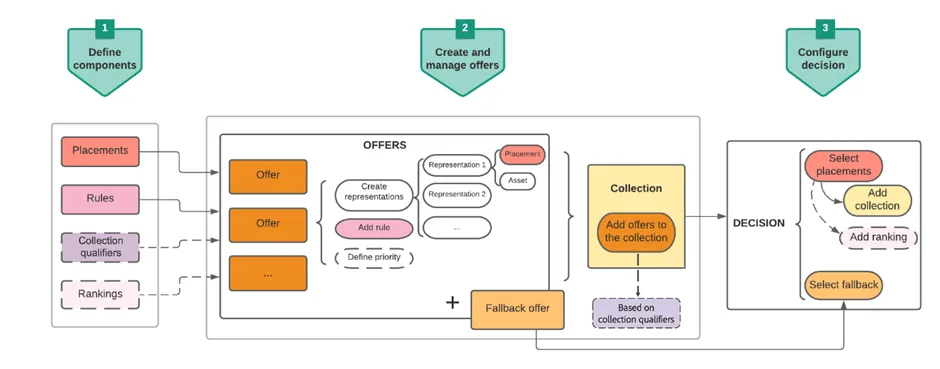
The Decision Management capability consists in two main components:
- Centralized Offer Library which is the interface where you create and manage the different elements that compose your offers and define their rules and constraints
- The Offer Decision Engine which leverages Adobe Experience Platform data and Real-time Customer profiles, along with the Offer Library, in order to select the right time, customers and channels to which offers will be delivered
To get a better understanding about Offer Decisioning, you can get more information here on how the Offer Decisioning Application Service works with Adobe Experience Platform.
Steps:
Lets take a look at the steps to define components & create/manage offers.
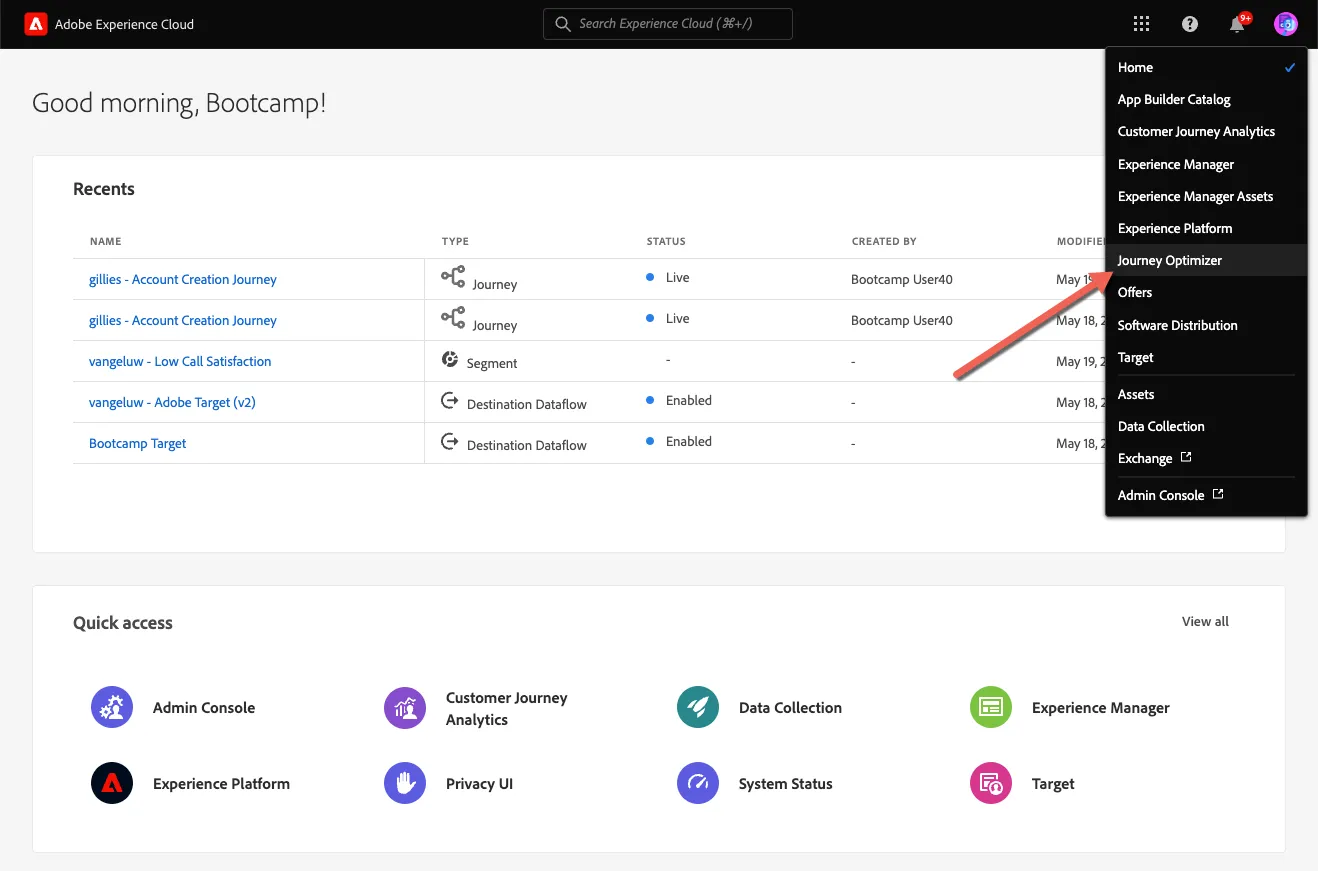
Login to Adobe Journey Optimizer by going to Adobe Experience Cloud. Click Journey Optimizer from the Experience Cloud Home page, or use the solution switcher to change solutions.
3.3.1 Define components
Click Components in the left side menu. You'll now see the Components section, which contains things like Placements, Rules and Rankings. (to be created in the demo instance)
3.3.1.1 Placements
In the Placements tab you can define your placements for your offers. When you define a decision the placement defines where the resulting offer will appear (Channel Type) and in what shape or form (Content Type).
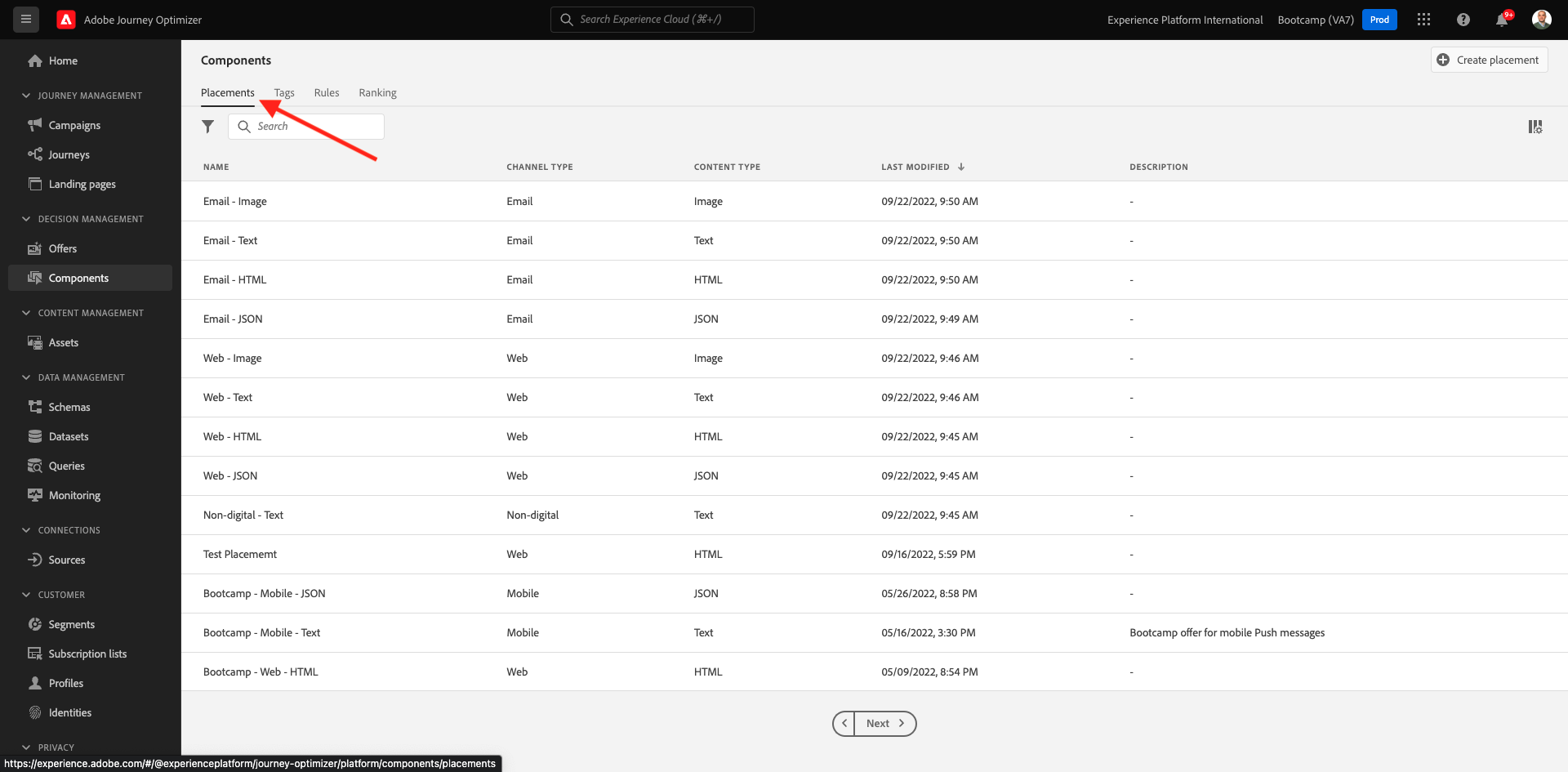
Note: Please do not change anything to the placements already available.
Click on any placement to visualise its settings in the right side bar.
You'll now see all fields of the placement:
- Name of the Placement
- Placement ID
- Channel Type for the Placement
- Content Type of the Placement, which can be Text, HTML, Image or JSON
- Description field allowing to add additional description for the Placement
3.3.1.2 Define Rules
A Rule, also called eligibility rule, is the equivalent of a Segment. A Rule is in fact a Segment itself with the only difference that a Rule can be used with an Offer to provide the best offer to a profile in Adobe Experience Platform.
As you already know how to define Segments based on the previous enablement modules, let's just quickly revisit the Segmentation Environment:
Go to Rules. Click + Create Rule.
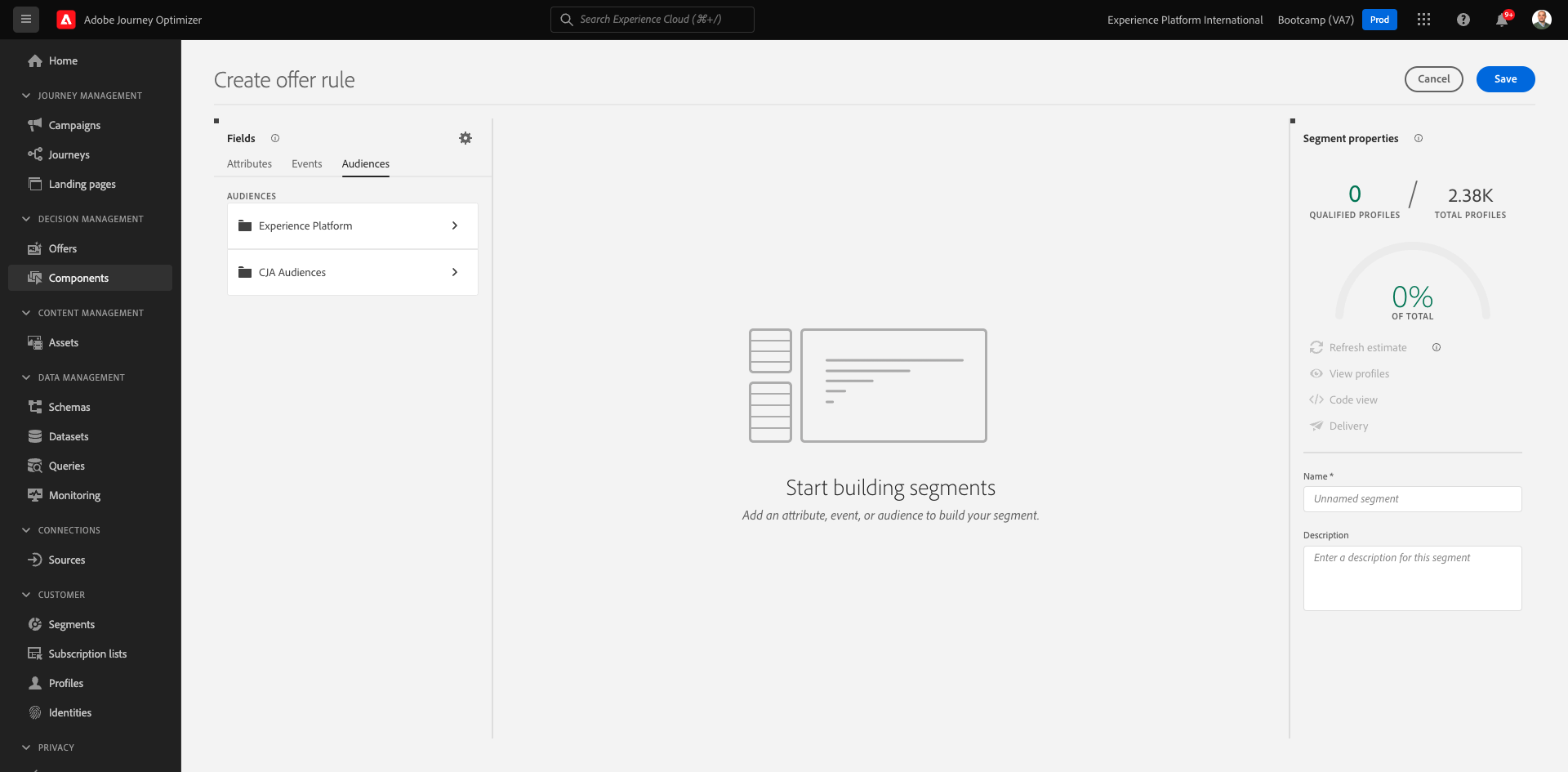
You'll then see the familiar segmentation environment of Adobe Experience Platform.
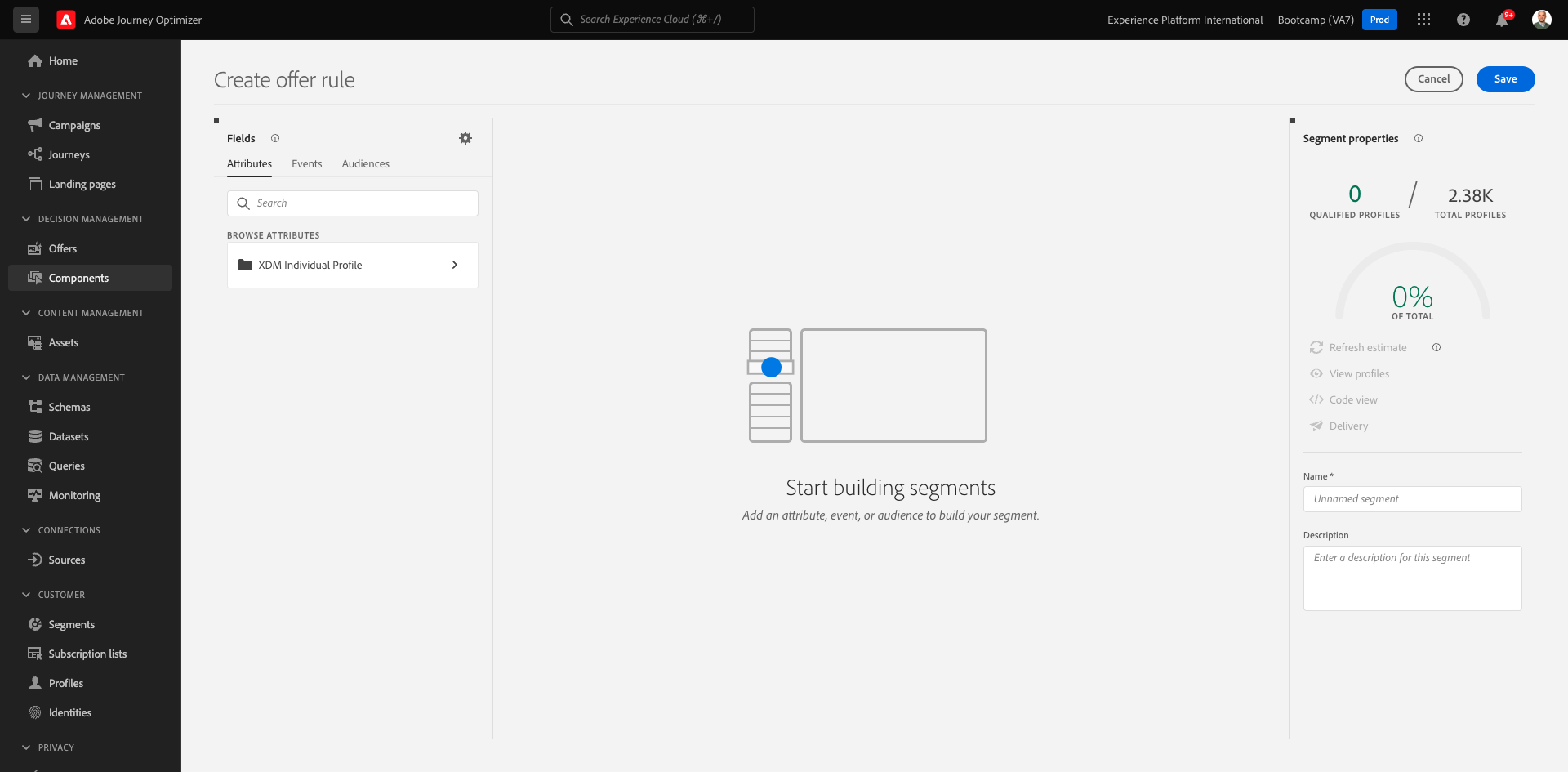
You can now access all fields that are part of the Union Schema for the Real-time Customer Profile and can build out any rule.
It's also interesting to know that you can simply reuse already defined segments in Adobe Experience Platform, by going to Audiences > Experience Platform.
You'll then see this:
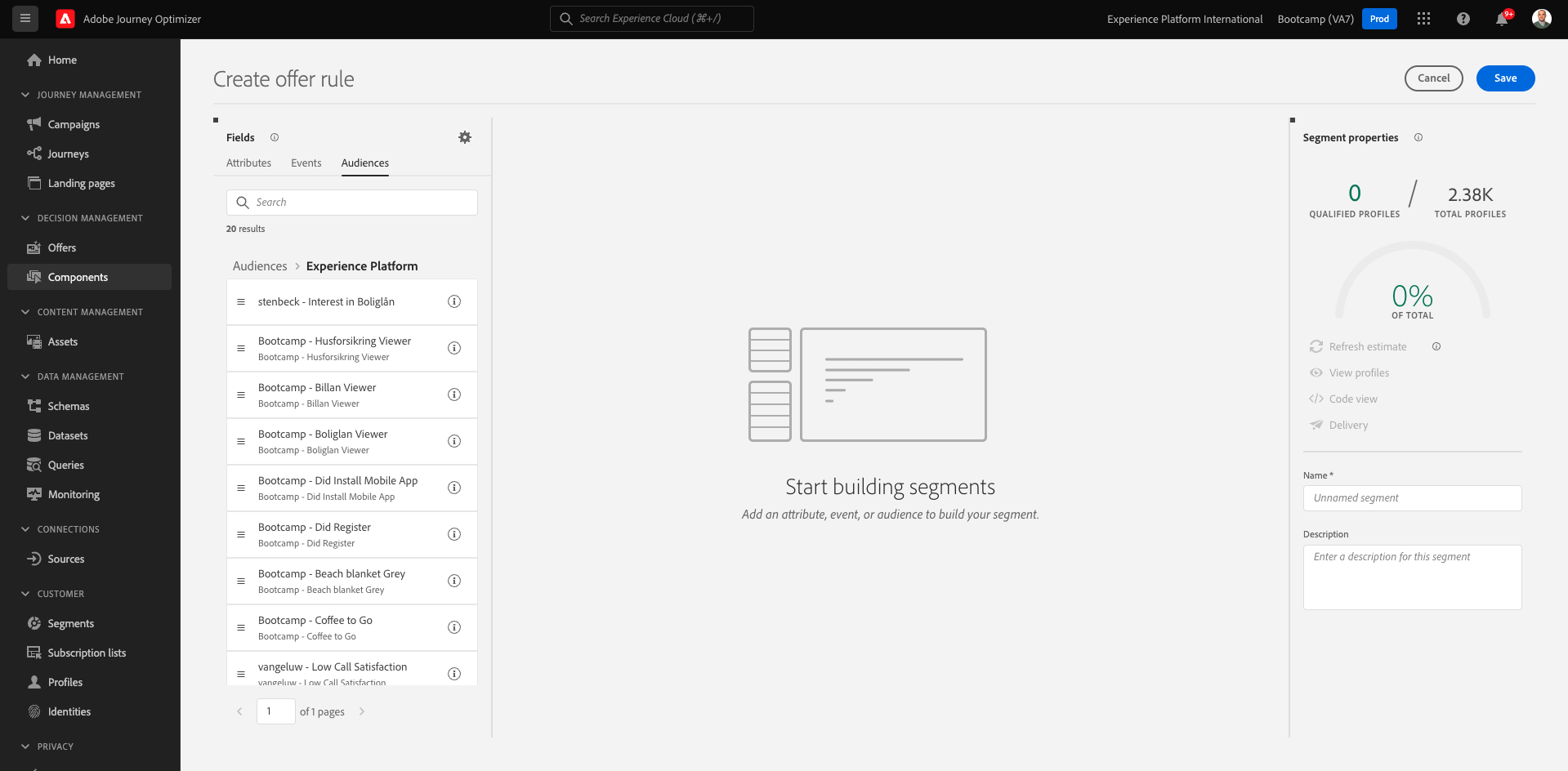
3.3.2 Create & Manage Offers
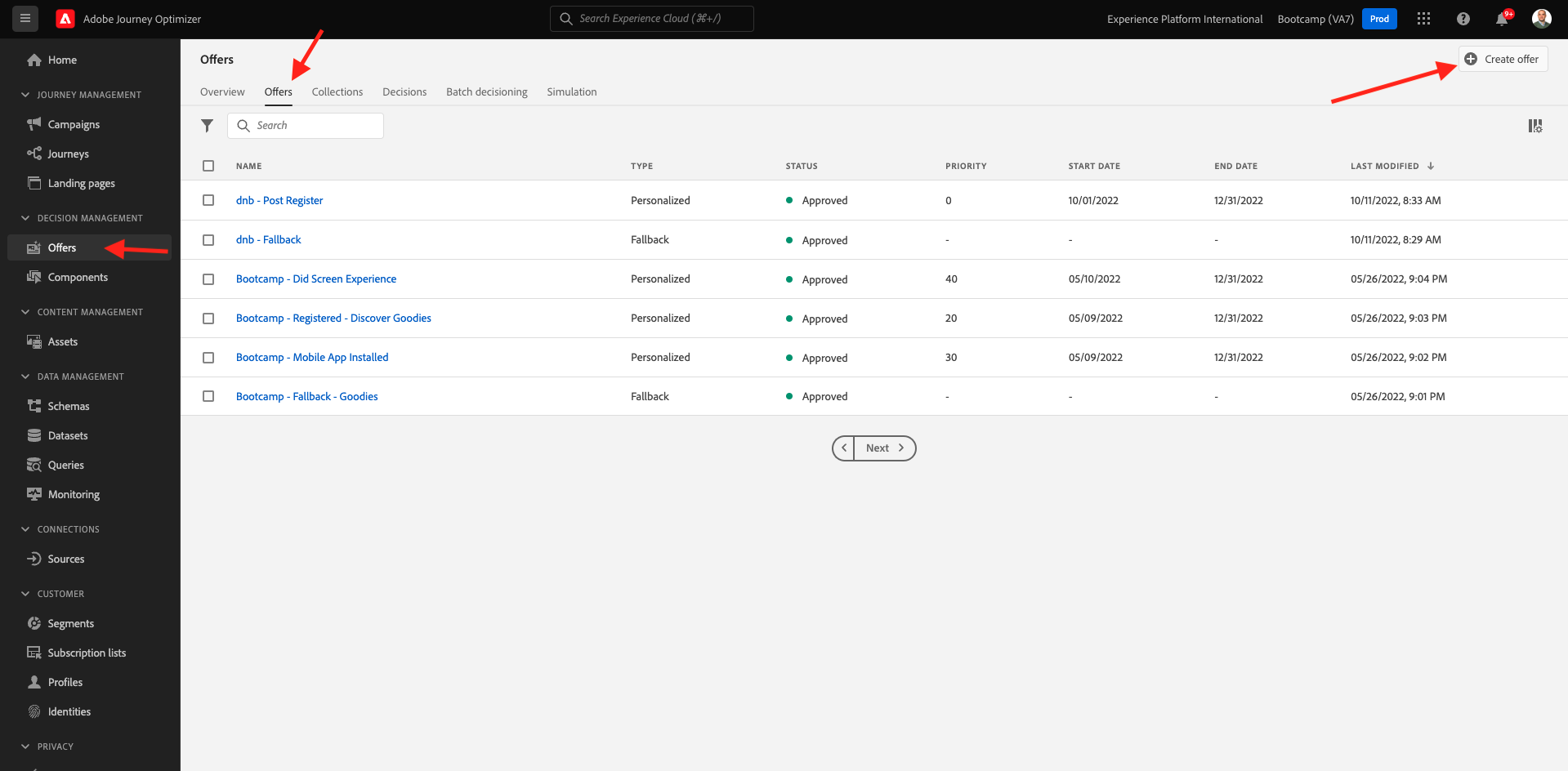
Now that we have set the components, lets go back to Offers in the left navigation and select the Offers tab. Click + Create Offer in the top right.
You'll then see this popup.
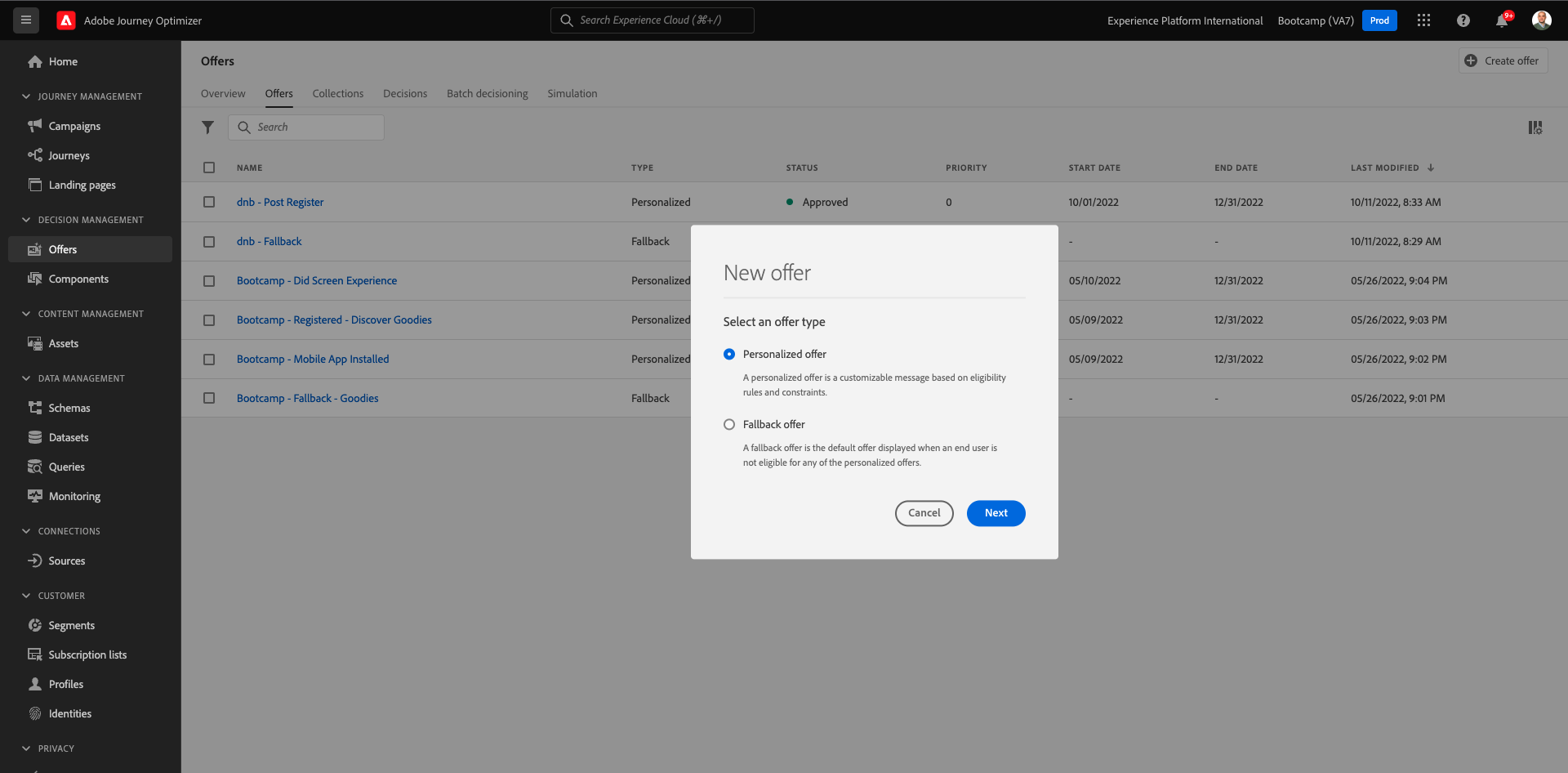
You now see that there are two types of offers:
- Personalised Offers
- Fallback Offers
A Personalised Offer is specific content that should be shown in a specific situation. A Personalized Offer is specifically built to deliver a personal and contextual experience if specific criteria are met.
A Fallback Offer is an offer that is shown if the criteria for Personalized Offers aren't met.
Click Cancel.
3.3.3 Create & Configure Decisions
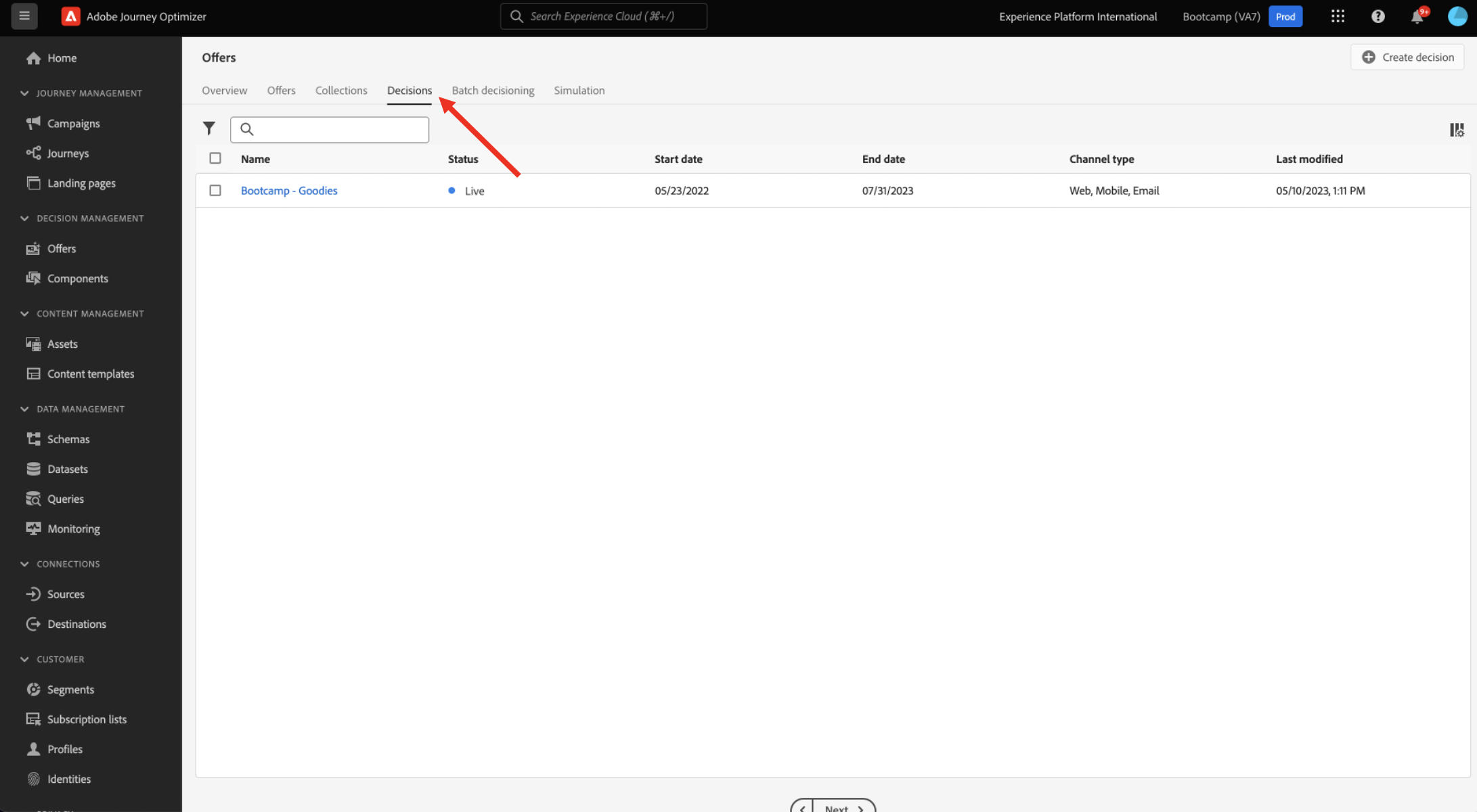
A Decision combines placements, a collection of personalised offers and a fallback offer to ultimately be used by the Offer Decisioning engine to find the best offer for a specific profile, based on each of the individual personalised offer characteristics like priority, eligibility constraint and total / user capping.
Click on Decisions tab to see what's available for the relevant channels.
Terminology
Working with Offer Decisioning, you need to understand the following concepts:
Term | Explanation |
|---|---|
Offer | An offer is a marketing message that may have rules associated with it that specify who is eligible to see the offer. An offer has a status: draft, approved or archived. |
Placement | The combination of locationor Channel Type) and contextor Content Type) in which an offer appears for an end-user. Effectively it is the combination of Text, HTML, Image, JSON in Mobile, Web, Social, Instant Messaging, and non-Digital channels. |
Rule | The logic that defines and controls the eligibility of end-users for an offer. |
Personalised Offer | A customisable marketing message based on eligibility rules and constraints. |
Fallback Offer | The default offer displayed when an end-user is not eligible for any of the offers in the collection used. |
Capping | Used in an offer definition to define how many times an offer can be presented in total and to a specific user. |
Priority | Level to determine the priority rank from a result set of offers. |
Collection | Used to filter out a sub-set of offers from the personalised offer list to speed up the offer decisioning process. |
Decision | A combination of a set of offers, placement and profile the marketer wants the decision engine to provide the best offer for. |
AEM Assets Essentials | A universal and centralised experience for storing, finding, and selecting assets across Adobe Experience Cloud Solutions and Adobe Experience Platform. |