3.3 Let's create some real Offers!
Exercise:
In this exercise, lets create an offer to drive mobile app download & usage. For reference, some offers (Winback Offer & Promotional) are already created in the platform for retention and sales.
Go to Adobe Journey Optimizer using the 9 dotted buttons on top right of your platform interface.
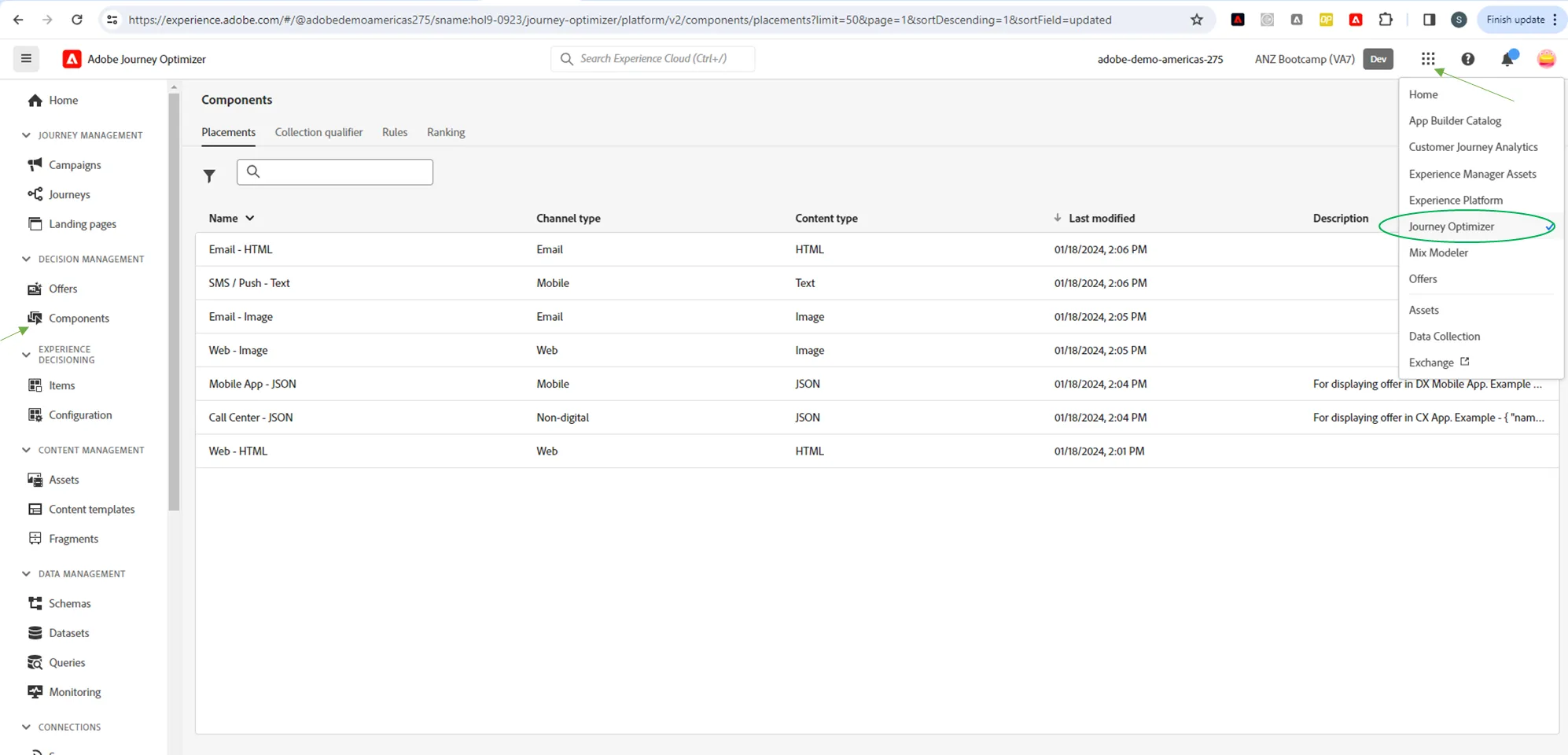
As shown in the previous exercise 3.3 there are 3 steps to creating a offer decision.
Step 1: Create Components
For the purpose of this exercise, Placements (Component) are already created for different channels that we'll use when creating offers.
Go to Decision Management -> Components -> Placements to view the different placements.
Step 2: Create offer
Go to Decision Management -> Offers -> Offers -> Click Create Offer -> Select Personalised Offer -> Next
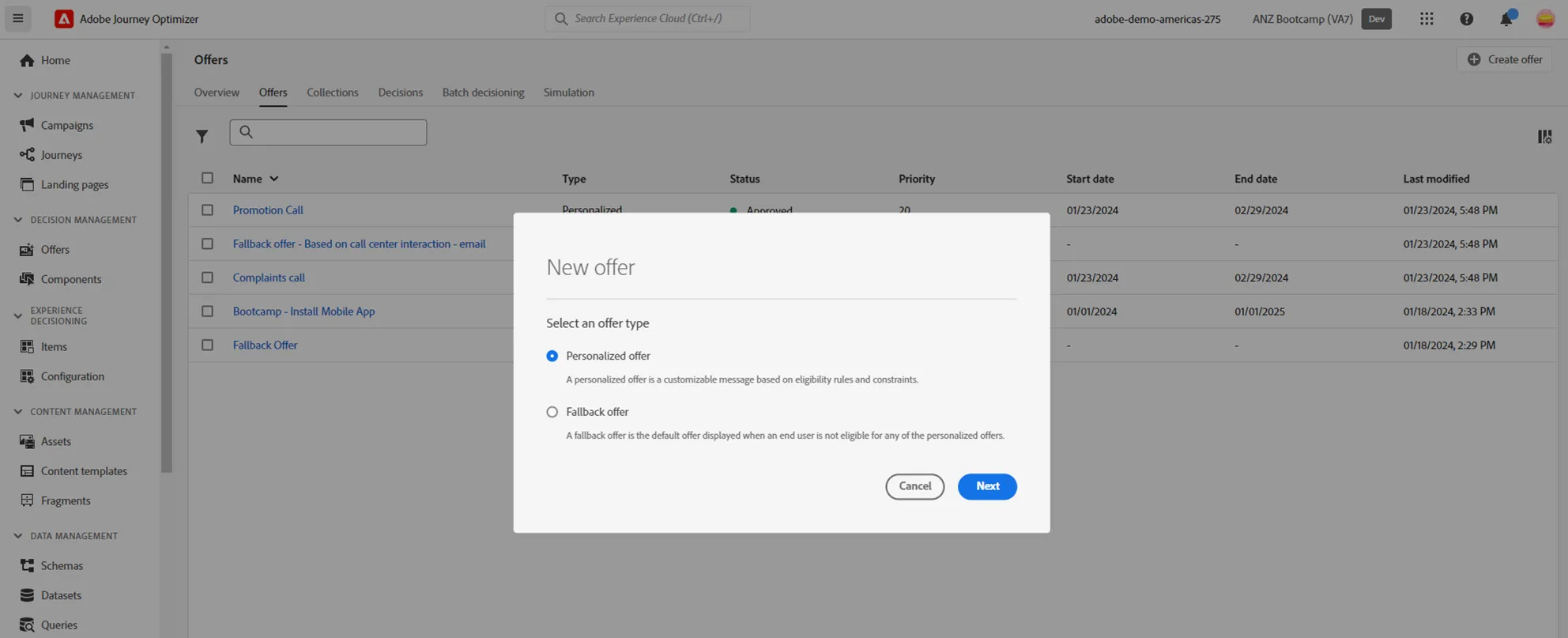
Enter the details.
- Name the offer as <lastname>_Download our Mobile App
- Enter start as today and end date as 29th Feb 2024.
- Collection Qualifier - type & select bootcamp
- Click Next
Add representation
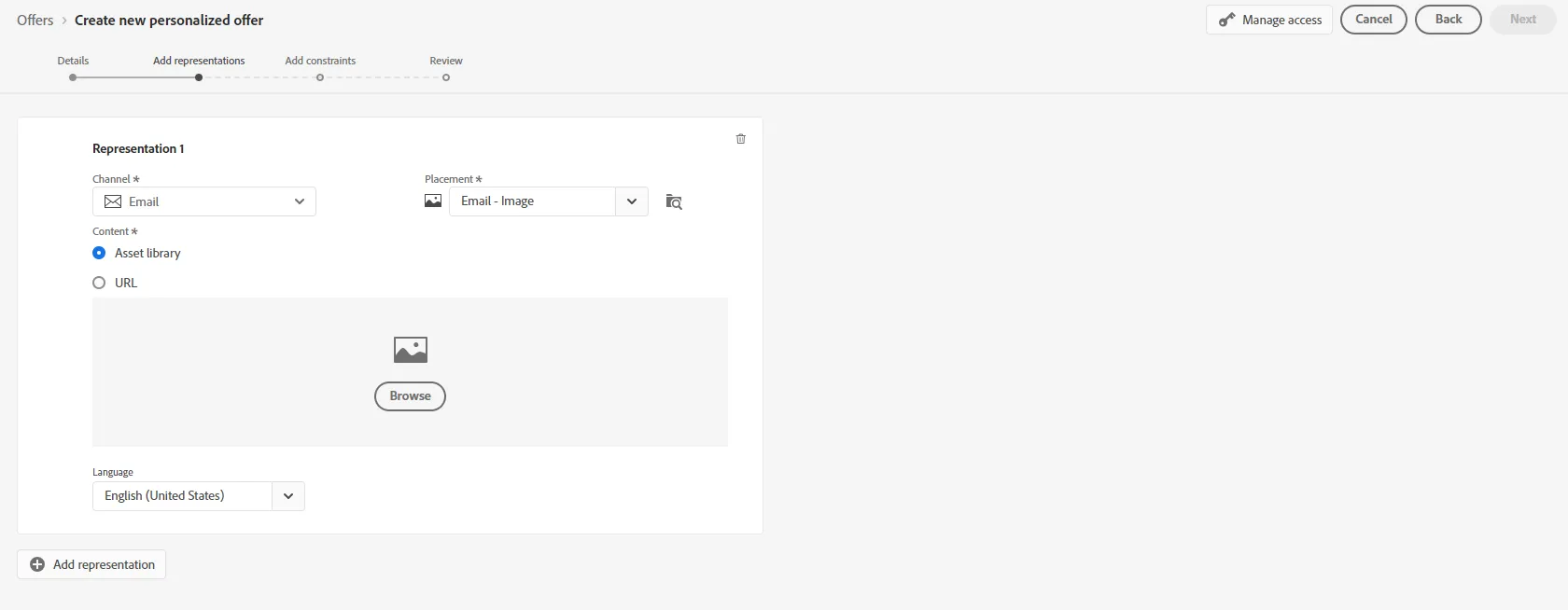
- Select channel as Email and Placement as Email - Image
- Click Browse to select the image - This opens up the Assets - Select the ANZ bootcamp folder and select the image download our mobile app Note that Assets Essential is included in the Adobe Journey Optimizer (with certain restriction on number of users)
- [Optional] You can add offers for other representations/channels - like Mobile JSON, Non Digital platforms etc.
- Click Next
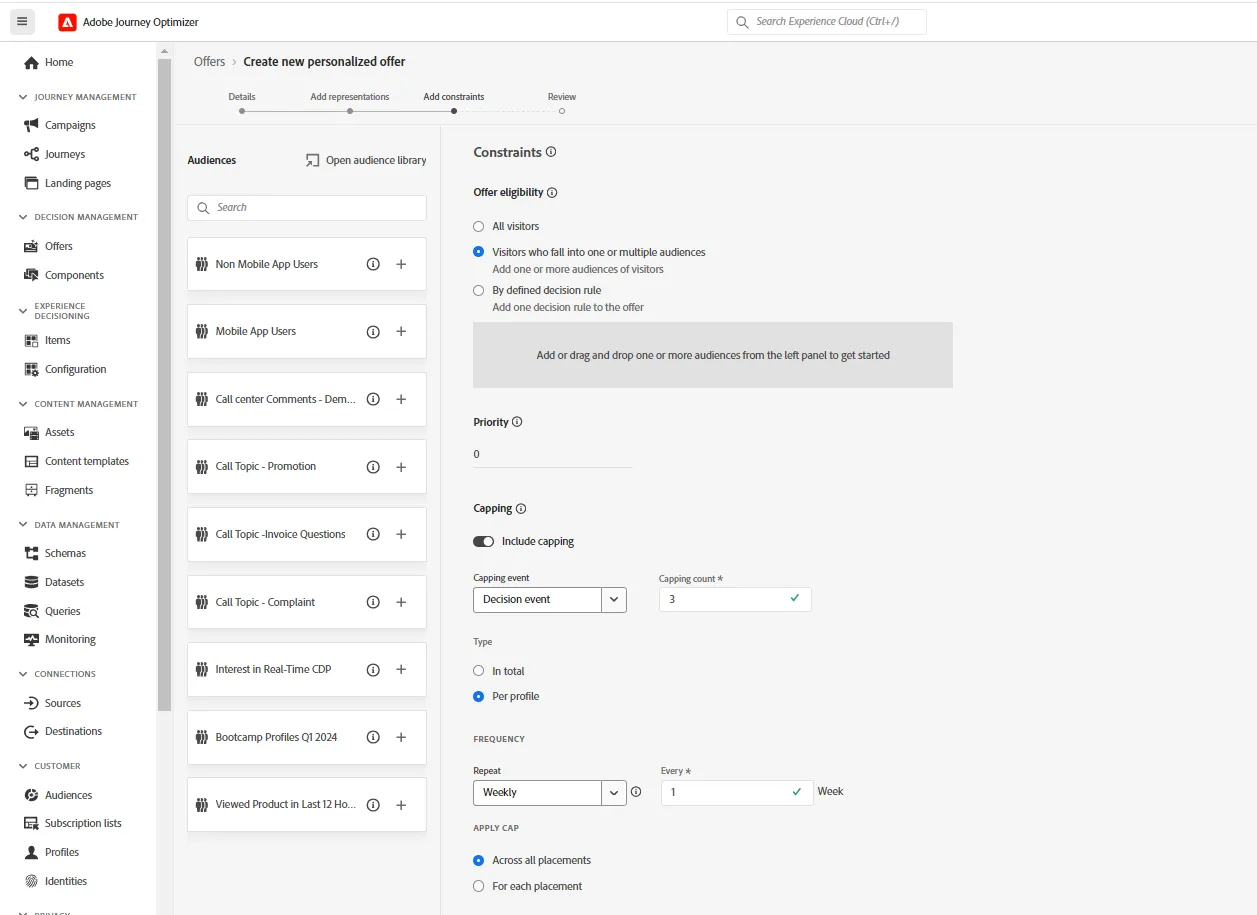
Add Contraints
- In Offer Eligibility, select Visitors who fall into one or multiple audiences
- Select the audience (this audience was pre created for the purpose of this exercise) - Non Mobile App Users
- Assign priority as 15
- Capping as 3 per profile per week across all placement
- Review & Finish and then approve
Step 3: Create Decisions
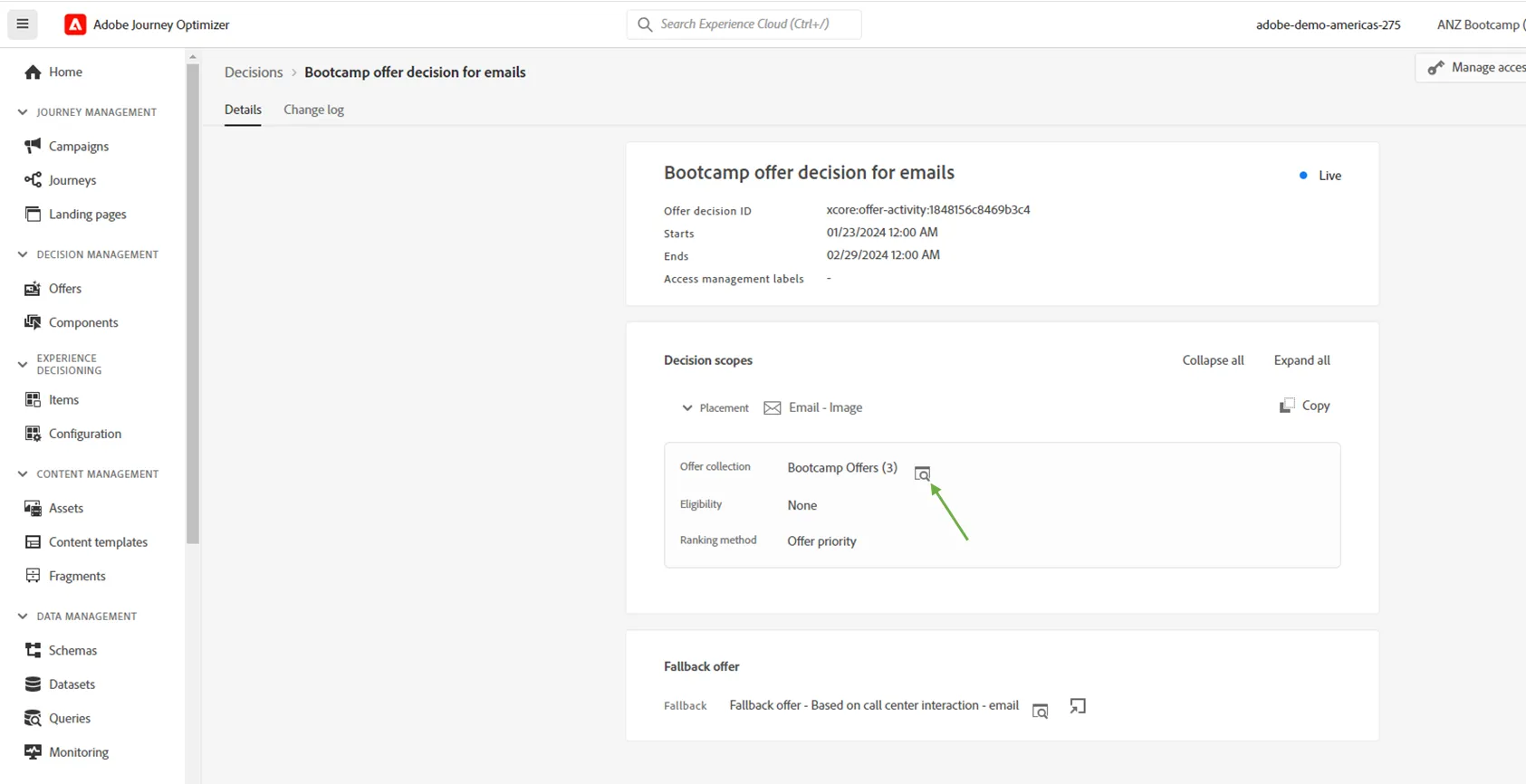
For the purpose of this exercise, a decision is already created. You can view the decision under Offers -> Decisions section. Click on Bootcamp offer decision
Withing Decision Scope placement - Email Image - Click on the offer collection to view all the offers including the new one that you've just created.
Exercise Complete Checklist
Created the Drive Mobile App download offer - <lastname>_Download our Mobile App
Was able to view the created offer in the decision scope (Step 3)