3.4 Use your decision in an email
Context
Now that we've build the offers, these offers can be used on any channels (based on the placements & the offers that you may have created for different representations).
Exercise:
In this exercise, you'll use the offer decision to personalise the content of an email.
3.5.1 Use Offer in Email
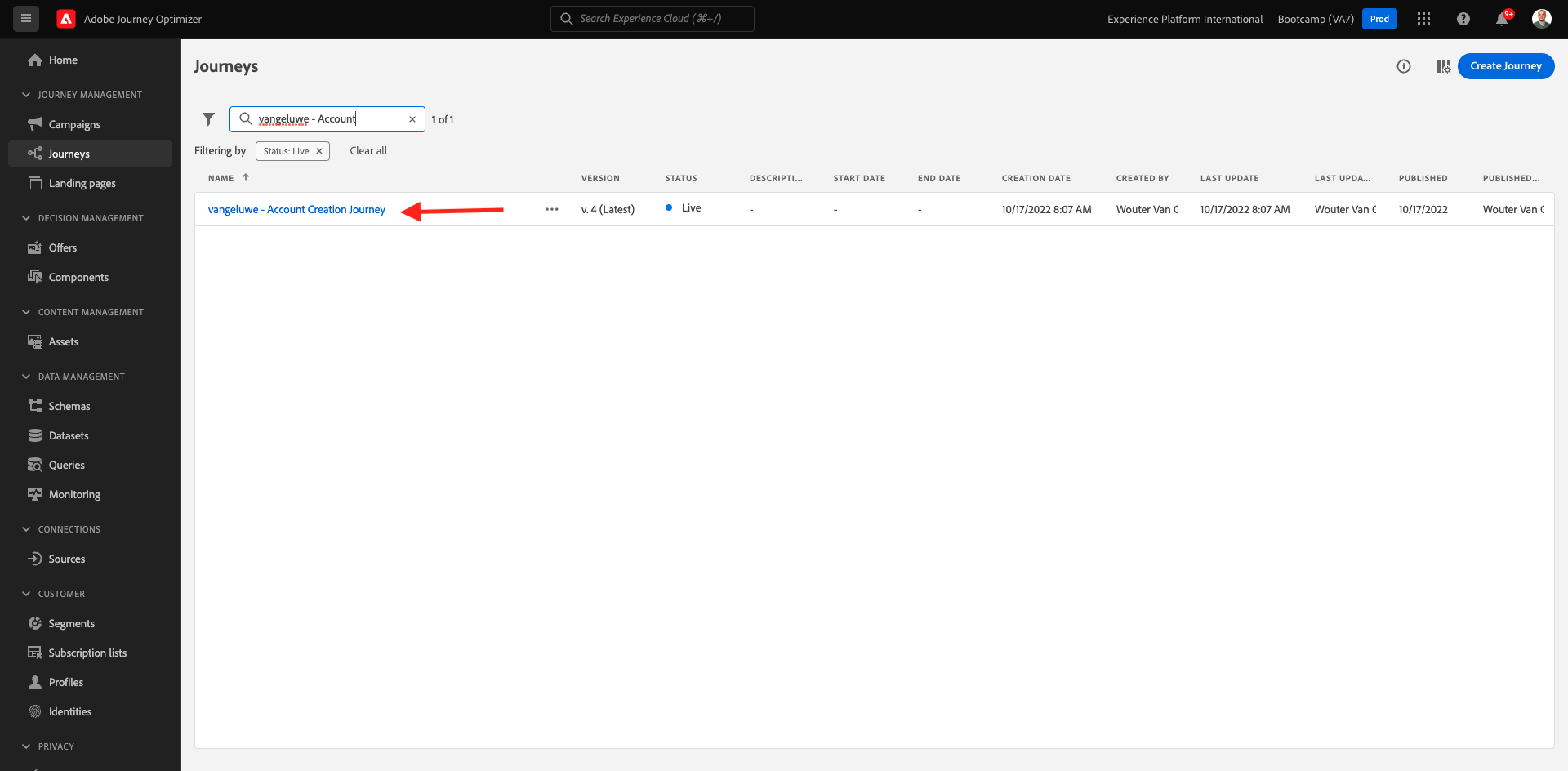
In Adobe Journey Optimizer go to Journeys in the left side navigation. Find the journey you created in exercise 2.3, which is named yourLastName - Login Journey. Click your journey to open it.
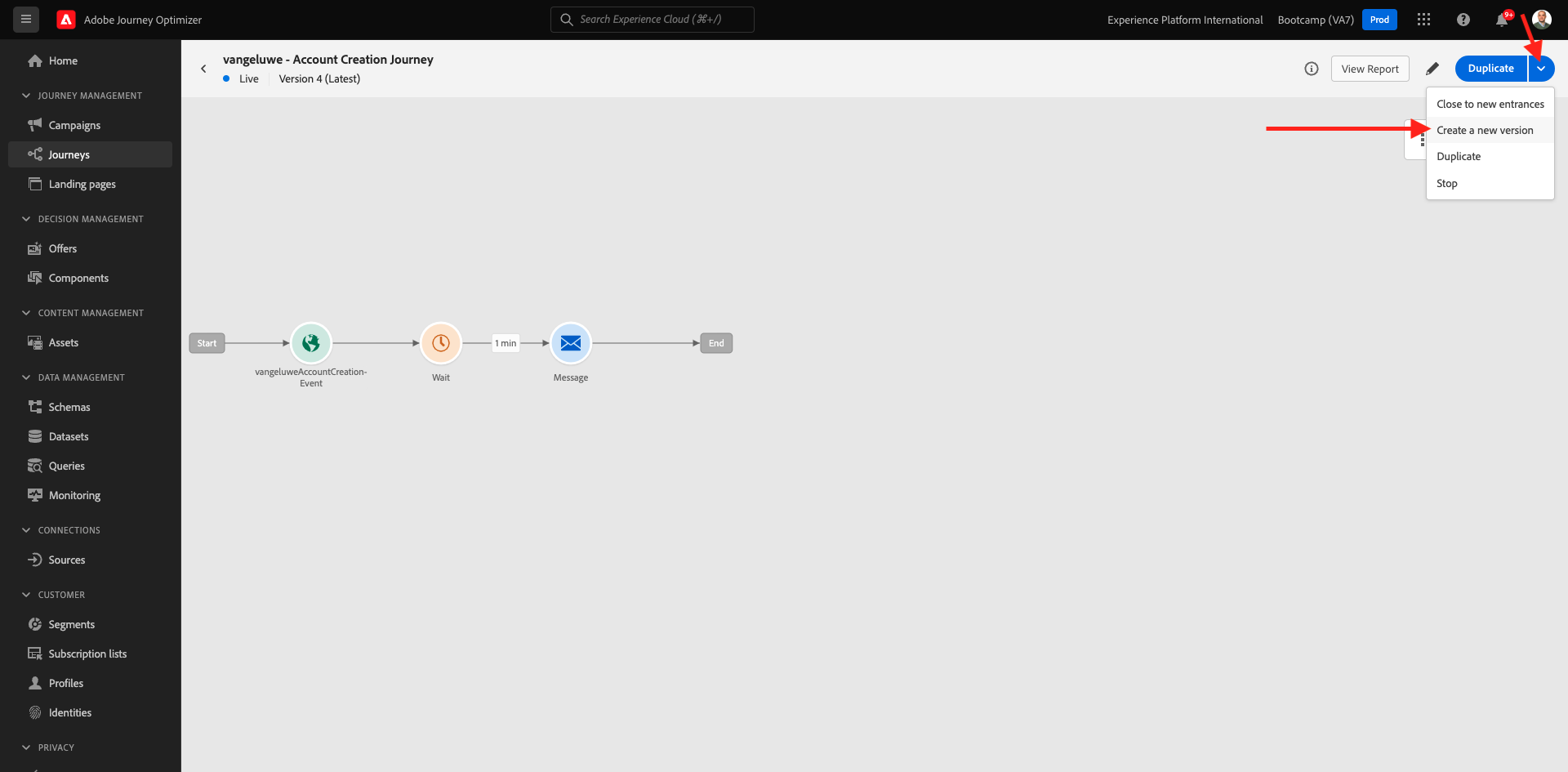
You'll then see this. Select Create a new version from the dropdown in the top right corner.
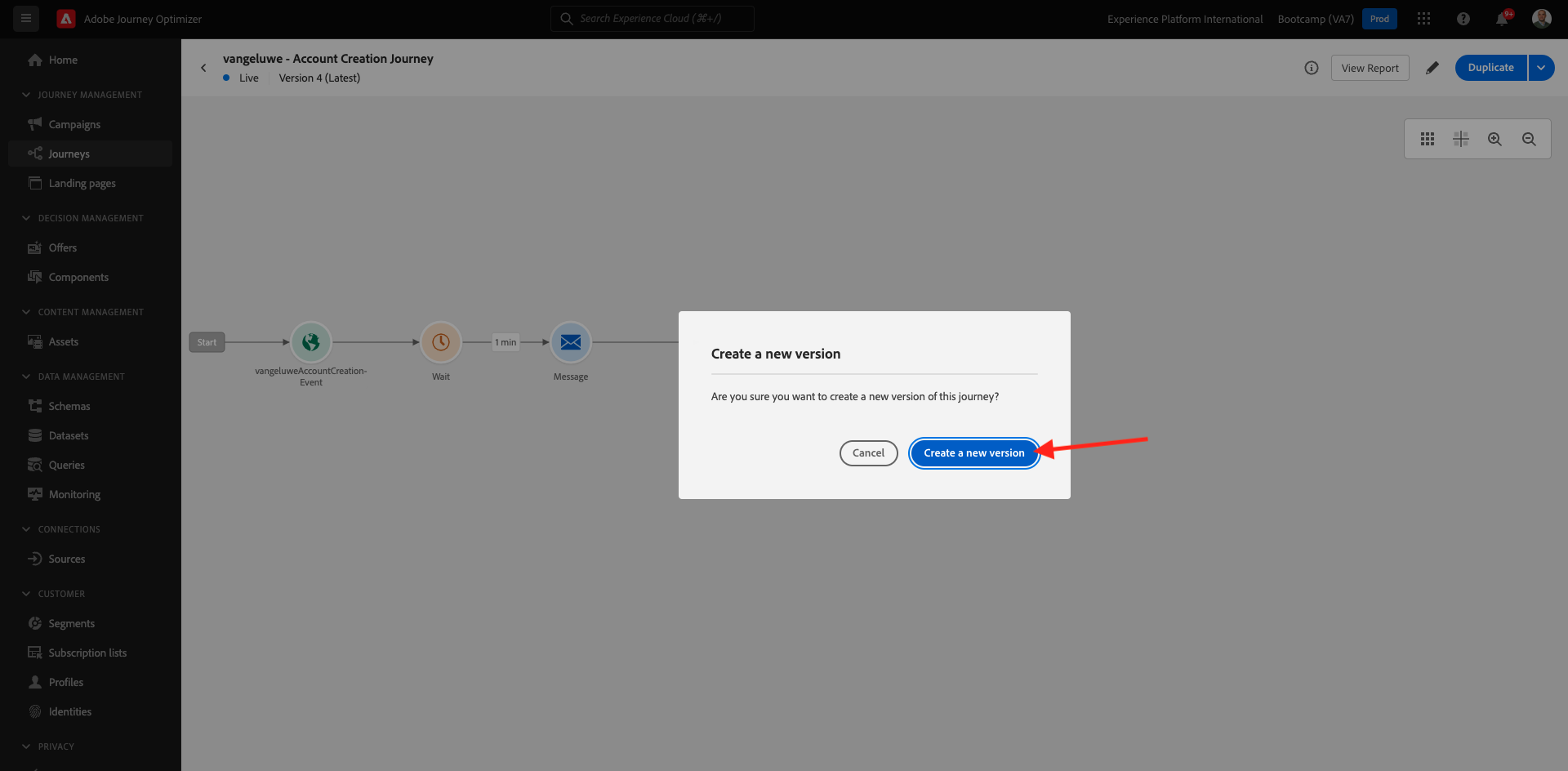
Click Create a new version.
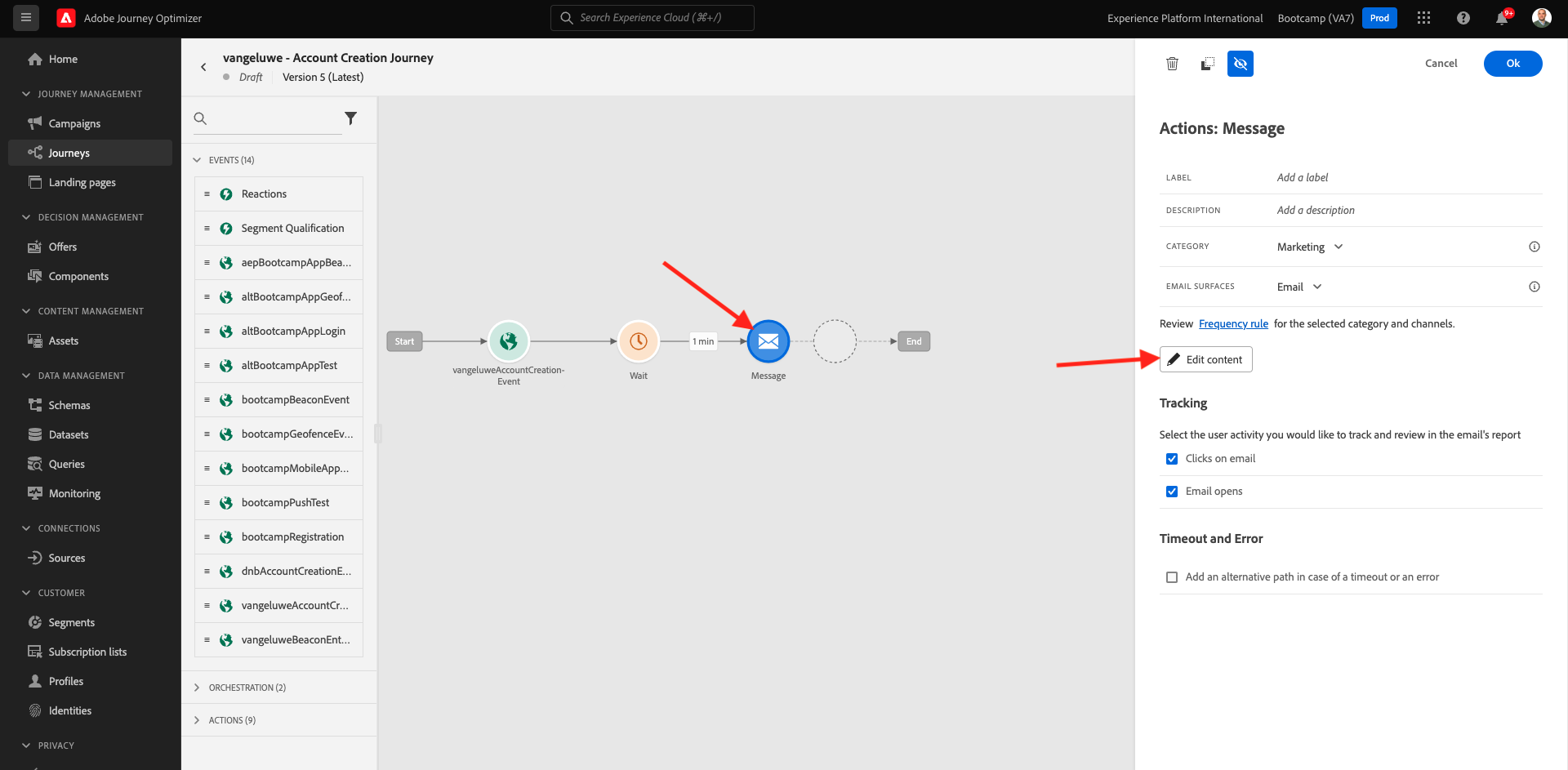
Select the Email action and then click Edit content.
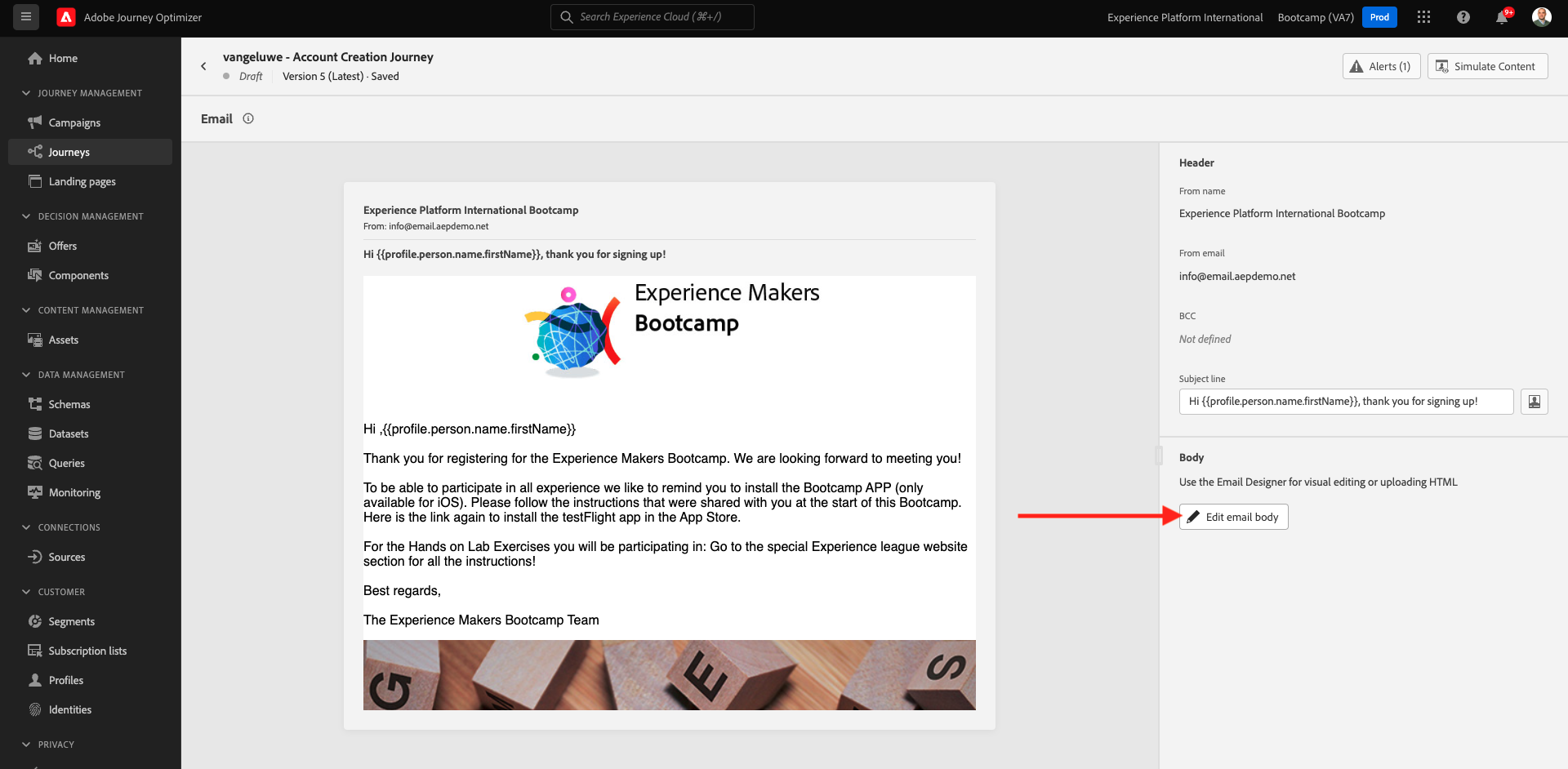
You'll see the message dashboard. Click Edit email body.
You'll then see the email editor interface.
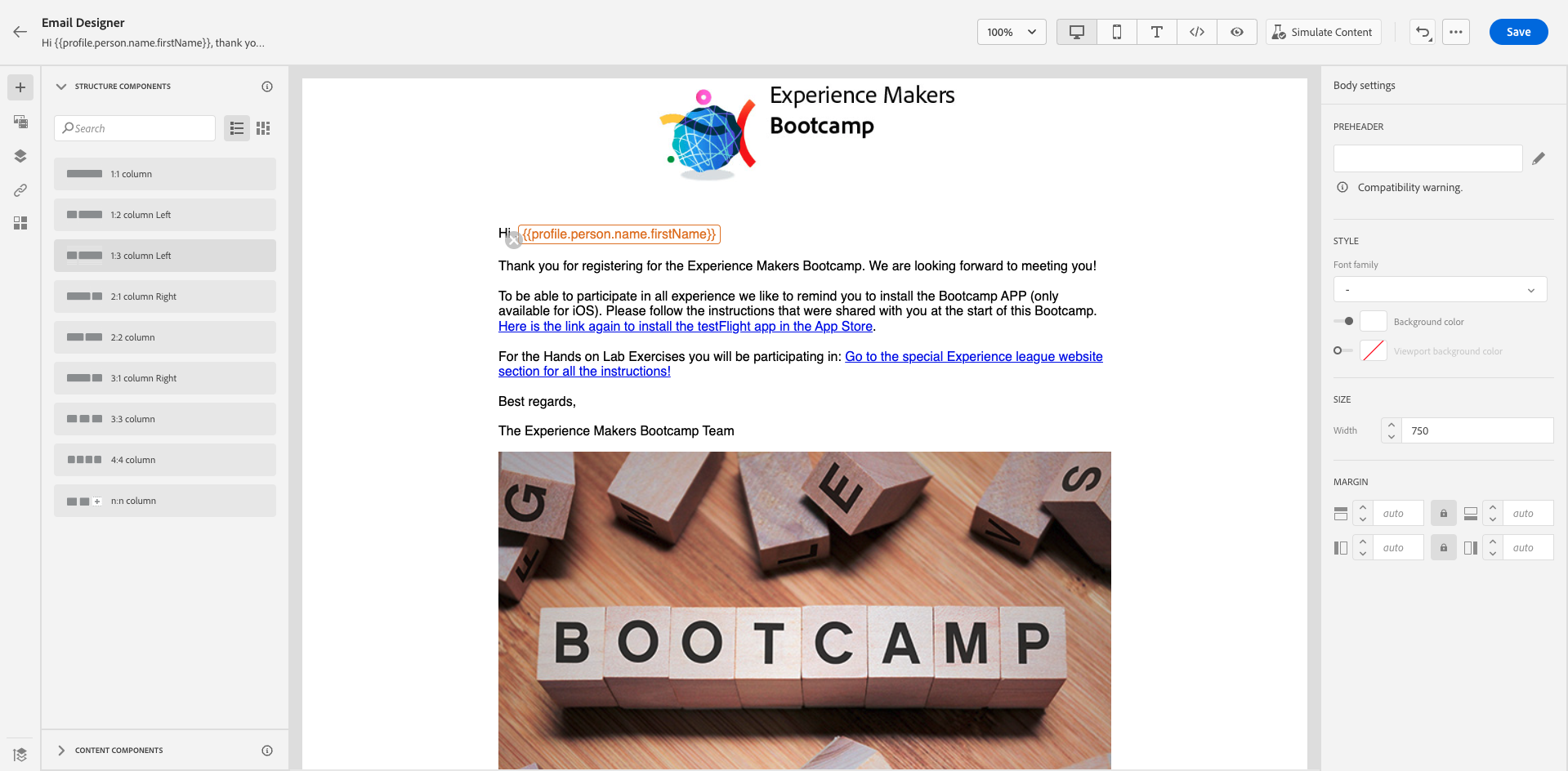
In the left hand side menu, go to Contents components. Select the Offer decision component and drag and drop this after the bootcamp image.
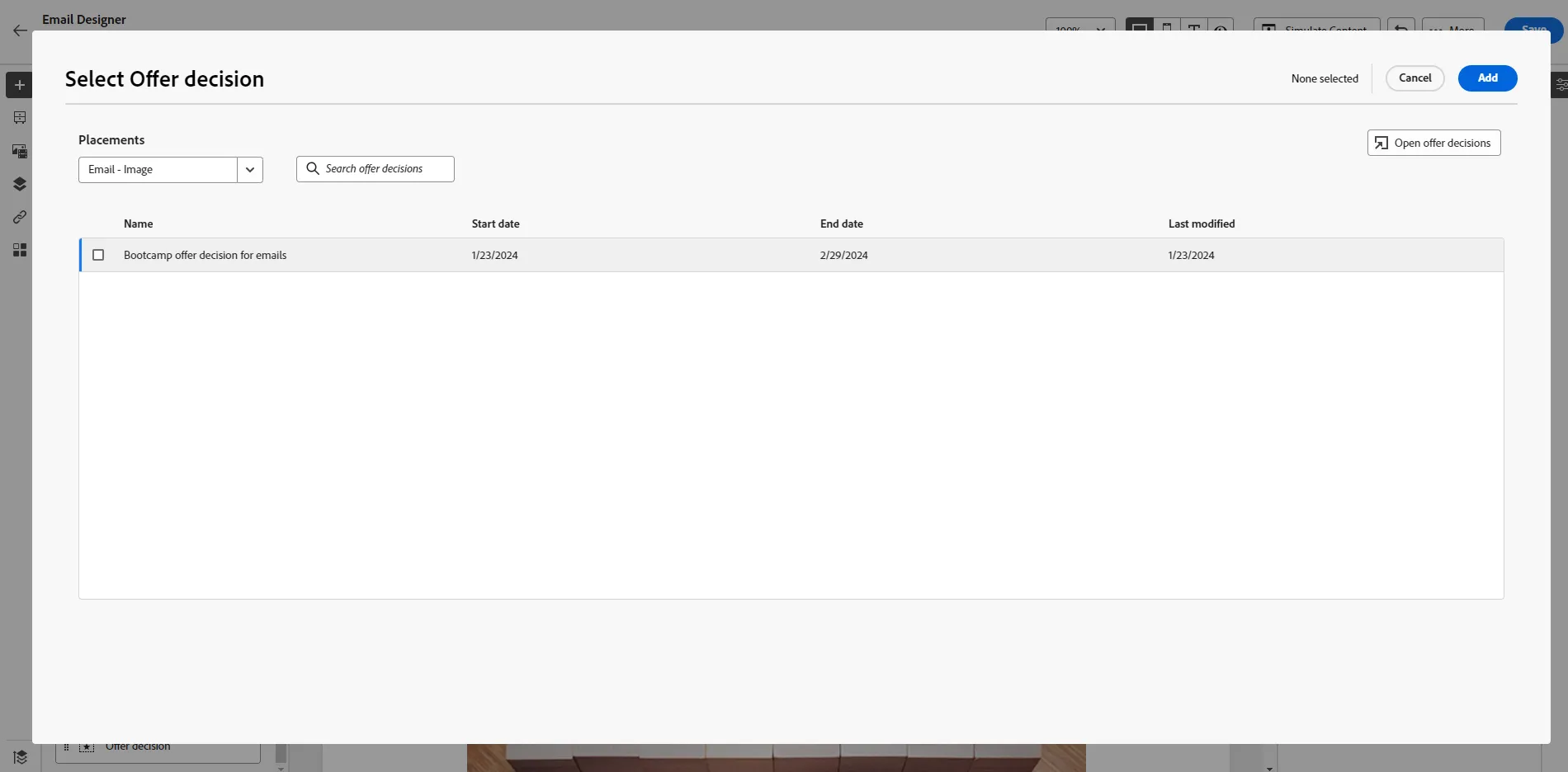
Click Add to add an offer decision.
Select the type of placement that you want to include in the email. In the Placements dropdown menu select Email - Image, then select the decision Bootcamp Offer Decisions. Click Add.
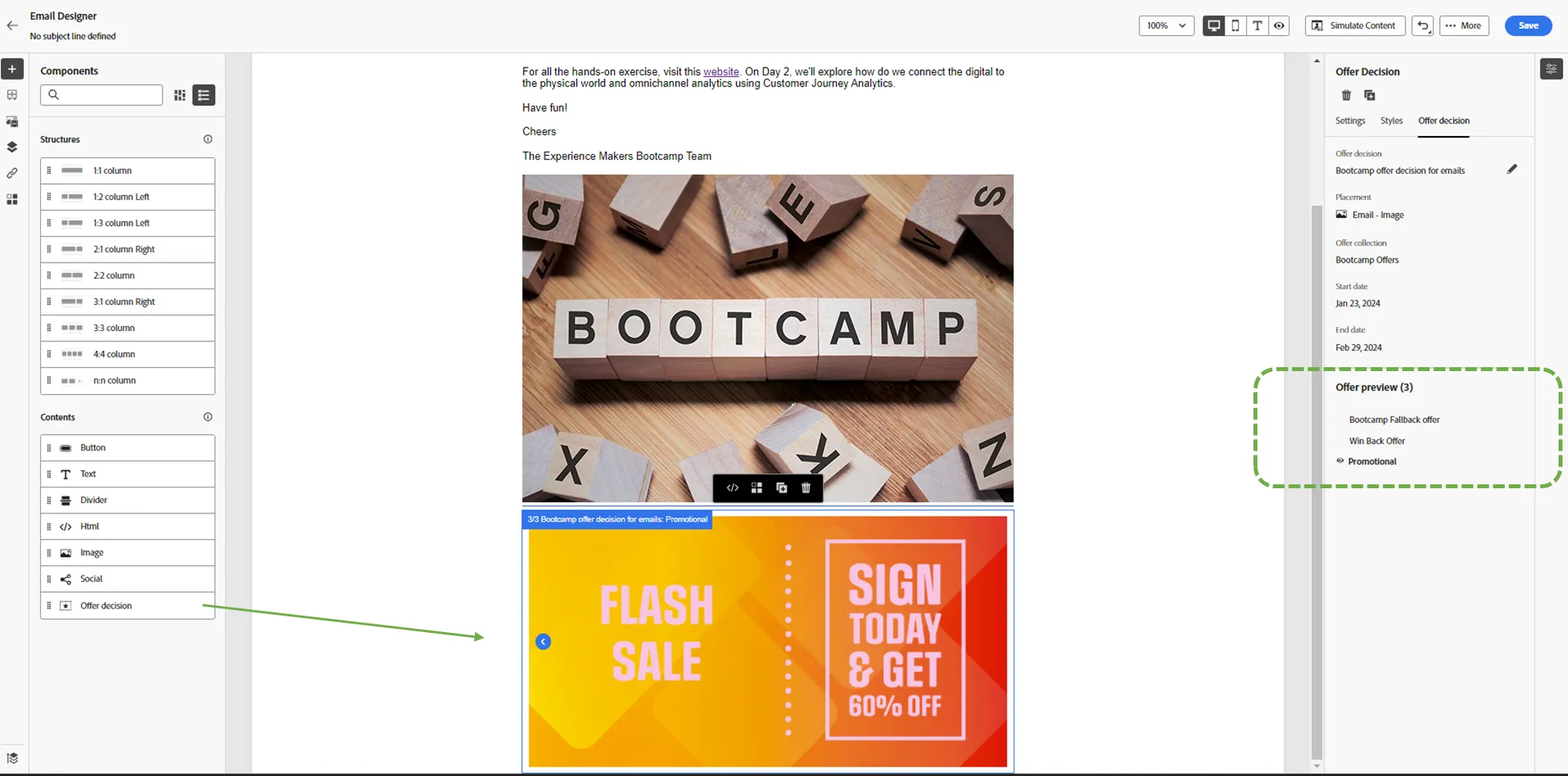
You can preview all the personalised offers and the fallback offer inside the email designer.
3.5.2 Simulate content see your offer
Let's simulate the content to check what offer would you get
- Click on Simulate Content top right on the email designer.
- Add in your test profile -> Select Identity namespace as Email -> Enter your email address used to register in exercise 2.2 (not the hol email) -> Click Add Profile
- Click on the test profile to see the offer that you will receive.
Exercise complete checklist
Was able to drag offer decision to the email
Was able to simulate & view the offer for my test profile