Create a campaign
Campaign is the easiest way to send communication when it doesn't require multi channel or multi touch journey. For example if you can create a campaign to send your newsletter, or ad-hoc campaign
Navigate to Campaigns on the left pannel. If you can't see it, click on the 9 dots icon on the top right menu and select "Jounrey Optimizer"
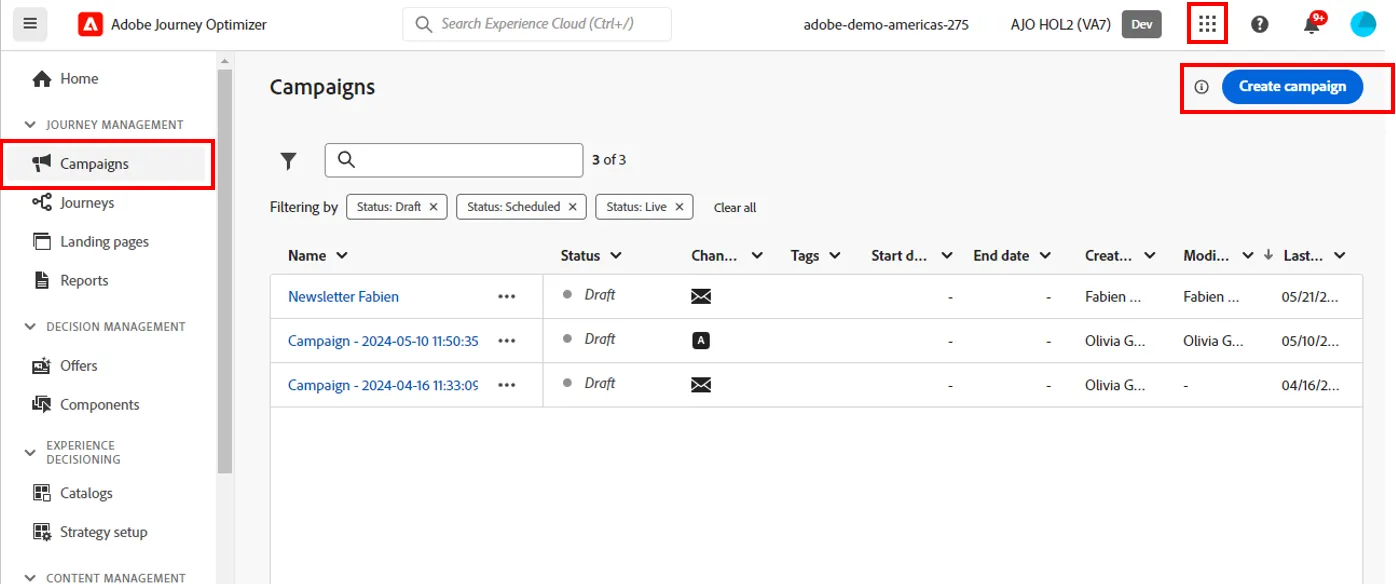
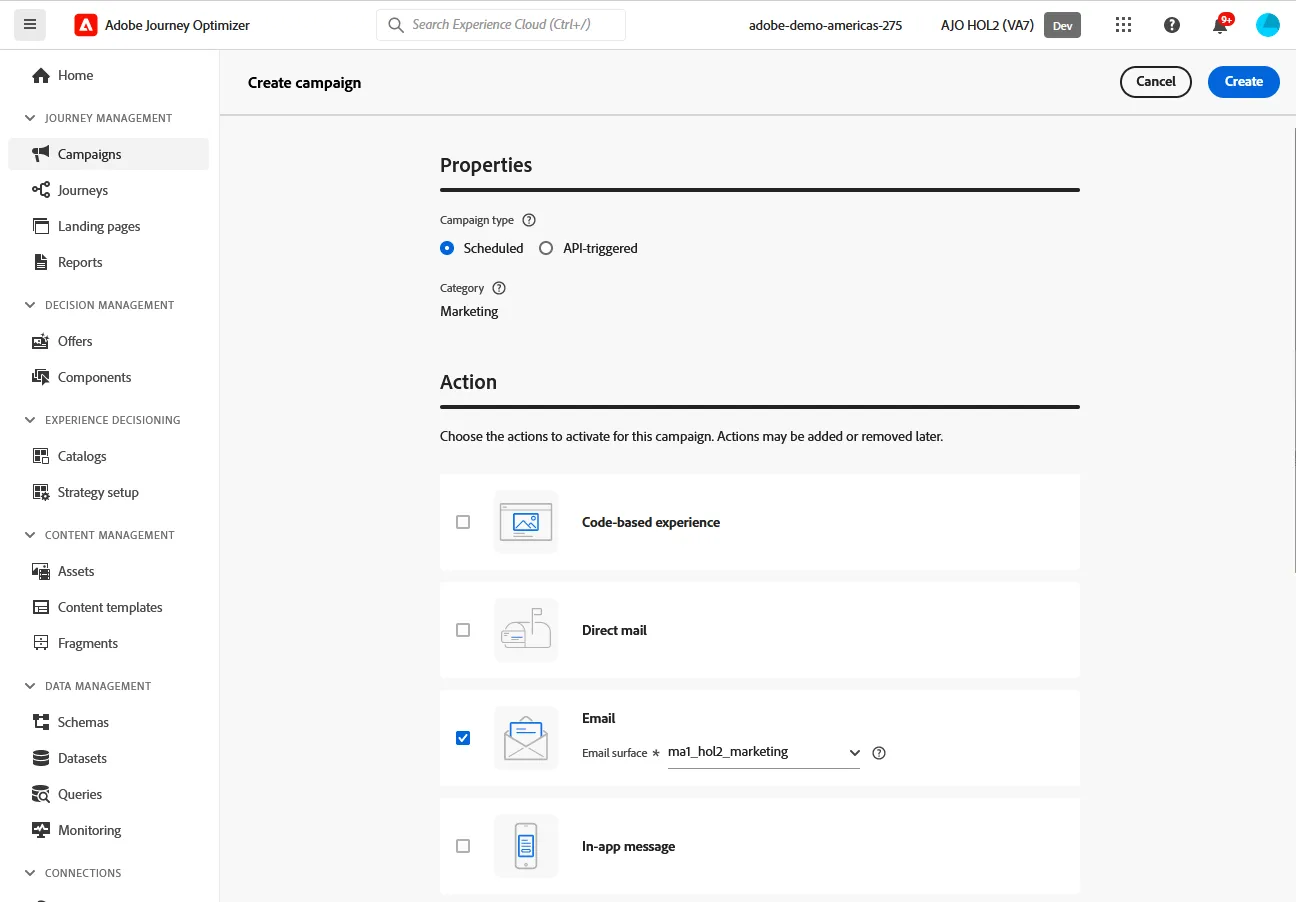
Let the campaign type to "Scheduled". Select "Email" under Actions and then choose the Email surface "ma1_hol2_marketing". This Surface define the branding you will use for this email (from email address, domain for tracking, etc.). Finally, click on create
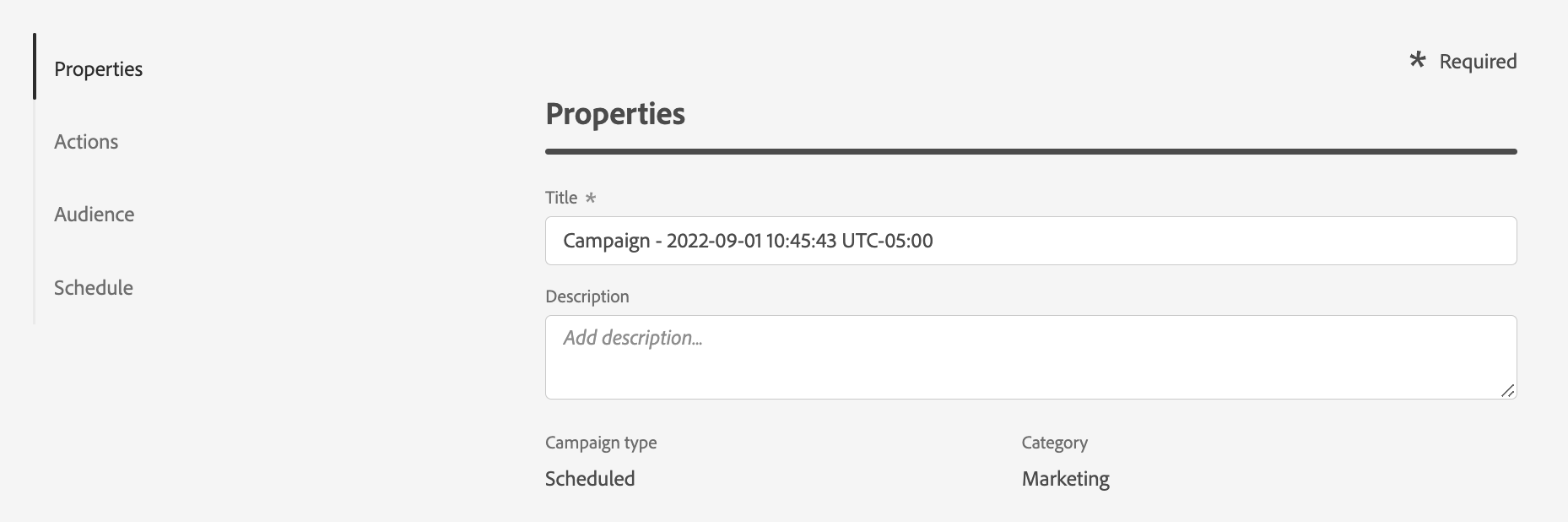
Provide a title and description. You can name your campaign "Your name - Credit card campaign"
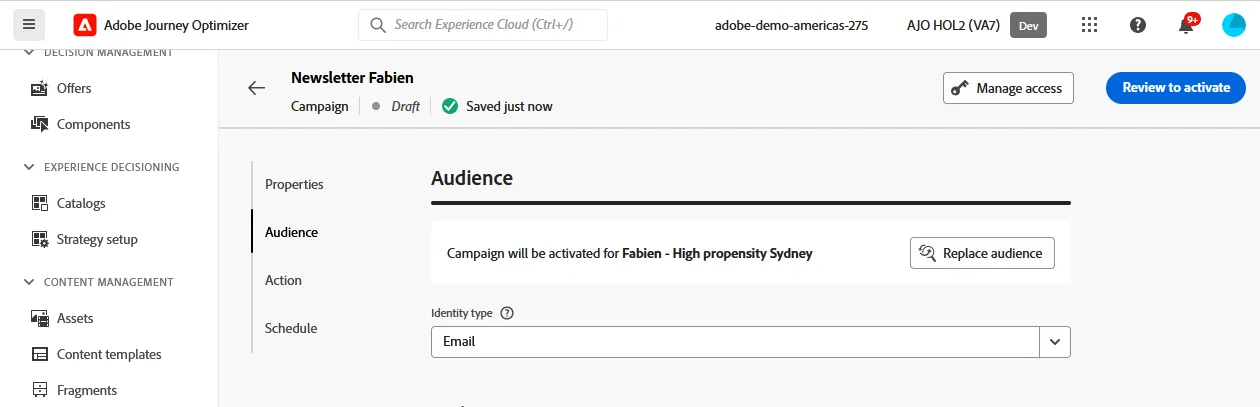
- Under Audience, select the first audience you created in the previous exercice (your name - high propensity - Sydney) and select email as Identity type
6. Under Actions, click 'Edit Content'
7. Enter a subject line. you can personalize it by clicking on the profile icon.
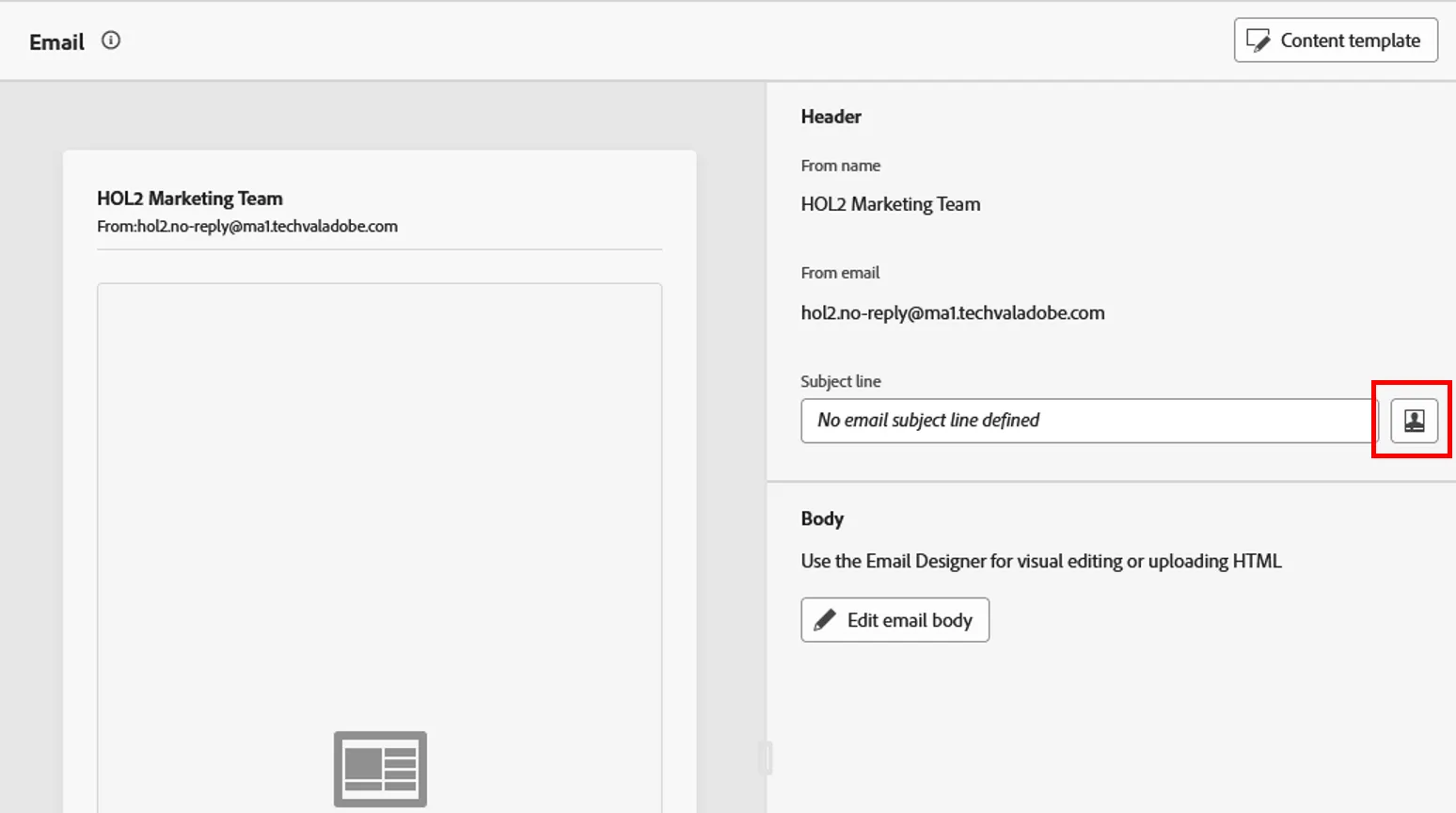
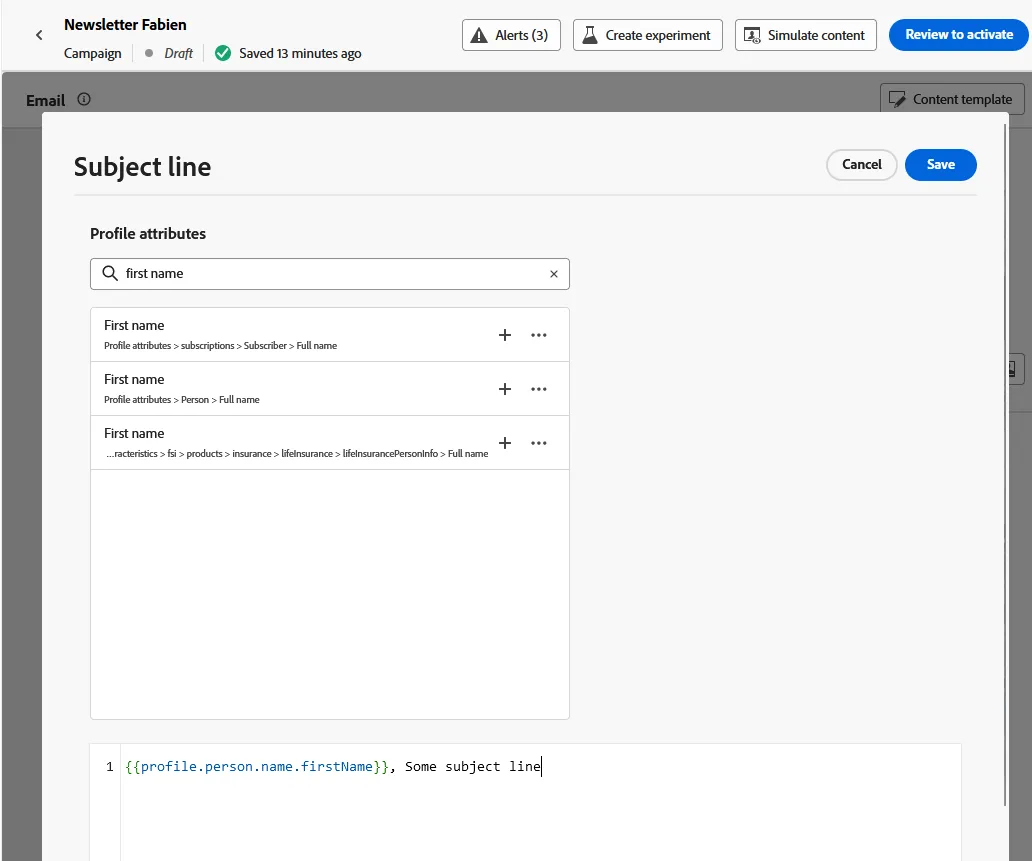
8. Search for "first name". If you have multiple choice, select Profile attribute > Person > full name > First Name. Save
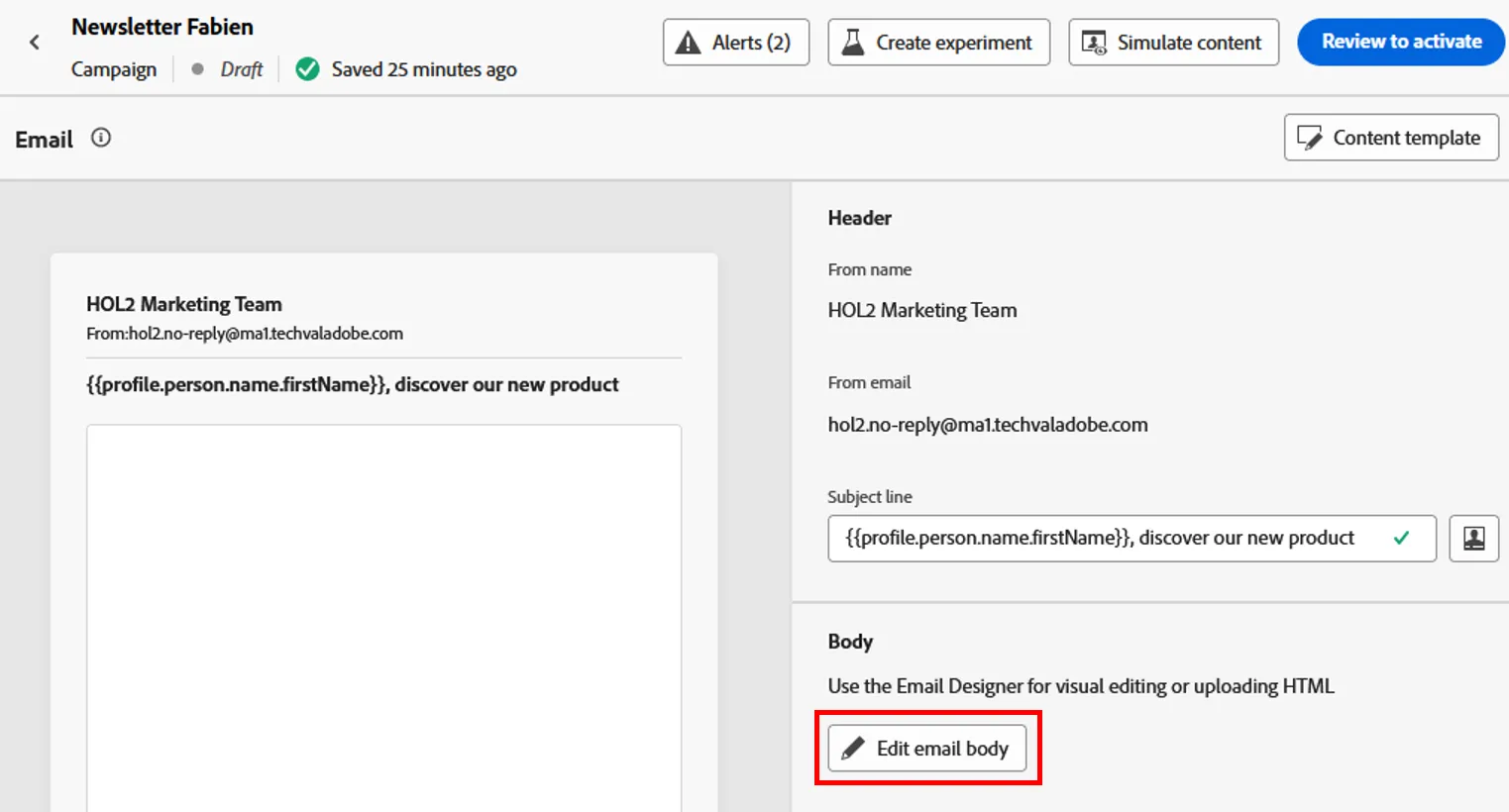
9. Click on "edit email body"
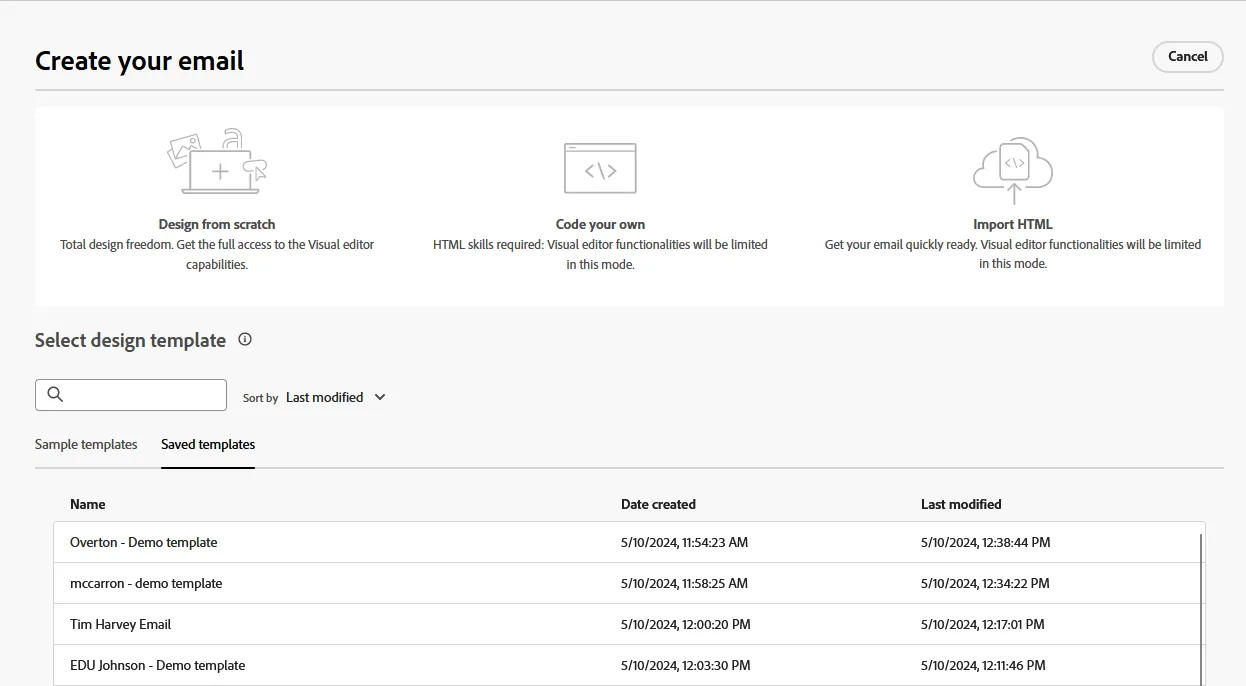
10. We can reuse existing template to save us some time. For this exercice we will create a new email fro scratch. click on "Design from Scratch"
11. First, we have to define the structure of our email. In this example we will use :
- A first row with logo on the left and link to account on the right
- A second row with Hero image
- A third row with text to propmote our product
- A fourth row with a button to apply
- A fifth row for footer with link to unsubscription page.
Start by drag and droping a "1:2 column left" from the structures component, then 4 "1:1 column". your email should looks like this :
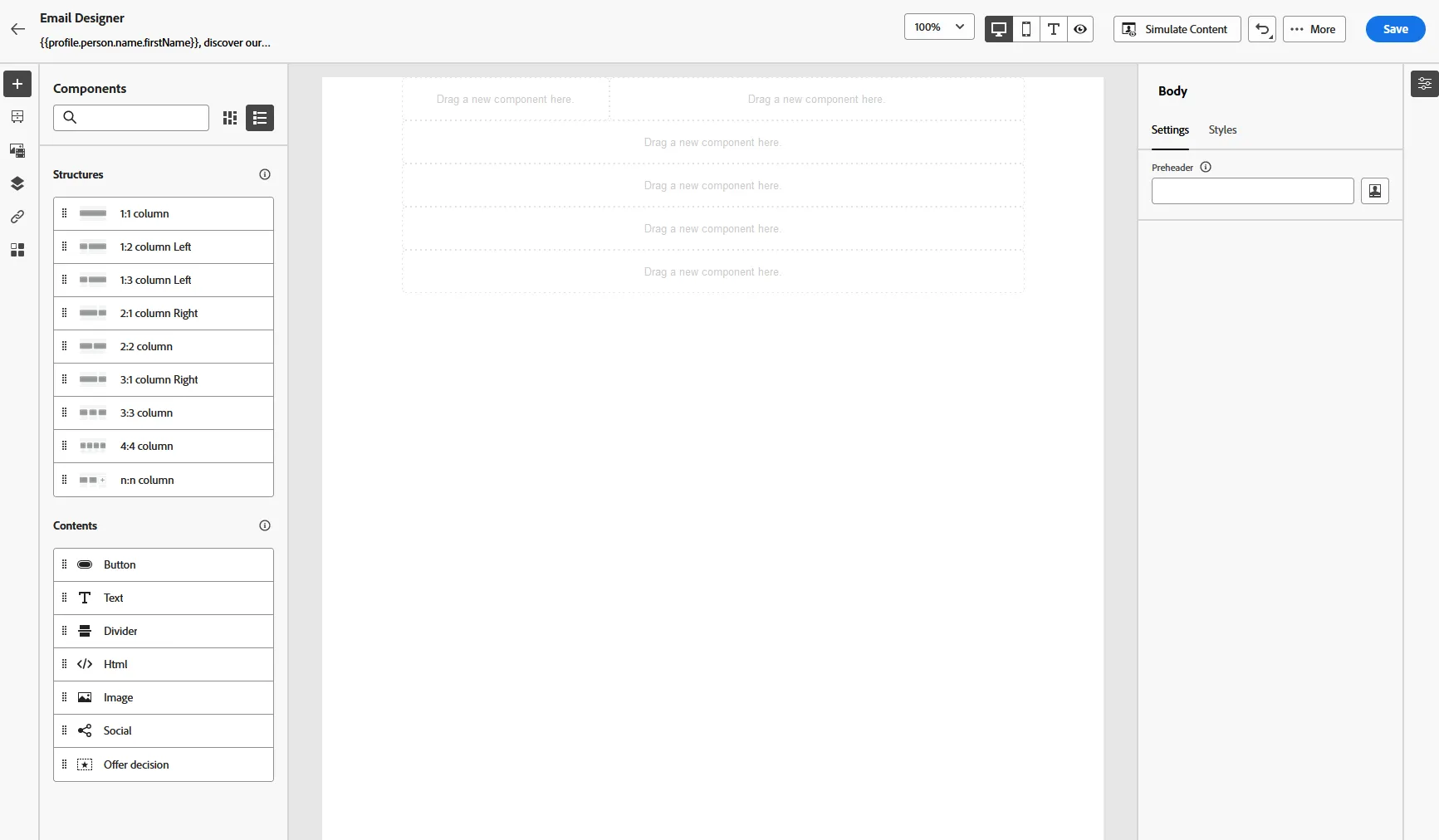
12. We now need to define which type of content we want to display.
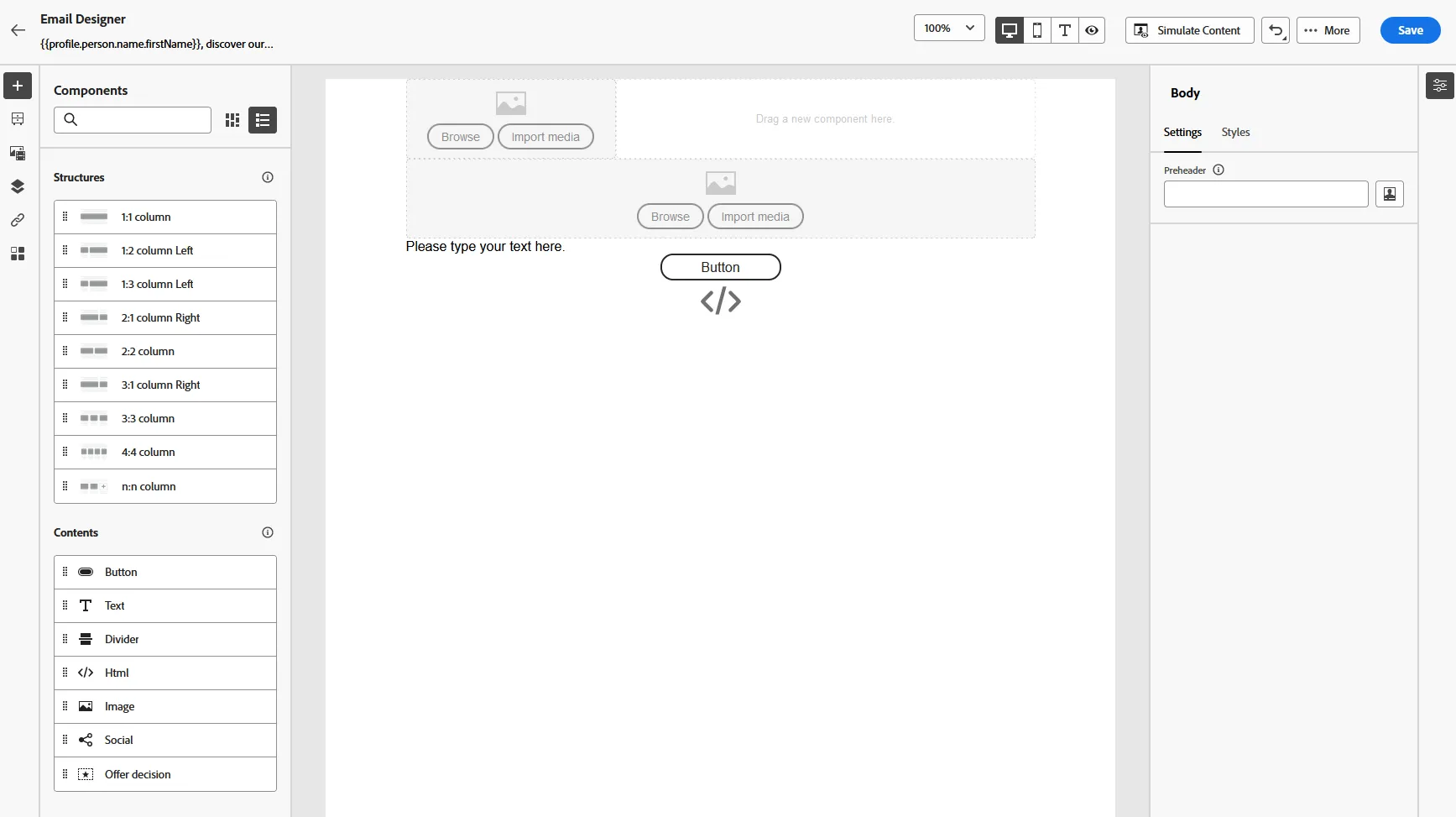
From the content menu on the left side, drag and drop an image component in the first row in the left column, then another one in the second row.
Drag and drop a text in the thrid row
Drag and drop a button in the fourth row
Then finally drag and drop an HTML in the last row
Your email should now looks like that:
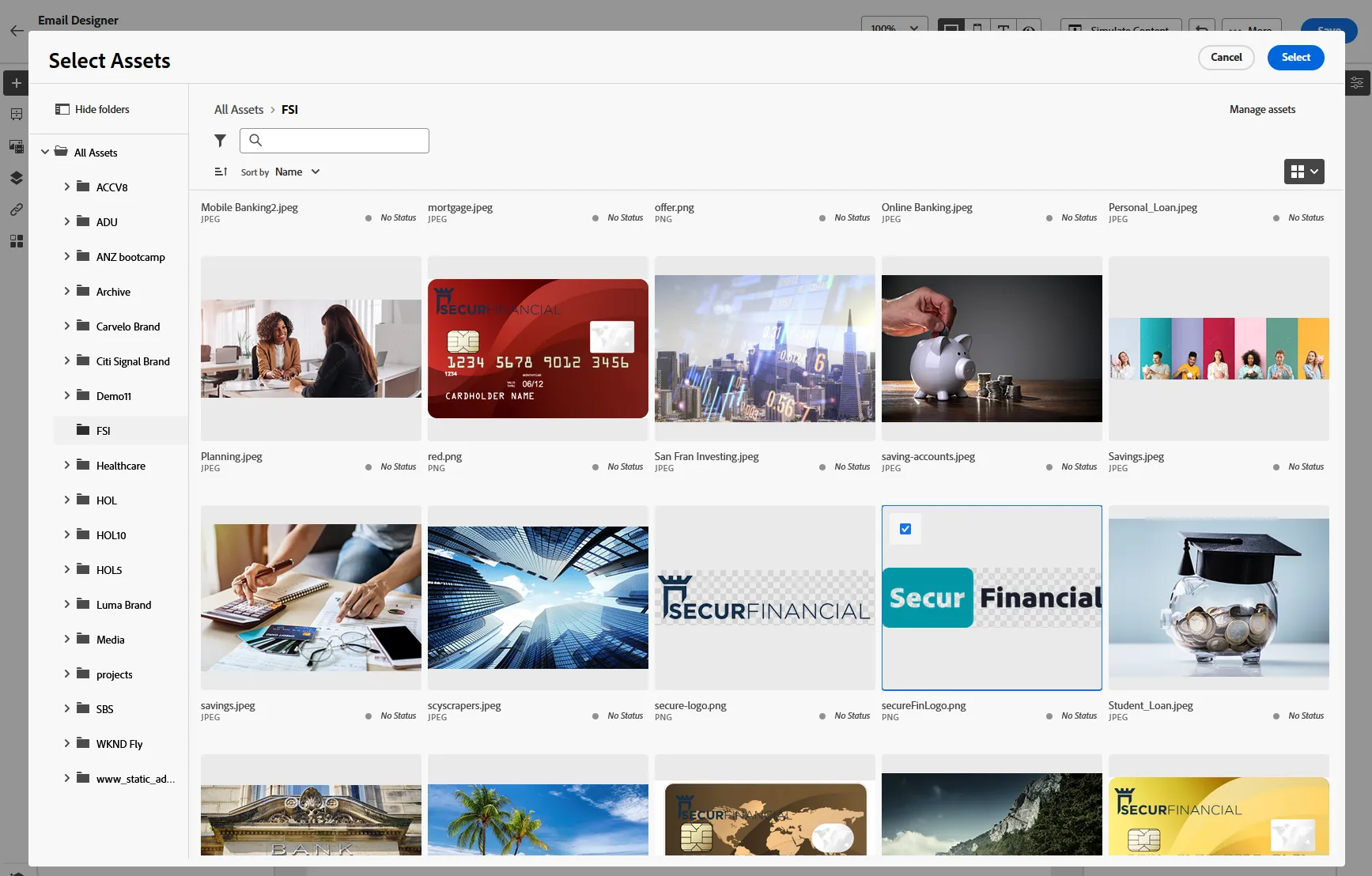
11. Now we will include images. For the logo (first row), click on browse. Navigate to the FSI folder, then select a logo
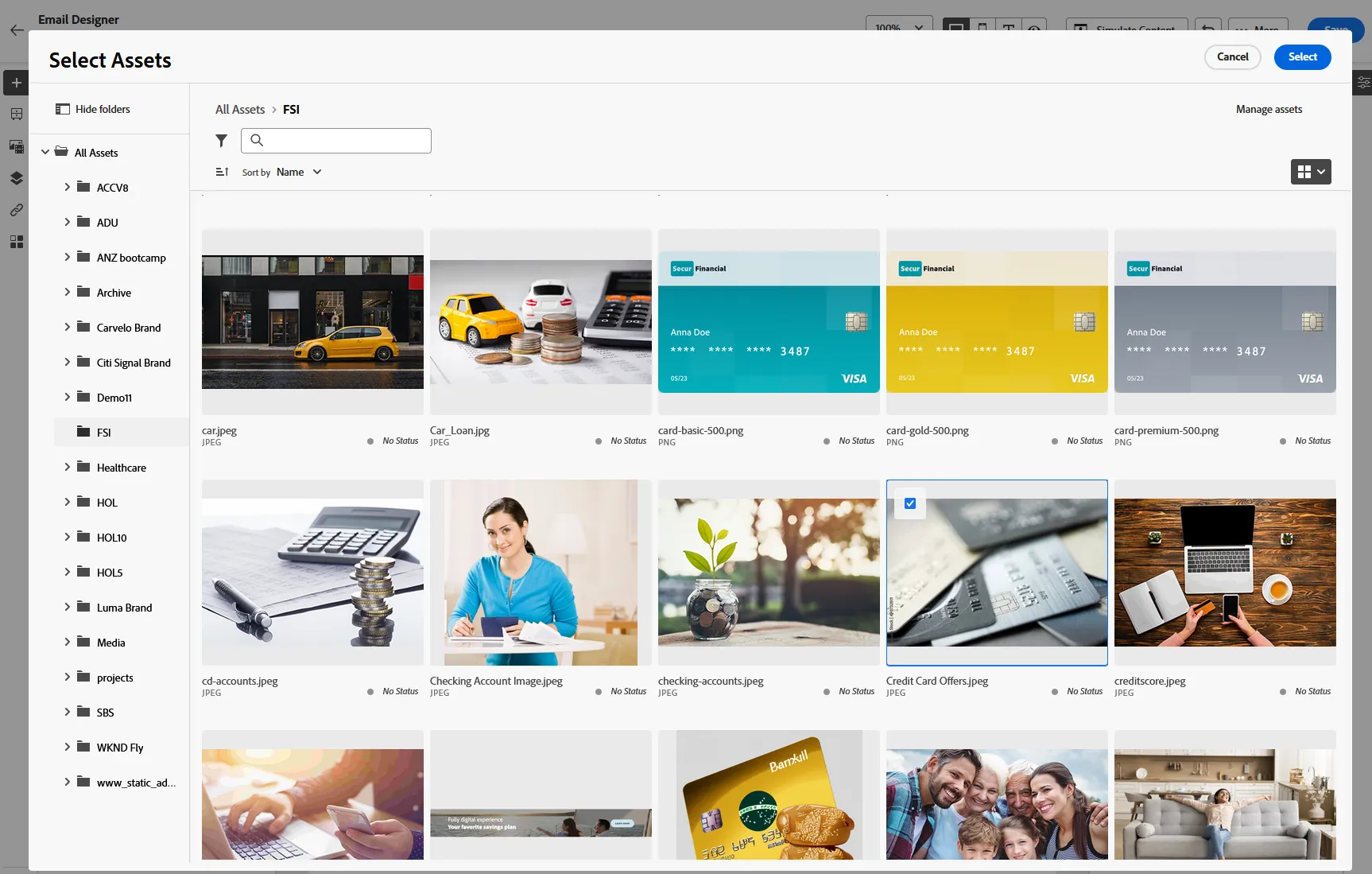
12. For the Hero image, select an image of your choice from the same folder
13. On the third row, type some text, and on the righ pannel select style, change the font size and the padding
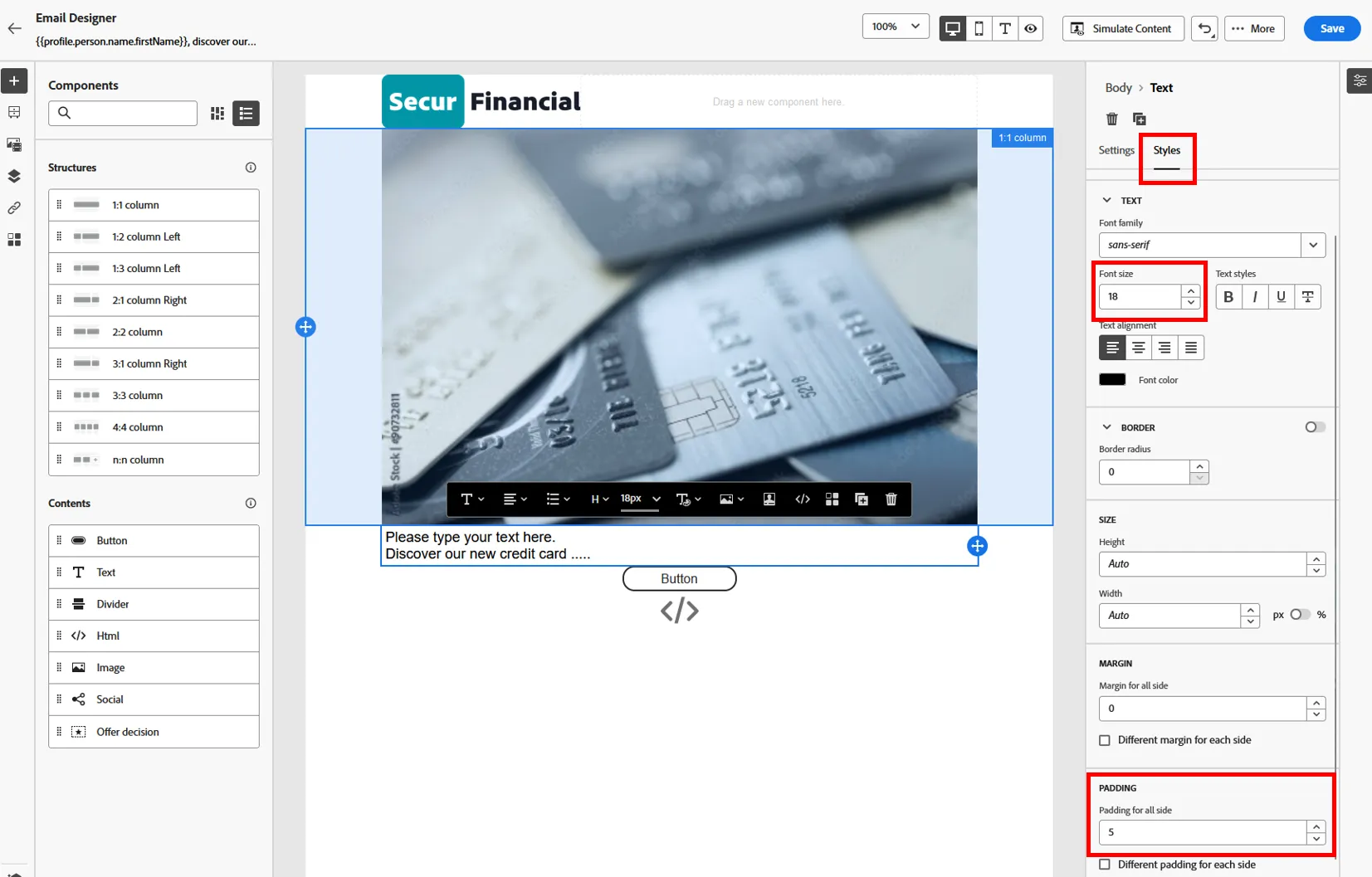
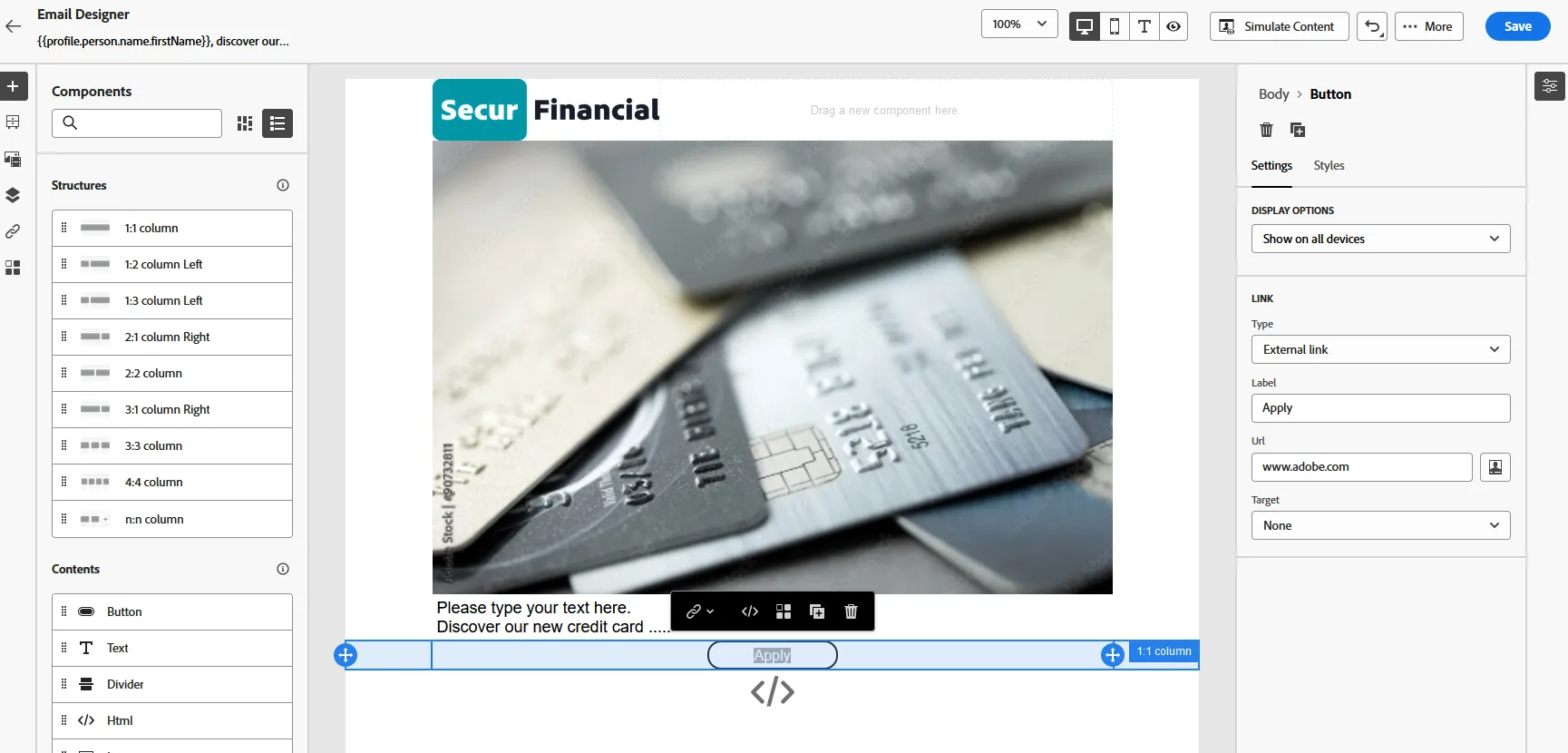
14. Select the fourth row (button), and on the right pannel change the label and url with a link of your choice
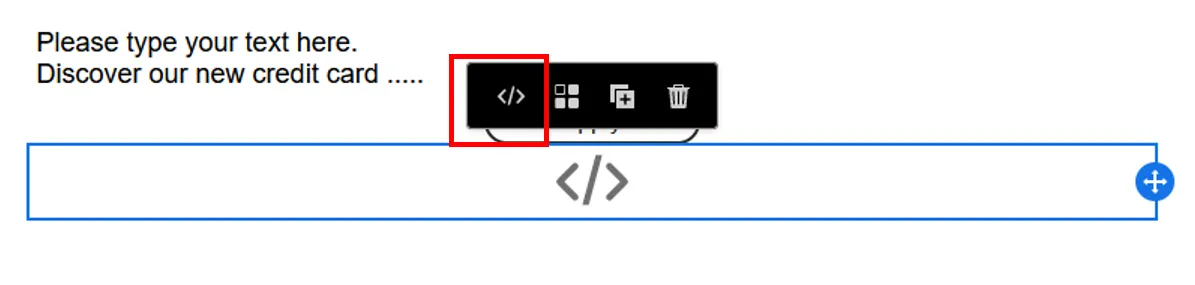
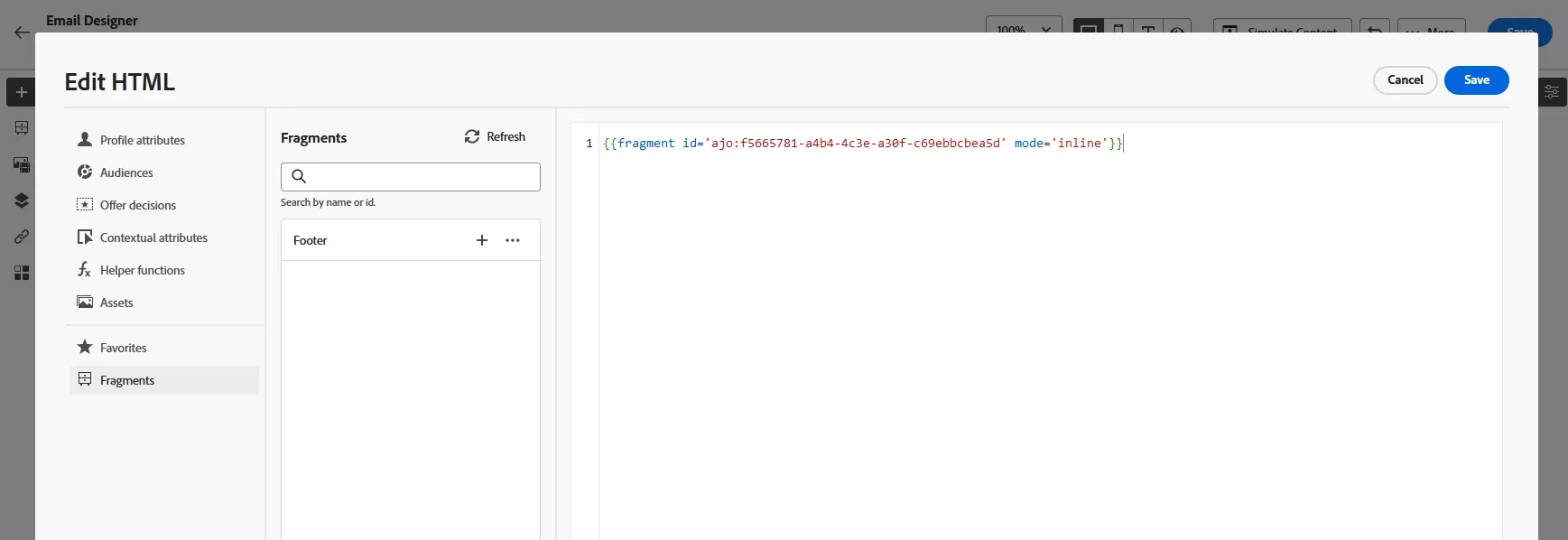
15. For the footer, we will use a predefined fragment. Select yourhtml block and click on the "source" button
Navigate to fragment,
16. Optional : We can try to use different images or text for different segment. Select the hero image, and click on "enable conditonal content" that will create variation for this block.
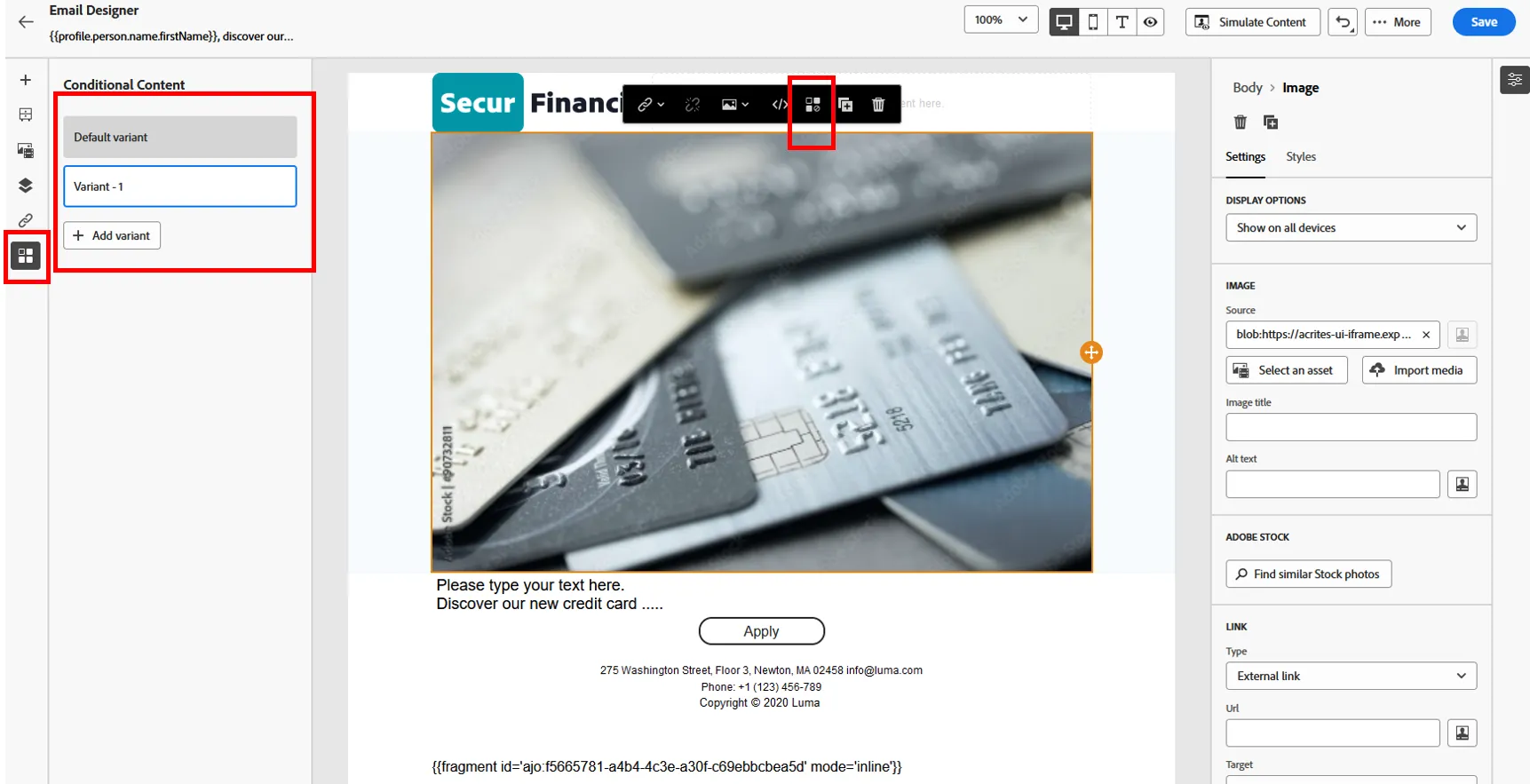
Select Variant-1 on the left pannel, then change the image. Select any image of your choice.
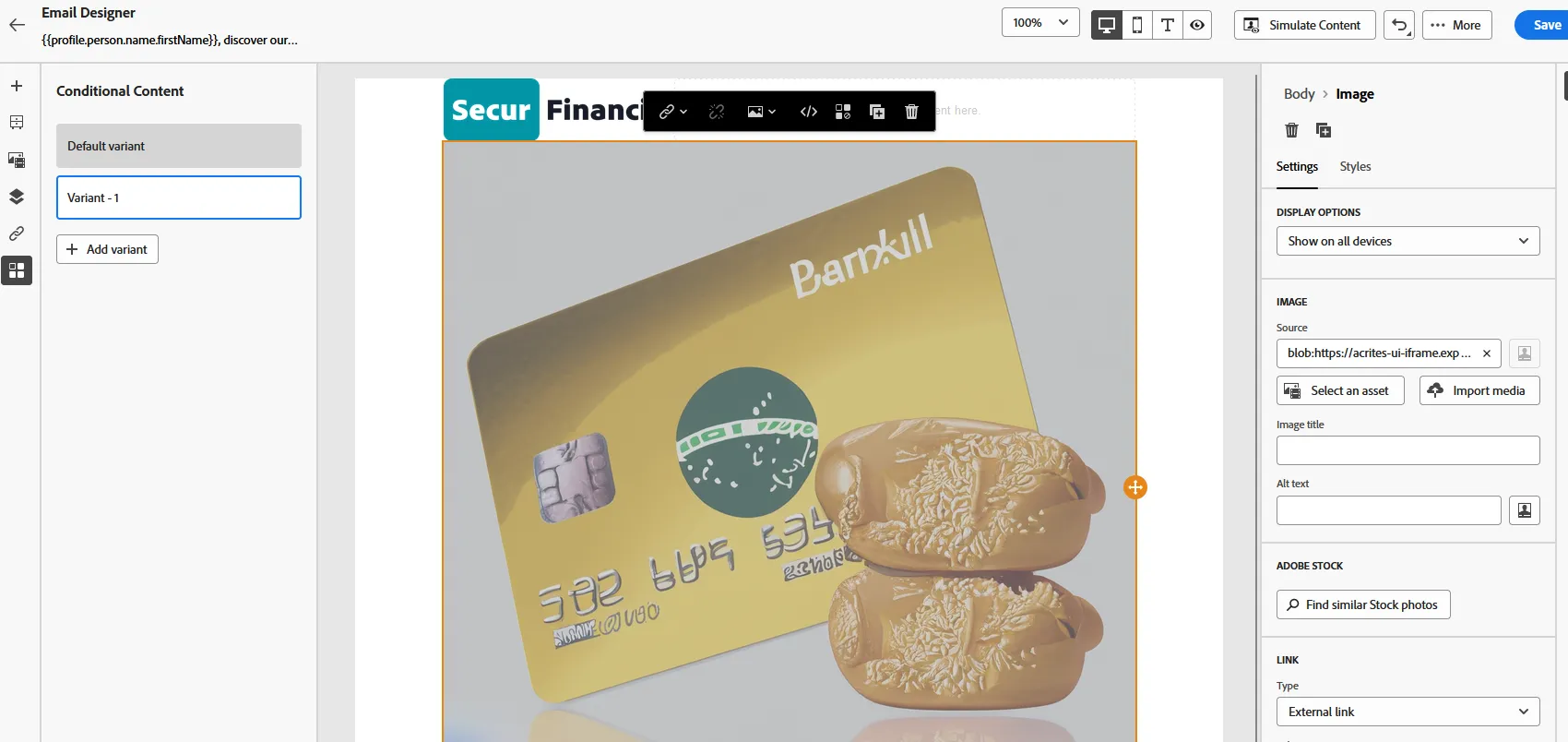
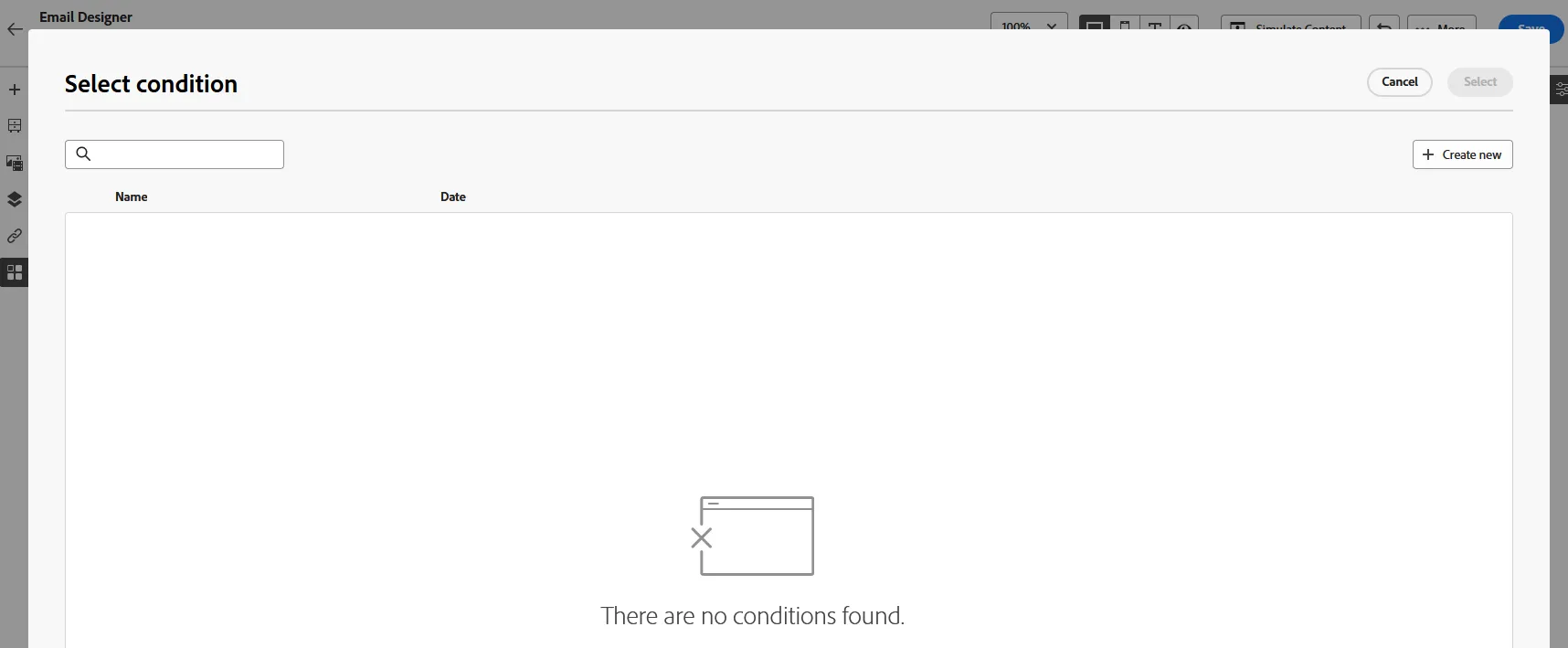
We will not change the condition to display this image only for people male customer. Click on the "select condition" button (just right of variant-1)
Click on create new condition
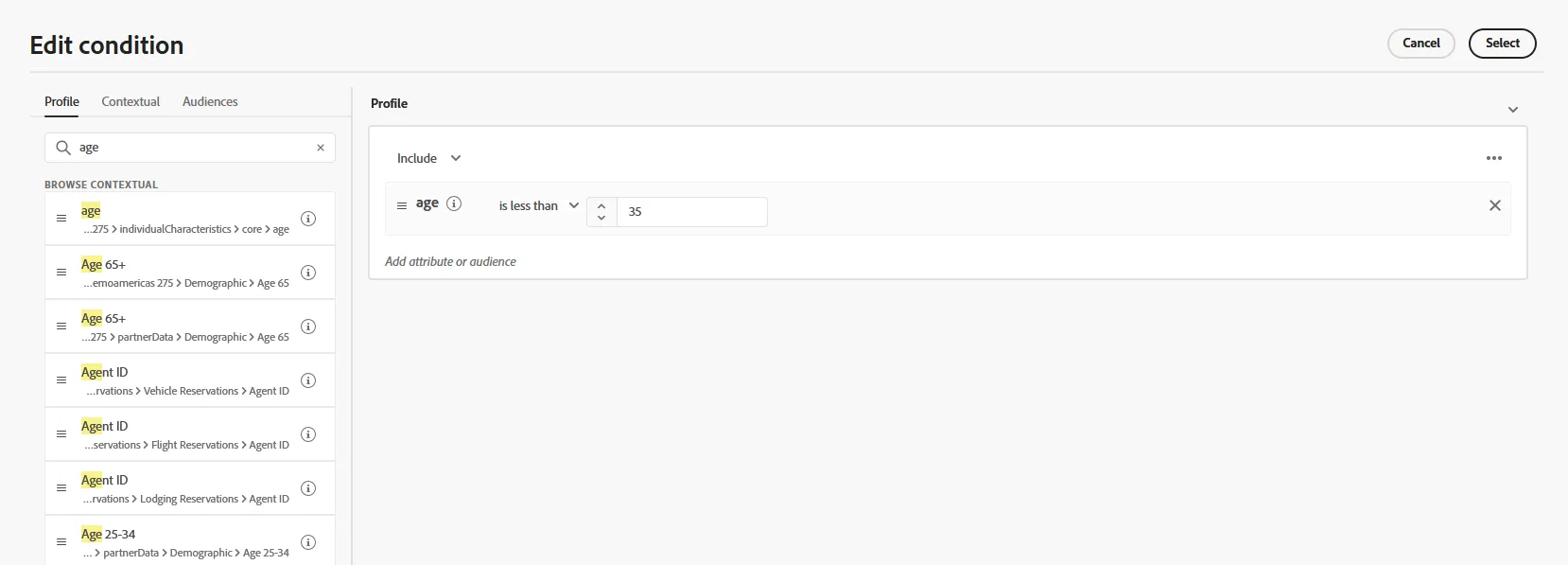
Search for age, drag and drop it the the middle pannel, then enter condition "less than 35". Save
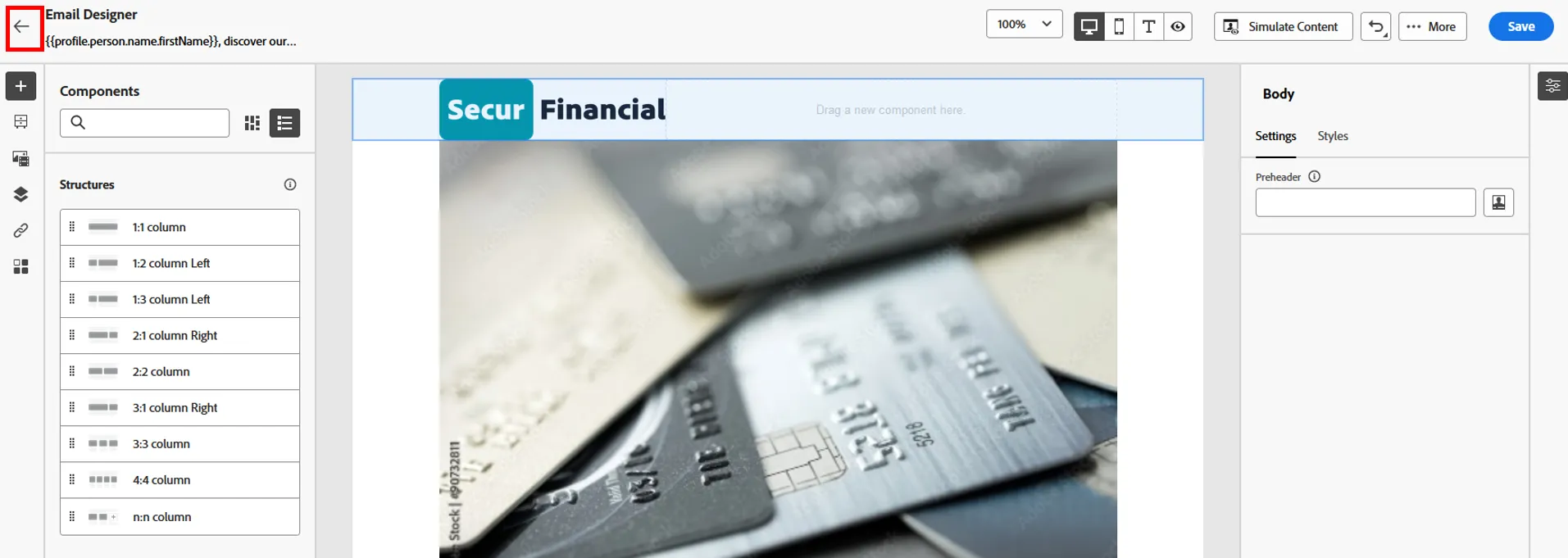
17. Our Email is now ready. Save it, and click on the top left arrow to come back to your campaign.
Our campaign s now ready. We can review and activate if we want to send it.
End of Lab