Logging into the platform
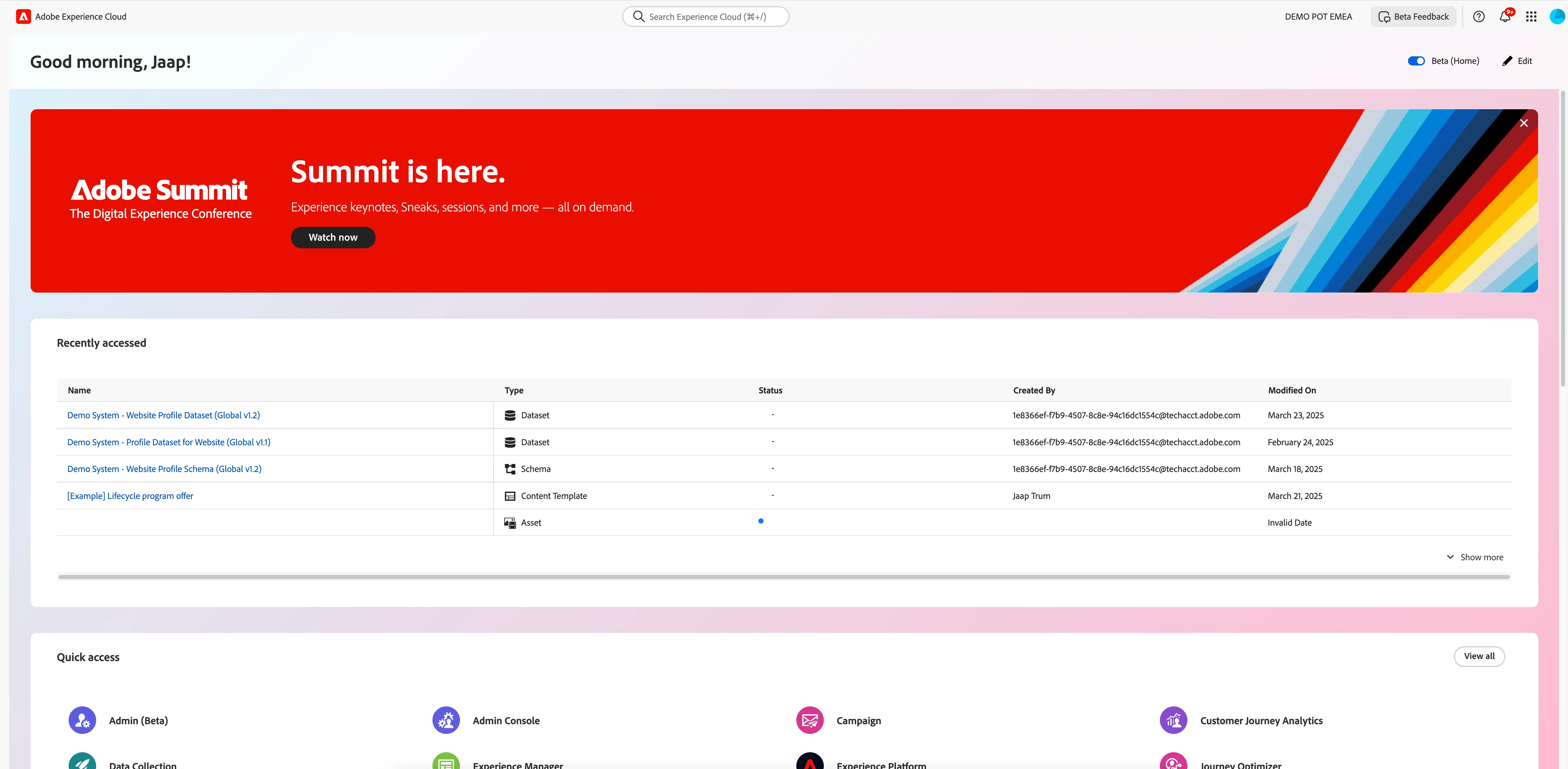
User accounts have been created to access the Adobe Experience Cloud and all of the tools you'll need in today's workshop.
Login to Adobe Experience Cloud
- Make sure you completed Personalising your Hands-on Experience.
- Navigate to Adobe Experience Cloud Homepage
- Logout if you are already logged in on your own or corporate Adobe account
- Sign in using your Barclays email address
- You'll be redirected back to Adobe Experience Platform in the Adobe Experience Cloud home dashboard
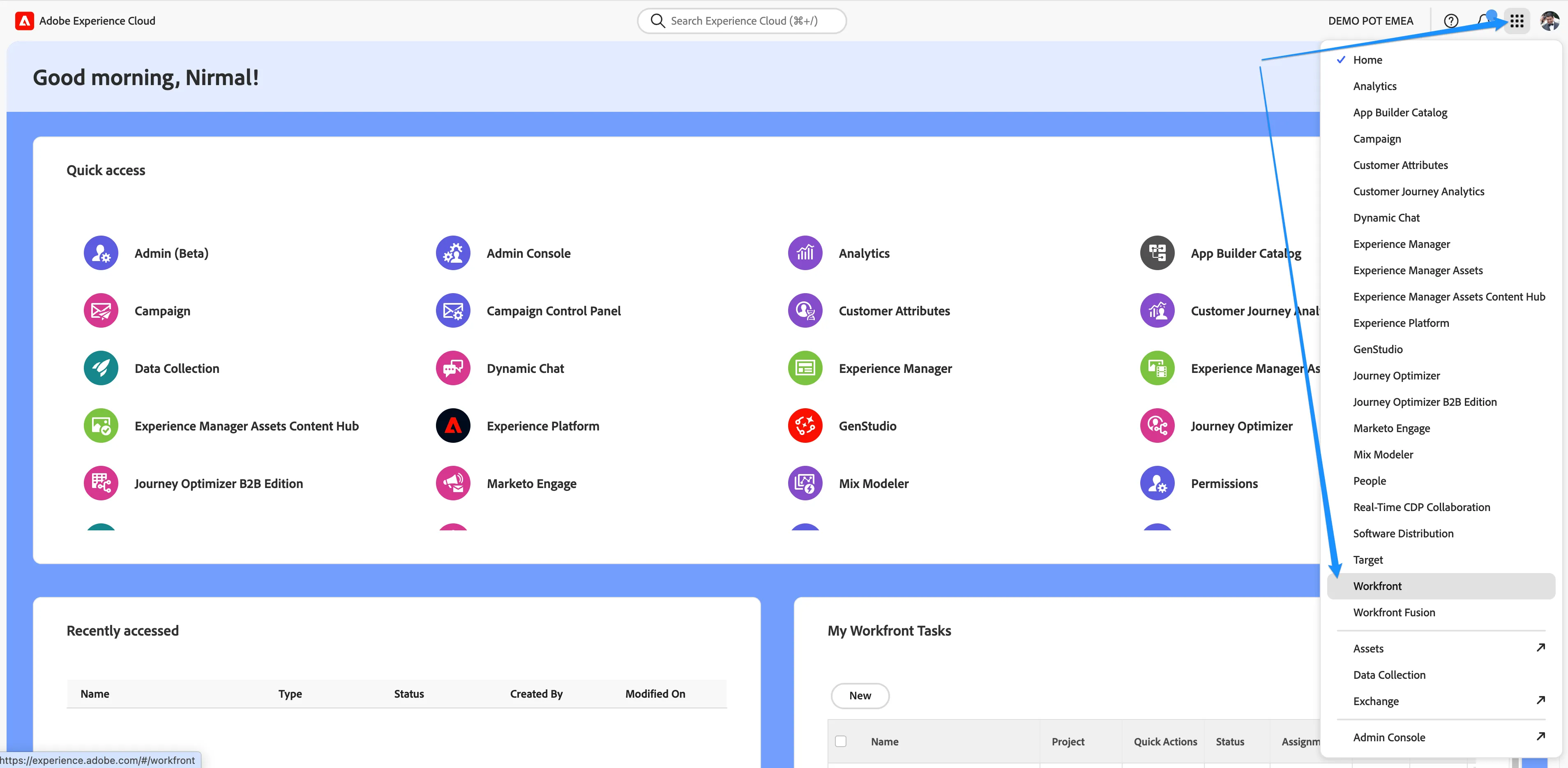
Navigating to Adobe Workfront
Click on the navigation-icon (9 dots) in the top right and select Workfront in the dropdown list.
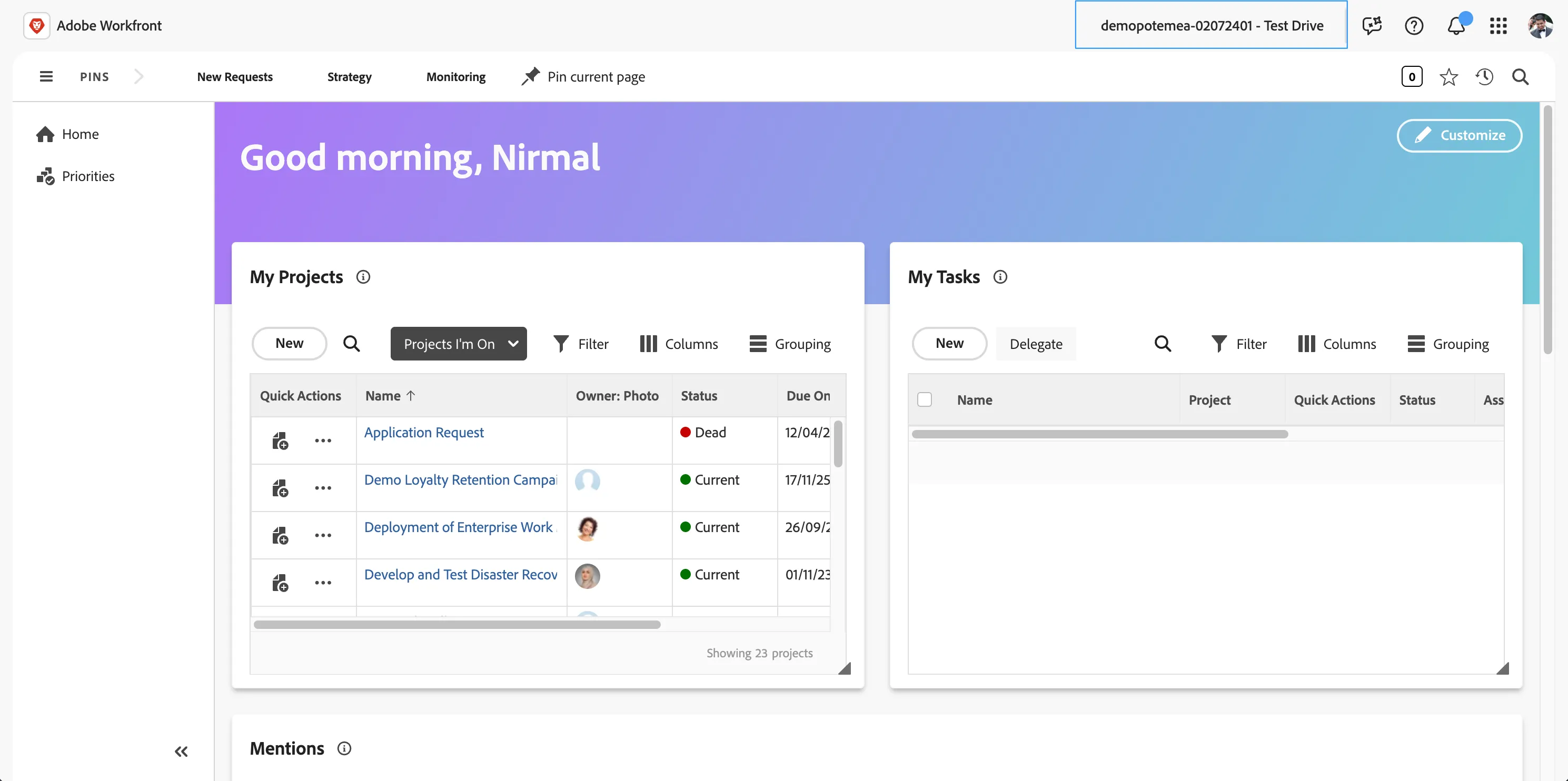
This should land you to workfront homepage. Please ensure the environment is demopotemea-02072401 - Test drive
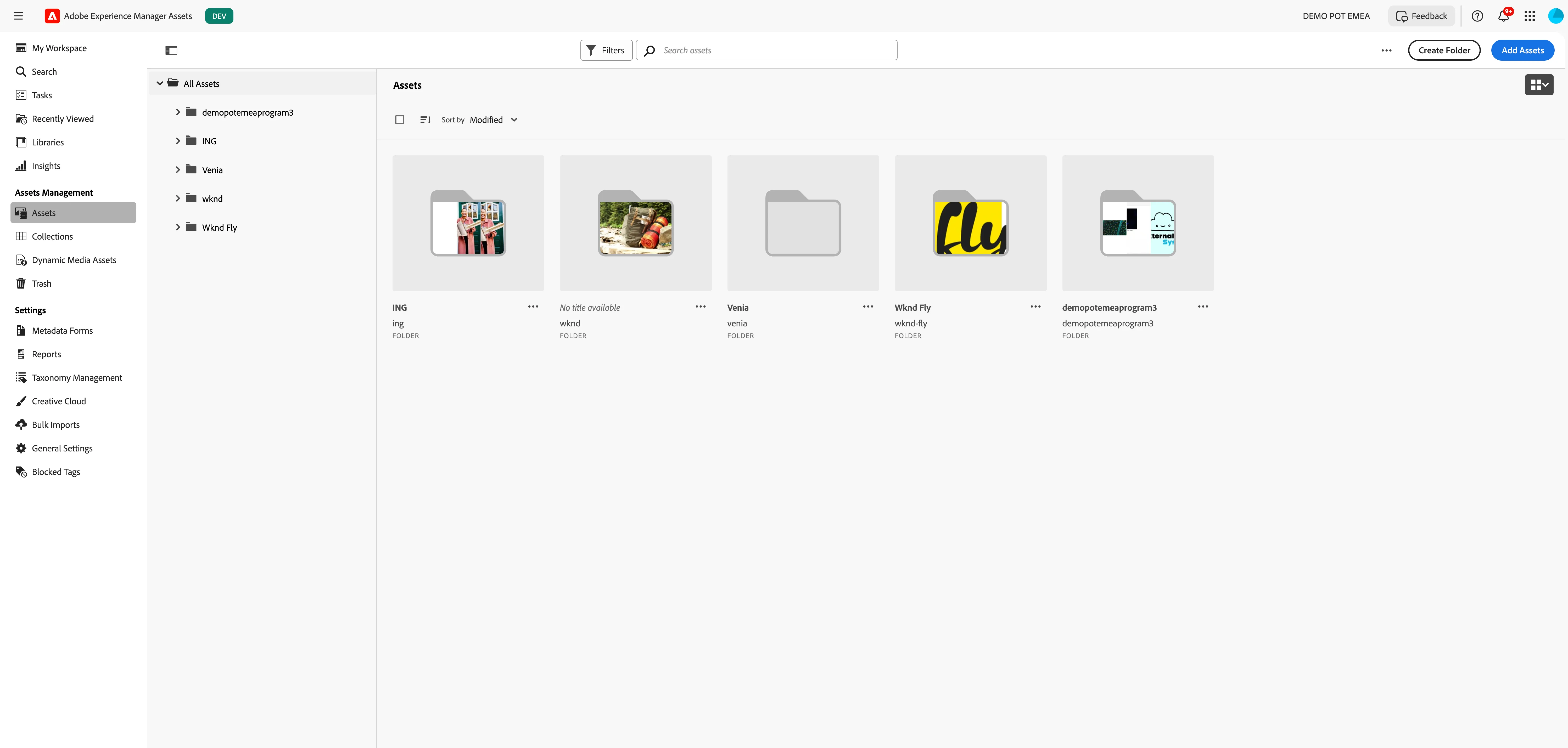
Experience Manager Assets
Click on the navigation-icon (9 dots) in the top right and select Experience Manager Assets in the dropdown list.
- You'll see a large visual with a search bar. Click on Browse Assets to open the full workspace.
Marketo Engage
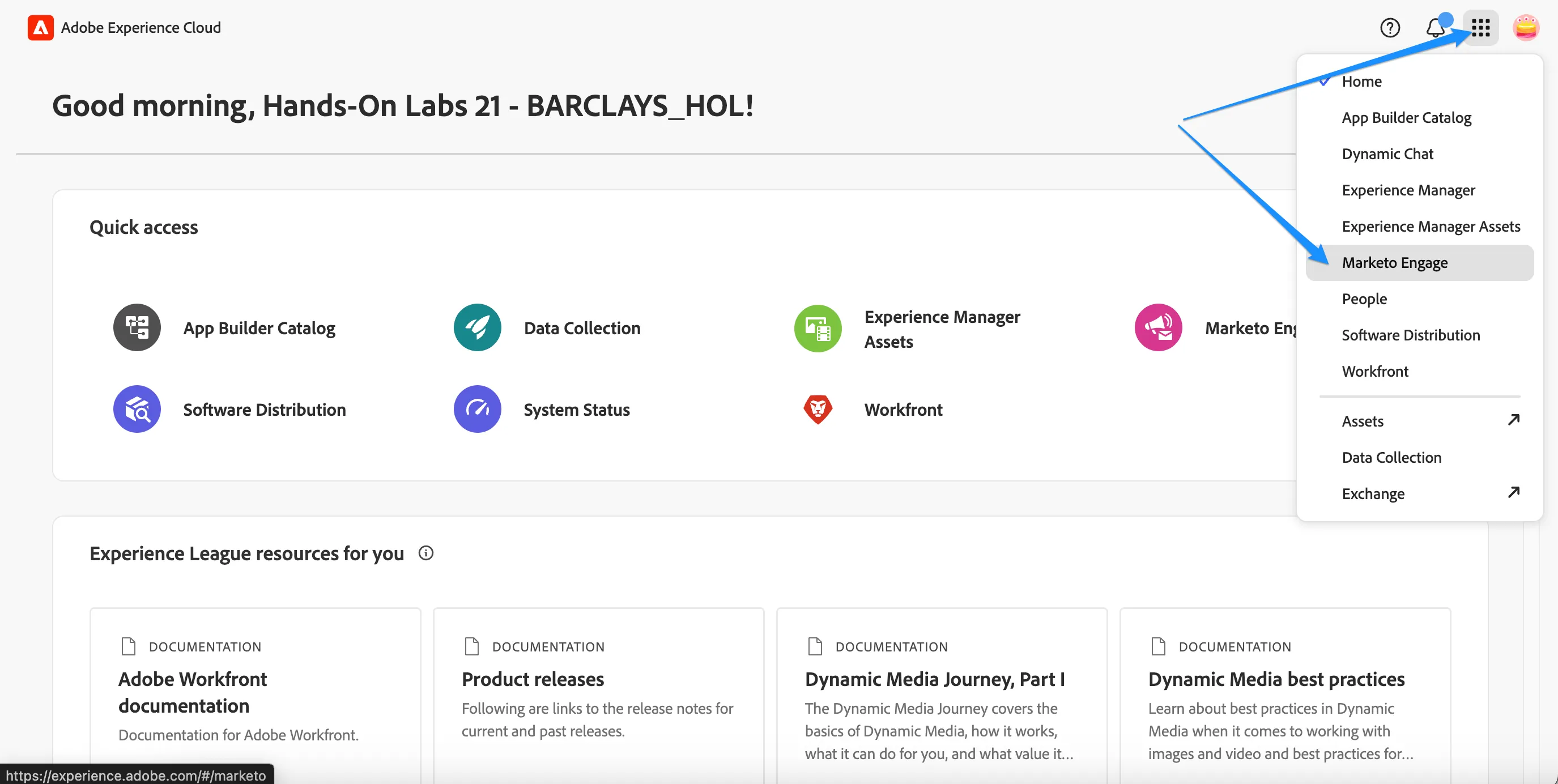
Click on the navigation-icon (9 dots) in the top right and select Marketo Engage in the dropdown list.
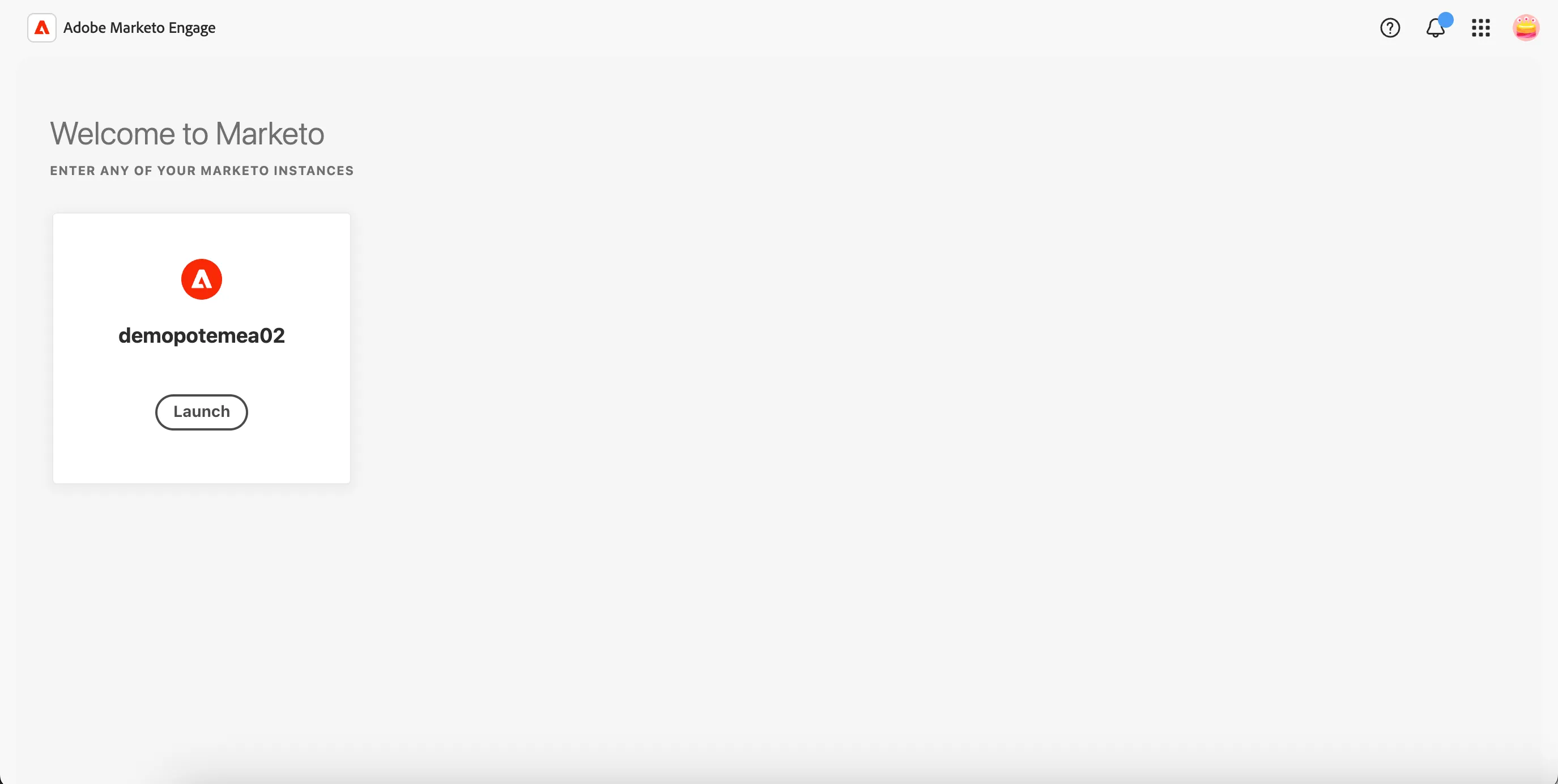
You'll see all your marketo instances. Click on Launch to open the marketo instance. In our case the instance name is demopotemea02
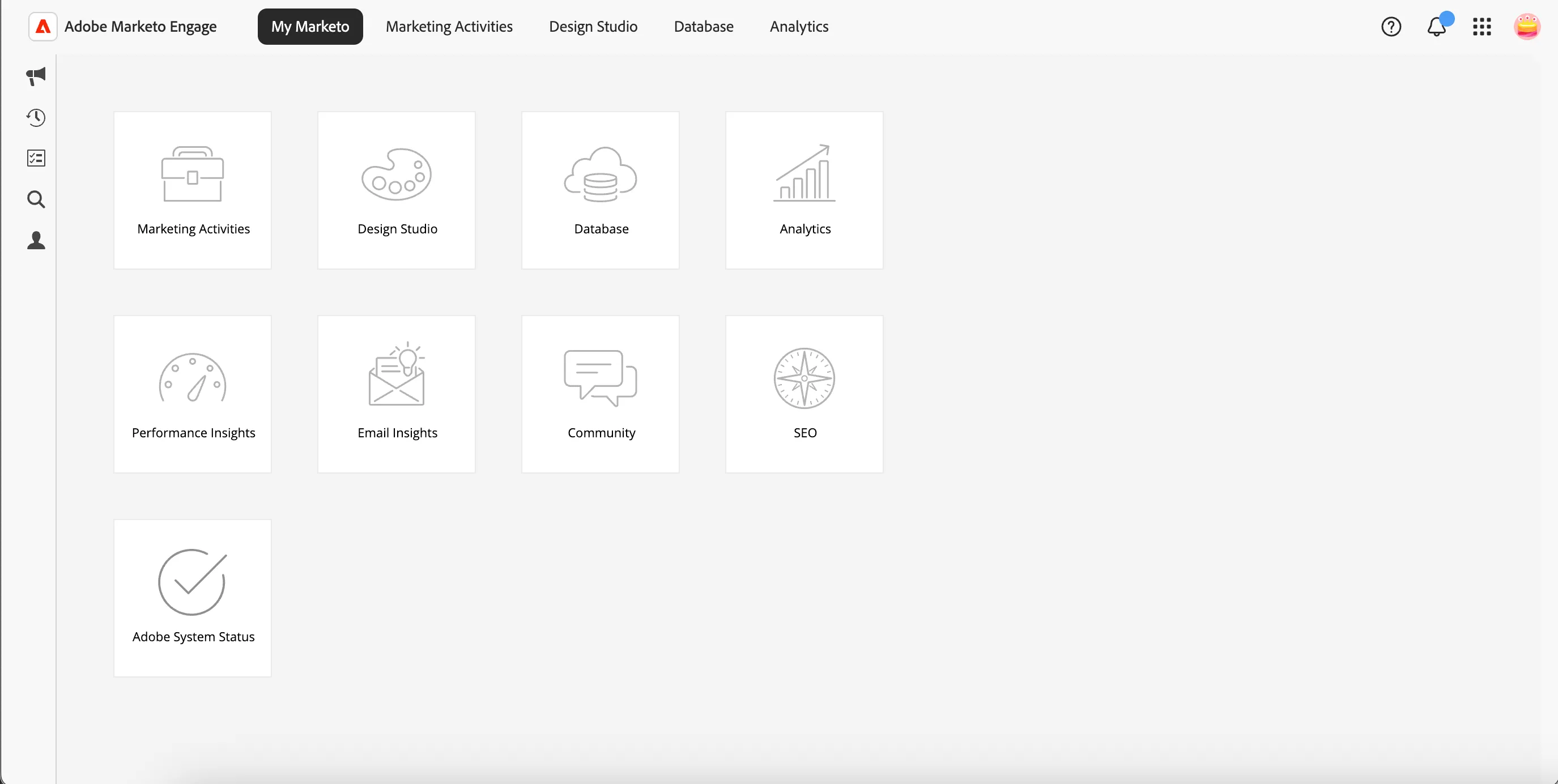
You will land on marketo landing page as below.
Set language preferences
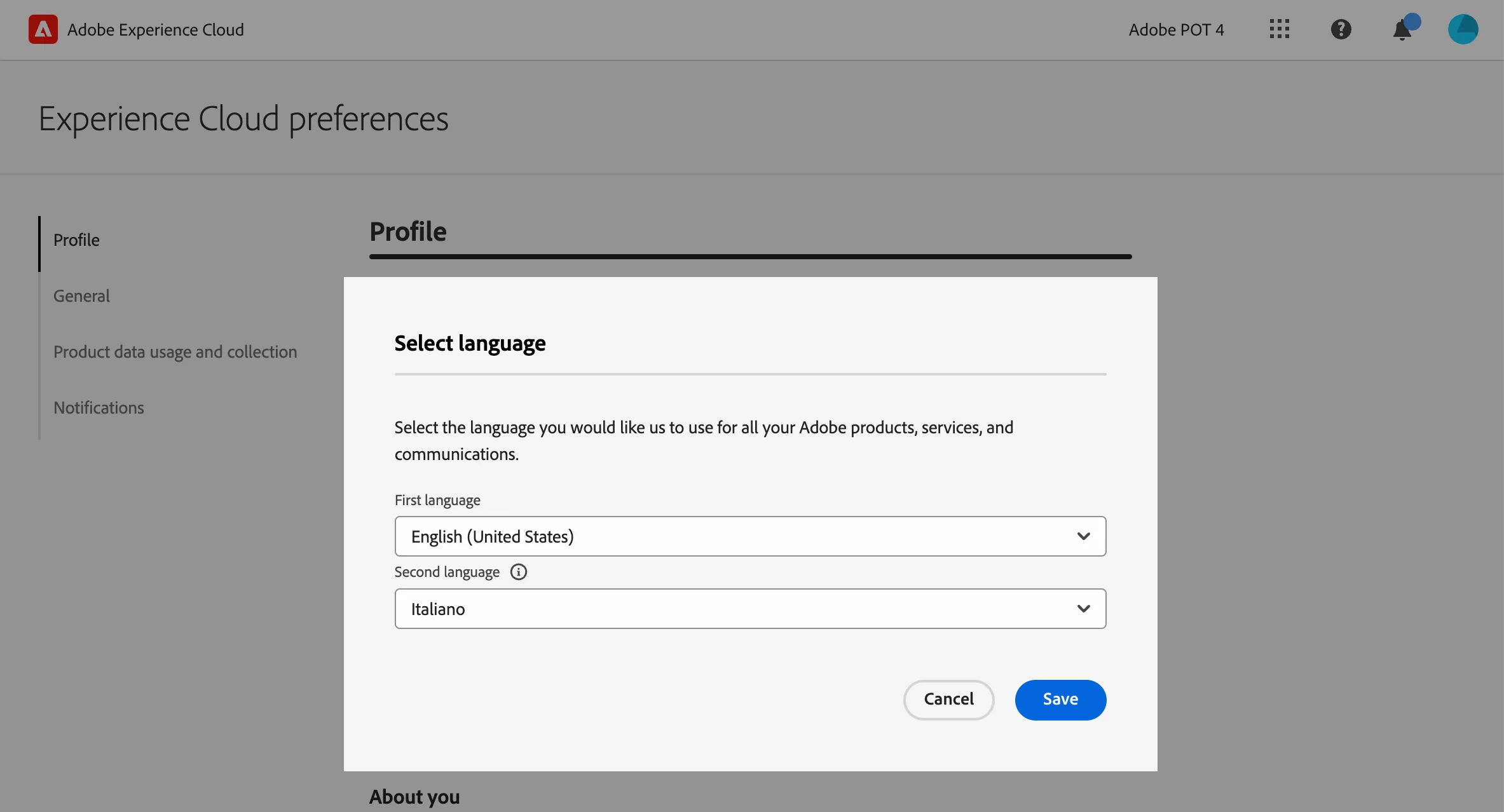
This guide is written in English and the screenshot are taken from a UI set for English language. If your UI is set to use other language, it can be difficult to recognise buttons, labels and text. We suggest you to switch your Adobe account preferred language to English.
To change the preferences:
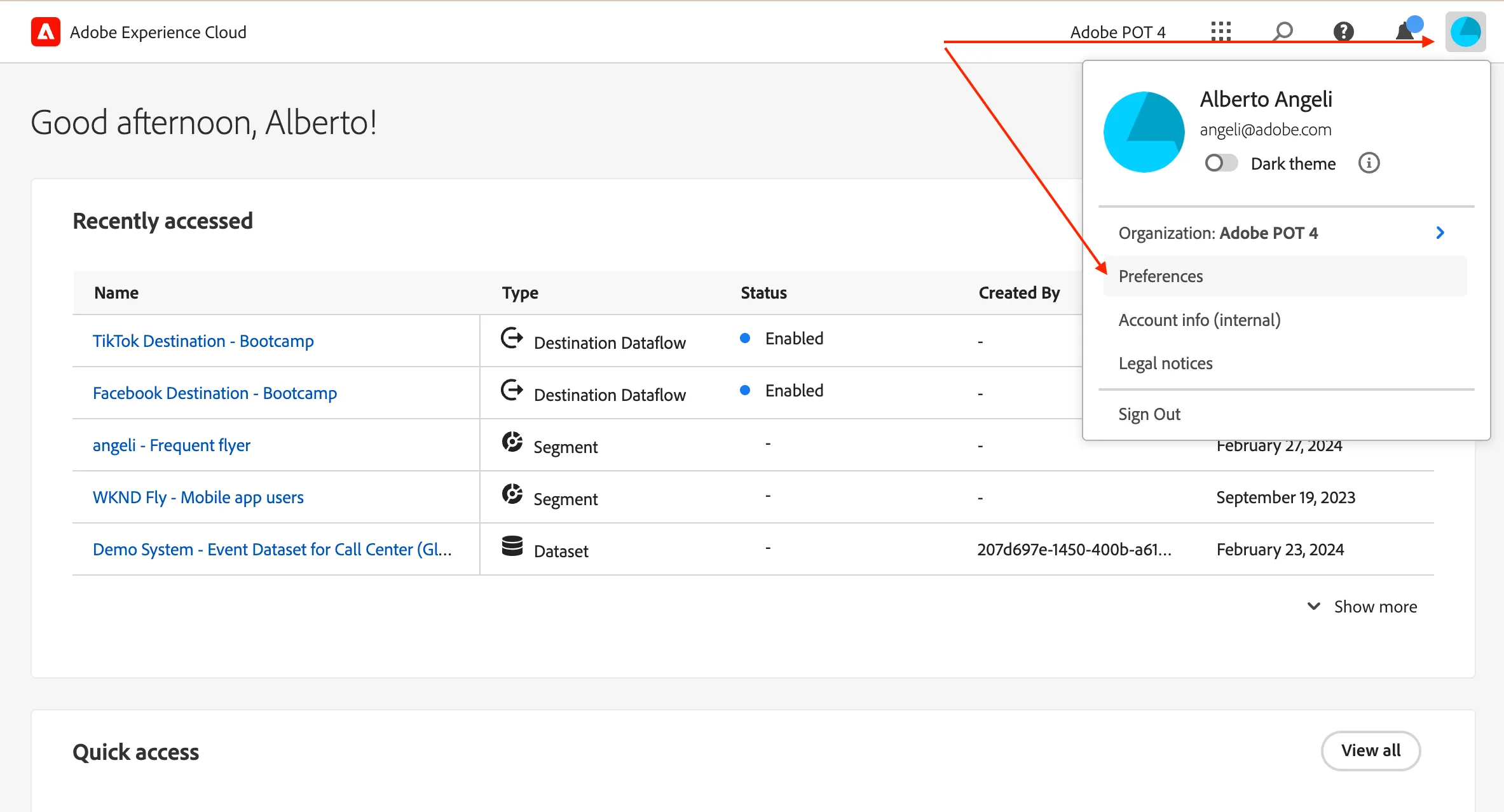
- click on the profile icon on the top right corner;
- click on Preferences.
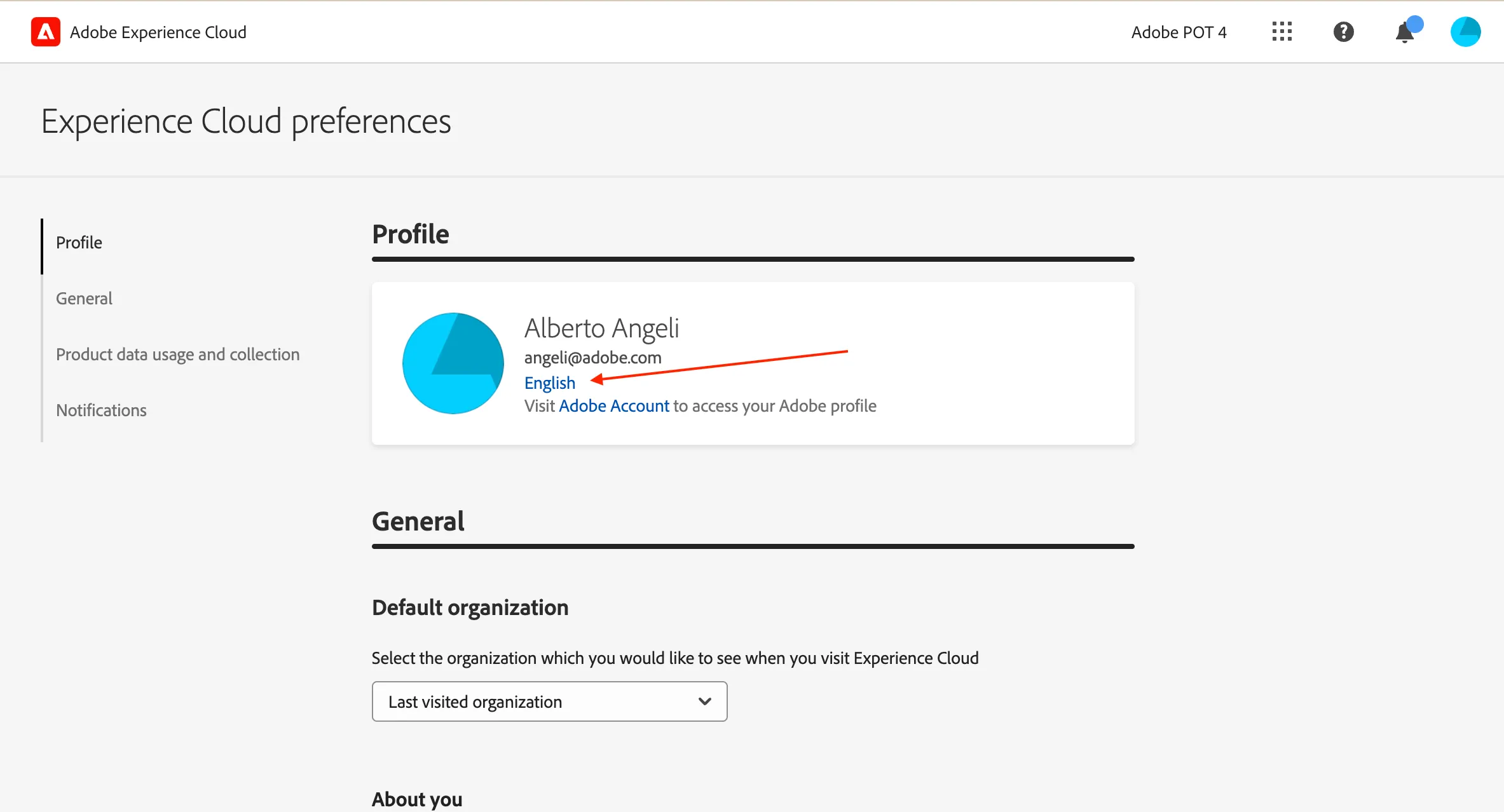
- Click on the language label just below your name.
- Select English (United States) as First language;
- select your preferred language as Second language;
- click Save.