3.1 Personalisation in the call centre
Now that we have seen website interactions & mobile app interactions enriching the customer profile, let's see how we can enrich it further by bringing in the call center interactions.
Front line systems and teams like call centre, in store, are often disconnected or remain in silo from the rest of the digital customer journey resulting in poor customer experience. With the right policies and applicable content captured we can connect these channels for a true omni-channel experience. Whether that's informing a call centre representative of the customer's journey up until the call, inclusive of website interactions which happened moments before and/or adjusting the onsite experience based on a call centre conversation telling us the customer needs more service support vs xsell/upsell messaging.
3.2.1 Example use case
e.g. A superannuation customer while calling to enquire on consolidation of super accounts, also asks about First Home Super Saver Scheme given they are thinking about buying their first home, this is a critical information that can then be passed to AEP and can be used to further to tailor the customer experience and provide more relevant information across channels.
3.2.2 Exercise
Keeping to the theme of being truly multichannel, in this exercise we’ll see how we can leverage the same Adobe Experience Platform data, segments, profiles beyond the digital interactions. In this exercise:
- Let's see, how we are able to pass digital interactions context to the call center system for the call center agent to have more relevant conversation.
- We'll simualte a call ceter call to the customer & capture key customer interactions provided during the call and view the details back in Adobe Experience Platform.
We've created a demo CX app that we'll use for the purpose of this exercise. In real life, AEP RTCDP will integrate with your call center systems like Genesys, Twilio etc.
Demo CX app - https://dsn.adobe.com/cx2/gillies-OVNT
3.2.3 Customer Journey Flow
Scenario 1:
After browsing through the products on the website, the customer wants to call the call centre to ask about a product. When they call the call center, this is what the call center agent can see:
- Enter your email address (as a customer - email address that you'd have used to register to the bootcamp website in Exercise 1.2 & not the Experience Makers hands on exercise email)
- On top under the Customer Touchpoints section, you can view the latest interactions from what was done on the app and the website. These are the details that the call center agent will see about the customer so that they can have a much more meaningful conversation.
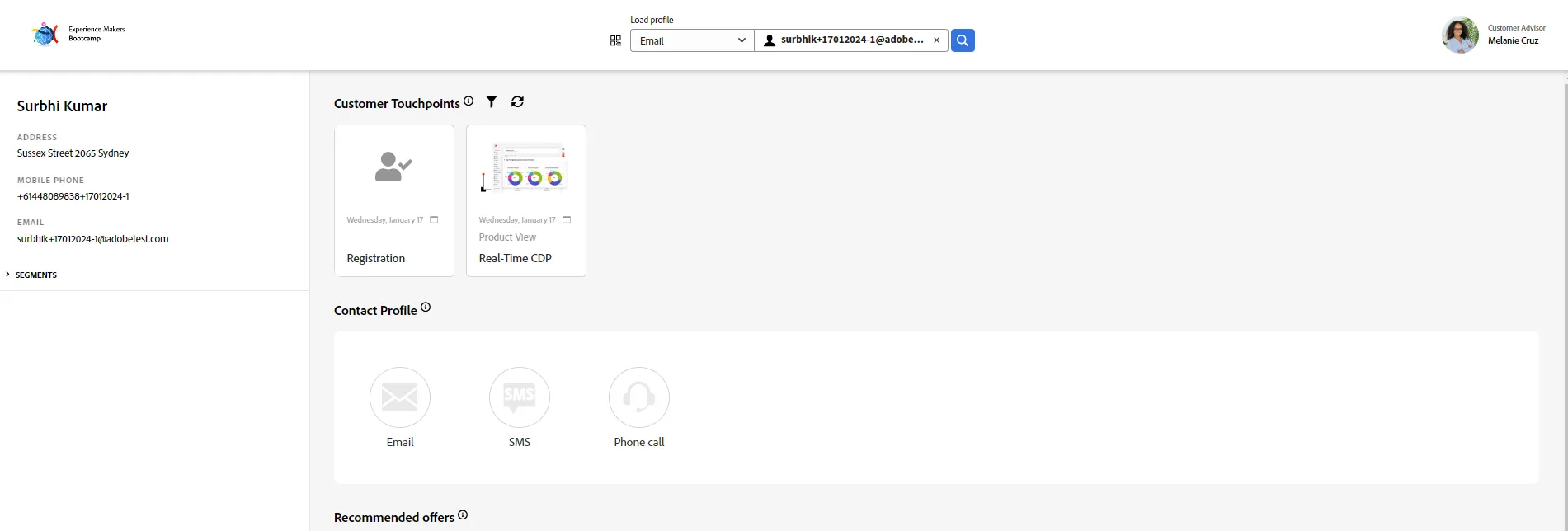
4. If you scroll down further, under the Recommended offers, the call center agent can access the offers to be presented to the customer. This is powered by Offer decisioning which we’ll cover in the next section.
How does this all work: In the backend, we have connected this CX app with AEP RTCDP using a HTTP connector. E.g., If you’re using Genesys or Twilio call centre system, AEP RTCDP can integrate with them to pass & get relevant information. Details of Genesys and Adobe Experience Platform can be viewed here.
Scenario 2:
After browsing through the products, a customer has submitted a form on the website to request a call back. The call center agent calling the customer back, can view all these details as seen in Scenario 1. Now let’s simulate a call to the customer using the CX app.
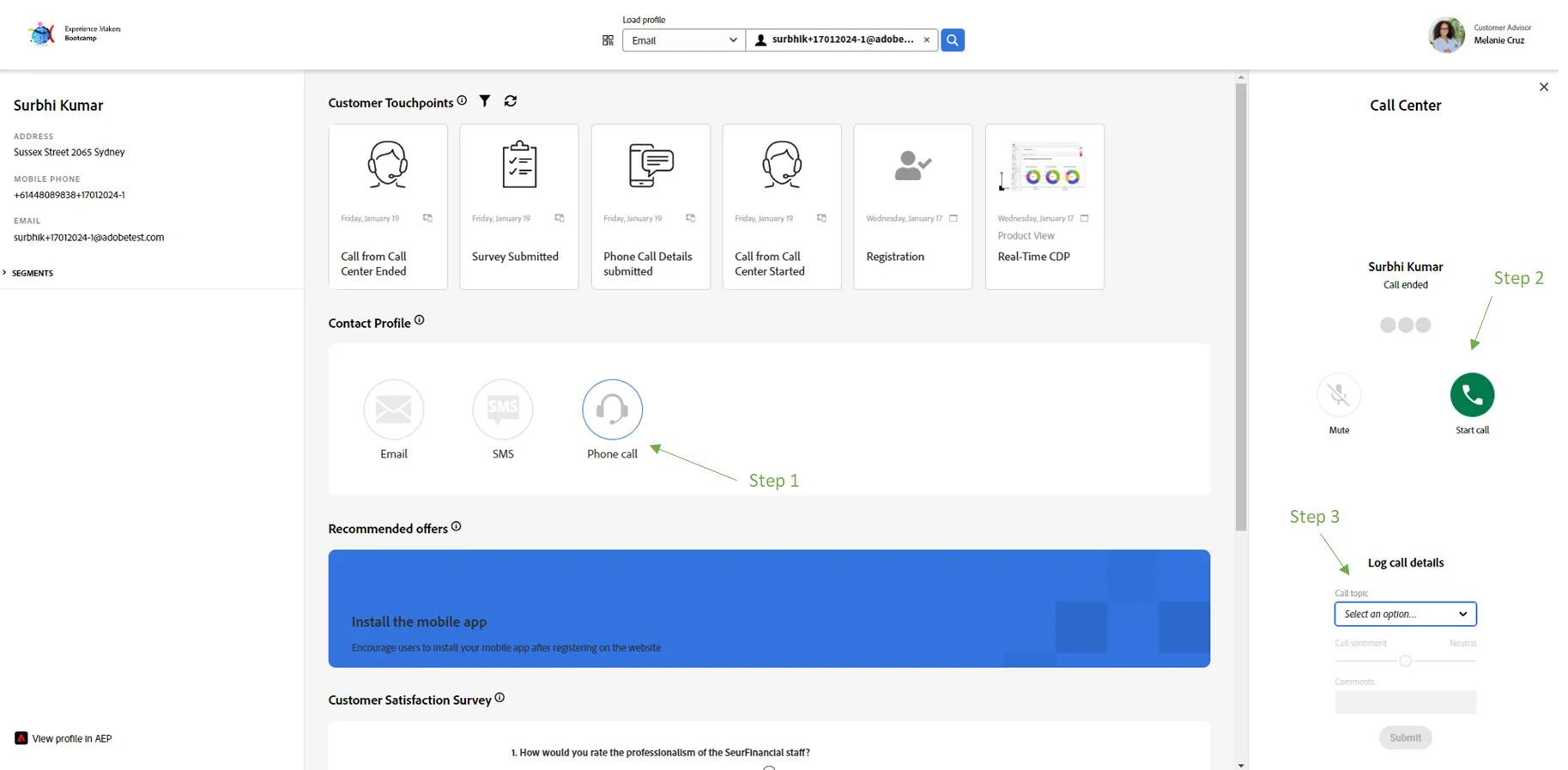
- After logging in to the CX app - In the top 'Contact Profile' section, select Phone call
- Click Start call to start simulating a call to the customer.
- During the call, a customer rep/call center agent can log details on the call. Under the Log call details section, you as a customer rep can log the call details.
- Select a 'Call topic' from the drop down - Select any topic from top 3 - Promotion, Invoice Questions or Complaint.
- Drag the 'Call sentiment' to whatever you like - positive or negative.
- Add ‘demo requested’ in the comments section.
- Click Submit
- Click End call to end the call simulation.
- [This step 5 is optional] You can scroll down further to update the survey as a customer and submit. This information will also be passed to Platform. In real life, Platform can integrate with any of your Voice of customer systems like Medallia, Qualtrics.
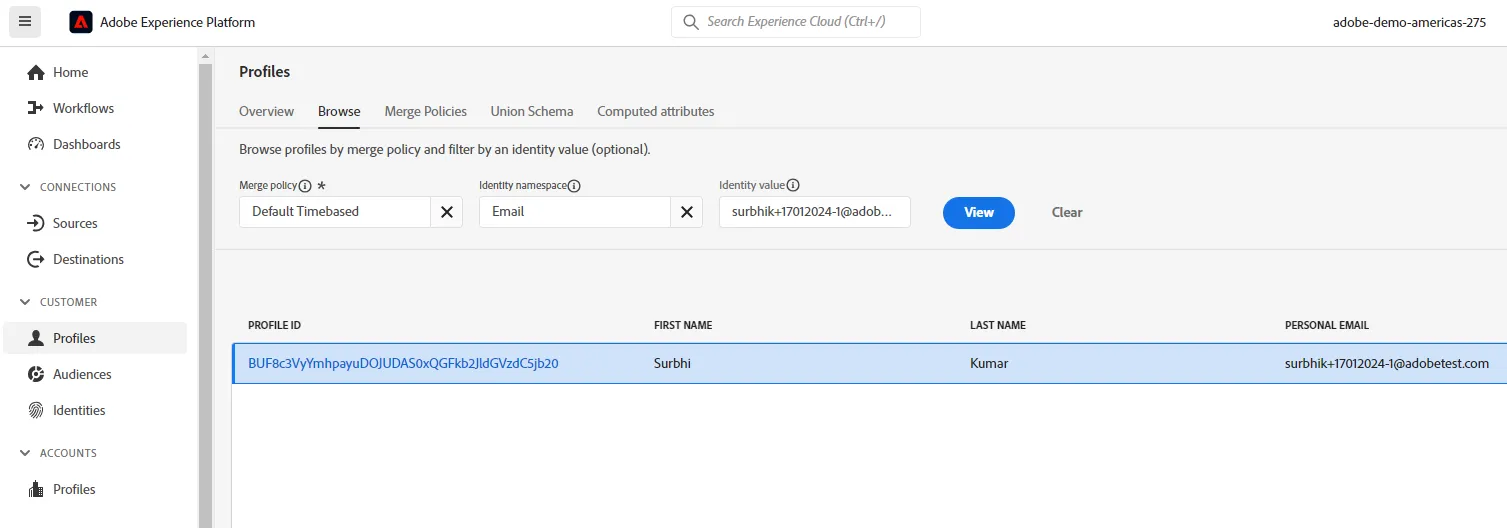
Let’s go back to AEP and see how these details from the call have been passed to the platform. Go to Adobe Experience Platform tab and to Customer-> Profile
- Select Email as the Identity Namespace and enter the email address (as a customer, not the Experience Makers hol login) that you've used to create the bootcamp profile and in the call center. Click on the Profile ID - this will take you to the customer profile in platform.
-
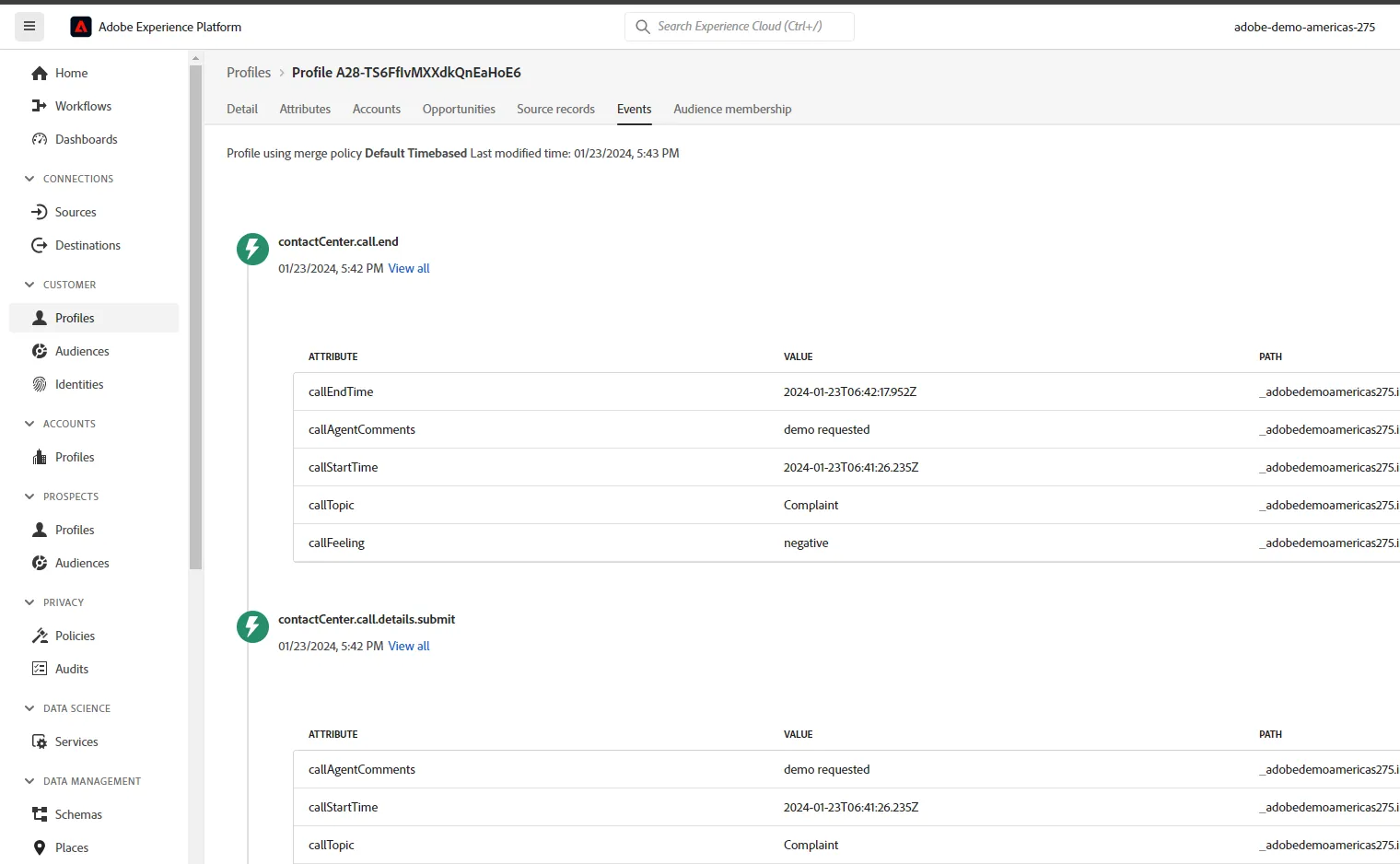
- Go to Events tab and check if the call center events have come through. We can now use these details to create segment/audience and target further as we did in our previous exercise on Day 1.
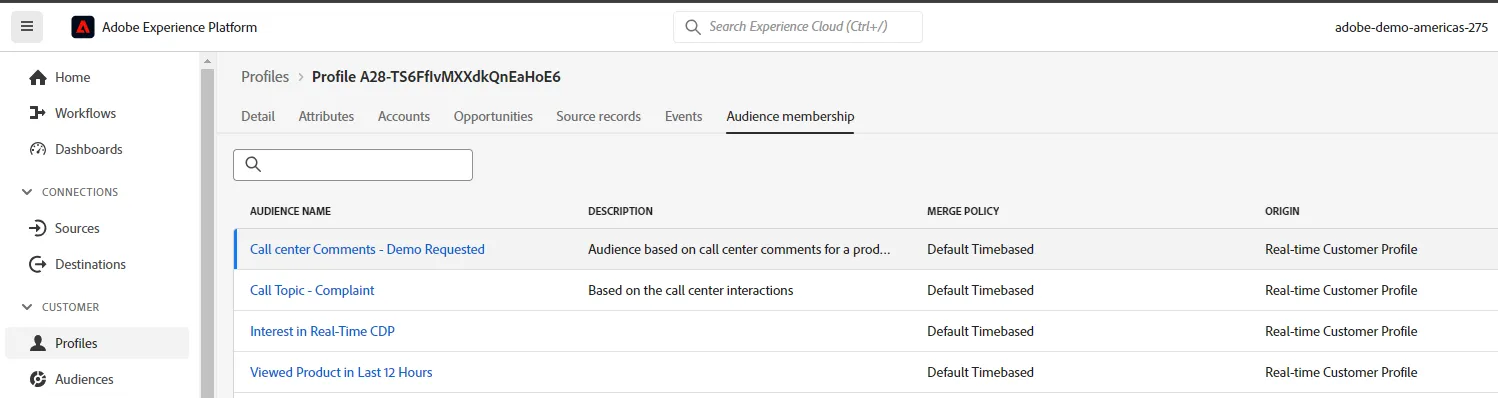
- Go to the Audience Membership tab, and see the audiences you've qualified for based on the call center interactions. These segments were pre-built.
Exercise complete checklist
Able to view the customer details in the CX app in the customer touchpoint section
Simulated a call and entered the call topic, sentiments and ended the call
Able to view the call details in Adobe Experience Platform Profiles -> Events