Adding ExD to Campaigns
4 min
Experience Decision is supported on both Journey Optimizer Campaigns and Journeys. Both of them are capable of running Code-Base-Experiences and Email Channel.
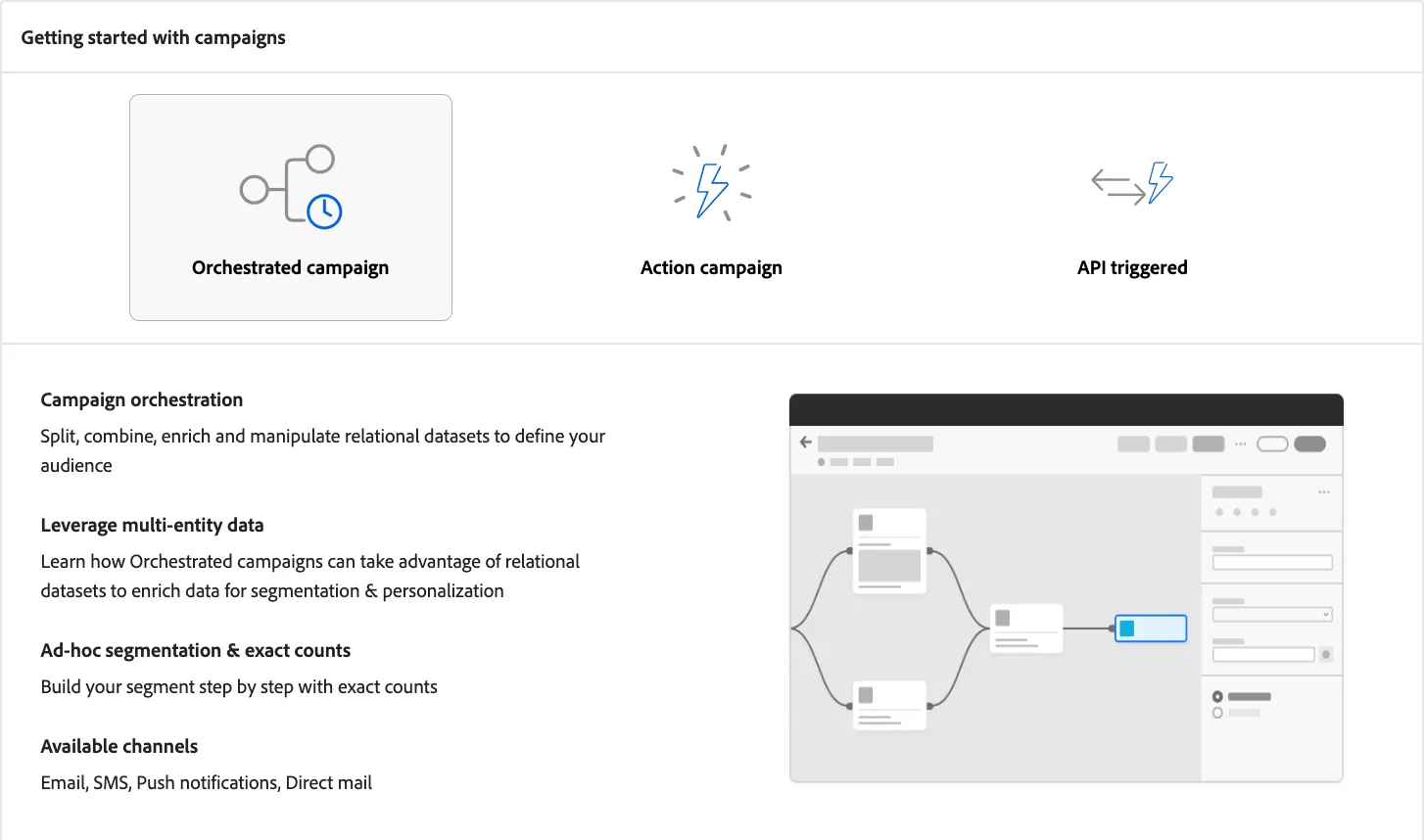
Updating our Campaign for Decisioning
- On the Nav, click Campaigns, under Journey Management
- Search for the campaign "BRP - Offer Campaign".
- Click on the three dots next to the campaign name and click "Duplicate".
-
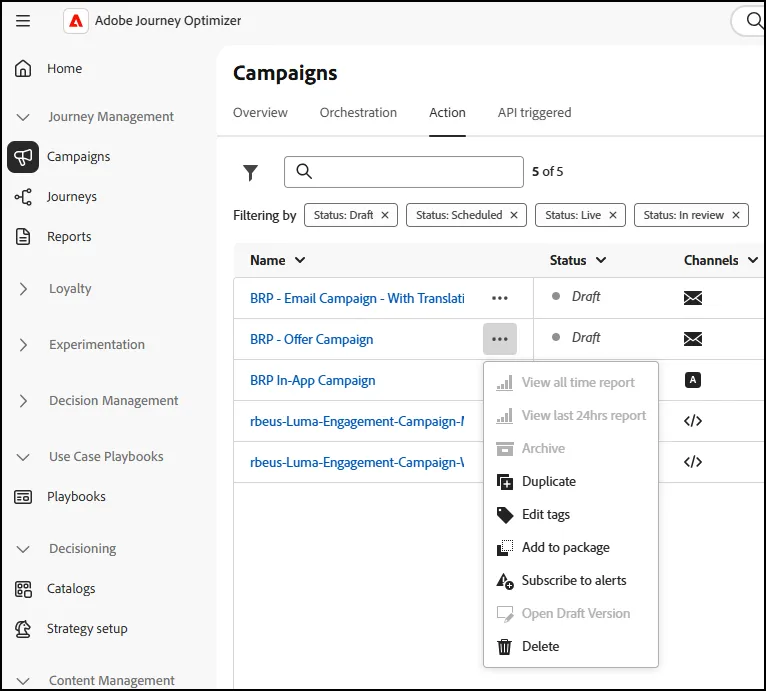
- Click on the Campaign name to open it.
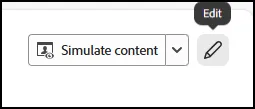
- Click on the pencil in Content to open the Properties of the Campaign:
-
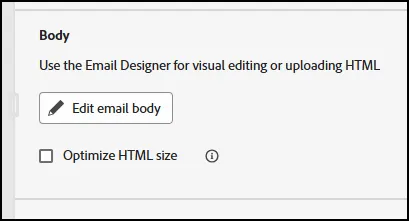
- Click on "Edit Email Body" on the right panel:
-
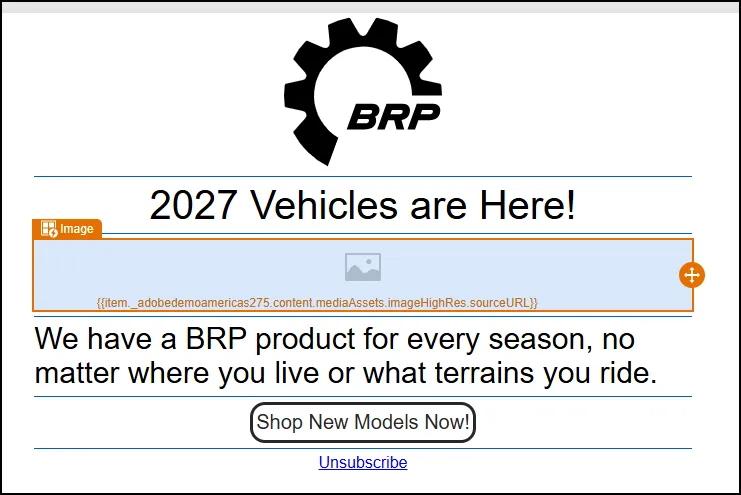
- Click on the image in the middle of the email to make sure it is highlighted:
-
- Click on the Decisioning Tab on the right rail:
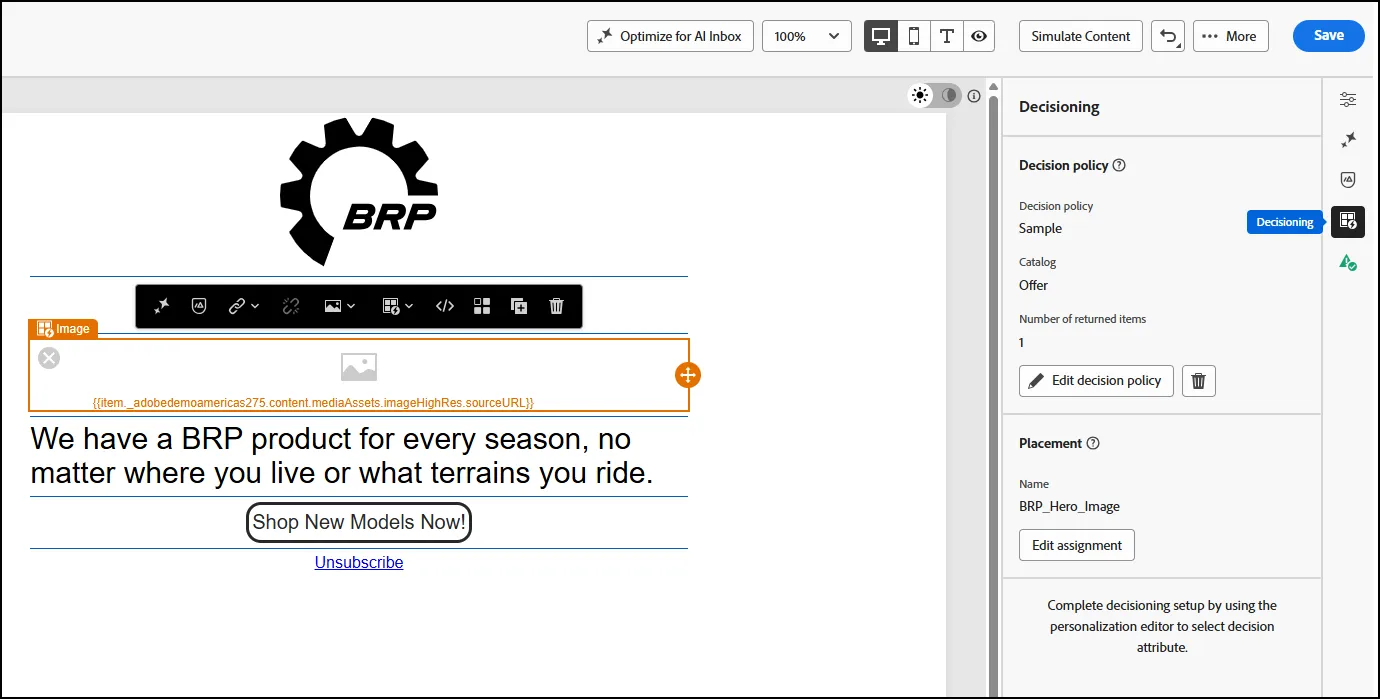
- Click on the "Edit Decision Policy" to review the assigned Decision Policy.
- Notice the assigned "BRP Sample Collection" strategy that has been assigned to the image for the email:
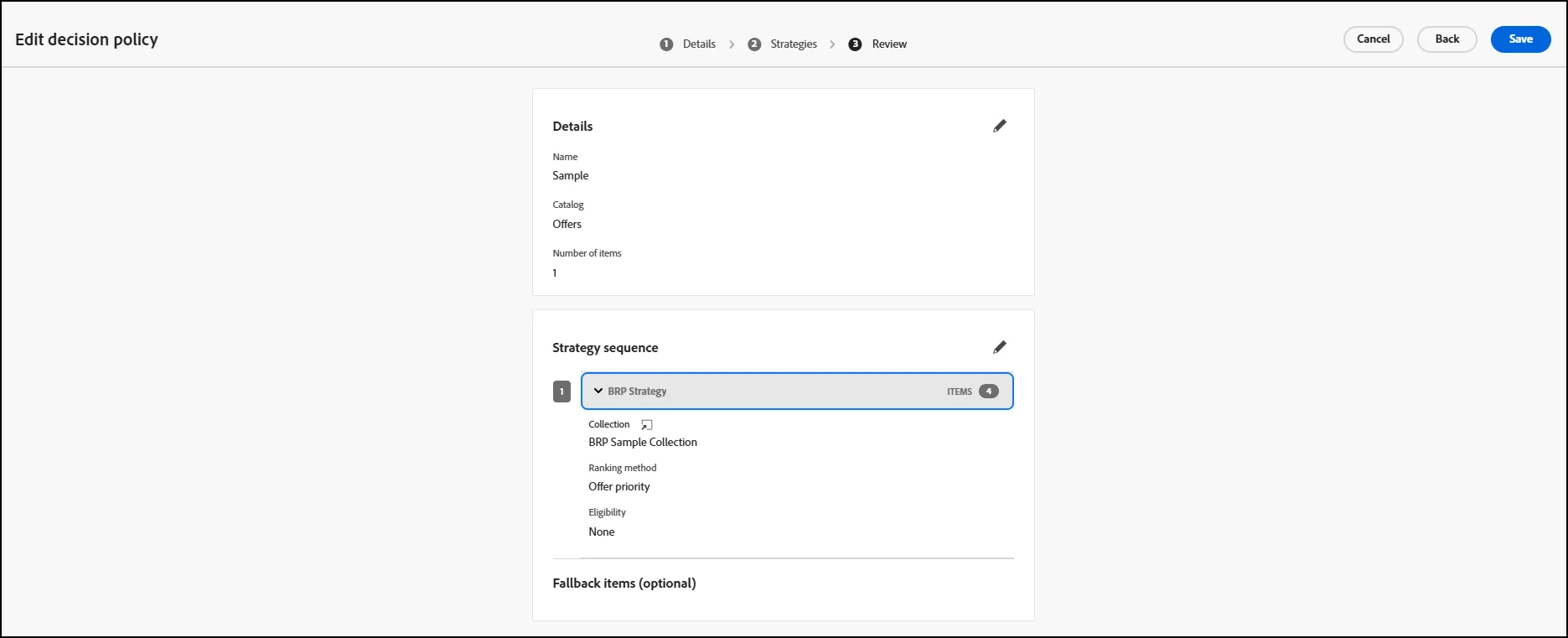
- Click Save to return to the Email.
- Click on the "Edit Assignment" button under "Placement":
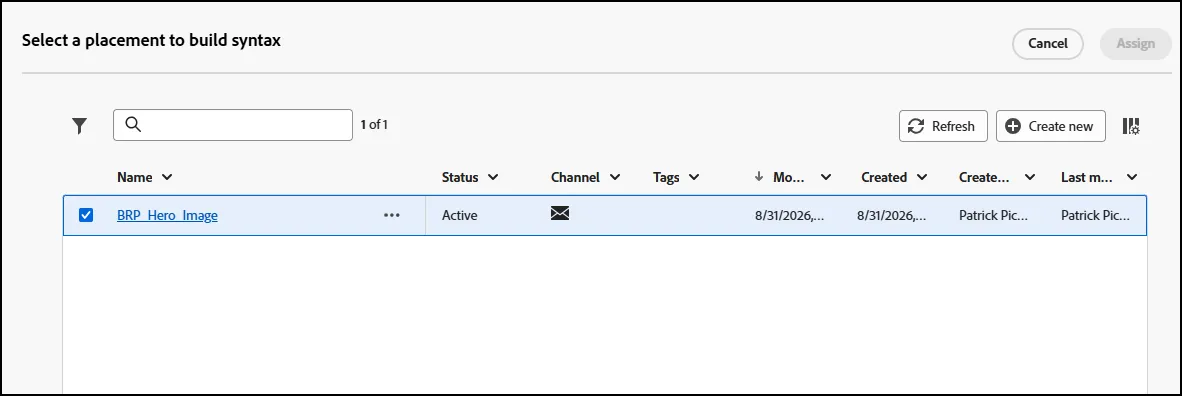
- Make sure the "BRP Hero Image" is selected.
- Click Cancel to close the window.
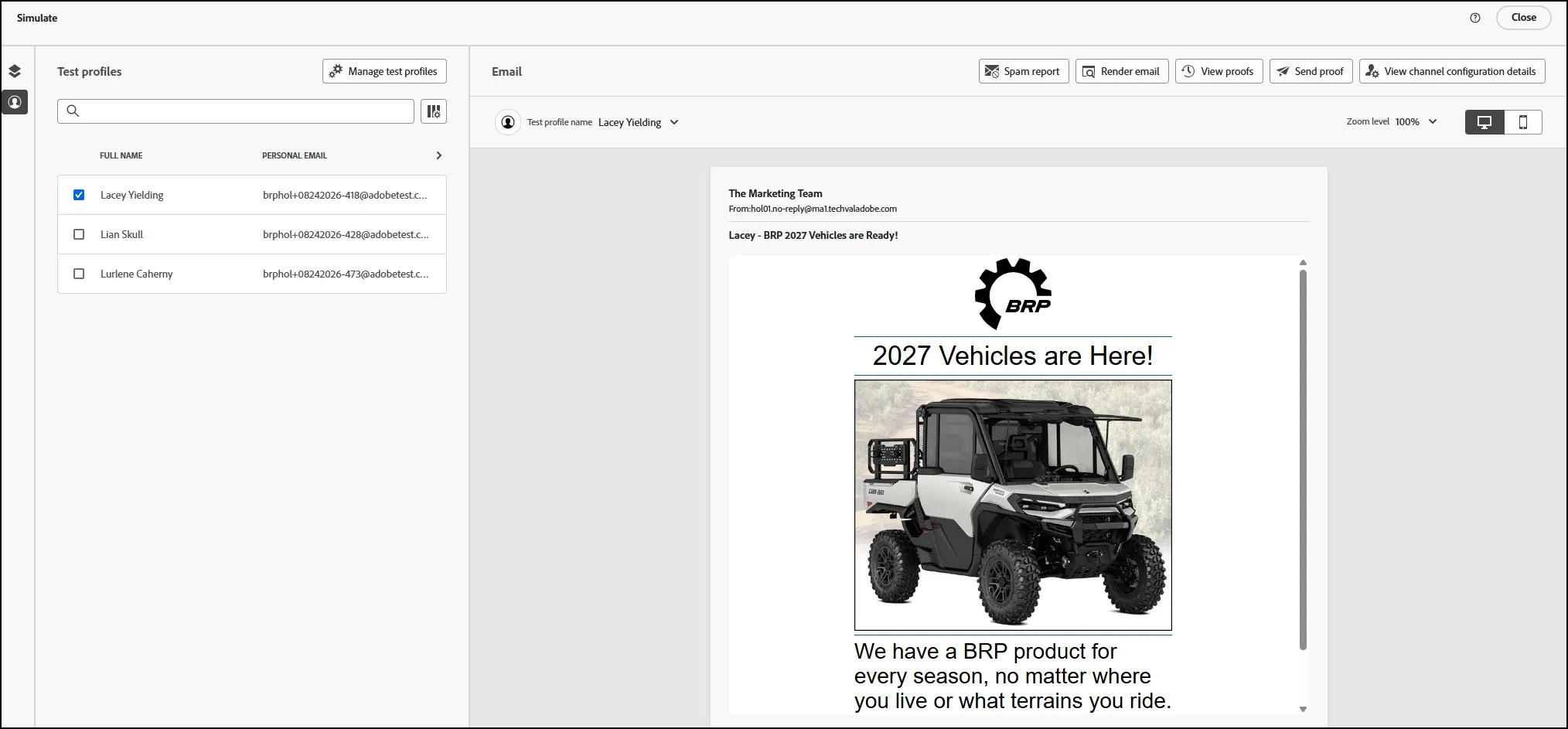
- Click on the "Simulate Content" button to preview your Email:
Congratulations, this concludes the Experience Decision Labs, Next Offer Decision