Create an Audience with Dynamic Variables
In this exercise, you’ll create an audience by making use of Adobe Experience Platform’s Audience Builder and Dynamic Variables.
Audience Overview
To log into the Adobe Experience Platform, check the Introduction section.
To get an overview of available audiences in Adobe Experience Platform:
- In the menu on the left side, click on Audiences. You will see a dashboard overview with information on a specific audience.
- Click on Browse at the tab bar. You will see an overview of all existing audiences.
Create an Audience for Abandoned Bookings
We want to create a rule that will select all customer profiles that have searched for a flight to a particular destination, but not booked the flight in the last 24 hours. WKND Fly want to retarget these customers with offers for their chosen destination.
To do this, we need to use Dynamic Variables in our audience definition. Dynamic variables solve the scalability problems marketers face when building audiences for campaigns.
Unlike static audience rules which require you to explicitly capture every possible use case, Dynamic Variables can be used to build the rule logic and dynamically express relationships.
Add events
- Click on + Create Audience. This will open the Create Audience popup.
- Select Build Rule as the create method. This will open the Rule Builder.
To define our audience:
- Select the Events tab in the Fields section.
- Search for Flight Selection.
- Drag the Flight Selection Event Type onto the canvas.
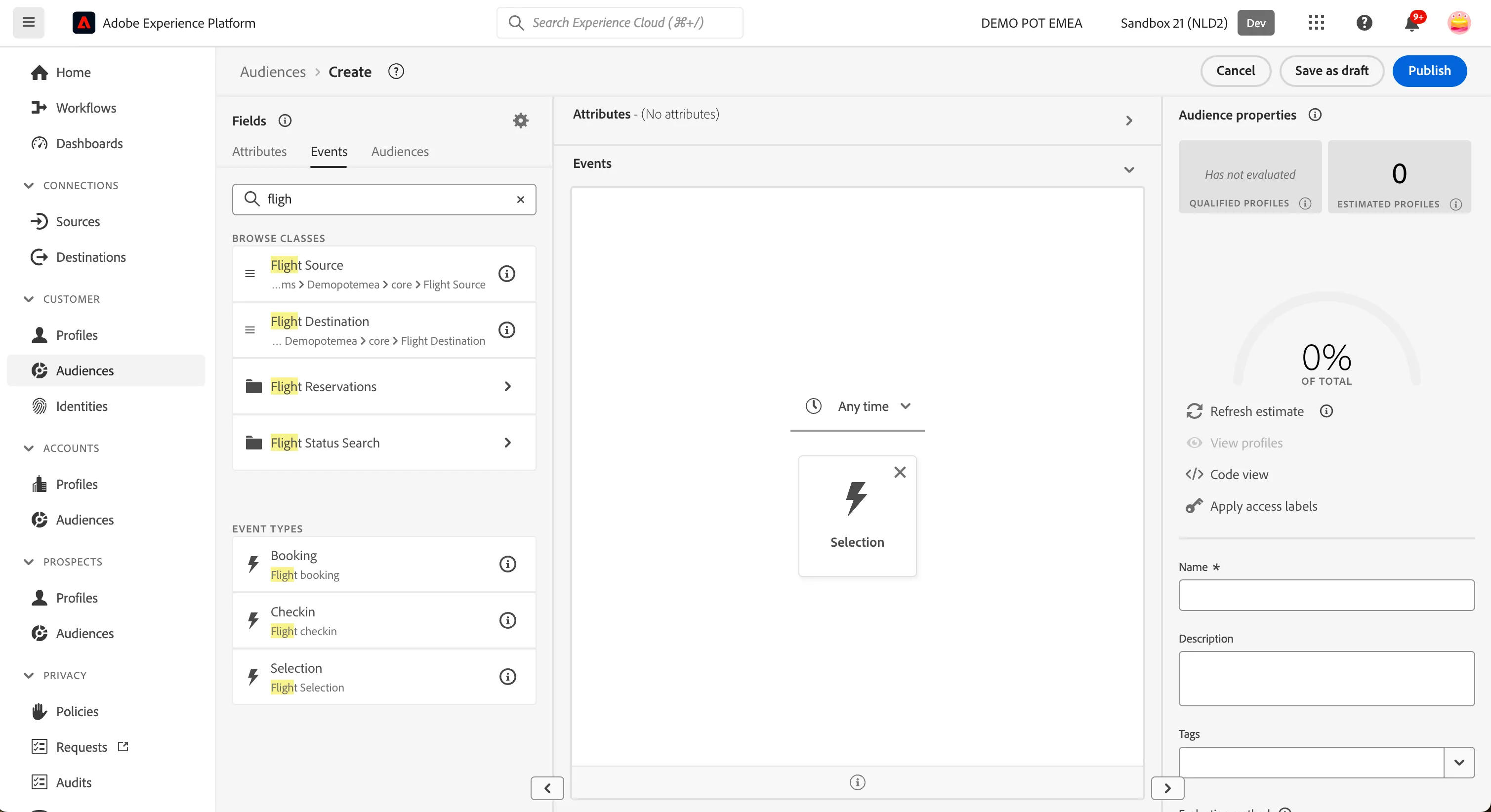
Now we want to add a second condition to look for profiles who have not booked a flight.
- Select the Events tab in the Fields section.
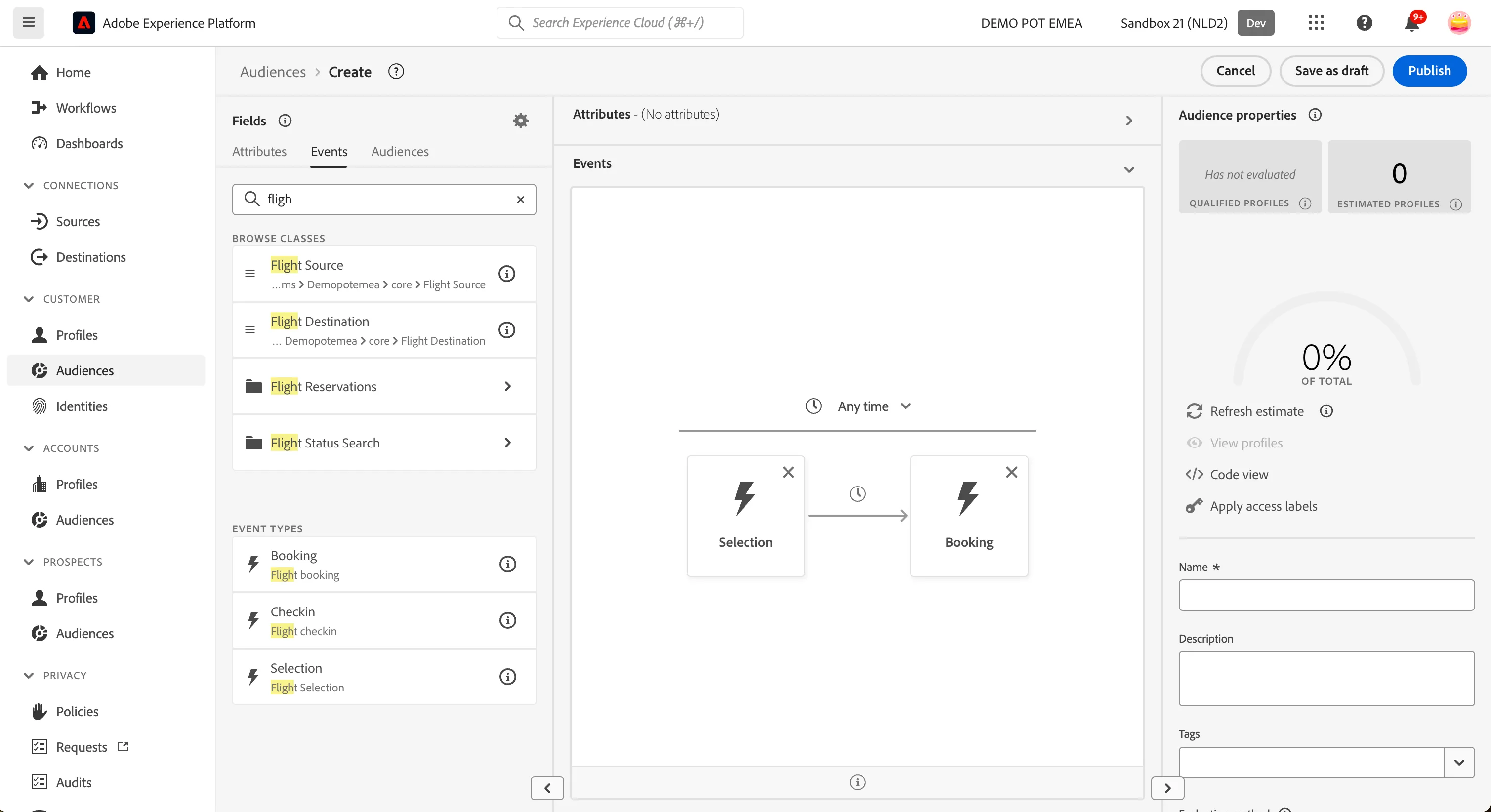
- Search for Booking
- Drag the Flight Booking Event Type onto the canvas, to the right of the Flight Selection event.
Your audience definition should look like:
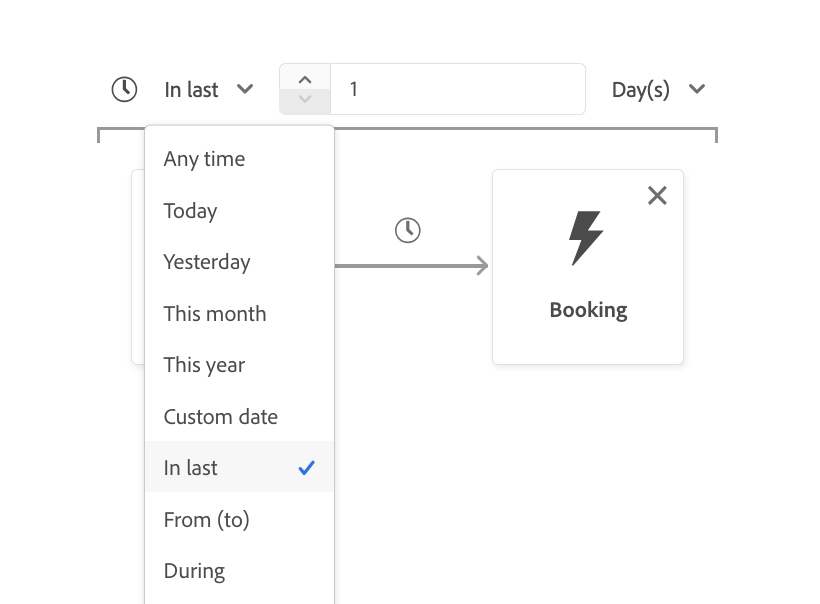
- To restrict the time period between Flight Selection and Flight Booking, select the anytime drop down.
- Change the condition to In Last 1 Day(s).
IMPORTANT: if you have used the search text box, clean the content by click the X icon on the right of the search text box.
Add dynamic variable
Now, we want to add a third condition that will ensure audience qualification only occurs when the two events reference the same flight destination.
This is our Dynamic Variable.
IMPORTANT: for this part of the exercise DON'T USE the search text box. Navigate the folders tree to find the fields, as described in the guide.
- Select the Booking event in the canvas by clicking on it. You’ll know you’ve done this correctly when the square has a blue border.
- Select the Events tab in the Fields section.
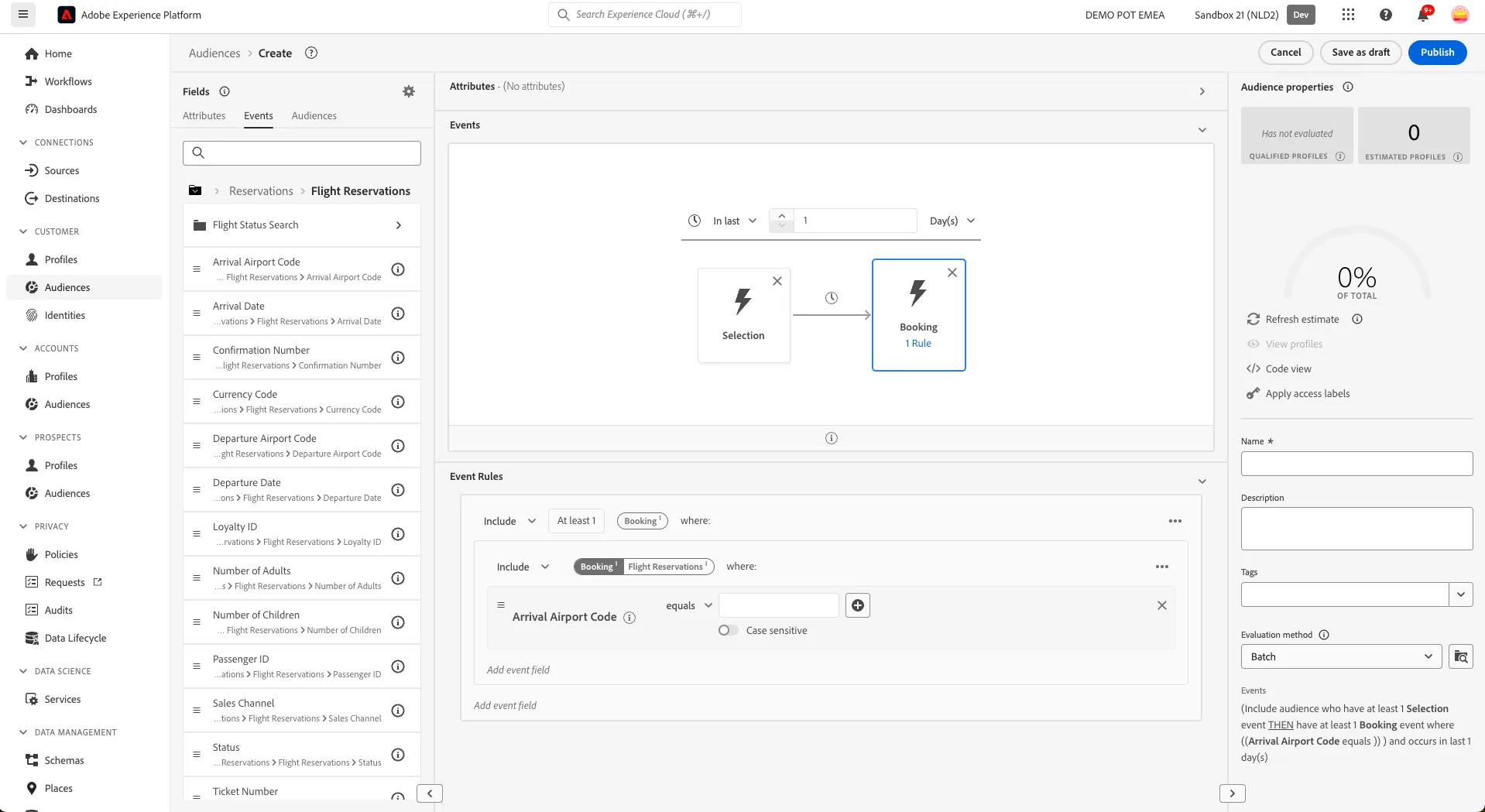
- From the Browse variables section (the box below Event Types), select Booking > then select Reservations > then Flight Reservations > then Arrival Airport Code.
- Drag Arrival Airport Code onto the canvas into the Event Rules section, where is says Add event field.
Your audience should look like:
We need to compare the Airport Arrival code of the Flight Selection event to the Airport Arrival Code of the Flight Booking event.
- Select the Events tab in the Fields section.
- From the Browse variables section (the box below Event Types), select Selection > then select Reservations > then Flight Reservations > then Arrival Airport Code.
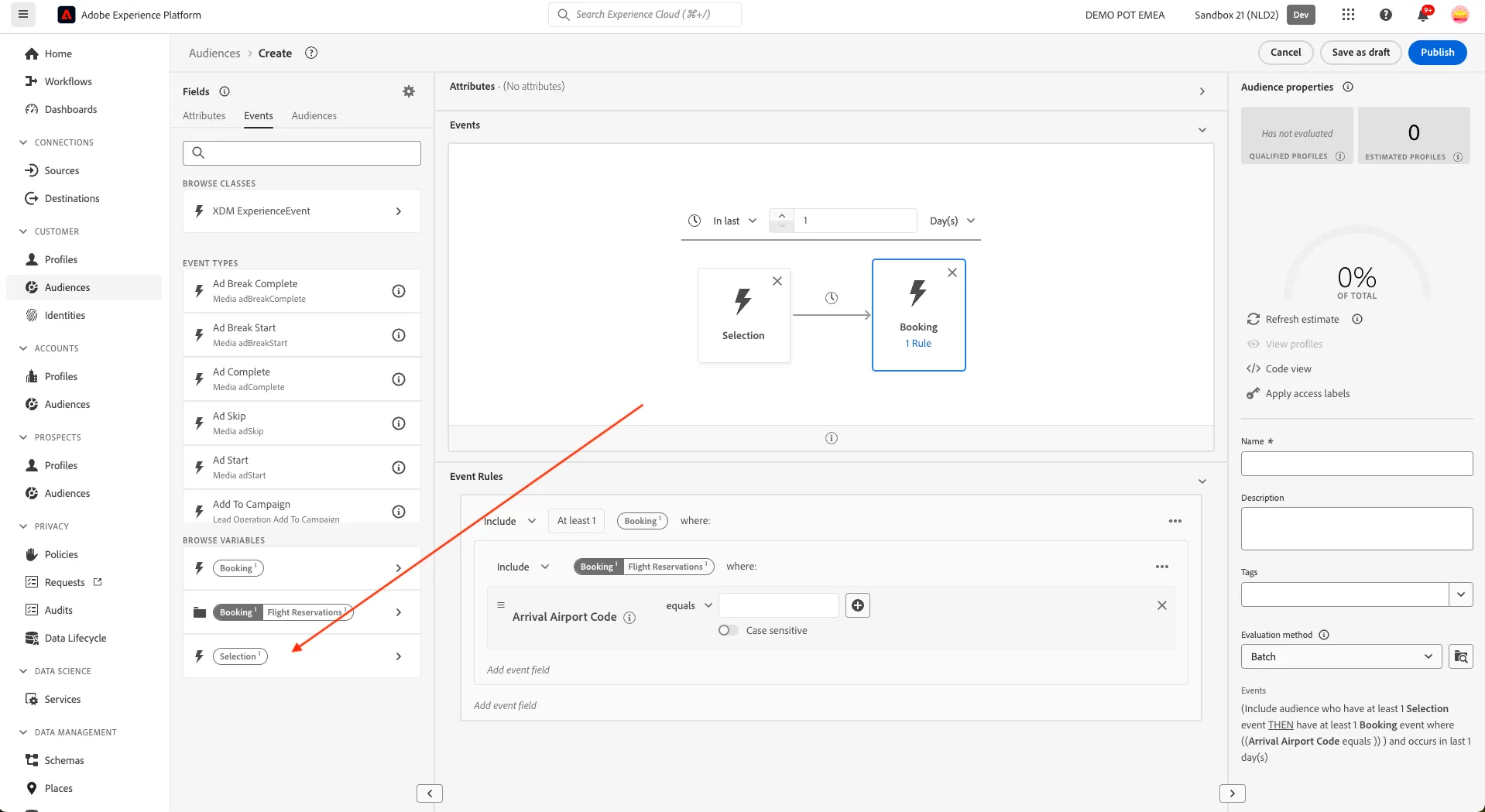
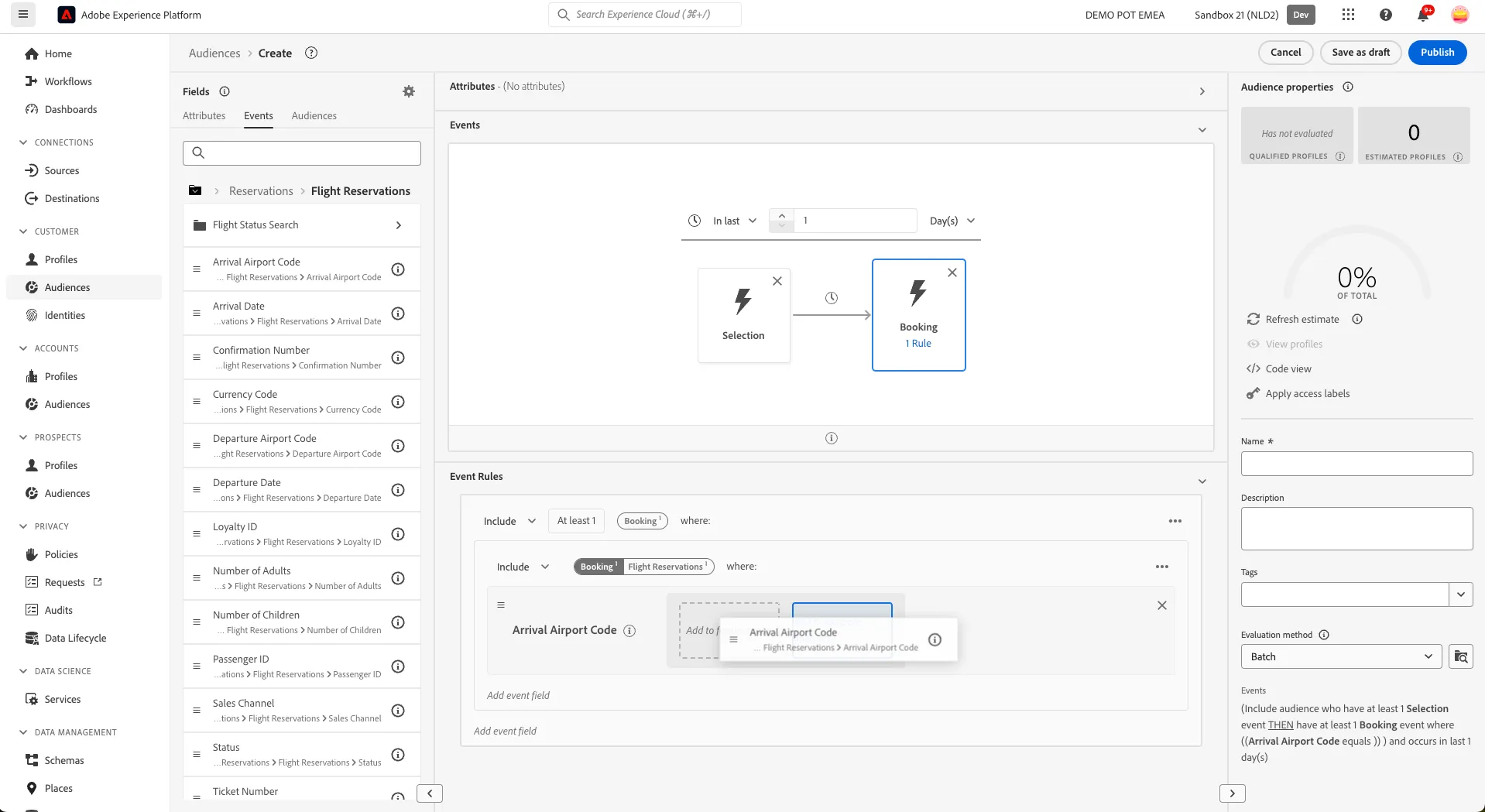
- Drag Arrival Airport Code onto the canvas into the Event Rules section, into the Equals condition text box.
- As you drag the Airport Arrival Code over the text box you'll be given the option to Compare Operands.
- Drop the Airport Arrival Code into this area.
Add the exclusion
The final thing we want to do is add an exclusion rule to the Booking event, since we want to only include customers who have not booked a flight.
- Click on the Booking event.
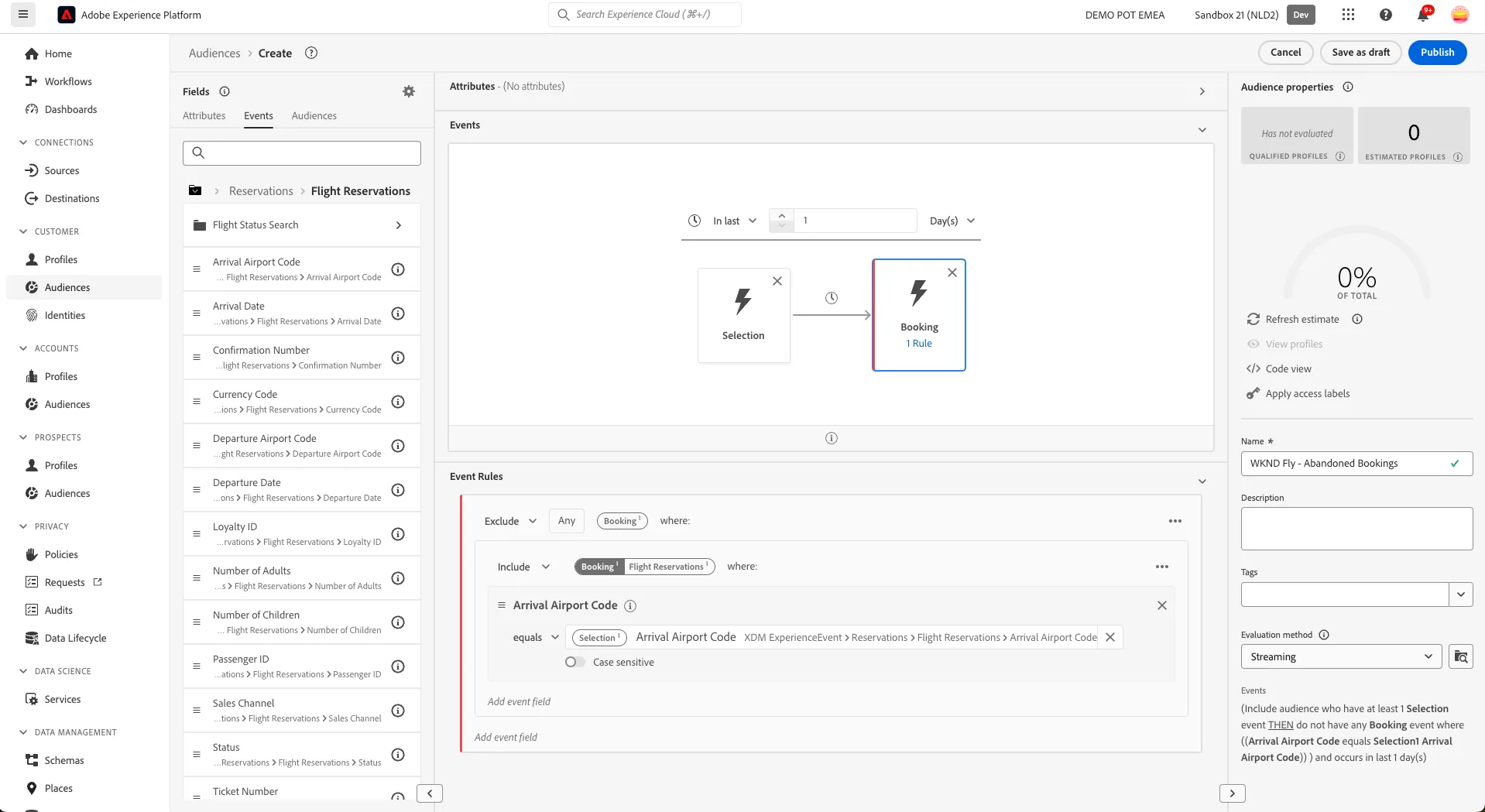
- In the Event Rule, select the include drop down and change this to exclude.
Your final audience definition should look like:
Publish the audience
Let's publish our audience.
- Enter a Name for your audience using the following naming convention, e.g. [your name] - Abandoned Bookings.
- (optional) Enter a Description.
- Select Streaming from the Evaluation method dropdown list.
- Click on Publish.
You will be taken to the Audience summary screen, outlining your audience definition.
You have successfully created a Dynamic Audience.