Push Message Designer
This lab will walk through the steps to create a Push Message in Adobe Journey Optimizer.
NOTE: Some exercises may vary during the actual Hands on Lab versus what is listed in the Archbee Page, due to industry setup and / or Presenter preferences.
Create a New Message
- Within your Journey, click on the Push action node you added to the canvas.
- Enter a Label and Description for the message.
Select Marketing for Category and MultiChannelMarketing for Push Surfaces
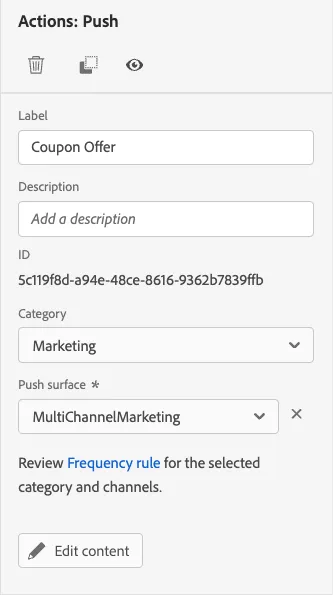
- Click on Edit Content.
Design Push Message
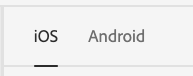
Choose iOS to design push message for the iOS operating system.
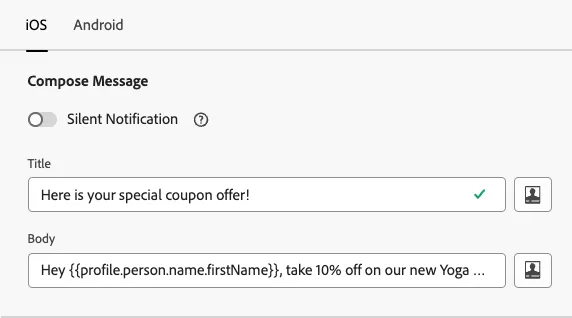
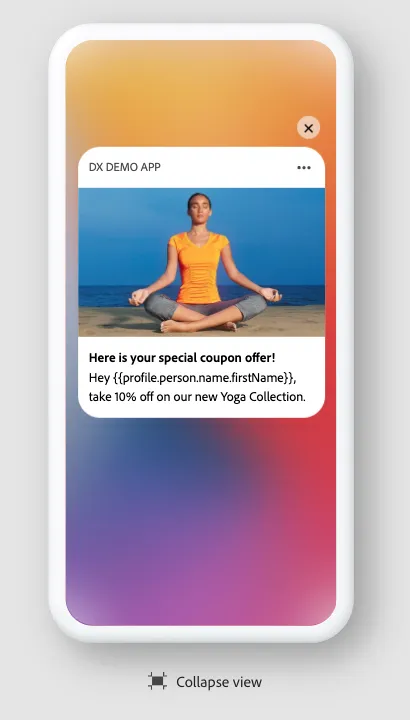
Enter a title and body for the message. You can include a personalization field suchj as first name.
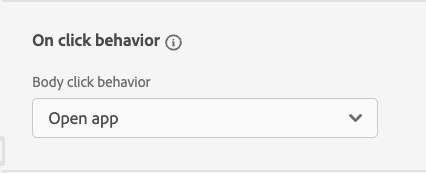
Choose the option "Open App" for On Click behavior.
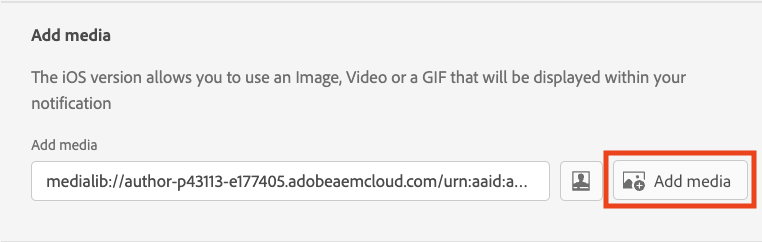
Choose image to be displayed along with the message by clicking on the "Add Media" button which will open up Asset Essentials.
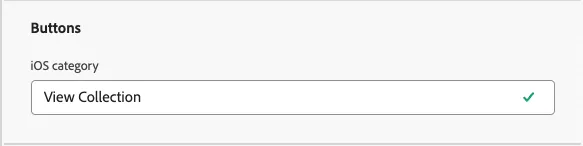
Add a button along with a label (optional).
Review and confirm the message setup in the message preview area.
- Repeat above steps for Android operating system (optional).
- Exit out of the designer.