Email Designer
6 min
This lab will walk through the steps to create an Email in Adobe Journey Optimizer.
NOTE: Some exercises may vary during the actual Hands on Lab versus what is listed in the HOL Page, due to industry setup and / or Presenter preferences.
Create a New Message
- Within the Basic Journey, click on Email action node
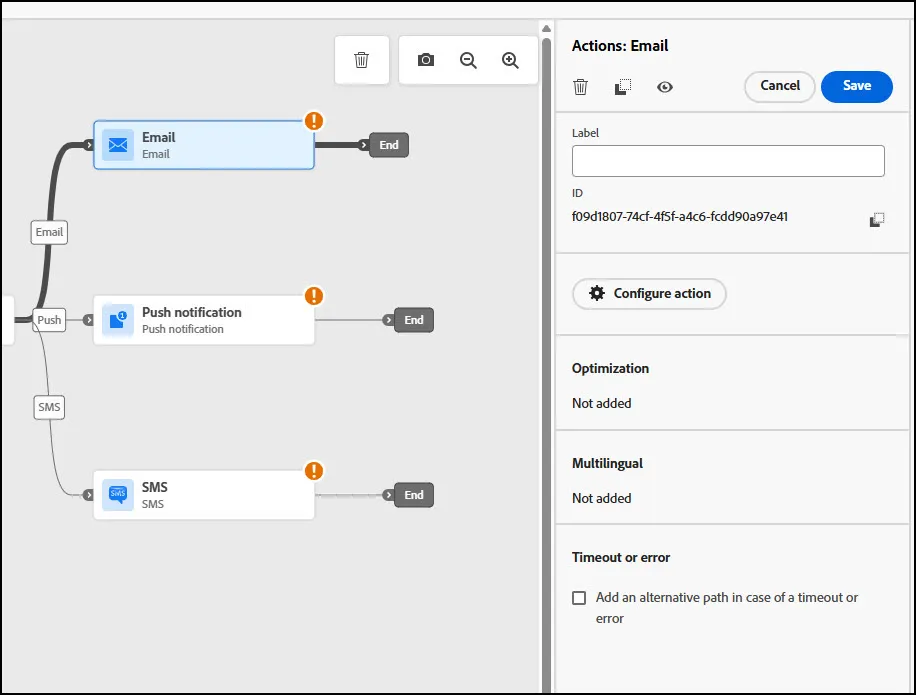
- Enter a Label and Description for the message.
- Click on the Configure Action button.
Define a Subject Line
- From the next screen, click on the Email Channel Configuration drop-down and select the Marketing Channel:
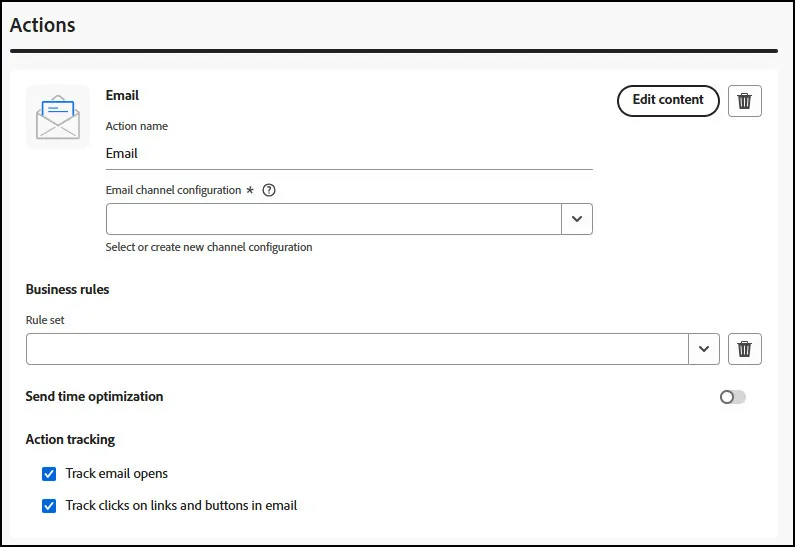
- You can leave the other options as default.
- Click on the Edit Content Button. This will open up the message canvas.
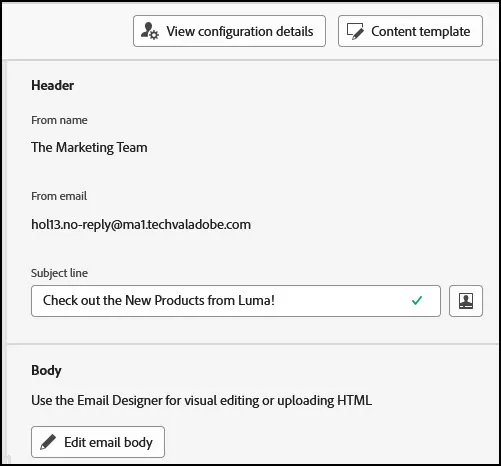
- Enter a Subject Line:
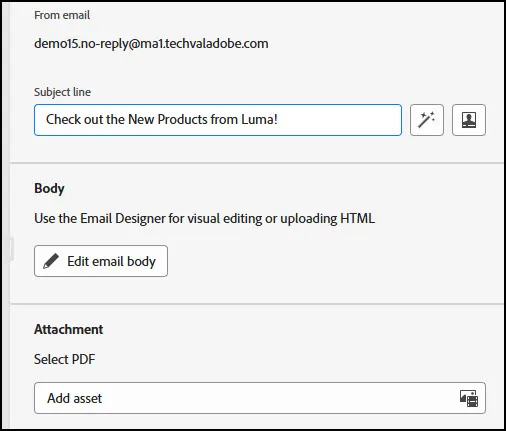
- Click on the Personalization icon to add personalized data available for a customer record.
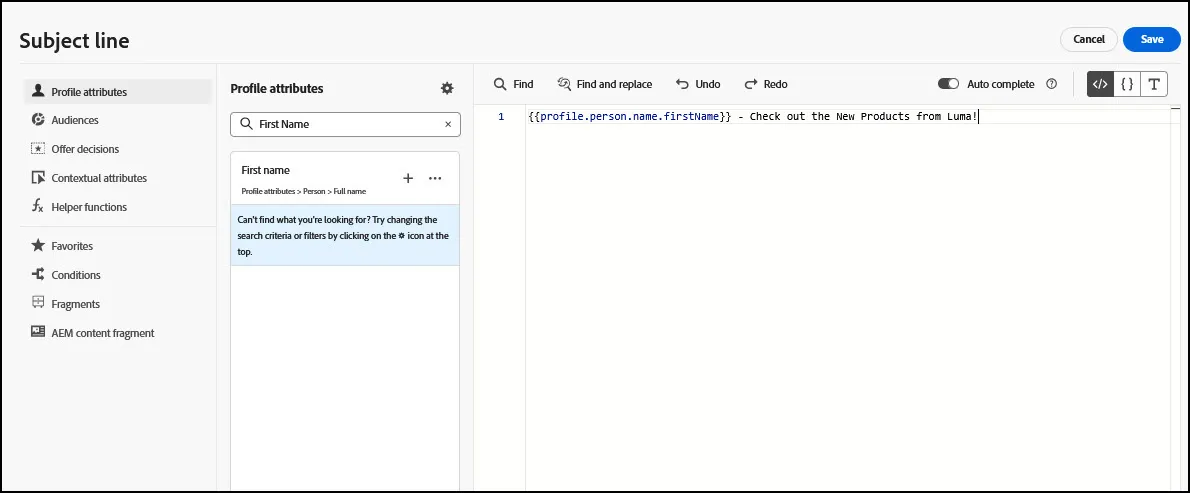
- To add personalization, place your cursor where you want the personation added. Search for first name by searching for "first" and clicking the plus sign. Click Save.
- You subject line should read something like: {{profile.person.name.firstName}} - Check out the New Products from Luma!
Design Email
- Click on the "Edit Email Body" button:
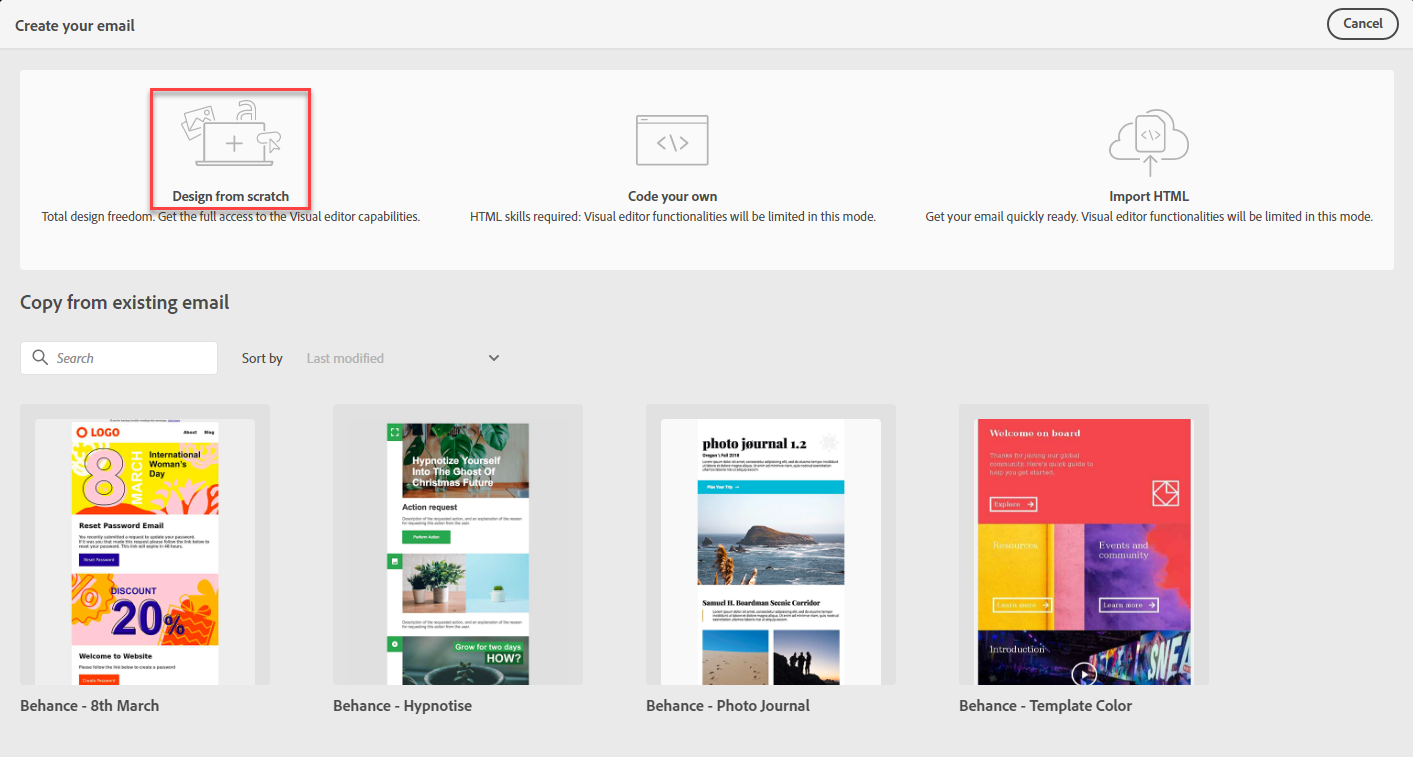
- In the next Window, Select “Design from Scratch”
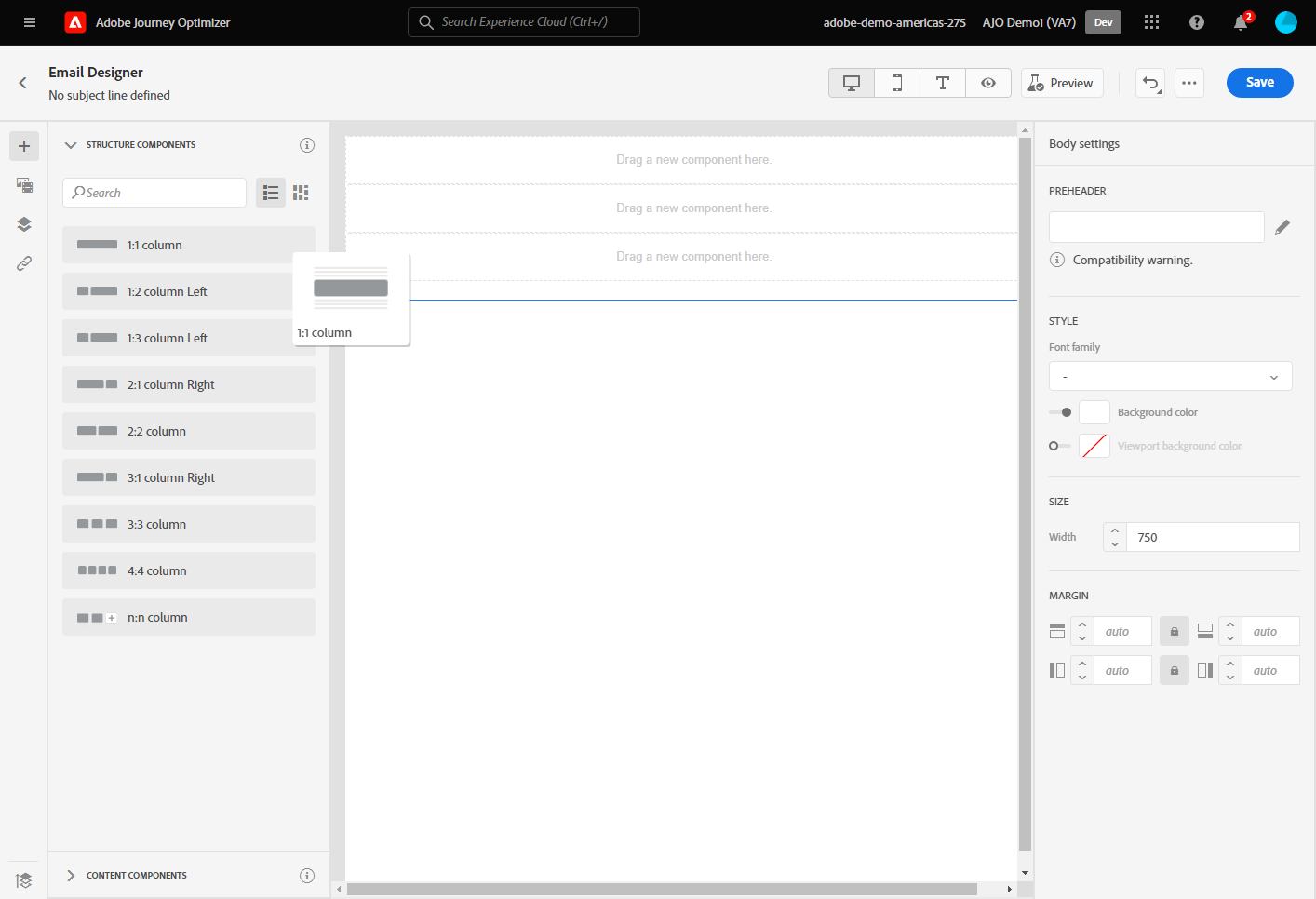
- Click on the 1:1 Column. Drag it 10 times onto the Canvas.
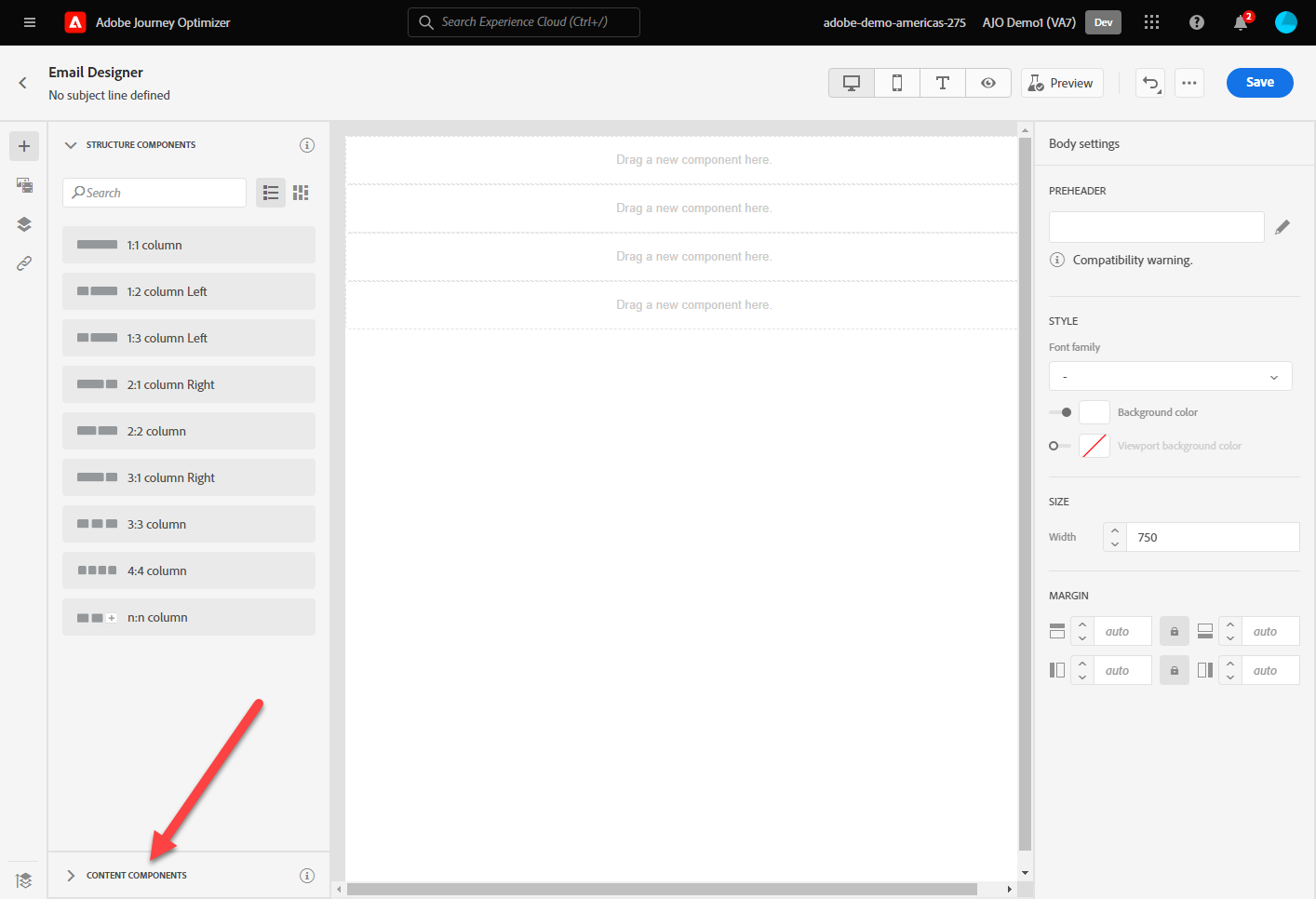
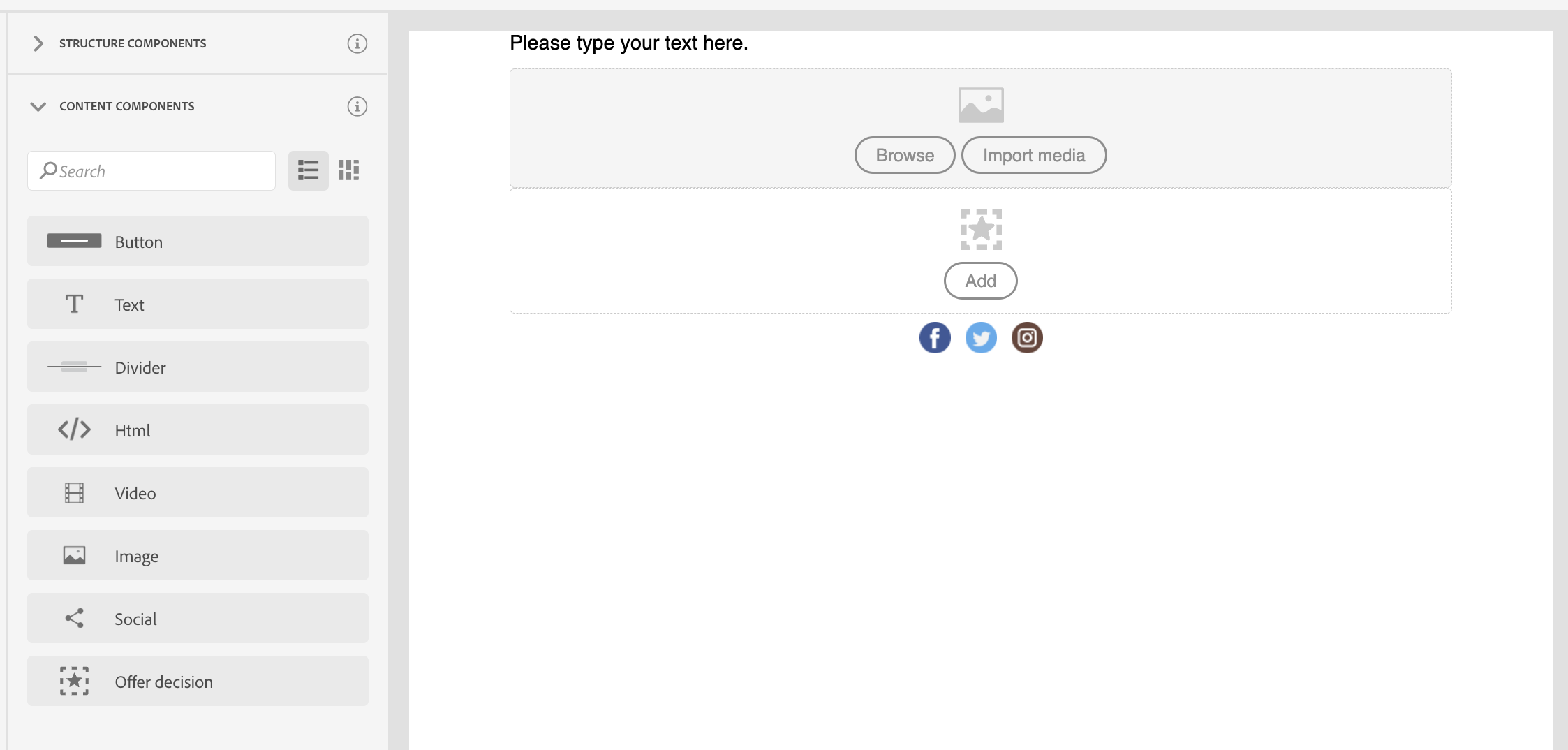
- Select Content Components
- Add an Image Component in the first 1:1 Content Structure
- Add a Divider in the Second Component
- Add a Text Component in the Third Content Structure
- Add a Divider in the Fourth Content Structure
- Add an Image in the Fifth Content Structure
- Add a Divider in the Sixth Content Structure
- Add a Button in the Seventh Component
- Add a Divider in the Eight Content Structure
- Add Social in the 9th Content Structure
- Add a Divider in the last content structure
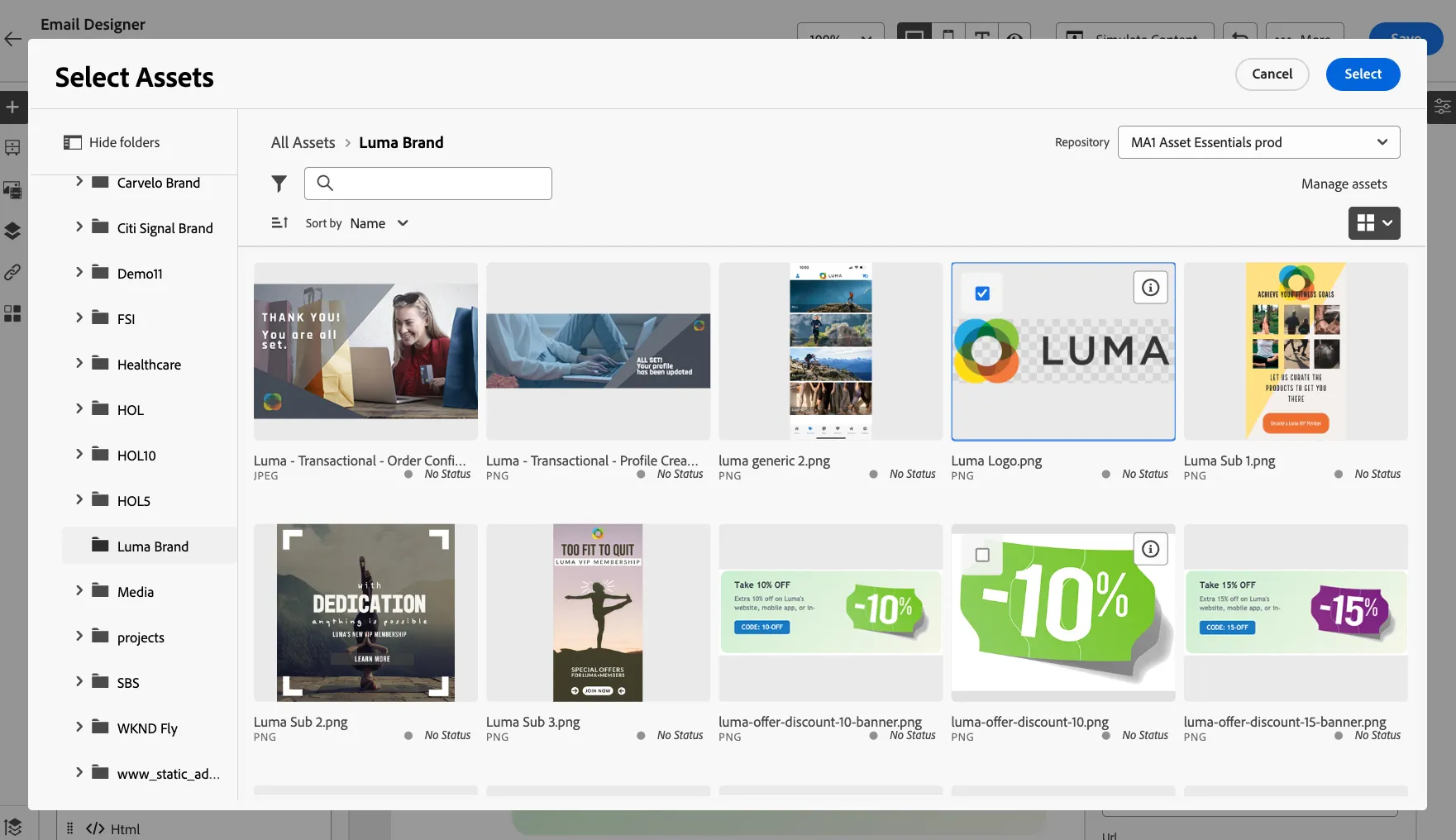
- Select Browse to select an image. Go to the Luma Brand Folder and look for the Luma Logo. Resize as necessary using the Styles menu.
- The type and center align the following text: "Check out our new products at Luma!!"
- Add a hero image to the email message for your email.
- Next, click on the button at the bottom of the email, change the text to "Shop Now".
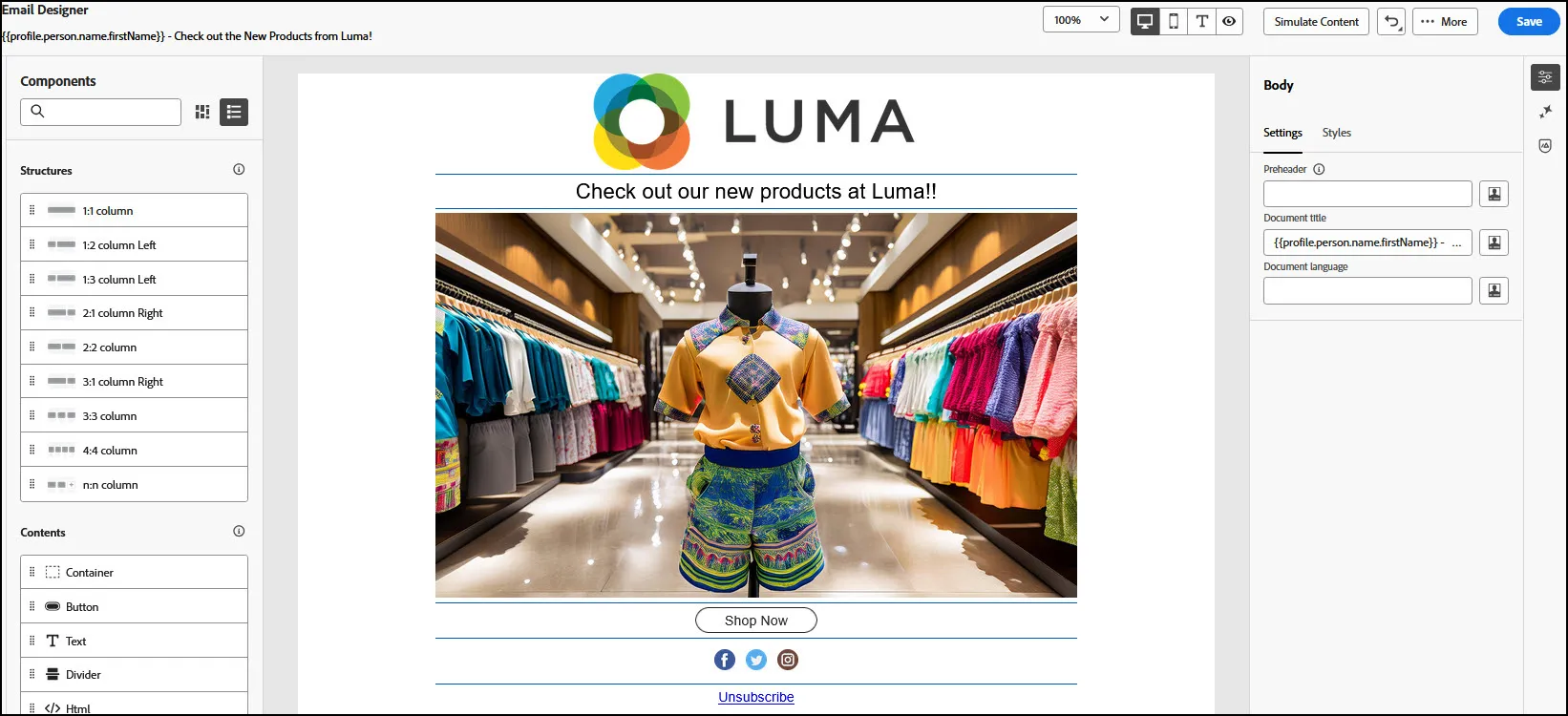
- Your email should appear something like the following:
- Click Save to save the message and then exit out of the Designer.
- End of Lab.