Create audience of Luma Members with Profile Attribute
In this exercise we'll be creating an audience of users who have registered for Loyalty Mebership. We shall use this in our in Lab 2 in our journey.
Audience overview
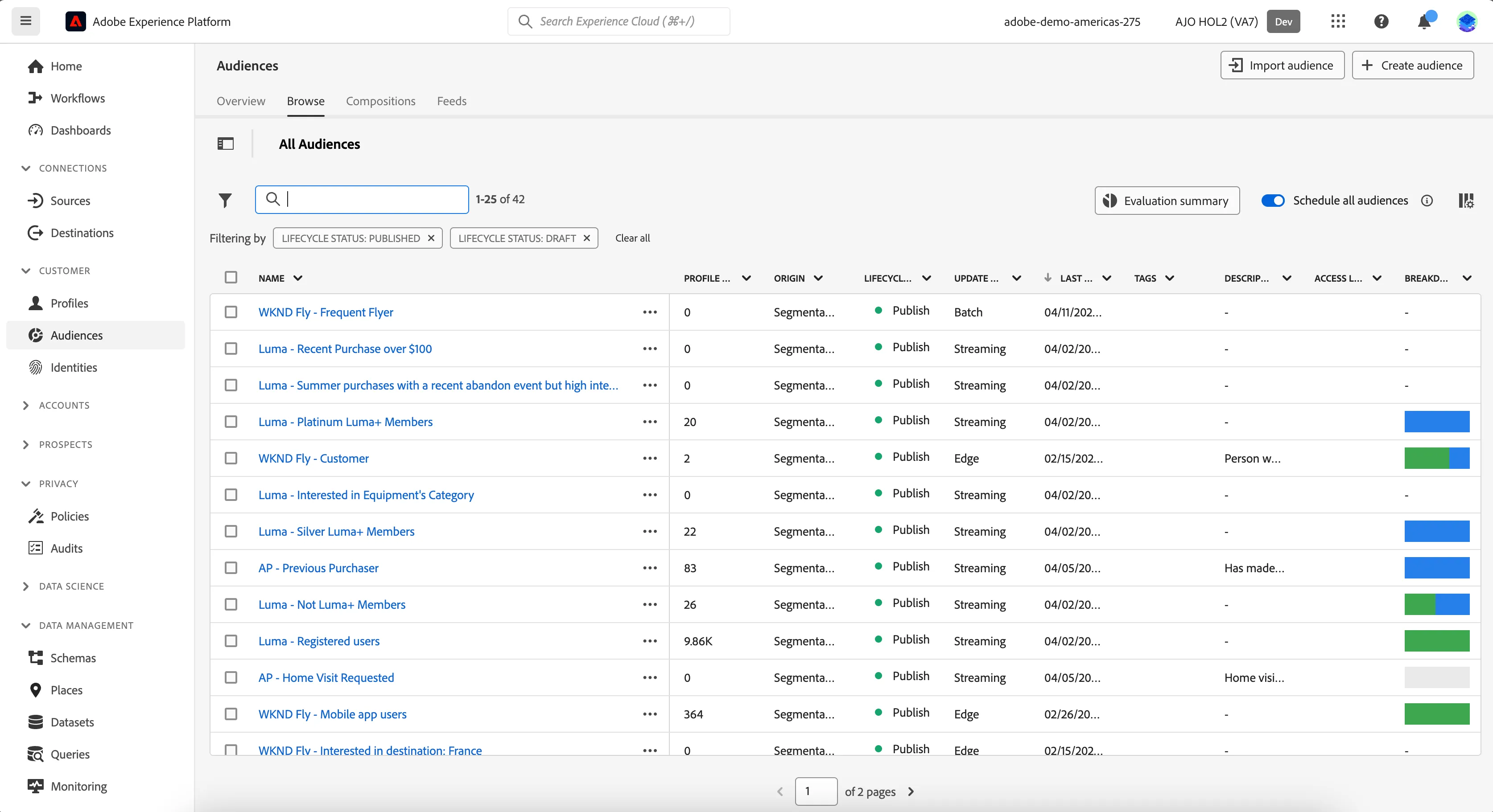
To get an overview of all audiences in Adobe Journey Optimizer:
- In the menu on the left side, under Customer, click on Audiences.
- Click on the Browse tab, you will see a overview with all existing audiences.
Creating an audience
We'll be creating an audience that contains all customers that are part of the Luma Member program. We can determine this by checking if a customer has a loyalty ID.
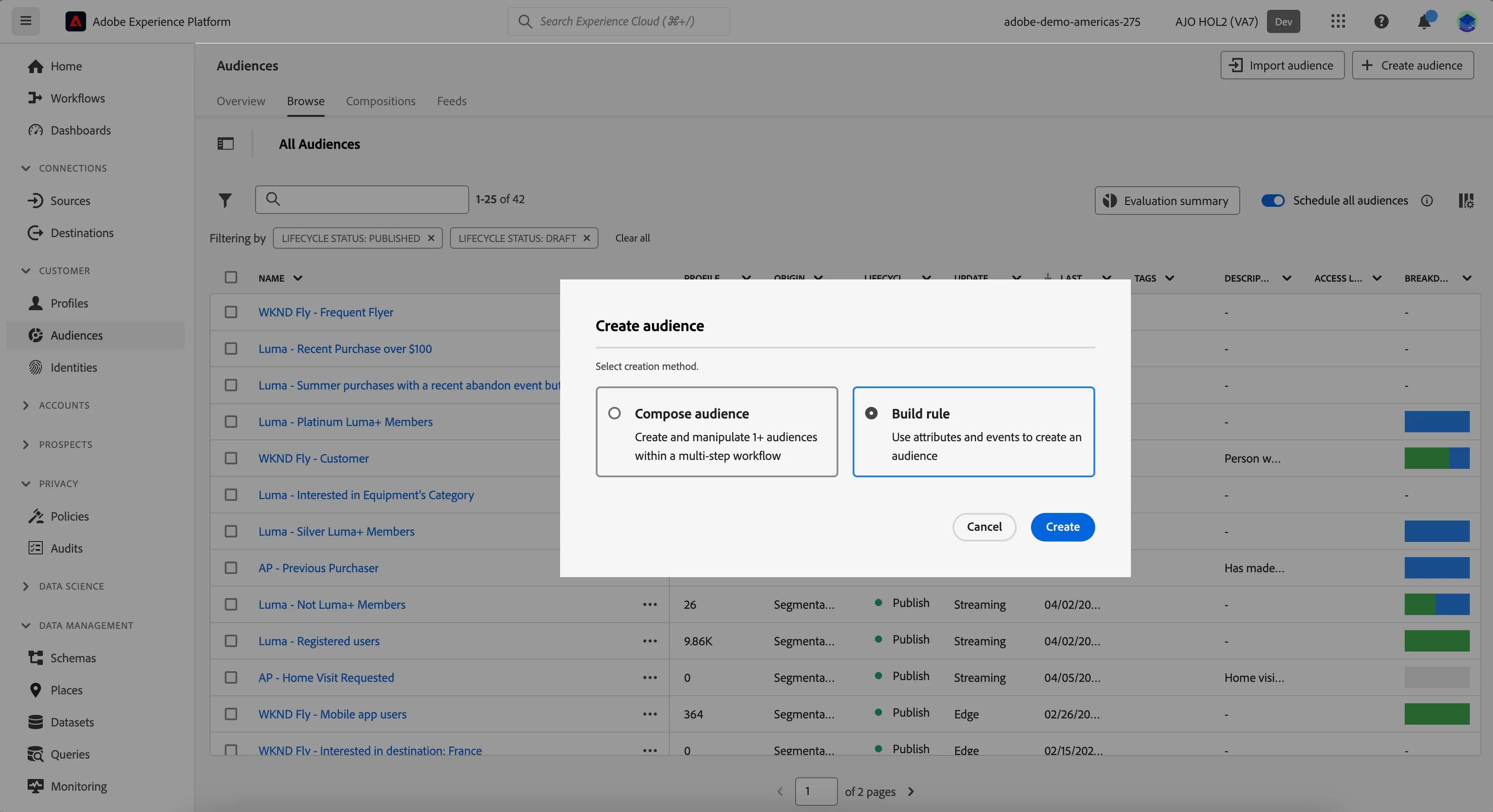
- Click on Create audience. A pop-up will open, choose Build rule and click Create.You'll be taken to the Audience builder.
- Set the name to [your initials] - Luma Members. e.g. PP - Luma Members.
- Set the evaluation method to edge.
- In the Attributes tab, search for loyalty. Drag the loyaltyId attribute to the middle of the screen.
- Change the expression to loyaltyId exists using the dropdown.
- Your screen should look like the image below. Click Save and Close to finish your audience.
At each step in defining your audience, you can get an estimate of the audience's population:
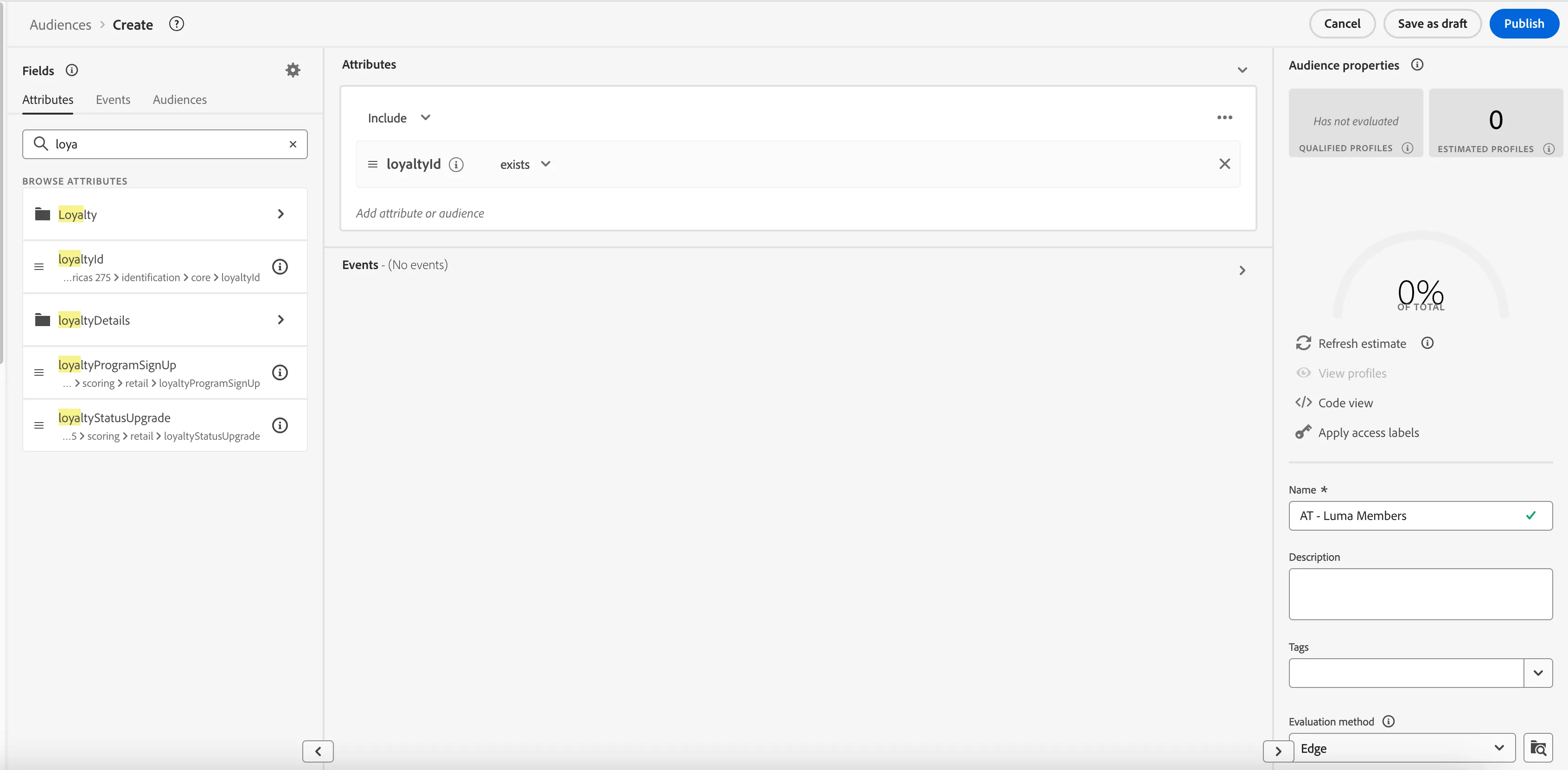
- Click on Refresh Estimates.
You will then see an estimation of your current audience size. This is very helpful for a business user, so that they can see the impact of certain attributes on the resulting audience size.
You will be taken to the Audience summary screen, outlining your audience definition.
You have now successfully created an audience using the Adobe Experience Platform Audience Builder.