Journey Analysis
Flow Visualisation
The Flow visualisation is very powerful for understanding customer journeys through your website or app. Now with CJA you can leverage the same visualisation to discover the journey your customers are taking across all of your channels. How many customers are starting their journeys in the app but switching quickly to desktop, what are customers doing directly before and after they call the call centre?
In the journey we covered previously, our user call the call centre during the booking process. Let's try to understand how many people are doing the same, and why they're calling. That will help us to understand if we need to optimize the booking process.
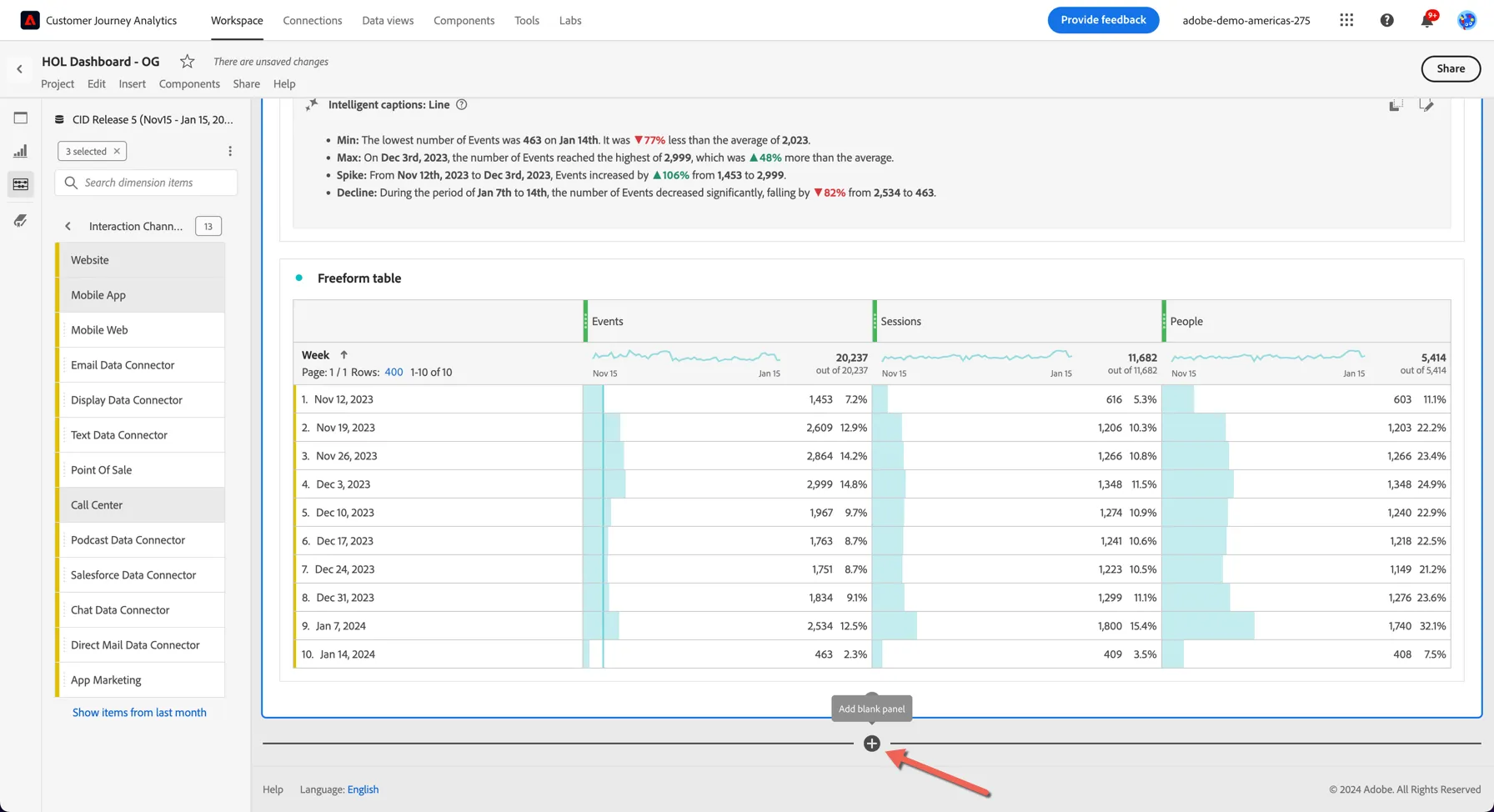
1. Add a new blank panel to our dashboard by clicking the + icon at the bottom of our dashboard.
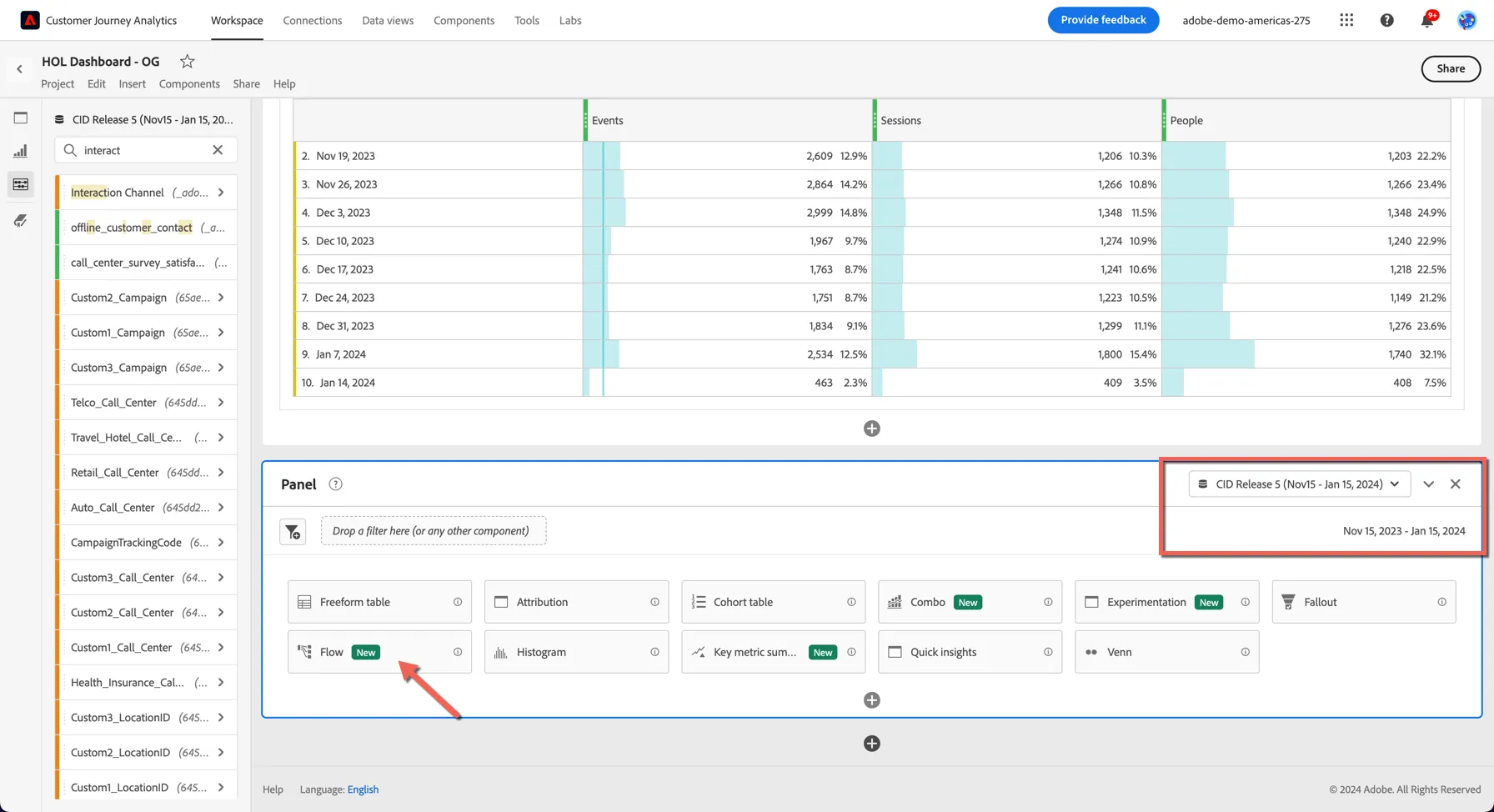
2. Ensure that the CID Release 5 (Nov15 - Jan 15, 2024) is selected in the Data View selector and the reporting date range is Nov 15 2023 - Jan 15, 2024. Then select the Flow visualisation from the options presented.
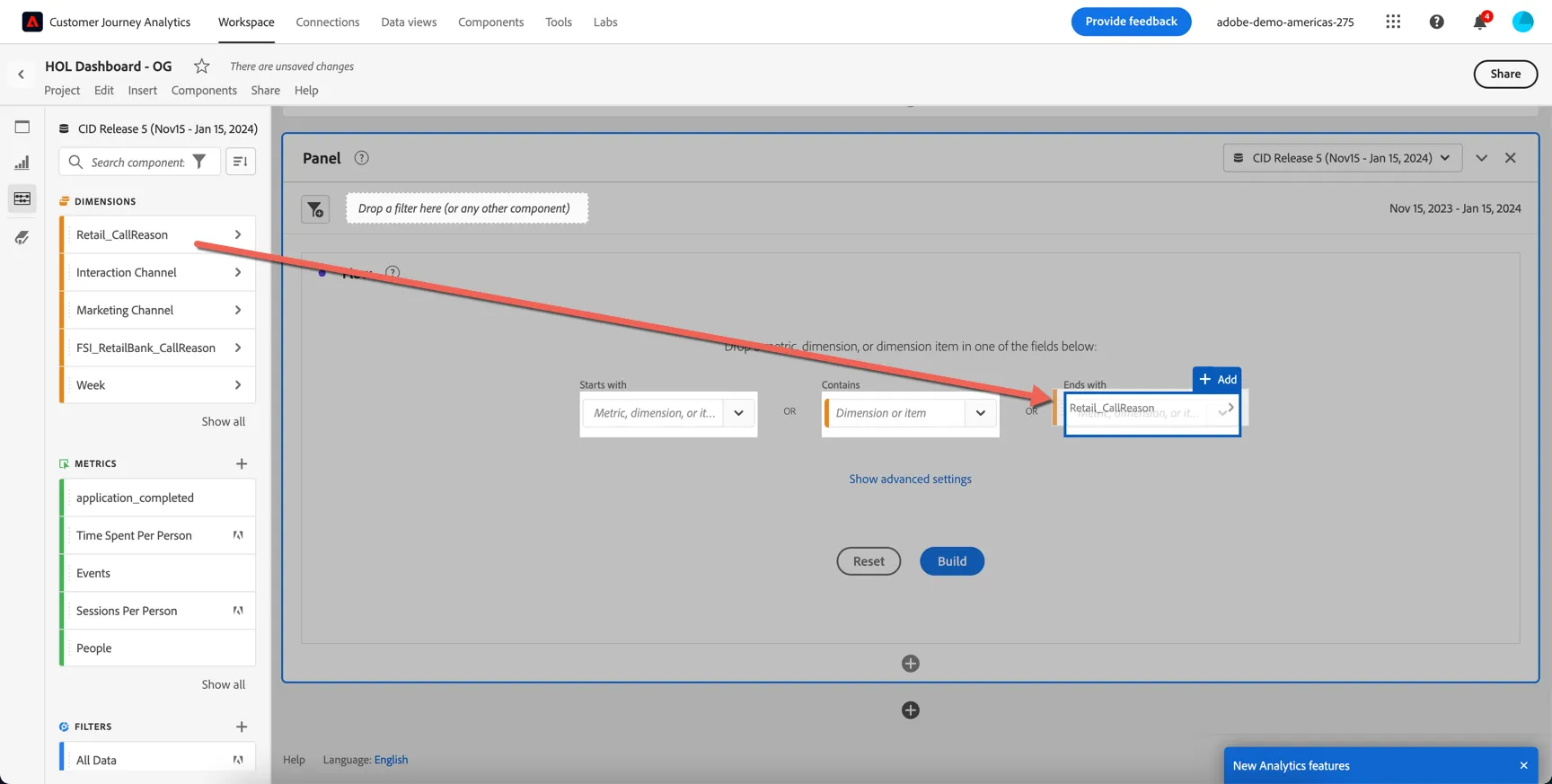
Notes on Dimension configuration:
- Dropping a dimension as the Entry point will show the top first values seen in that dimension either at a Session or Person level
- Dropping a dimension as the Exit point will show the top last values seen for a dimension at a Session or Person level
- Dropping a dimension or a dimensional element in the middle will show you how often that element is the entry or exit, as well as the top elements a person saw prior or after from a pathing perspective. This can also be configured at the Session or Person level.
3. Drag the Retail_CallReason dimension and drop it in the Exit drop zone. Then click Build.
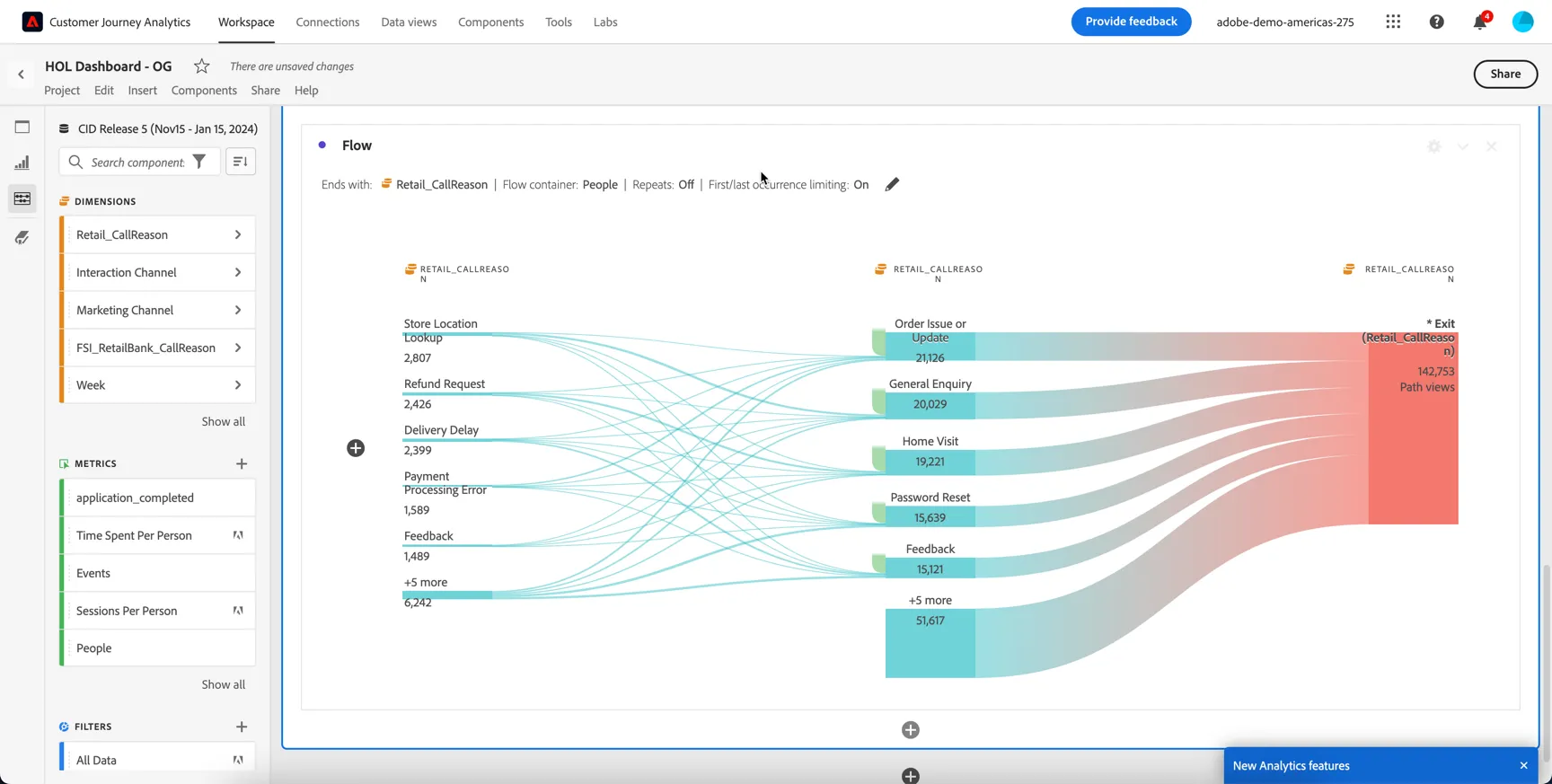
This shows us the top Call Reasons for customer calls into the call center.
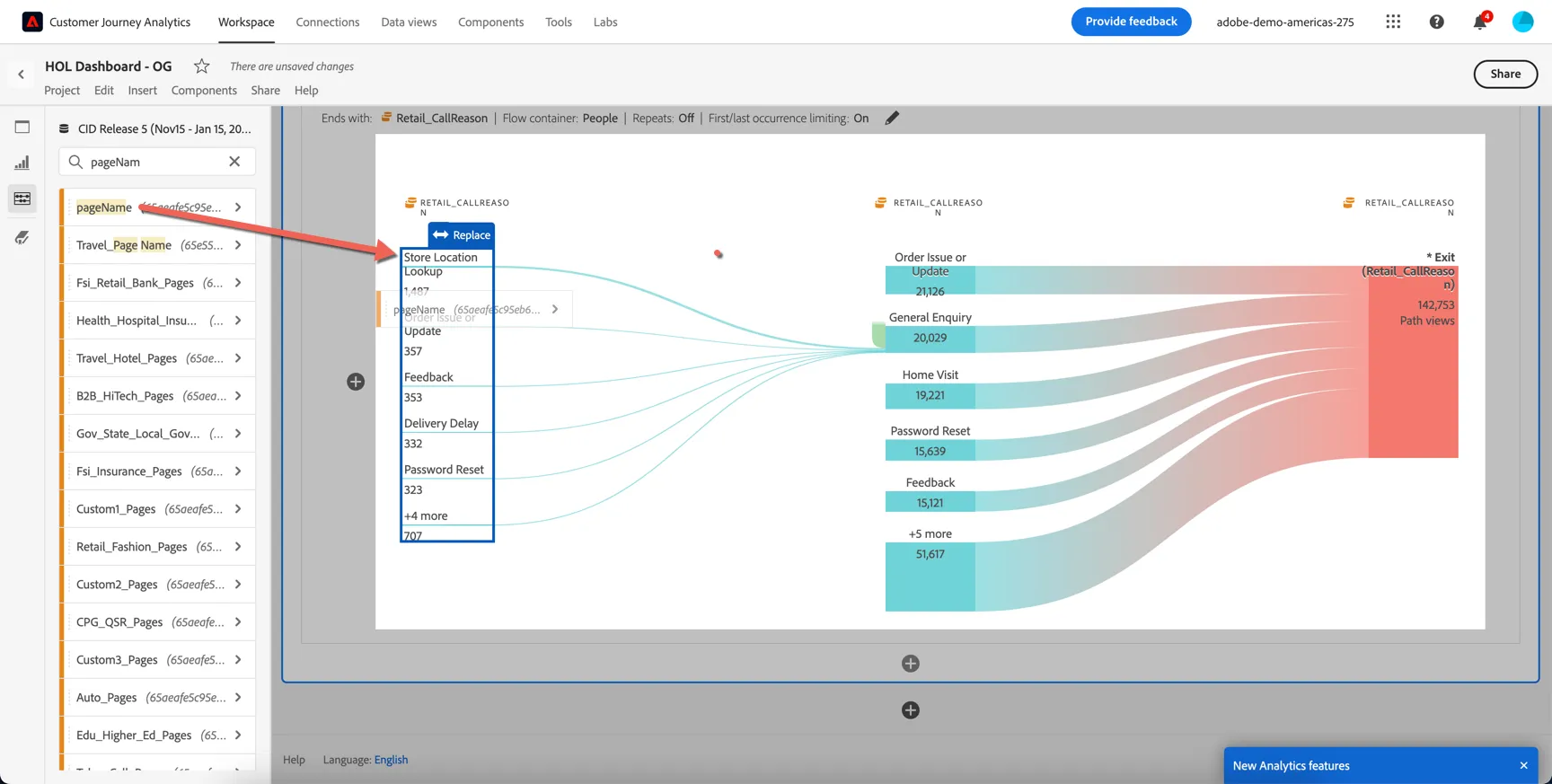
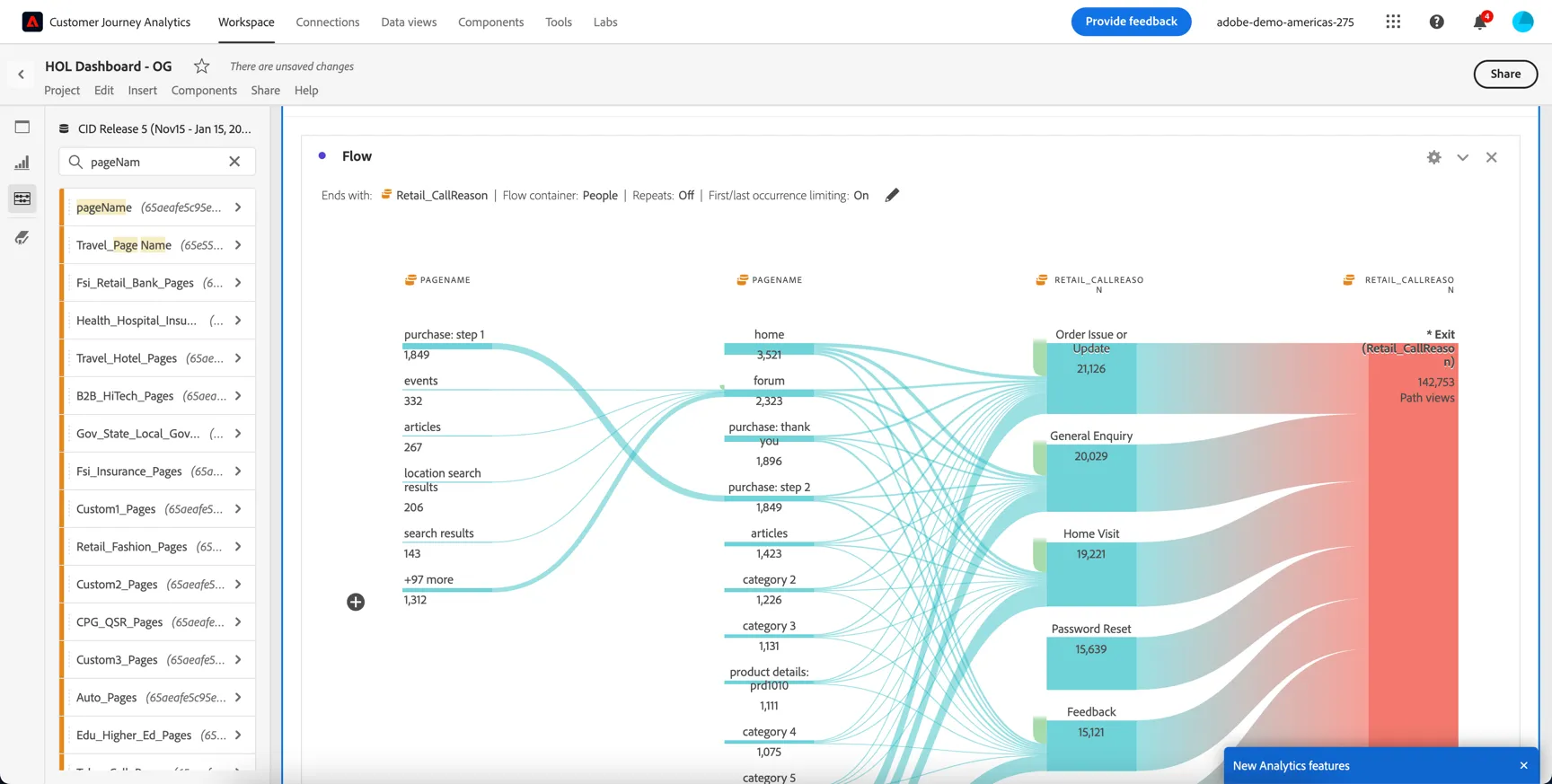
5. One very powerful capability the Flow visualization supports is the ability to mix and match the dimensions being used. Drag the pageName dimension and drop it to replace the left most column of the flow visualisation. The result is a view into the top pages customers interact with prior to a call, broken out by call type:
6. Drill into any of the pages to see what customers interact with prior to that on their path to a call. We can see many customers are visiting the help forums before calling with an order issue. There could be value in running some optimisation tests on those pages.
7. Finally hit Ctrl/Command S to save your project.
This can be very powerful in understanding customer journeys across channels.
Congratulations, this completes the flow visualisation exercise.