Creating the journey
In this exercise, you'll be creating and testing a journey using all the components you've created in the previous exercises.
Journey overview
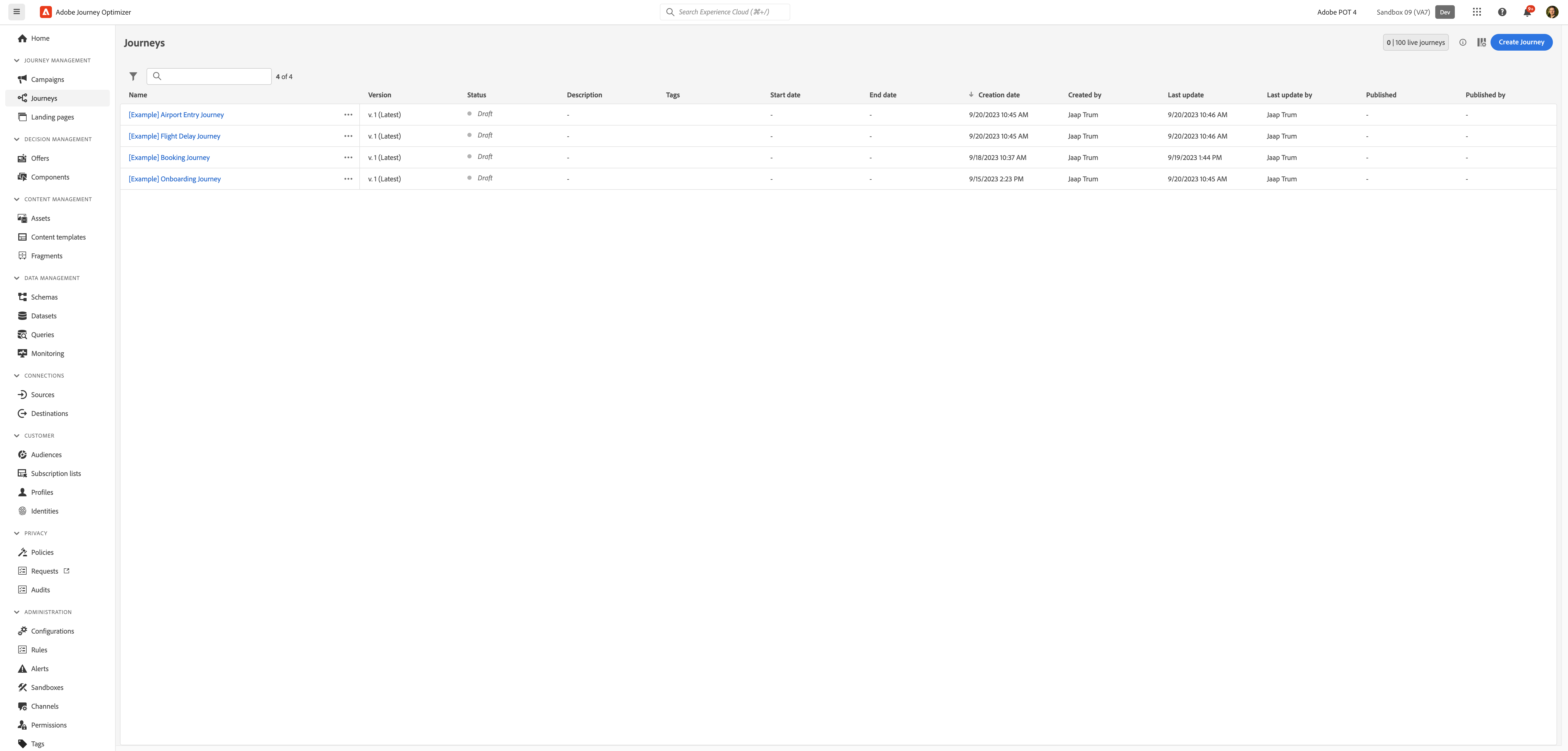
To get an overview of all journeys in Adobe Experience Platform:
- In the menu on the left side, under Journey Management, click on Journeys. You will see a overview with all existing journeys.
Creating a journey
We'll be creating a journey that will send an email message to customers who have enrolled into the medicare plan. We will also be seing them an offer as per their plan.
Click on Create Journey. You'll be taken to the Journey canvas with the journey properties opened.
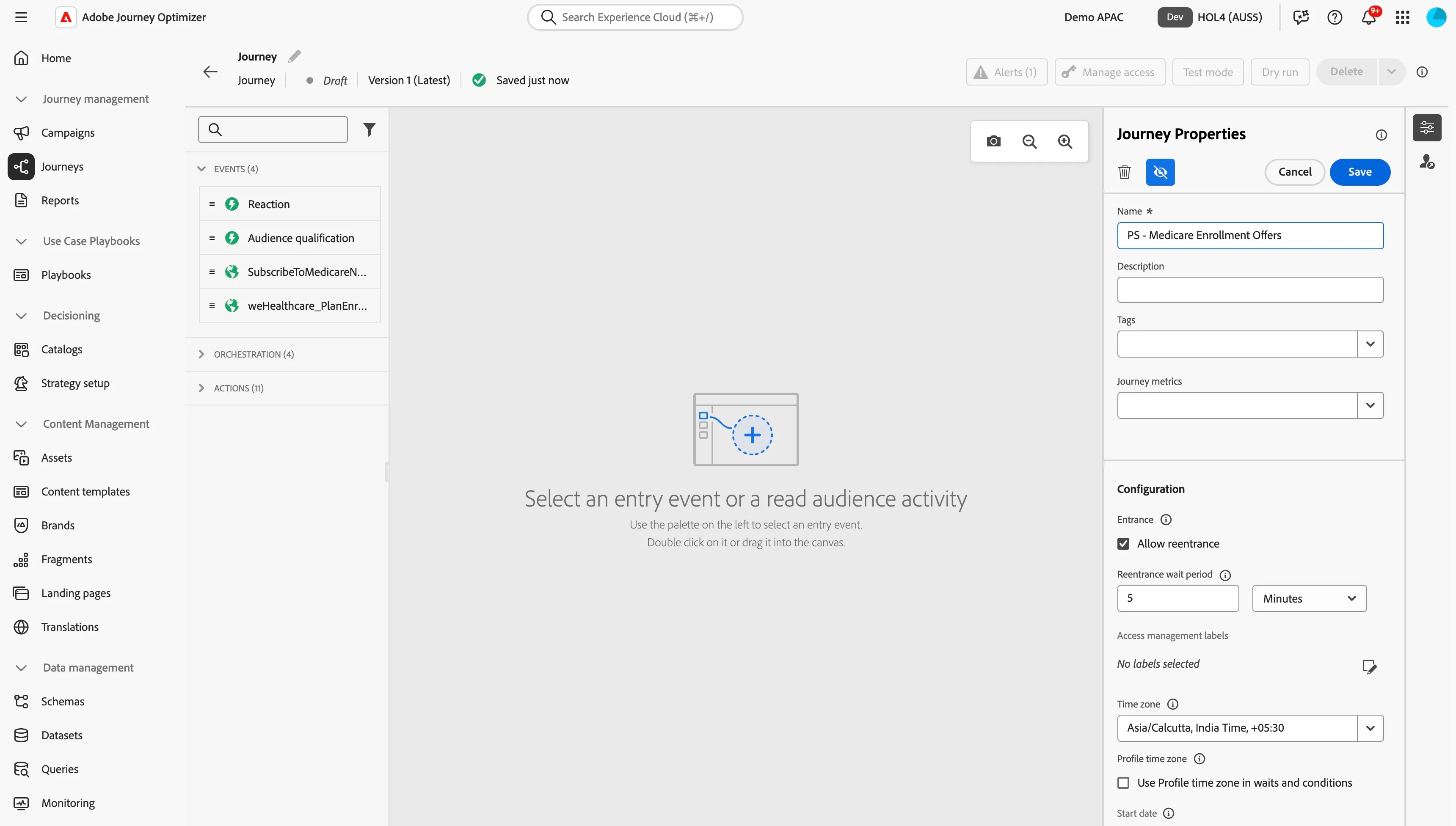
- Set the name to [your initials] - Medicare Enrollment Offers Journey
- For the other properties we'll keep the default values.
- Your screen should look like the image below. Click Save to save and close the properties.
You're now in the journey canvas. This is where you'll be creating your journey's logic. In the left menu you have activities. There's three types of activities:
Events are the triggers that can start or continue your journey.
Orchestration is the logic of your journey. It looks at conditions, audiences, but can also be used to make your workflow wait or end.
Actions are the responses of your journey. This can be messages, profiles updates or API calls.
Audience Qualification
- We're starting our workflow of with an audience entry trigger. From the events tab, choose Audience Qualification and drag it onto the canvas.
- Click on the activity to open the detailed view.
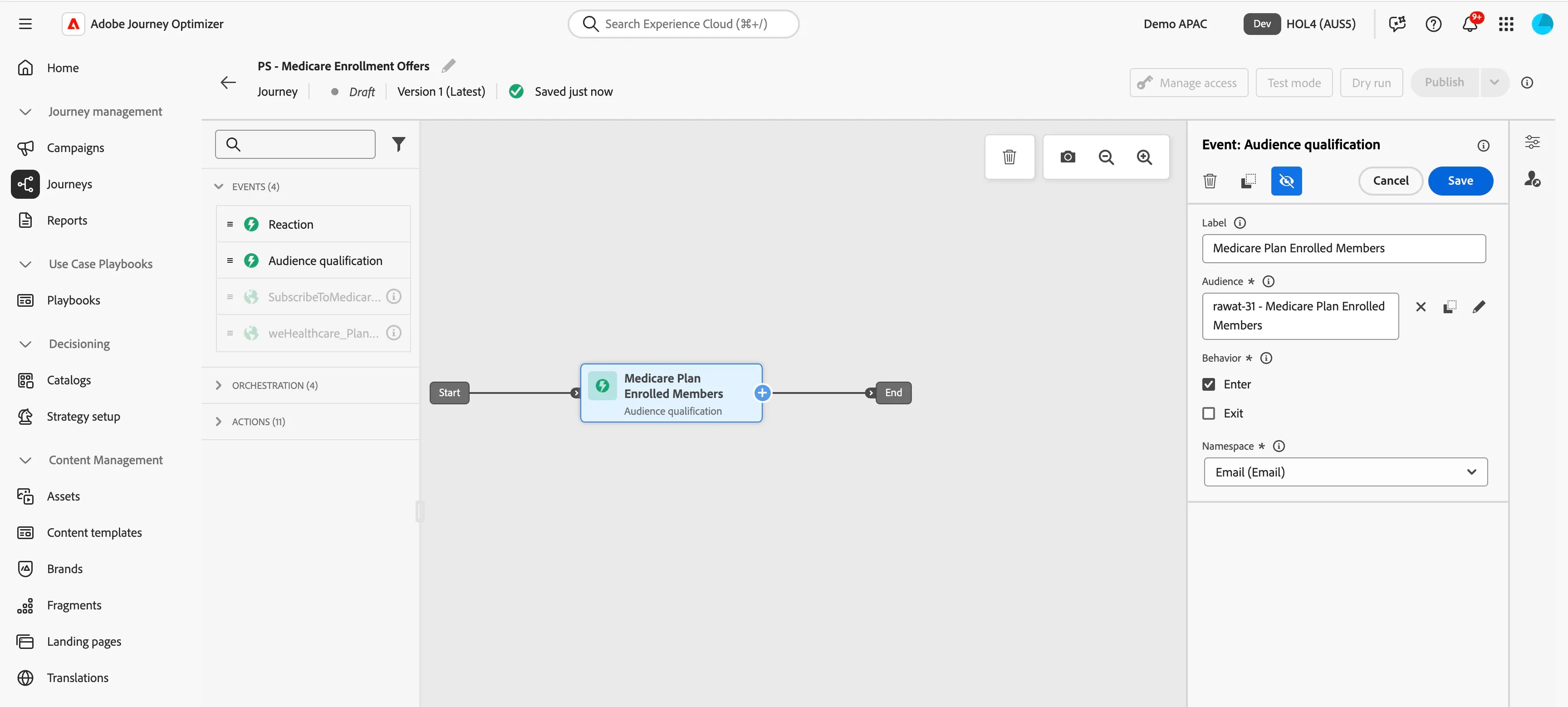
- Set the label to Medicare Plan Enrolled Members.
- Click on Audience to open a window, select your audience [your initials] - Medicare Plan Enrolled Members from the list and click Save. If you didn't create the audience, you can use rawat-31 - Medicare Plan Enrolled Members.
- Set the behavior to Enter. This means the journey will start as soon as the customer qualifies for the audience.
- Set the namespace to Email (Email).
- Your screen should look like the image below. Click Save.
Email #1 - Ancillary offer
- From the actions tab, choose Email and drag it onto the plus(+) circle after the Medicare Plan Enrolled Members -path.
- Click on the activity to open the detailed view.
- Set the label to Ancillary offer.
- Set the category to Marketing.
- Set the email configuration to email-marketing.
- Enable Send time optimization, choose to Optimize send time for Opens and set it to send within next 24 hours.
- Click on Edit content to start designing your email.
- Set Subject to Get ready for your annual health checkup!.
- Click on Edit email body. Under Saved templates, choose any template that you want. We will update the email content.
- The email designer will now open.
In the left menu you have components.
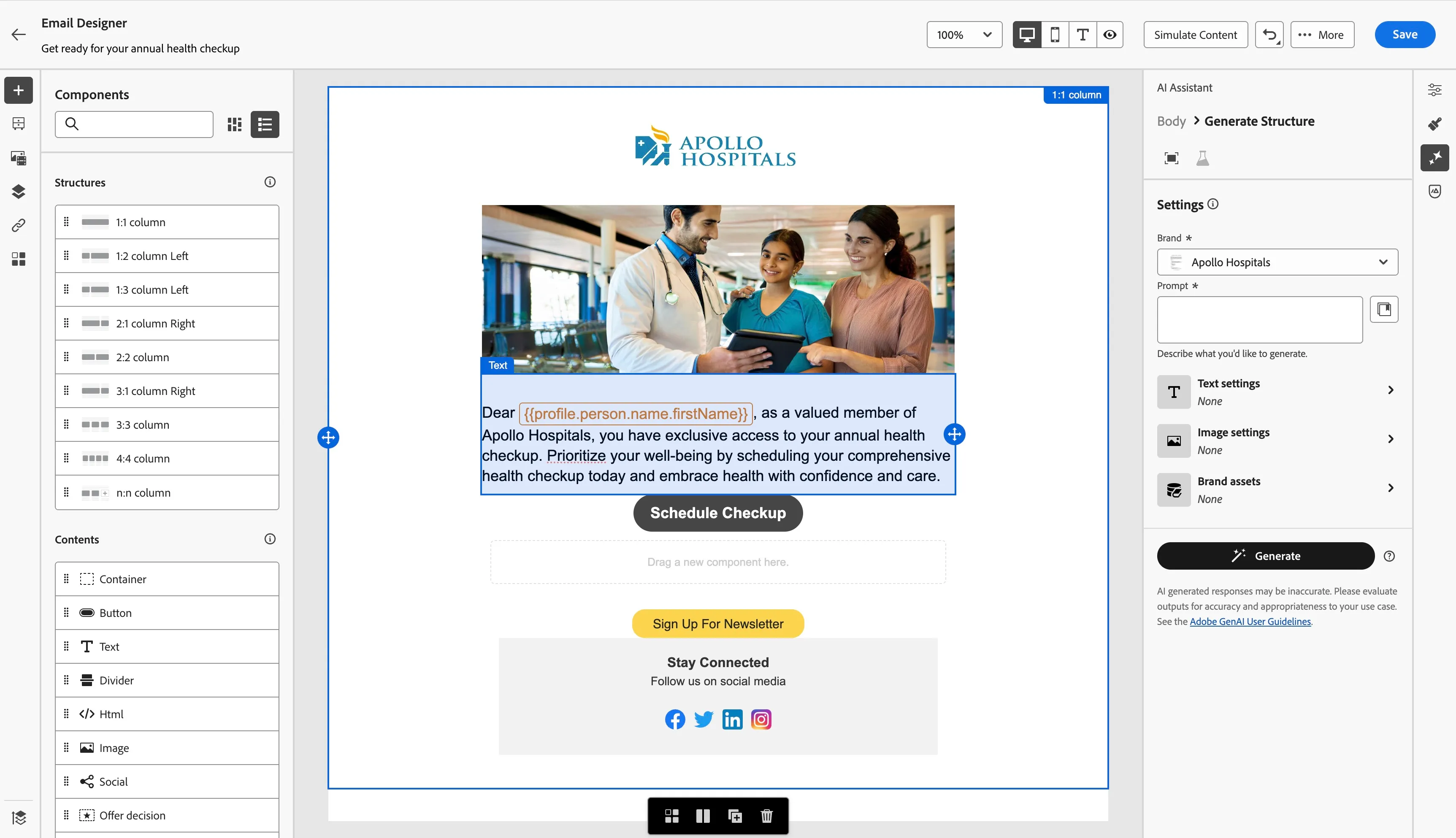
Update the content as you want by changing the banner image, buttons, text, title etc. You can also use the AI assistant.
Finally your Email should look like this :
- Now let's add a personalized offer to the email. From the structural components drag a 1:1 column onto the email, underneath the Body text component.
- From the content components drag an Offer decision onto the 1:1 column you just added to the email. Then click on Add, a pop-up window will open.
- eIn the top left, select Email - Image (full width).
- Check the Medicare Offers offer decision and click on Add in the top right of the window.
- Under Offer preview, you can see the potential offers customers could receive.
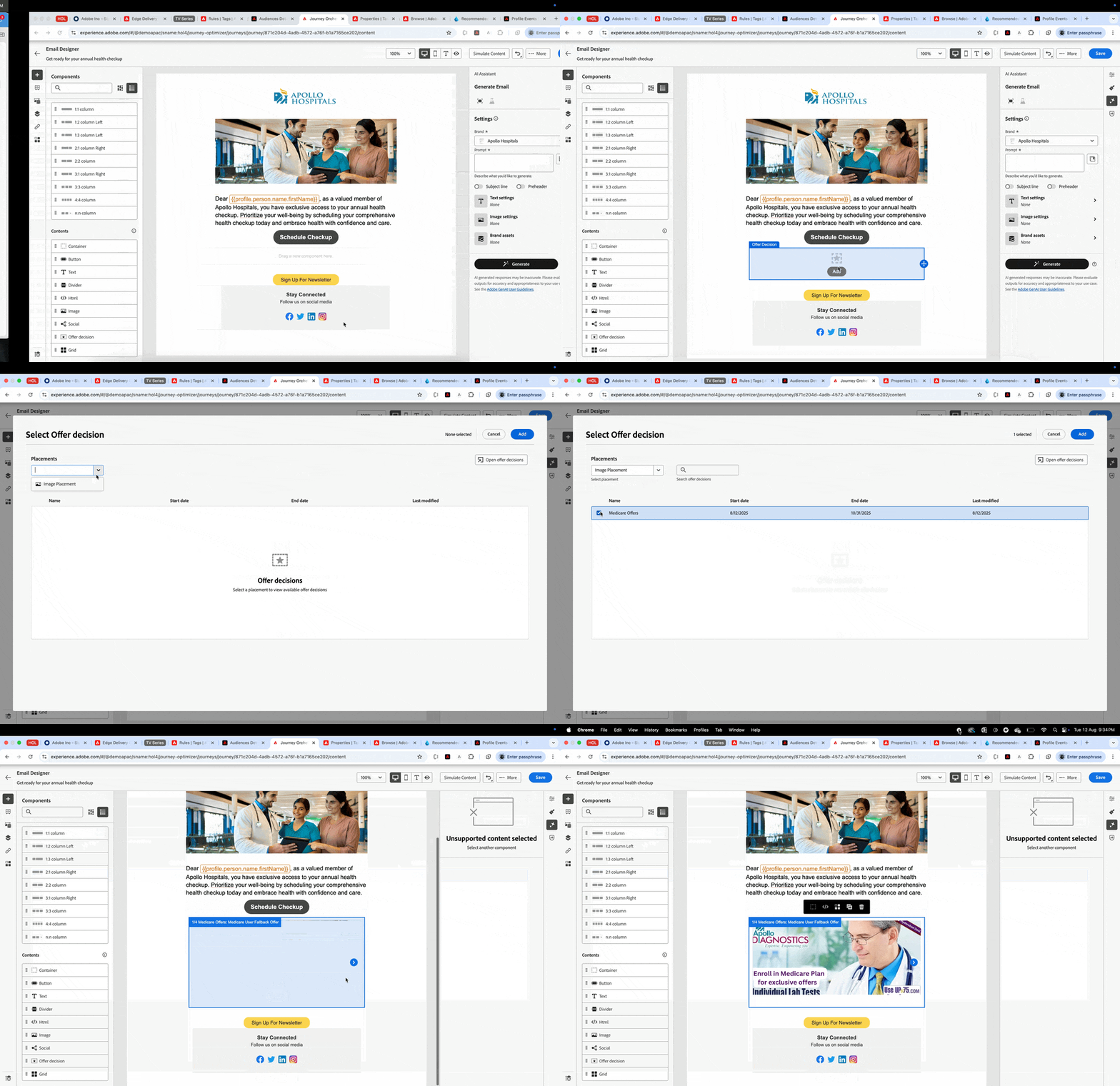
9. Click Save in the top right. Navigate out of the Email designer by clicking on the left arrow on the top left. Then navigate out of the email overview by clicking on the back arrow on the top left. You will be taken back to the journey canvas.
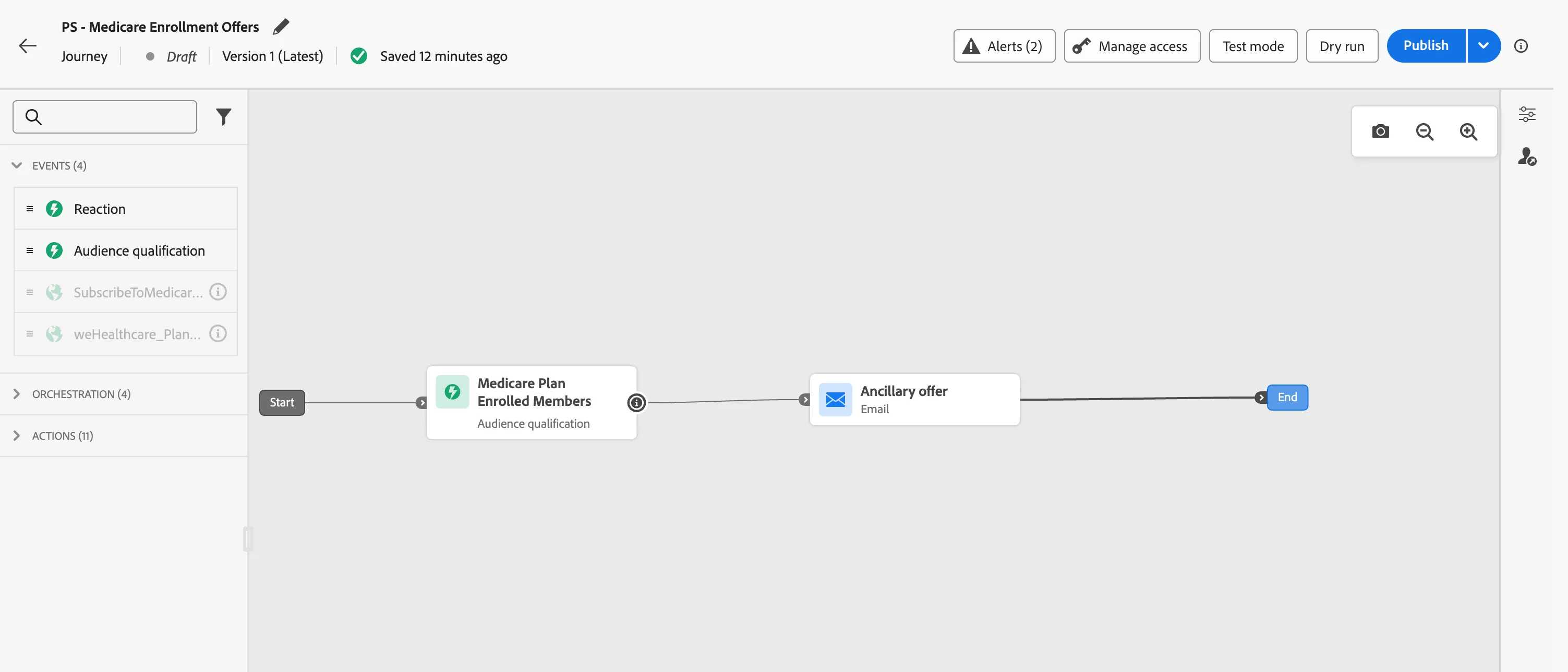
You have now successfully created the onboarding journey using the Adobe Journey Optimizer. Next, we are going to test our journey using Test Mode.