Content Authoring
Assets
Click to open the Asset explorer under Content Management in the left hand navigation. Here you can manage the assets in your Adobe Experience Manager instance.
Click on the Apollo Hospitals folder to see the assets available. You can add new assets from your local machine if you want.
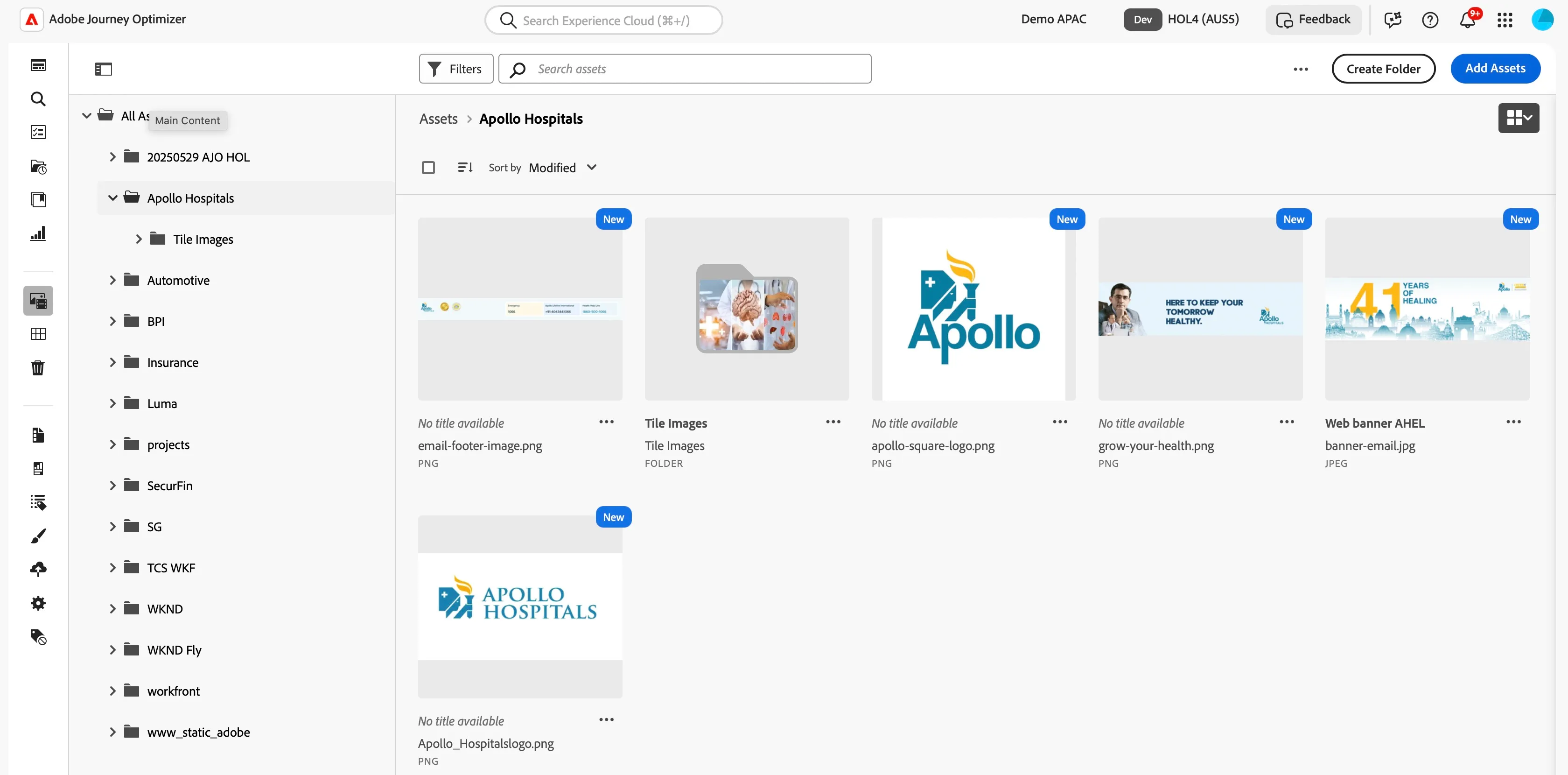
Select an asset and click on details. Here you can see information about the asset, including smart tags, versions, comments and tasks. You can even edit the asset directly in the Journey Optimizer UI using Adobe Express.
Content Fragments and Templates
Templates can be created to store partially configured messages for any supported channel: Email, SMS, Push, InApp or Direct Mail. Once leveraged in a Campaign or Journey message the template is disconnected and updates to the template will not impact the .
Fragments can be created to store partially configured HTML or Personalisation Expressions. Fragments can then be included in templates or messages in Campaigns or Journeys. Updating a fragment will update the content everywhere it is used. For this reason you can explore where the fragment has been referenced before making any updates.
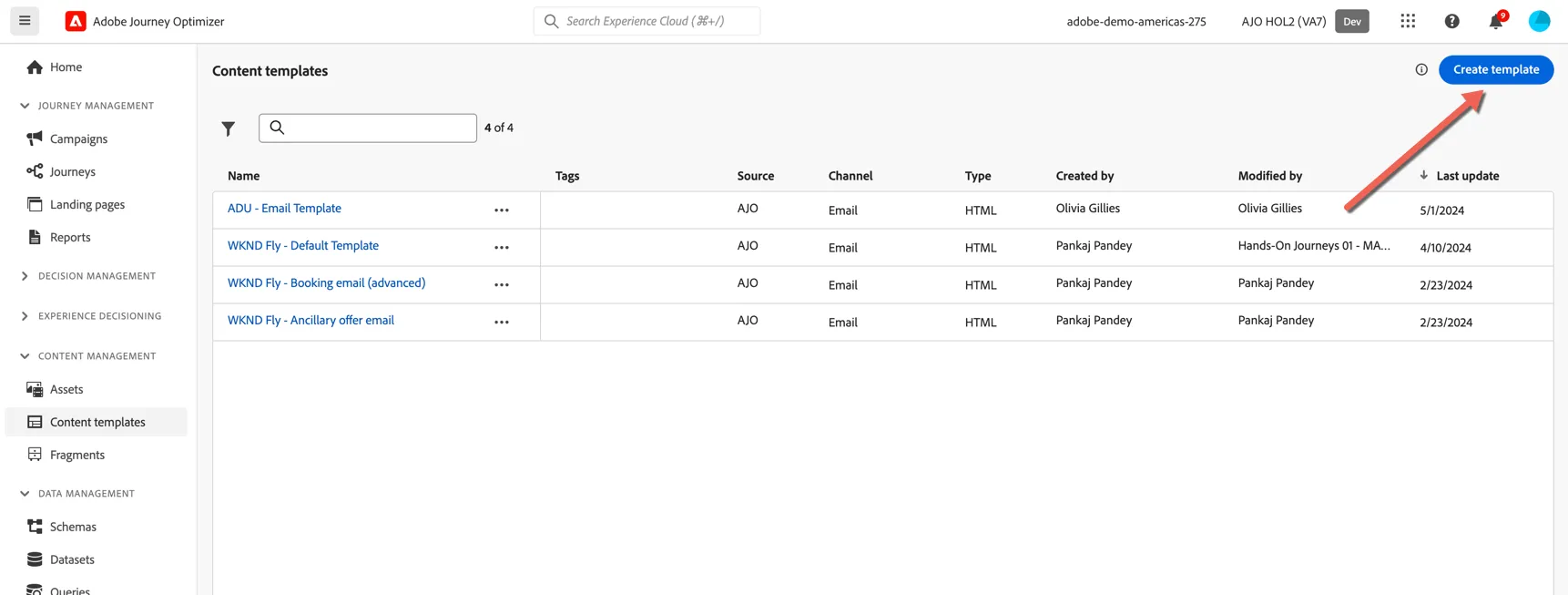
Create a new template by clicking on the Create Template button.
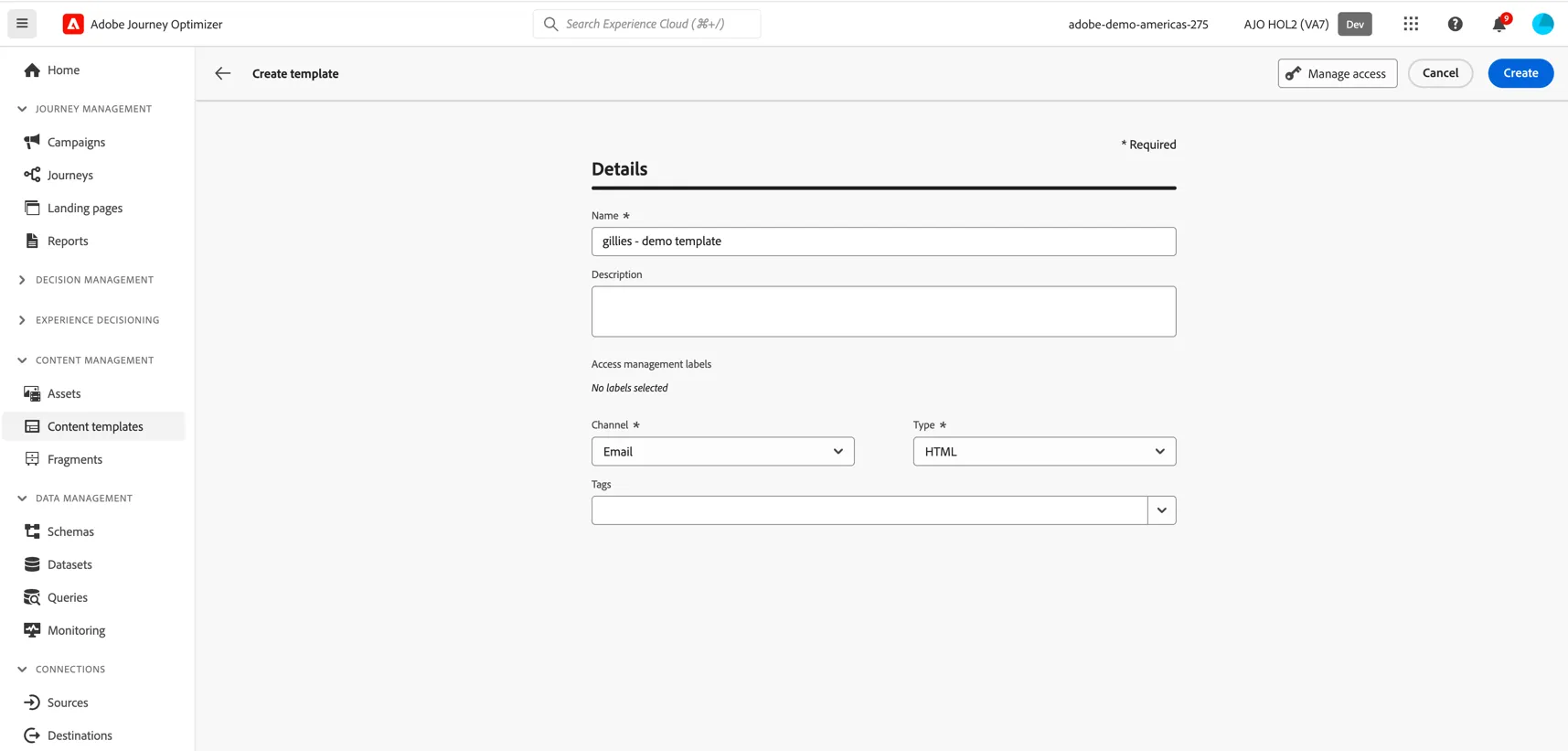
Give your template a name - something unique to you so you can distinguish it from your colleagues. Select Channel as email and Type as HTML.
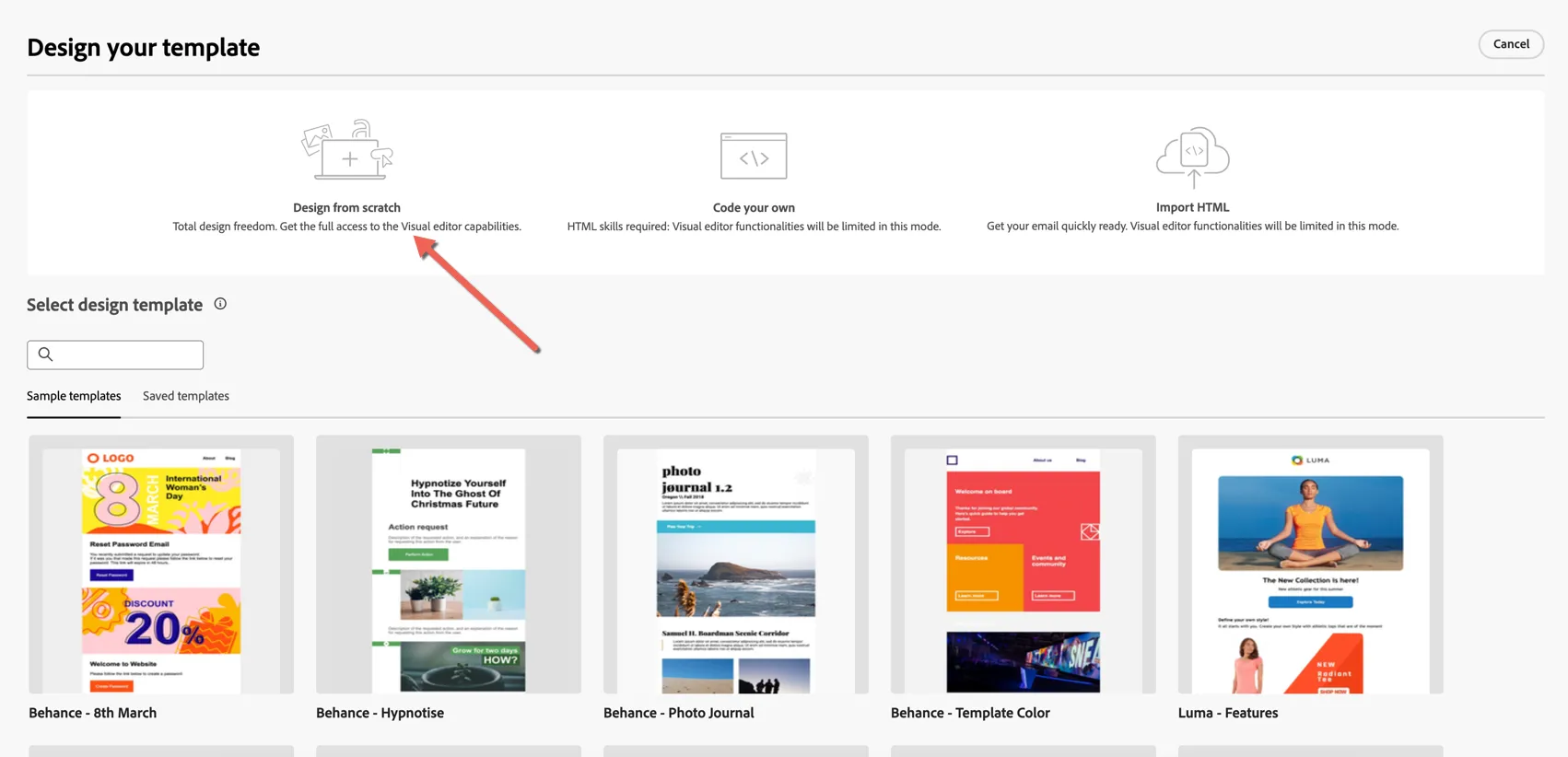
We can create templates from existing samples or templates, or you can build your own, either through the visual editor or by direct access to HTML code. For this exercise choose to Design from scratch.
On the left hand side you have structural and content Components which control the layout of your email.
Drag 1x 1:2 column structures into your content, then add 4x 1:1 columns.
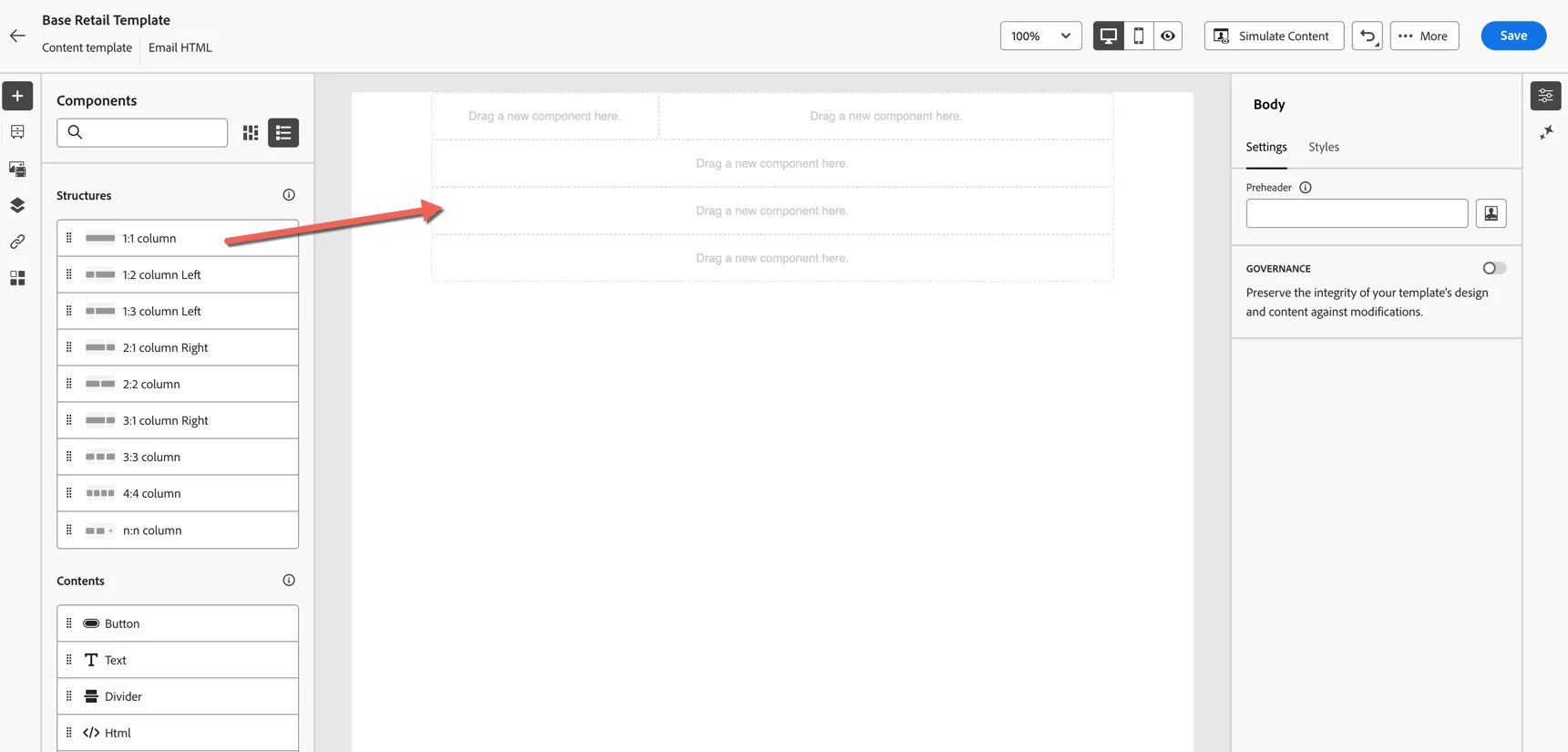
In the first component slot, drag across an image content block.
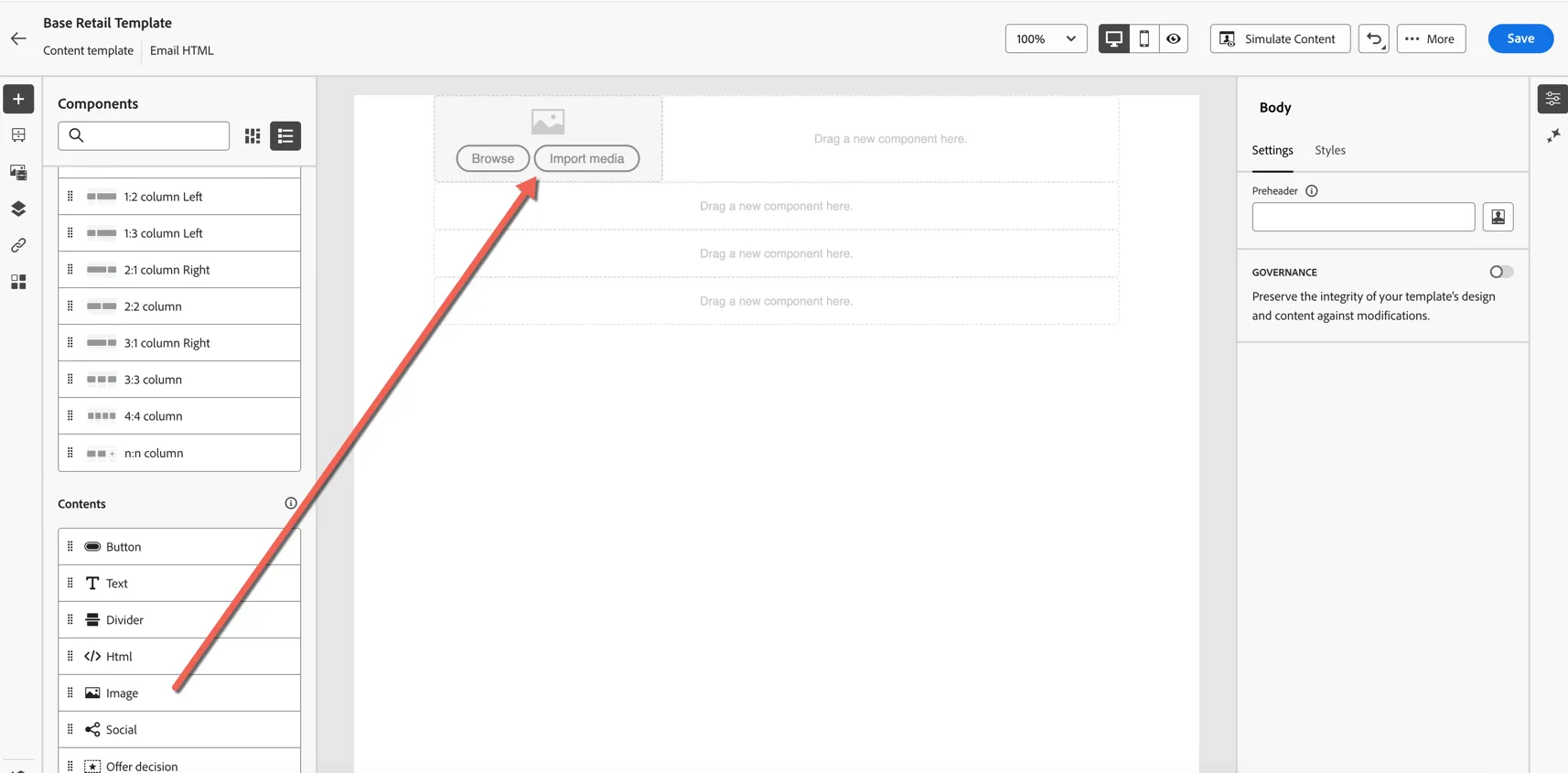
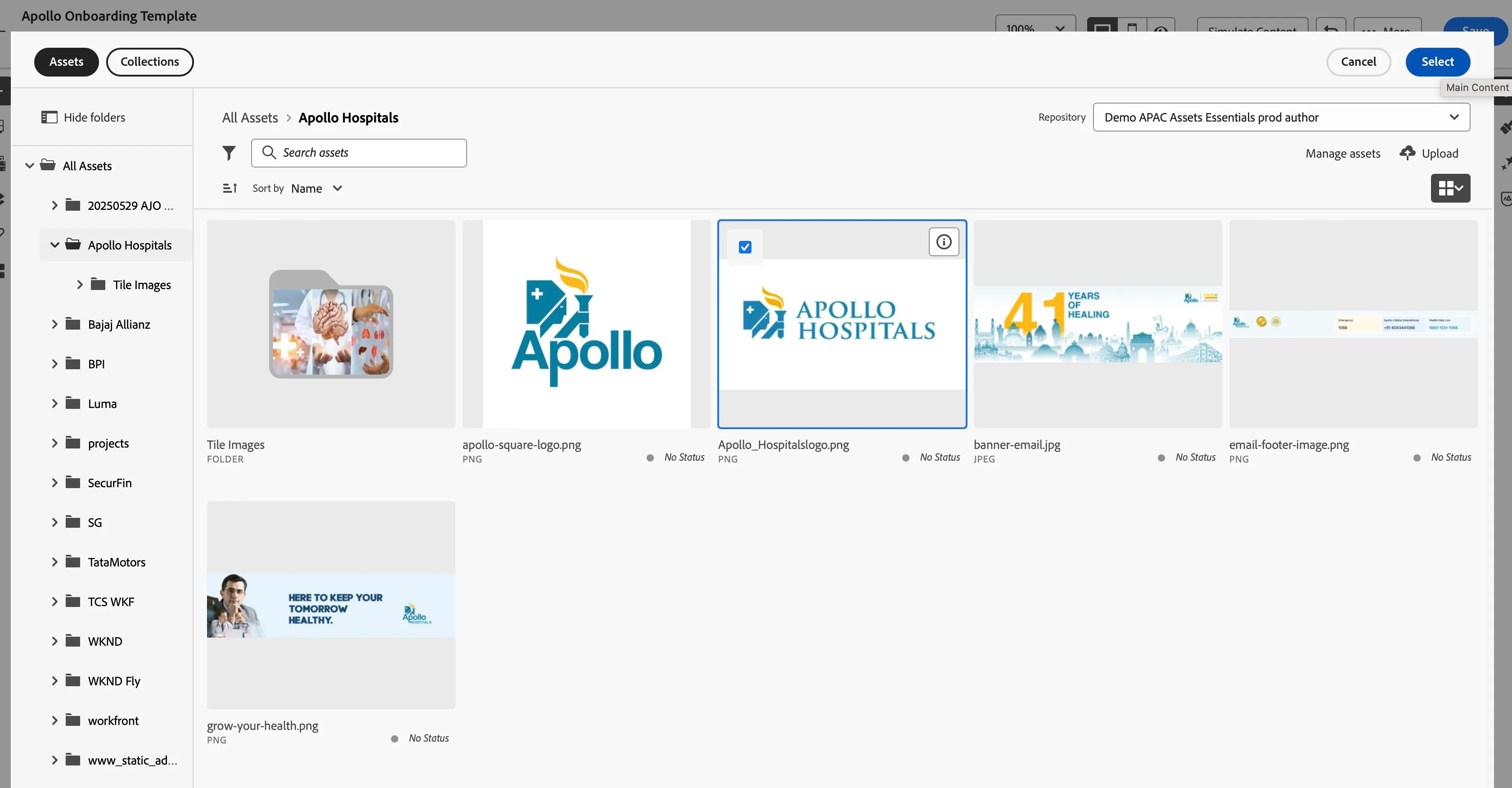
Click to Browse images - this will open the asset explorer. Add the Apollo_Hospitalslogo from the Apollo Hospitals folder.
Adjust the height and width of the logo image as needed.
Add another image component to the next component.
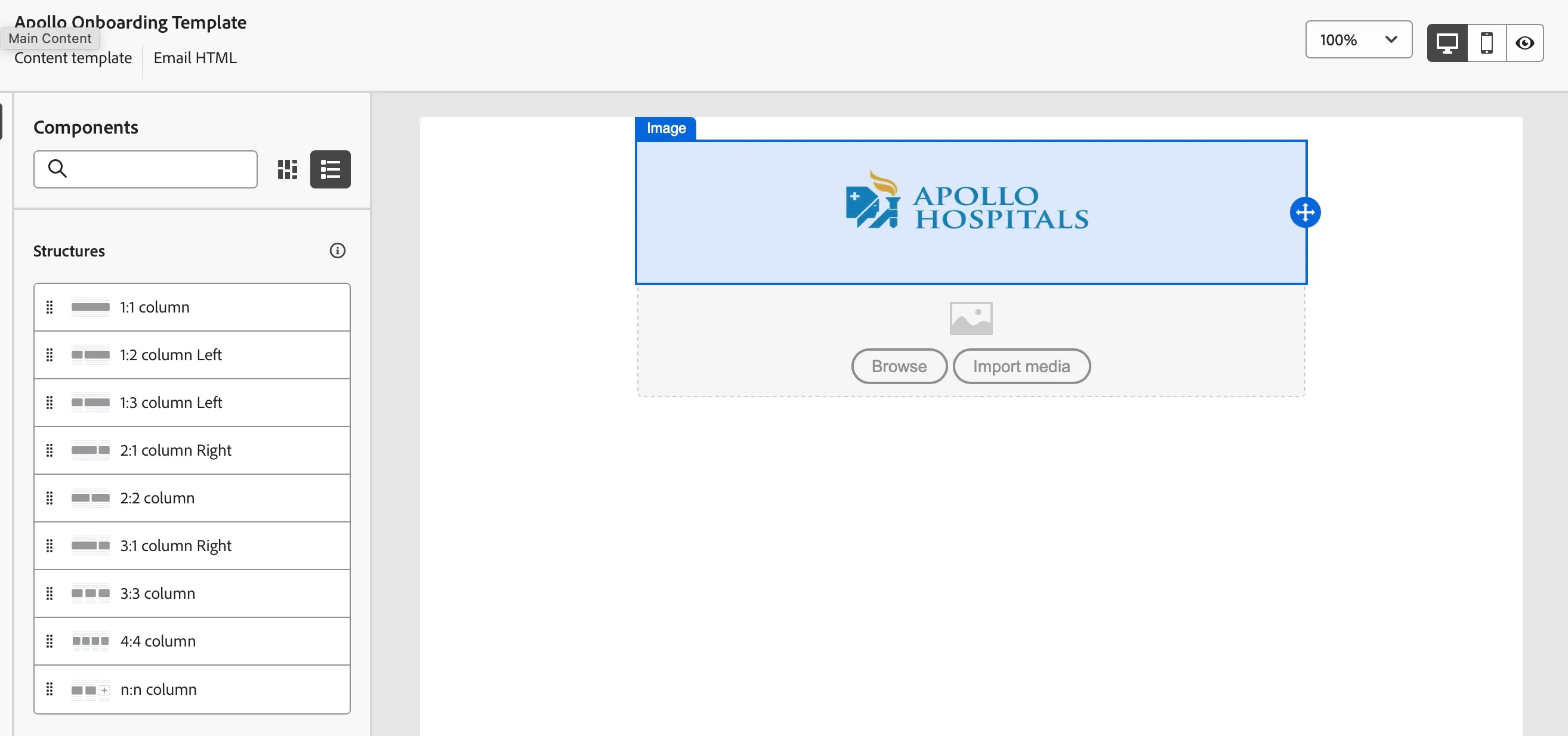
This time we'll use AI to generate an image based on a Text prompt. Select the image and click to Generate and Select an image.
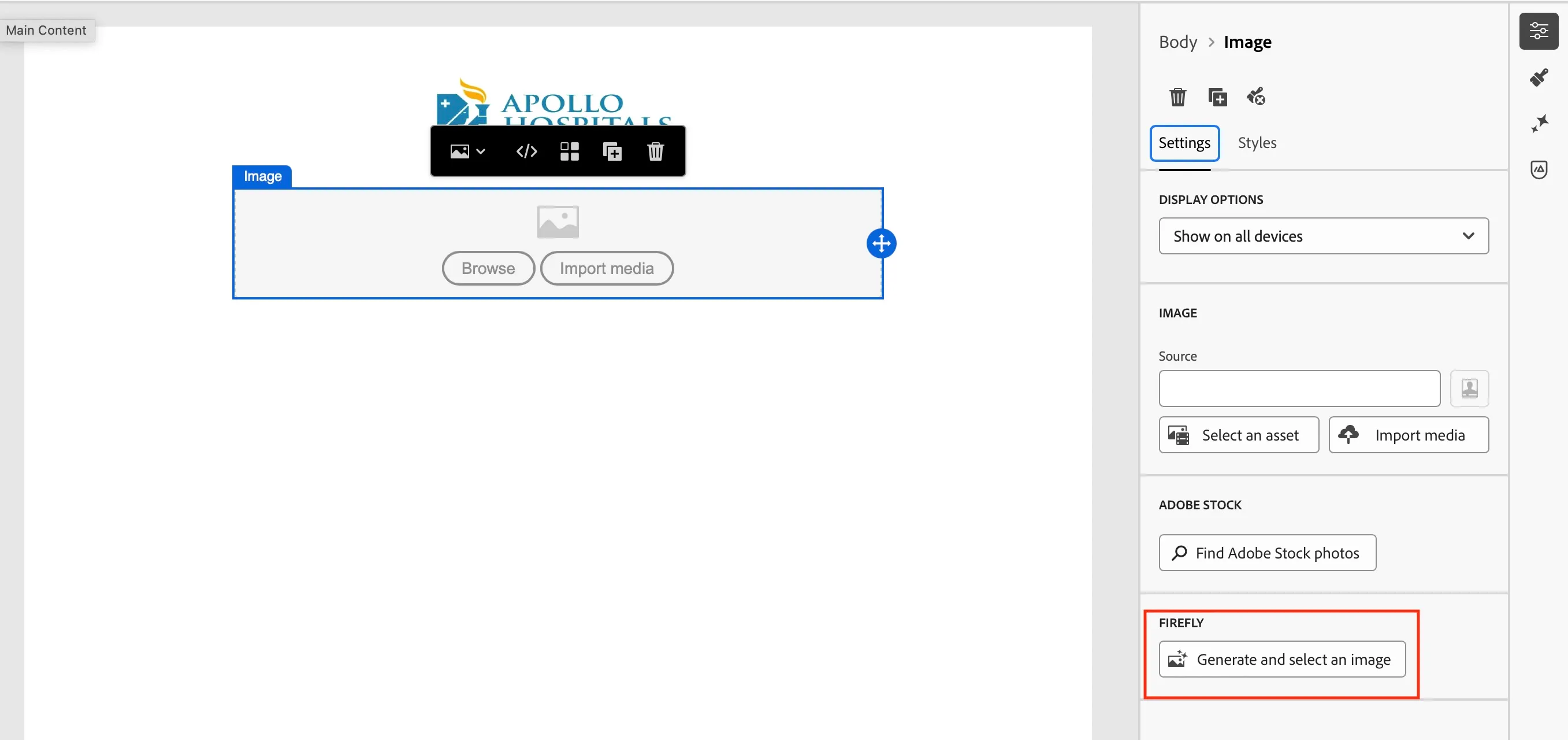
Change to the Adobe Firefly tab and in the Image settings change the aspect ratio to banner size (height 250, width 700). Update the other settings as desired.
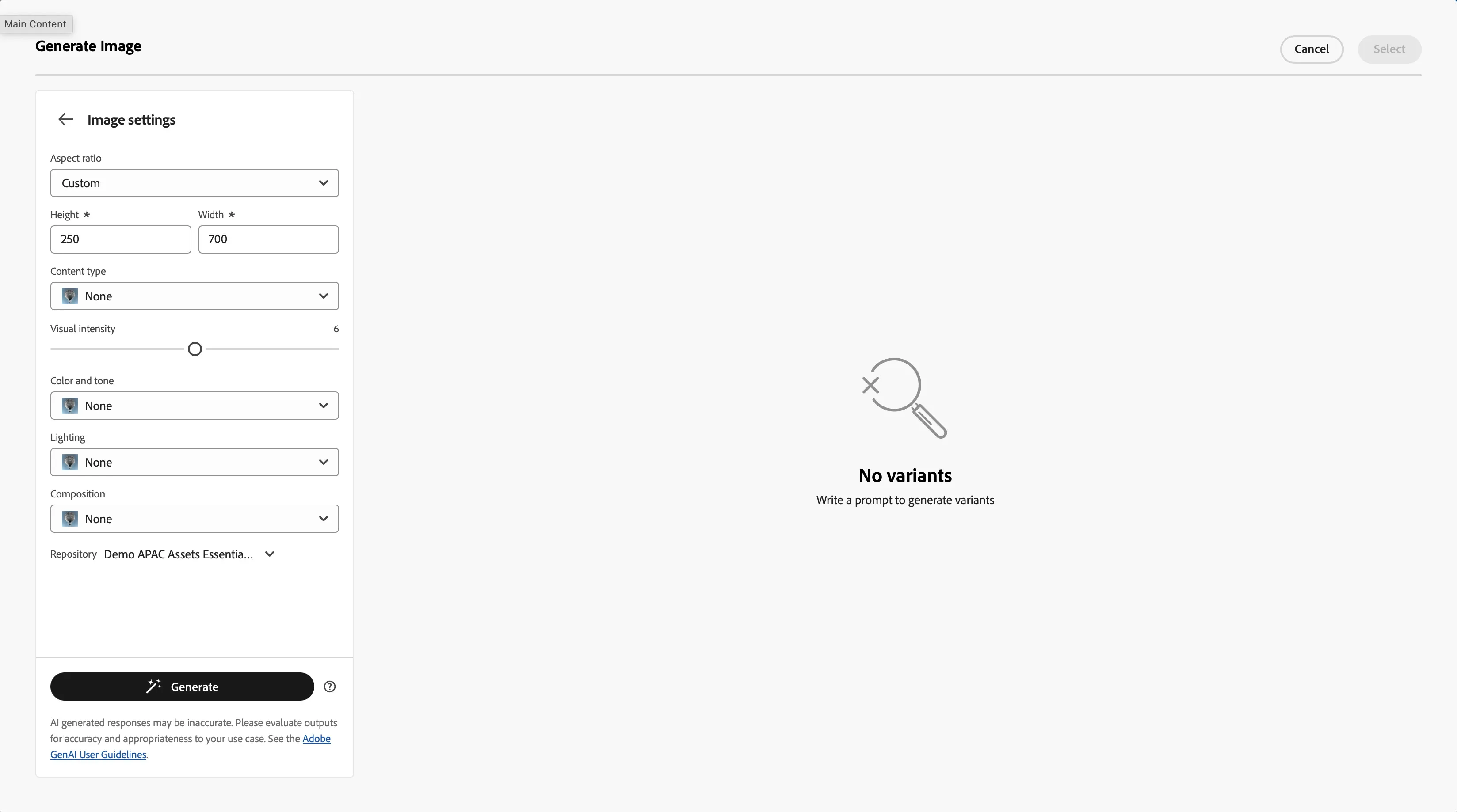
Add your Text Prompt and click to Generate
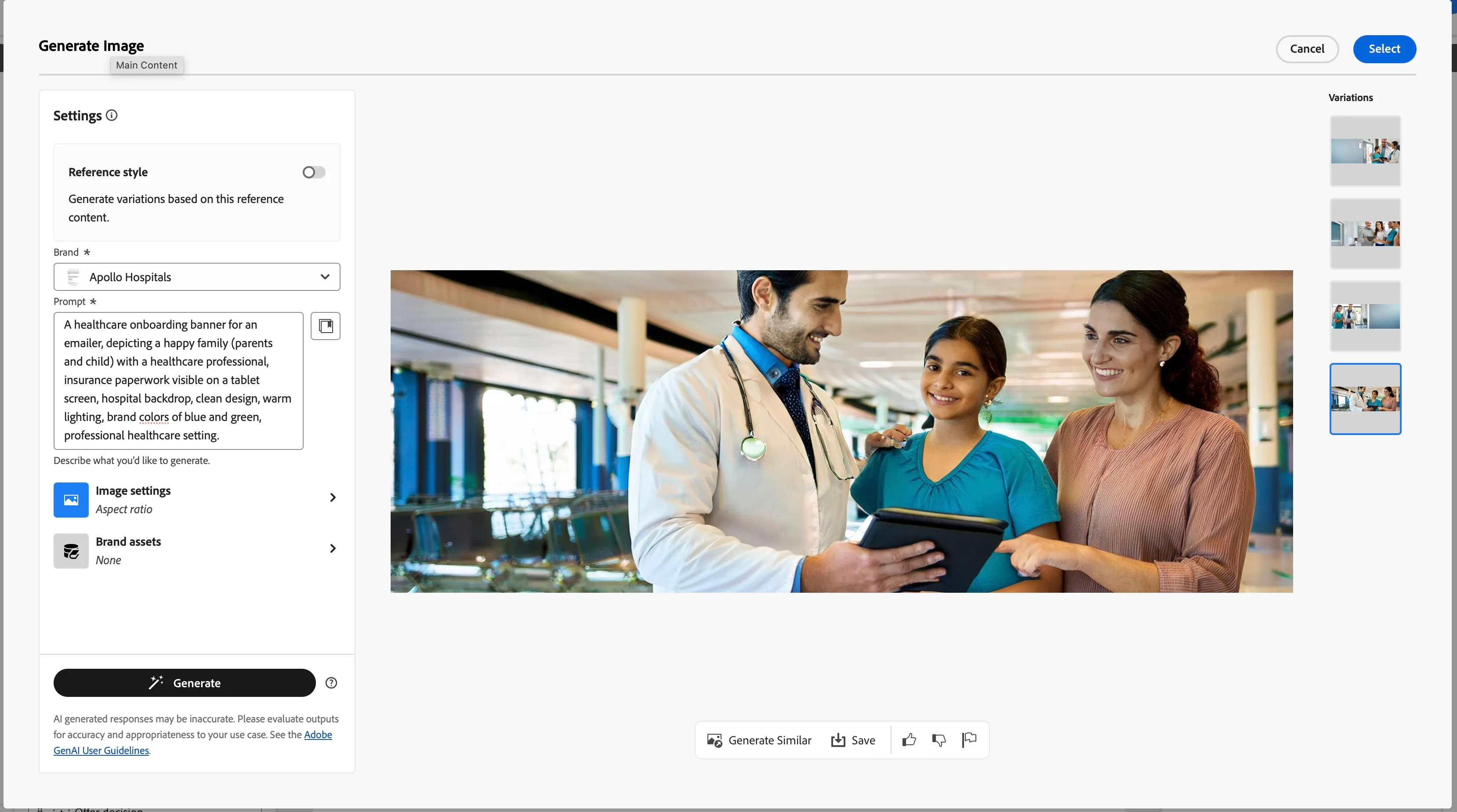
Review the variations and choose the one you prefer and click Select
Save the image into the Apollo Hospitals folder.
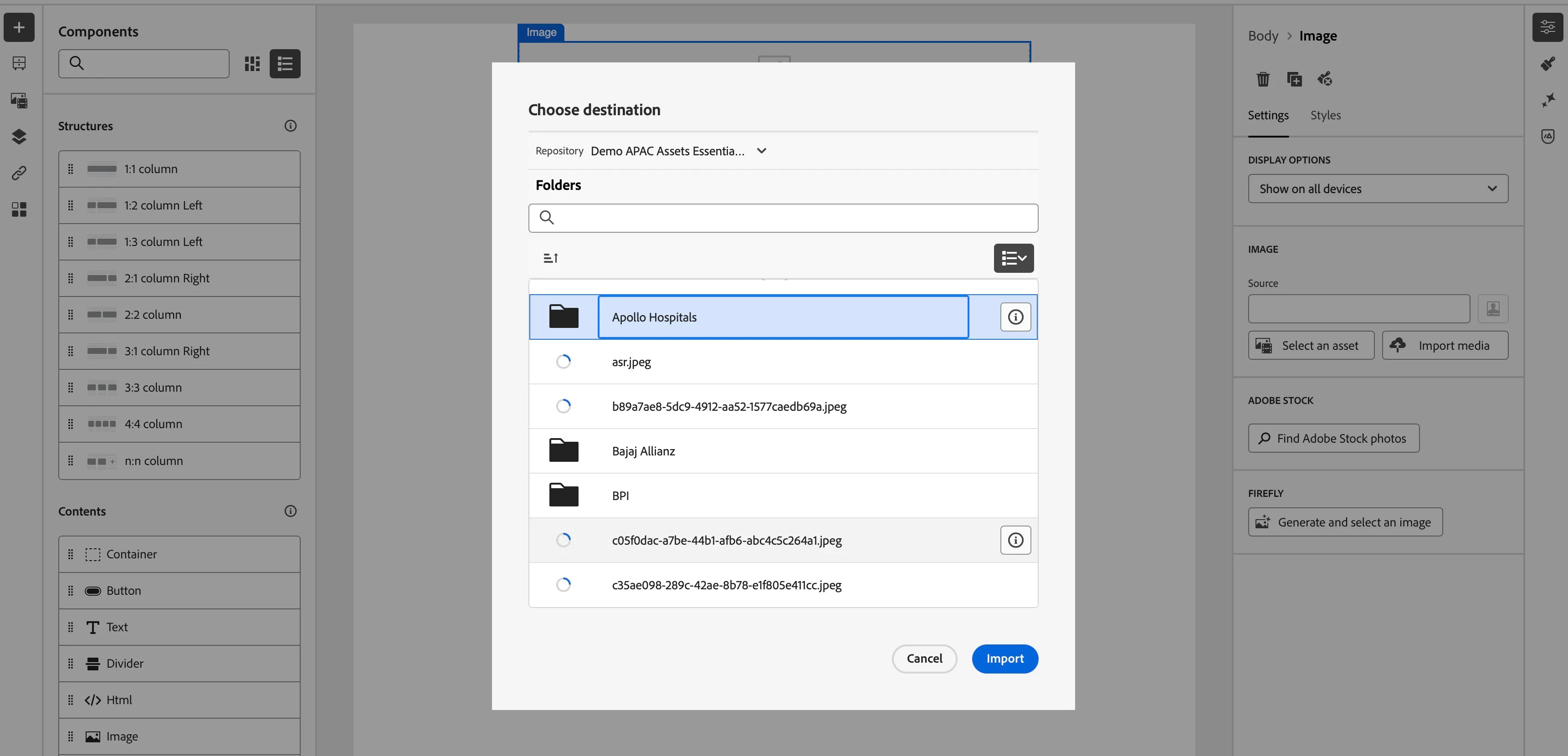
After image is generated and saved. Drag across a text content block for the main content of the email.
Update the style settings for the text block from the panel on the right hand side. You can update the font size, color and padding as desired.
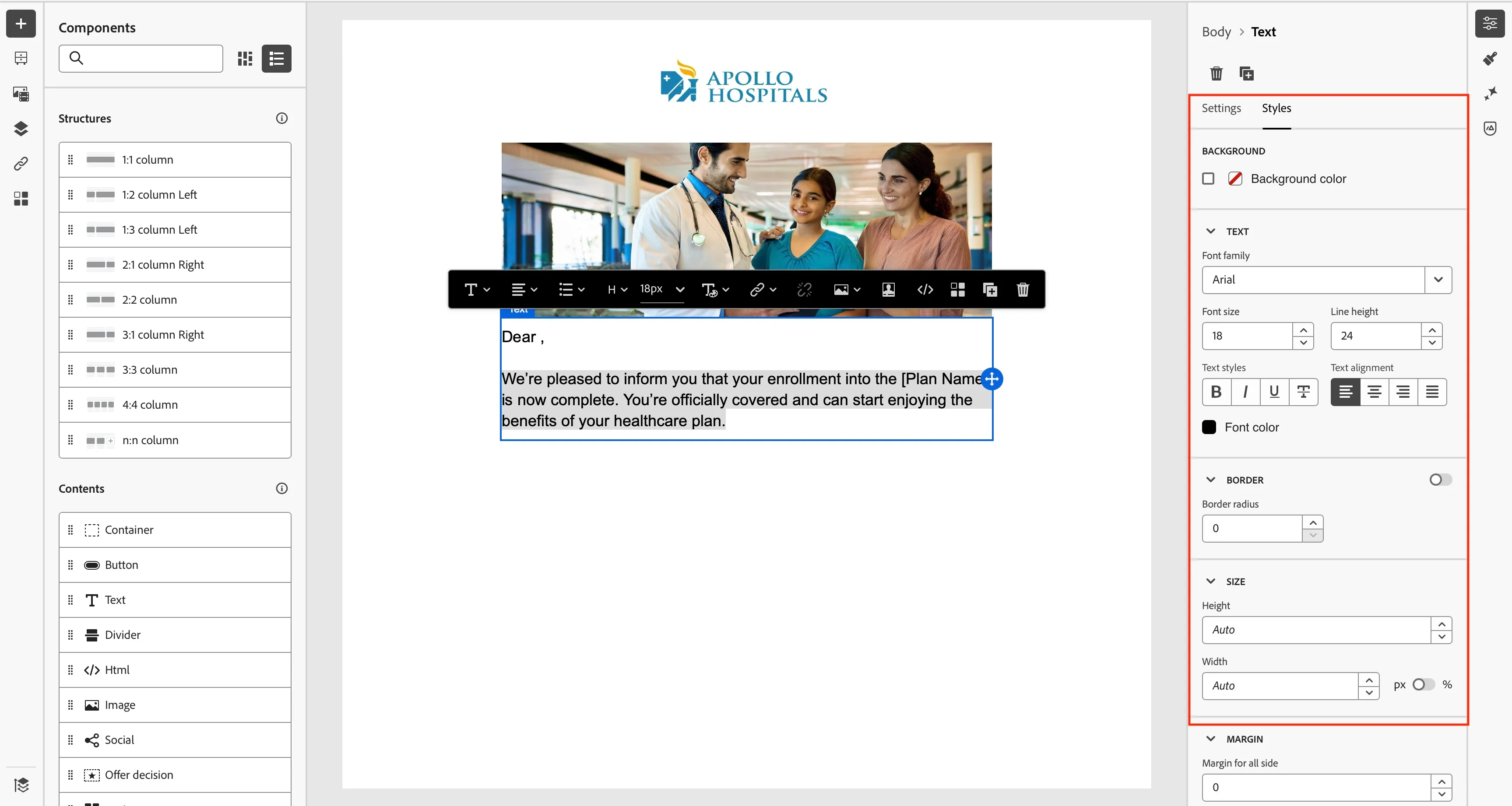
You can add any personalized greeting. To include any profile attributes e.g. first name.
Click on the personalization menu to add the customers first name.
Search for First, use the + to add the syntax for inserting the First Name (Profile Attributes > Person > Full Name).
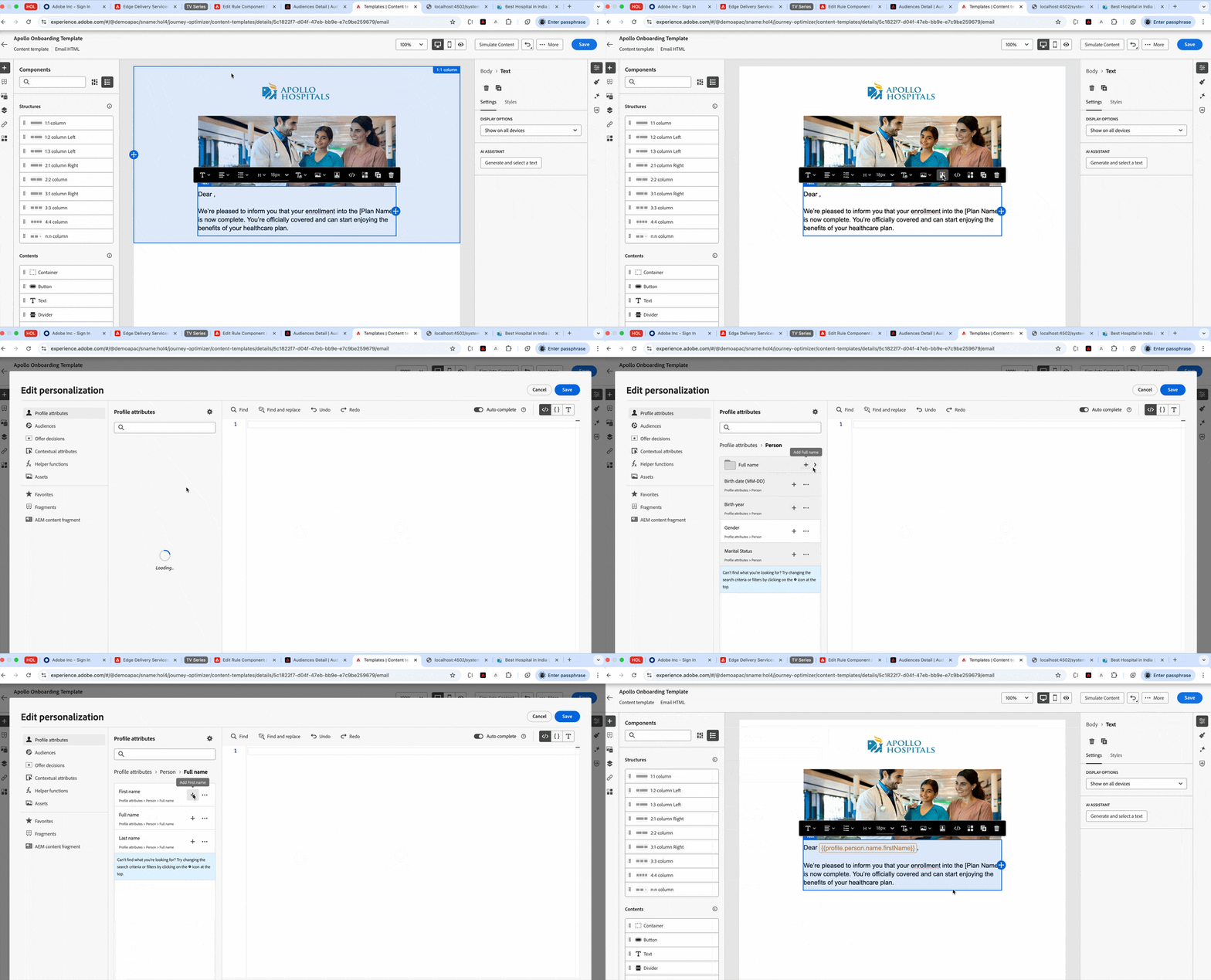
Click Save
Now let's add a button for our call to action link. Drag a Button component into the next slot.
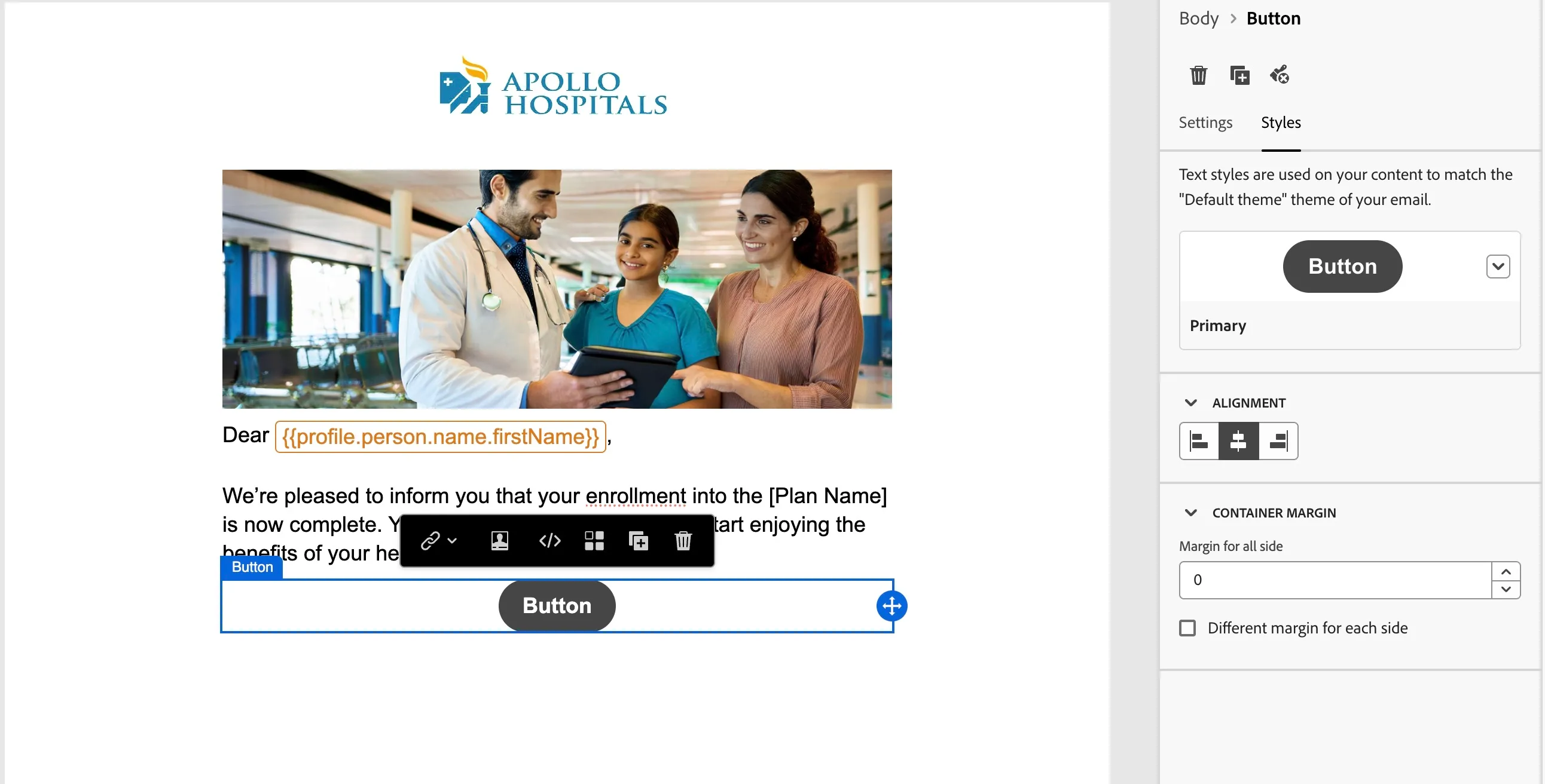
You can now update the style of the button or leave it as default.
Lastly, let's use some pre-existing fragments to add a view online link and footer to the template. On the left change from the component menu to the fragment menu. Drag the Open in Browser and the Generic Footer fragments to the top and bottom component slots.
Your template is now ready to use in your journeys and campaigns.
Click to Save your template.