Objective
Overarching story
The customer finally decides to buy the yoga mat. Goes to the Luma website and complete the purchase. The customer decides to pick the order in store.
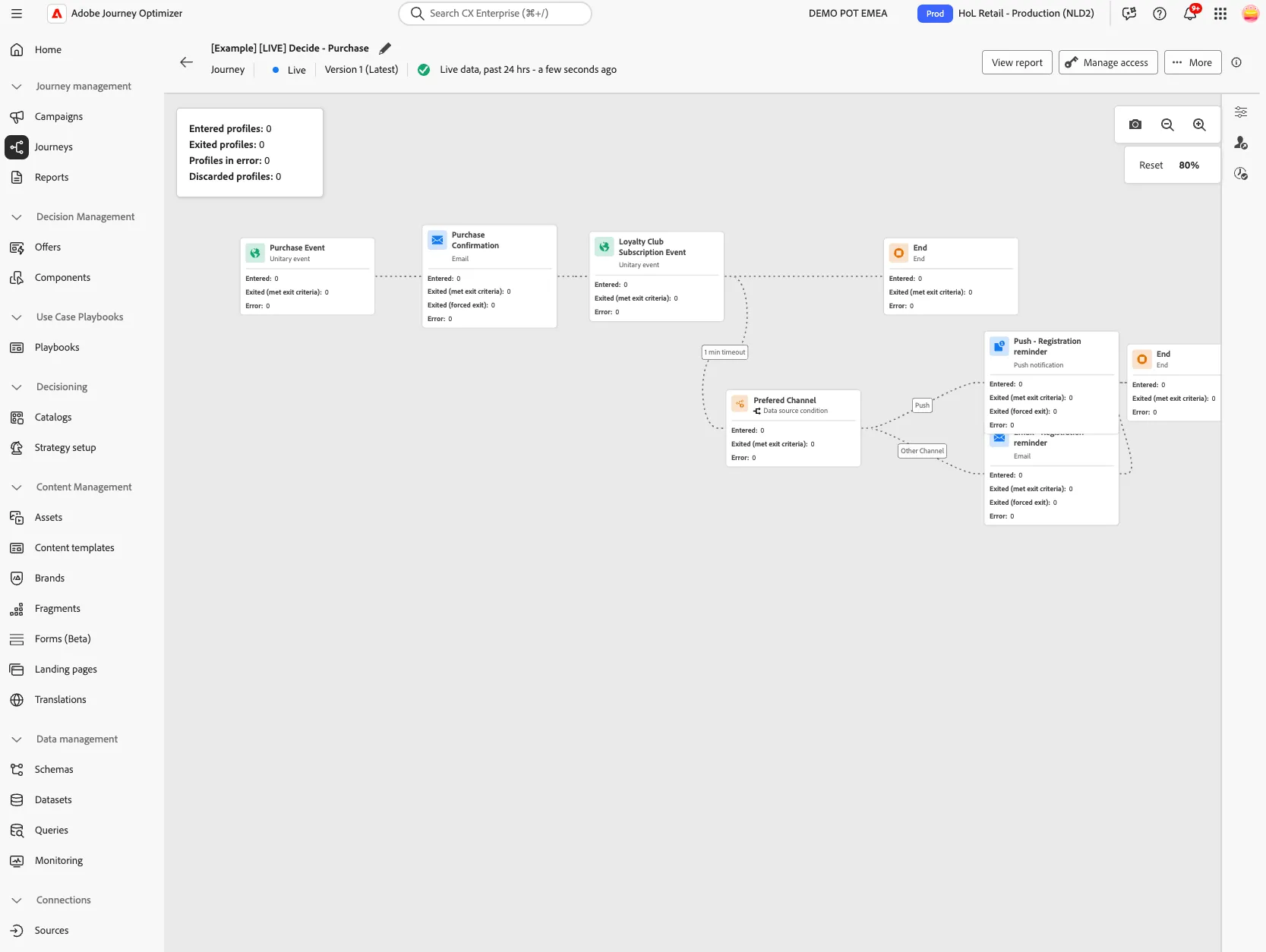
Experience it first
Walk through this section as your customer would. This helps you understand what they experience. Next, you'll build the required elements in AEP to create that same journey.
Purchase
You finally decide to buy the yoga mat. Go to the Luma website and complete the purchase.
- On the Luma website open the Acqua Sticky Yoga Mat product page.
- Click on
 .
.
Now your cart contains (at least one product).
- Click on the icon
 to open the cart.
- Review the cart, then click on the Checkout button.
- On the Checkout page, the personal information are already pre-filled with your profile data.
- In Shipping section select In Store Pickup.
- Select a store from the dropdown (this is required for other exercises).
IMPORTANT: leave the toggle I want to join Luma+ Loyalty Program disabled. You're going to leverage this status later in the journey.
Your page should look like this:
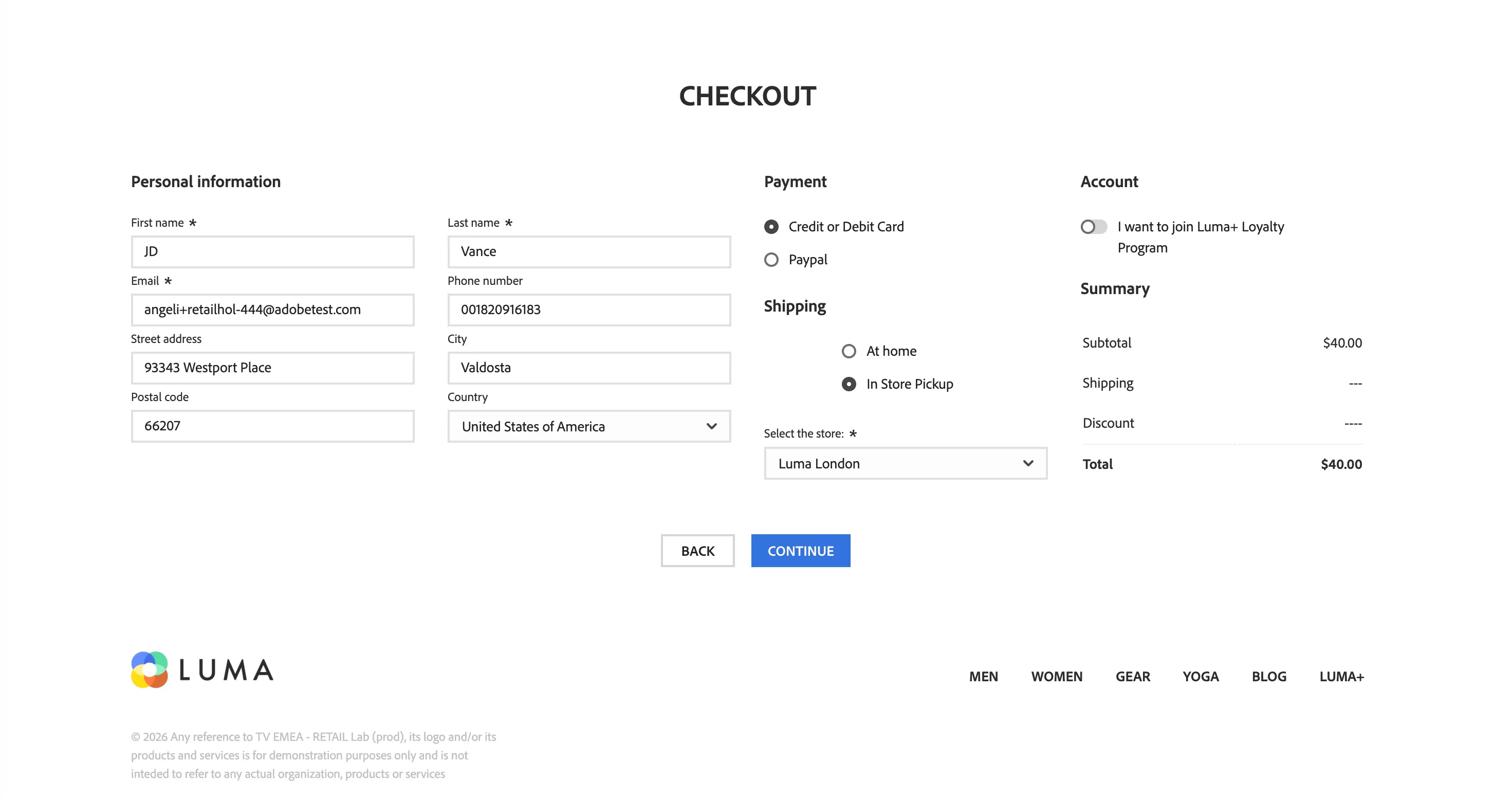
- Click Continue.
- Review the Order Summary, then click Confirm Order.
In a couple of seconds, your order is confirmed and you'll be redirected to the Thank You page.
Confirmation email
You will receive an email containing a summary of your order. Because you are not currently a member of Luma+, Luma loyalty program, the email will include a personalised banner inviting you to join.
- Open your email client.
- Open the email with the subject: Your Luma Order Is Arriving Soon.
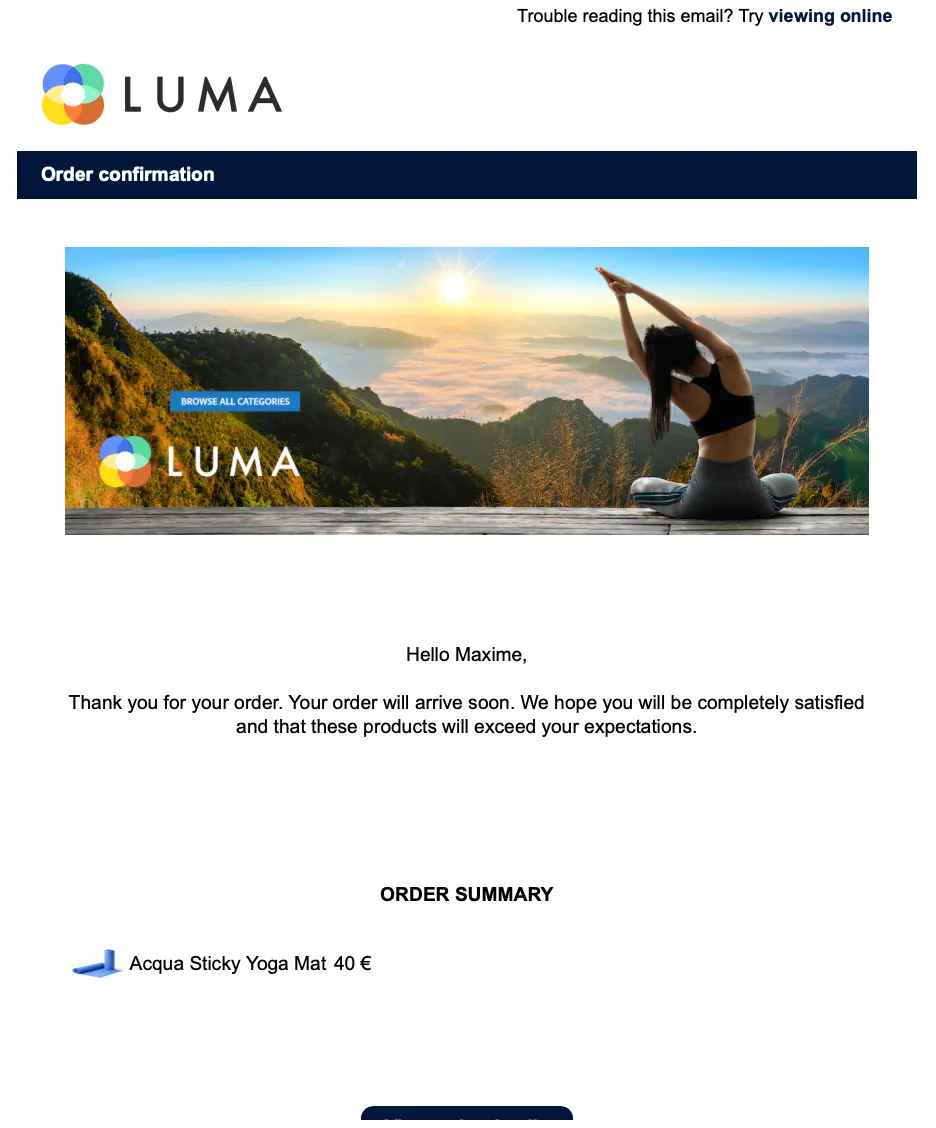
At the bottom of the email you can see the personalised banner that promote the Luma+ program.
Follow up email
In this moment you're not interested in the Luma+ program and do not subscribe to the Luma+ program. A week later* you receive a follow up email about the Luma+ program.
* for demo purposes, the delay is reduced to 1 minute.
- Open your email client.
- Open the email with the subject: Discover why you should register to LUMA+.
Track your order in the app
You chose to pick your order up in store, so you'll want to know the exact moment it's ready to collect. Open the Luma app and sign in : from now on you'll get order updates straight to your phone, and later it's how you'll collect the order in store.
- If not done yet, download the Luma app (instructions hereinstructions here).
- Open the app, tap the
 and sign in using:
- {{EMAIL}} as email.
- Any character for the password (you can leave it blank if you prefer).
Signing in with the same email you used for your purchase links your app to the profile you've been building on the website. That single profile is what lets Luma reach you on the right device throughout the rest of the journey.
What is needed
Now you've seen what the customer experience is, this is what you need to configure to enable that experience with Adobe Experience Platform.
- An event-triggered journey To send the customer communication once the purchase is done.
- A confirmation email With the recap of the order and promotional banner.
- A follow up communication It can be a push notification or an email, based on customer preferences, with content on Luma+ Program.
Why this matters for marketers
As marketer, you want to nurture customers through their entire lifecycle by delivering timely, personalized communications. With AEP, you can trigger automated journeys based on purchase behavior and dynamically adjust messaging - like promoting loyalty programs to non-members - to maximize lifetime value and repeat purchases.