Create an offer
Time to build. You've experienced the journey as a customer—now construct the orchestration in AEP that makes that experience real for your users.
Offers - overview
To log into the Adobe Experience Platform, check the Environment & AccessEnvironment & Access page.
In Decisioning, catalogs serve as central containers for organizing decision items (aka offers). Each catalog is linked to an Adobe Experience Platform schema, encompassing all the attributes assignable to a decision item.
For now, all created decision items are consolidated within a single “Offers” catalog, accessible via the Catalogs menu.
To get an overview of all offers in the catalog:
- In the menu on the left side, under Decisioning, click on Catalogs.
- Select Offers. You will see all existing offers in the catalog.
-
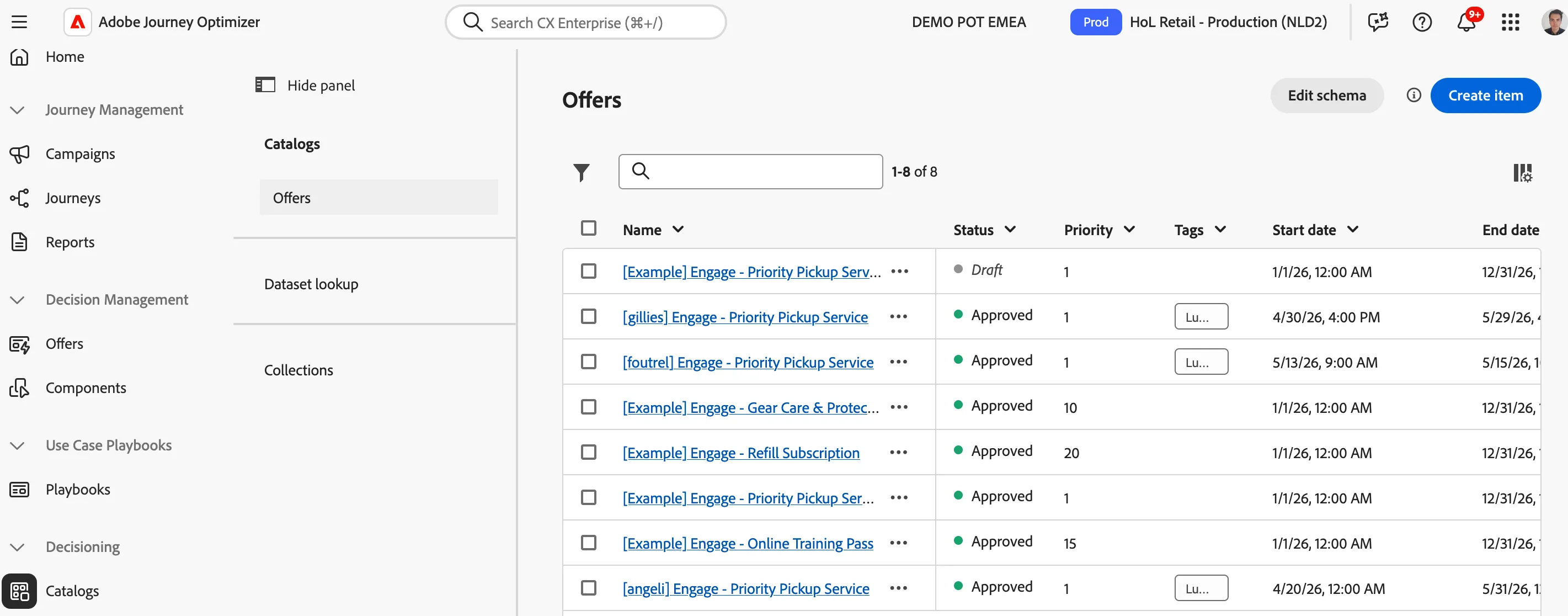
Create an offer
- Select Create Item.
- Name your offer as [{{LASTNAME}}] Engage - Priority Pickup Service.
- Select a start date and end date from the date pickers for which your offer is valid.
- Leave the priority setting as the default.
- Select the Tag Luma+ from the drop down.
These are the standard attributes of an offer; you'll notice below there is also a list of Custom attributes.
These are specific attributes tailored to your needs that can be assigned to an offer. These values can be used to customise customer communication across different channels, ensuring a coherent and consistent message.
- Expand Offer Content > Text Content section and set the below values accordingly:
- Compact Description: Skip the wait with priority in-store pickup. A faster, smoother way to collect your order when it’s ready.
- Compact Title: Pick Up, Faster.
- Banner Call to Action: Discover more.
- Expand the Media Assets panel:
- For the Image (High Resolution) attribute, select Add asset from library.
- Click Add asset to open the Asset Selector.
- Search for pickup.
- Click on pickup Large.jpeg then click Select.
- Expand the Navigation panel and set the web URL to https://dsn.adobe.com/web/hol-retail-prod/luma-plus This will be used as CTA link.
- Expand Offer Metadata.
- Set Commercial objective: Loyalty.
- Sales Stage: Post-sale.
- Click Next.
Leave the Eligibility and Capping settings as default.
- Click Next.
- Review the settings, then click Save.
Your offer summary should contain all the information shown below:
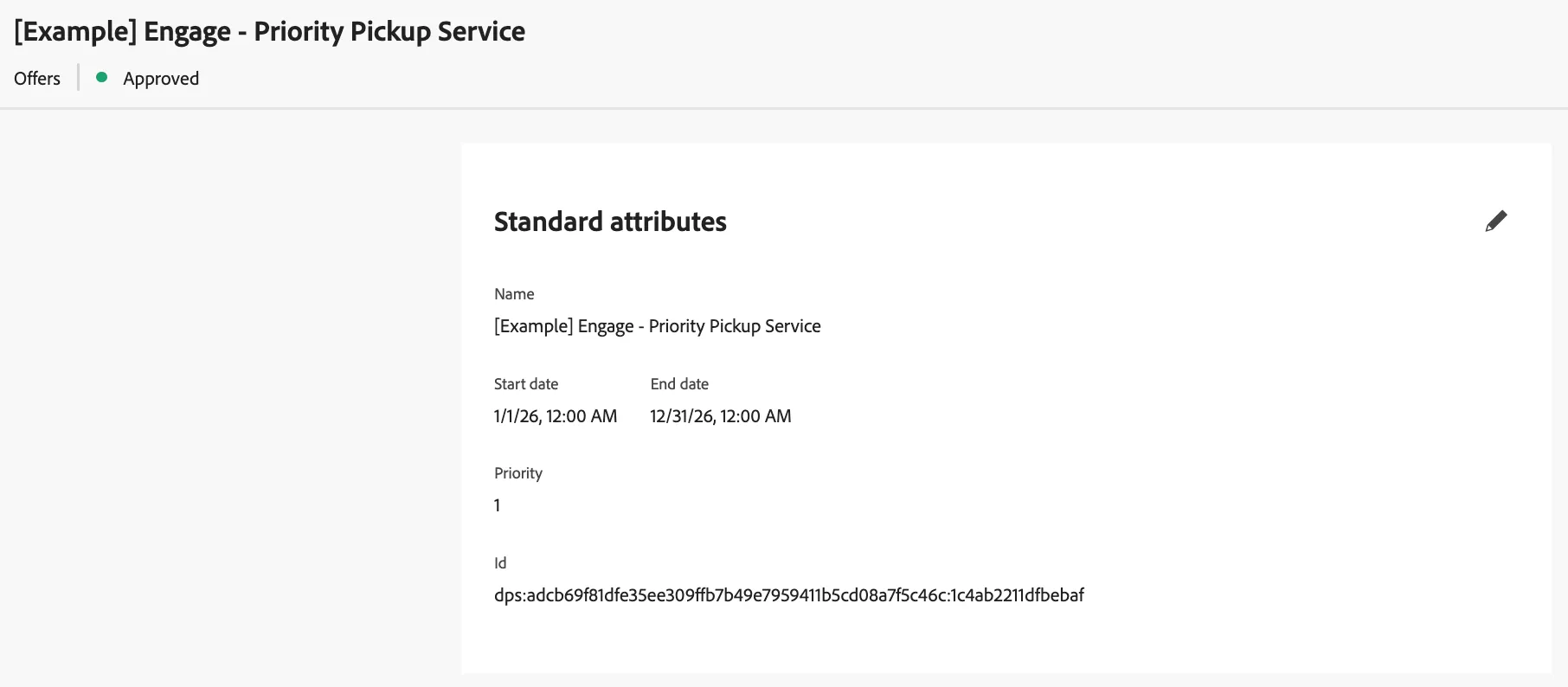
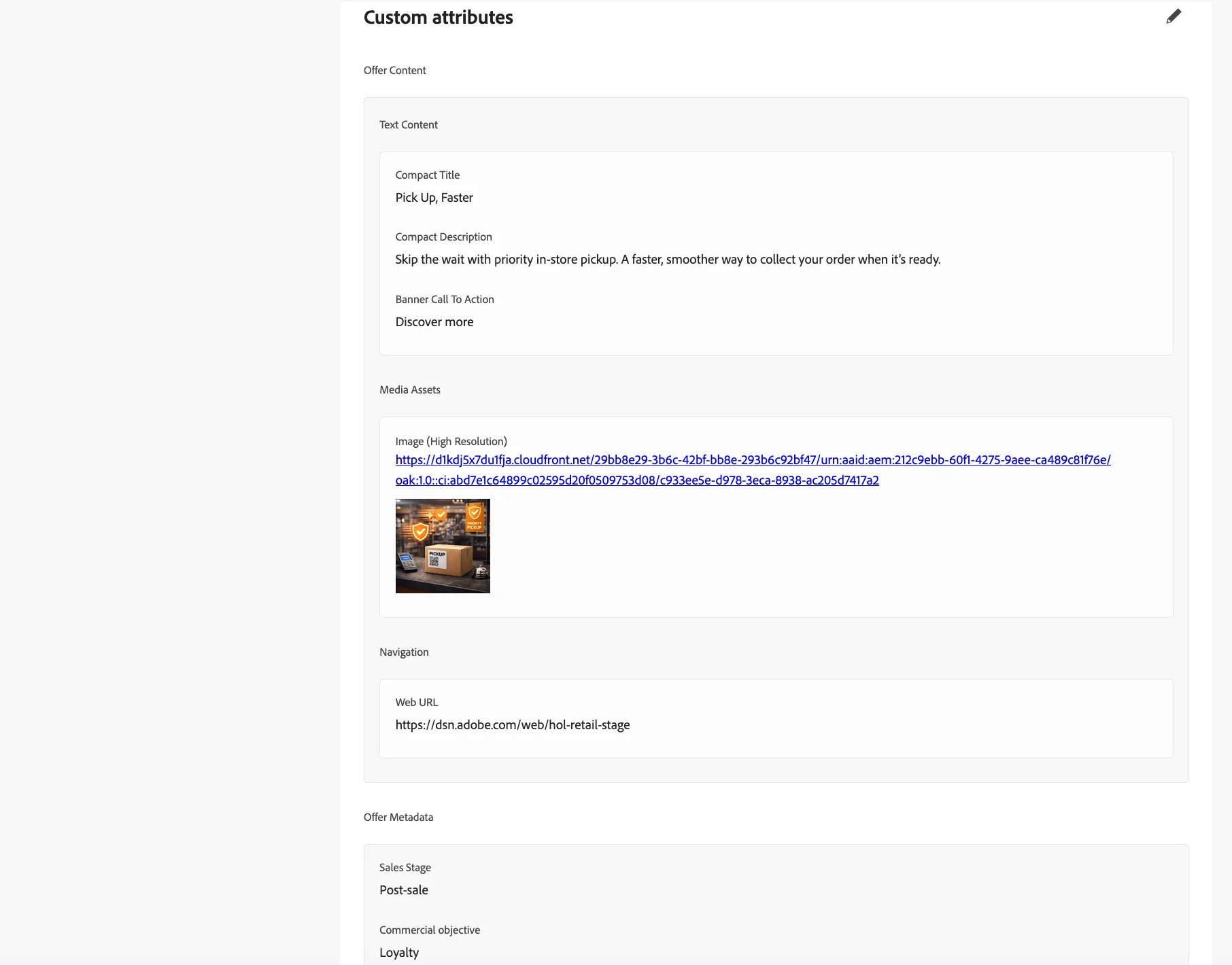

Once you have verified the information, an offer must be approved to make it visible; click Approve in the top right corner.
Your offer is now ready to be used!
Create the offer collection
Collections allow you to categorize and group your decision items according to your preferences. These categories are created by crafting rules that leverage the attributes of decision items.
You will now create a Collection of post-sales offers that you will use later in the lab.
- In the menu on the left side, under Decisioning, click on Catalogs.
- Select Collections.
- Select Create Collection.
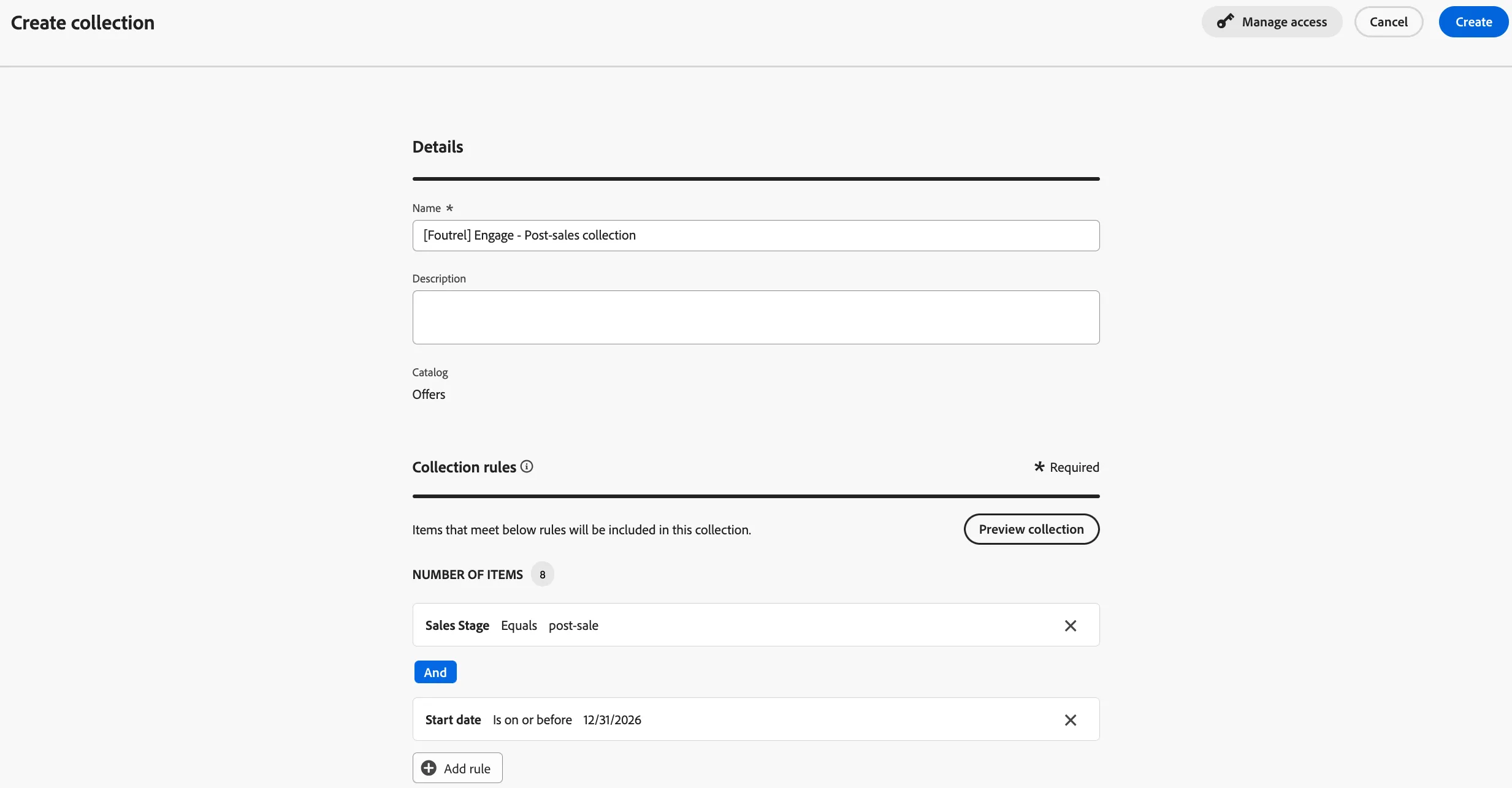
- Name your Collection: [{{LASTNAME}}] Engage - Post-sales collection
- In the Collection Rules, under NUMBER OF ITEMS, click on Click to create a decision item...
- Click Select attribute button.
- In the the attribute window, select Offer Metadata > Sales Stage.
- Click Save to close the window.
- Set the operand to Equals and the value to Post-salein the dropdown menu.
- Click Add rule.
- Click Select attribute button.
- In the the attribute window, select Start date.
- Click Save to close the window.
- Set the operand to Is on or before and the value to 12/31/2026in the dropdown menu.
Click Preview collection to see the offers that match the criteria.
You'll see a lot of offers qualifying for the collection criteria; some of them are the examples created by the lab creator as reference; others are the offers created by other participants in the lab.
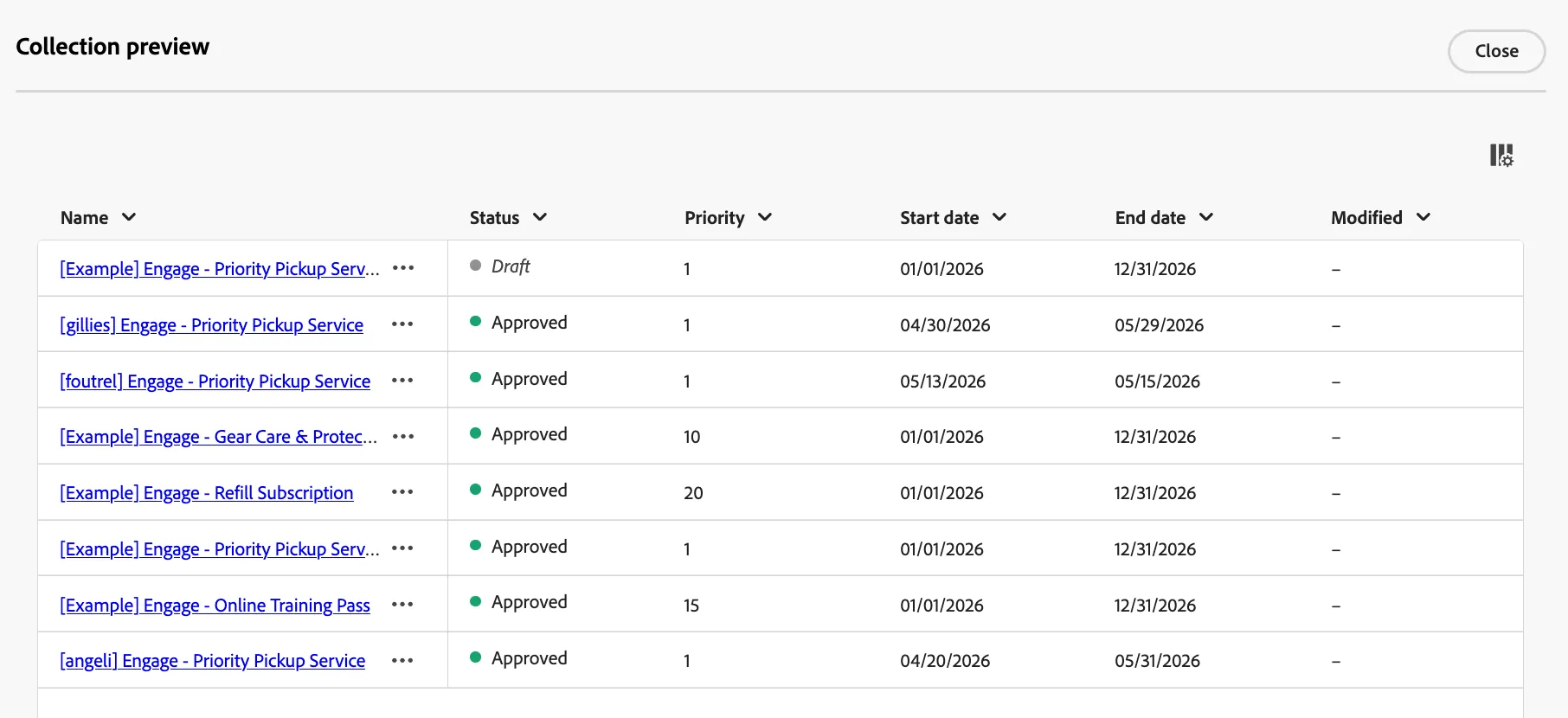
- Click the Close button once you have verified the offer selected by your collection.
- The collection configuration should look like the image below:
- Click Create.
You've now configured a Collection.
Create the selection strategy
A selection strategy is reusable, and consists of a collection associated with an eligibility constraint and/or a ranking method to determine the offers to be shown.
The strategy:
- takes all Post-sales offers in the collection.
- Applies eligibility rules.
- Applies the ranking formula (if available).
- Returns the top ranked offer(s).
The Selection strategy decides which offer the customer will see.
- In the menu on the left side, under Decisioning, click on Strategy setup.
- Select Selection strategies.
- Select Create selection strategy.
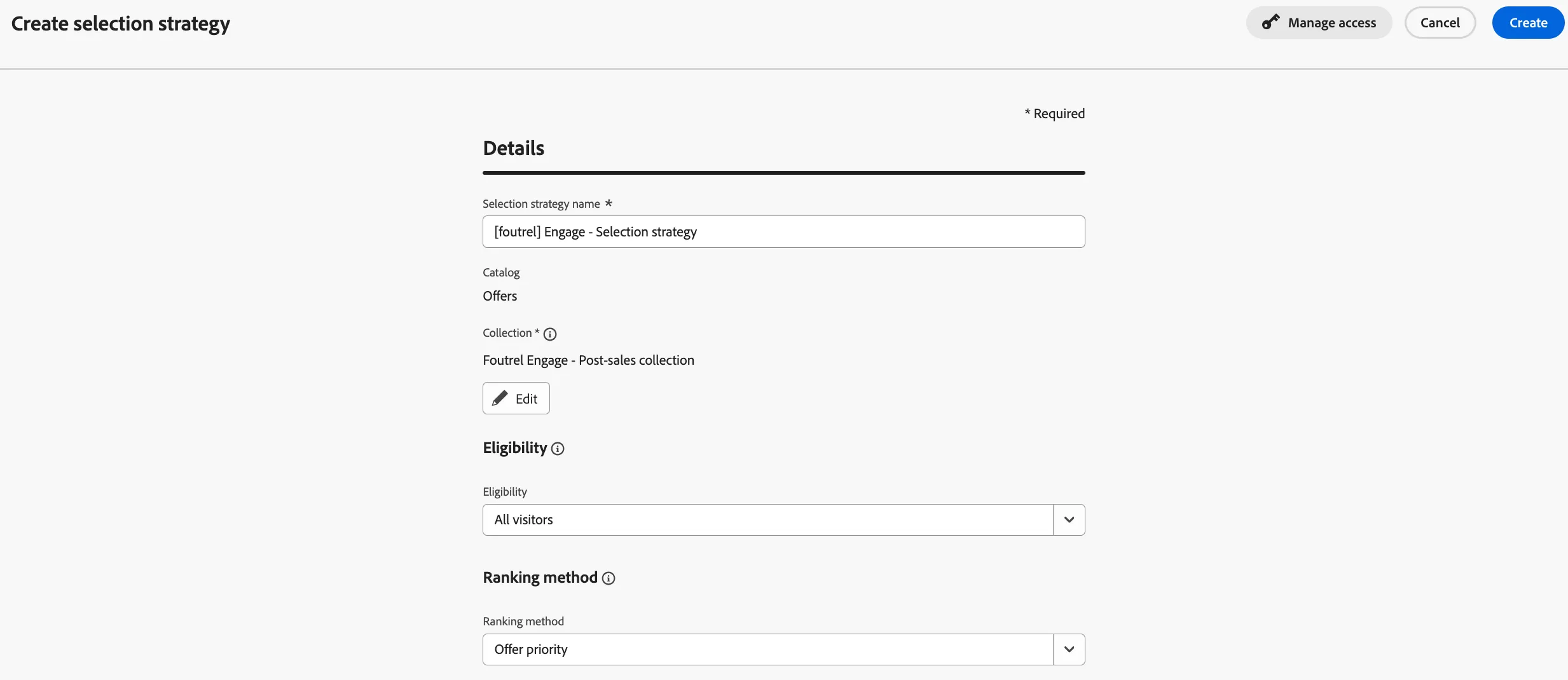
- Name your selection strategy: [{{LASTNAME}}] Engage - Selection strategy
- Click Select collection.
- Select Collection previously created [{{LASTNAME}}] Engage - Post-sales collectionand click Save.
- Leave the Eligibility as All visitors.
- Note: Eligibility removes offers from consideration entirely, while ranking orders the remaining ones.
- Set the Ranking Method to Offer priority
- Click Create.
The selection strategy configuration:
This connects the offer catalog and the ranking so that decisioning can choose the best offer for each customer!
You have now configured a system that selects a different offer for each customer automatically.
How will this be used next?
This decision will now be called inside journey message so each customer is shown a personalised offer in real-time. The journey will request one offer from this strategy at send time.