Campaigns in AJO
1 min
This lab will walk through the steps to create a Campaign in Adobe Journey Optimizer.
NOTE: Some exercises may vary during the actual Hands on Lab versus what is listed in the Archbee Page, due to industry setup and / or Presenter preferences.
Navigate to Campaigns
Click on “Create Campaign”
- Under Properties, leave: Scheduled
- Then click the check box next to in-app message and select mobile.
- Select an App surface. Then, Click Create.
- Provide a name: Luma Free Shipping Campaign - {your initials}
- Select Audience: "Platinum Loyalty Members"
- Select Identity Type: ECID.
- Select the Action In App Message.
- Select the InApp Configuration, and click Edit Content.
- Select the Message Layout: Modal.
- Click on the Media Icon button, and select the free shipping image.
- Add a header: Free shipping!
- Add a body: For orders above $35
- Click on the back arrow next to the campaign name (Top left corner).
- Leave Trigger alone.
- Leave Campaing Start and End alone.
- Click Review to Activate, but do not activate leaving as draft is fine.
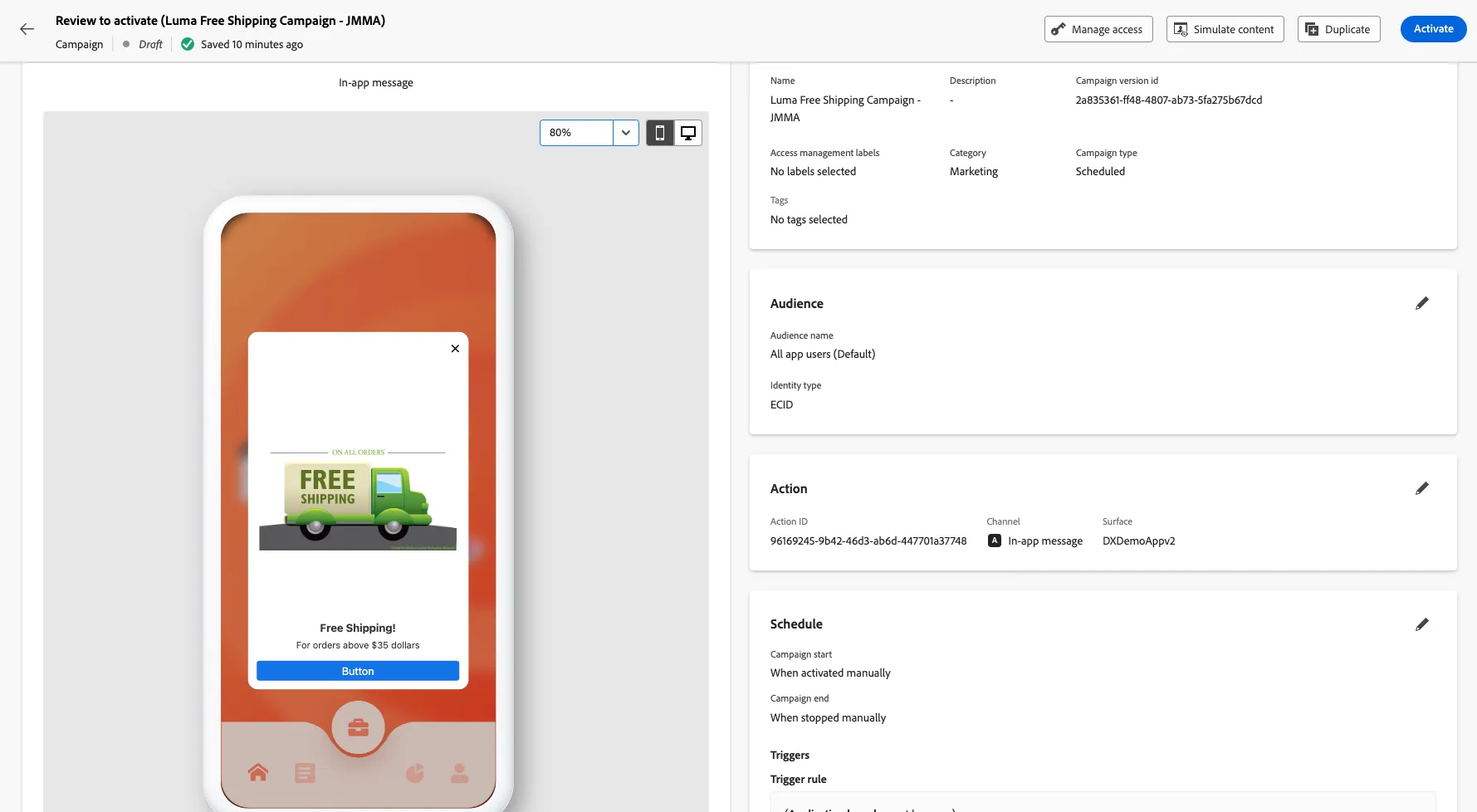
Congratulations! You just built a campaign in AJO.