Data warehouse Connection
Objective:
This demo will guide you through the process of using Adobe Experience Platform's Federated Audience Composition to connect to Snowflake and query an audience.
Prerequisites:
- Adobe Experience Platform account with appropriate permissions.
- Snowflake account with the necessary database and credentials.
- Basic understanding of SQL and data management.
To setup a connection with your database, follow these steps:
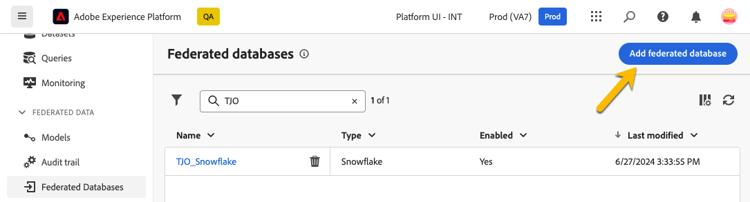
- Browse to FEDERATED DATA section on the left rail.
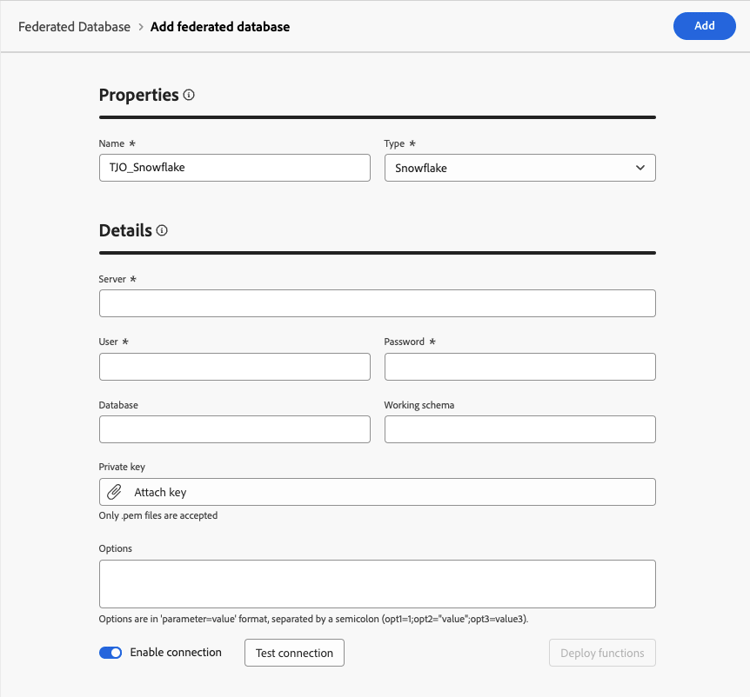
- In the Federated Databases link, click on Add federated database button.
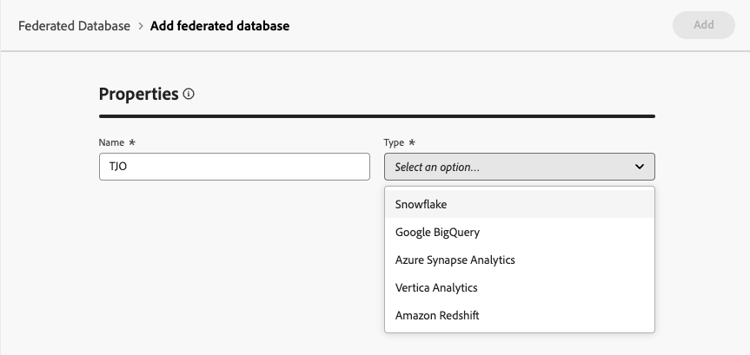
- Add a name and select Snowflake
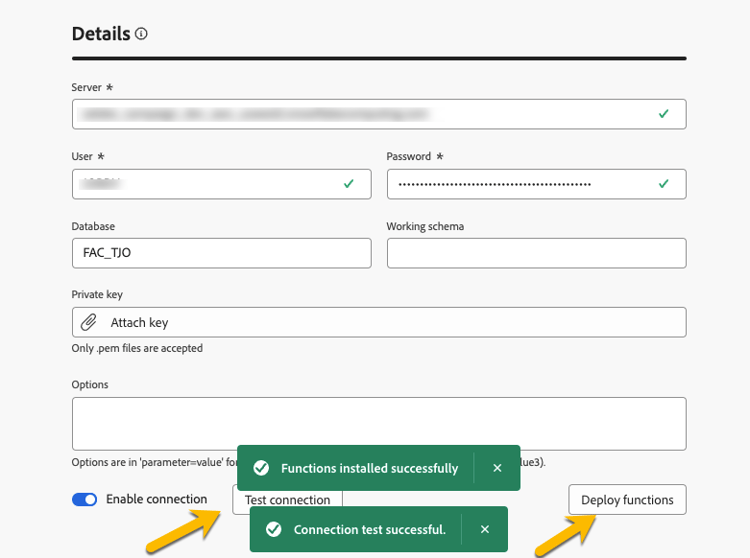
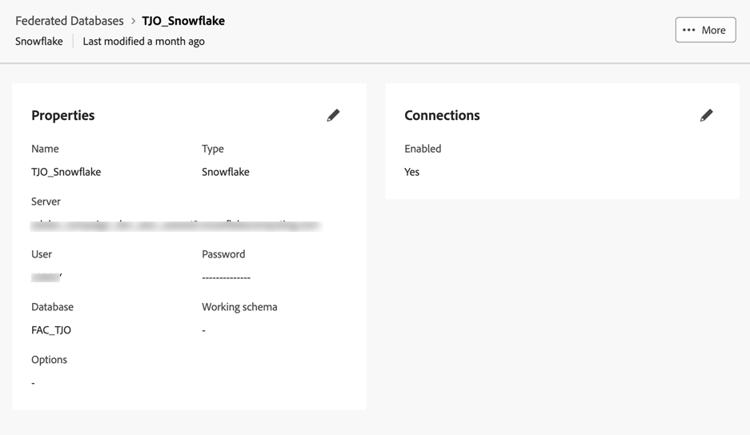
- After fill in the details, click on Test connection button, and on Deploy functions button.
-
Create a schema
To create schemas in Federated Audience Composition, follow the steps below:
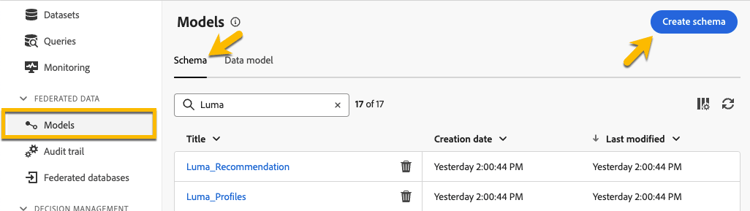
- In FEDERATED DATA section, go in the Models link. Browse to the Schema tab and click on the Create schema button.
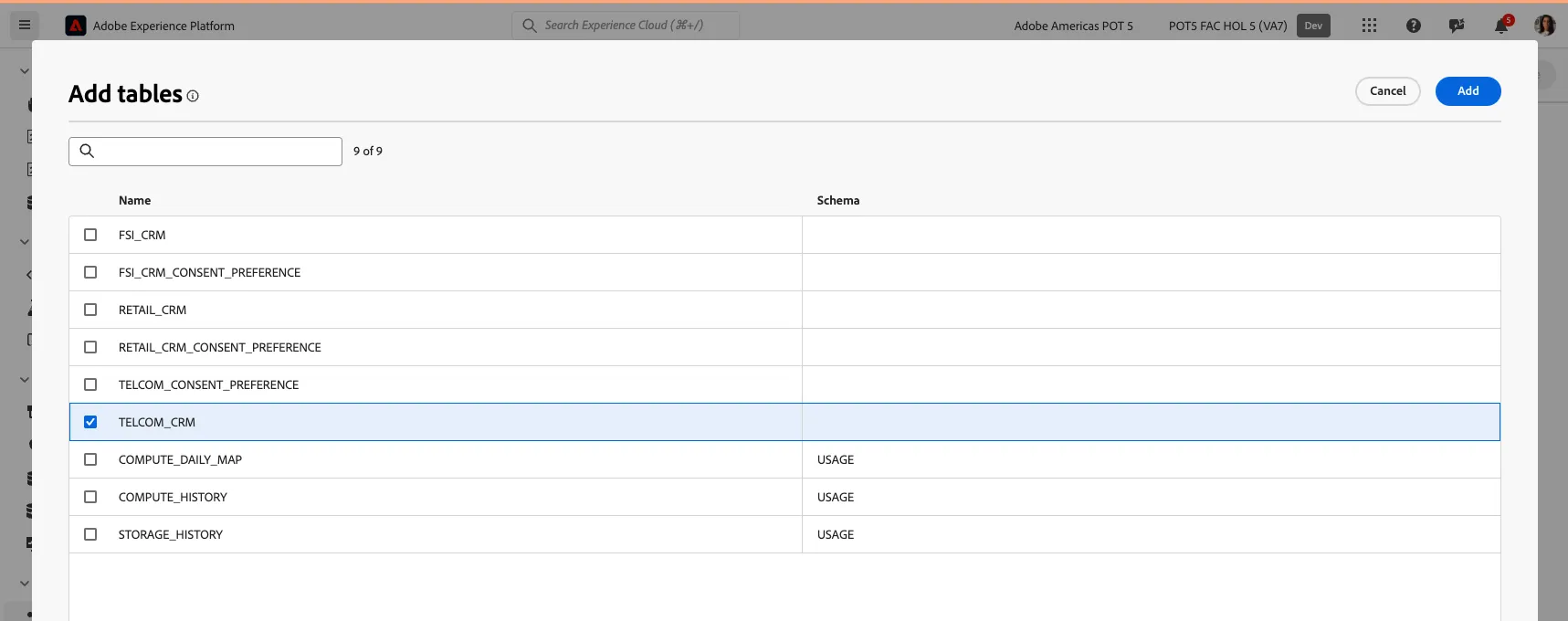
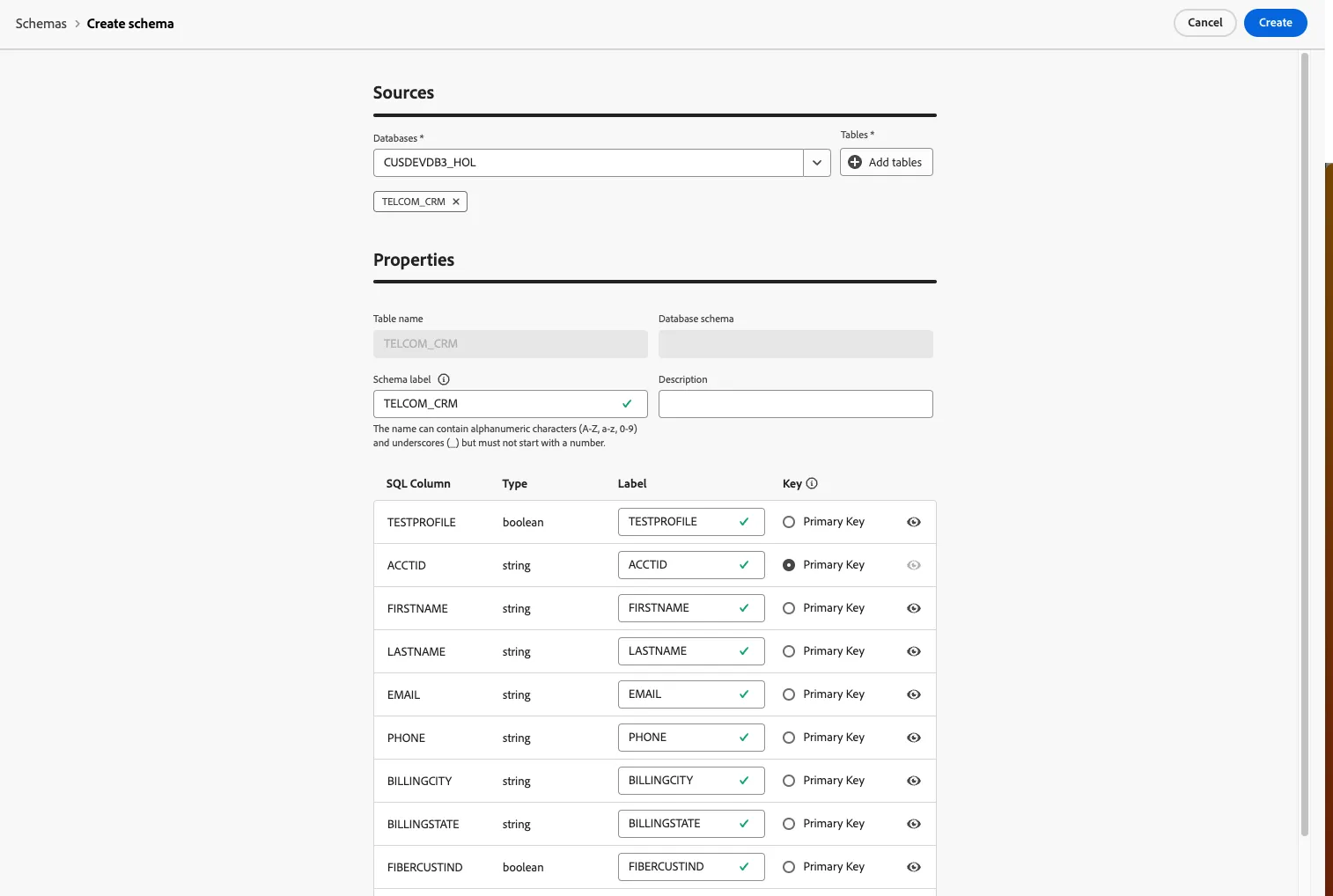
- Select your source database in the list, and click on the Add tables tab.
- By adding the tables, for which you want to create the schema, you have access to their fields as below:
Preview data in a schema
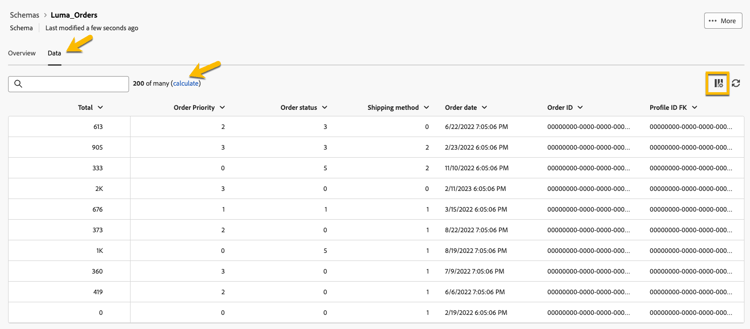
To preview the data in the table represented by your schema, browse to the Data tab as below.
Click on the Calculate link to preview the total number of recordings.
Create a data model
Data models allow you to create a link between tables. The link can be created between tables in the same database such a tables in Snowflake. You can also create a link between tables in different databases such as a link between a table in Snowflake and a table in Amazon Redshift.
To create a data model in Federated Audience Composition, follow the steps below:
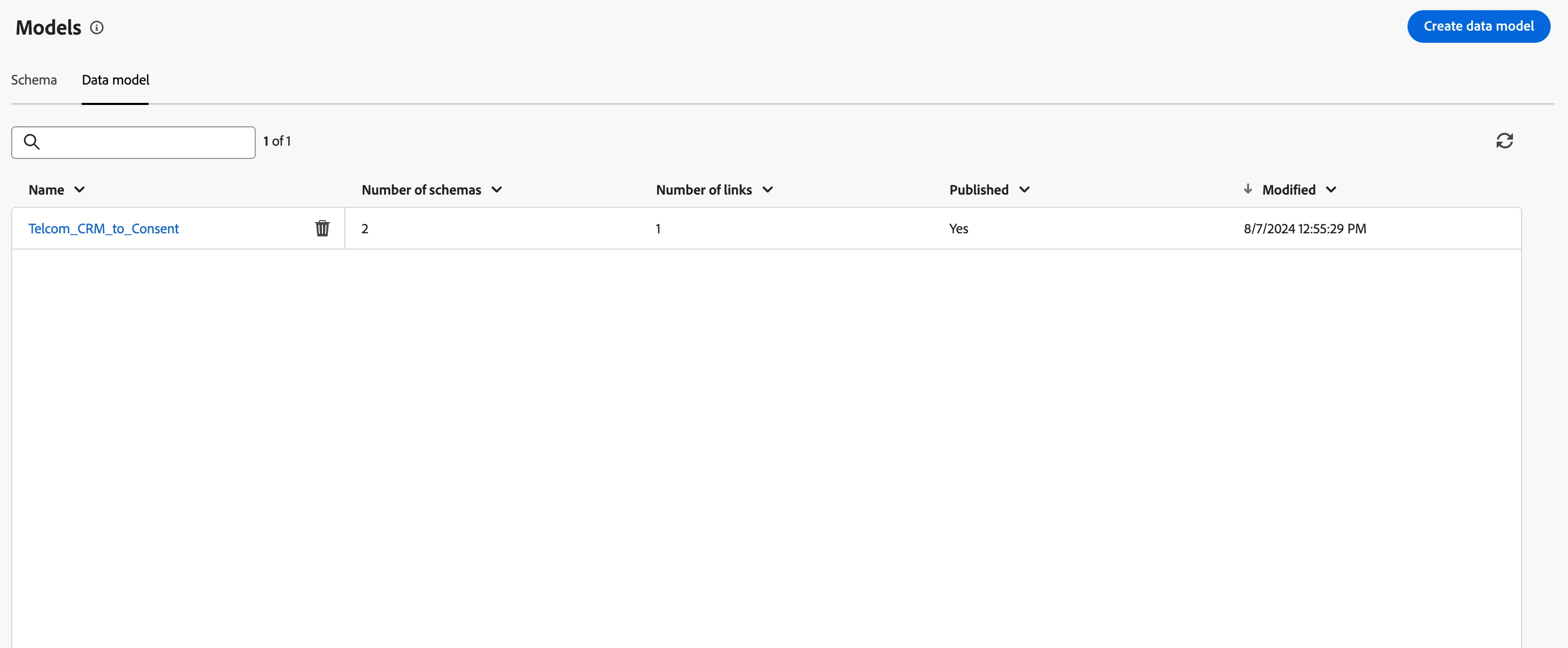
- In FEDERATED DATA section, go in the Models link and click on Data Model. Click on the Create data model button.
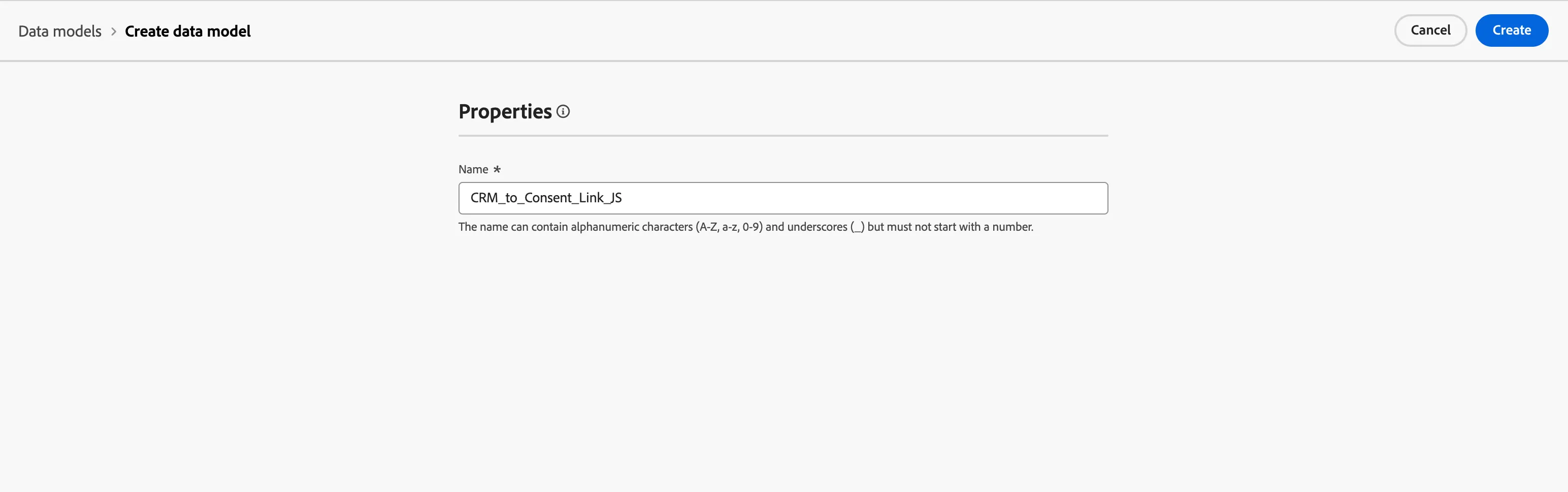
- Provide a name for your data model.
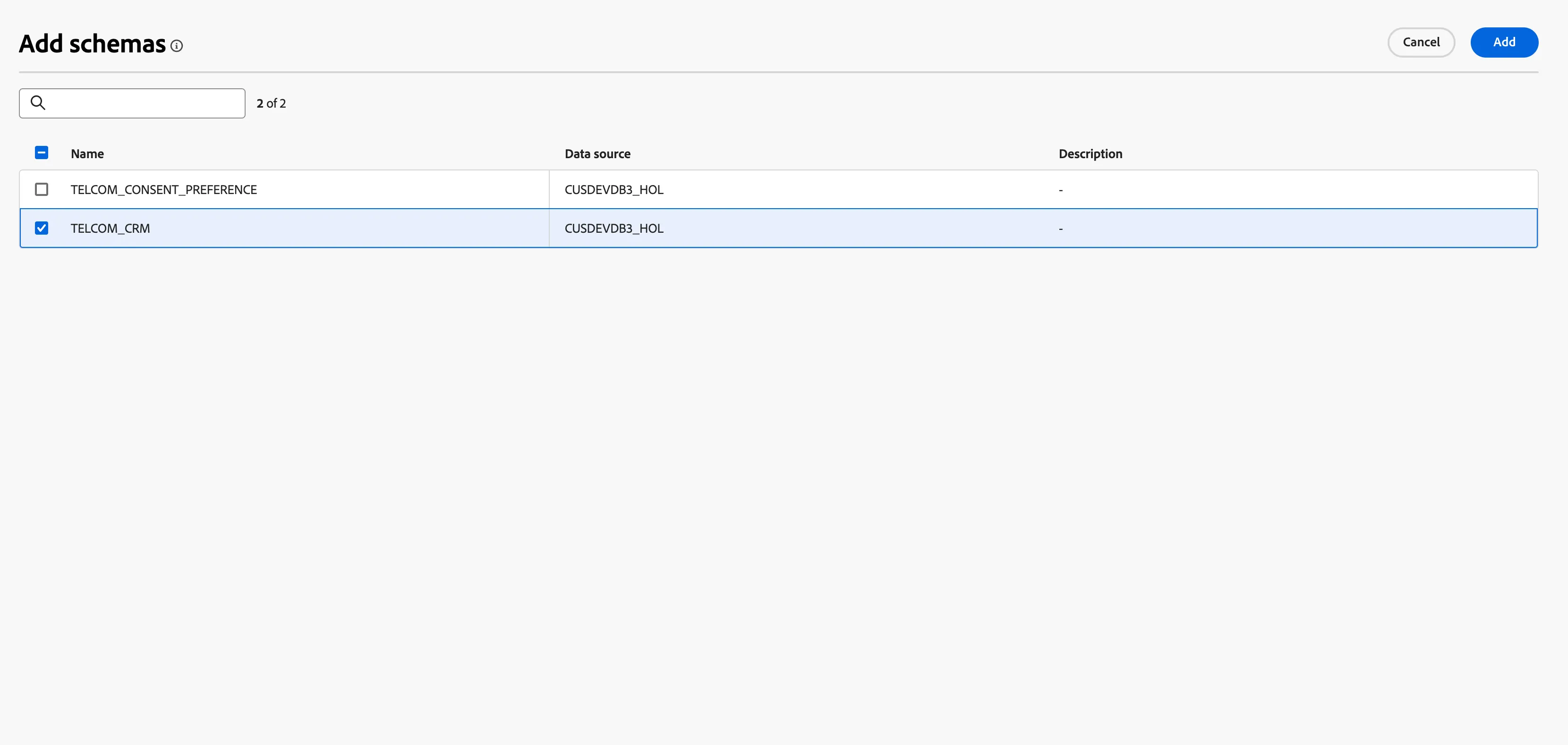
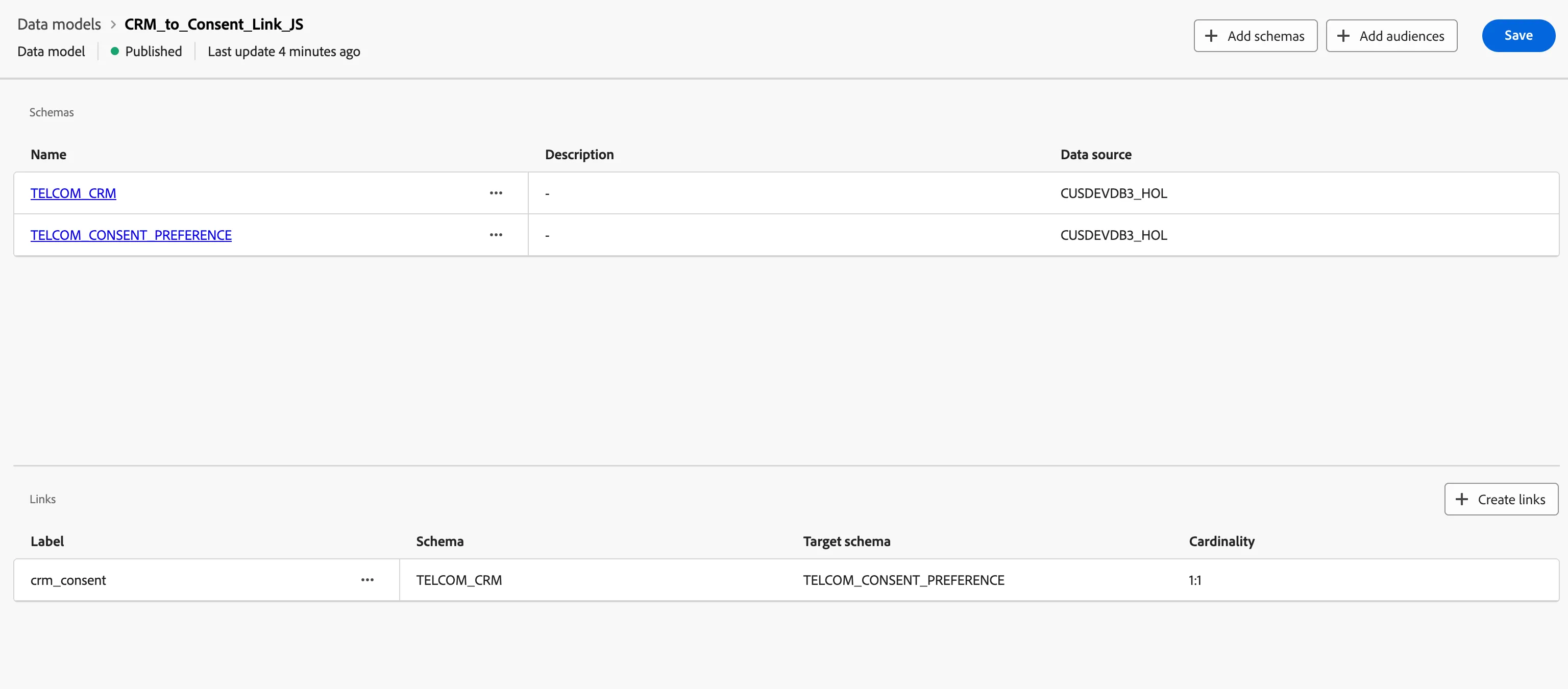
- Click on Add schemas and select TELCOM_CRM and TELCOM_CONSENT_PREFERENCE schemas.
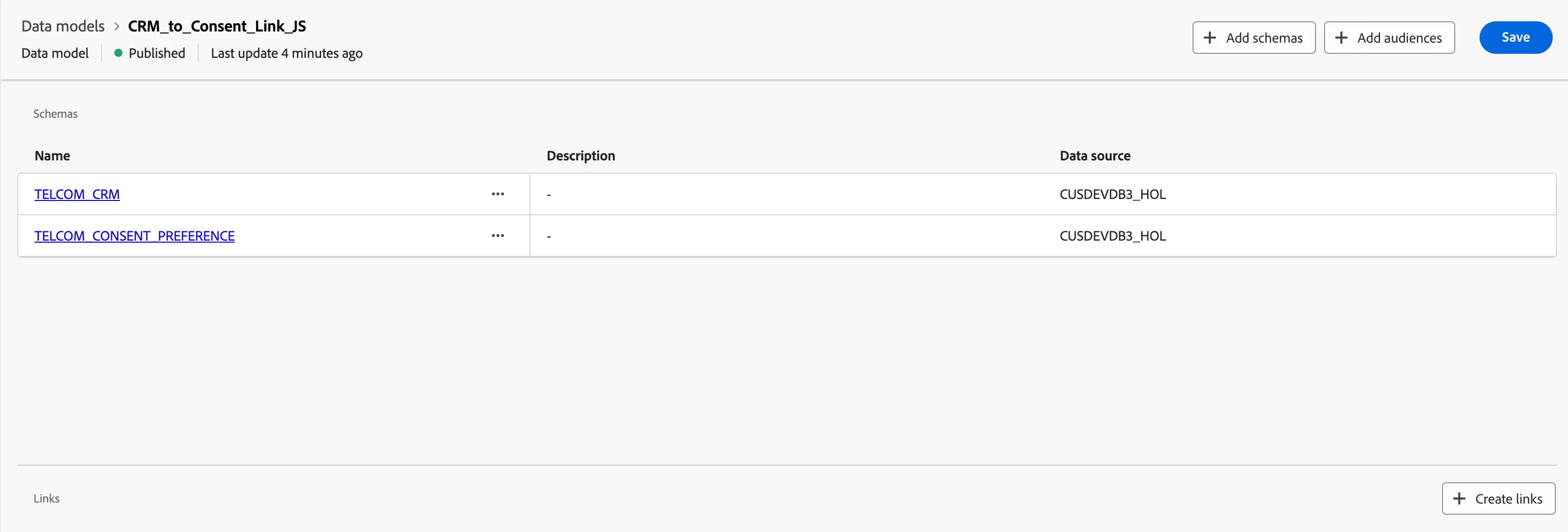
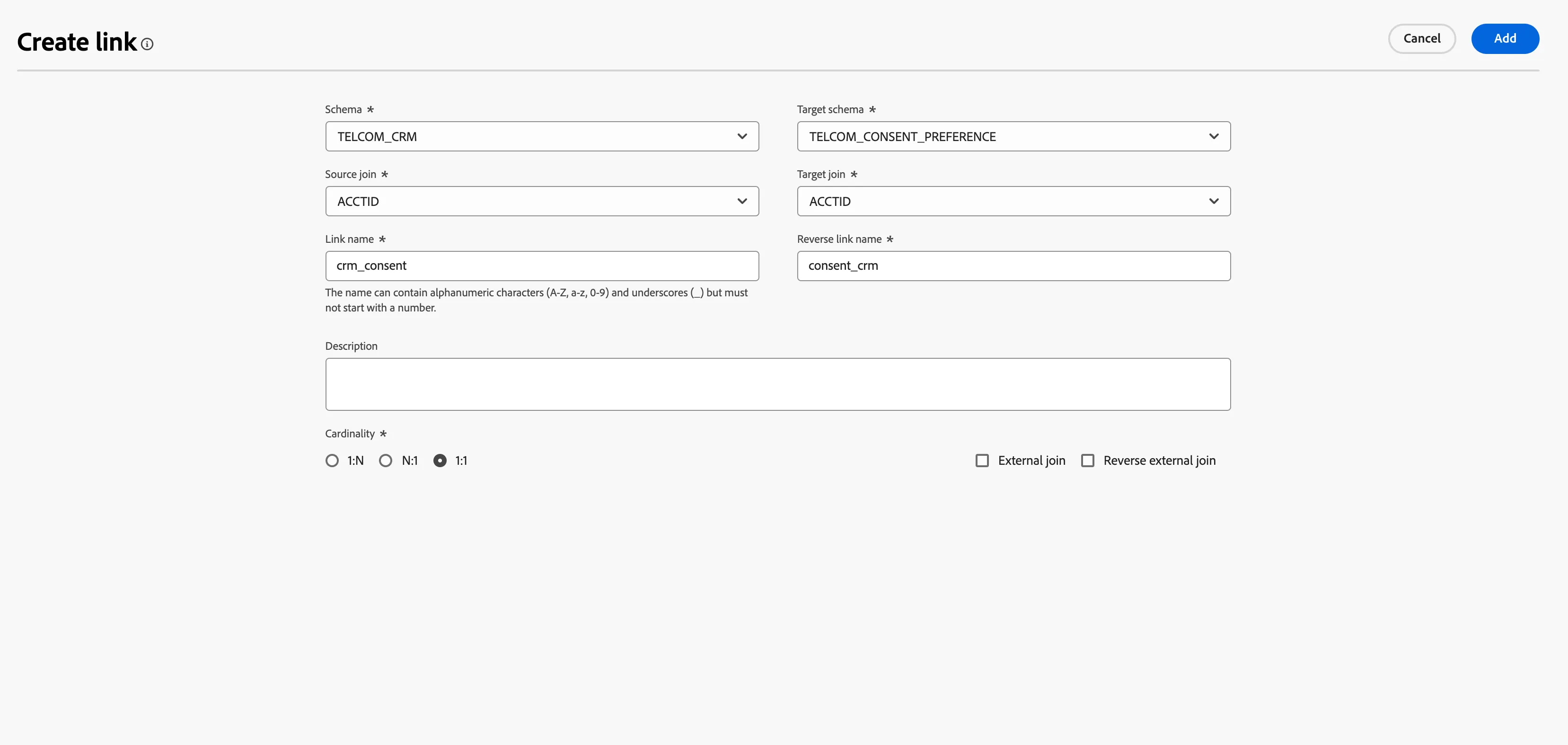
- This will now allow you to create a link between these tables, click on Create links. Next you will select the schemas and the id that links the tables.
- Now you can save this link between the tables.