Adobe Journey Optimizer AI Assistant and GenAI
18 min
AI Assistant and GenAI in AJO
AI Assistant is a conversational experience that allows practitioners to perform tasks at a fast pace. Whether the task is to understand concepts, troubleshoot problems, or search through information. AI Assistant also allows non-experts to perform expert tasks and increases the overall quality of work.
The AI Assistant in Adobe Journey Optimizer is trained on its Adobe Experience League documentation. When asked a question, AI Assistant responds with a helpful answer that enables quick learning.
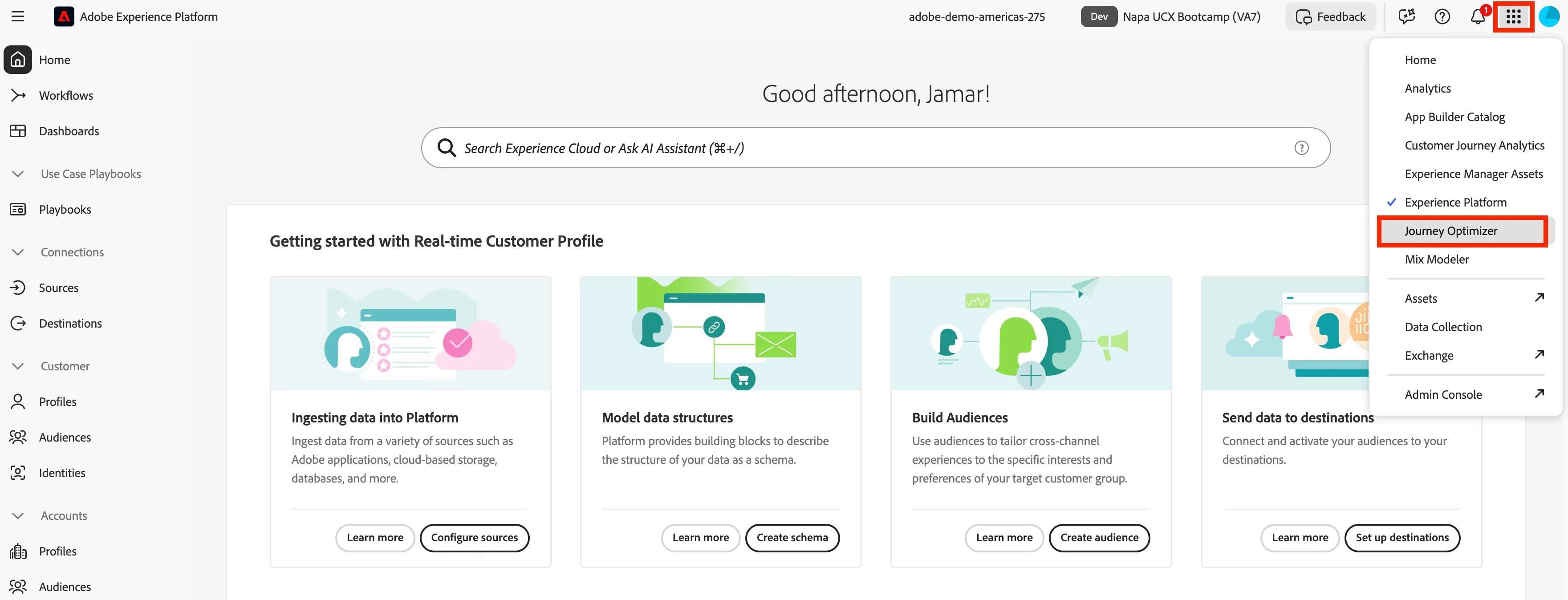
Navigate to Journey Optimizer
- Click on the 9-dot picker and select Journey Optimizer.
Create Email Campaign Using AI Assistant and GenAI
- The goal of this exercise is to have fun with using the AI features in Adobe Journey Optimizer. Have fun with creating funny subject lines and images in the email.
- Start by using AI Assistant to get started with creating a campaign in AJO. There will more details about AJO later in the bootcamp, but in short we are creating a one-time blast email campaign.
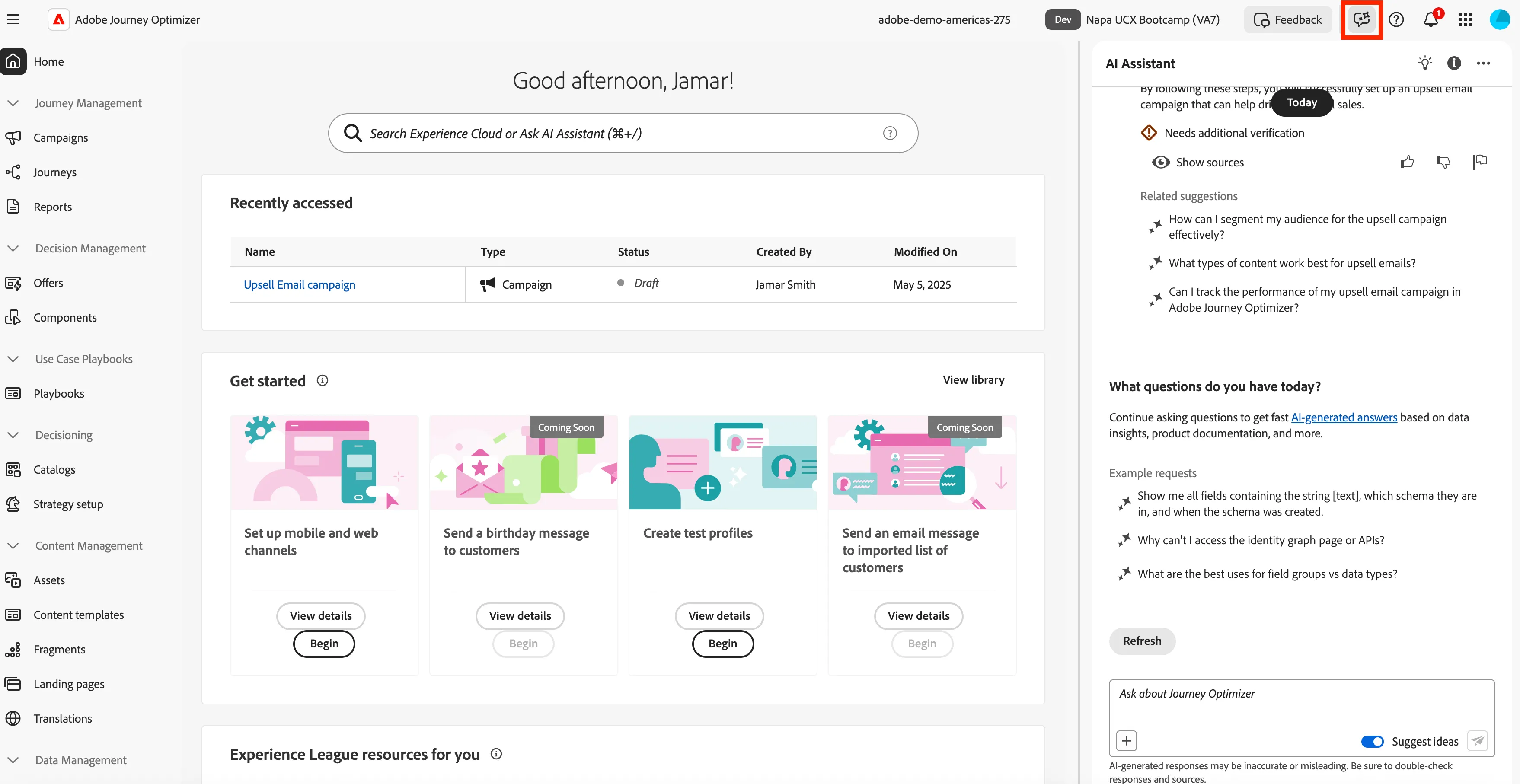
- To get started with AI Assistant you need to click on the chat box with a star icon in the top righ corner. This will launch AI Assistant in AJO for you.
- Now you can ask the AI Assistant: How do I create a campaign?
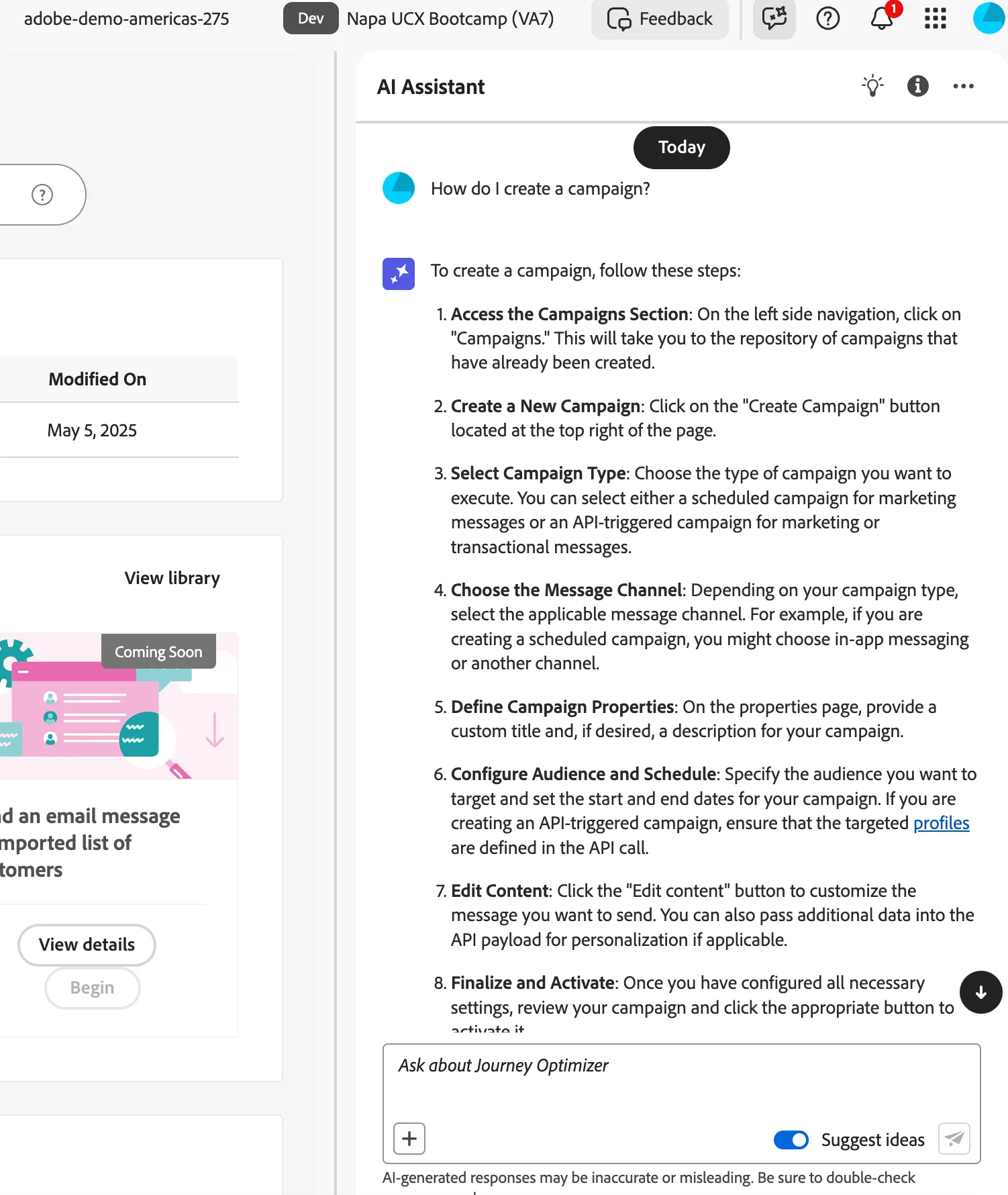
- Follow steps 1 and 2 from the AI Assistant. When prompted you will be creating a Scheduled - Marking Campaign.
Now let's start to put together the campaign:
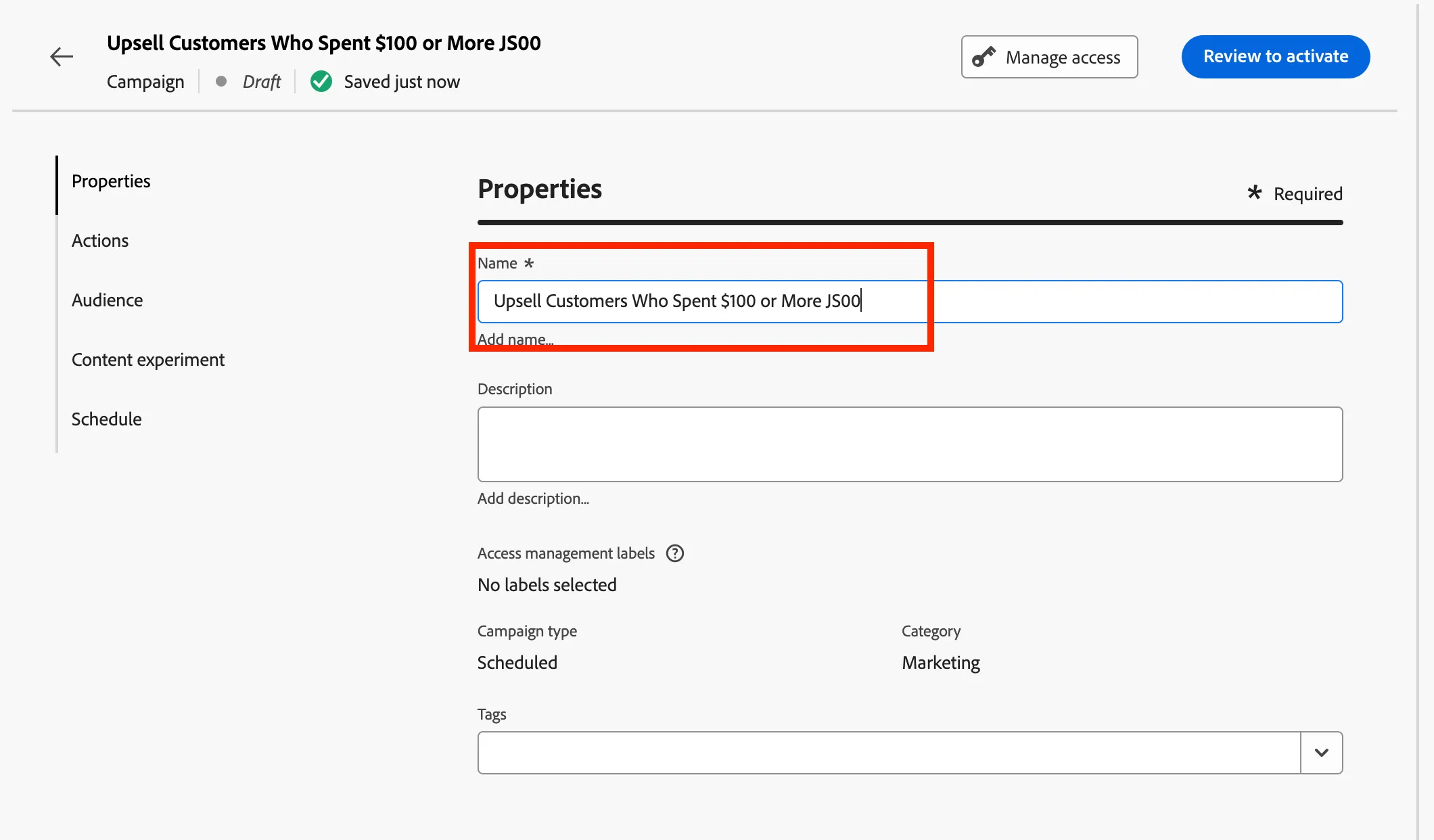
- Name: Upsell Customers Who Spent $100 or More + Initals +User Number
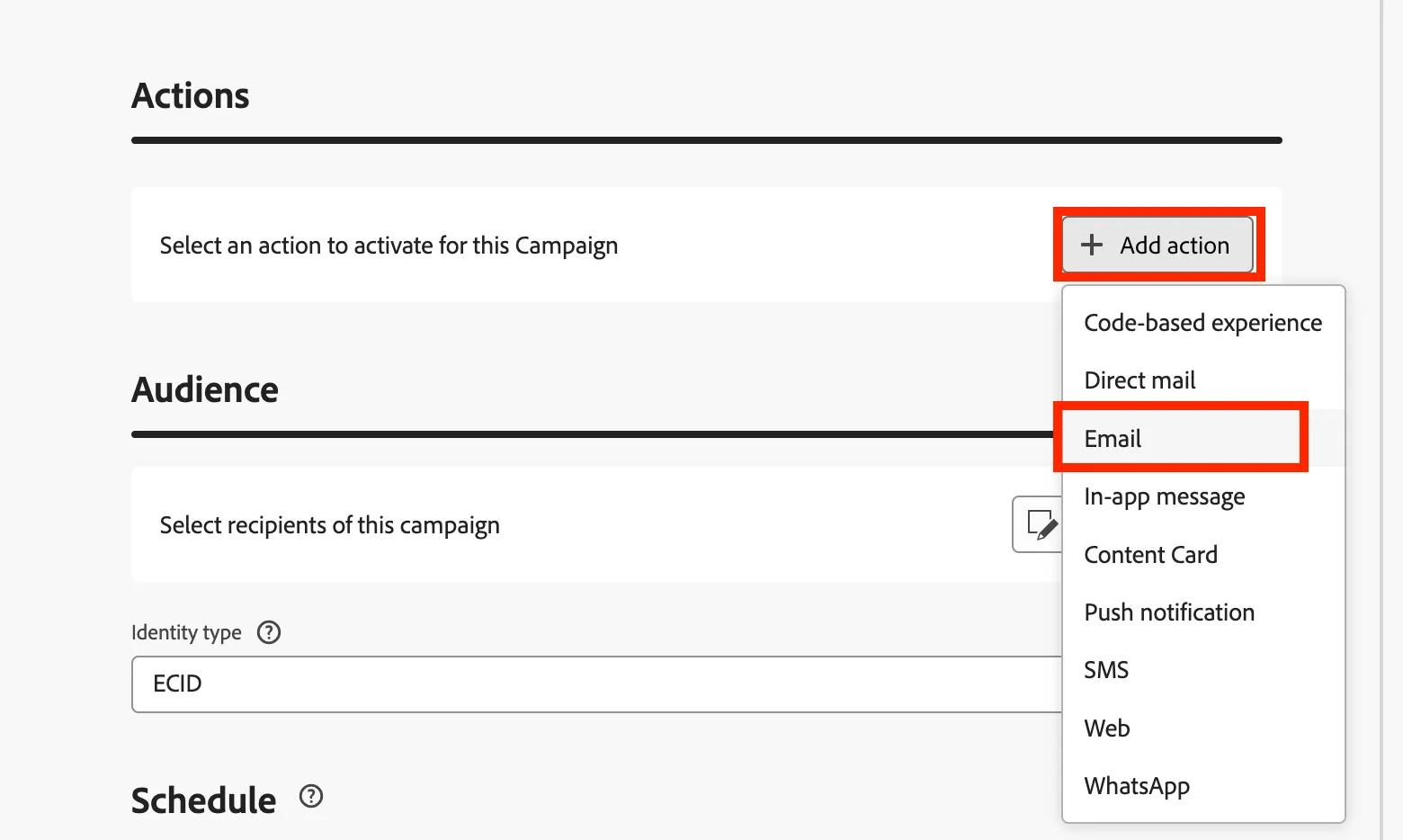
- Click on Add action and select Email.
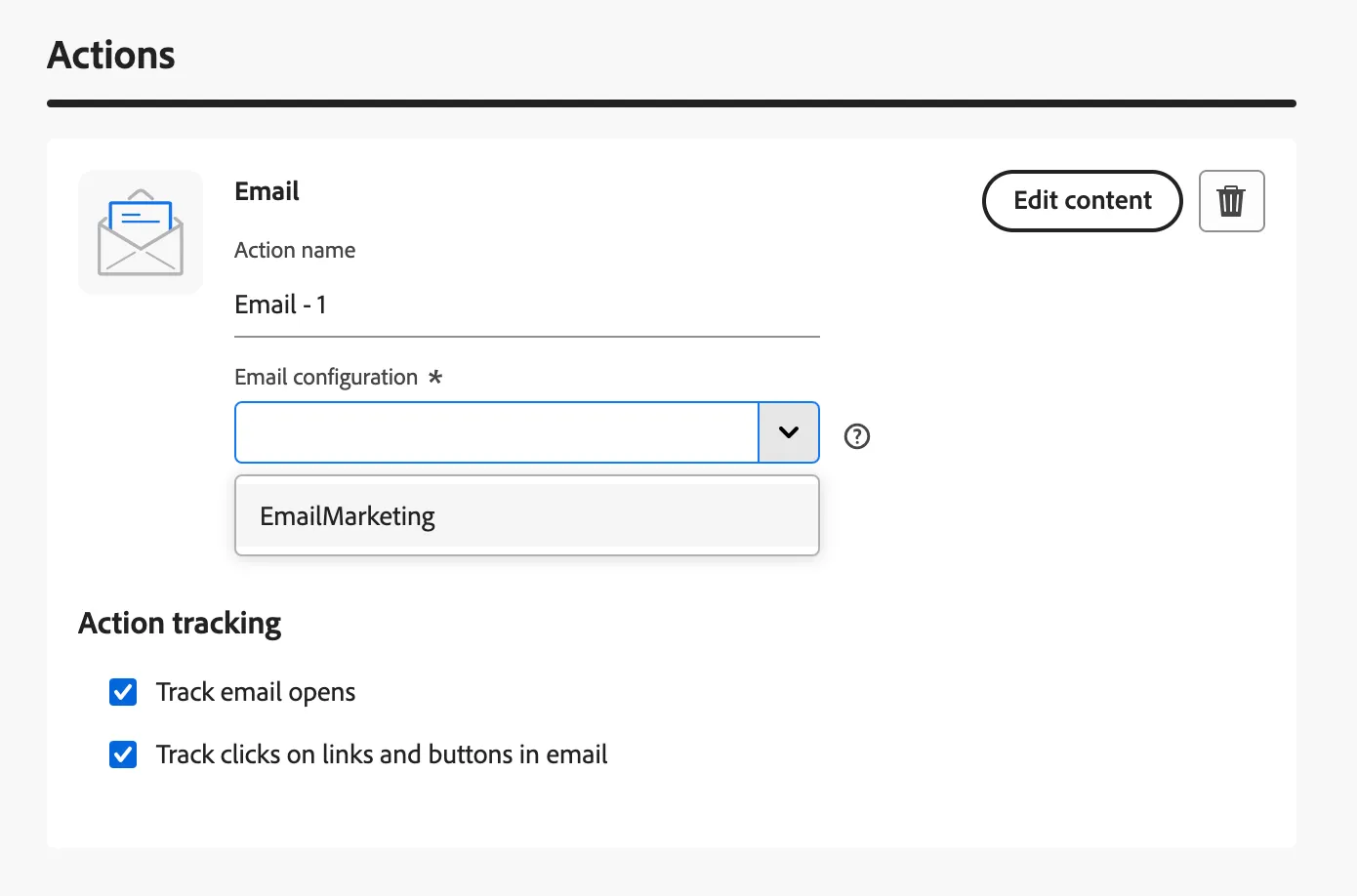
- Click on Email configuration and select EmailMarketing.
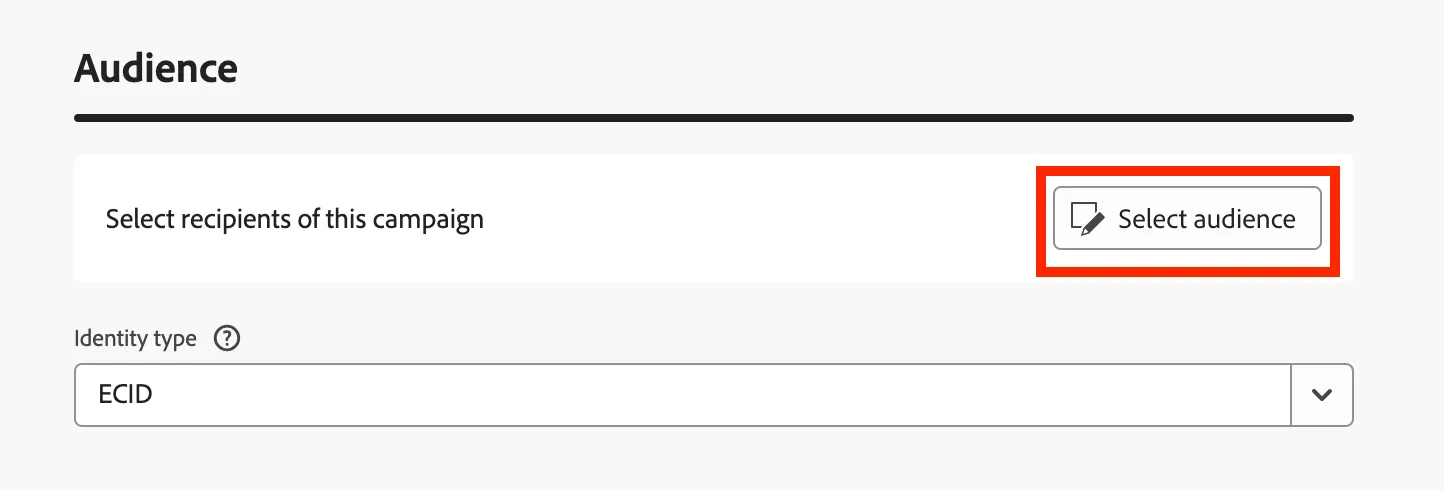
- Now that we have our email channel setup for our campaign let's add our audience before we create our email content. Click on Select audience.
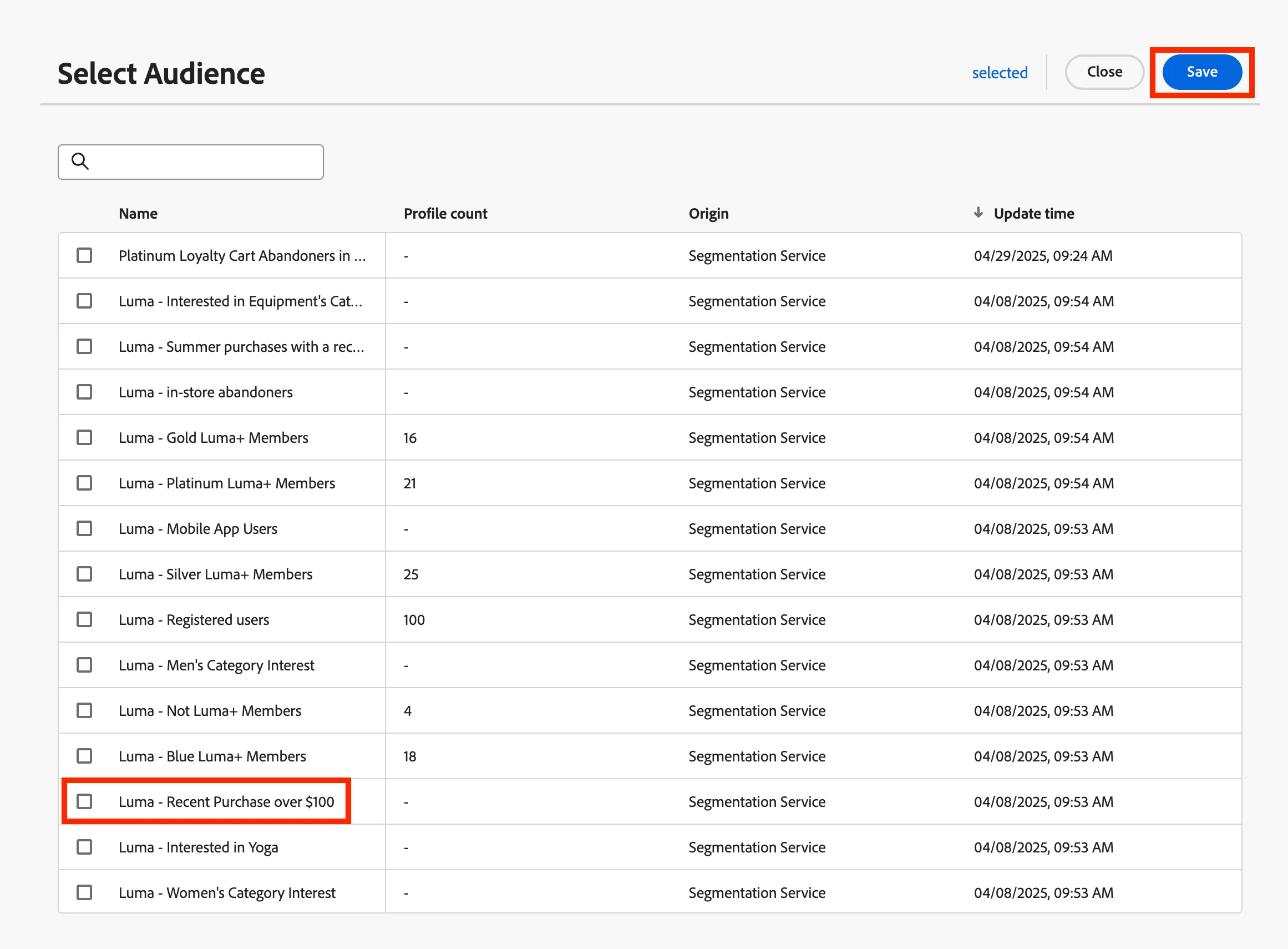
- The select Luma - Recent Purchases over $100 audience then click Save.
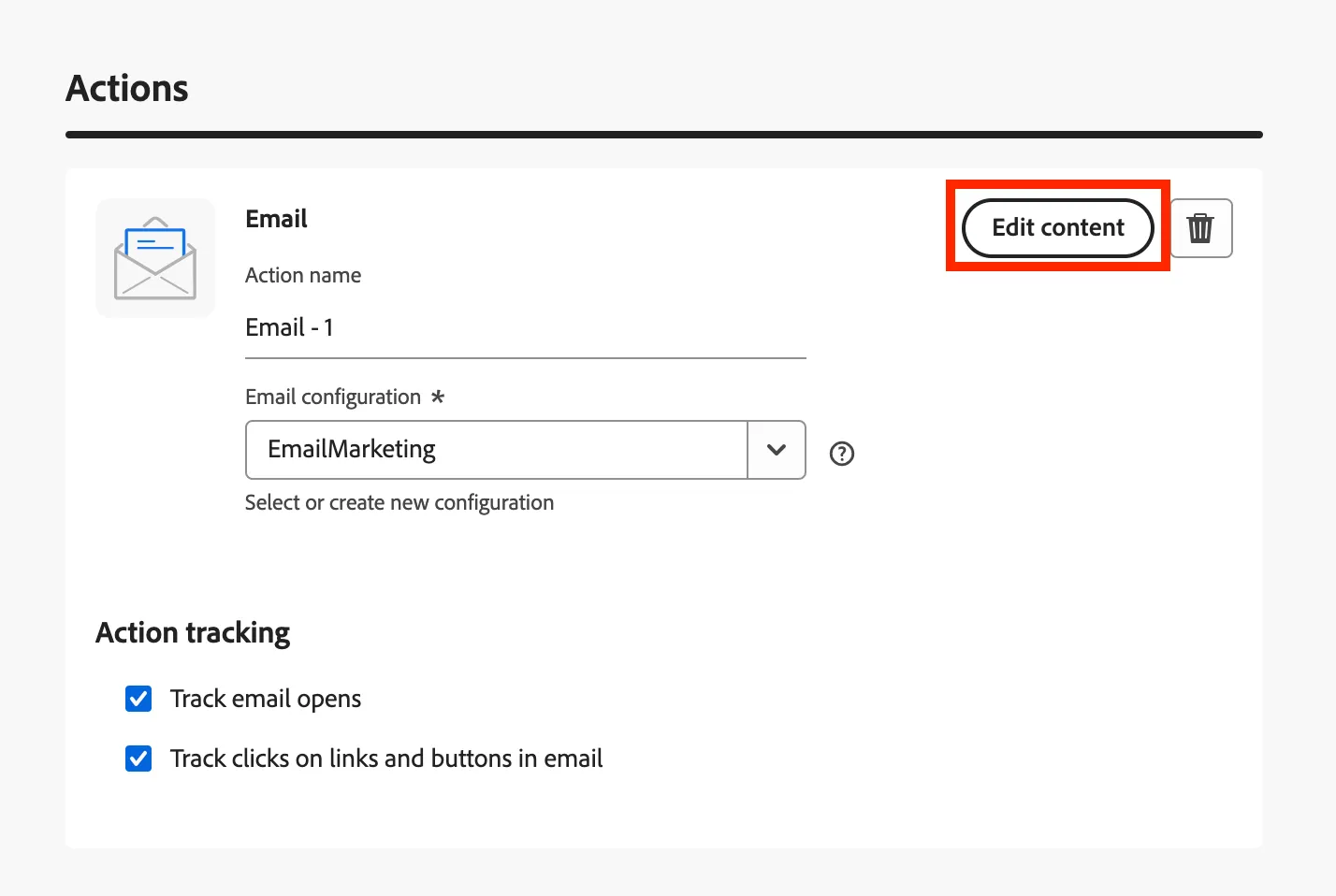
- Now click on Edit Content under Actions. This is where we will start to use GenAI features to create a subject line and images in our email.
- Your campaign should offer a free item on their next purchase or a special discount. In this example we will be offering a free pare of sunglasses on their next purhcase.
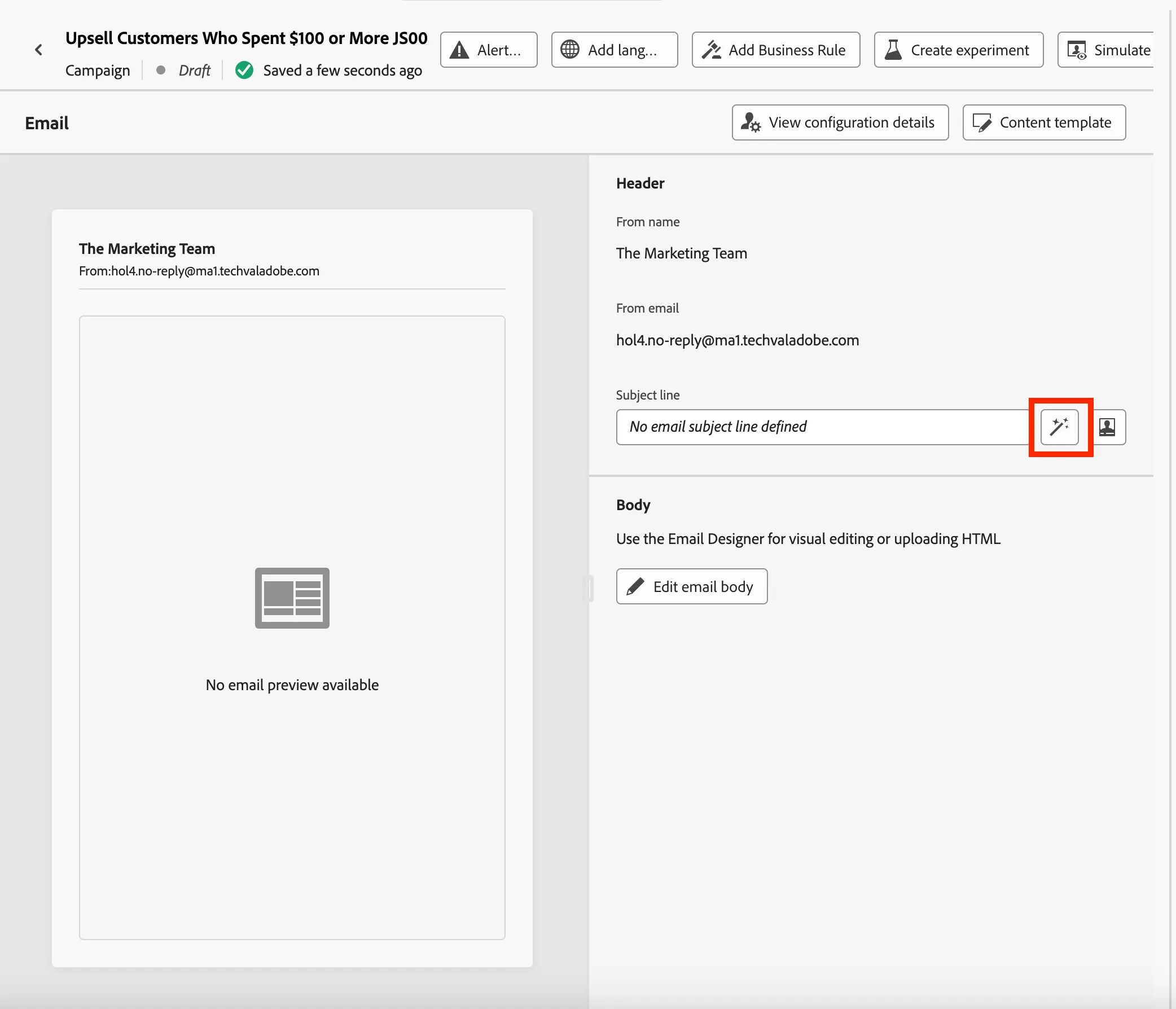
- For the subject line click on the wand next to the box.
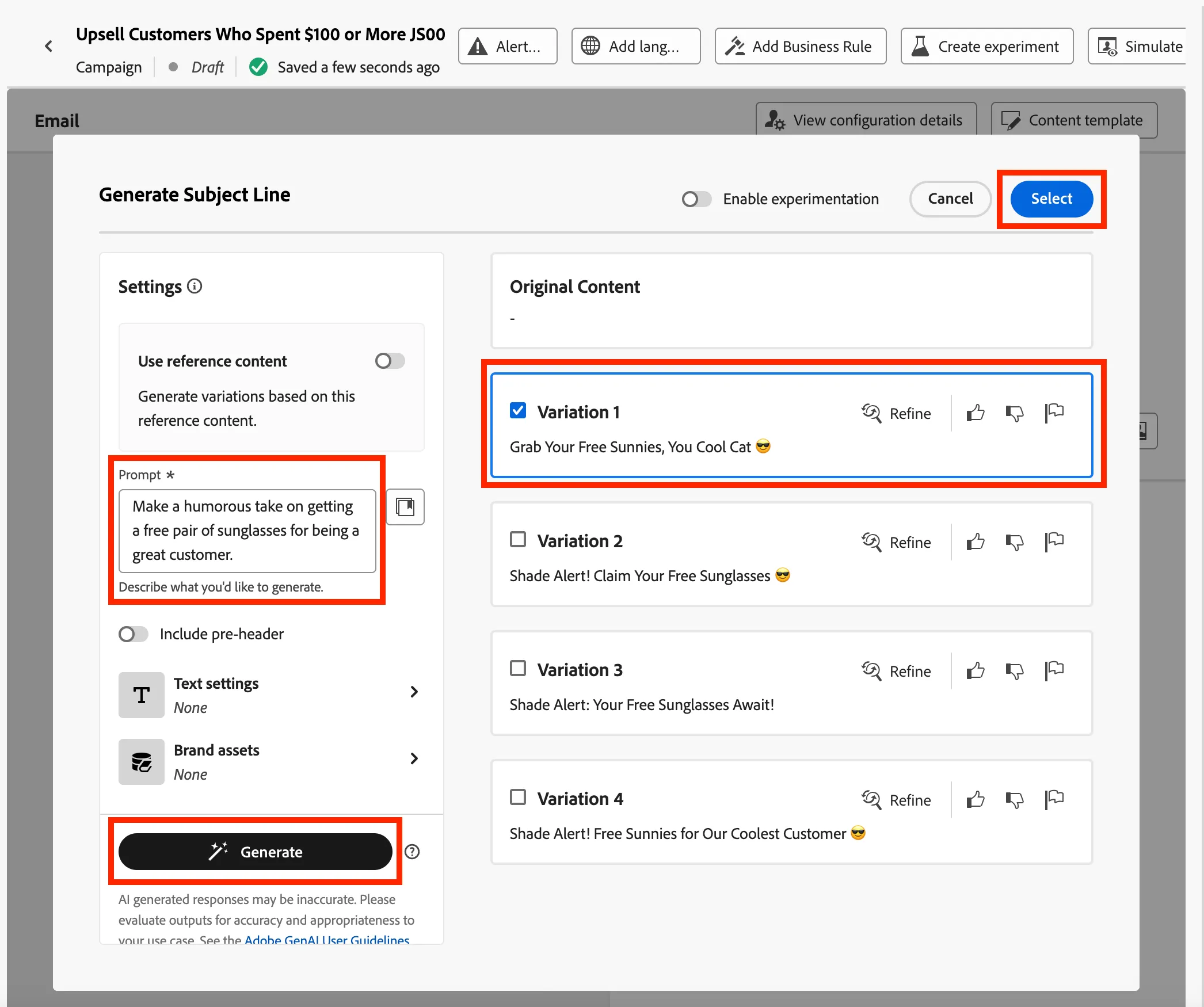
- Create a prompt. Have as much fun here and create a silly subject line. Once you completed your prompt, click on Generate. Select the variation you like best then click Select.
- Example: Make a humorous take on getting a free pair of sunglasses for being a great customer.
- Test multiple prompts and/or refine.
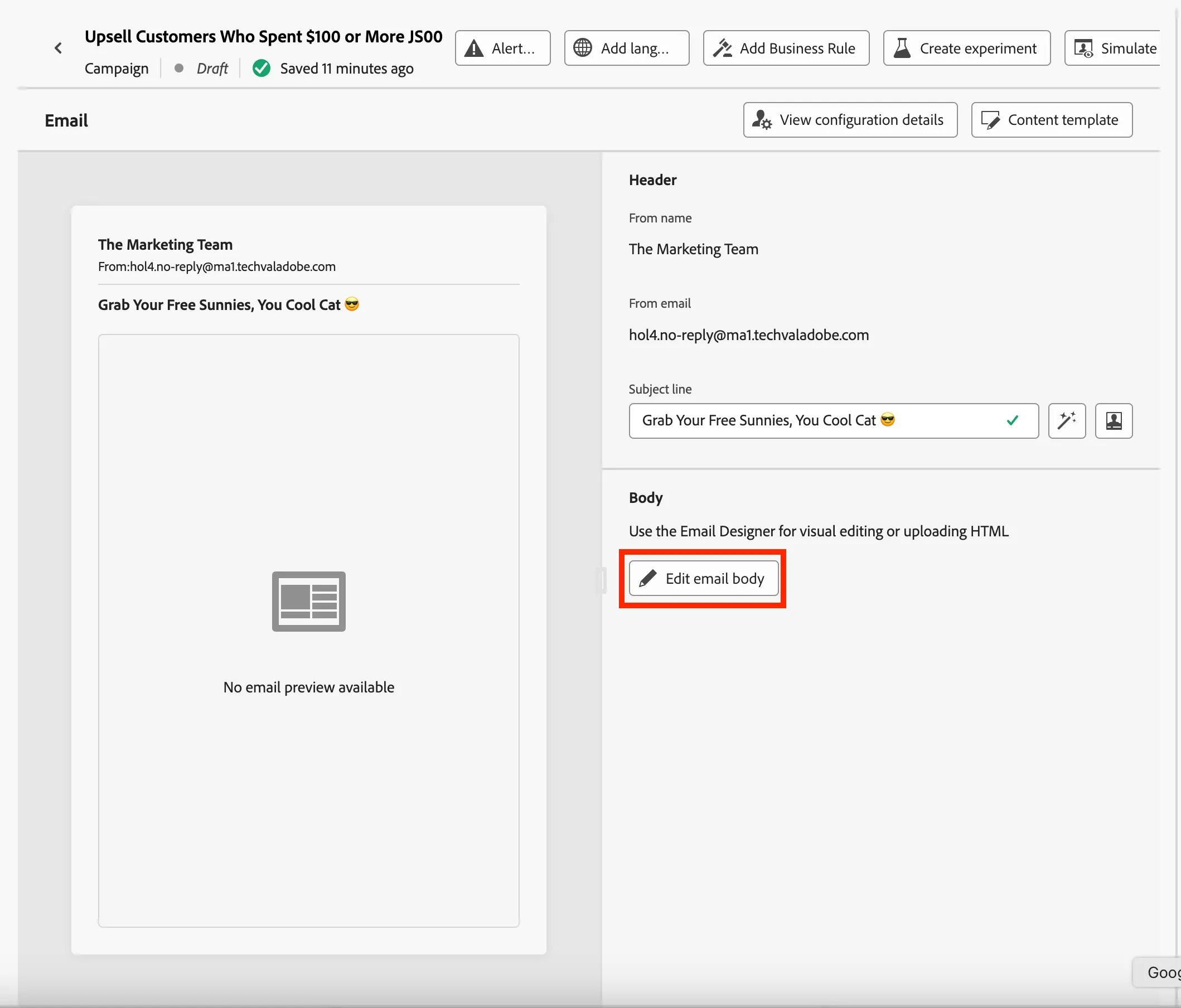
- Once you have generated your subject line, select Edit email body.
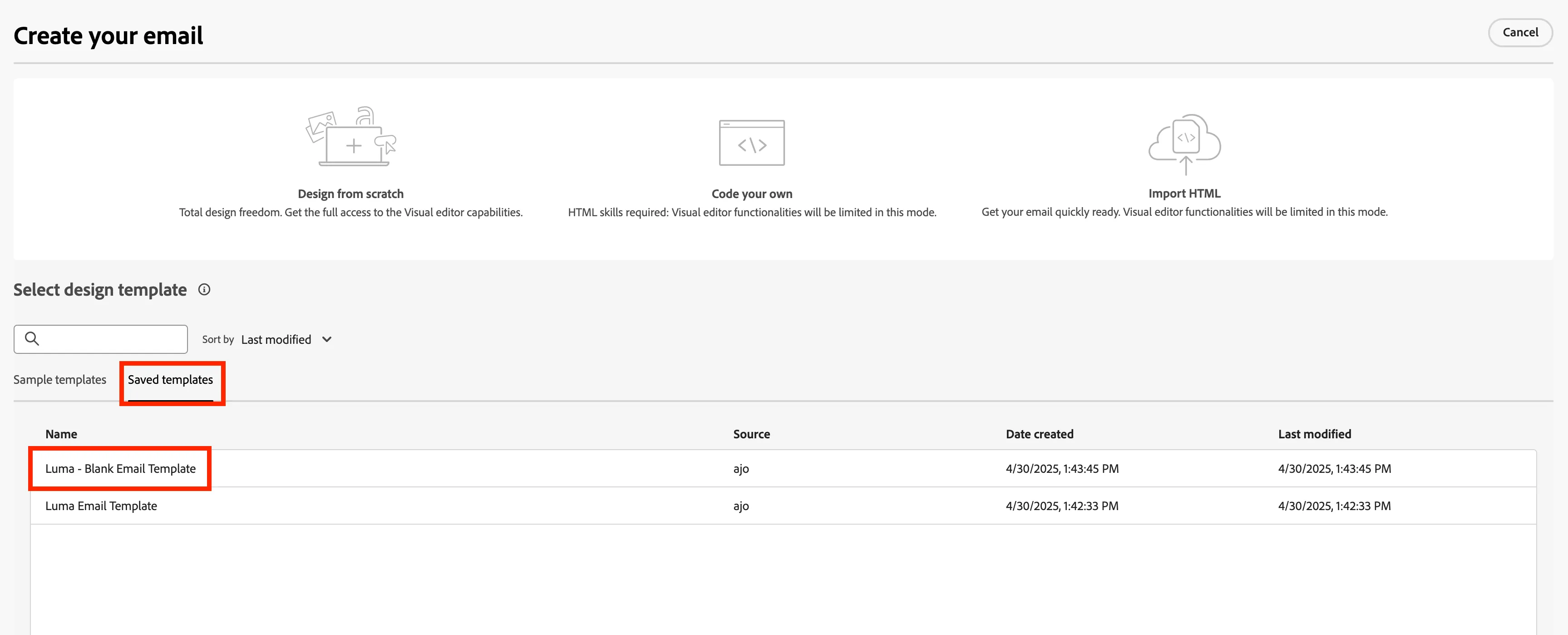
- Select Saved templates and click on Luma - Blank Email Template.
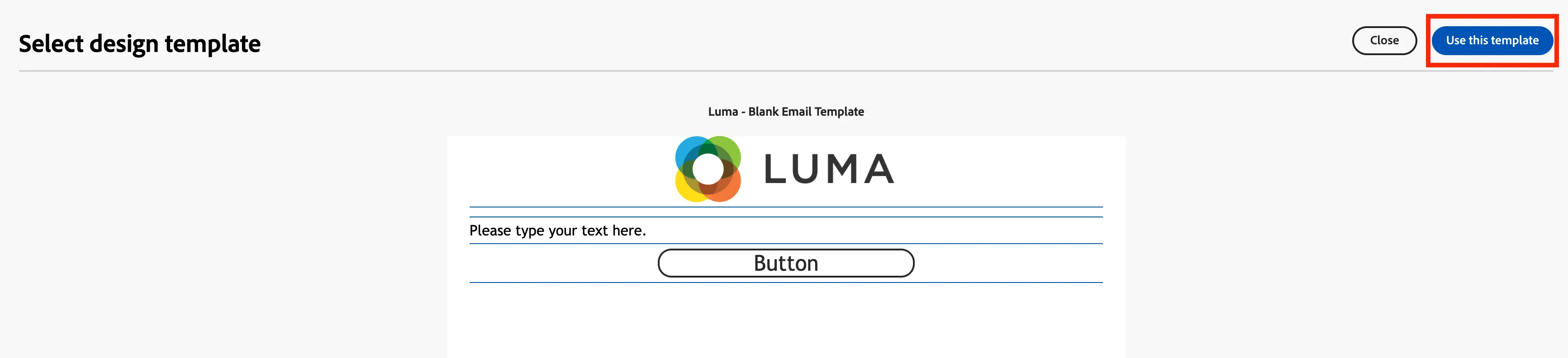
- Then click on Use this template.
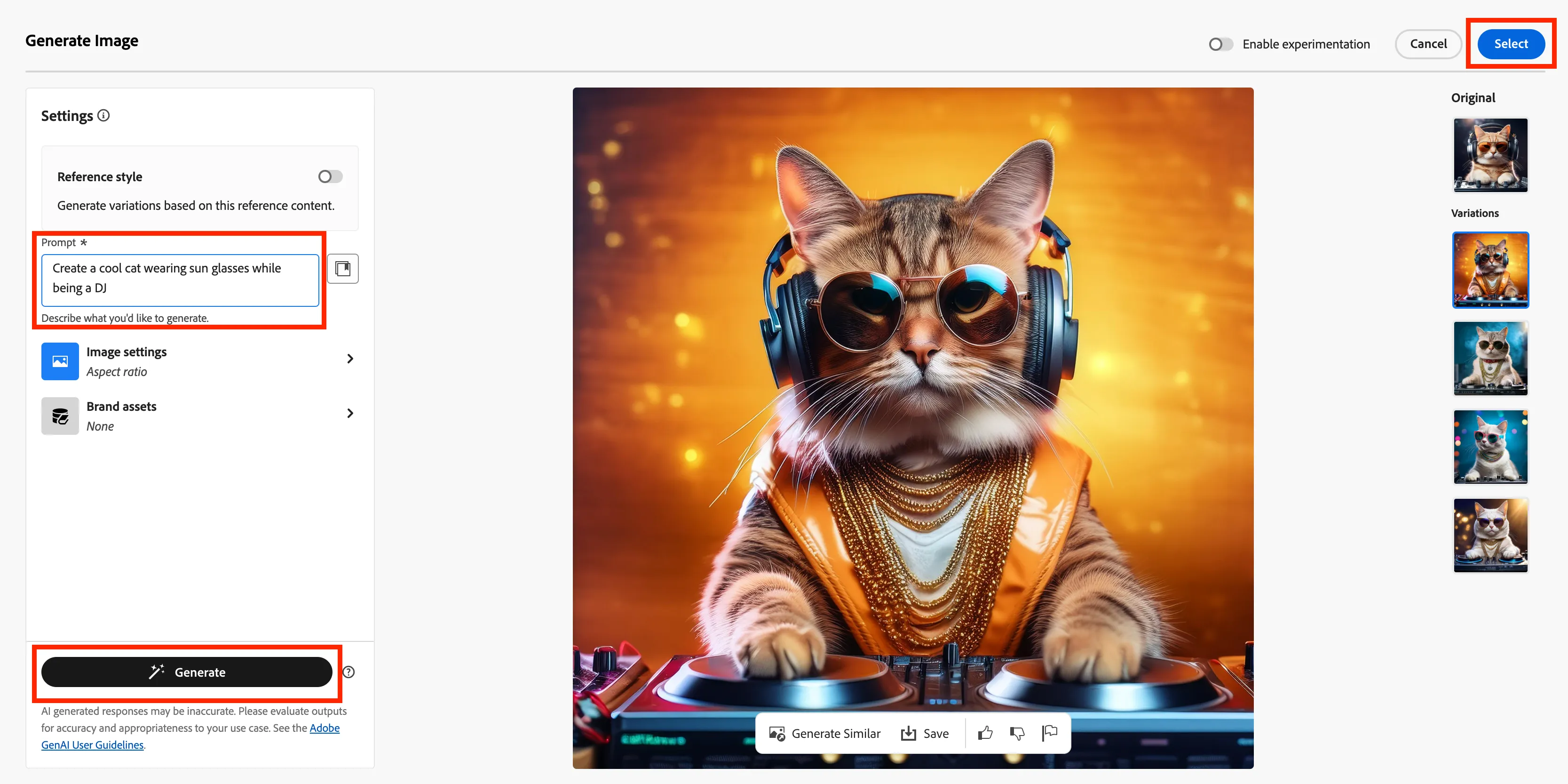
- Click on the blank email hero then select Generate and select an image under Firefly. Have fun with this and be ridiculous in your prompt. Click on Generate then Select once you have an image you want to use.
- Example: Create a cool cat wearing sun glasses while being a DJ.
- Test multiple prompts and/or refine.
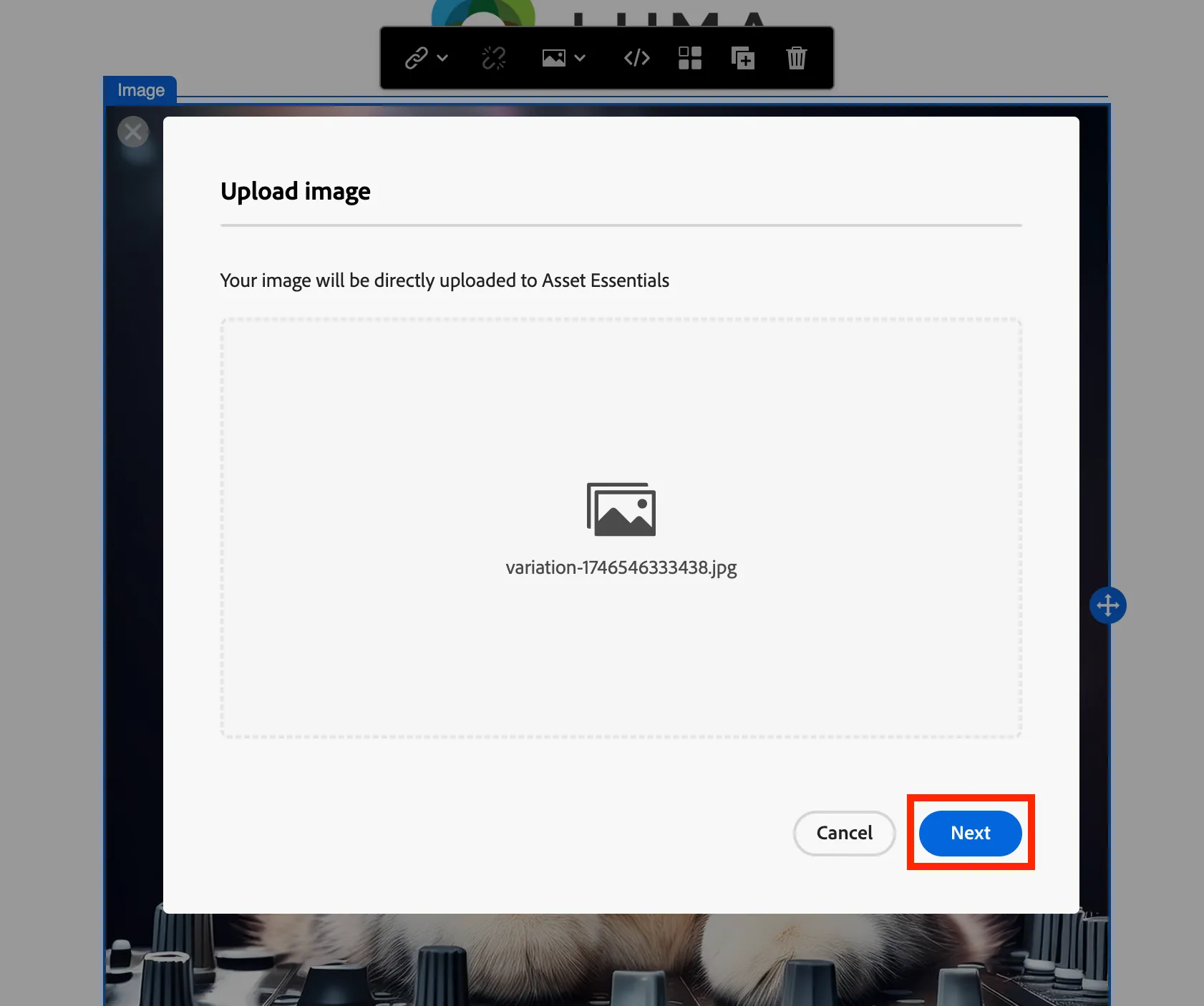
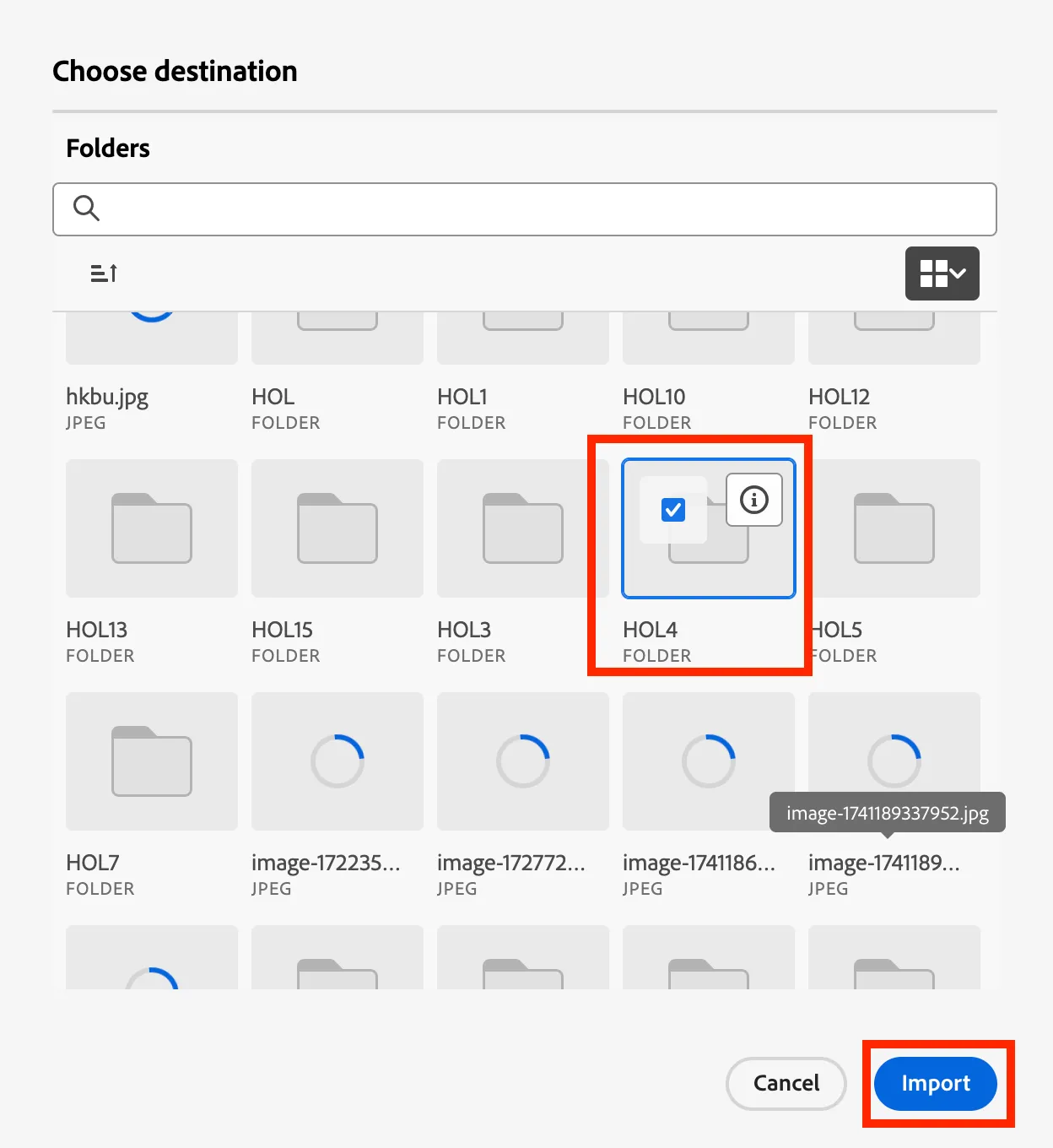
- You will then be instructed to save this Firefly generated image into your Asset Essentials folder. Click Next.
- Select the HOL4 folder then click Import.
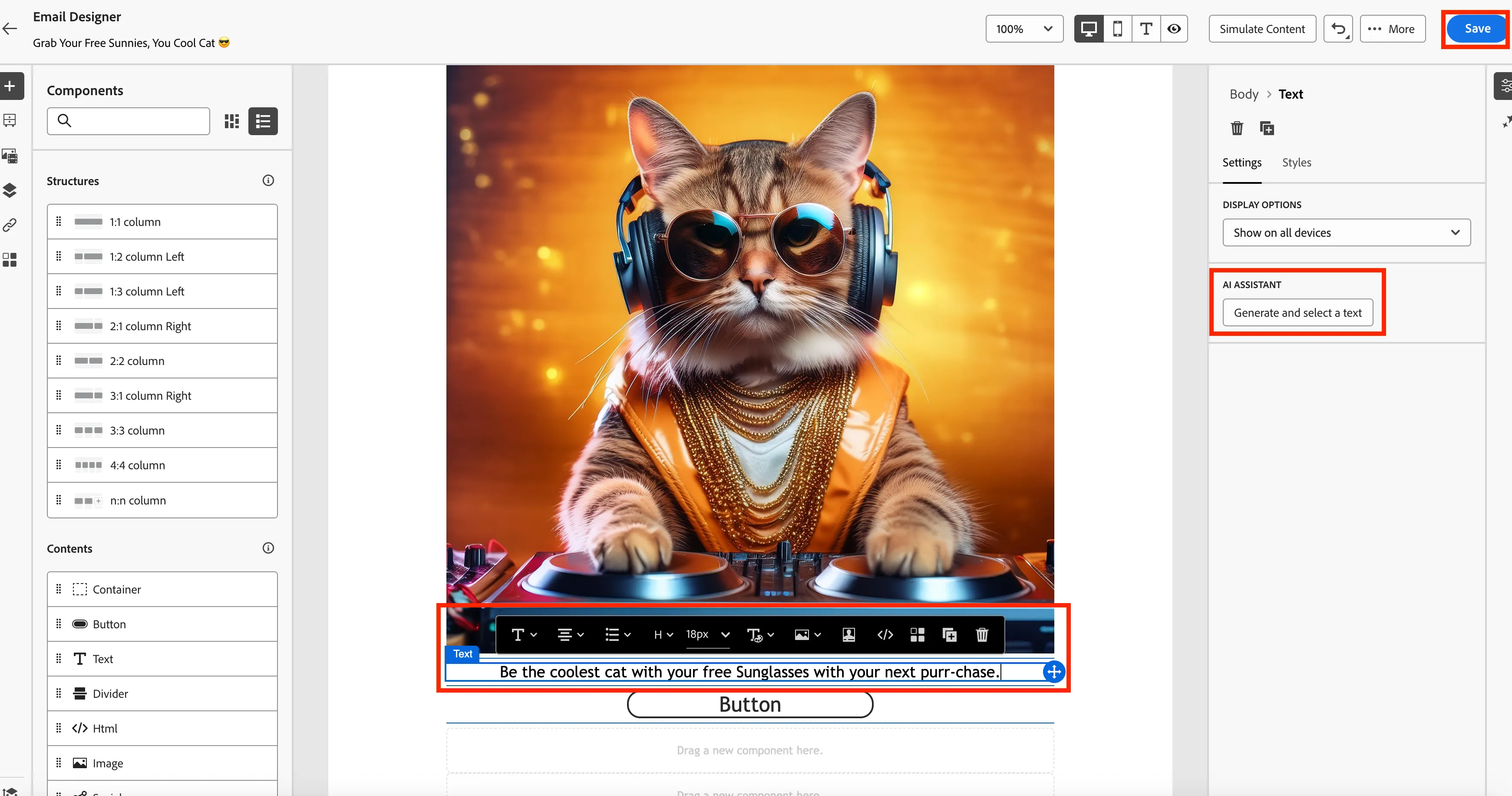
- The image will then be inserted into your email. Below the image is a text box where you can add any simple message you would like or use AI Assistant to create a short message for you. Have fun with this and try to make yourself laugh
- Example: Be the coolest cat with your free Sunglasses with your next purr-chase.
- Style the text any why you would like to.
- Then click Save.
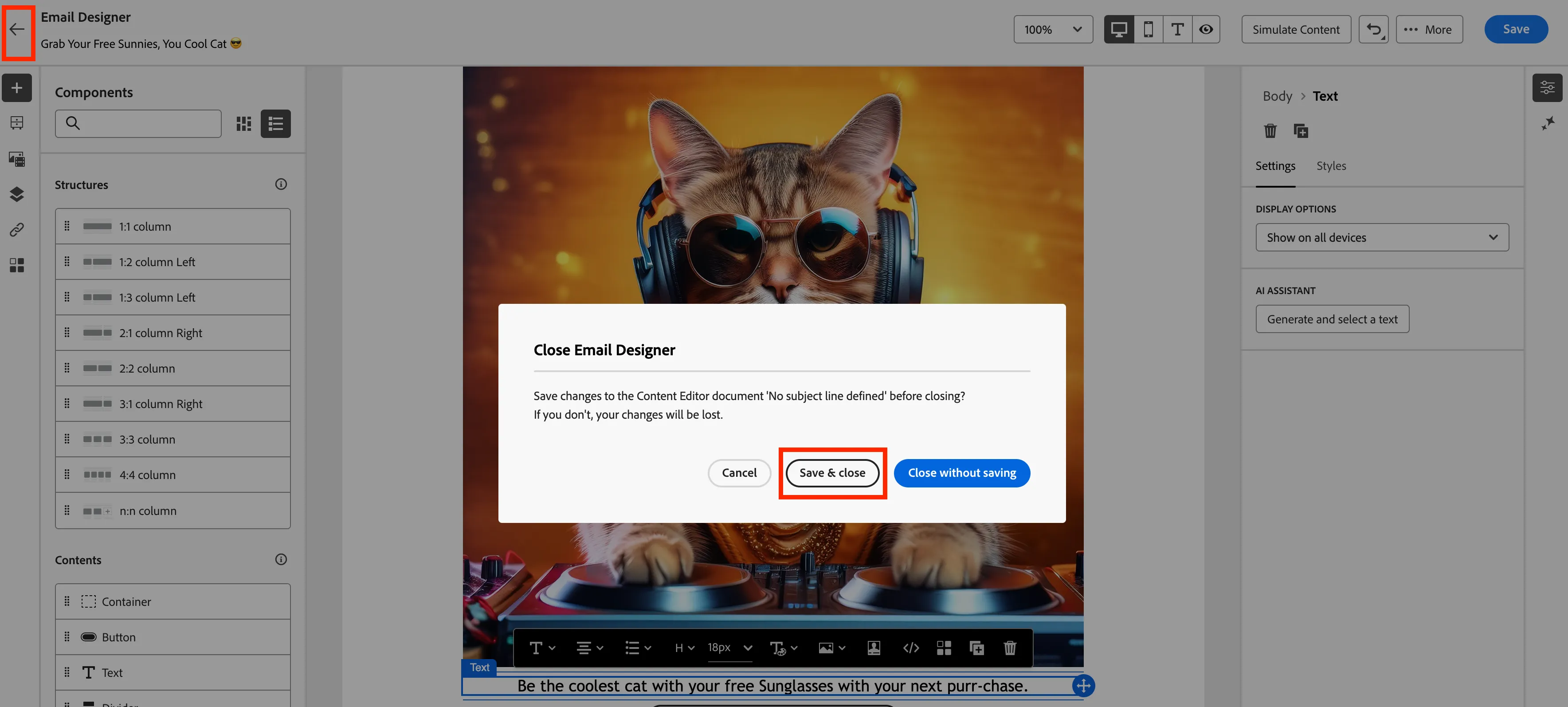
- Click the back button then click Save & close.
- Then click Review & Activate.
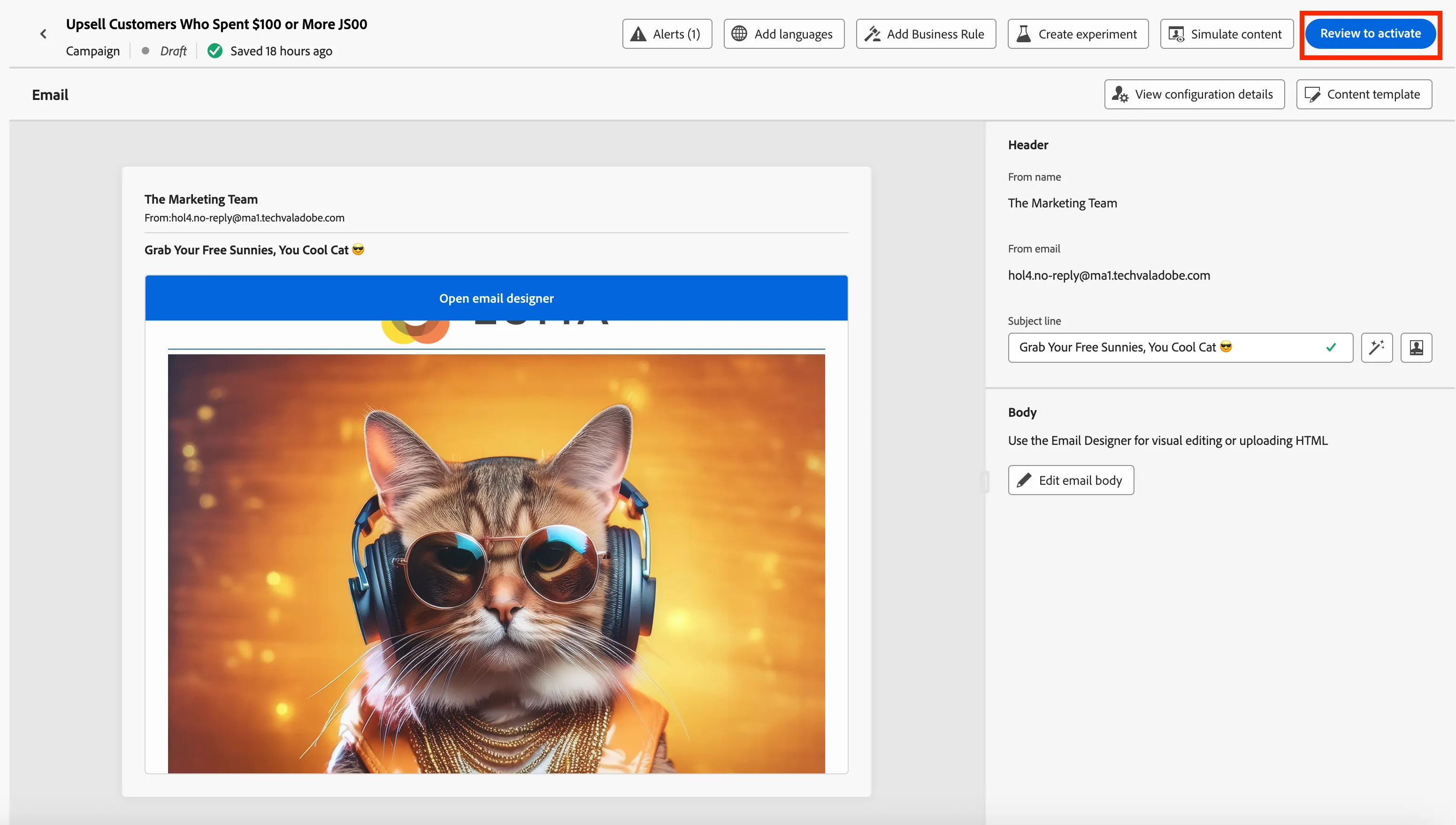
- Congratulations you have created an email campaign using AI Assistant and GenAI with Firefly. There is no need to Activate the campaign. Hopefully you had fun and made yourself laugh with a funny campaign.