Data Steward
Introduction
Imagine you are a data steward. The legal department has recently decided that, due to privacy concerns, you cannot use the attribute 'age' for customisation on your company website.
As data steward, you are responsible for configuring AEP to comply with the new policy. AEP provides a number of tools to centrally manage what data can be used and for what purpose.
#1 - Marketing actions
Marketing actions, (also called marketing use cases) in the context of the data governance framework, are actions that an Experience Platform data consumer can take, for which your organization wants to restrict data usage. In the current scenario the marketing action is the desire to export AEP audiences to personalisation tool.
Now, have a look at what marketing actions are available.
- Click on Policies on the left rail menu;
- Click on Marketing Actions.
This is the list of marketing actions defined by AEP by default. There is already an action called 'Onsite Personalisation', which exactly meets the legal requirement.
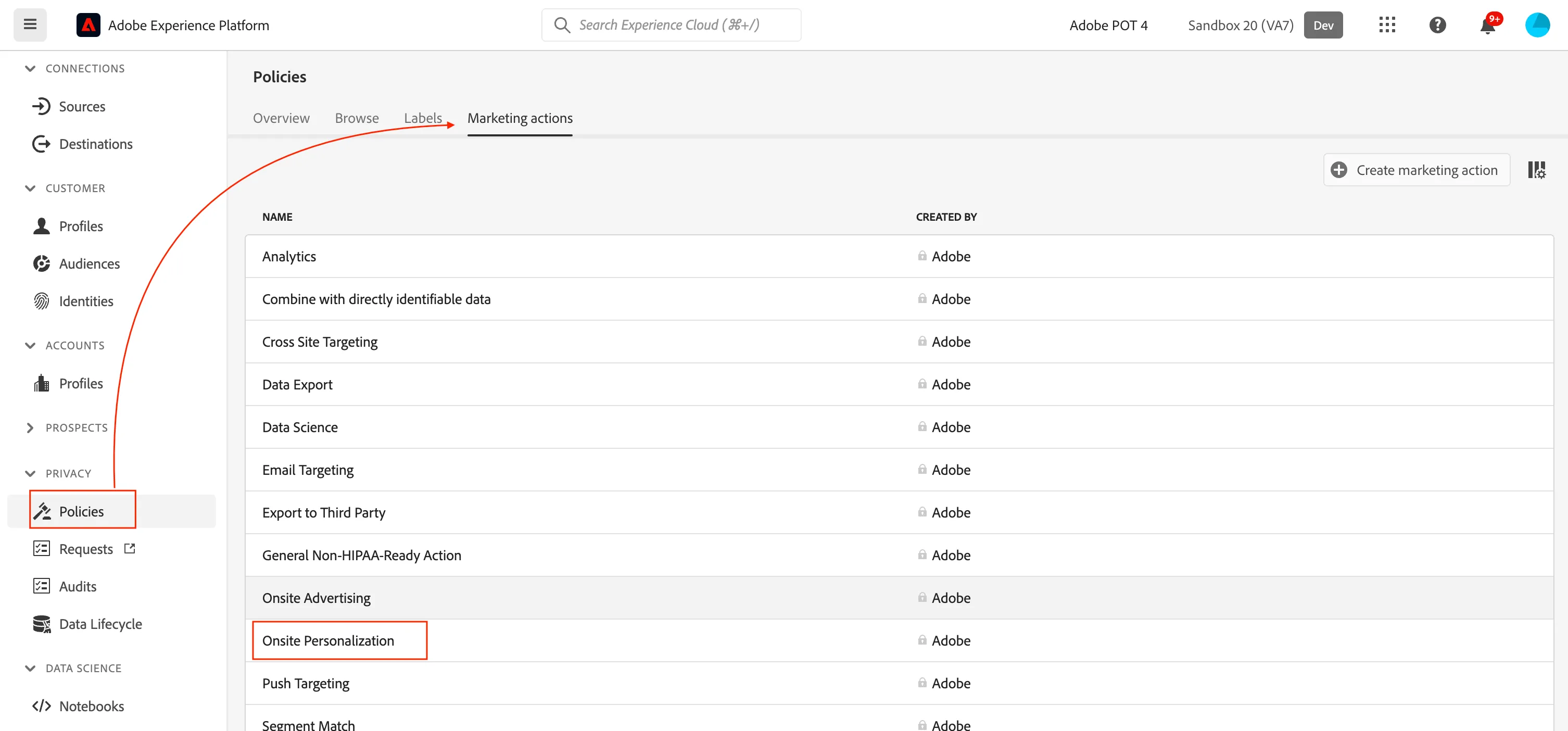
AEP includes a number of marketing actions covering key use cases. However, it is also possible to create your own marketing actions to meet your specific needs.
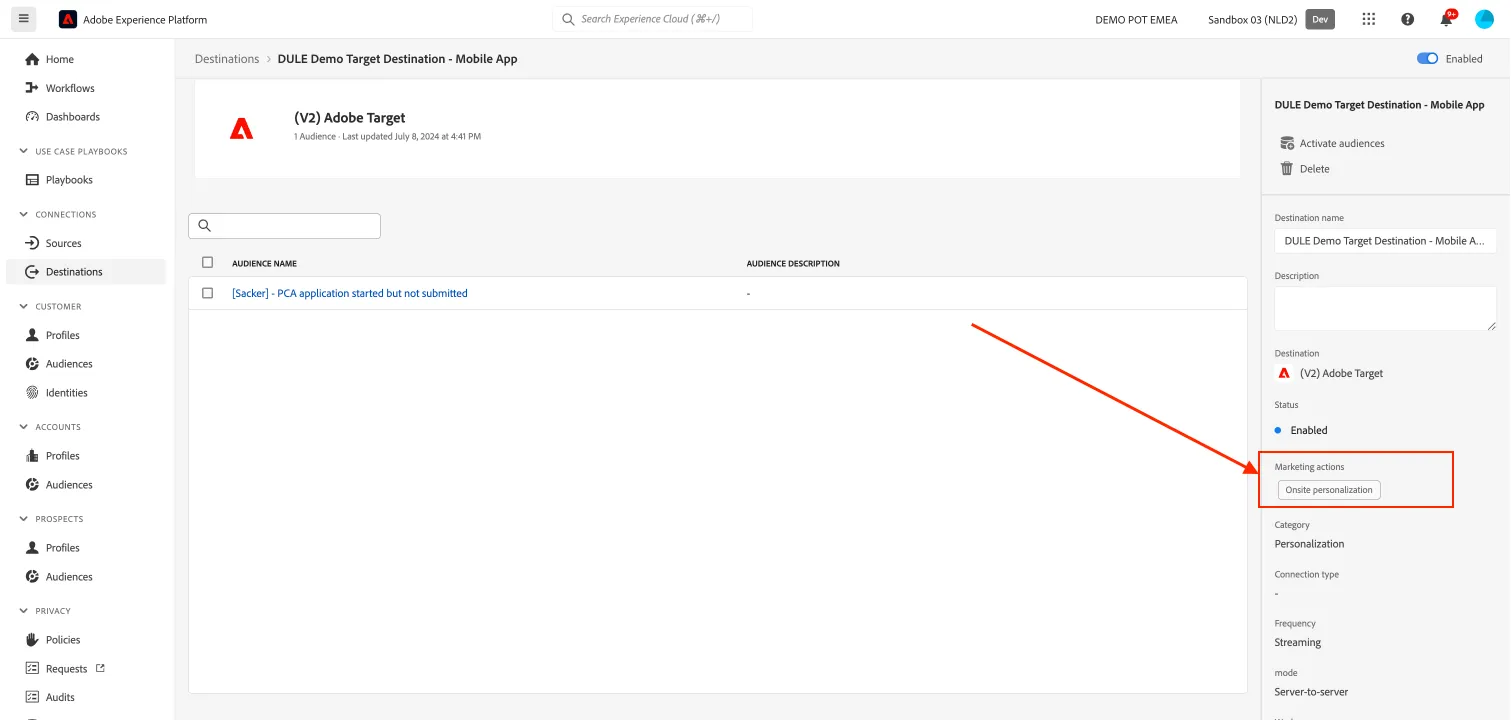
Each destinaion needs to be associated with a marketing action. In the technology stack, the personalisation tool is Adobe Target. We want to make sure that the destination has been linked to the correct marketing action.
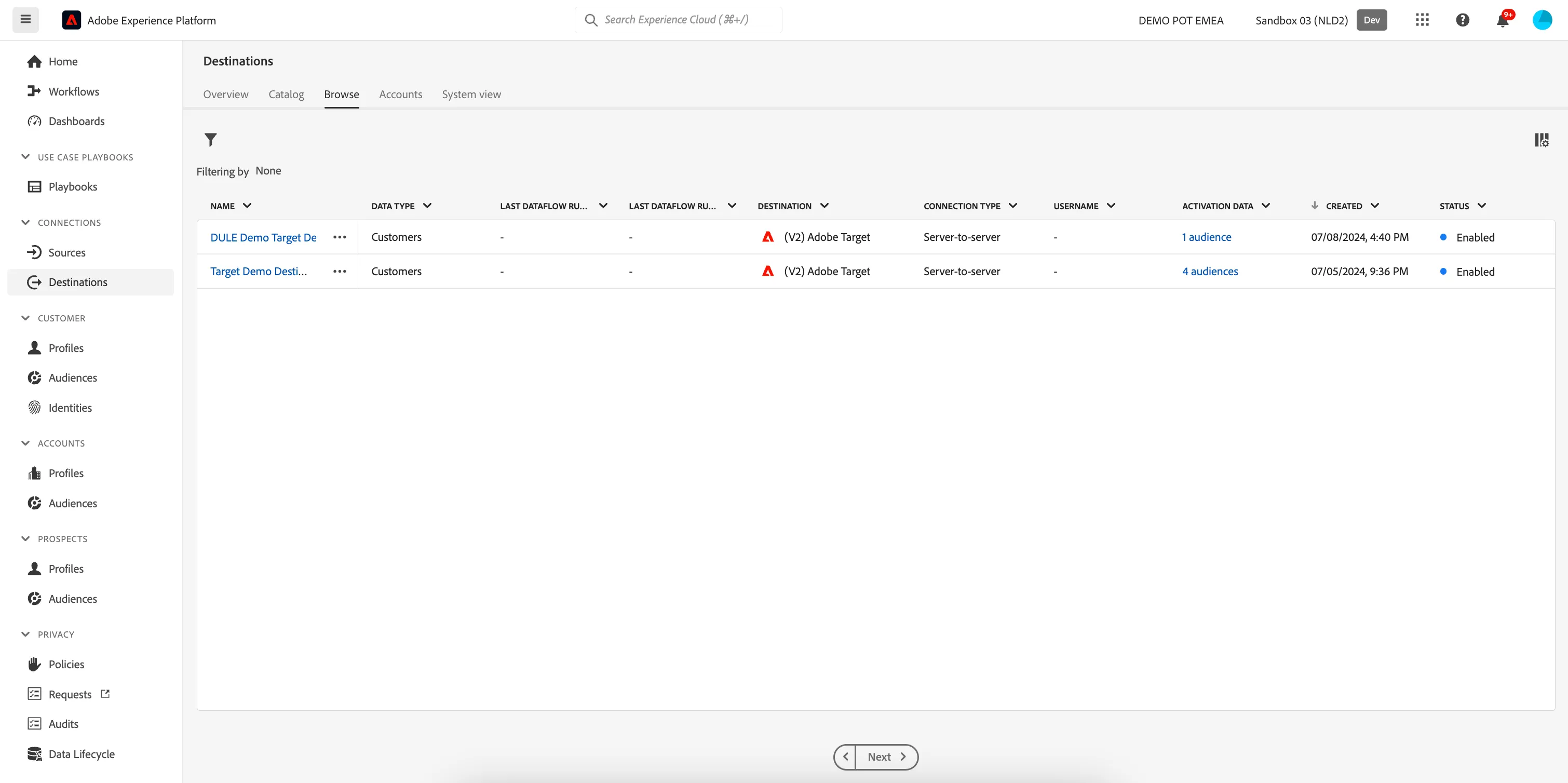
- Click on Destinations to see the list of already configured destinations;
- click on Browse;
- click on DULE Demo Target Destination - Mobile App.
The right hand menu shows information about the destination, including the marketing action Onsite Personalisation. The destination is correctly configured.
#2 - Data Usage Labels
Data usage labels allow you to categorize datasets and fields according to governance policies that apply to that data. Labels can be applied at any time, providing flexibility in how you choose to govern data.
For the current use case, we need a label to identify fields that "cannot be used for on-site personalisation".
- Click on Policies on the left rail menu;
- click on the Labels button to access the list of labels that have already been defined;
- in the list we find C7, which already meets our needs.
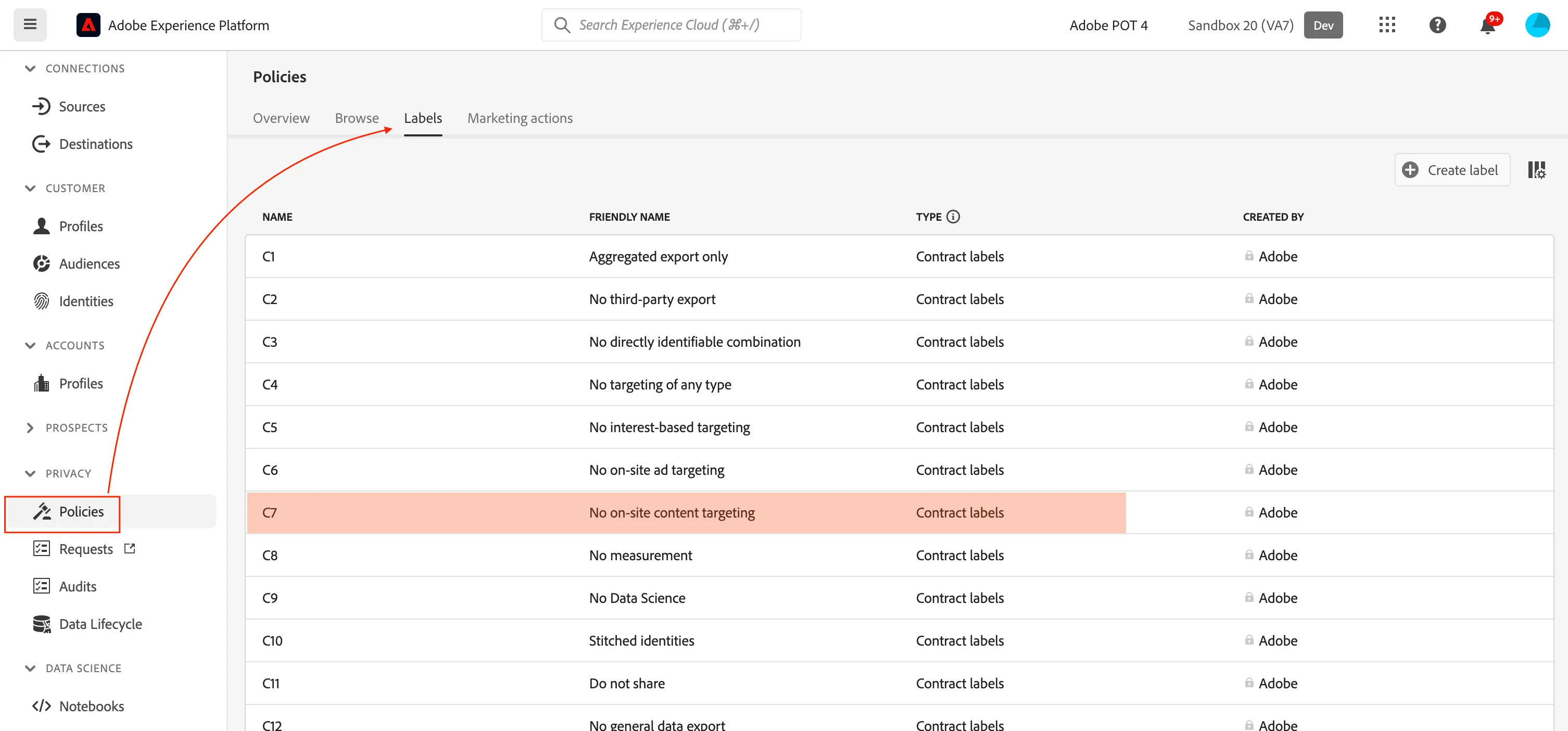
AEP already includes a number of labels covering keyuse cases. However, it is also possible to create custom labels for specific needs.
#3 - Policies
The next step is to create a policy that automatically blocks anyone who tries to activate a segment with fields marked C7 on a destination with the Onsite Personalisation marketing action.
- Click Browse to access the list of policies already defined.
- At the bottom of the list is a policy called Restrict Onsite Personalisation, which blocks any segment containing attributes labelled C4 and C7.
- The policy status column shows that the policy is already active.
There is no need for further action.
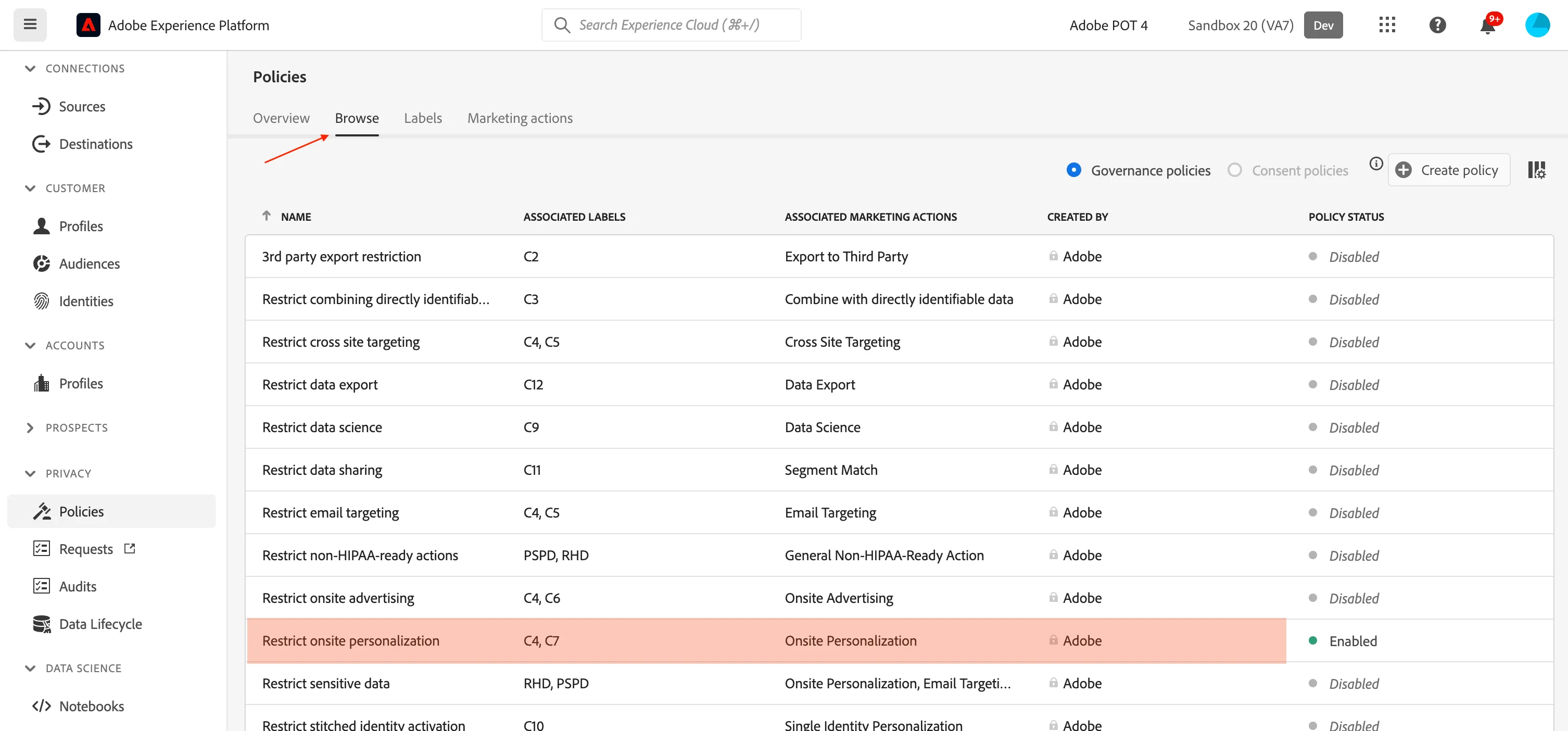
AEP already includes a number of policies covering key use cases. However, it is also possible to create custom policies for specific needs.
#4 - Apply label
The last step is to apply the label C7 to the field called age.
The field is already associated to the right label. Follow the next steps to understand how to do it, but don't click Save at the end of the process.
- Click on Schemas on the left rail menu;
- click on the Apply Access and Data Governance Labels button on the top right of the window;
- in the search field type "crm" to search the schema that contains the age field;
- select Demo System - Profile Schema for CRM (Global v1.1);
- click Next on the top right corner of the window.

Now you can see the list of all the fields of the schema.
- In the search field type "age";
- select the Age field;
- click on the Apply access and data governance labels button on the right menu;
In the pop-up you can see the list of all the labels available. Scroll down to find C7
In this case it already selected, in order to avoid concurrences issue, since all the participants are working on the same instance and same field.
- Click on Cancel.
Now the Age field is marked with the C7 label.
Each field belongs to a fieldgroup; as the fieldgroup is shared by several schemas, once the label is applied it will be reflected in all schemas. That's the power of XDM.
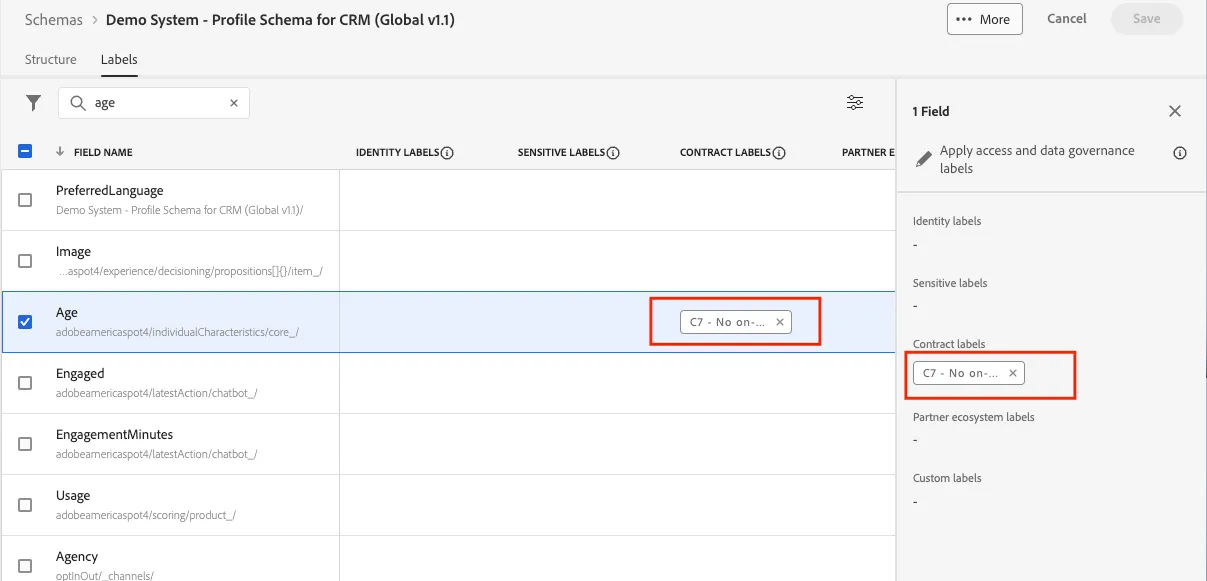
The configuration is complete. As the data steward, you can now rest assured that the Age field will not be used for on-site personalisation.