Introduction
9 min
Login
For the Day 1, please follow the steps:
- go to Adobe Experience Cloud.
- Input your email address (the one where you are assigned with).
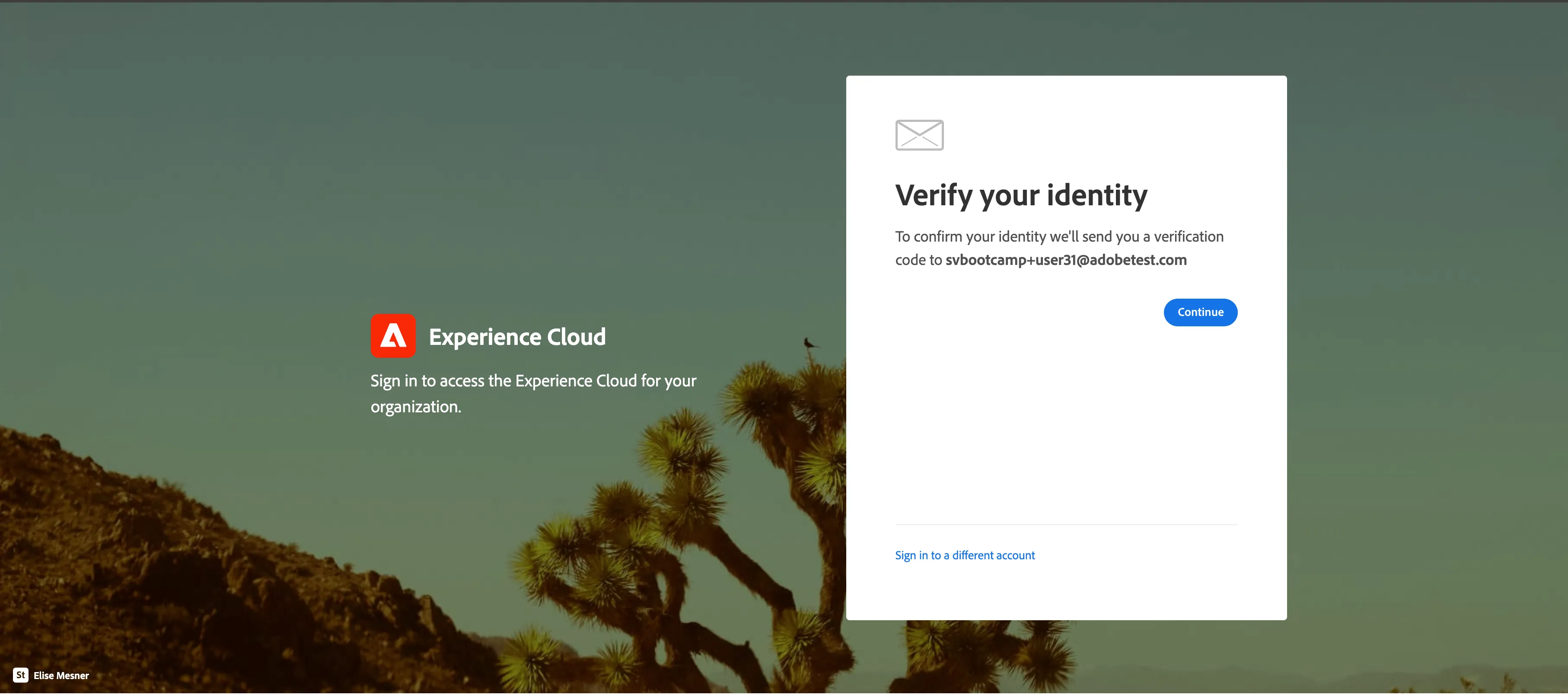
- Then you're asked to "Verify your identity", click Continue.
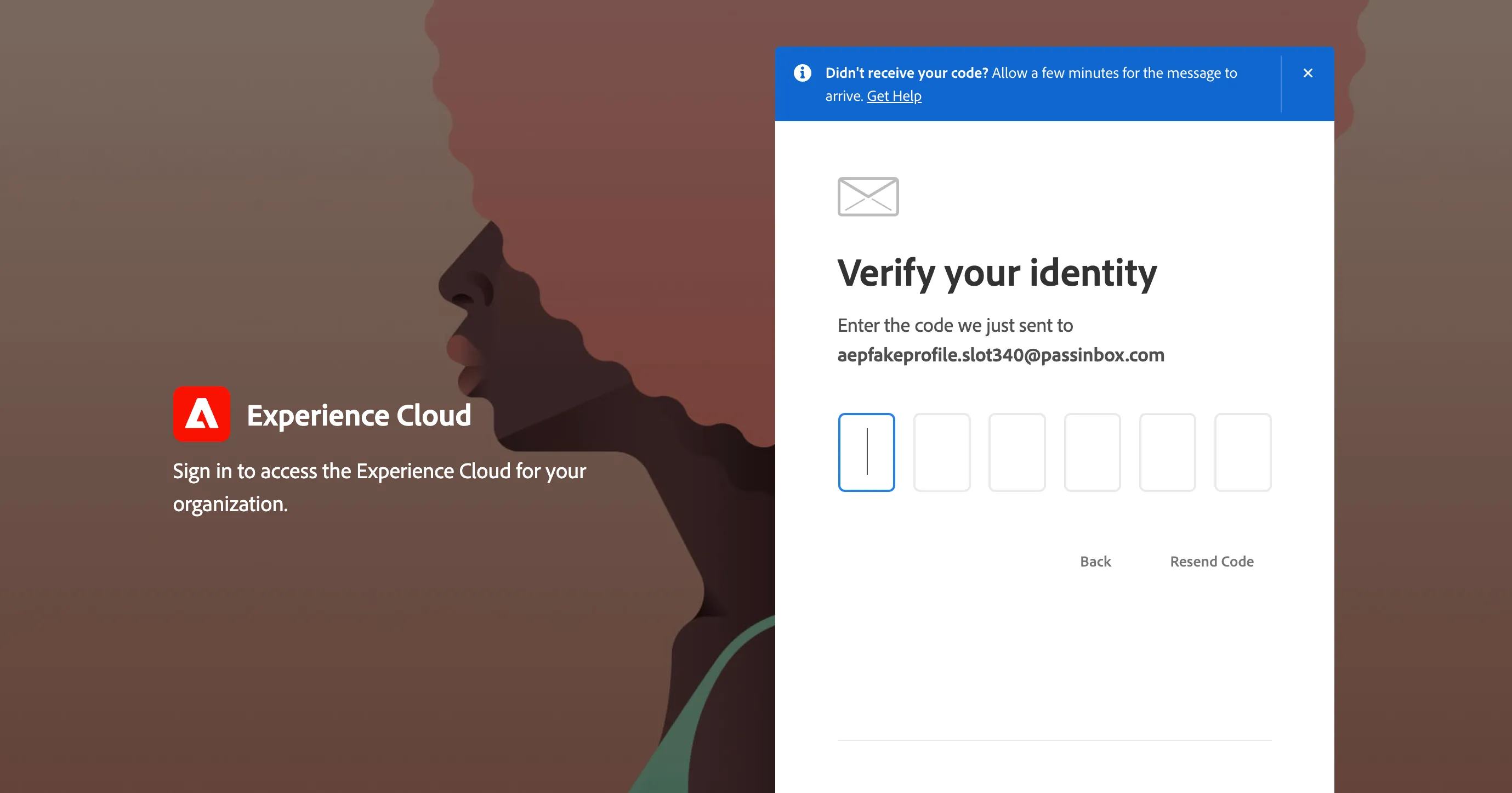
- Your Adobe expert on the table will get the OTP code.
- Get the code from the Adobe expert and paste it into the box.
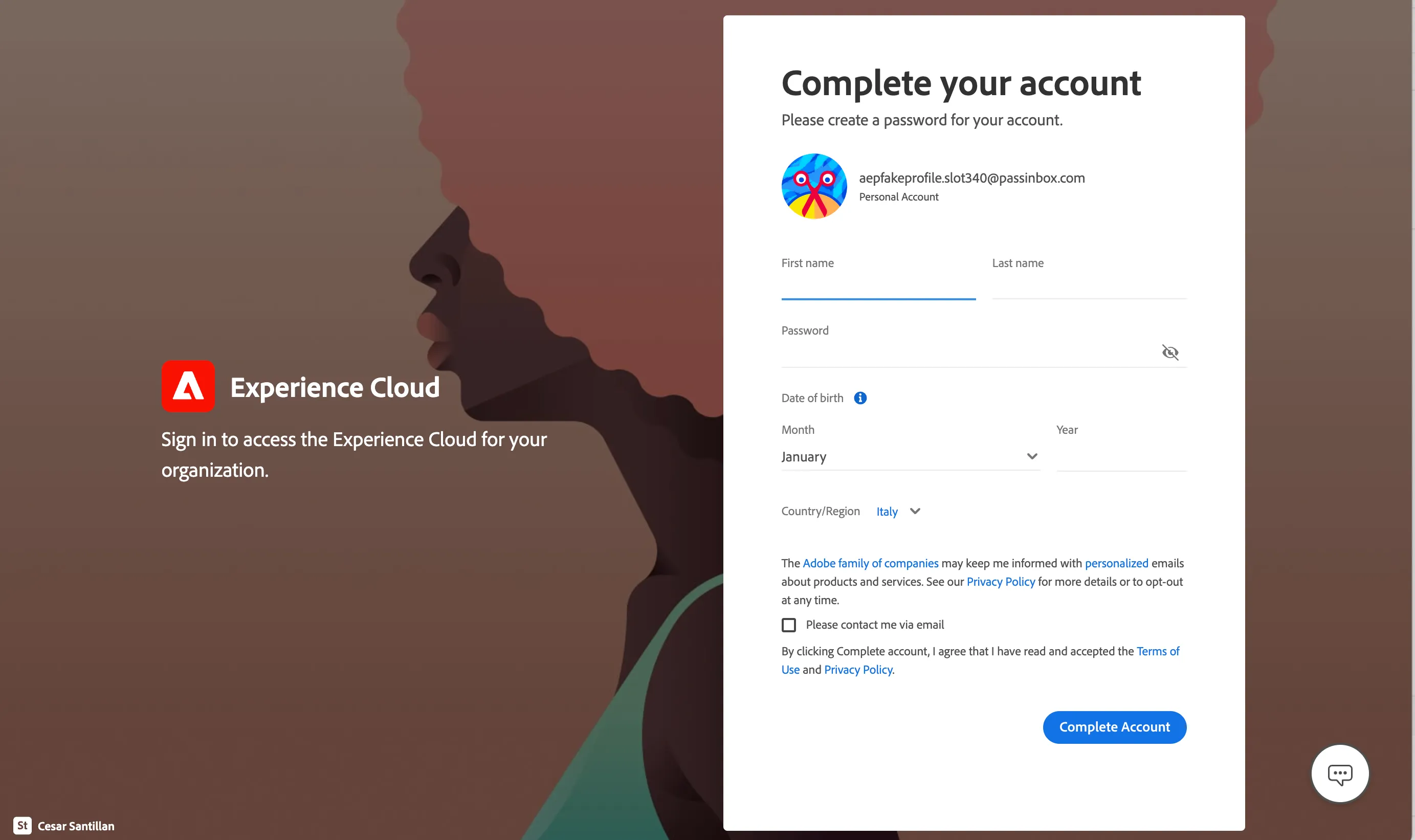
- Fill the form with your information, then click Complete account.
- You'll be prompted to submit your preferences for the privacy. Click Ask me later.
Navigating to Adobe Firefly
- Go to Adobe Firefly.
- You will be automatically redirected to Firefly home if already logged in.
- If not, input your assigned email address and click Continue.
- Enter the password and click Submit to log into workfront.
Navigating to Adobe Express
- Go to Adobe Express.
- You will be automatically redirected to Express home if already logged in.
- If not, input your assigned email address and click Continue.
- Enter the password and click Submit to log into workfront.
Navigating to Adobe Workfront
- Go to Adobe Workfront.
- You will be automatically redirected to workfront home if already logged in.
- If not, input your assigned email address and click Continue.
- Enter the password and click Submit to log into workfront.
Navigating to Adobe Experience Manager
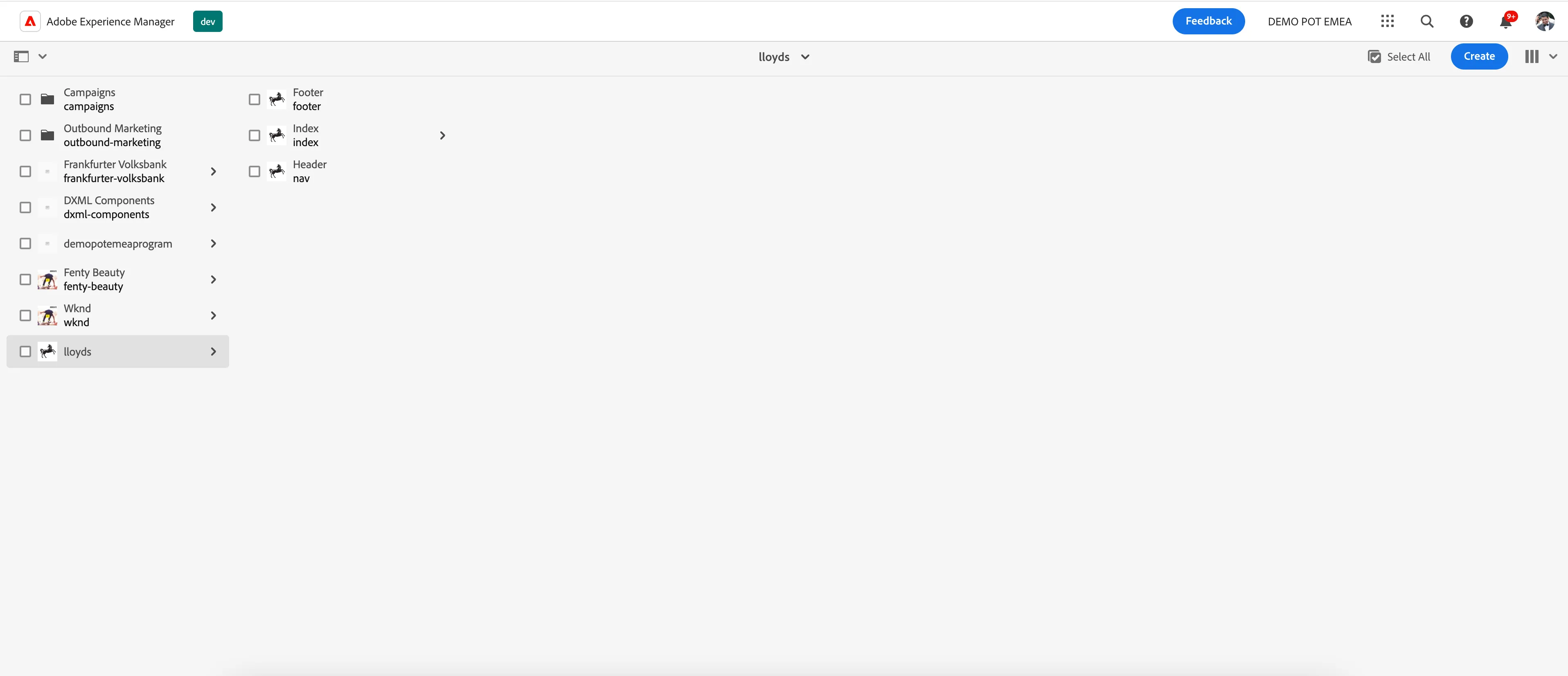
- go to Adobe Experience Manager.
- You will be automatically redirected to workfront home if already logged in.
- If not, input your assigned email address and click Continue.
- Enter the password and click Submit to log into workfront.
Navigating to Adobe Experience Platform
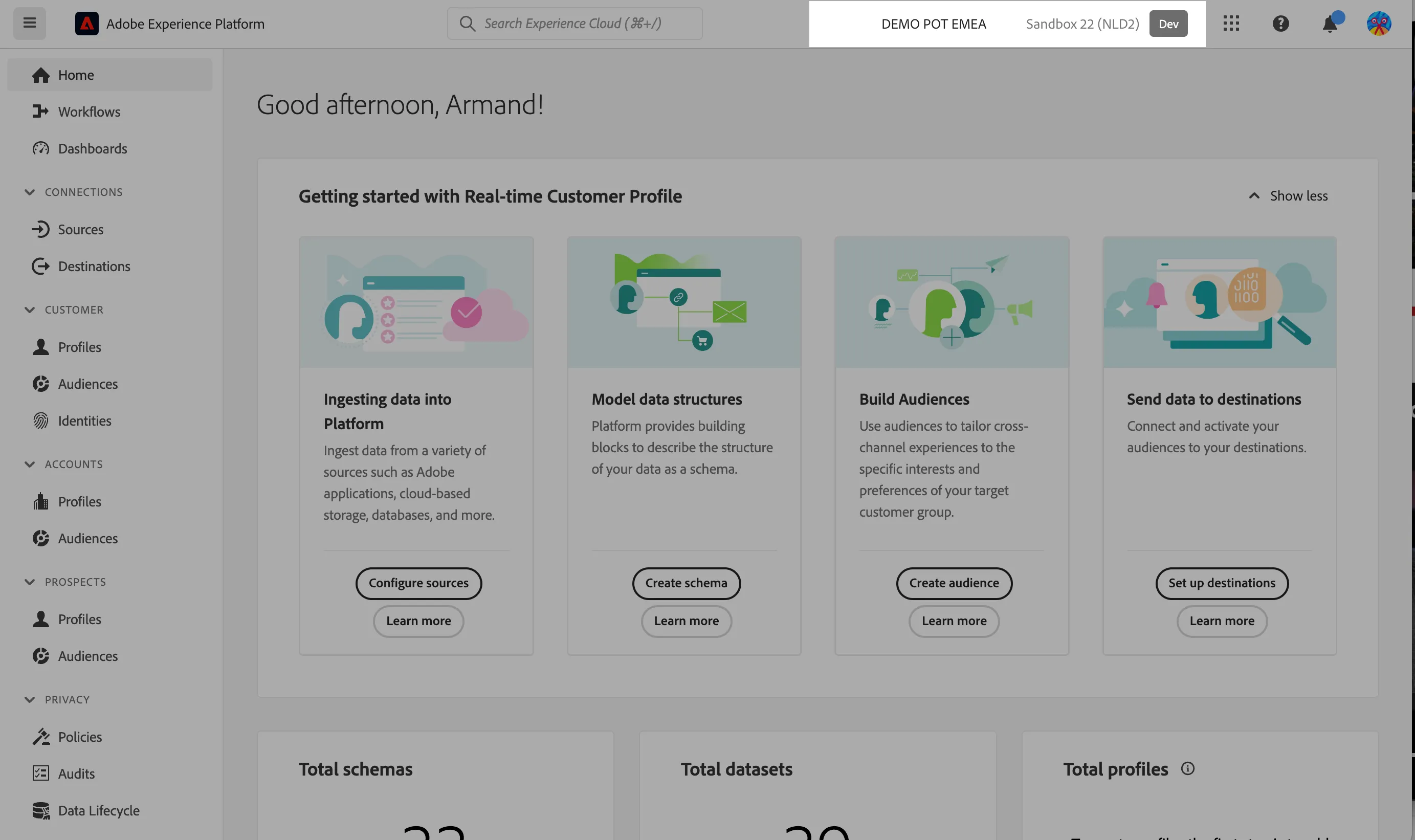
Click on the nine-dots icon on the top right corner, and click on Experience Platform.
Ensure you are in the right sandbox. On the top right you should see:
- DEMO POT EMEA, indicating the organisation.
- Sandbox 03 (NLD2) indicating the sandbox.
Navigating to Adobe Journey Optimizer
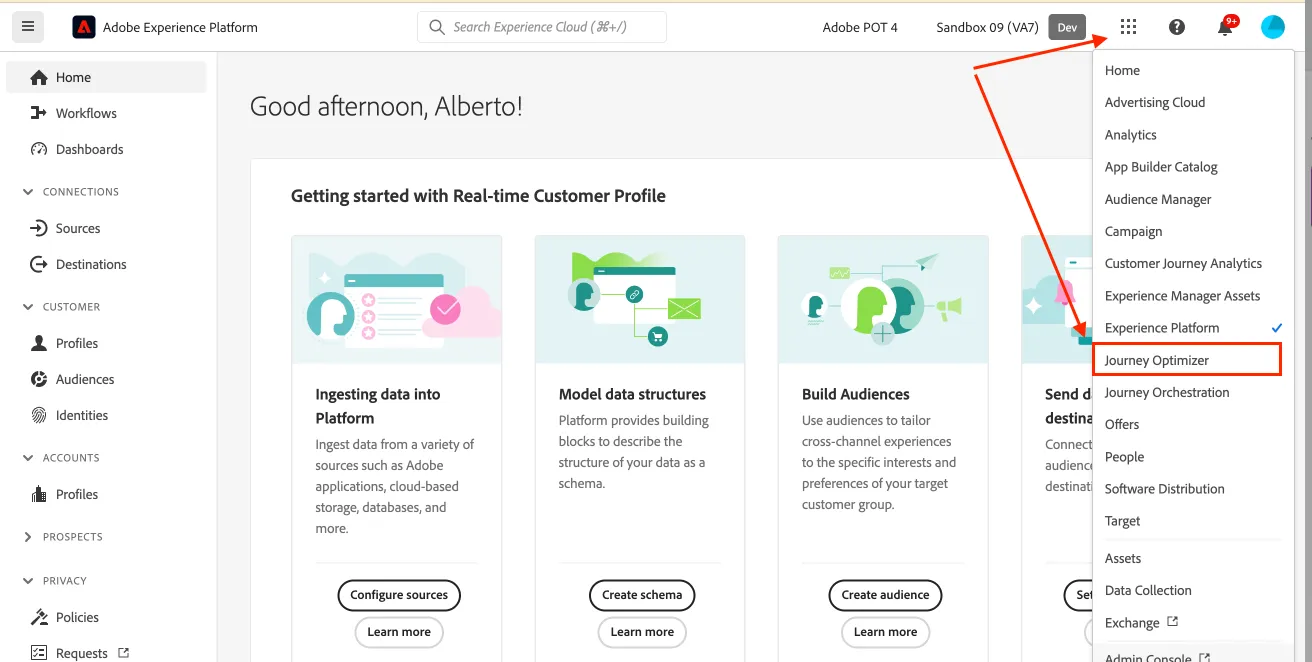
Click on the nine-dots icon in the top right and select Journey Optimizer in the dropdown list.
Navigating to Customer Journey Analytics
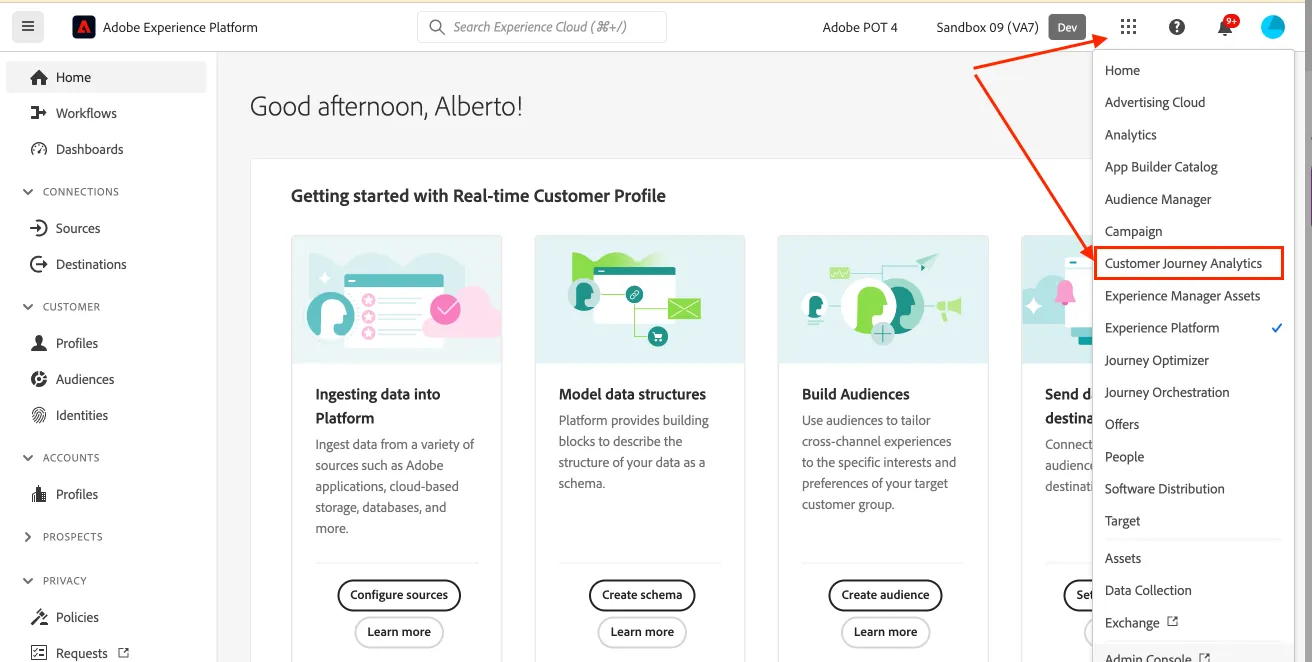
Click on the nine-dots icon in the top right and select Customer Journey Analytics in the dropdown list.
Set language preferences
This guide is written in English and the screenshot are taken from a UI set for English language. If your UI is set to use other language, it can be difficult to recognise buttons, labels and text. We suggest you to switch your Adobe account preferred language to English.
To change the preferences:
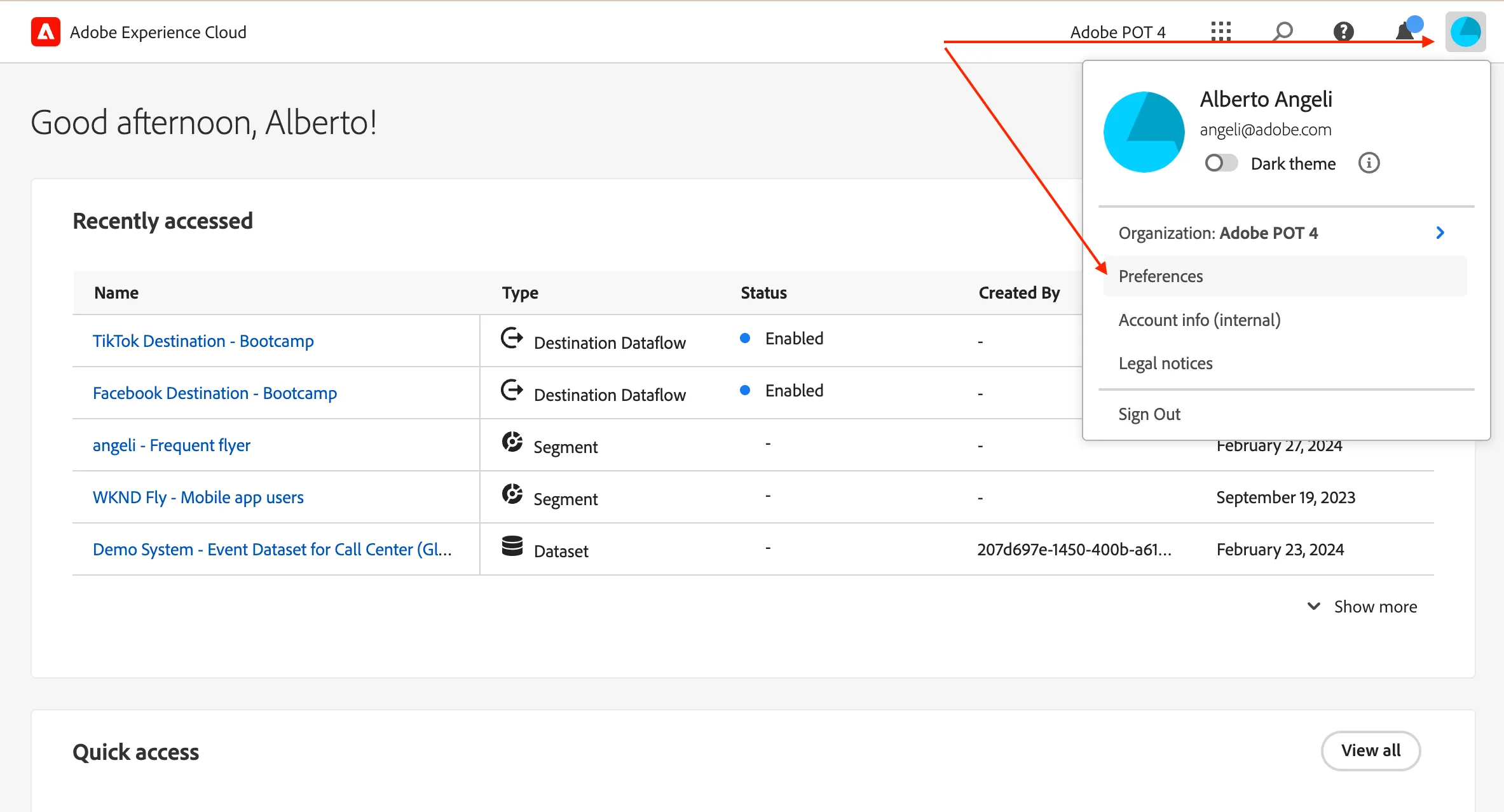
- click on the profile icon on the top right corner;
- click on Preferences.
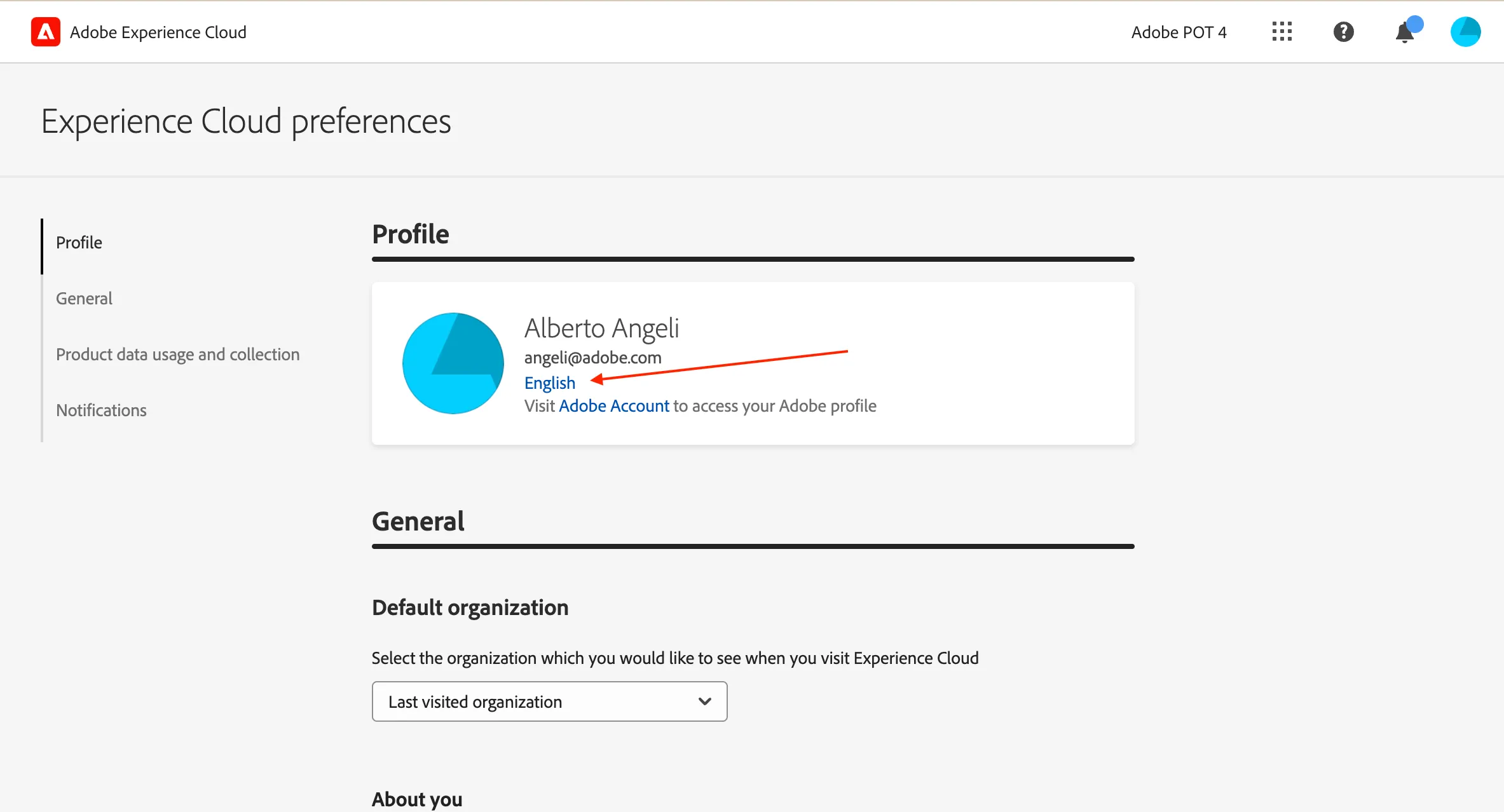
- Click on the language label just below your name.
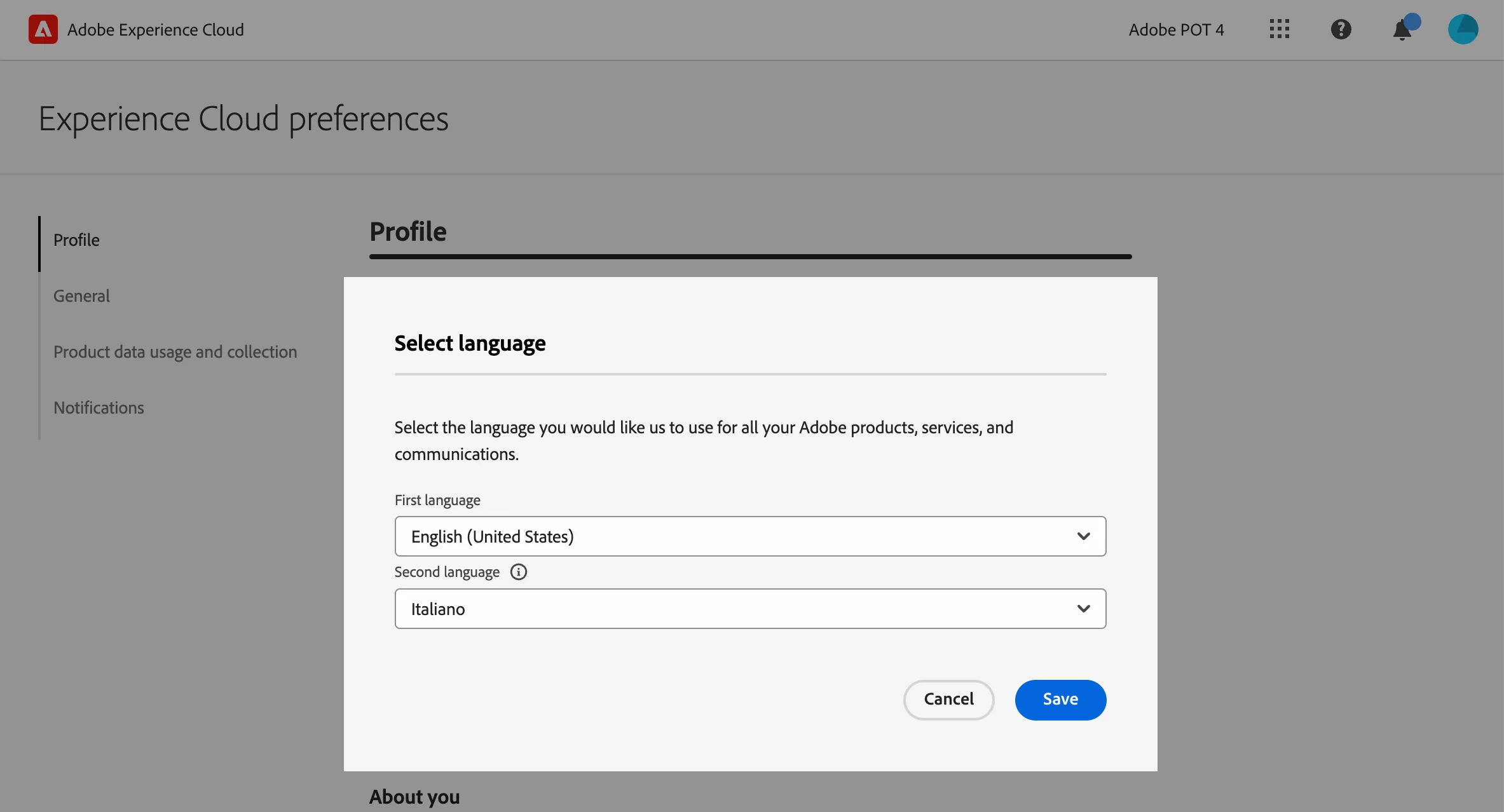
- Select English (United States) as First language;
- select your preferred language as Second language;
- click Save.